> For the complete documentation index, see [llms.txt](https://developer.harness.io/llms.txt). Markdown versions of documentation pages are available by appending `.md` to page URLs; this page is available as [Markdown](https://developer.harness.io/continuous-integration/use-harness-ci/use-harness-ci/run-tests/tests-v1/ti-for-java-kotlin-scala.md).

# Use Run Tests step for Java, Kotlin, or Scala

{% hint style="warning" %}
This page contains instructions for using Test Intelligence (v1) with the **Run Tests** step.

While **Run Tests** step remains backwards compatible, Harness recommends using the newer [**Test** ](/continuous-integration/use-harness-ci/use-harness-ci/run-tests/tests-v2.md)step (Test Intelligence v2) for simplified user experience.
{% endhint %}

### Enable TI for Java, Kotlin, or Scala <a href="#enable-ti-for-java-kotlin-or-scala" id="enable-ti-for-java-kotlin-or-scala"></a>

{% hint style="info" %}
Test Intelligence requires that the code is cloned into the default workspace directory, `/harness/`. If the code is placed elsewhere, Test Intelligence will not function correctly.
{% endhint %}

You can enable TI for Java, Kotlin, or Scala in three steps:

1. [Add a **Run Tests** step](#add-the-run-tests-step). For Java consider using the new [**Test**](/continuous-integration/use-harness-ci/use-harness-ci/run-tests/tests-v2.md) step instead.
2. [Trigger test selection.](#trigger-test-selection)
3. [(Optional) Add test splitting.](#add-test-splitting)

#### Add the Run Tests step <a href="#add-the-run-tests-step" id="add-the-run-tests-step"></a>

Add the **Run Tests** step to the [Build stage](/continuous-integration/use-harness-ci/use-harness-ci/set-up-build-infrastructure/ci-stage-settings.md) in a [CI pipeline](/continuous-integration/use-harness-ci/use-harness-ci/prep-ci-pipeline-components.md).

You must select **Run only selected tests** (`runOnlySelectedTests: true`) to enable Test Intelligence. For information about each setting, go to [Run Tests step settings](#run-tests-step-settings).

```yaml
- step:
    type: RunTests
    name: Run Tests
    identifier: Run_Tests
    spec:
      connectorRef: YOUR_IMAGE_REGISTRY_CONNECTOR
      image: maven:3.8-jdk-11 ## Specify if required by your build infrastructure.
      language: Java ## Specify Java, Kotlin, or Scala.
      buildTool: Maven ## Specify your build tool.
      args: test
      packages: io.harness.
      runOnlySelectedTests: true ## Must be 'true' to enable TI.
      postCommand: mvn package -DskipTests
      reports: ## Reports must be in JUnit XML format.
        type: JUnit
        spec:
          paths:
            - "target/reports/*.xml"
```

For additional YAML examples, go to [Pipeline YAML examples](#pipeline-yaml-examples)

**Additional configuration needed when using Kotlin with Gradle**

If you are using Test Intelligence for Kotlin and building using Gradle, add the below section to the build.gradle.kts file under the 'allprojects' section.

```yaml
tasks.withType<Test> {
val harnessJavaAgent = System.getProperty("HARNESS_JAVA_AGENT")
if (harnessJavaAgent != null) {
jvmArgs(harnessJavaAgent)
}
}

gradle.projectsEvaluated {
tasks.withType<Test> {
filter {
isFailOnNoMatchingTests = false
}
}
}
```

#### Trigger test selection <a href="#trigger-test-selection" id="trigger-test-selection"></a>

After adding the **Run Tests** step, trigger test selection. **You need to run your pipeline twice to trigger test selection.**

<details>

<summary>Trigger test selection with a webhook trigger (Recommended)</summary>

1. If your pipeline doesn't already have one, [add a webhook trigger](/harness-ai/use-harness-platform/triggers/triggering-pipelines.md) that listens for **Pull Request** or **Push** events in your [codebase](/continuous-integration/use-harness-ci/use-harness-ci/codebase-configuration/create-and-configure-a-codebase.md).
2. Activate the trigger by opening a PR or pushing changes to your codebase, and then wait while the build runs. You can monitor the build's progress on the [Build details page](/continuous-integration/use-harness-ci/use-harness-ci/viewing-builds.md).

   If you created a PR, merge the PR after the build runs.
3. To trigger test selection, activate the trigger again (by opening a PR or pushing changes to your codebase).

   The first run with TI *doesn't* apply test selection, because Harness must establish a baseline for comparison in future runs. After establishing a baseline, each time this pipeline runs, Harness can select relevant tests to run based on the content of the code changes.
4. Wait while the build runs, and then [review the test results and test selection](/continuous-integration/use-harness-ci/use-harness-ci/run-tests/viewing-tests.md). If you created a PR, merge the PR after the build runs.

</details>

<details>

<summary>Trigger test selection with a manual build</summary>

1. Open a PR or push changes to your pipeline's [codebase](/continuous-integration/use-harness-ci/use-harness-ci/codebase-configuration/create-and-configure-a-codebase.md), and then run your pipeline.

   If you opened a PR, select **Git Pull Request** for **Build Type**, and enter the PR number.

   If you pushed changes, select **Git Branch** for **Build Type**, and then enter the branch name.
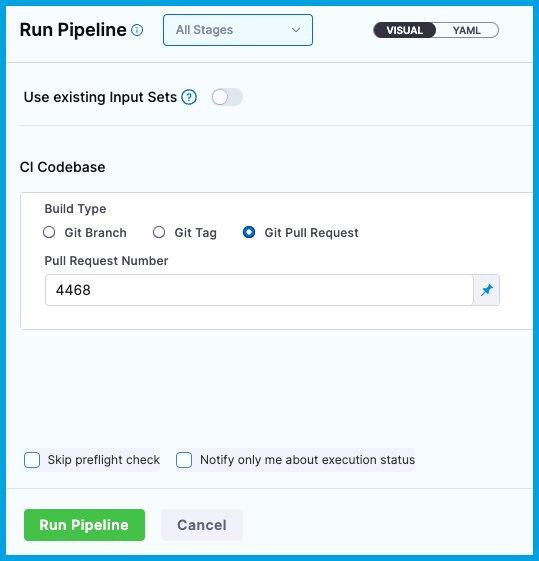
   <figure><img src="/files/hkNrFFI1CB46qGvSNmmC" alt=""><figcaption></figcaption></figure>
2. Wait while the build runs. You can monitor the build's progress on the [Build details page](/continuous-integration/use-harness-ci/use-harness-ci/viewing-builds.md).

   If you created a PR, merge the PR after the build runs.
3. To trigger test selection, open a new PR (or push changes) to your codebase, and then run your pipeline again.

   The first run with TI *doesn't* apply test selection, because Harness must establish a baseline for comparison in future runs. After establishing a baseline, each time this pipeline runs, Harness can select relevant tests to run based on the content of the code changes.
4. Wait while the build runs, and then [review the test results and test selection](/continuous-integration/use-harness-ci/use-harness-ci/run-tests/viewing-tests.md). If you created a PR, merge the PR after the build runs.

</details>

{% hint style="info" %}
**WHY DO I HAVE TO RUN THE PIPELINE TWICE?**

The first time you run a pipeline after adding the Run Test step, Harness creates a baseline for test selection in future builds. Test selection *isn't* applied to this run because Harness has no baseline against which to compare changes and select tests. You'll start seeing test selection and time savings on the second run after adding the Run Tests step.
{% endhint %}

#### Add test splitting <a href="#add-test-splitting" id="add-test-splitting"></a>

Once you start saving time with test selection, you can further optimize test times by [enabling parallelism (test splitting) for TI](/continuous-integration/use-harness-ci/use-harness-ci/run-tests/tests-v1/ti-test-splitting.md).

You can also configure TI to [ignore tests or files](/continuous-integration/use-harness-ci/use-harness-ci/run-tests/ti-overview.md#ignore-tests-or-files).

### Pipeline YAML examples <a href="#pipeline-yaml-examples" id="pipeline-yaml-examples"></a>

{% tabs %}
{% tab title="Harness Cloud" %}
This example shows a pipeline that uses Harness Cloud build infrastructure and runs tests on Java with Maven and Test Intelligence. By changing the `language` value, you can use this pipeline for Kotlin or Scala.

```yaml
pipeline:
  name: Test Intelligence Demo
  identifier: testintelligencedemo
  projectIdentifier: default
  orgIdentifier: default
  properties:
    ci:
      codebase:
        build: <+input>
        connectorRef: YOUR_CODEBASE_CONNECTOR_ID
  stages:
    - stage:
        type: CI
        identifier: Build_and_Test
        name: Build and Test
        spec:
          cloneCodebase: true
          execution:
            steps:
              - step:
                  type: RunTests
                  name: Run Tests
                  identifier: Run_Tests
                  spec:
                    language: Java ## Specify Java, Kotlin, or Scala.
                    buildTool: Maven ## For Java or Kotlin, specify Bazel, Maven, or Gradle. For Scala, specify Bazel, Maven, Gradle, or Sbt.
                    args: test
                    packages: io.harness.
                    runOnlySelectedTests: true ## Must be 'true' to enable TI.
                    postCommand: mvn package -DskipTests
                    reports: ## Reports must be in JUnit XML format.
                      type: JUnit
                      spec:
                        paths:
                          - "target/reports/*.xml"
          platform:
            arch: Amd64
            os: Linux
          runtime:
            spec: {}
            type: Cloud
```

{% endtab %}

{% tab title="Self-managed" %}
This example shows a pipeline that uses a Kubernetes cluster build infrastructure and runs tests on Java with Maven and Test Intelligence. By changing the `language` value, you can use this pipeline for Kotlin or Scala.

```yaml
pipeline:
  name: Test Intelligence Demo
  identifier: testintelligencedemo
  projectIdentifier: default
  orgIdentifier: default
  properties:
    ci:
      codebase:
        build: <+input>
        connectorRef: YOUR_CODEBASE_CONNECTOR_ID
  stages:
    - stage:
        type: CI
        identifier: Build_and_Test
        name: Build and Test
        spec:
          cloneCodebase: true
          execution:
            steps:
              - step:
                  type: RunTests
                  name: Run Tests
                  identifier: Run_Tests
                  spec:
                    connectorRef: YOUR_IMAGE_REGISTRY_CONNECTOR
                    image: maven:3.8-jdk-11 ## Specify if required by your build infrastructure.
                    language: Java ## Specify Java, Kotlin, or Scala.
                    buildTool: Maven ## For Java or Kotlin, specify Bazel, Maven, or Gradle. For Scala, specify Bazel, Maven, Gradle, or Sbt.
                    args: test
                    packages: io.harness.
                    runOnlySelectedTests: true ## Must be 'true' to enable TI.
                    postCommand: mvn package -DskipTests
                    reports: ## Reports must be in JUnit XML format.
                      type: JUnit
                      spec:
                        paths:
                          - "target/reports/*.xml"
          infrastructure:
            type: KubernetesDirect
            spec:
              connectorRef: YOUR_KUBERNETES_CLUSTER_CONNECTOR_ID
              namespace: YOUR_KUBERNETES_NAMESPACE
              automountServiceAccountToken: true
              nodeSelector: {}
              os: Linux
```

{% endtab %}
{% endtabs %}

### Run Tests step settings <a href="#run-tests-step-settings" id="run-tests-step-settings"></a>

The following information explains how to configure most settings for the **Run Tests** step. You might not need all settings for all scenarios; some settings are optional, and some settings are only available for specific languages, build tools, or build infrastructures.

#### Container Registry and Image <a href="#container-registry-and-image" id="container-registry-and-image"></a>

The build environment must have the necessary binaries for the **Run Tests** step to execute your test commands. Depending on the stage's build infrastructure, **Run Tests** steps can use binaries that exist in the build environment, or use **Container Registry** and **Image** to pull an image, such as a public or private Docker image, that contains the required binaries. You can also install tools at runtime in [Pre-Command](#pre-command-post-command-and-shell), provided the build machine or image can execute the necessary commands, such as `curl` commands to download files.

The stage's build infrastructure determines whether these fields are required or optional:

* [Kubernetes cluster build infrastructure](/continuous-integration/use-harness-ci/use-harness-ci/set-up-build-infrastructure/k8s-build-infrastructure/set-up-a-kubernetes-cluster-build-infrastructure.md): **Container Registry** and **Image** are always required.
* [Local runner build infrastructure](/continuous-integration/use-harness-ci/use-harness-ci/set-up-build-infrastructure/define-a-docker-build-infrastructure.md): **Run Tests** steps can use binaries available on the host machine. The **Container Registry** and **Image** are required if the machine doesn't have the binaries you need.
* [Self-managed AWS/GCP/Azure VM build infrastructure](/continuous-integration/use-harness-ci/use-harness-ci/set-up-build-infrastructure/vm-build-infrastructure.md): **Run Tests** steps can use binaries that you've made available on your build VMs. The **Container Registry** and **Image** are required if the VM doesn't have the necessary binaries. These fields are located under **Additional Configuration** for stages that use self-managed VM build infrastructure.
* [Harness Cloud build infrastructure](/continuous-integration/use-harness-ci/use-harness-ci/set-up-build-infrastructure/use-harness-cloud-build-infrastructure.md): **Run Tests** steps can use binaries available on Harness Cloud machines, as described in the [image specifications](/continuous-integration/use-harness-ci/use-harness-ci/set-up-build-infrastructure/use-harness-cloud-build-infrastructure.md#platforms-and-image-specifications). The **Container Registry** and **Image** are required if the machine doesn't have the binaries you need. These fields are located under **Additional Configuration** for stages that use Harness Cloud build infrastructure.

**What are the expected values for Container Registry and Image**

For **Container Registry** settings, provide a Harness container registry connector, such as a [Docker connector](/harness-ai/use-harness-platform/connectors/cloud-providers/ref-cloud-providers/docker-registry-connector-settings-reference.md), that connects to a container registry, such as Docker Hub, where the **Image** is located.

For **Image**, provide the FQN (fully-qualified name) or artifact name and tag of the Docker image to use when this step runs commands, for example `us-docker.pkg.dev/gar-prod-setup/harness-public/harness/cache:latest` or `maven:3.8-jdk-11`. If you don't include a tag, Harness uses the `latest` tag. Depending on the connector and feature flags set, **an FQN may be required**.

You can use any Docker image from any Docker registry, including Docker images from private registries. Different container registries require different name formats, for example:

* **Docker Registry:** Input the name of the artifact you want to deploy, such as `library/tomcat`. Wildcards aren't supported. FQN is required for images in private container registries.
* **ECR:** Input the FQN of the artifact you want to deploy. Images in repos must reference a path, for example: `40000005317.dkr.ecr.us-east-1.amazonaws.com/todolist:0.2`.
* **GAR:** Input the FQN of the artifact you want to deploy. Images in repos must reference a path starting with the project ID that the artifact is in, for example: `us-docker.pkg.dev/gar-prod-setup/harness-public/harness/cache:latest`.

  ![](/files/4FjVmQ1ON3P0SkERetr7)

  Configuring a Container Registry and Image settings.

{% hint style="info" %}
**REMOVE FQN REQUIREMENT**

Customers who want to utilize non-FQN references for non public Docker-registry connectors will need to contact Harness Support to add the feature flags, `CI_REMOVE_FQN_DEPENDENCY_FOR_PRIVATE_REGISTRY_CONNECTOR_DOCKER` and `CI_REMOVE_FQN_DEPENDENCY`.
{% endhint %}

**Pulling images from JFrog Artifactory Docker registries**

If you need to pull images from a JFrog Artifactory Docker registry, create a Docker connector that connects to your JFrog instance. **Don't use the Harness Artifactory connector** - The Artifactory connector only supports JFrog non-Docker registries.

To create a Docker connector for a JFrog Docker registry:

1. Go to **Connectors** in your Harness project, organization, or account resources, and select **New Connector**.
2. Select **Docker Registry** under **Artifact Repositories**.
3. Enter a **Name** for the connector. The **Description** and **Tags** are optional.
4. For **Provider Type**, Select **Other**.
5. In **Docker Registry URL**, enter your JFrog URL, such as `https://mycompany.jfrog.io`.
6. In the **Authentication** settings, you must use **Username and Password** authentication.
   * **Username:** Enter your JFrog username.
   * **Password:** Select or create a [Harness text secret](/harness-ai/use-harness-platform/secrets/add-use-text-secrets.md) containing the password corresponding with the **Username**.
7. Complete any other settings and save the connector. For information all Docker Registry connector settings, go to the [Docker connector settings reference](/harness-ai/use-harness-platform/connectors/cloud-providers/ref-cloud-providers/docker-registry-connector-settings-reference.md).

One completed, please remember to use the FQN location of the image unless you have set the [appropriate feature flags as listed above](#what-are-the-expected-values-for-container-registry-and-image)

{% hint style="info" %}
**JFROG URLS**

The JFrog URL format depends on your Artifactory configuration, and whether your Artifactory instance is local, virtual, remote, or behind a proxy. To get your JFrog URL, you can select your repo in your JFrog instance, select **Set Me Up**, and get the repository URL from the server name in the `docker-login` command. ![](/files/PdC0TfgUepAarn0Oaqki)

For more information, go to the JFrog documentation on [Repository Management](https://www.jfrog.com/confluence/display/JFROG/Repository+Management) and [Configuring Docker Repositories](https://www.jfrog.com/confluence/display/RTF/Docker+Registry#DockerRegistry-ConfiguringDockerRepositories).
{% endhint %}

<details>

<summary>Bazel container images</summary>

If your [build tool](#build-tool) is Bazel, and you use a Bazel container image to provide the Bazel binary to the **Run Tests** step, your build will fail if Bazel isn't already installed in your build infrastructure. This is because the **Run Tests** step calls `bazel query` before pulling the container image.

Bazel is already installed on Harness Cloud runners. For other build infrastructures, you must manually confirm that Bazel is already installed. If Bazel isn't already installed on your build infrastructure, you need to install Bazel in a [**Run** step](/continuous-integration/use-harness-ci/use-harness-ci/run-step-settings.md) prior to the **Run Tests** step.

</details>

#### Language <a href="#language" id="language"></a>

Select the source code language to build: **Java**, **Kotlin**, or **Scala**.

#### Build Tool <a href="#build-tool" id="build-tool"></a>

Select the build automation tool: [Bazel](https://bazel.build/), [Maven](https://maven.apache.org/), [Gradle](https://gradle.org/), or [Sbt](https://www.scala-sbt.org/) (Scala only).

<details>

<summary>Bazel container images</summary>

If your build tool is Bazel, and you use a [container image](#container-registry-and-image) to provide the Bazel binary to the **Run Tests** step, your build will fail if Bazel isn't already installed in your build infrastructure. This is because the **Run Tests** step calls `bazel query` before pulling the container image.

Bazel is already installed on Harness Cloud runners. For other build infrastructures, you must manually confirm that Bazel is already installed. If Bazel isn't already installed on your build infrastructure, you need to install Bazel in a [**Run** step](/continuous-integration/use-harness-ci/use-harness-ci/run-step-settings.md) prior to the **Run Tests** step.

</details>

<details>

<summary>Java Maven argLine setup</summary>

If you use Maven with Java and your `pom.xml` contains `<argLine>` *or* you attach Jacoco or any agent while running unit tests, then you must modify your `pom.xml` to include `<harnessArgLine>` in the `<properties>` and the Maven plugin `<configuration>`. For example:

```xml

<properties>
        <harnessArgLine></harnessArgLine>
</properties>

...


<plugin>
      <groupId>org.apache.maven.plugins</groupId>
      <artifactId>maven-surefire-plugin</artifactId>
      <version>2.22.2</version>
      <configuration>
          <argLine>${harnessArgLine}  @{argLine}  </argLine>
      </configuration>
</plugin>
```

</details>

<details>

<summary>Java Gradle compatibility</summary>

If you use Java with Gradle, Test Intelligence assumes `./gradlew` is present in the root of your project. If not, TI falls back to the Gradle tool to run the tests. As long as your Gradle version has test filtering support, it is compatible with Test Intelligence.

Add the following to your `build.gradle` to make it compatible with Test Intelligence:

```
// This adds HARNESS_JAVA_AGENT to the testing command if it's
// provided through the command line.
// Local builds will still remain same as it only adds if the
// parameter is provided.
tasks.withType(Test) {
  if(System.getProperty("HARNESS_JAVA_AGENT")) {
    jvmArgs += [System.getProperty("HARNESS_JAVA_AGENT")]
  }
}

// This makes sure that any test tasks for subprojects don't
// fail in case the test filter does not match.
gradle.projectsEvaluated {
        tasks.withType(Test) {
            filter {
                setFailOnNoMatchingTests(false)
            }
        }
}
```
</details>

#### Build Arguments <a href="#build-arguments" id="build-arguments"></a>

This setting is required for Java, Kotlin, and Scala.

Enter commands to use as input or runtime arguments for the build tool. You don't need to repeat the build tool, such as `maven`, this is declared in **Build Tool**.

This can be as simple as `test` or you can include additional flags, such as: `test -Dmaven.test.failure.ignore=true -DfailIfNoTests=false`.

#### Test Report Paths <a href="#test-report-paths" id="test-report-paths"></a>

This setting is required for the Run Tests step to [publish test results](/continuous-integration/use-harness-ci/use-harness-ci/run-tests/viewing-tests.md).

Specify one or more paths to files that store [test results in JUnit XML format](/continuous-integration/use-harness-ci/use-harness-ci/run-tests/test-report-ref.md). [Glob](https://en.wikipedia.org/wiki/Glob_\(programming\)) is supported.

You can add multiple paths. If you specify multiple paths, make sure the files contain unique tests to avoid duplicates.

#### Test Splitting (parallelism) <a href="#test-splitting-parallelism" id="test-splitting-parallelism"></a>

Used to [enable test splitting (parallelism) for TI](/continuous-integration/use-harness-ci/use-harness-ci/run-tests/tests-v1/ti-test-splitting.md).

#### Pre-Command, Post-Command, and Shell <a href="#pre-command-post-command-and-shell" id="pre-command-post-command-and-shell"></a>

* **Pre-Command:** You can enter commands for setting up the environment before running the tests, such as `mvn clean package dependency:copy-dependencies`
* **Post-Command:** You can enter commands used for cleaning up the environment after running the tests, such as `mvn package -DskipTests`.
* **Shell:** If you supplied a script in **Pre-command** or **Post-command**, select the corresponding shell script type.

#### Packages <a href="#packages" id="packages"></a>

Leave blank or provide a comma-separated list of source code package prefixes, such as `com.company., io.company.migrations`. If you do not provide a list, Harness auto-detects the packages.

#### Run Only Selected Tests <a href="#run-only-selected-tests" id="run-only-selected-tests"></a>

This option must be selected (`true`) to enable Test Intelligence.

If this option is not selected (`false`), TI is disabled and all tests run on every build.

#### Test Annotations <a href="#test-annotations" id="test-annotations"></a>

You can provide a comma-separated list of test annotations used in unit testing. Any method with a specified annotation is treated as a test method.

This setting is optional. If not specified, the defaults are: `org.junit.Test, org.junit.jupiter.api.Test, org.testing.annotations.Test`.

This setting is located under **Additional Configuration** in the Visual editor, or you can configure it in YAML as:

```yaml
testAnnotations: annotation1, annotation2, annotation3
```

#### Environment Variables <a href="#environment-variables" id="environment-variables"></a>

You can inject environment variables into the step container and use them in the step's commands. You must input a **Name** and **Value** for each variable.

You can reference environment variables in the **Build Arguments**, **Pre-Command**, or **Post-Command** scripts by name, such as `$var_name`.

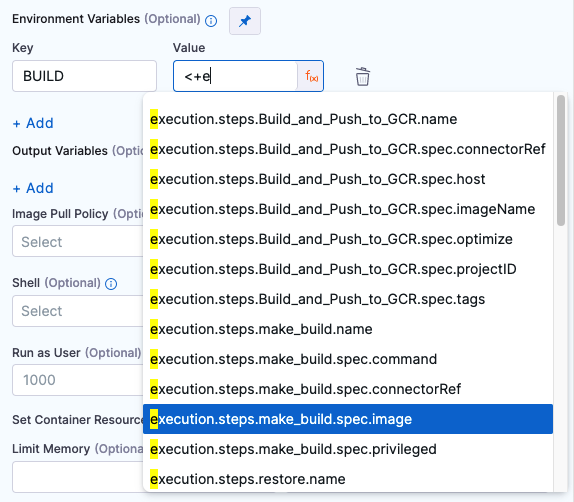
Variable values can be [fixed values, runtime inputs, or expressions](/harness-ai/use-harness-platform/variables-and-expressions/runtime-inputs.md). For example, if the value type is expression, you can input a value that references the value of some other setting in the stage or pipeline.

<figure><img src="/files/9hNWzDRhNn0qrmWXiXjJ" alt=""><figcaption><p>Using an expression for an environment variable's value.</p></figcaption></figure>

{% hint style="info" %}
**STAGE VARIABLES**

[Stage variables](/harness-ai/use-harness-platform/pipelines/add-a-stage.md#stage-variables) are inherently available to steps as environment variables.
{% endhint %}

#### Additional container settings <a href="#additional-container-settings" id="additional-container-settings"></a>

Settings specific to containers are not applicable in a stages that use VM or Harness Cloud build infrastructure.

**Image Pull Policy**

If you specified a [Container Registry and Image](#container-registry-and-image), you can specify an image pull policy:

* **Always:** The kubelet queries the container image registry to resolve the name to an image digest every time the kubelet launches a container. If the kubelet encounters an exact digest cached locally, it uses its cached image; otherwise, the kubelet downloads (pulls) the image with the resolved digest, and uses that image to launch the container.
* **If Not Present:** The image is pulled only if it isn't already present locally.
* **Never:** The image is not pulled.

**Run as User**

If you specified a [Container Registry and Image](#container-registry-and-image), you can specify the user ID to use for running processes in containerized steps.

For a Kubernetes cluster build infrastructure, the step uses this user ID to run all processes in the pod. For more information, go to [Set the security context for a pod](https://kubernetes.io/docs/tasks/configure-pod-container/security-context/#set-the-security-context-for-a-pod).

**Privileged**

For container-based build infrastructures, you can enable this option to run the container with escalated privileges. This is equivalent to running a container with the Docker `--privileged` flag.

**Set Container Resources**

These settings specify the maximum resources used by the container at runtime. These setting are only available for container-based build infrastructures, such as a Kubernetes cluster build infrastructure.

* **Limit Memory:** The maximum memory that the container can use. You can express memory as a plain integer or as a fixed-point number using the suffixes `G` or `M`. You can also use the power-of-two equivalents `Gi` and `Mi`. The default is `500Mi`.
* **Limit CPU:** The maximum number of cores that the container can use. CPU limits are measured in CPU units. Fractional requests are allowed. For example, you can specify one hundred millicpu as `0.1` or `100m`. The default is `400m`. For more information go to [Resource units in Kubernetes](https://kubernetes.io/docs/concepts/configuration/manage-resources-containers/#resource-units-in-kubernetes).

#### Timeout <a href="#timeout" id="timeout"></a>

You can set the step's timeout limit. Once the timeout is reached, the step fails and pipeline execution proceeds according to any [Step Failure Strategy settings](/harness-ai/use-harness-platform/pipelines/failure-handling/define-a-failure-strategy-on-stages-and-steps.md) or [Step Skip Condition settings](/harness-ai/use-harness-platform/pipelines/step-skip-condition-settings.md).

### Troubleshoot Test Intelligence <a href="#troubleshoot-test-intelligence" id="troubleshoot-test-intelligence"></a>

Go to the [CI Knowledge Base](/continuous-integration/troubleshooting-and-resources/ci-articles-and-faqs/continuous-integration-faqs.md) for questions and issues related to Test Intelligence, including:

* [Does Test Intelligence split tests? Can I use parallelism with Test Intelligence?](/continuous-integration/troubleshooting-and-resources/ci-articles-and-faqs/continuous-integration-faqs.md#does-test-intelligence-split-tests-why-would-i-use-test-splitting-with-test-intelligence)
* [Test Intelligence call graph is empty.](/continuous-integration/troubleshooting-and-resources/ci-articles-and-faqs/continuous-integration-faqs.md#on-the-tests-tab-the-test-intelligence-call-graph-is-empty-and-says-no-call-graph-is-created-when-all-tests-are-run)
* [If the Run Tests step fails, does the Post-Command script run?](/continuous-integration/troubleshooting-and-resources/ci-articles-and-faqs/continuous-integration-faqs.md#if-the-run-tests-step-fails-does-the-post-command-script-run)
* [Test Intelligence fails due to Bazel not installed, but the container image has Bazel.](/continuous-integration/troubleshooting-and-resources/ci-articles-and-faqs/continuous-integration-faqs.md#test-intelligence-fails-due-to-bazel-not-installed-but-the-container-image-has-bazel)
* [Test Intelligence fails with error 'Unable to get changed files list'.](/continuous-integration/troubleshooting-and-resources/ci-articles-and-faqs/continuous-integration-faqs.md#test-intelligence-fails-with-error-unable-to-get-changed-files-list)
