> For the complete documentation index, see [llms.txt](https://developer.harness.io/llms.txt). Markdown versions of documentation pages are available by appending `.md` to page URLs; this page is available as [Markdown](https://developer.harness.io/continuous-integration/use-harness-ci/use-harness-ci/use-drone-plugins/ci-jira-int-plugin.md).
# Integrate Jira in a CI pipeline
Connect your Harness CI pipelines to Jira.
To stay aligned and better serve customers, development teams need to understand how a feature is being released, when Jira issues have been deployed, and whether a build has passed or failed. Jira integrations in your CI pipelines provide insights into feature development and release information in Jira by automatically updating the **Deployment** or **Build** fields in Jira.
To integrate Harness CI and Jira, install the **CI Enterprise by Harness** app in your Jira instance, generate an authentication token, and then add a **Plugin** step to your pipeline.
{% hint style="info" %}
The native [Jira Update step](/continuous-delivery/use-continuous-delivery/cd-building-blocks/cd-steps/ticketing-systems/update-jira-issues-in-cd-stages.md) manages standard Jira issue fields such as Status, Priority, and Environment. It does not update the **Deployment** or **Build** fields under the **Development** tab. Use the Plugin step described on this page to update those fields.
{% endhint %}
### Install the app
The **CI Enterprise by Harness** app uses the [Jira Drone plugin](https://plugins.drone.io/plugins/jira). If you aren't able to install apps in your Jira instance, you can also use the [Jira Drone plugin directly in a Plugin step](/continuous-integration/use-harness-ci/use-harness-ci/use-drone-plugins/run-a-drone-plugin-in-ci.md).
1. Install the [CI Enterprise by Harness app](https://marketplace.atlassian.com/apps/1227511/ci-enterprise-by-harness) in your Jira instance.
2. Go to the **CI Enterprise by Harness** app configuration page.
3. Generate an authentication token, and save it as a [Harness text secret](/harness-ai/use-harness-platform/secrets/add-use-text-secrets.md).
### Add a Plugin step
{% tabs %}
{% tab title="Visual" %}
1. Add a [Plugin step](/continuous-integration/use-harness-ci/use-harness-ci/use-drone-plugins/plugin-step-settings-reference.md) to the **Build** stage of your [pipeline](/continuous-integration/use-harness-ci/use-harness-ci/prep-ci-pipeline-components.md).
2. Enter a **Name** and optional **Description**.
3. For **Container Registry**, select a container registry connector with Docker Hub access.
4. In the **Image** field, enter `plugins/jira`.
5. Under **Optional Configuration**, add **Settings** to configure the Jira plugin's properties for this step, as described in the following table.
| Keys | Required or optional | Description | Value example |
| --------------------------------------------------------------------------------------------------------- | -------------------- | ---------------------------------------------------------------------------------------------------------------------------------------------------------------------------- | -------------------------------- |
| `CONNECT_KEY` | Required | [An expression referencing your Jira auth token secret](/harness-ai/use-harness-platform/secrets/add-use-text-secrets.md#step-3-reference-the-encrypted-text-by-identifier). | `<+secrets.getValue("jiraKey")>` |
| `PROJECT` | Required | Your Jira project key. | |
| For example, a project called `My Test` might have a project key of `MYT`. | `MYT` | | |
| `INSTANCE` | Required | Your Jira hostname prefix, such as `myorg` in `myorg.atlassian.net`. | `myorg` |
| `ENVIRONMENT_NAME` | Optional | If included, Harness updates the Jira **Deployment** field when there is a deployment to the specified environment. | |
| If omitted, Harness updates the Jira **Build** field. | `production` | | |
| `STATE` | Optional | If included, Harness updates Jira only if builds/deployments achieve the specified status. | |
| Accepted values include: `pending`, `in_progress`, `cancelled`, `failed`, `rolled_back`, or `successful`. | | | |
| If omitted, Harness updates Jira for all build/deployments, regardless of status. | `successful` | | |
| `LOG_LEVEL` | Optional | Either `debug` or `info`. | |
| Set to `debug` to print the response from Jira in the build logs. | `debug` | | |
| {% endtab %} | | | |
{% tab title="YAML" %}
The following YAML example describes a [Plugin step](/continuous-integration/use-harness-ci/use-harness-ci/use-drone-plugins/plugin-step-settings-reference.md) in a `CI` stage that updates the Jira **Build** field when there is a successful build.
```yaml
- step:
type: Plugin
name: Update Jira Build #Step name
identifier: updateJiraBuild #Step ID
spec:
connectorRef: YOUR_IMAGE_REGISTRY_CONNECTOR
image: plugins/jira
settings:
PROJECT: MYT #Your Jira project key
CONNECT_KEY: <+secrets.getValue("jiraKey")> #Jira authentication token secret
INSTANCE: myorg #Your Jira instance hostname
STATE: successful #Optional: Update Jira only when builds succeed
```
To update the Jira **Deployment** field, instead of the **Build** field, include `ENVIRONMENT_NAME`, such as:
```yaml
ENVIRONMENT_NAME: production
```
Plugin step specifications
* `type: Plugin`
* `name:` Specify a step name.
* `identifier:` Specify a unique step ID.
* `connectorRef:` Specify a Docker Hub container registry connector.
* `image: plugins/jira`
* `settings:` Add environment variables to configure the Jira plugin's properties for this step, as described in the following table.
| Keys | Required or optional | Description | Value example |
| --------------------------------------------------------------------------------------------------------- | -------------------- | ---------------------------------------------------------------------------------------------------------------------------------------------------------------------------- | -------------------------------- |
| `CONNECT_KEY` | Required | [An expression referencing your Jira auth token secret](/harness-ai/use-harness-platform/secrets/add-use-text-secrets.md#step-3-reference-the-encrypted-text-by-identifier). | `<+secrets.getValue("jiraKey")>` |
| `PROJECT` | Required | Your Jira project key. | |
| For example, a project called `My Test` might have a project key of `MYT`. | `MYT` | | |
| `INSTANCE` | Required | Your Jira hostname prefix, such as `myorg` in `myorg.atlassian.net`. | `myorg` |
| `ENVIRONMENT_NAME` | Optional | If included, Harness updates the Jira **Deployment** field when there is a deployment to the specified environment. | |
| If omitted, Harness updates the Jira **Build** field. | `production` | | |
| `STATE` | Optional | If included, Harness updates Jira only if builds/deployments achieve the specified status. | |
| Accepted values include: `pending`, `in_progress`, `cancelled`, `failed`, `rolled_back`, or `successful`. | | | |
| If omitted, Harness updates Jira for all build/deployments, regardless of status. | `successful` | | |
| `LOG_LEVEL` | Optional | Either `debug` or `info`. | |
| Set to `debug` to print the response from Jira in the build logs. | `debug` | | |
{% endtab %}
{% endtabs %}
### Run your pipeline
After adding the **Plugin** step, save and run the pipeline. If you set `LOG_LEVEL: debug`, you can see the Jira response in the build logs.
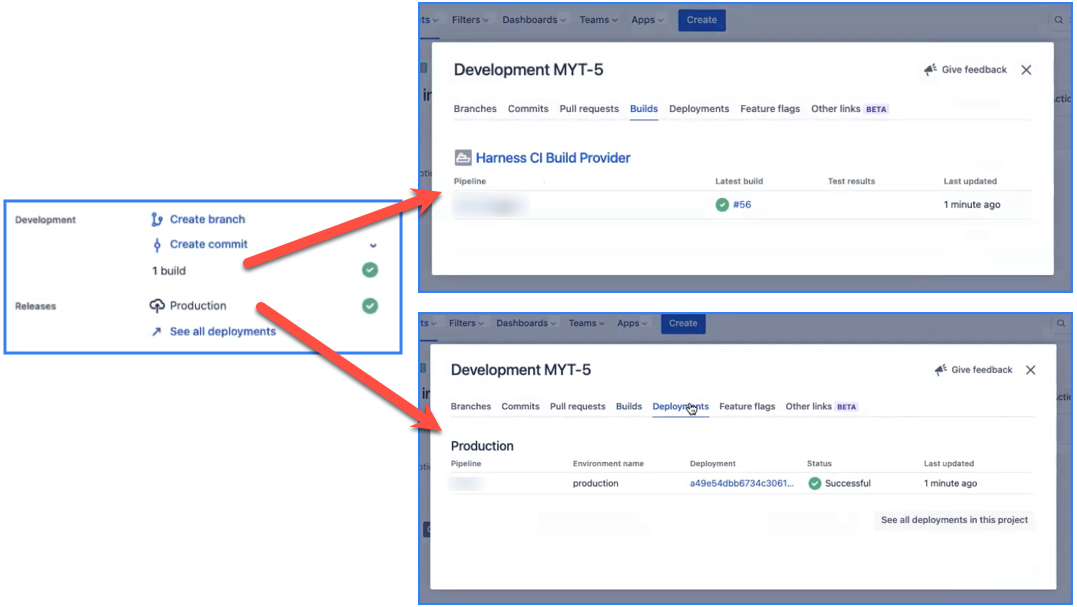
After the build runs, you can see updates to **Build** and **Deployment** fields on the Jira issue associated with the build. If you drill down into these fields, you can find links to the build in Harness.
### FAQs
#### How does Harness determine which Jira issue to update?
When the pipeline runs, Harness scans for all Jira issue numbers, such as `[JIRA-1234]`, in the title of the PR or the latest commit message associated with the build. It will then update the field(s) for all such issues it finds.
#### How does Harness determine which Jira field to update?
The presence of the `ENVIRONMENT_NAME` setting in the **Plugin** step determines whether Harness updates the **Deployment** or **Build** field in Jira. If `ENVIRONMENT_NAME` is included, Harness updates the **Deployment** field. If `ENVIRONMENT_NAME` is excluded, Harness updates the **Build** field.
{% @harness-feedback/feedback %}