Playwright in AI Test Automation
Harness AI Test Automation runs your existing Playwright suite, your playwright.config, your spec files, your package.json scripts, without rewrites, wrappers, or migration. Point Harness at the repository that contains your project, and your suite executes on managed cloud workers using the config you already have.
The following video walks through creating and running a Playwright test suite in Harness AI Test Automation.
Playwright test suites live in the same Test Suites list as AI-authored tests, so on-demand runs, environments, variables, tunnels, run history, and per-spec pass/fail reporting all work the same way across both. You keep authoring tests in Playwright as you do today; Harness handles execution and brings the results into one place, including AI-assisted failure triage on every failed test so you can see why a test broke, not just that it broke.
Your playwright.config in the repo controls how tests run by default. For a single run, you can override specific settings from the Run dialog without changing the repo, for example bumping retries, raising a timeout, or pointing the run through a tunnel to reach a firewall-protected app. Any field you leave blank falls back to your config.
What you can do from here
- Create a Playwright test suite in the UI. From Test Suites, select Create new suite and choose Playwright. The wizard covers source, branch, and environment in three steps.
- Trigger the same test suite from a pipeline. Add the AI Test Automation step in a CI, CD, or Custom stage and set Framework to Playwright. Pipeline variables support Harness expressions (for example
<+pipeline.variables.env_url>), so you can parameterize the suite, environment, and tunnel at trigger time. Go to Harness Pipeline for the pipeline-side setup. - Author new tests in AI Test Automation alongside your Playwright suite when you want intent-based tests for flows that are painful to script. Go to AI Test Automation for the AI test flow.
Prerequisites
- Project access: An AI Test Automation project where you can open Test Suites in the left navigation.
- Connected source: Access to the repository or provider where your Playwright project lives (Harness Code Repository or a third-party Git provider you select in the UI), with connectors configured as needed.
- Playwright layout: A valid Playwright project in that source (for example
playwright.configand spec files) so Harness can fetch the revision you choose and execute tests using your configuration. - Environments: At least one application environment if you plan to run against a specific target (for example Default). To define or review environments, see Add application environments.
Choose Harness Code Repository when the Playwright project is in Harness Code Repository.
Choose Third-party Git Provider when the project is in GitHub, GitLab, Bitbucket, Azure Repos, or another supported system. Those paths use Harness code repository connectors (credentials and access) that you create in the Platform module, then select when you configure the GIT step. Go to Connect to a code repository for setup and provider-specific guides.
Open Playwright in Suites
- In your Harness account, open the AI Test Automation project.
- In the left sidebar, select Test Suites.
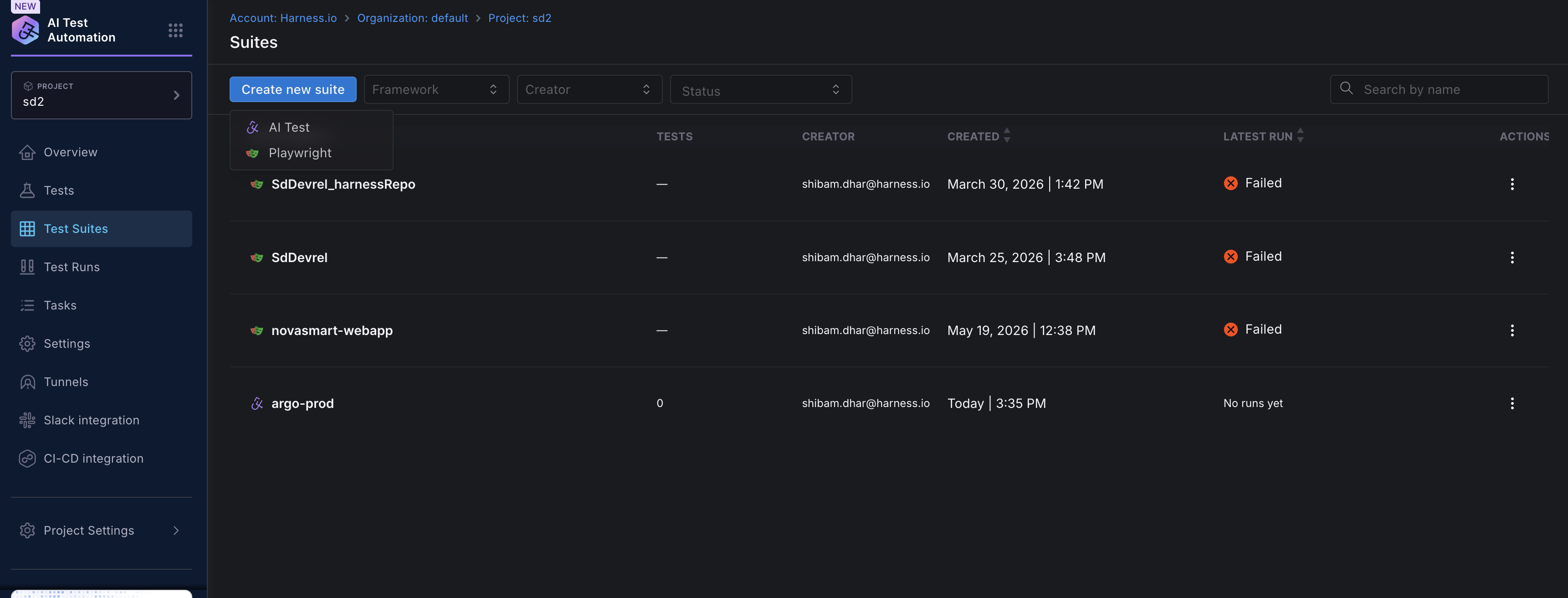
- Select Create new suite, then choose Playwright from the dropdown.
You see the Suites list with all suites, recent runs for each, Run and row actions. Use the Create new suite dropdown to add a new configuration.
Create a configuration
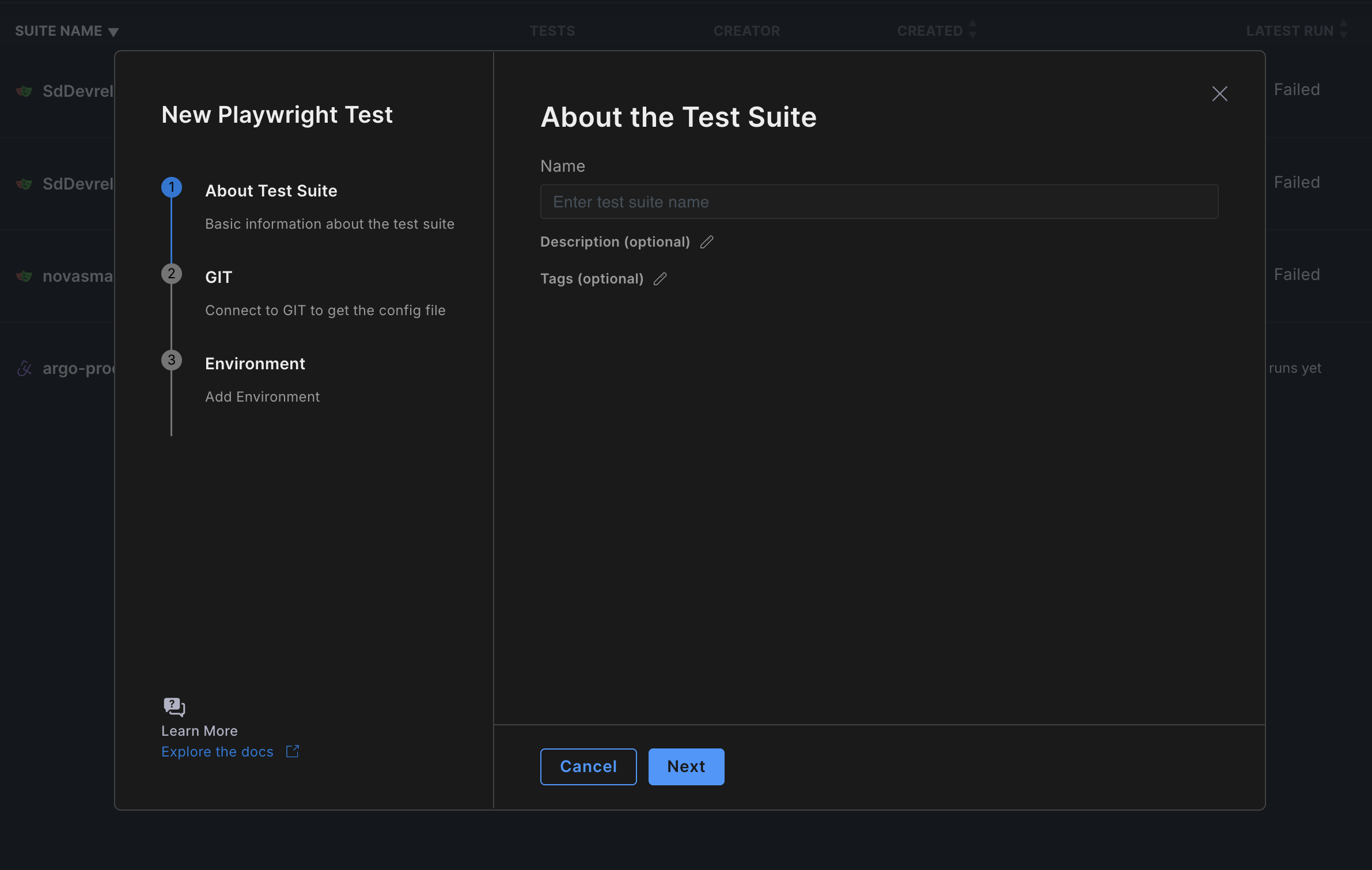
The New Playwright Test wizard has three steps: About Test Suite, GIT, and Environment. You move through them with Next and finish with Save.
-
From Test Suites, select Create new suite and choose Playwright.
-
In Step 1: About Test Suite:
- Name: Enter a clear suite name (required).
- Description and Tags (optional): Expand and add if you use them for organization.
-
Click Next, then in Step 2: GIT (GIT Source):
- Choose Harness Code Repository or Third-party Git Provider.
- Select Repository: Pick the repo that contains your Playwright project.
- GIT fetch type: For example Latest from Branch.
- Git Branch: Select or enter the branch to run from.
- Project Root (optional): Restrict to a subdirectory if your Playwright project is not at the repository root.
-
Click Next, then in Step 3: Environment, add the first application environment for this suite. At minimum, enter an Environment Name, an Environment URL, and a Test execution mode (use Execution Alias with the alias left blank to run all tests). If your
playwright.config.*file sits in a different directory frompackage.json, also select Playwright config is in a different directory from package.json and enter the Config base path. The fields here are the same as the Environments tab covered in the next section, where you can also add more environments or edit existing ones. -
Click Save to finish creating the suite. You can add more environments or edit this one later from the Environments tab.
Manage your Playwright setup
After you save the wizard, select the suite name from the list to open its details page. The UI matches the product tabs below: Configuration, Variables, Environments, and Run History. Use Run in the header from any tab when you are ready to execute (see Run Playwright tests).
- Configuration
- Variables
- Environments
- Run History
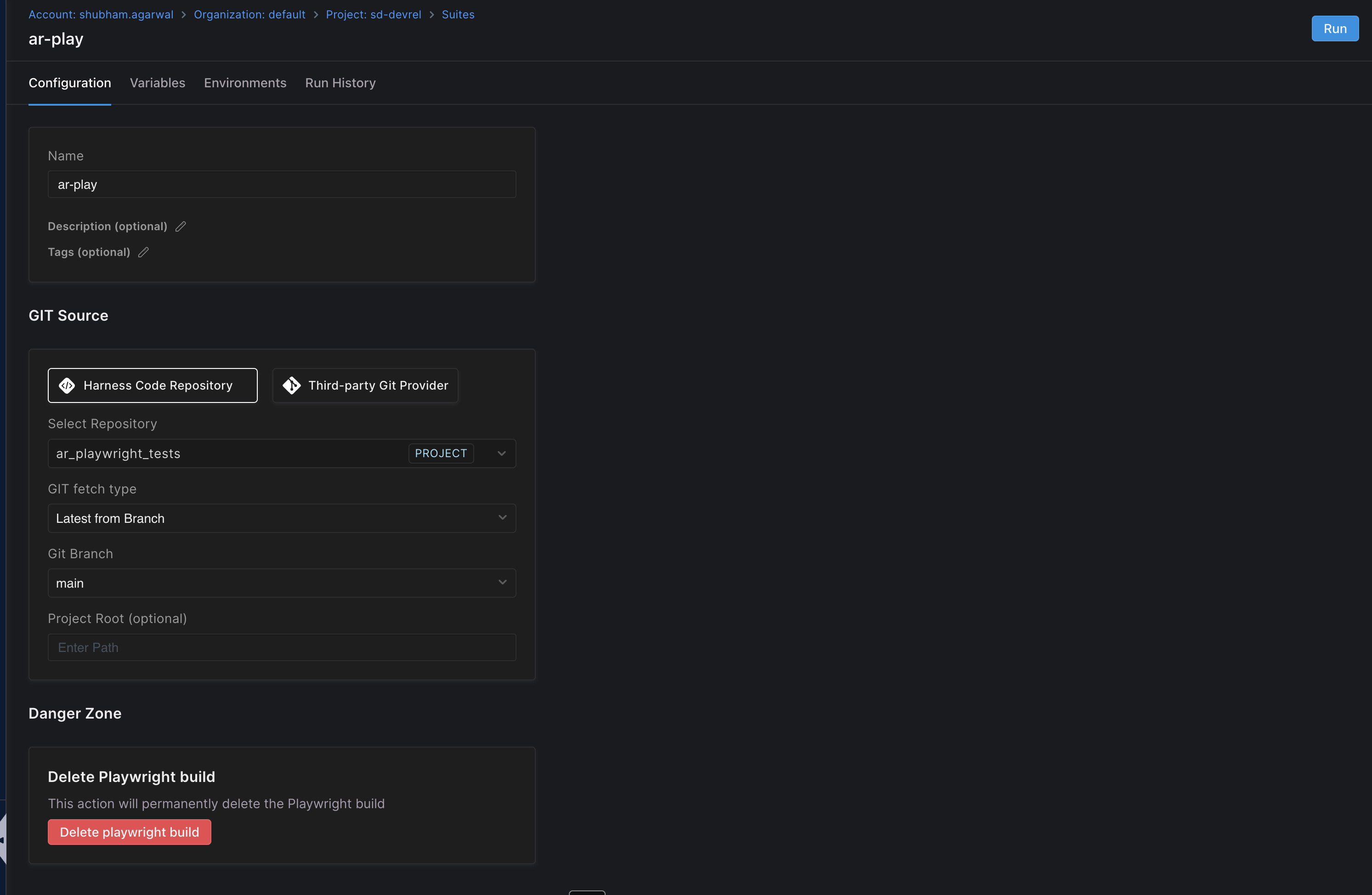
On the Configuration tab:
- Review or edit General information: name, description, tags.
- Under GIT Source, use the same options as in the wizard (provider, repository, fetch type, branch, and optional Project Root path).
- To remove the suite, use Delete Playwright suite in the danger zone at the bottom. That action permanently deletes the suite configuration.
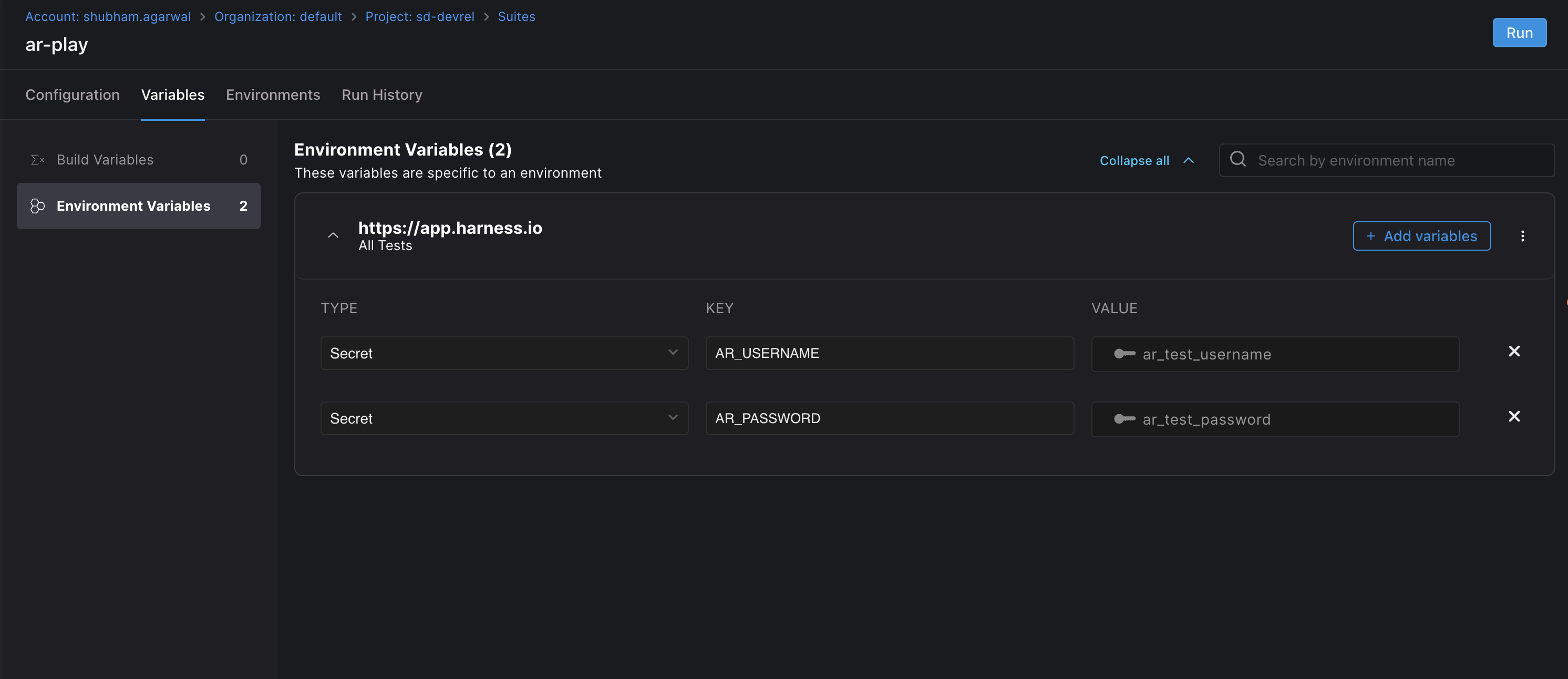
On the Variables tab, define keys and values that feed your Playwright runs when you do not want them hard-coded in the repo or when they differ by scope.
- Open the Variables tab.
- In the left rail, choose Build variables or Environment variables.
Build variables
- Apply across all environments for this suite (they are not tied to a single environment).
- Use + Add variables to define keys and values.
Environment variables
- Apply only to the selected environment (for example Default or staging). Values can differ per environment for the same variable name.
- Use + Add variables after selecting the environment context the UI provides.
Both Build variables and Environment variables can hold either:
- Text: A literal value, baked into the run as-is.
- Secret: A reference to a secret stored in Harness Secrets Manager. The value column shows the secret name (for example
ar_test_username), not the secret material. Harness resolves the reference inside the test pod at run time; the resolved value never appears in the UI or in run logs.
Variables are exposed to your Playwright tests as process environment variables. Reference them from your code the usual way, for example process.env.AR_USERNAME in a .spec.ts, or ${AR_USERNAME} from a .env or package.json script.
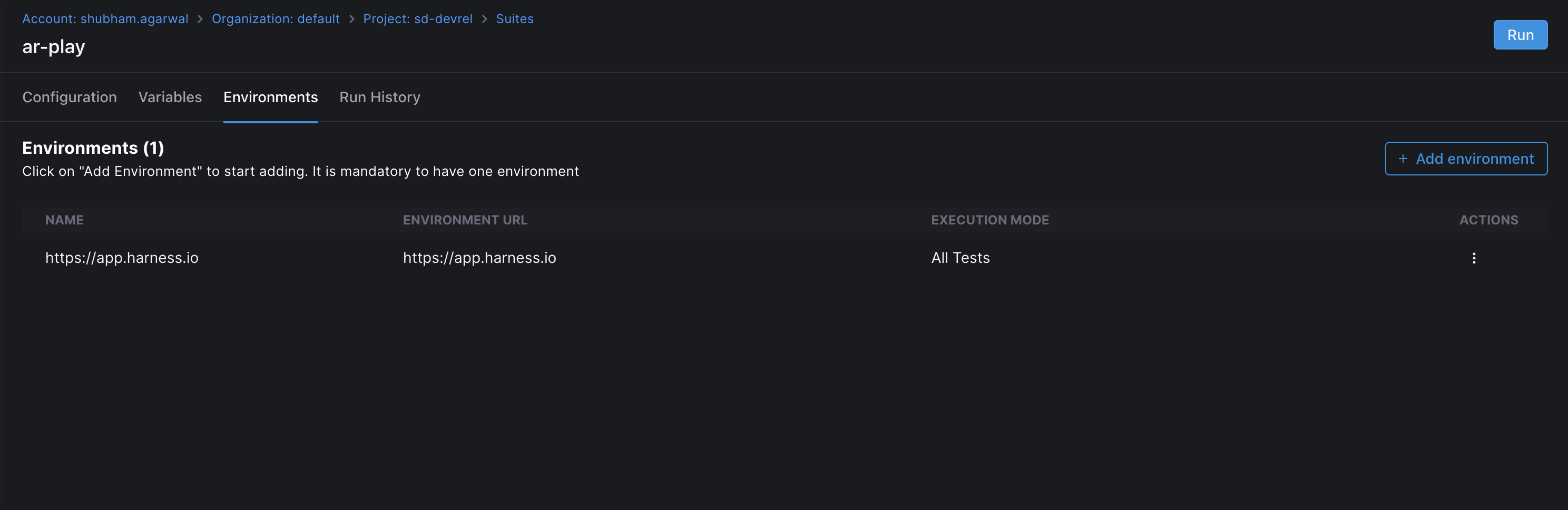
On the Environments tab, define the application environments this suite can run against. At least one environment is required so the Run dialog has something to target; you can add more and pick which one to use at run time.
- Click + Add environment in the upper right to open the Create Environment dialog.
- Fill in the dialog:
- Environment Name: A name for the environment (for example
stagingorhttps://app.harness.io). - Environment URL: The base URL Harness drives against during the run (for example
https://example.com). - Test execution mode: Choose how Harness should select the tests to run for this environment:
- Execution Alias: Run a named script defined in your project's
package.json(the value you enter in the Execution alias field below maps to that script name). Leave the alias field blank to run all tests the suite discovers; this is what the row shows as All Tests in the Environments list. - Test Target: Run a specific test target instead of a
package.jsonscript.
- Execution Alias: Run a named script defined in your project's
- Execution alias (when Execution Alias is selected): Enter the script name from
package.json(for exampletest:smoke). Leave it blank to run all tests. - Config base path (optional): Use this when your
playwright.config.*file sits in a different directory frompackage.json. Select the checkbox labelled Playwright config is in a different directory from package.json, then enter the path to the Playwright config file, or its directory, relative to the project root (for examplepackages/weborconfigs/playwright.ts). Leave the checkbox cleared ifplaywright.config.*sits next topackage.json.
- Environment Name: A name for the environment (for example
- Click Create Environment to save. Repeat to add more environments (for example a
stagingand aproductionentry).
Use the ⋮ action on a row to edit or remove an environment. The same list is what appears in the Environment dropdown of the Run Configuration modal, so anything you add here becomes a target you can pick when launching a run.
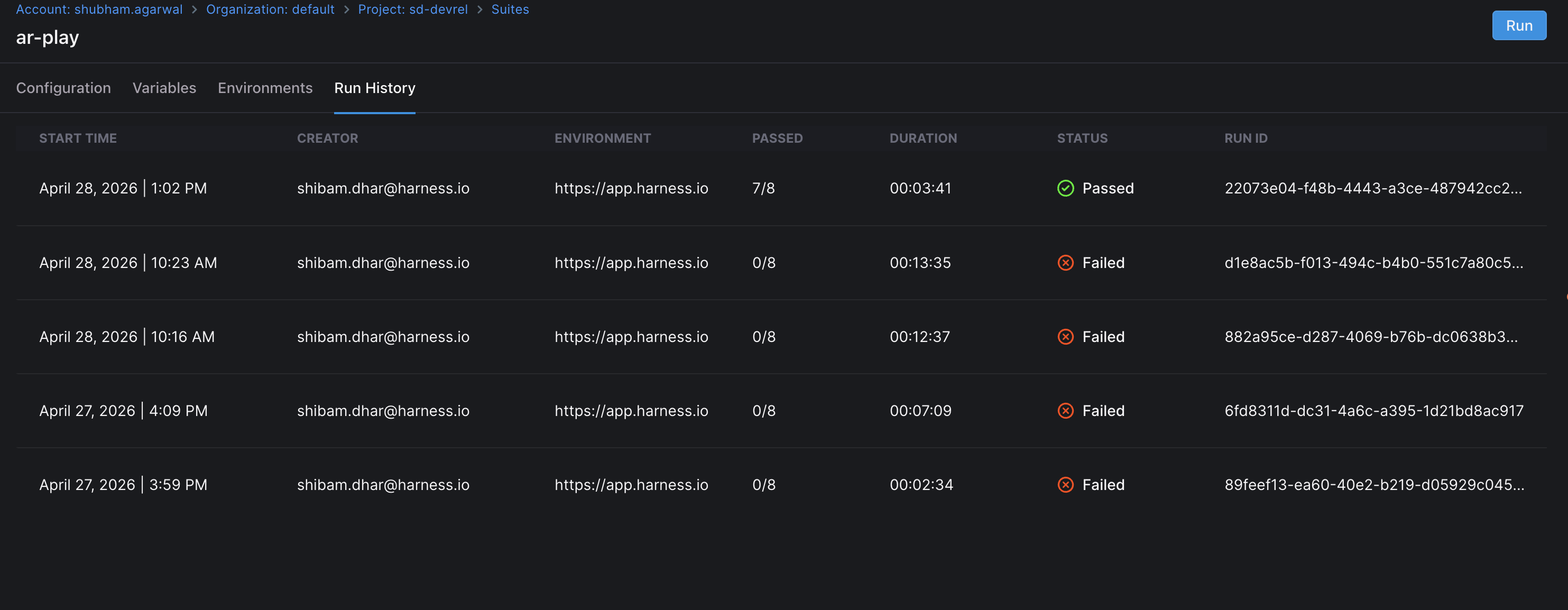
On the Run History tab:
- Scan past executions using Start time, Creator, Environment, Passed, Duration, Status, and Run ID.
- Open a specific run when you need the full report for that execution. Go to Review Playwright run results for what the report contains.
Run Playwright tests
-
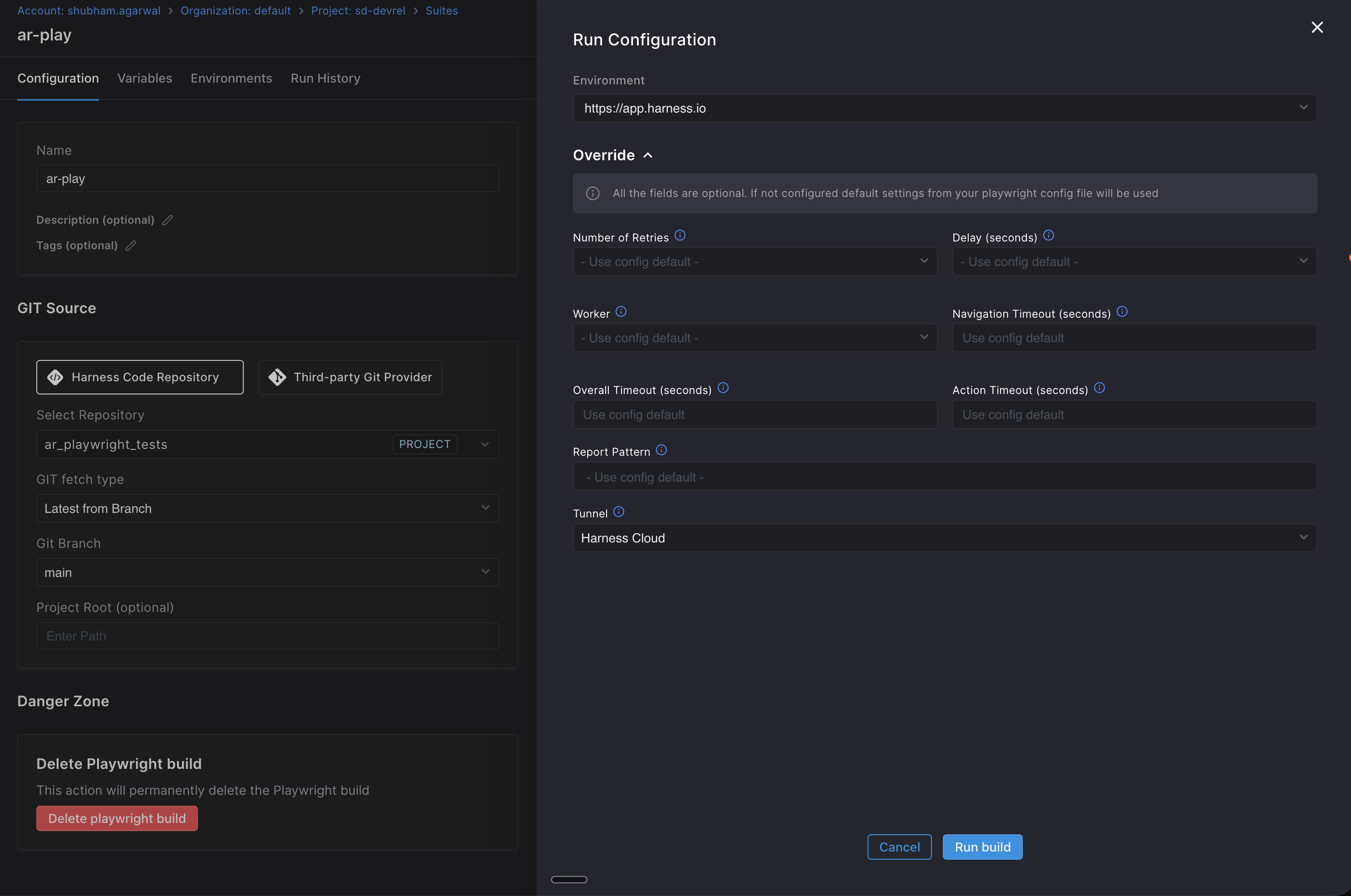
From the suite list or the suite details page, click Run.
-
In Run Configuration, choose Environment (for example Default). The selected environment determines the base URL, execution mode, and Playwright config path used for the run.
-
Expand any of the following sections to adjust settings for this run only. Every section is optional. Harness resolves each field in this order: the value you set here for this run, then the saved suite or environment value, then the value in your
playwright.config.*file in the repository.- Environment Configuration: Override the Execution alias or Test Target and the Config base path for this run only. Use this when you want to run a different
package.jsonscript or a different test target, or load a Playwright config from a different directory. The saved environment is unchanged. - Environment Variables: Override or add environment variables for this run only. Use this to pass a one-off token, feature flag, or debug value without editing the saved suite or environment variables. Values set here take precedence over the corresponding saved variables for this run.
- Git Configuration: Override the Git fetch type, Git branch, Commit SHA, or Git tag for this run. The saved repository and provider stay the same; only the revision changes. Use this when you want to verify a fix on a feature branch, replay a failing build at a specific commit, or test against a tagged release.
- Override: Adjust Playwright execution settings such as Number of Retries, Delay, Worker count, Navigation timeout, Overall timeout, Action timeout, Report pattern, and Tunnel (for example Harness Cloud). Any field you leave blank falls back to your
playwright.config.*defaults. - Environments: When the suite has multiple environments, confirm which environment is active and review its details before you click Run. This section is read-only.
- Environment Configuration: Override the Execution alias or Test Target and the Config base path for this run only. Use this when you want to run a different
-
Click Run to start execution.
For private or firewall-reached apps, align Tunnel and networking with your environment setup. See Test firewall-protected applications.
Monitor run progress
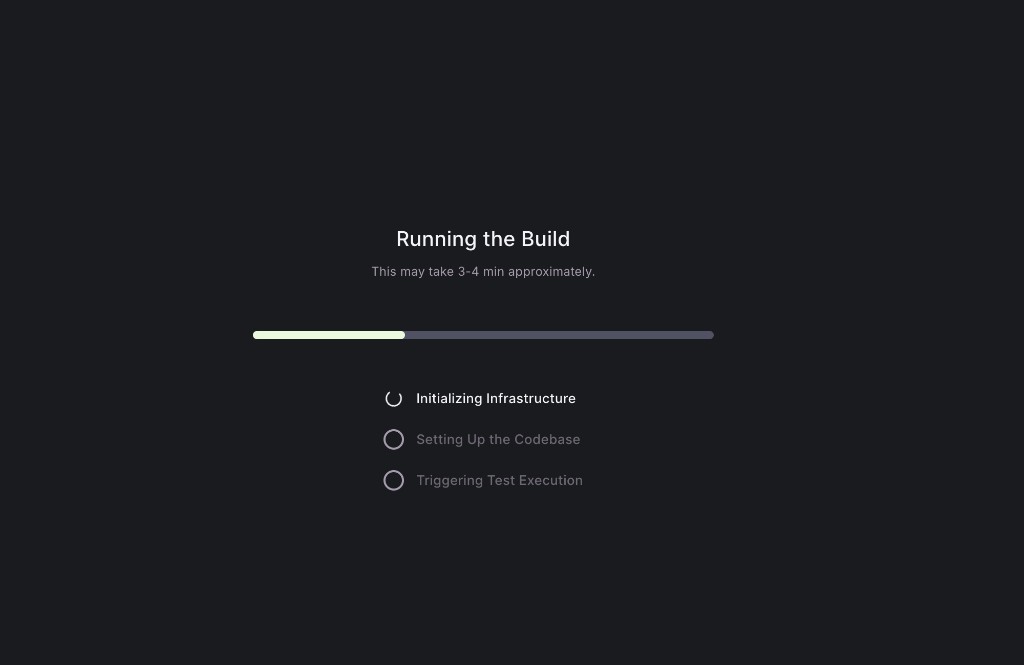
While the suite is starting, Harness shows a progress bar with ordered phases, for example:
- Initializing infrastructure
- Setting up the codebase
- Triggering test execution
Before execution begins, Harness runs a preflight discovery step that detects your test files, resolves dependencies, and validates the Playwright configuration. If discovery fails (for example a missing dependency or invalid config), the run stops early with a clear error instead of timing out mid-execution.
Harness automatically parallelizes your suite across 4 shards by default. Tests are distributed evenly across shards so total wall-clock duration is reduced without any configuration on your part.
A full run often takes on the order of a few minutes, depending on suite size and infrastructure.
Abort a run
To cancel a run that is in progress, open the running execution from Run History and click Abort. The run stops, infrastructure is released, and the run status updates to Aborted. You can also abort from the pipeline execution view when the suite was triggered through a pipeline step.
Review Playwright run results
When the run finishes, open it from Run History on the suite or follow the UI to the run results page.
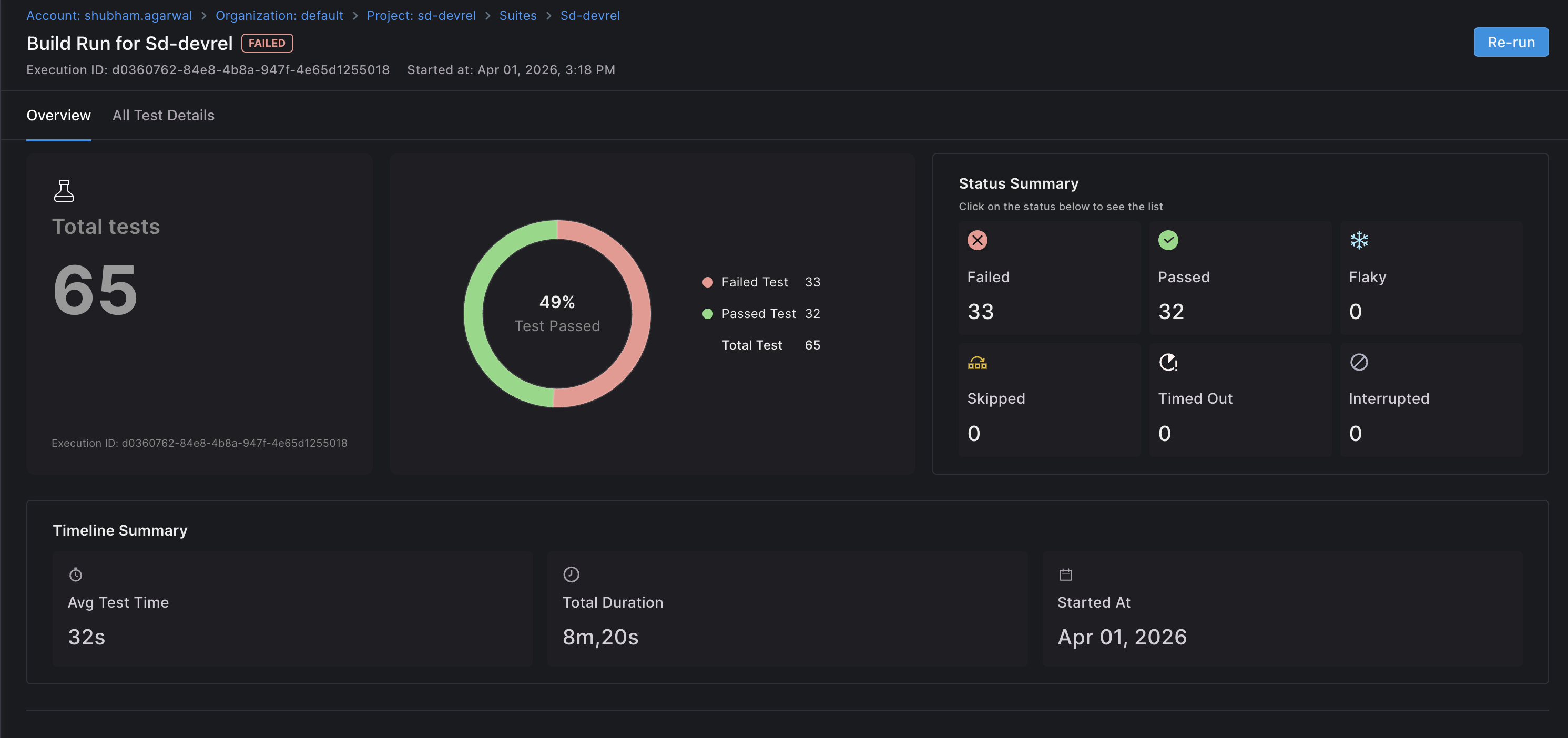
- Overview
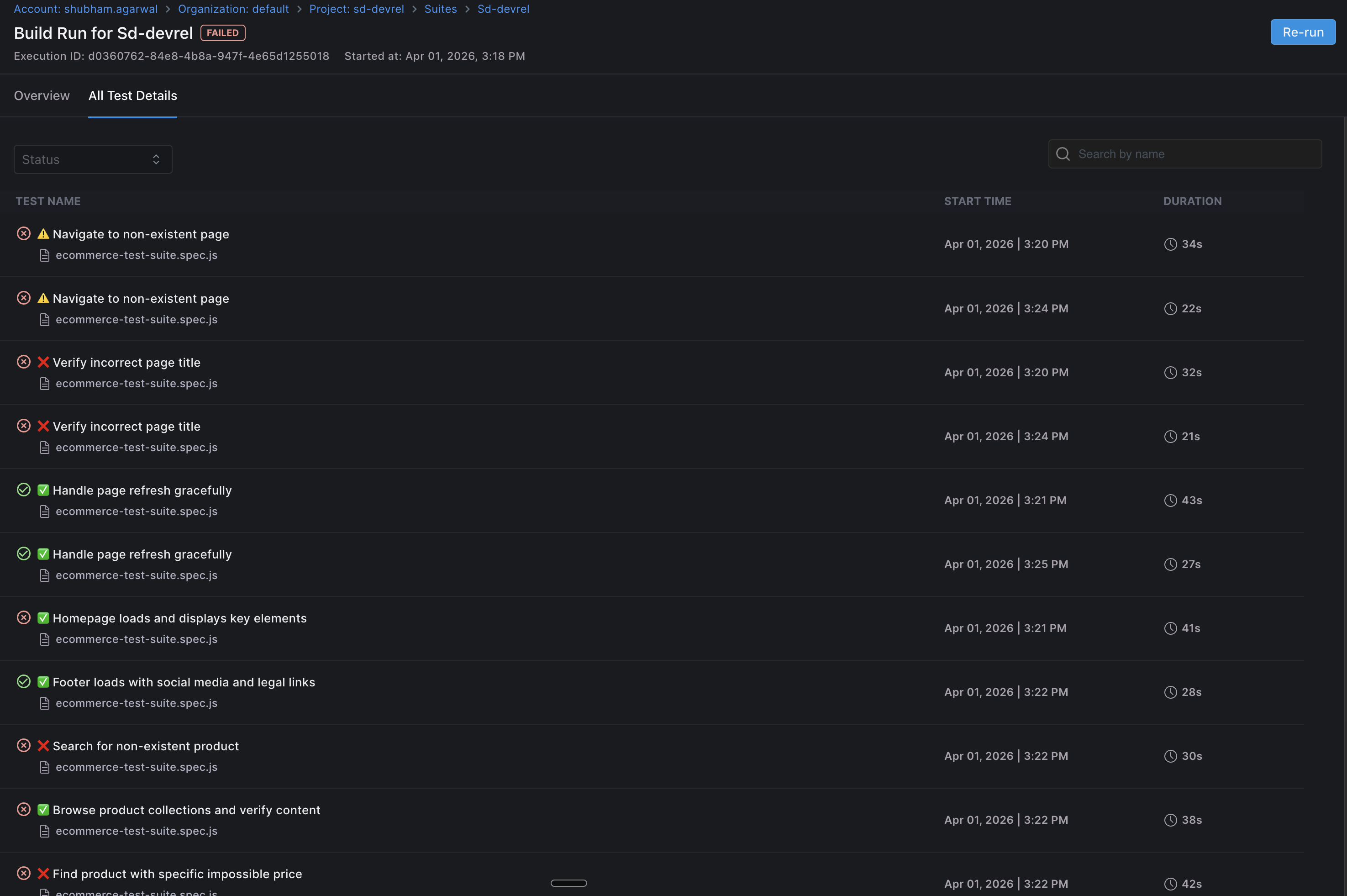
- All Test Details
The Overview tab summarizes the execution:
- Total tests and pass rate (for example a breakdown of passed vs failed).
- Counts by outcome: Failed, Passed, Flaky, Skipped, Timed out, Interrupted (where applicable).
- Timing: Avg test time, Total duration, Started at.
- Re-run runs the suite again from the report.
The All Test Details tab lists each Playwright test:
- Status per row (passed, failed, warning, and so on).
- Test title and source spec (for example
.spec.js/.spec.ts). - Timestamp and duration per test.
Use this view to pinpoint failing specs and decide whether to Re-run after fixes in Git.
Open a single test for diagnosis
Select any row in All Test Details to open a detail panel for that test.
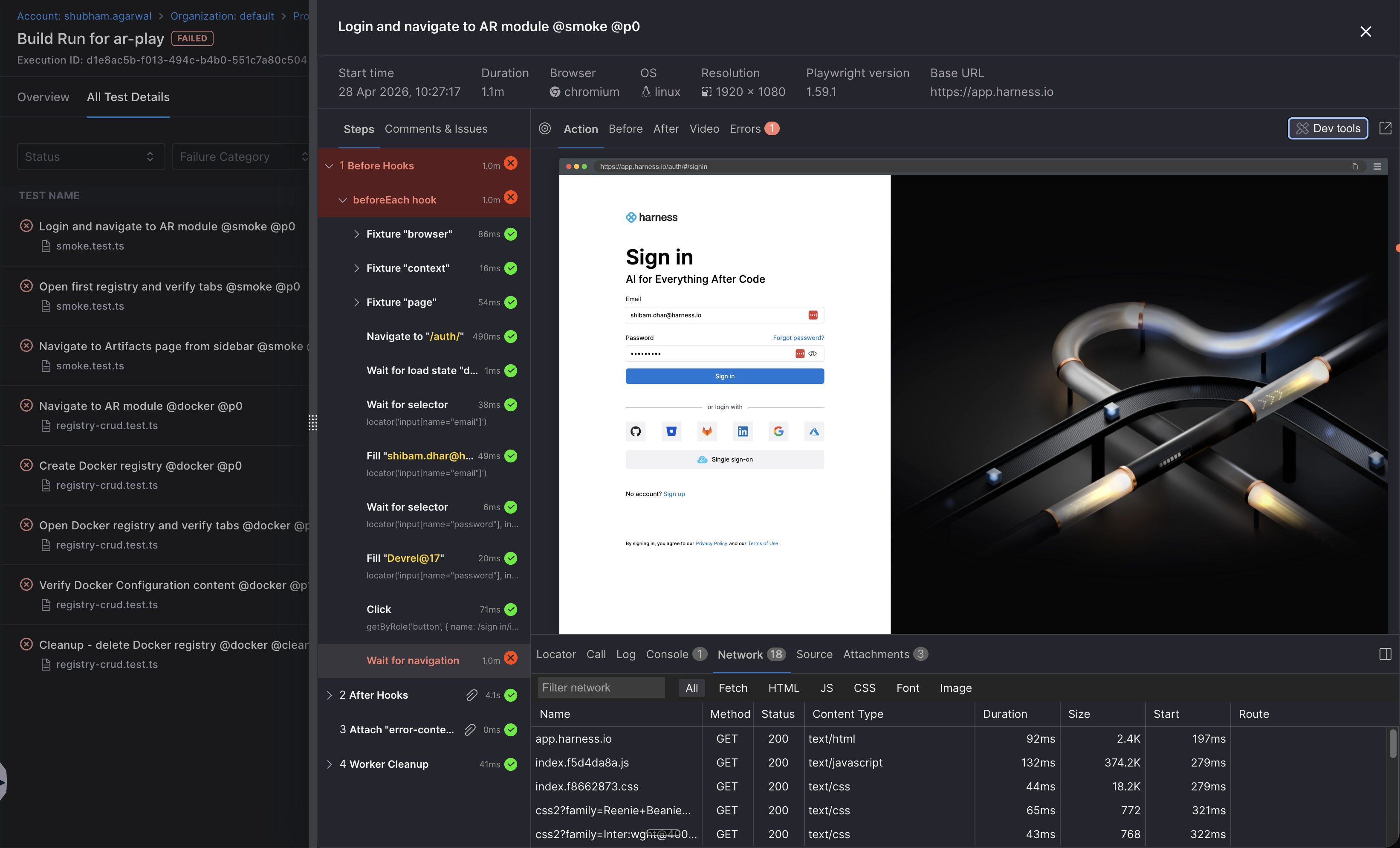
The panel header shows the run metadata you need to reproduce or report the failure:
- Start time, Duration, Browser, OS, Resolution, Playwright version, and Base URL.
The panel has two left-side tabs: Steps and Comments & Issues.
Steps tab
The Steps tab is the standard Playwright reporting and trace-viewer experience embedded in Harness, including the execution tree, step-by-step snapshots, video, errors, and the trace-viewer dev tools (Locator, Call, Log, Console, Network, Source, Attachments). Everything you already get from Playwright's native report is available here, so you do not need to download or open a separate report to debug a failure.
Comments & Issues tab
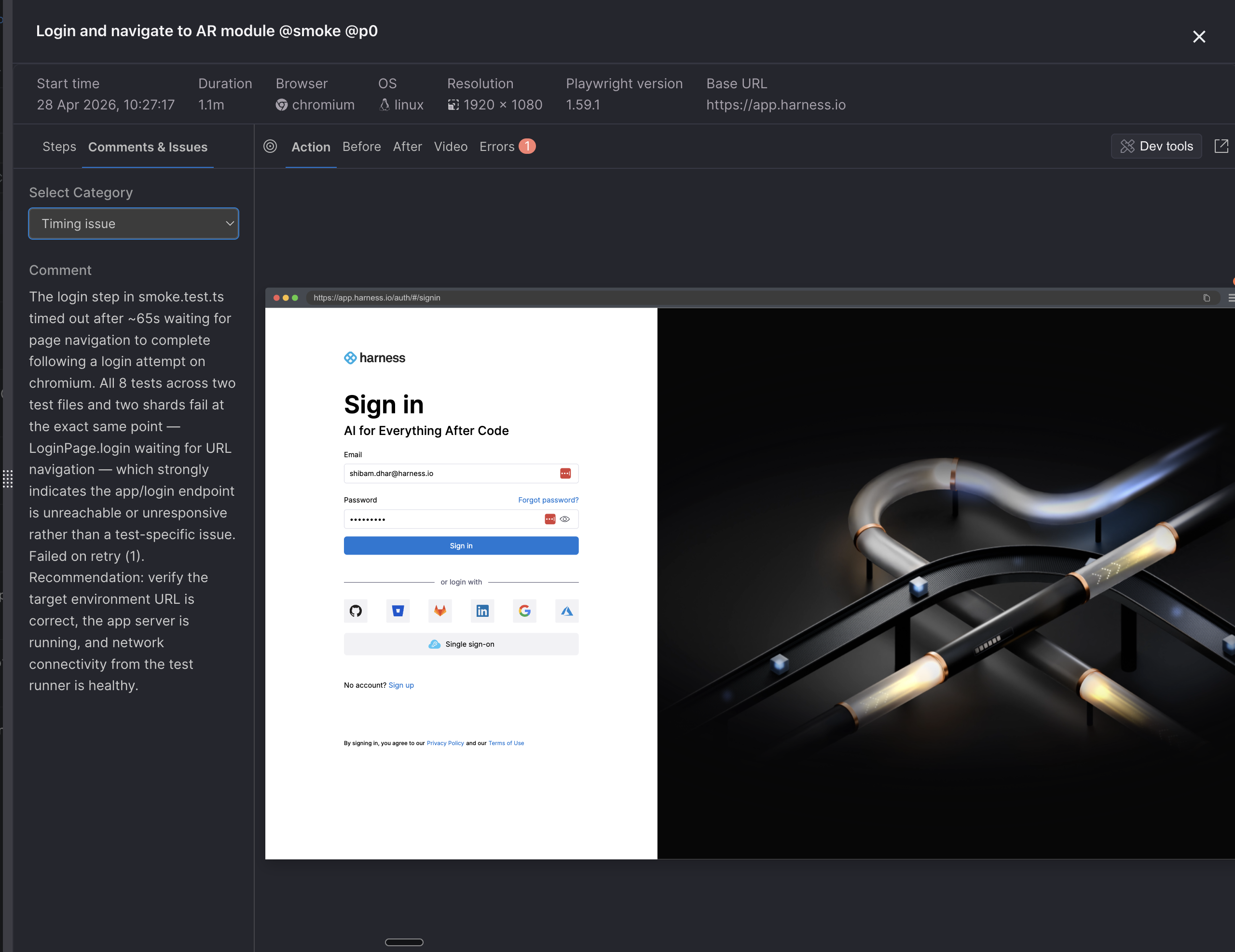
The Comments & Issues tab is the Harness addition on top of the standard Playwright report, for triage and team notes on a single failed test with AI-assisted root-cause analysis.
Harness eagerly generates an AI root-cause summary for every failed test automatically. You do not need to click anything to trigger the analysis; it is ready when you open the test detail. The summary covers:
- Where the test broke.
- The pattern across retries and shards.
- The most likely cause.
- A recommended next action (for example, "verify the target environment URL is correct, the app server is running, and network connectivity from the test runner is healthy").
You can also pick a Category for the failure (for example Timing issue) and add your own comments to capture institutional knowledge on a flaky or environmental failure without leaving the run.
Set up notifications for Playwright runs
Configure centralised notifications to get alerted when Playwright runs complete, fail, or are aborted. Notifications use the Harness Platform notification system and can be delivered through Slack, Email, Microsoft Teams, PagerDuty, or Webhooks.
- Navigate to Project Settings, then under Notifications and alerts, select Notification Rules.
- Click + New Notification.
- Select AI Test Automation as the resource type.
- Add a condition and select the events you want to be notified about: Playwright Run Completed, Playwright Run Failed, or Playwright Run Aborted.
- Choose a notification channel and click Submit.
For the full notification setup, go to Centralised notifications.
Next steps
- Trigger this Playwright suite from a pipeline by adding the AI Test Automation step in a CI, CD, or Custom stage: Harness Pipeline.
- Run batches of Harness-authored tests from the AI Test option: AI Test Automation.
- Learn how environments and parameters work across AIT: Add application environments.
- Compare with individual test run history in the product: View test run results.