oidc-method
IRSA (IAM Roles for Service Accounts) leverages an OpenID Connect (OIDC) provider for authentication. This method is applicable when the execution plane is installed on an Amazon EKS cluster. With IRSA, you have these benefits:
- Least privilege: Using IRSA avoids extending permissions for the pods on the node, such as restricting the node IAM role for pods from making an AWS API call. You can scope IAM permissions to a service account, and this way, only pods that use that service account have access to those permissions.
- Credential isolation: An experiment can only retrieve credentials for the IAM role associated with a particular service account. This experiment does not have access to credentials for other experiments belonging to other pods.
Prerequisites
- Your execution plane must be installed on an Amazon EKS cluster.
- You must have
eksctlinstalled and configured.
Account terminology
In this topic, Harness refers to three types of accounts:
-
The experiment service account: A Kubernetes service account created when you install a chaos infrastructure on your EKS cluster. This is the account that executes and controls chaos experiments. Its default name is
litmus-admin, however you can use a different name. -
AWS source account: This AWS account also resides where you install a chaos infrastructure, and serves as the host for the EKS cluster. This account enables Harness CE to access resources across multiple target accounts.
-
Target accounts: These are AWS accounts where you'll run experiments against resources and services to intentionally disrupt them. You can have many target accounts.
Enable the experiment service account to access AWS resources
Chaos experiments are initiated and controlled through this service account (usually named litmus-admin). You must enable this account to access AWS resources.
Step 1: Create an OIDC provider for your EKS cluster
You must create an IAM OpenID Connect (OIDC) identity provider for your cluster with eksctl. You only need to do this once for a cluster. For more information, go to AWS documentation to set up an OIDC provider.
To create an OIDC provider for your EKS cluster:
- Run the following command to check if your cluster has an existing IAM OIDC provider.
aws eks describe-cluster --name <your-cluster-name> --query "cluster.identity.oidc.issuer" --output text
Example output:
https://oidc.eks.us-west-1.amazonaws.com/id/D054E55B6947B1A7B3F200297789662C
In the above example us-west-1 is the region, and D054E55B6947B1A7B3F200297789662C is the OIDC provider ID.
- Run the following command to list the IAM OIDC providers available to this account.
aws iam list-open-id-connect-providers | grep <Provider_ID>
Where: Provider_ID is the value returned from the output of the previous command. In our example, this value is D054E55B6947B1A7B3F200297789662C.
- If no IAM OIDC identity provider is available for this account, create one for your cluster using the following command.
eksctl utils associate-iam-oidc-provider --cluster <your-cluster-name> --approve
Example output:
2021-09-07 14:54:01 [ℹ]  eksctl version 0.52.0
2021-09-07 14:54:01 [ℹ]  using region us-west-1
2021-09-07 14:54:04 [ℹ]  will create IAM Open ID Connect provider for cluster "udit-cluster-11" in "us-west-1"
2021-09-07 14:54:05 [✔]  created IAM Open ID Connect provider for cluster "litmus-demo" in "us-west-1"
- By default, chaos infrastructure associated with your chaos experiment has
litmus-adminas a chaos service account. Based on the chaos experiment you wish to execute, you can configure the policy and attach the policy to a role, and go to step 2. Refer to AWS superset policy to know more. - If you wish to create a custom service account, you can create one and configure the policy and attach the policy with a role.
- For more information, go to AWS IAM documentation.
Step 2: Configure the trust relationship of the IAM role in the source account
Configure the trust relationship in the IAM role associated with your experiment service account in the AWS source account. This step is required for both single-account and cross-account IRSA configurations.
Edit the trust relationship in the IAM role you created in Step 1.
You can find the JSON for the trust relationship in AWS IAM > ROLE_NAME > Trust relationship tab.
{
    "Version": "2012-10-17",
    "Statement": [
        {
            "Effect": "Allow",
            "Principal": {
                "Federated": "arn:aws:iam::<SOURCE_ACCOUNT_ID>:oidc-provider/oidc.eks.<REGION>.amazonaws.com/id/<OIDC_PROVIDER_ID>"
            },
            "Action": "sts:AssumeRoleWithWebIdentity"
        }
    ]
}
Where:
<SOURCE_ACCOUNT_ID>: Your AWS source account ID<REGION>: The AWS region of your EKS cluster<OIDC_PROVIDER_ID>: The OIDC provider ID from your EKS cluster
Step 3: Associate the IAM role with the experiment service account
Associate the IAM role you created in Step 1 by annotating the experiment service account (usually litmus-admin). This will give it the required access to AWS resources.
To associate the IAM role to the experiment service account, run this command:
kubectl annotate serviceaccount -n <experiment_service_account_namespace> <experiment_service_account_name> \
eks.amazonaws.com/role-arn=arn:aws:iam::<account_ID>:role/<IAM_role_name>
- The default name for the experiment service account is
litmus-adminand the namespace for chaos infrastructure isHCE, however, you can use different names. - For the cluster autoscaler experiment, annotate the experiment service account in the
kube-systemnamespace.
Step 4: Verify the association of the IAM role with the experiment service account
To verify the association between the experiment service account (litmus-admin) and the IAM role:
-
Run an experiment and describe one of the pods.
-
Verify whether the
AWS_WEB_IDENTITY_TOKEN_FILEandAWS_ROLE_ARNenvironment variables exist. For example:
kubectl exec -n litmus <ec2-terminate-by-id-z4zdf> env | grep AWS
Example output:
AWS_VPC_K8S_CNI_LOGLEVEL=DEBUG
AWS_ROLE_ARN=arn:aws:iam::<ACCOUNT_ID>:role/<IAM_ROLE_NAME>
AWS_WEB_IDENTITY_TOKEN_FILE=/var/run/secrets/eks.amazonaws.com/serviceaccount/token
Set up your target accounts for IRSA
Whereas chaos experiments are initiated and controlled through the experiment service account, target accounts are the accounts you'll subject to chaos experiments, so you can intentionally disrupt and manipulate their services.
In this section, you create an IAM role and set up an OIDC provider in each target account.
Step 1: Create an IAM role and policy in each AWS target account
This step lets you grant permissions for Harness CE to inject chaos targeting various AWS services in the target account.
Create an IAM role and policy in each target account to provide the required permissions to access the desired resources in that account. You have the flexibility to define the level of permissions you wish to assign to Harness CE. For instructions, go to Create an IAM role and policy in the AWS documentation.
Step 2: Add the OIDC provider in all target accounts
Follow this procedure for each one of your target accounts.
To add the OIDC provider to each target account:
-
Determine your OIDC URL.
- Open the AWS Management Console and navigate to the Amazon EKS service.
- Select the EKS cluster that corresponds to the OIDC provider.
- Select the Configuration tab.
- Under the OpenID Connect (OIDC) section, locate the Issuer URL.
An example Issuer URL looks like this:
https://oidc.eks.us-east-2.amazonaws.com/id/FOSBW293U0Q92423BR43290RU -
Navigate to the target account.
-
In the IAM dashboard, select Identity Providers, and then select Add Provider.
-
In the Add an Identity provider screen, for Provider type, select OpenID Connect.
-
Provide these required details of the OIDC provider:
- Provider URL: Use the URL you retrieved in Step 1.
- Audience: Specify
sts.amazonaws.com.
-
Select Add provider.
-
Repeat these steps for each target account.
Establish trust between the AWS source account and target accounts
The AWS source account enables Harness CE to access resources across multiple target accounts.
Step 1: Configure trust relationship in target accounts
Configure the trust relationship for each IAM role you created in a target account to allow the AWS source account's OIDC provider to assume that role.
In each target account: Edit the trust relationship for the IAM role you created on the target account as shown in the example below.
You can find the JSON for the trust relationship in AWS IAM > ROLE_NAME > Trust relationship tab.
In this example 2222222222 is the target account ID.
{
    "Version": "2012-10-17",
    "Statement": [
        {
            "Effect": "Allow",
            "Principal": {
                "Federated": "arn:aws:iam::2222222222:oidc-provider/oidc.eks.us-east-2.amazonaws.com/id/AAAAA11111111C9909AEC6992AEFNWQO0"
            },
            "Action": "sts:AssumeRoleWithWebIdentity"
        }
    ]
}
Step 2: Enable the experiment service account to switch between target accounts
This procedure enables the experiment service account (litmus-admin) to seamlessly switch between target accounts when running experiments. To do this, you must annotate the experiment service account with the corresponding chaos role in each target account.
For example, if the target account has a role named chaos-role, you must annotate the litmus-admin service account with the unique ARN of that role. This enables seamless switching between target accounts for running experiments.
To annotate the experiment service account with the role ARN:
- Run the following command:
kubectl annotate serviceaccount -n <chaos-namespace> <experiment-service-account-name> eks.amazonaws.com/role-arn=<role-arn>
Where:
<chaos-namespace>is the namespace where the chaos infrastructure is installed (usuallyHCE).<experiment-service-account-name>is the name of your experiment service account (usuallylitmus).<role-arn>is the ARN of the role in the target account.
- Repeat the above step for the chaos role in each target account.
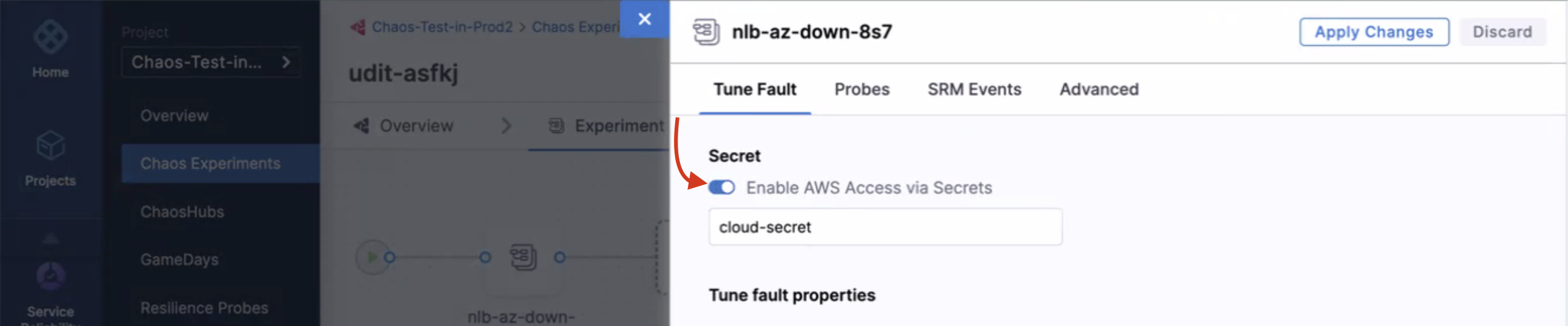
Remove all secret references from experiment definitions
When you create a new AWS chaos experiment, you can choose to enable or disable AWS access. You can select or deselect the button depending on your use of the secret references.