aws-as
Prerequisite: Set Up Proxy and/or Load Balancer
AutoStopping is designed to integrate seamlessly with native load-balancing solutions like AWS ALB. However, for use cases that fall outside of these integrations such as SSH, RDP, or RDS connections, AutoStopping offers an advanced reverse proxy solution: AutoStopping Proxy.
AWS Load Balancer
A cloud-native service that distributes incoming HTTP/HTTPS traffic across multiple targets. It monitors web traffic patterns and automatically starts your resources when traffic arrives.
AutoStopping Proxy
This proxy VM sits in front of your virtual machines and intelligently starts or stops them based on incoming traffic. It supports both HTTP(S) and TCP connections. Built on the proven, open-source Envoy Proxy, the AutoStopping Proxy is capable of managing traffic for multiple AutoStopping-managed VMs from a single instance.
The table below shows the resources supported by AutoStopping and the appropriate traffic management you can use for each resource type.
| AWS Resource | AutoStopping Proxy | Application Load Balancer (ALB) |
|---|---|---|
| Amazon EC2 | ✅ | ✅ |
| Auto Scaling Groups | ✅ | ✅ |
| Amazon RDS Instances | ✅ | ❌ |
| Amazon ECS | ❌ | ✅ |
- Setup Load Balancer
- Setup Proxy
-
In the AutoStopping Rules page, click Load Balancers in the top right. Please refer to official AWS documentation for details.
-
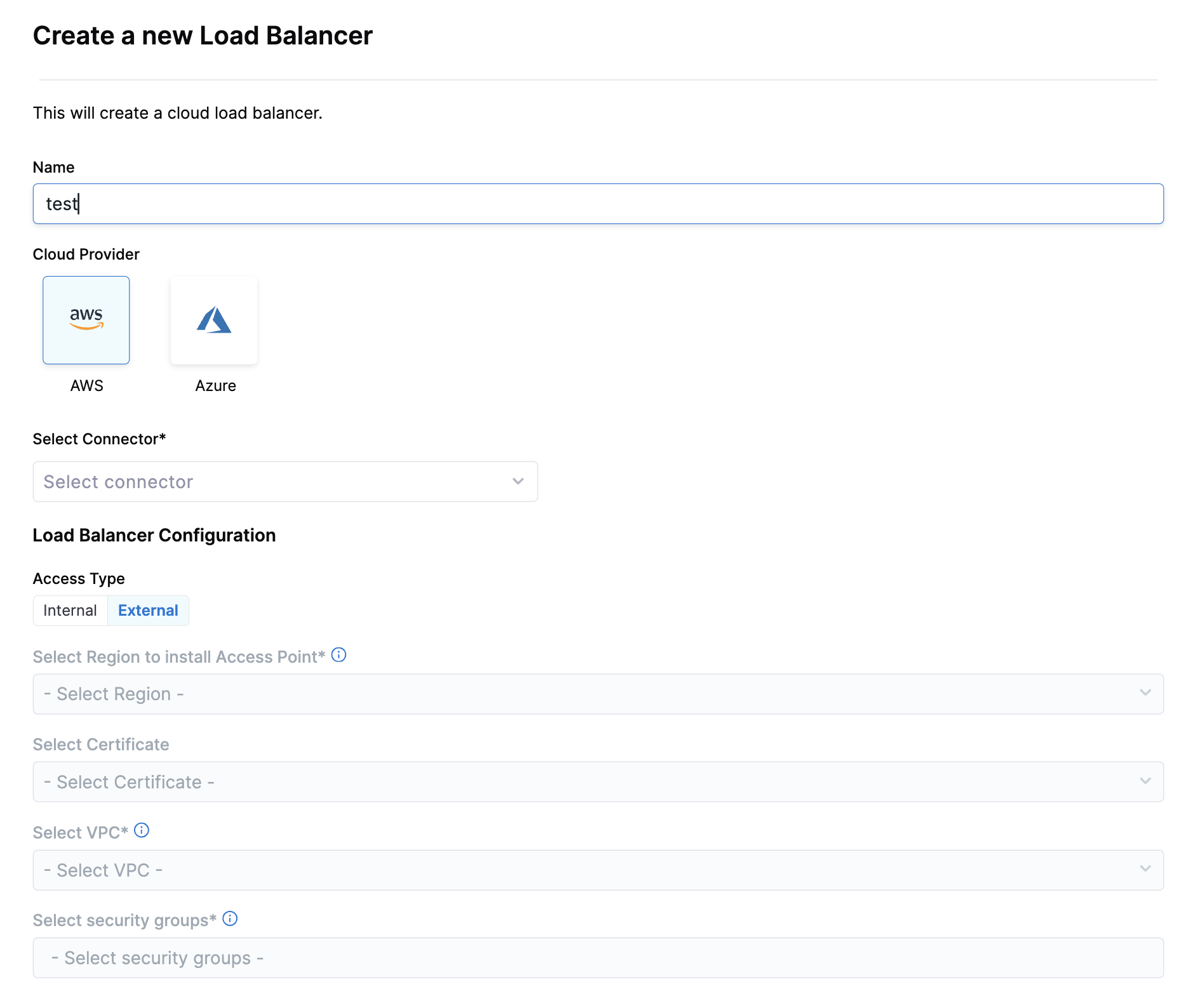
Enter a name and select AWS in Cloud Provider
-
Choose a cloud connector or create a new one.
-
Enter Load Balancer Configuration:
-
Access Type: Choose Internal (for private network access within your VPC) or External (for public internet access). Internal load balancers are ideal for backend services, while external load balancers are necessary for user-facing applications.
-
Region: Select the AWS region where your resources are located. This must match the region where your target EC2 instances or ECS services are running.
-
SSL Certificate: Choose an existing certificate from AWS Certificate Manager or create a new one for HTTPS connections. This is required for secure HTTPS traffic and helps establish trust with your users.
-
VPC: Select the Virtual Private Cloud where your target instances are running. The load balancer must be in the same VPC as the resources it will manage.
-
Security Groups: Choose security groups that allow appropriate traffic (HTTP/HTTPS) to your load balancer. These act as a virtual firewall controlling which traffic can reach your load balancer and subsequently your instances.
tipFor optimal security, configure your security groups to allow only necessary traffic on required ports (typically 80 for HTTP and 443 for HTTPS).
-
-
Click Save Load Balancer
-
In Harness, go to the Cloud Costs module. Click on AutoStopping Rules from left Navbar.
-
Click Load Balancers.
-
Click Create New Load Balancer. Click Create New AutoStopping Proxy.
-
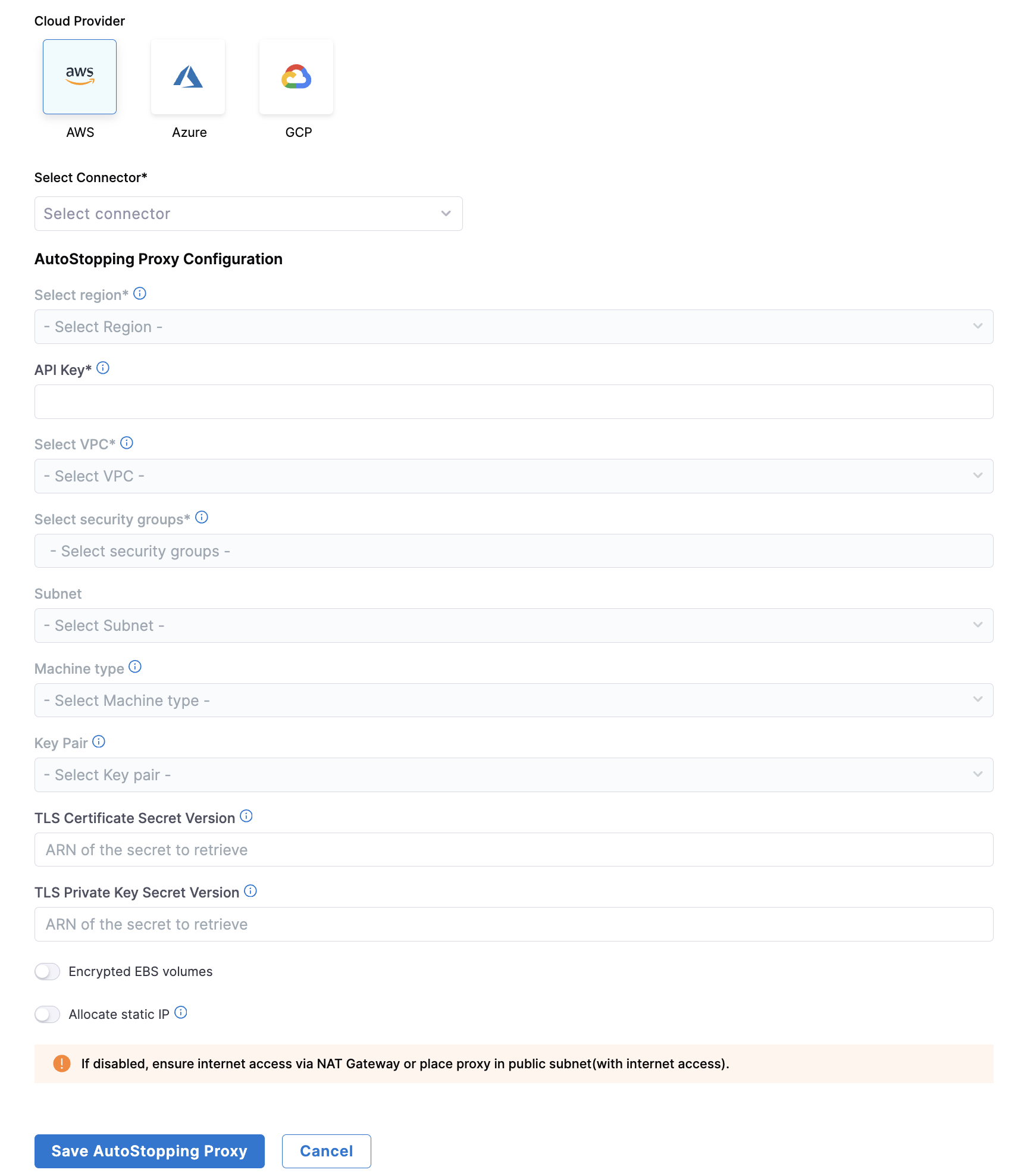
Enter a name and select AWS in Cloud Provider.
-
Choose an existing connector or create a new one.
-
Enter AutoStopping Proxy Configuration.
- Region: Select the AWS region where your target resources are hosted
- API Key: Enter a Harness API key for authentication
- Choose No Expiration when creating this key
- See Create an API Key for more information
- VPC: Select the Virtual Private Cloud where your resources are located
- Security Groups: Select security groups to control traffic flow
- Ensure all required ports and protocols are allowed
- Subnet: Select the subnet for the proxy deployment
- Machine type: Select an appropriate AWS instance type for the proxy
- Choose based on your expected traffic volume and performance needs
- Key Pair: Select an SSH key pair to connect to your proxy VM
- TLS Certificate Configuration:
- TLS Certificate Secret Version: Provide a PEM-encoded certificate stored in AWS Secrets Manager
- Store your certificate in AWS Secrets Manager using the Other type of secret option
- Recommended naming convention: use harness/ prefix in the secret name
- TLS Private Key Secret Version: Provide the ARN of your private key secret
- Format: 'arn:aws:secretsmanager:[Region]:[AccountId]:secret:SecretName-6RandomCharacters'
- See AWS documentation on creating secrets
- TLS Certificate Secret Version: Provide a PEM-encoded certificate stored in AWS Secrets Manager
- [OPTIONAL] Encrypted EBS Volume: Enable to encrypt the EBS volume
- [OPTIONAL] Allocate Static IP: Enable to assign an elastic IP address
- Makes the proxy publicly accessible
- Remember to update your DNS records to point to this IP
-
Click Save AutoStopping Proxy.
Import AutoStopping Proxy for AWS
The Import Proxy feature helps organizations to take control of their proxy deployment. Rather than relying on the default auto-provisioned proxy, customers can deploy their own Proxy instance using a hardened custom Amazon Machine Image (AMI) and then import them into Harness CACM's Autostopping feature.
Steps to use
- Log into Amazon EC2 portal and launch EC2 instance using hardened AMI.
- Please select both V1 and V2 from the dropdown in metadata version.

- In the "User Data" section, paste the cloud-init script provided by Harness.
Cloud-Init script for Ubuntu AMIs
Content-Type: multipart/mixed; boundary="//"
MIME-Version: 1.0

--//
Content-Type: text/cloud-config; charset="us-ascii"
MIME-Version: 1.0
Content-Transfer-Encoding: 7bit
Content-Disposition: attachment; filename="cloud-config.txt"

#cloud-config
cloud_final_modules:

[scripts-user, always]
--//
Content-Type: text/x-shellscript; charset="us-ascii"
MIME-Version: 1.0
Content-Transfer-Encoding: 7bit
Content-Disposition: attachment; filename="userdata.txt"

#!/bin/bash
set -e
set -o nounset
sudo su
apt update
apt install -y apt-transport-https gnupg2 curl lsb-release zip wget
rm -rf  /usr/share/keyrings/getenvoy-keyring.gpg
curl -sL 'https://deb.dl.getenvoy.io/public/gpg.8115BA8E629CC074.key' | sudo gpg --dearmor -o /usr/share/keyrings/getenvoy-keyring.gpg
echo a077cb587a1b622e03aa4bf2f3689de14658a9497a9af2c427bba5f4cc3c4723 /usr/share/keyrings/getenvoy-keyring.gpg | sha256sum --check
echo "deb [arch=amd64 signed-by=/usr/share/keyrings/getenvoy-keyring.gpg] https://deb.dl.getenvoy.io/public/deb/ubuntu $(lsb_release -cs) main" | sudo tee /etc/apt/sources.list.d/getenvoy.list
apt update
wget -O /usr/bin/envoy https://github.com/envoyproxy/envoy/releases/download/v1.31.0/envoy-1.31.0-linux-x86_64
chmod +x /usr/bin/envoy

mkdir -p /var/lw_proxy/
echo 'accessPointID=""
apiURL="<REPLACE_YOUR_HARNESS_URL_HERE(ex:https://app.harness.io/lw/api)>"
proxyPort=8093
usageTrackingPort=8094
authToken="<REPLACE_YOUR_API_TOKEN_HERE>"
accountID="<REPLACE_YOUR_ACCOUNID_HERE>"' > /var/lw_proxy/config.toml
wget -O /var/lw_proxy/envoy.zip "https://lightwing-downloads-temp.s3.ap-south-1.amazonaws.com/autostopping-custom-lb-3.1.0.zip"
unzip -o /var/lw_proxy/envoy.zip -d /var/lw_proxy
chmod +x /var/lw_proxy/envoyproxymanager
wget -O /var/lw_proxy/tcp_proxy.zip "https://lightwing-downloads-temp.s3.ap-south-1.amazonaws.com/autostopping-tcp-proxy-3.4.zip"
unzip -o /var/lw_proxy/tcp_proxy.zip -d /var/lw_proxy
chmod +x /var/lw_proxy/tcpproxymanager
cp /var/lw_proxy/envoy.service /etc/systemd/system/envoy.service
cp /var/lw_proxy/lw_proxy.service /etc/systemd/system/lw_proxy.service
cp /var/lw_proxy/lw_tcp_proxy.service /etc/systemd/system/lw_tcp_proxy.service
systemctl daemon-reload
sudo systemctl enable envoy.service
sudo systemctl enable lw_proxy.service
sudo systemctl enable lw_tcp_proxy.service
systemctl start envoy.service
systemctl start lw_proxy.service
systemctl start lw_tcp_proxy.service
--//--
Cloud-init script for Amazon Linux AMI
Content-Type: multipart/mixed; boundary="==BOUNDARY=="
MIME-Version: 1.0

--==BOUNDARY==
Content-Type: text/cloud-config; charset="us-ascii"
MIME-Version: 1.0
Content-Transfer-Encoding: 7bit
Content-Disposition: attachment; filename="cloud-config.txt"

#cloud-config
cloud_final_modules:
 - [scripts-user, always]

--==BOUNDARY==
Content-Type: text/x-shellscript; charset="us-ascii"
MIME-Version: 1.0
Content-Transfer-Encoding: 7bit
Content-Disposition: attachment; filename="userdata.txt"

#!/bin/bash
set -e
set -o nounset

LOG_FILE="/var/log/user-data.log"
exec > >(tee -a "$LOG_FILE") 2>&1

echo ">>> Updating packages..."
yum update -y

echo ">>> Installing required packages with replacement..."
dnf install -y curl gnupg2 unzip wget --allowerasing

echo ">>> Downloading Envoy..."
wget -O /usr/bin/envoy https://github.com/envoyproxy/envoy/releases/download/v1.31.0/envoy-1.31.0-linux-x86_64
chmod +x /usr/bin/envoy

echo ">>> Setting up Lightwing proxy config..."
mkdir -p /var/lw_proxy/
cat <<EOF > /var/lw_proxy/config.toml
accessPointID=""
apiURL="<REPLACE_YOUR_HARNESS_URL_HERE(ex:https://app.harness.io/lw/api)>"
proxyPort=8093
usageTrackingPort=8094
authToken="<REPLACE_YOUR_API_TOKEN_HERE>"
accountID="<REPLACE_YOUR_ACCOUNID_HERE>"
EOF

echo ">>> Downloading and installing Lightwing proxy components..."
wget -O /var/lw_proxy/envoy.zip "https://lightwing-downloads-temp.s3.ap-south-1.amazonaws.com/autostopping-custom-lb-3.1.0.zip"
unzip -o /var/lw_proxy/envoy.zip -d /var/lw_proxy
chmod +x /var/lw_proxy/envoyproxymanager

wget -O /var/lw_proxy/tcp_proxy.zip "https://lightwing-downloads-temp.s3.ap-south-1.amazonaws.com/autostopping-tcp-proxy-3.4.zip"
unzip -o /var/lw_proxy/tcp_proxy.zip -d /var/lw_proxy
chmod +x /var/lw_proxy/tcpproxymanager

echo ">>> Setting up systemd services..."
cp /var/lw_proxy/envoy.service /etc/systemd/system/envoy.service
cp /var/lw_proxy/lw_proxy.service /etc/systemd/system/lw_proxy.service
cp /var/lw_proxy/lw_tcp_proxy.service /etc/systemd/system/lw_tcp_proxy.service

systemctl daemon-reload
systemctl enable envoy.service
systemctl enable lw_proxy.service
systemctl enable lw_tcp_proxy.service
systemctl start envoy.service
systemctl start lw_proxy.service
systemctl start lw_tcp_proxy.service

echo ">>> Setup complete."


--==BOUNDARY==--
- Before starting the instance, you need to replace the placeholder values in the cloud-init script with your actual Harness information:
-
apiURL: The Harness API URL for your environment
- For example, if your AutoStopping Rules UI URL is
https://app.harness.io/ng/account/Abc123-XyZ789LmNoPqr/module/ce/autostopping-rules, the apiURL will behttps://app.harness.io/lw/api
- For example, if your AutoStopping Rules UI URL is
-
accountID: Your Harness account ID
- In the above example, your accountID would be
Abc123-XyZ789LmNoPqr
- In the above example, your accountID would be
-
authToken: Your Harness API key
- Enter a valid API key with CACM Admin permissions
- Choose No Expiration in the Expiration dropdown list while creating this API key
- For more information on creating API keys, see Create an API Key
-
Once you've replaced all placeholder values, launch your instance.
-
Post this, connect to your instance and upon successful connection, the proxy will show on the home page of Load Balancer Manager in AutoStopping.
Script to Setup Proxy on RedHat VM
By default, Autostopping proxy is installed on a Ubuntu VM. If you want to setup proxy on Redhat, the following script can be used.
Content-Type: multipart/mixed; boundary="//"
MIME-Version: 1.0

--//
Content-Type: text/cloud-config; charset="us-ascii"
MIME-Version: 1.0
Content-Transfer-Encoding: 7bit
Content-Disposition: attachment; filename="cloud-config.txt"

#cloud-config
cloud_final_modules:
 - [scripts-user, always]
--//
Content-Type: text/x-shellscript; charset="us-ascii"
MIME-Version: 1.0
Content-Transfer-Encoding: 7bit
Content-Disposition: attachment; filename="userdata.txt"

#!/bin/bash
set -e
set -o nounset
sudo su
echo "Installing and configuring firewalld"
dnf install -y firewalld
systemctl start firewalld
systemctl enable firewalld
echo "Initiate exposing ports"
firewall-cmd --permanent --add-port=80/tcp
firewall-cmd --permanent --add-port=443/tcp
firewall-cmd --reload
echo "Upgrading packages"
yum update -y
echo "Install required packages"
yum install -y gnupg2 curl zip wget
echo "Installing envoy"
rm -rf  /usr/share/keyrings/getenvoy-keyring.gpg
mkdir -p /usr/share/keyrings
curl -sL 'https://deb.dl.getenvoy.io/public/gpg.8115BA8E629CC074.key' | sudo gpg --dearmor -o /usr/share/keyrings/getenvoy-keyring.gpg
echo a077cb587a1b622e03aa4bf2f3689de14658a9497a9af2c427bba5f4cc3c4723 /usr/share/keyrings/getenvoy-keyring.gpg | sha256sum --check
wget -O /usr/bin/envoy https://github.com/envoyproxy/envoy/releases/download/v1.31.0/envoy-1.31.0-linux-x86_64
echo "Downloaded envoy"
chmod +x /usr/bin/envoy

mkdir -p /var/lw_proxy/
echo 'accessPointID=""
apiURL="<REPLACE_YOUR_HARNESS_URL_HERE(ex:https://app.harness.io/lw/api)>"
proxyPort=8093
usageTrackingPort=8094
authToken="{REPLACE_WITH_ACCESS_TOKEN}"
accountID="{REPLACE_WITH_ACCOUNT_ID}"' > /var/lw_proxy/config.toml
echo "Generated config file"

wget  -O  /var/lw_proxy/envoy.zip "https://lightwing-downloads-temp.s3.ap-south-1.amazonaws.com/autostopping-custom-lb-3.0.0.zip"
unzip -o /var/lw_proxy/envoy.zip -d /var/lw_proxy
sed -i 's|/var/lw_proxy/envoyproxymanager|/usr/bin/envoyproxymanager|g' /var/lw_proxy/lw_proxy.service
cp /var/lw_proxy/envoyproxymanager /usr/bin/envoyproxymanager
chmod +x /usr/bin/envoyproxymanager
echo "Downloaded proxy manager components"

wget  -O  /var/lw_proxy/tcp_proxy.zip "https://lightwing-downloads-temp.s3.ap-south-1.amazonaws.com/autostopping-tcp-proxy-3.4.zip"
unzip -o /var/lw_proxy/tcp_proxy.zip -d /var/lw_proxy
sed -i 's|/var/lw_proxy/tcpproxymanager|/usr/bin/tcpproxymanager|g' /var/lw_proxy/lw_tcp_proxy.service
cp /var/lw_proxy/tcpproxymanager /usr/bin/tcpproxymanager
chmod +x /usr/bin/tcpproxymanager
echo "Setup proxy executables"


cp /var/lw_proxy/envoy.service /etc/systemd/system/envoy.service
cp /var/lw_proxy/lw_proxy.service /etc/systemd/system/lw_proxy.service
cp /var/lw_proxy/lw_tcp_proxy.service /etc/systemd/system/lw_tcp_proxy.service
echo "Starting proxy services"
systemctl daemon-reload
sudo systemctl enable envoy.service
sudo systemctl enable lw_proxy.service
sudo systemctl enable lw_tcp_proxy.service
systemctl start envoy.service
systemctl start lw_proxy.service
systemctl start lw_tcp_proxy.service
Create AutoStopping Rule
- In Harness, navigate to Cloud Costs > AutoStopping Rules and click New AutoStopping Rule.
- Select Cloud Provider as AWS. Select an existing AWS connector or create a new one.
- Step 1: Configuration
- Step 2: Setup Access
- Step 3: Review
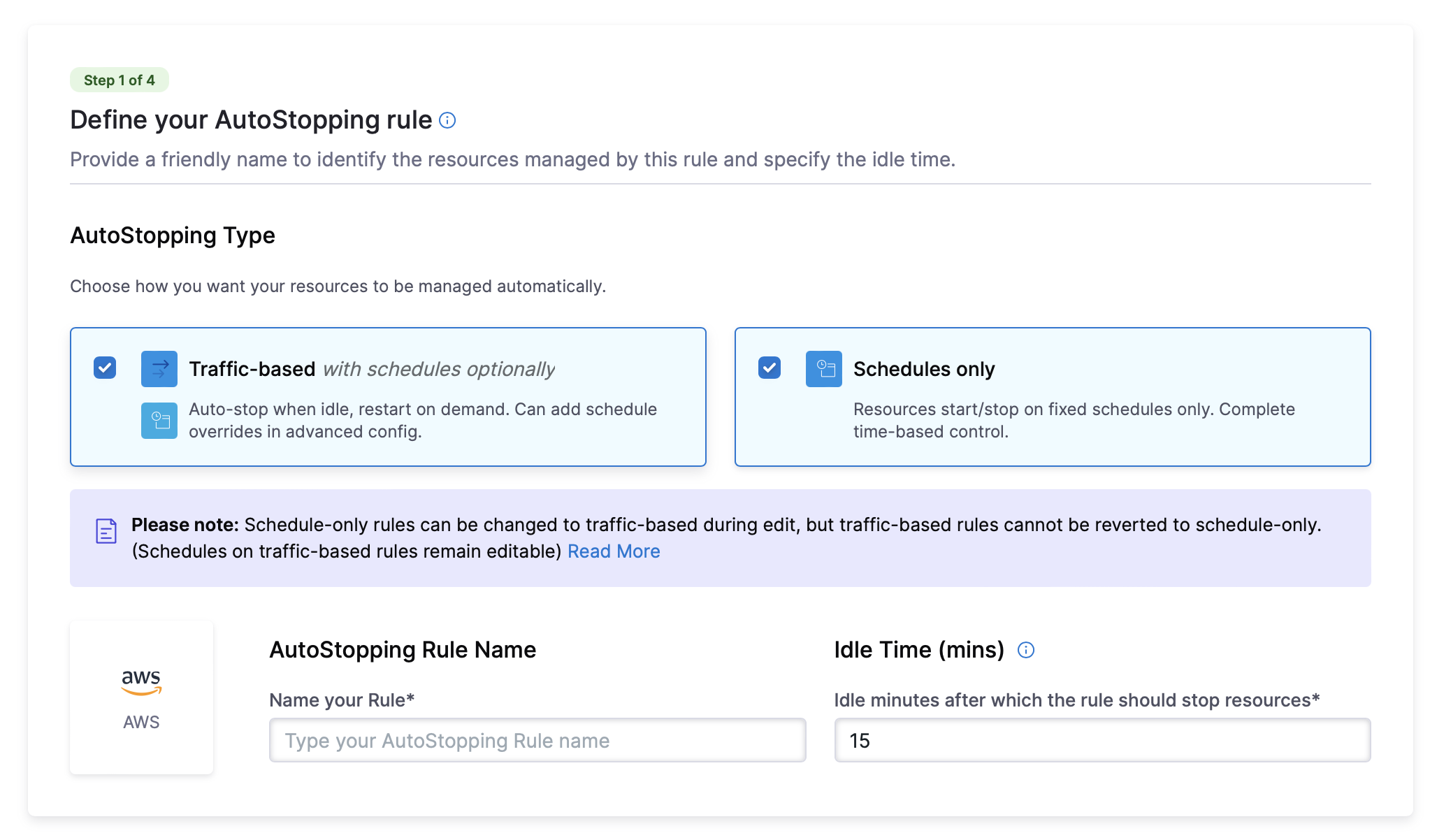
- Enter a descriptive Name for your rule.
- AutoStopping Type: Choose how you want your resources to be managed automatically. You can either choose Traffic-based with schedules optionally or Schedules only.
- Traffic-based with schedules optionally: Resources automatically stop when idle and restart when traffic is detected. You can configure schedule overrides in advanced settings.
- Schedules only: Resources automatically start and stop based on defined schedules. You can configure multiple schedules in advanced settings.
Please note: Schedule-only rules can be changed to traffic-based during edit, but traffic-based rules cannot be reverted to schedule-only. (Schedules on traffic-based rules remain editable)
- Set the Idle Time - the duration an instance should be inactive before stopping
- From the Resources to be managed section, choose the resource type you want to manage:
EC2 VMs
-
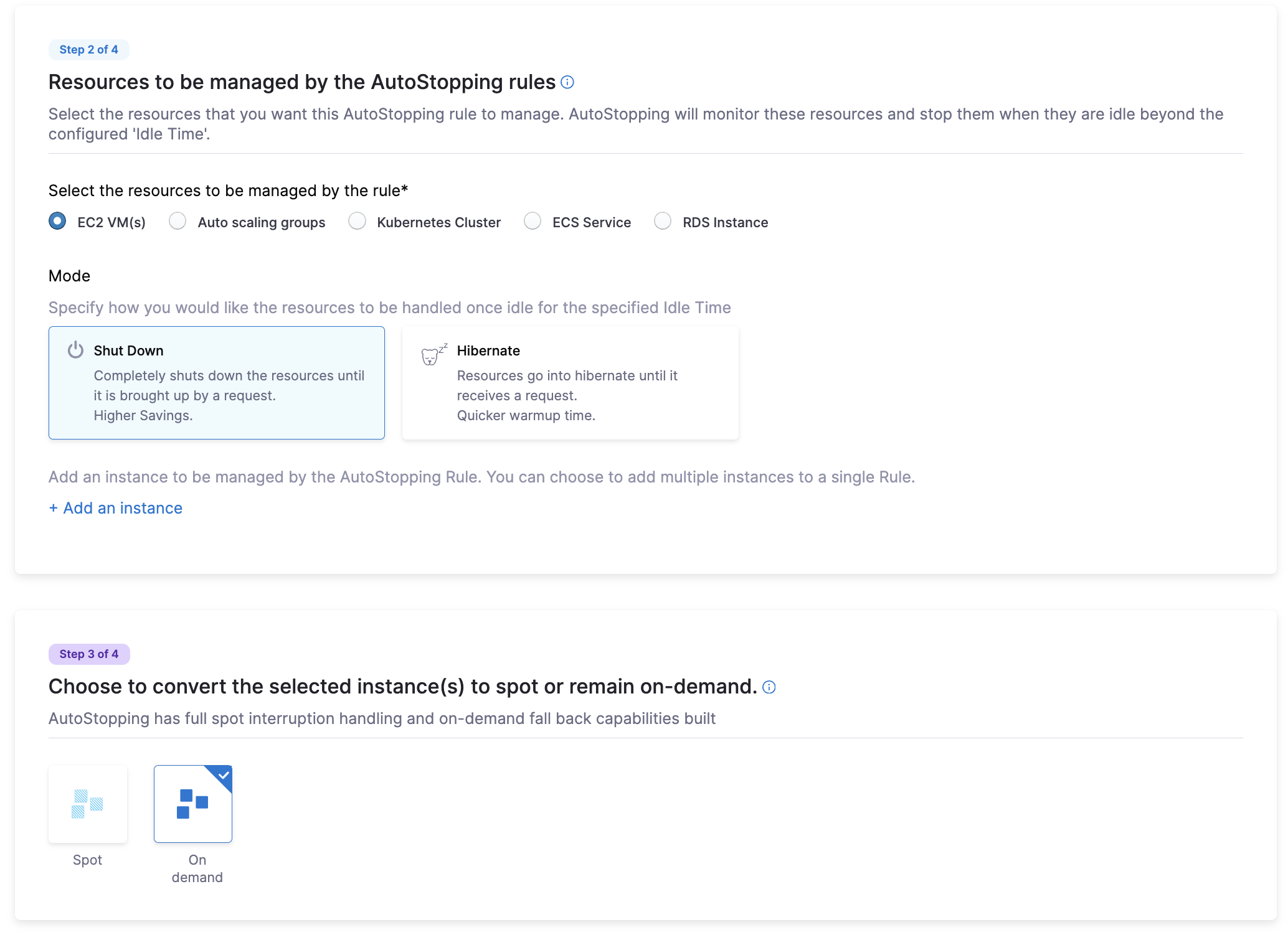
Select EC2 VMs as the resource type
-
Choose the idle behavior: Shut Down or Hibernate
-
Select the mode how you would like the resource to be handled once idle for the specified idle time: either Shut Down or Hibernate
- Shut Down: Completely shuts down the resources until it is brought up by a request. Higher Savings.
- Hibernate: Resources go into hibernate until it receives a request. Quicker warmup time.
-
Select EC2 instances manually or by Tag-based inclusion. For manual selection, choose the region and optionally apply tags. For Tag-based selection, specify tag keys and values. Any new resources that match your selected criteria will automatically be affected by Tag-based selection and will be added to the Rule.
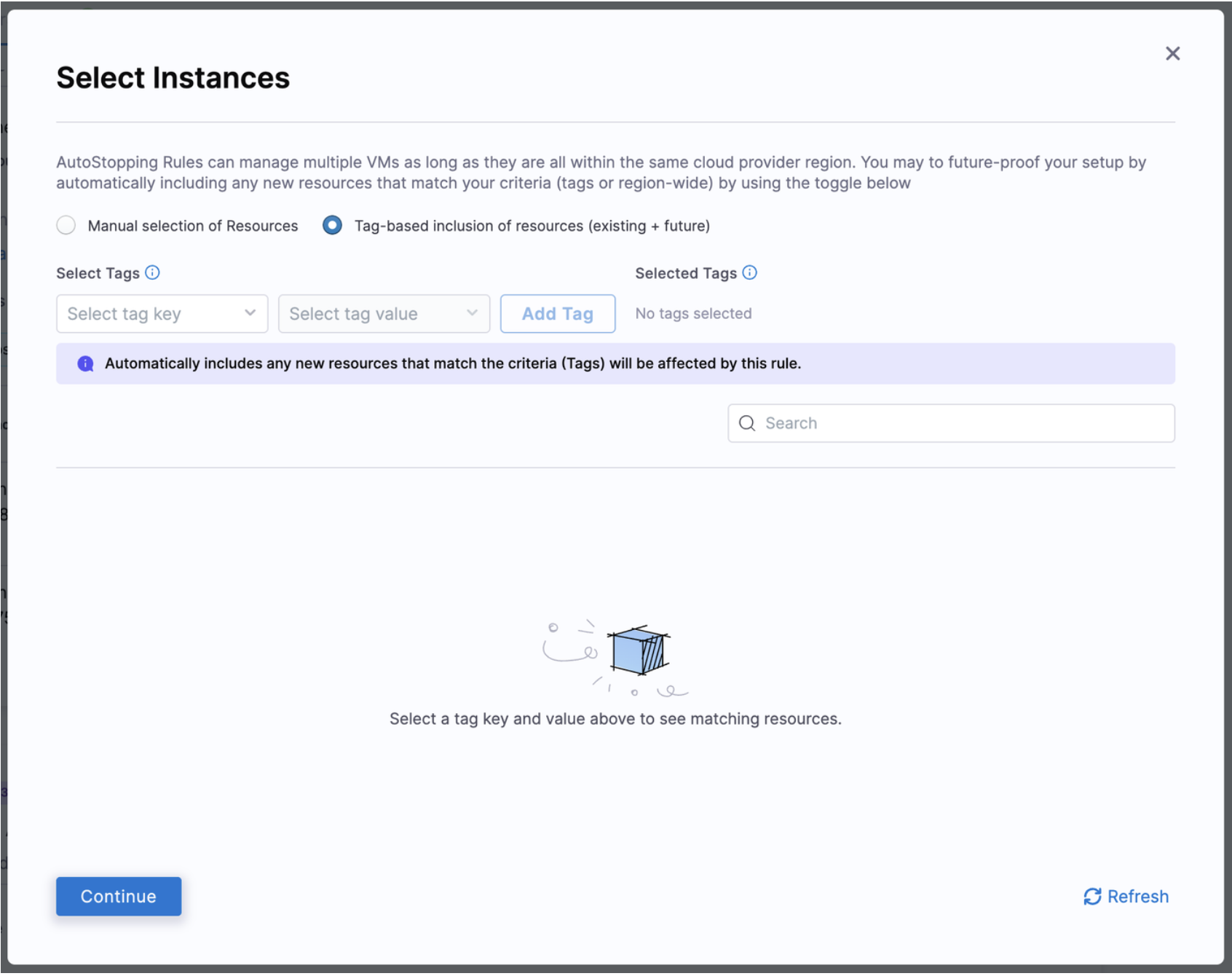
- Choose to Convert to Spot Instances or keep as On-Demand
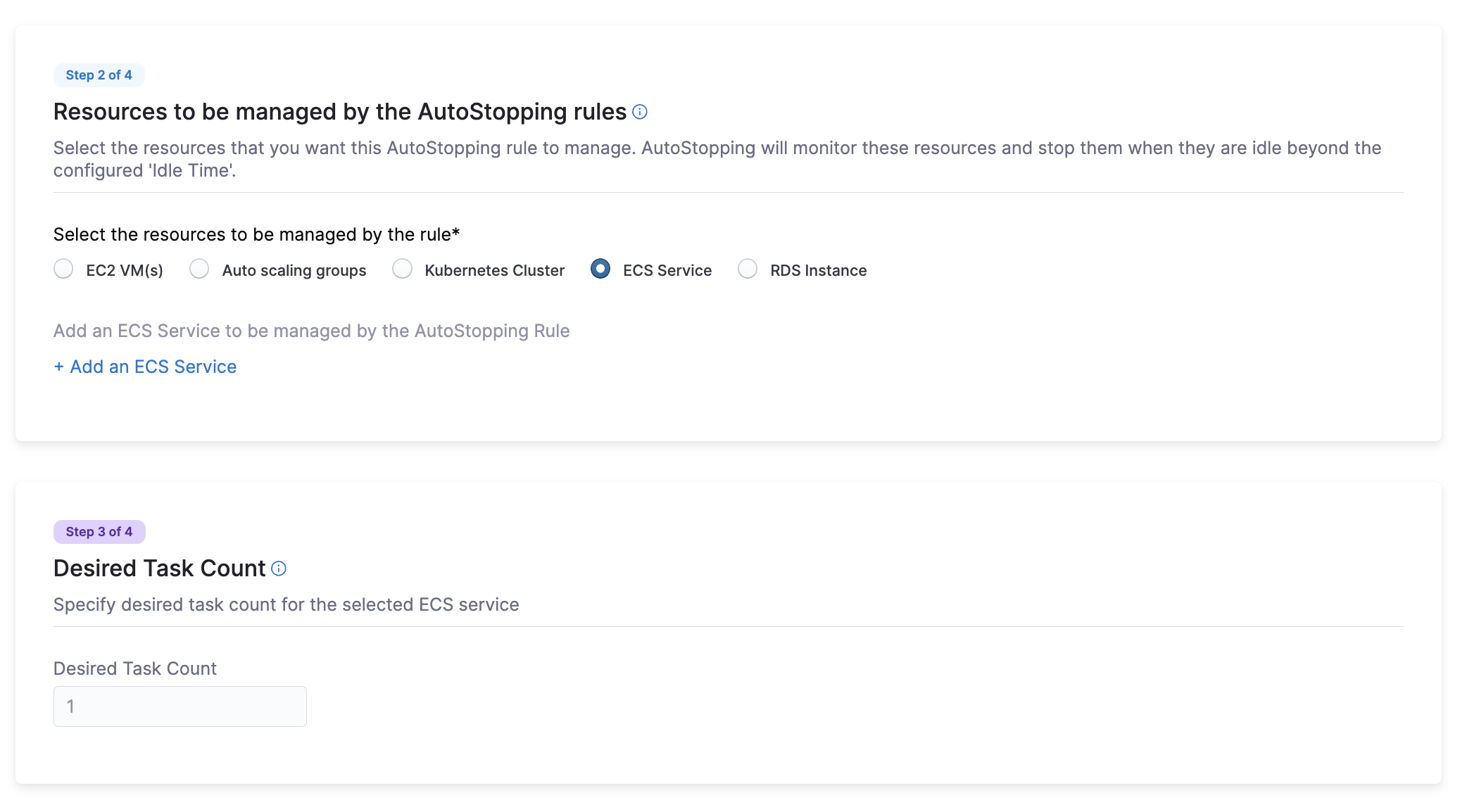
ECS Service
- Select ECS Service as the resource type
- Click Add an ECS Service
- Choose your ECS Service by either:
- Service Name: Select region, cluster, and service
- Service Tags: Select region, cluster, and tags
- Specify the Desired Task Count that Harness should instantiate when the service is running
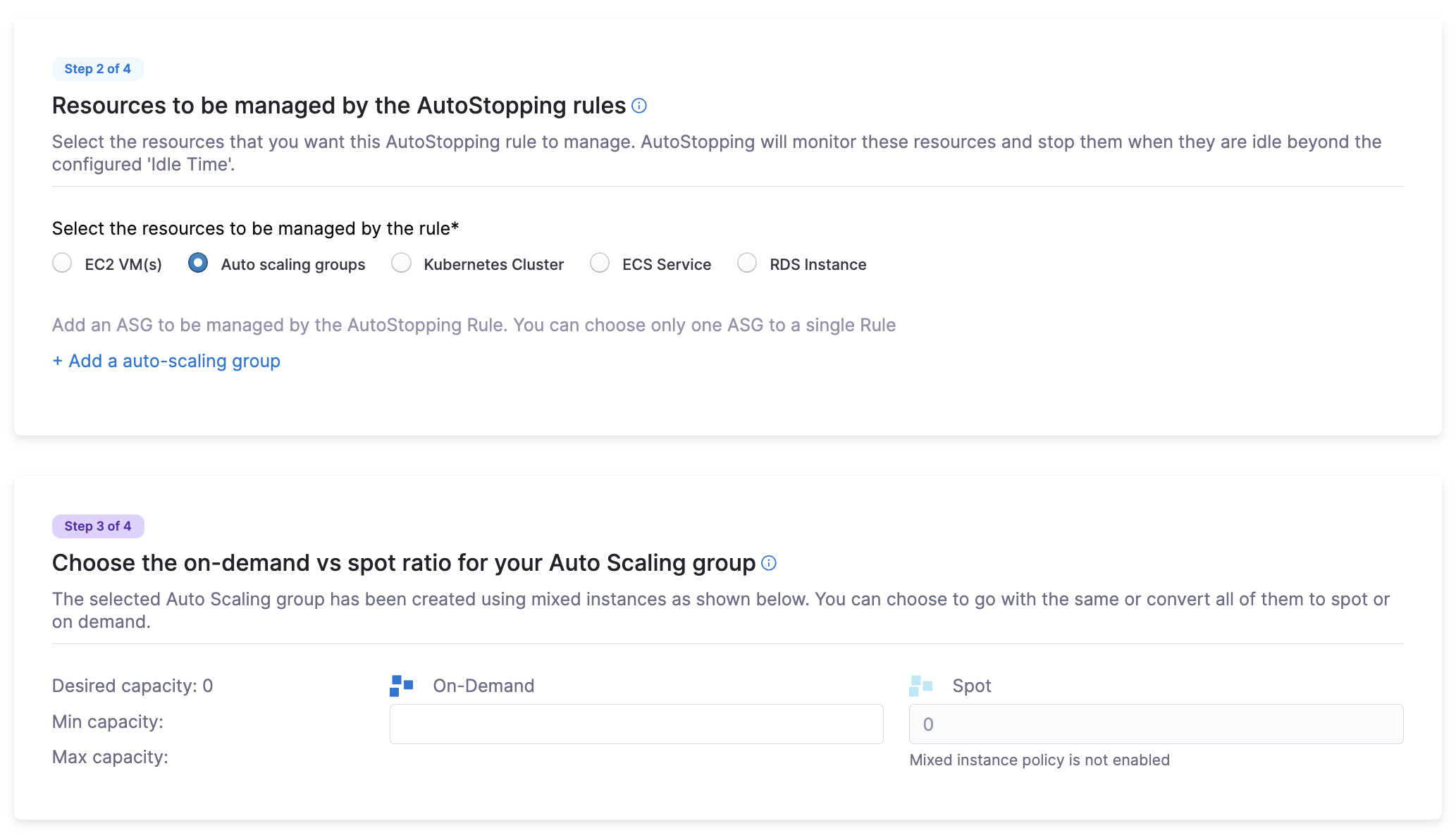
Auto-Scaling Groups
- Select ASG as the resource type
- Click + Add an auto-scaling group and select the ASG to onboard
- Choose the on-demand vs. spot ratio for your ASG
Note: The Mixed Instance Policy must be enabled for the ASG
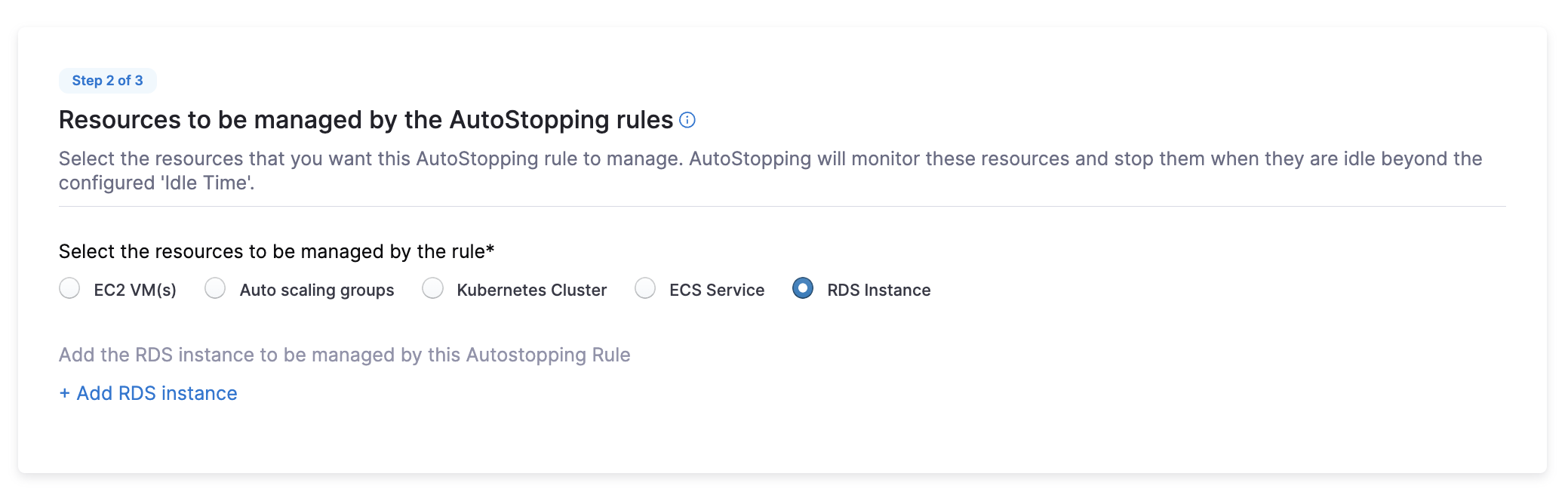
RDS Instances
- Select RDS as the resource type
- Click Add RDS Instance and select the instance you want to manage
Alerts and other Advanced Configuration (Optional):
Get instant notifications when resources managed by the rule experience problems starting up or shutting down properly.
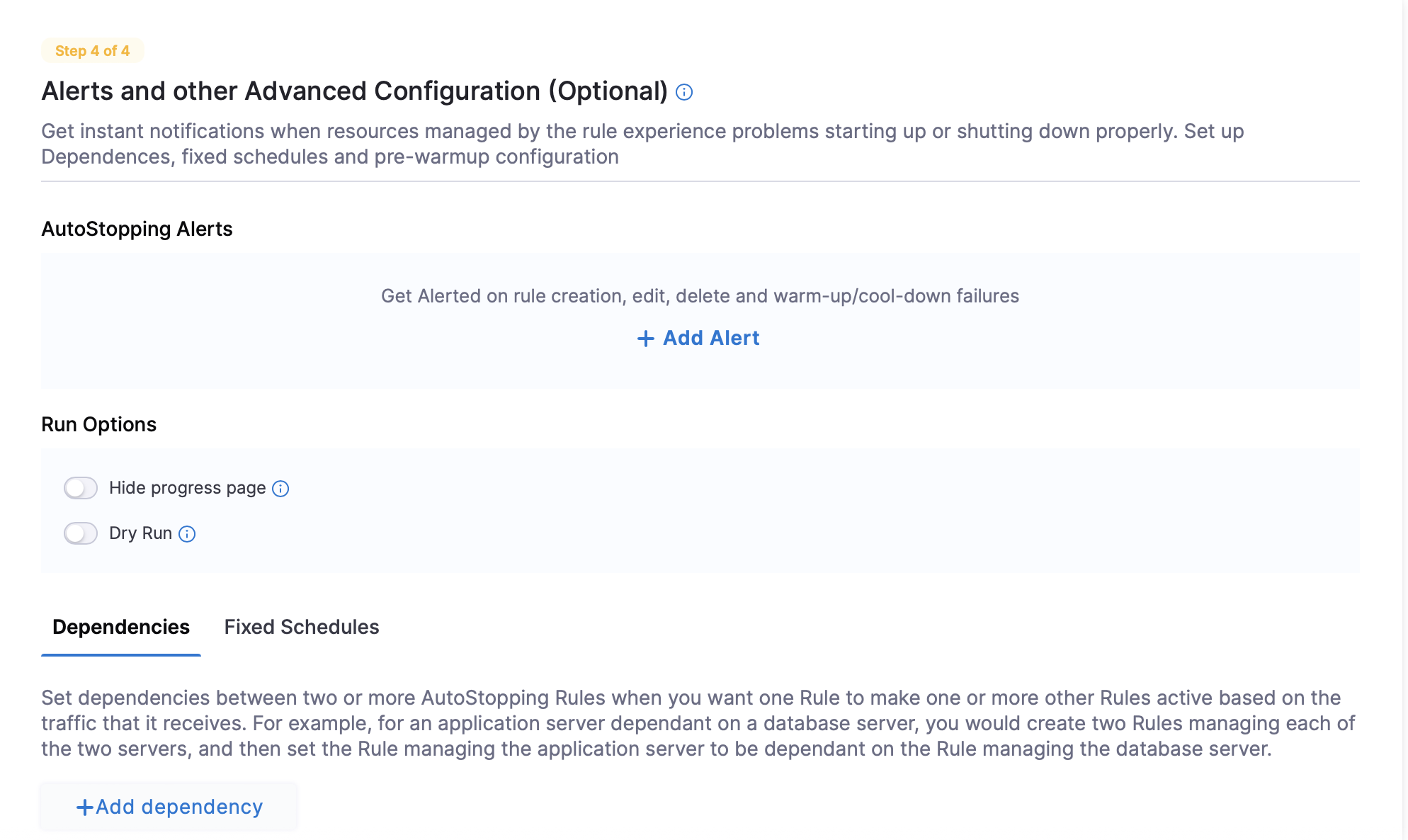
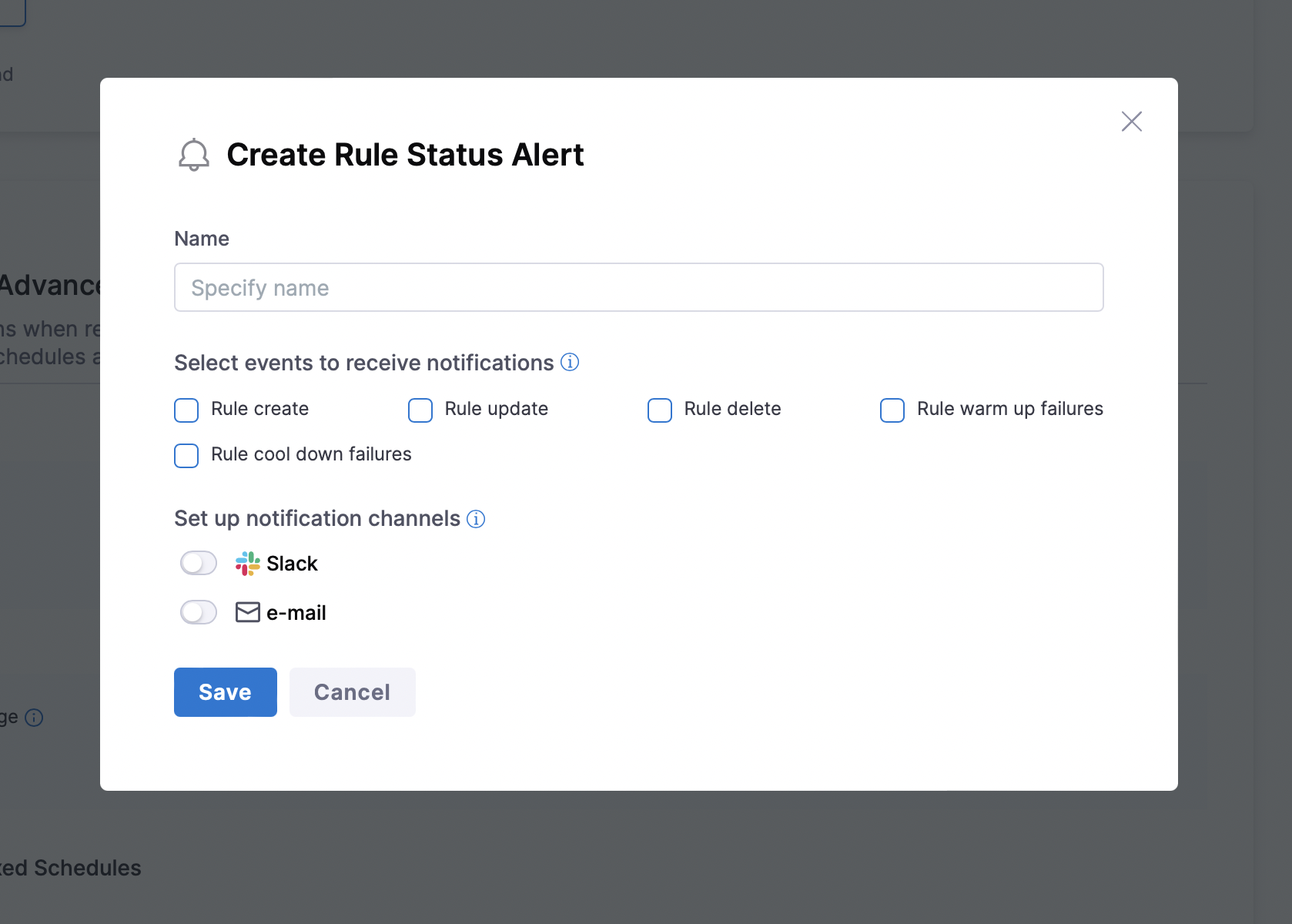
AutoStopping Alerts: Configure notifications for critical events related to your AutoStopping rules. Click on +Add Alert to add an alert.
- Rule create: Receive notifications when new AutoStopping rules are created in your environment. This helps track who is creating rules and when, providing better governance.
- Rule update: Get alerts when existing rules are modified. This helps maintain awareness of configuration changes that might affect resource availability or cost savings.
- Rule delete: Be notified when rules are removed. This ensures you're aware of any changes that might affect resource management or cost optimization strategies.
- Rule warm up failures: Receive alerts when resources fail to start properly. This is critical for addressing availability issues quickly and preventing application downtime.
- Rule cool down failures: Get notifications when resources fail to stop as expected. This helps identify potential issues that could prevent cost savings or indicate resource problems.
- Notification Channels: Receive real-time notifications directly in Slack or e-mail. Configure specific channels for different types of alerts to streamline your team's response workflow.
Run Options:
-
Hide Progress Page: Toggle this to disable the display of a progress page during instance warm-up. This option is especially useful when the service is invoked by an automation system, as it prevents misinterpretation of the progress page as the intended response from a service that is onboarded to AutoStopping. By hiding the progress page, the first response of warming up a rule after a downtime will be delayed until the intended service is up and running.
-
Dry-Run: Toggle this button if you wish to evaluate the feature without terminating your cloud resources.
- Dependencies
- Fixed Schedules
Set dependencies between two or more AutoStopping Rules when you want one Rule to make one or more Rules to be active based on the traffic that it receives. For example for an application server dependent on a database server, create two AutoStopping Rules managing both the servers. Add a dependency on the Rule managing the application server to be dependent on the Rule managing the database server. Link your rule to other AutoStopping rules if resources depend on each other.
- Click Add Dependency and select a rule from the RULES drop-down list.
- In DELAY IN SECS, enter the number of seconds the dependent rule should wait after warming up before warming up this rule.
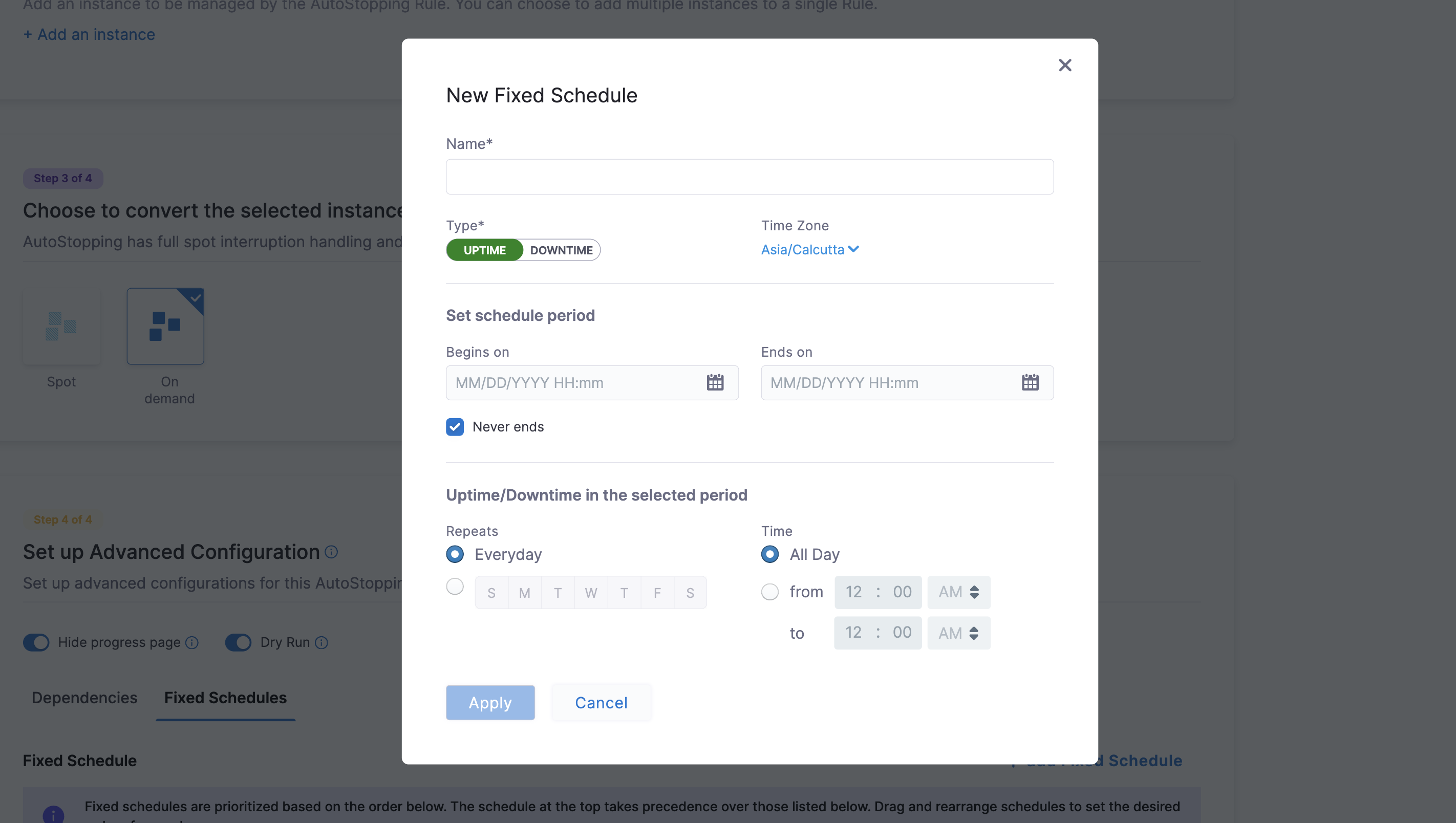
Create fixed uptime or downtime schedules for the resources managed by this AutoStopping Rule. When a resource is configured to go up or down on a fixed schedule, it is unaffected by activity or idleness during that time period.
In certain scenarios, you would not want your resources to go down or up. For example, every Friday at 5 p.m. you want your ABC resource to go down. You can schedule downtime for your ABC resource. During this window, the resource is forced to go down regardless of the defined rule. You can choose to specify uptime for your resources in the same way.
The fixed schedule takes precedence over the defined AutoStopping Rule.
Harness executes scheduled rules using Dkron, an open-source workload automation service.
- Click Add Fixed Schedule.
- Give the schedule a Name.
- Select the Type of schedule (Uptime or Downtime).
- Select the Time Zone.
- Set the schedule period with Begins on and Ends on dates and times. You can also select the Never ends checkbox.
- To set a recurring schedule, select the repeat frequency and the days of the week, and set the Start and End times. You can also select All Day.
- EC2 & ASGs
- RDS Instances
- ECS Services
Set up access for TCP workload or SSH/RDP
Setting up access for TCP workload or SSH/RDP allows AutoStopping to detect activity and idleness, and ensure that the database is up and running only when you need it. Use the AutoStopping Proxy URL (IP/Hostname of the Proxy and a unique autogenerated port number) for this AutoStopping Rule when you connect to the RDS database using any database client. The Proxy URL is generated when you save the AutoStopping Rule. If you need to access the resources managed by this AutoStopping rule using TCP or SSH/RDP HTTPS URL, you need to perform the following steps:
- Choose an AutoStopping Proxy load balancer from the Specify AutoStopping Proxy dropdown list to set up access.
- Toggle SSH or RDP to specify the listening ports. The port number is autopopulated based on the security group.
- Specify the source port numbers and the target TCP ports your application is listening to. If the source port is not specified, a random port will be generated at the backend. This auto-generated port will continue to be used as long as the target port remains unchanged or unless the user explicitly modifies the source port.
- Click Next.
Set up access for HTTP/HTTPS workload
If you need to access the resources managed by this AutoStopping rule using an HTTP or HTTPS URL, you need to perform the following steps:
Choose an Application Load Balancer or an AutoStopping Proxy load balancer from the dropdown list to set up access.
Option A: HTTP/HTTPS Access (Load Balancer)
Click to expand HTTP/HTTPS access configuration details
Enter the routing configuration
-
If the security groups are configured for the selected instances, then the routing information is auto-populated for those instances.
You can edit or delete the routing information. However, it is mandatory to have at least one port listed. For more information, see Listeners.This is the load balancer routing configuration for the underlying application that is running on the cloud resources managed by this AutoStopping rule.
-
Click Add if you wish to add more ports. The following are some points to consider:
- If you are forwarding the same action to different ports, then specify the server name and/or path match.
- If you specify the server name, then the host uses the custom URL to access the resources. You cannot use an auto-generated URL to access the resources.
Add multiple domains with the AutoStopping rule
ALB has certain limitations to consider when creating rules. By default, ALB allows only five conditions on a Listener Rule. This can become problematic when the AutoStopping rule requires configuration for more than five domains. To address this, you can utilize the Server name field in the Port configuration section.
Each row in the Port config table represents an ALB rule in Harness. The information provided in the row is translated into an ALB rule by the Harness backend. Therefore, the Server name field has a limit of five domains.
You can add a comma separated list of domain names in the server name field to add more domains to the rule. Each server name field can take up to five domain names. Continue adding rows to the table until all domains are included. Each row will generate a new rule in the ALB of the Harness load balancer.
Enter the Health Check Details
-
Toggle the Health check button to configure the health check. Health check status should be successful for the AutoStopping rules to come into effect. Set a health check for the underlying application that is running on the cloud resources managed by this AutoStopping rule. The load balancer periodically sends requests as per the settings below to the application. If your application does not support health check or you do not have any application running, you can disable the health check.
By default, the health check is turned on.
-
In Protocol, select http or https.
-
Enter Path, port, and timeout details. For example, if you have configured port 80 and the timeout as 30 seconds for your instance, then the AutoStopping rule checks these specified parameters before bringing AutoStopping Rule into effect.
Specify the URL to access the resources
You can use either of the following methods:
- Auto-generated URL
- Custom URL
Auto-generated URL
Every AutoStopping rule has an auto-generated URL. This URL is a subdomain to the domain name specified for the load balancer. Since the load balancer configures a wildcard domain such as *.autostopping.yourcompany.com, the auto-generated URL works automatically and points to the correct load balancer.
Select Use the auto-generated URL to access the resources managed by this AutoStopping Rule.
Custom URL
AutoStopping rule can use multiple custom domains. In such a case, it should be configured in the DNS provider. AutoStopping Rules also allows you to use custom domains or change the root of your site's URL from the default, like,autostop.harness.io, to any domain you own. To point your site's default domain to a custom domain, you can set it up in your DNS provider.
Enter the custom URL currently used to access the instances. The domain name should be entered without prefixing the scheme. A rule can have multiple URLs. You can enter comma-separated values into a custom URL to support multiple URLs.
Configure custom exclusions and inclusions
Before you begin, make sure that you've enabled ALB access logs in your AWS account to be able to configure custom exclusions and inclusions while creating AutoStopping rules. Go to ALB access logs for more information.
Custom exclusions and inclusions allow you to keep the cloud resources managed by AutoStopping remain idle by defining rules. These rules prevent the cloud resource from detecting traffic by the AutoStopping rule. For example, you can use custom exclusions and inclusions to filter out repeated traffic such as health checks, which would otherwise keep the cloud resource active at all times. The minimum idle time for the exclusion or inclusion-enabled AutoStopping rule is 15 minutes.
You can configure exclusions by defining either of the following options:
-
Path-based match: Specify the path that you want to exclude from invoking the instance. You can use wildcards in the path.
An error message is displayed to the user trying to access the path if the managed resource is in a stopped state. If the resource is active and running, this request is not considered as traffic and is ignored by the AutoStopping rule.
-
Source IP-based match: Specify one or more IP addresses that you want to exclude from accessing the instance. You could specify an entire range of IP addresses. Use commas to separate the IP addresses.
Any requests from the specified IP addresses are ignored by the AutoStopping rule.
Requests from these IP addresses or to these paths do not disturb the idle time configured for the AutoStopping rule.
Similarly, you can configure custom inclusions. Requests to the specified path or from the specified IP address alone can invoke the cloud resource managed by AutoStopping. Only these requests are detected as traffic by the AutoStopping rule.
Option B: SSH/RDP Access (AutoStopping Proxy)
Click to expand SSH/RDP access configuration details
Enter Routing Configuration and Health Check Details
-
If the security groups are configured for the selected instances, then the routing information is auto-populated for those instances.
You can edit or delete the routing information. However, it is mandatory to have at least one port listed. For more information, see Listeners.This is the load balancer routing configuration for the underlying application that is running on the cloud resources managed by this AutoStopping rule.
-
Click Add if you wish to add more ports. The following are some points to consider:
- If you are forwarding the same action to different ports, then specify the server name and/or path match.
- If you specify the server name, then the host uses the custom URL to access the resources. You cannot use an auto-generated URL to access the resources.
-
Toggle the Health check button to configure the health check. Health check status should be successful for the AutoStopping rules to come into effect. Set a health check for the underlying application that is running on the cloud resources managed by this AutoStopping rule. The load balancer periodically sends requests as per the settings below to the application. If your application does not support health check, or you do not have any application running, you can disable the health check.
By default, the health check is turned on.
-
In Protocol, select http or https.
-
Enter Path, port, and timeout details. For example, if you have configured port 80 and the timeout as 30 seconds for your instance, then the AutoStopping rule checks these specified parameters before bringing AutoStopping Rule into effect.
Specify the URL to access the resources
You can use either of the following methods:
- Auto-generated URL
- Custom URL
Auto-generated URL
Every AutoStopping rule has an auto-generated URL. This URL is a subdomain to the domain name specified for the load balancer. Since the load balancer configures a wildcard domain such as *.autostopping.yourcompany.com, the auto-generated URL works automatically and points to the correct load balancer.
Select Use the auto-generated URL to access the resources managed by this AutoStopping Rule.
Custom URL
AutoStopping rule can use multiple custom domains. In such a case, it should be configured in the DNS provider. AutoStopping Rules also allows you to use custom domains or change the root of your site's URL from the default, like,autostop.harness.io, to any domain you own. To point your site's default domain to a custom domain, you can set it up in your DNS provider.
Enter the custom URL currently used to access the instances. The domain name should be entered without prefixing the scheme. A rule can have multiple URLs. You can enter comma-separated values into a custom URL to support multiple URLs.
Since RDS has only AutoStopping Proxy supported, you can use this to manage your traffic. In Set up Access, select Proxy from the drop-down list or create a new one. Select Source Port and Target Port. Click Next.
Setting Up DNS Link
A DNS link allows you to access the resources managed by the AutoStopping rule using an HTTP or HTTPS URL. To create a DNS Link, follow these steps:
1. Select a Load Balancer
- From the dropdown list, select the load balancer associated with your ECS service.
- The rule requires this load balancer to detect traffic and manage instances appropriately.
Multiple instances and rules can use a single load balancer. It identifies instances based on hostnames and directs HTTP traffic accordingly.
2. Select the URL for Accessing Resources
Choose one of the following URL options:
Option A: Auto-generated URL
- Select Use the auto-generated URL to access resources managed by this AutoStopping Rule.
- Every AutoStopping rule will have an auto-generated URL that works as a subdomain to the domain specified for the load balancer.
- Since the load balancer configures a wildcard domain (e.g.,
*.autostopping.yourcompany.com), this URL will automatically point to the correct load balancer.
Option B: Custom URL
- Enter the custom URL currently used to access the instances (without prefixing the scheme).
- For multiple URLs, enter comma-separated values.
Custom URL features:
- A rule can have multiple URLs
- Custom domains must be configured in your DNS provider
- You can change your site's URL from the default (like
autostop.harness.io) to any domain you own
In Review, verify all the configuration details and click Save Rule. To edit any of the configuration settings, click EDIT and modify the settings.
Your AutoStopping rule is listed under the AutoStopping Rules dashboard.
AWS AutoStopping Savings Computation
For AWS, the savings are determined by calculating the total cost based on amortized values after deducting total discounts.
Cost = Amortized Cost - Total Discounts
Savings numbers will become precise only after the savings numbers are finalized after the 15th of the next month (after the final settlement). Savings will be recomputed for the previous month on the 15th of the next month to ensure any updates to CUR/billing-export are considered in the final savings numbers for the month.