azure-as
Prerequisite: Set Up Proxy and/or Load Balancer
Set up a proxy or load balancer that will intercept and manage traffic to your resources. This component is what enables the seamless start/stop functionality.
Azure App Gateway
Azure Application Gateway is a web traffic load balancer that enables you to manage traffic to your web applications. Application Gateway can make routing decisions based on additional attributes of an HTTP request, for example URI path or host headers.
AutoStopping Proxy
A This proxy VM sits in front of your virtual machines and intelligently starts or stops them based on incoming traffic. It supports both HTTP(S) and TCP connections. Built on the proven, open-source Envoy Proxy, the AutoStopping Proxy is capable of managing traffic for multiple AutoStopping-managed VMs from a single instance.
Below table shows the resources supported by AutoStopping and the appropriate traffic management you can use for each resource type.
| Azure Resource | AutoStopping Proxy | Azure App Gateway (Load Balancer) |
|---|---|---|
| Azure VM | ✅ | ✅ |
- Setup Proxy
- Setup Load Balancer
- In the AutoStopping overview page, click Load Balancers in the top right. Click on Create Load Balancer and then Create AutoStopping Proxy.
- Enter a name and select Azure in Cloud Provider
- Choose a cloud connector or create a new one.
- Enter Application Gateway Configuration.
- Region: The region where your target VM or the cloud resource is hosted.
- Resource Group: A Resource Group (RG) in Azure is a logical container that holds related resources for a solution. In the context of an Azure Application Gateway, the resource group serves as the container for the various resources associated with the Application Gateway, such as: Virtual Machines (VMs), Storage Accounts, Networking Resources, etc.
- Virtual Network: Azure Virtual Network is a service that provides the fundamental building block for your private network in Azure. VNet allows you to create and manage virtual private networks (VPNs) in the Azure cloud.
- Subnet: AppGateway subnet should only contain AppGateway, no other resources can be placed in this subnet.
- Security Group to define the security rules that determine the inbound and outbound traffic.
- TLS Certificate Configuration:
- TLS Certificate Secret Version: Enter the value displayed in the Secret Identifier field on the Azure console.
- TLS Private Key Secret Version: Create another secret for the private key and enter the value in this field.
It is recommended to create the secret using the Azure CLI, and not using the Generate/Import option on the UI. This is to avoid some unwanted characters that get added to the certificate value. For more information, go to Set and retrieve a secret from Azure Key Vault using Azure CLI. Example:
- Machine type: Select the type of VM that you want to set the AutoStopping rule for.
- Key Pair: Enter the SSH key pair.
- This key can be used to access the machine over SSH with the ubuntu user
- API Key: Enter the NG API key. Choose No Expiration in the Expiration dropdown list while creating this API key. Go to Create an API Key for more information.
- [OPTIONAL] Allocate Static IP: Enable to assign an elastic IP address
- Makes the proxy publicly accessible
- Remember to update your DNS records to point to this IP
- Click on Save AutoStopping Proxy.
- In the AutoStopping overview page, click Load Balancers in the top right
- Enter a name and select Azure in Cloud Provider
- Choose a cloud connector or create a new one.
- Enter Application Gateway Configuration.
- Region: The region where your target VM or the cloud resource is hosted.
- Resource Group: A Resource Group (RG) in Azure is a logical container that holds related resources for a solution. In the context of an Azure Application Gateway, the resource group serves as the container for the various resources associated with the Application Gateway, such as: Virtual Machines (VMs), Storage Accounts, Networking Resources, etc.
- Certificate (Optional)
- Virtual Network: Azure Virtual Network is a service that provides the fundamental building block for your private network in Azure. VNet allows you to create and manage virtual private networks (VPNs) in the Azure cloud.
- Subnet: AppGateway subnet should only contain AppGateway, no other resources can be placed in this subnet.
- Frontend IP
- SKU
- Azure Function Region
- Click on Save Load Balancer.
This newly created application gateway can be imported in any new Autostopping rule.
We’ve recently launched support for Azure WAF Gateways. Currently, only import functionality is available for this gateway type.
Create AutoStopping Rule
- In Harness, navigate to Cloud Costs > AutoStopping Rules and click New AutoStopping Rule.
- Step 1: Configuration
- Step 2: Setup Access
- Step 3: Review
-
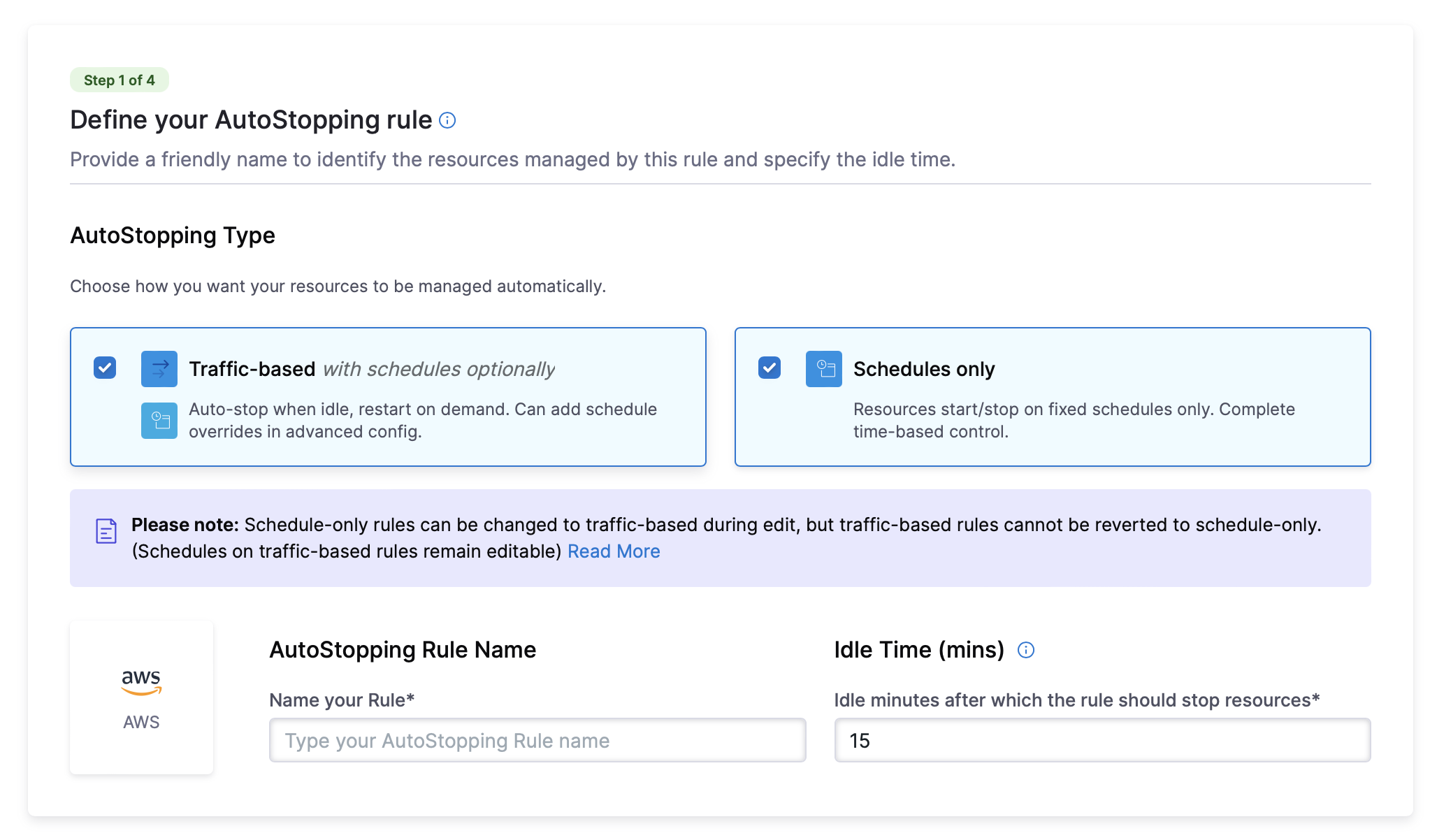
Select Cloud Provider as AWS. Select an existing AWS connector or create a new one.
-
Enter a Name for your rule
-
AutoStopping Type: Choose how you want your resources to be managed automatically. You can either choose Traffic-based with schedules optionally or Schedules only.
- Traffic-based with schedules optionally: Resources automatically stop when idle and restart when traffic is detected. You can configure schedule overrides in advanced settings.
- Schedules only: Resources automatically start and stop based on defined schedules. You can configure multiple schedules in advanced settings.
infoPlease note: Schedule-only rules can be changed to traffic-based during edit, but traffic-based rules cannot be reverted to schedule-only. (Schedules on traffic-based rules remain editable)
-
Set the Idle Time - how long an instance should be inactive before stopping
-
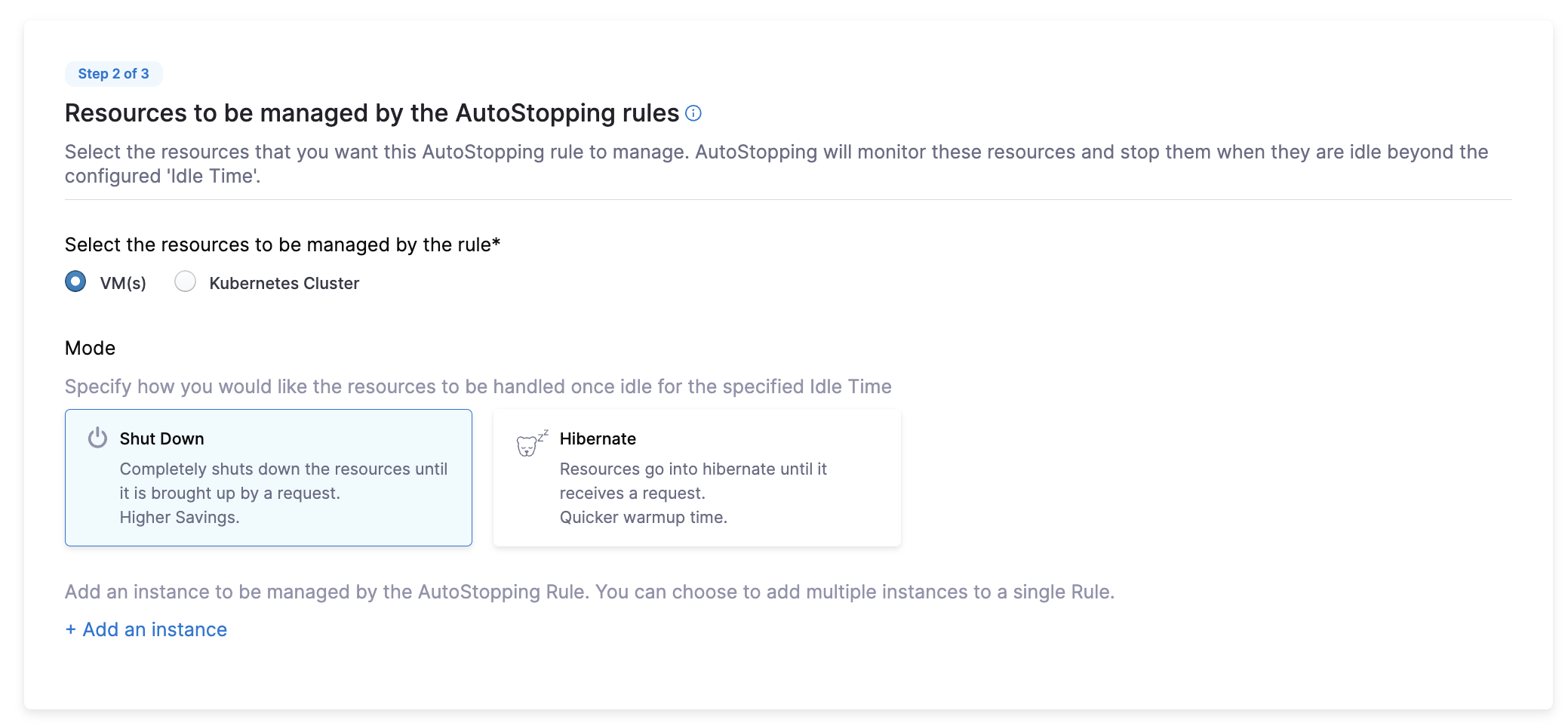
In the Resources to be managed by the AutoStopping rules section, select "VM". Post this, specify how you would like the resources to be handled once idle for the specified Idle Time: Shut Down or Hibernate.
-
Click on + Add an instance and select the VM you want to onboard.
Advanced Configuration (Optional):
- Hide Progress Page: Toggle this to disable the display of a progress page during instance warm-up.
- Dry-Run: Toggle this button if you wish to evaluate the feature without terminating your cloud resources.
- Dependencies
- Fixed Schedules
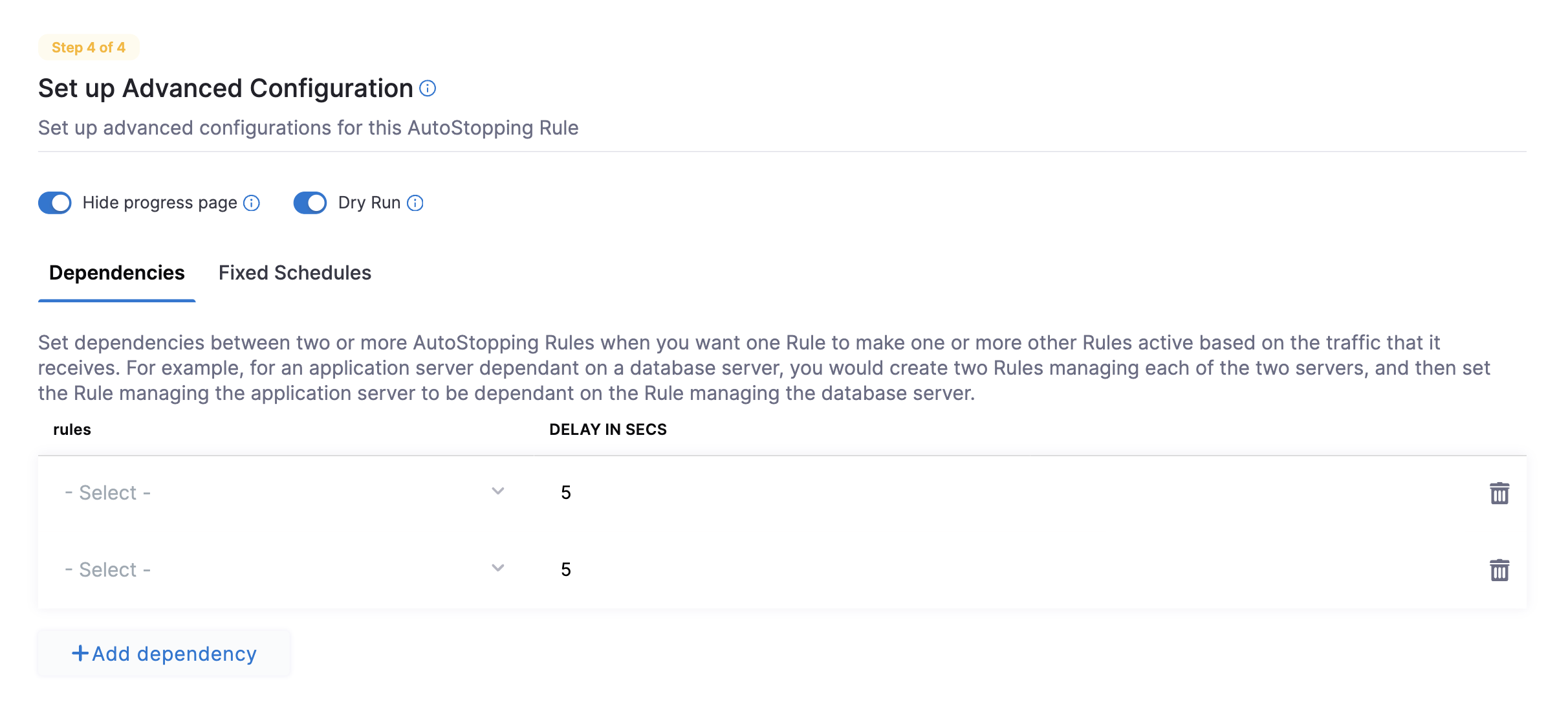
Link your rule to other AutoStopping rules if resources depend on each other.
- Click Add Dependency and select a rule from the RULES drop-down list.
- In DELAY IN SECS, enter the number of seconds the dependent rule should wait after warming up before warming up this rule.
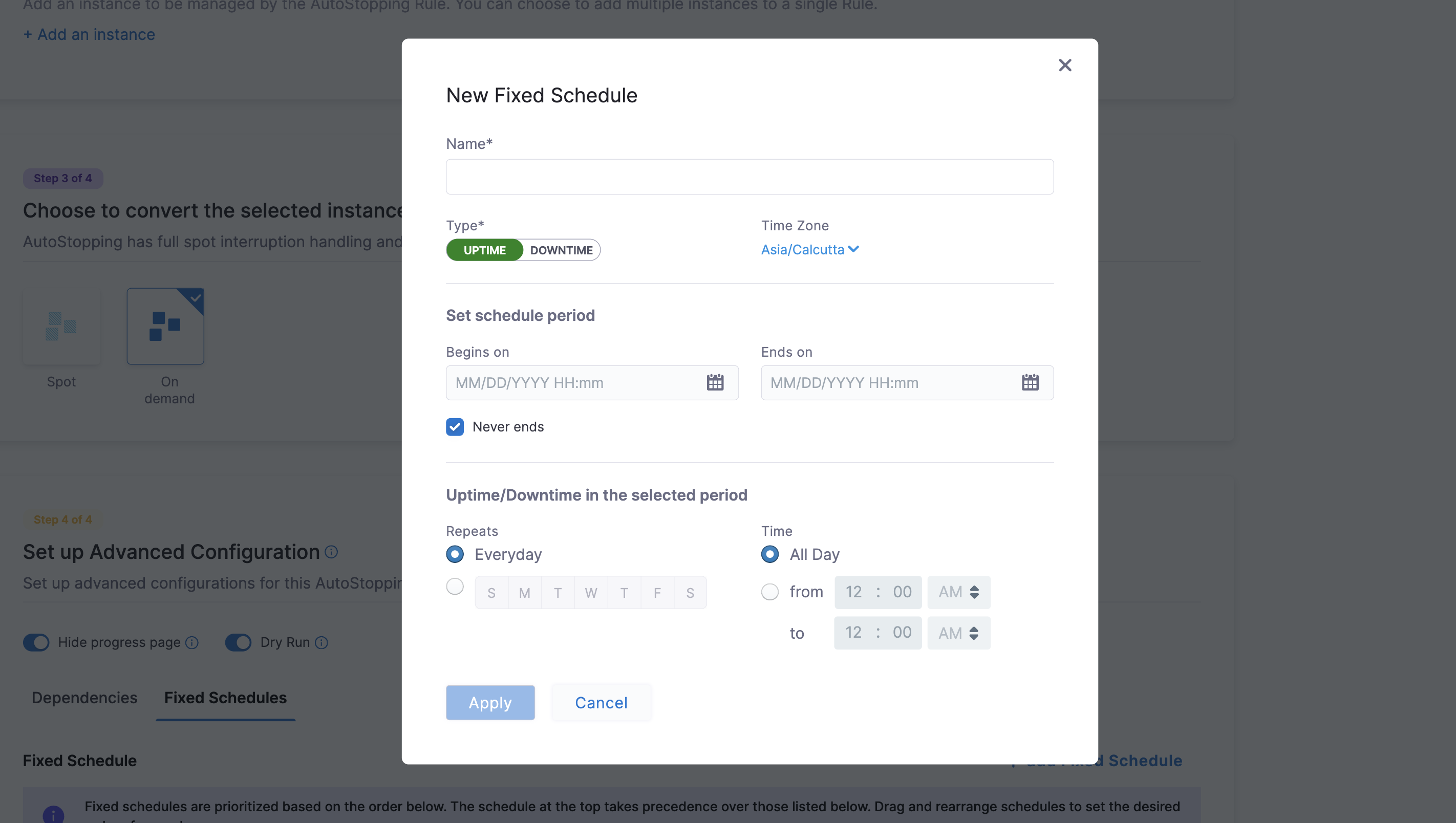
Create fixed uptime or downtime schedules for the resources managed by this rule. A fixed schedule takes precedence over the idle time logic.
- Click Add Fixed Schedule.
- Give the schedule a Name.
- Select the Type of schedule (Uptime or Downtime).
- Select the Time Zone.
- Set the schedule period with Begins on and Ends on dates and times. You can also select the Never ends checkbox.
- To set a recurring schedule, select the repeat frequency and the days of the week, and set the Start and End times. You can also select All Day.
Click to expand advanced configuration details
(Optional) Set up advanced configuration
In this step, you can configure the following settings:
Hide progress page
Toggle the button to disable the display of progress page during instances' warming up process. This option is especially useful when the service is invoked by an automation system, as it prevents misinterpretation of the progress page as the intended response from a service that is onboarded to AutoStopping. By hiding the progress page, the first response of warming up a rule after a downtime will be delayed until the intended service is up and running.
Dry Run
Toggle the button if you wish to evaluate this feature without terminating your cloud resources.
Add Dependency
Set dependencies between two or more AutoStopping Rules when you want one Rule to make one or more Rules to be active based on the traffic that it receives. For example for an application server dependent on a database server, create two AutoStopping Rules managing both the servers. Add a dependency on the Rule managing the application server to be dependent on the Rule managing the database server.
- Click add dependency to add a dependency on any existing rule.
- Select the rule from the RULES drop-down list.
- In DELAY IN SECS, enter the number of seconds that rule should wait after warming up the dependent rule. For example, you have Rule 1 dependent on Rule 2 and you have set 5 seconds delay. In that case, when the request is received to warm up Rule 1, then first Rule 2 (dependent rule) is warmed up, and then there is a delay of 5 seconds before warming up Rule 1.
- Once you're done with all the configurations, click Next.
Fixed Schedule
Create fixed uptime or downtime schedules for the resources managed by this AutoStopping Rule. When a resource is configured to go up or down on a fixed schedule, it is unaffected by activity or idleness during that time period.
In certain scenarios, you would not want your resources to go down or up. For example, every Friday at 5 p.m. you want your ABC resource to go down. You can schedule downtime for your ABC resource. During this window, the resource is forced to go down regardless of the defined rule. You can choose to specify uptime for your resources in the same way.
The fixed schedule takes precedence over the defined AutoStopping Rule.
Harness executes scheduled rules using Dkron, an open-source workload automation service.
To create a fixed schedule for your rule, do the following:
- In Fixed Schedules, click Add Fixed Schedule.
- In New Fixed Schedule, enter a Name for your schedule.
- In Type, select the type for your schedule. You can schedule an Uptime or Downtime for your rule. As per your schedule, the resources go up or down.
- Select the Time Zone from the drop-down list.
- In Set schedule period, use the date picker to set the start and end time for your schedule.
- In Begins on, select the start date and time for your schedule. You can select a date and specify the time.
- In Ends on, select the end date and time for your schedule. You can select a date and specify the time. Ensure that Never ends checkbox is unselected to set the end time.
- Select the checkbox Never ends if you do not want to set end time for your schedule.
- You can also set a recurring schedule for the rule. If you want to set a recurring schedule, in Uptime/Downtime in the selected period, in Repeats, select the repeat frequency.
- Select which days of the week you'd like your schedule to repeat. You can choose any day between Sunday and Saturday.
- Select Everyday, to set the schedule for all seven days of the week.
- Set your repeat schedule's beginning and ending time. In the Time field, specify the start and end time for the fixed schedule.
- Select All Day, if you wish to set your schedule for the entire day. If you choose All Day for your schedule, you won't be able to choose a start and end time.
Now that you have the AutoStopping rule configured, define how you would want to access the underlying application running on the resources managed by this Rule. You can use either of the following or both the methods depending on your requirement.
- Set up Access for HTTP/HTTPS workload: If the underlying applications running on the resources managed by the AutoStopping Rule are accessed by an HTTP or HTTPS URL.
- Set up Access for TCP workload or SSH/RDP: If the underlying applications running on the resources managed by the AutoStopping Rule are accessed via TCP, SSH, or RDP.
- OR Use Harness CLI to access resources through SSH/RDP
Set up access for TCP workload or SSH/RDP
Setting up access for TCP workload or SSH/RDP allows AutoStopping to detect activity and idleness, and ensure that the database is up and running only when you need it. Use the AutoStopping Proxy URL (IP/Hostname of the Proxy and a unique autogenerated port number) for this AutoStopping Rule when you connect to the RDS database using any database client. The Proxy URL is generated when you save the AutoStopping Rule. If you need to access the resources managed by this AutoStopping rule using TCP or SSH/RDP HTTPS URL, you need to perform the following steps:
- Choose an AutoStopping Proxy load balancer from the Specify AutoStopping Proxy dropdown list to set up access.
- Toggle SSH or RDP to specify the listening ports. The port number is autopopulated based on the security group.
- Specify the source port numbers and the target TCP ports your application is listening to. If the source port is not specified, a random port will be generated at the backend. This auto-generated port will continue to be used as long as the target port remains unchanged or unless the user explicitly modifies the source port.
- Click Next.
Set up access for HTTP/HTTPS workload
If you need to access the resources managed by this AutoStopping rule using an HTTP or HTTPS URL, you need to perform the following steps:
Choose an Application Load Balancer or an AutoStopping Proxy load balancer from the dropdown list to set up access.
Option A: HTTP/HTTPS Access (Load Balancer i.e. Azure Application Gateway)
Click to expand HTTP/HTTPS access configuration details
Enter the routing configuration
-
If the security groups are configured for the selected instances, then the routing information is auto-populated for those instances.
You can edit or delete the routing information. However, it is mandatory to have at least one port listed. For more information, see Listeners.This is the load balancer routing configuration for the underlying application that is running on the cloud resources managed by this AutoStopping rule.
-
Click Add if you wish to add more ports. The following are some points to consider:
- If you are forwarding the same action to different ports, then specify the server name and/or path match.
- If you specify the server name, then the host uses the custom URL to access the resources. You cannot use an auto-generated URL to access the resources.
Add multiple domains with the AutoStopping rule
ALB has certain limitations to consider when creating rules. By default, ALB allows only five conditions on a Listener Rule. This can become problematic when the AutoStopping rule requires configuration for more than five domains. To address this, you can utilize the Server name field in the Port configuration section.
Each row in the Port config table represents an ALB rule in Harness. The information provided in the row is translated into an ALB rule by the Harness backend. Therefore, the Server name field has a limit of five domains.
You can add a comma separated list of domain names in the server name field to add more domains to the rule. Each server name field can take up to five domain names. Continue adding rows to the table until all domains are included. Each row will generate a new rule in the ALB of the Harness load balancer.
Enter the Health Check Details
-
Toggle the Health check button to configure the health check. Health check status should be successful for the AutoStopping rules to come into effect. Set a health check for the underlying application that is running on the cloud resources managed by this AutoStopping rule. The load balancer periodically sends requests as per the settings below to the application. If your application does not support health check or you do not have any application running, you can disable the health check.
By default, the health check is turned on.
-
In Protocol, select http or https.
-
Enter Path, port, and timeout details. For example, if you have configured port 80 and the timeout as 30 seconds for your instance, then the AutoStopping rule checks these specified parameters before bringing AutoStopping Rule into effect.
Specify the URL to access the resources
You can use either of the following methods:
- Auto-generated URL
- Custom URL
Auto-generated URL
Every AutoStopping rule has an auto-generated URL. This URL is a subdomain to the domain name specified for the load balancer. Since the load balancer configures a wildcard domain such as *.autostopping.yourcompany.com, the auto-generated URL works automatically and points to the correct load balancer.
Select Use the auto-generated URL to access the resources managed by this AutoStopping Rule.
Custom URL
AutoStopping rule can use multiple custom domains. In such a case, it should be configured in the DNS provider. AutoStopping Rules also allows you to use custom domains or change the root of your site's URL from the default, like,autostop.harness.io, to any domain you own. To point your site's default domain to a custom domain, you can set it up in your DNS provider.
Enter the custom URL currently used to access the instances. The domain name should be entered without prefixing the scheme. A rule can have multiple URLs. You can enter comma-separated values into a custom URL to support multiple URLs.
Configure custom exclusions and inclusions
Before you begin, make sure that you've enabled ALB access logs in your AWS account to be able to configure custom exclusions and inclusions while creating AutoStopping rules. Go to ALB access logs for more information.
Custom exclusions and inclusions allow you to keep the cloud resources managed by AutoStopping remain idle by defining rules. These rules prevent the cloud resource from detecting traffic by the AutoStopping rule. For example, you can use custom exclusions and inclusions to filter out repeated traffic such as health checks, which would otherwise keep the cloud resource active at all times. The minimum idle time for the exclusion or inclusion-enabled AutoStopping rule is 15 minutes.
You can configure exclusions by defining either of the following options:
-
Path-based match: Specify the path that you want to exclude from invoking the instance. You can use wildcards in the path.
An error message is displayed to the user trying to access the path if the managed resource is in a stopped state. If the resource is active and running, this request is not considered as traffic and is ignored by the AutoStopping rule.
-
Source IP-based match: Specify one or more IP addresses that you want to exclude from accessing the instance. You could specify an entire range of IP addresses. Use commas to separate the IP addresses.
Any requests from the specified IP addresses are ignored by the AutoStopping rule.
Requests from these IP addresses or to these paths do not disturb the idle time configured for the AutoStopping rule.
Similarly, you can configure custom inclusions. Requests to the specified path or from the specified IP address alone can invoke the cloud resource managed by AutoStopping. Only these requests are detected as traffic by the AutoStopping rule.
Option B: SSH/RDP Access (AutoStopping Proxy)
Click to expand SSH/RDP access configuration details
Enter Routing Configuration and Health Check Details
-
If the security groups are configured for the selected instances, then the routing information is auto-populated for those instances.
You can edit or delete the routing information. However, it is mandatory to have at least one port listed. For more information, see Listeners.This is the load balancer routing configuration for the underlying application that is running on the cloud resources managed by this AutoStopping rule.
-
Click Add if you wish to add more ports. The following are some points to consider:
- If you are forwarding the same action to different ports, then specify the server name and/or path match.
- If you specify the server name, then the host uses the custom URL to access the resources. You cannot use an auto-generated URL to access the resources.
-
Toggle the Health check button to configure the health check. Health check status should be successful for the AutoStopping rules to come into effect. Set a health check for the underlying application that is running on the cloud resources managed by this AutoStopping rule. The load balancer periodically sends requests as per the settings below to the application. If your application does not support health check, or you do not have any application running, you can disable the health check.
By default, the health check is turned on.
-
In Protocol, select http or https.
-
Enter Path, port, and timeout details. For example, if you have configured port 80 and the timeout as 30 seconds for your instance, then the AutoStopping rule checks these specified parameters before bringing AutoStopping Rule into effect.
Specify the URL to access the resources
You can use either of the following methods:
- Auto-generated URL
- Custom URL
Auto-generated URL
Every AutoStopping rule has an auto-generated URL. This URL is a subdomain to the domain name specified for the load balancer. Since the load balancer configures a wildcard domain such as *.autostopping.yourcompany.com, the auto-generated URL works automatically and point to the correct load balancer.
Select Use the auto-generated URL to access the resources managed by this AutoStopping Rule.
Custom URL
AutoStopping rule can use multiple custom domains. In such a case, it should be configured in the DNS provider. AutoStopping Rules also allows you to use custom domains or change the root of your site's URL from the default, like,autostop.harness.io, to any domain you own. To point your site's default domain to a custom domain, you can set it up in your DNS provider.
Enter the custom URL currently used to access the instances. The domain name should be entered without prefixing the scheme. A rule can have multiple URLs. You can enter comma-separated values into a custom URL to support multiple URLs.
In Review, verify all the configuration details and click Save Rule. To edit any of the configuration settings, click EDIT and modify the settings.
Your AutoStopping rule is listed under the AutoStopping Rules dashboard.
Azure AutoStopping Savings Computation
Billing data from Azure's amortized billing export will be used to compute savings for Azure VM-based AutoStopping rules. Please ensure the connector has amortized billing export enabled.
Important points to Remember:
-
Savings numbers will become precise only after the savings numbers are finalized after the 15th of the next month (after the final settlement). Savings will be recomputed for the previous month on the 15th of the next month to ensure any updates to CUR/billing-export are considered in the final savings numbers for the month.
-
GCP billing export configured in the billing connector needs to be "detailed".
-
Azure billing export configured in the billing connector needs to be "amortized".
-
For cluster-based AutoStopping rules, the corresponding billing-enabled connector of the CSP should be configured in Harness; otherwise, savings computation will be based on public pricing data.