kubernetes-as
Prerequisites
- Create a Kubernetes Connector for AutoStopping Rules
- Ingress controller installed. For more information, go to Supported Ingress Controllers for Kubernetes AutoStopping.
- Ensure that you have Cluster Autoscaler enabled for EKS with managed node groups.
- For EKS:
- Ensure that you have access to (Cost Usage Report) CUR. See Review: Cost and Usage Reports (CUR) and CCM Requirements
- Permissions to create a cross-account role. See AWS Access Permissions
Installation via Helm
The Autostopping controller can also be installed using Helm. CACM has a comprehensive Helm chart for deploying Harness Cloud & AI Cost Management (CACM) AutoStopping components on Kubernetes clusters.
The Harness CACM AutoStopping Helm Chart provides an automated cost-optimization layer for Kubernetes workloads. It deploys a controller and supporting agents that integrate with Harness Cloud & AI Cost Management to dynamically manage workloads based on usage patterns and traffic activity.
Components
- AutoStopping Controller: Manages the lifecycle of AutoStopping rules and reconciles them against cluster workloads.
- Progress Agent: Communicates status and progress updates to the Harness platform.
- Discovery DaemonSet: Monitors workload and network activity, forwarding traffic metrics to the controller.
Prerequisites
- Kubernetes: v1.20 or later
- Helm: v3 or later
- Harness Delegate: connected to your cluster
- Harness CACM Kubernetes Connector configured in your Harness account
- Appropriate permissions to create CRDs, ClusterRoles, and Namespaces
Create AutoStopping Rule for Kubernetes
- In Harness, navigate to Cloud Costs > AutoStopping Rules and click New AutoStopping Rule. Choose the cloud provider from either AWS (EKS) or GCP (GKE) or Azure (AKS).
Step 1: Configuration
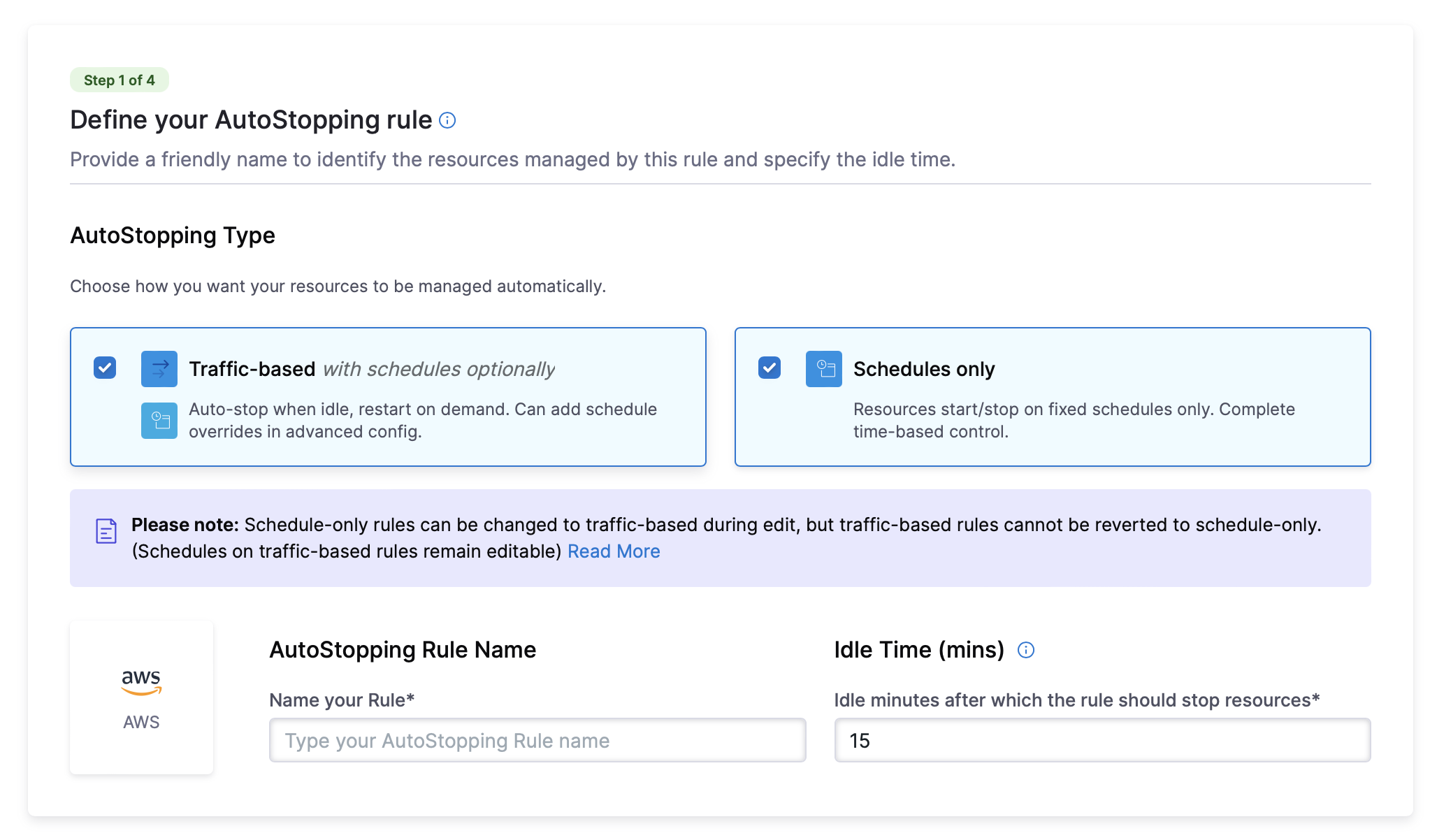
- Enter a Name for your rule
- AutoStopping Type: Choose how you want your resources to be managed automatically. You can either choose Traffic-based with schedules optionally or Schedules only.
- Traffic-based with schedules optionally: Resources automatically stop when idle and restart when traffic is detected. You can configure schedule overrides in advanced settings.
- Schedules only: Resources automatically start and stop based on defined schedules. You can configure multiple schedules in advanced settings.
Please note: Schedule-only rules can be changed to traffic-based during edit, but traffic-based rules cannot be reverted to schedule-only. (Schedules on traffic-based rules remain editable)
- Set the Idle Time - how long an instance should be inactive before stopping
- In the Resources to be managed by the AutoStopping rules section, select "Kubernetes Cluster".
- Add cluster to be managed by the AutoStopping rule.
- Advanced Configuration (Optional):
- Hide Progress Page: Toggle this to disable the display of a progress page during instance warm-up.
- Dry-Run: Toggle this button if you wish to evaluate the feature without terminating your cloud resources.
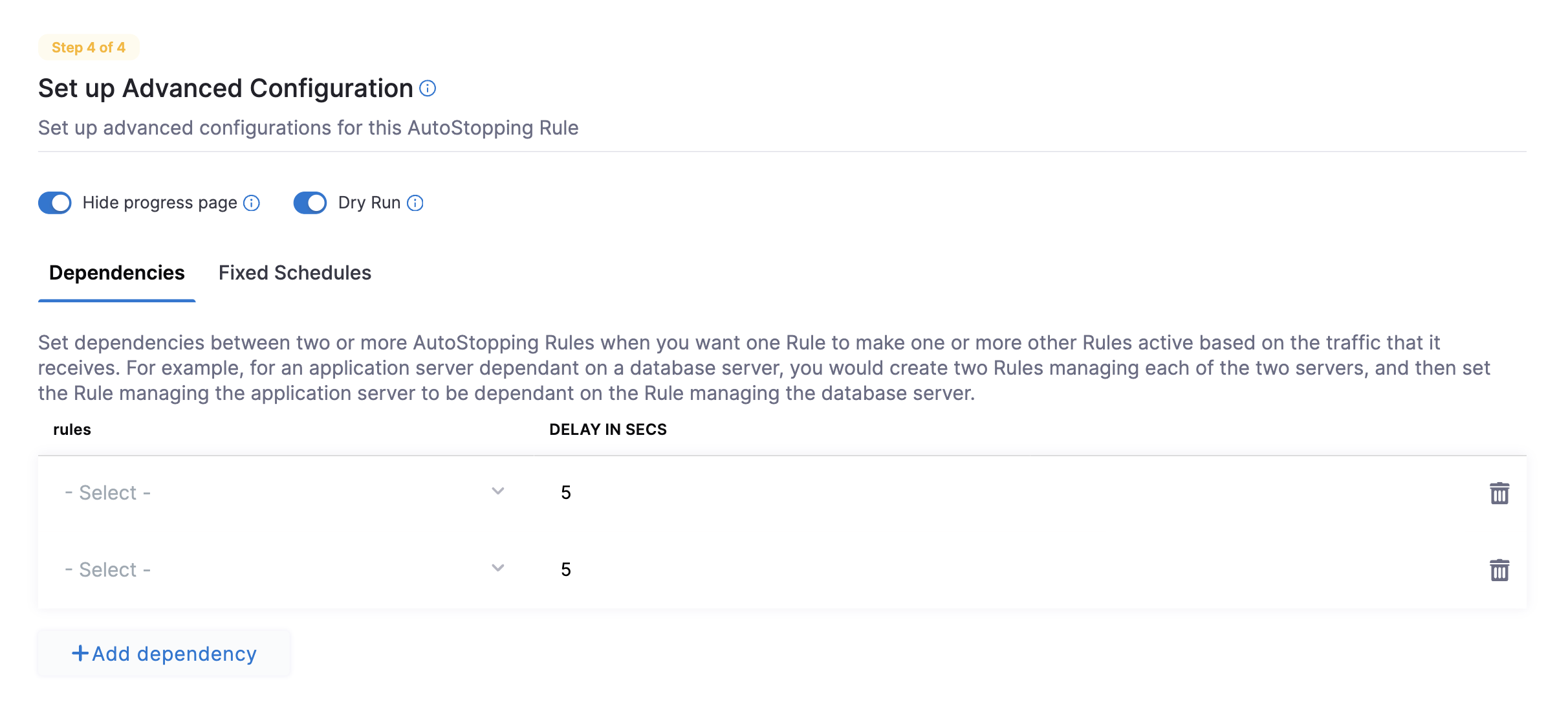
- Dependencies
- Fixed Schedules
Link your rule to other AutoStopping rules if resources depend on each other.
- Click Add Dependency and select a rule from the RULES drop-down list.
- In DELAY IN SECS, enter the number of seconds the dependent rule should wait after warming up before warming up this rule.
Create fixed uptime or downtime schedules for the resources managed by this rule. A fixed schedule takes precedence over the idle time logic.
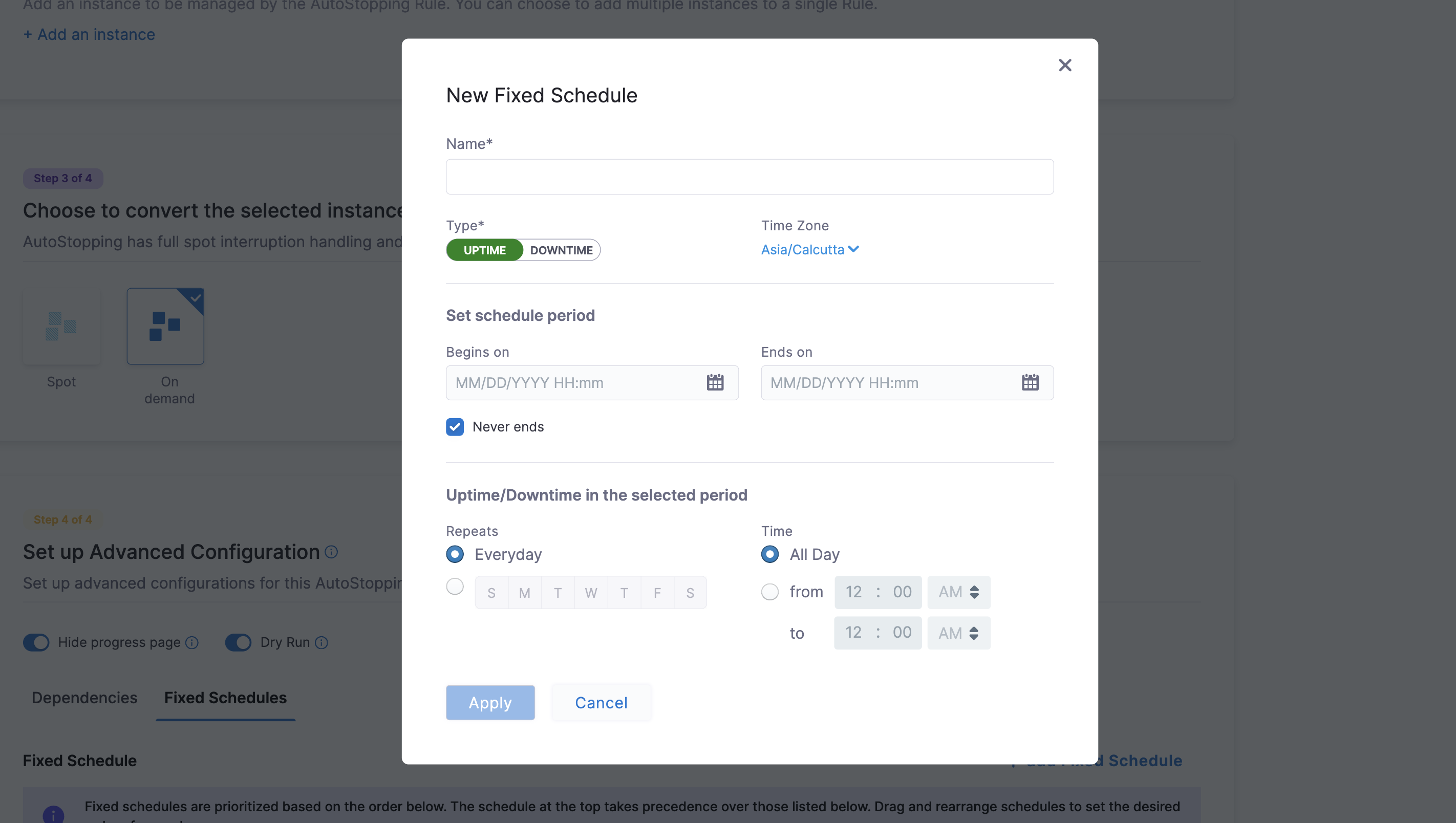
- Click Add Fixed Schedule.
- Give the schedule a Name.
- Select the Type of schedule (Uptime or Downtime).
- Select the Time Zone.
- Set the schedule period with Begins on and Ends on dates and times. You can also select the Never ends checkbox.
- To set a recurring schedule, select the repeat frequency and the days of the week, and set the Start and End times. You can also select All Day.
Click to expand advanced configuration details
(Optional) Set up advanced configuration
In this step, you can configure the following settings:
Hide progress page
Toggle the button to disable the display of progress page during instances' warming up process. This option is especially useful when the service is invoked by an automation system, as it prevents misinterpretation of the progress page as the intended response from a service that is onboarded to AutoStopping. By hiding the progress page, the first response of warming up a rule after a downtime will be delayed until the intended service is up and running.
Dry Run
Toggle the button if you wish to evaluate this feature without terminating your cloud resources.
Add Dependency
Set dependencies between two or more AutoStopping Rules when you want one Rule to make one or more Rules to be active based on the traffic that it receives. For example for an application server dependent on a database server, create two AutoStopping Rules managing both the servers. Add a dependency on the Rule managing the application server to be dependent on the Rule managing the database server.
- Click add dependency to add a dependency on any existing rule.
- Select the rule from the RULES drop-down list.
- In DELAY IN SECS, enter the number of seconds that rule should wait after warming up the dependent rule. For example, you have Rule 1 dependent on Rule 2 and you have set 5 seconds delay. In that case, when the request is received to warm up Rule 1, then first Rule 2 (dependent rule) is warmed up, and then there is a delay of 5 seconds before warming up Rule 1.
- Once you're done with all the configurations, click Next.
Fixed Schedule
Create fixed uptime or downtime schedules for the resources managed by this AutoStopping Rule. When a resource is configured to go up or down on a fixed schedule, it is unaffected by activity or idleness during that time period.
In certain scenarios, you would not want your resources to go down or up. For example, every Friday at 5 p.m. you want your ABC resource to go down. You can schedule downtime for your ABC resource. During this window, the resource is forced to go down regardless of the defined rule. You can choose to specify uptime for your resources in the same way.
The fixed schedule takes precedence over the defined AutoStopping Rule.
Harness executes scheduled rules using Dkron, an open-source workload automation service.
To create a fixed schedule for your rule, do the following:
- In Fixed Schedules, click Add Fixed Schedule.
- In New Fixed Schedule, enter a Name for your schedule.
- In Type, select the type for your schedule. You can schedule an Uptime or Downtime for your rule. As per your schedule, the resources go up or down.
- Select the Time Zone from the drop-down list.
- In Set schedule period, use the date picker to set the start and end time for your schedule.
- In Begins on, select the start date and time for your schedule. You can select a date and specify the time.
- In Ends on, select the end date and time for your schedule. You can select a date and specify the time. Ensure that Never ends checkbox is unselected to set the end time.
- Select the checkbox Never ends if you do not want to set end time for your schedule.
- You can also set a recurring schedule for the rule. If you want to set a recurring schedule, in Uptime/Downtime in the selected period, in Repeats, select the repeat frequency.
- Select which days of the week you'd like your schedule to repeat. You can choose any day between Sunday and Saturday.
- Select Everyday, to set the schedule for all seven days of the week.
- Set your repeat schedule's beginning and ending time. In the Time field, specify the start and end time for the fixed schedule.
- Select All Day, if you wish to set your schedule for the entire day. If you choose All Day for your schedule, you won't be able to choose a start and end time.
Step 2: Setup Access
You can see the resource definition YAML of the Kubernetes AutoStopping Rule that will be applied to the cluster. The specification here is the same as a Kubernetes ingress, with additional Harness metadata. Edit the below template with the right HTTP/HTTPS service details. Validate the YAML to proceed.
*Example YAML:
In this step, update the resource definition YAML of the Kubernetes AutoStopping Rule that will be applied to the cluster.
- Ingress
- Non-Ingress
The specification in the YAML file is the same as a Kubernetes Ingress with additional metadata. These are the configurations to the Ingress that the AutoStopping Rule will create for your Service.
Update the following parameters with the correct HTTP/HTTPS service details:
(Optional) host: Enter the domain name. If a host is provided (for example, app.harness.com), the rule applies to that host. If you do not specify the domain name, the ingress created will match requests to all the domains. name: Enter the name of your Kubernetes service. For example, test. port: Enter the port number. For example, 80. For more information, see The Ingress Resource.
apiVersion: ccm.harness.io/v1
kind: AutoStoppingRule
metadata:
    name: test-rule
    namespace: default
    annotations:
        harness.io/cloud-connector-id: Lightwing_Non_Prod
spec:
    service:
        name: <replace with your service name>
        port: 80
    ingress:
        name: <replace with ingress name>
        controllerName: nginx
    idleTimeMins: 15
    hideProgressPage: false
If your workload is non-ingress type, copy the following YAML and edit the metadata. These are the configurations to the Non-Ingress that the AutoStopping Rule will create for your Service.
Edit the metadata with correct service details:
apiVersion: ccm.harness.io/v1
kind: AutoStoppingRule
metadata:
    name: <*postgres*>
    namespace: <*dev-poc*>
    annotations:
        harness.io/cloud-connector-id: <*connector\_id*>
spec:
    idleTimeMins: <40>
    workloadName: <*postgres>*
    workloadType: <*Deployment*>
    hideProgressPage: false
After updating the YAML file with all the details, click Validate YAML.
Click Next once the YAML is validated.
Step 3: Review
In Review, verify all the configuration details and click Save Rule. To edit any of the configuration settings, click EDIT and modify the settings.
Your AutoStopping rule is listed under the AutoStopping Rules dashboard.
Cluster AutoStopping Savings Computation
Cluster cost data (trued-up or not trued-up) is considered for savings computation. Savings will be computed in terms of tracked pods under cluster cost data only.
Important points to Remember:
-
Savings numbers will become precise only after the savings numbers are finalized after the 15th of the next month (after the final settlement). Savings will be recomputed for the previous month on the 15th of the next month to ensure any updates to CUR/billing-export are considered in the final savings numbers for the month.
-
GCP billing export configured in the billing connector needs to be "detailed".
-
Azure billing export configured in the billing connector needs to be "amortized".
-
For cluster-based AutoStopping rules, the corresponding billing-enabled connector of the CSP should be configured in Harness; otherwise, savings computation will be based on public pricing data.