rds
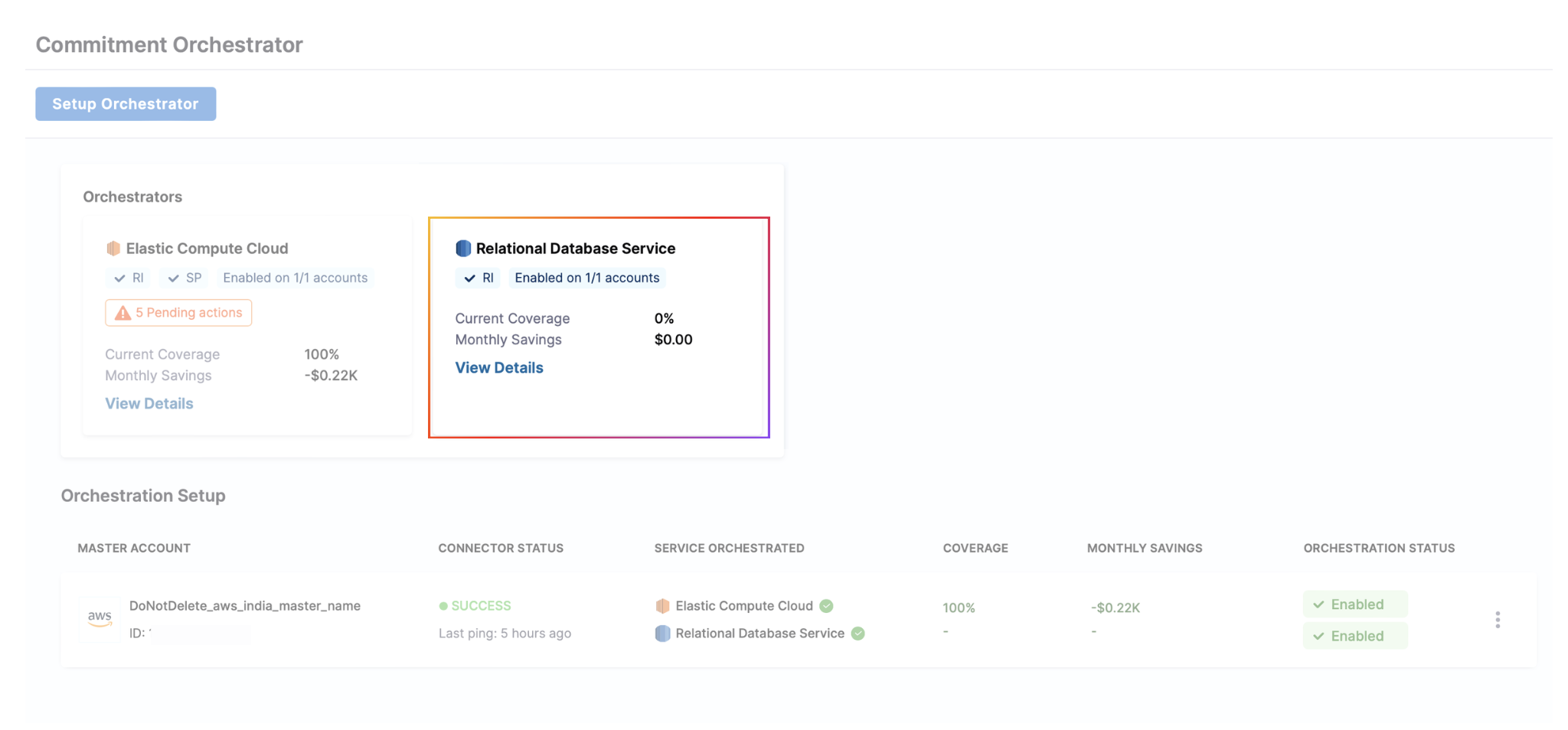
View insights of an orchestrator
To see the details of a specific orchestrator, click on "View Details" in the Orchestrator you want to view details for.
The dashboard will show:
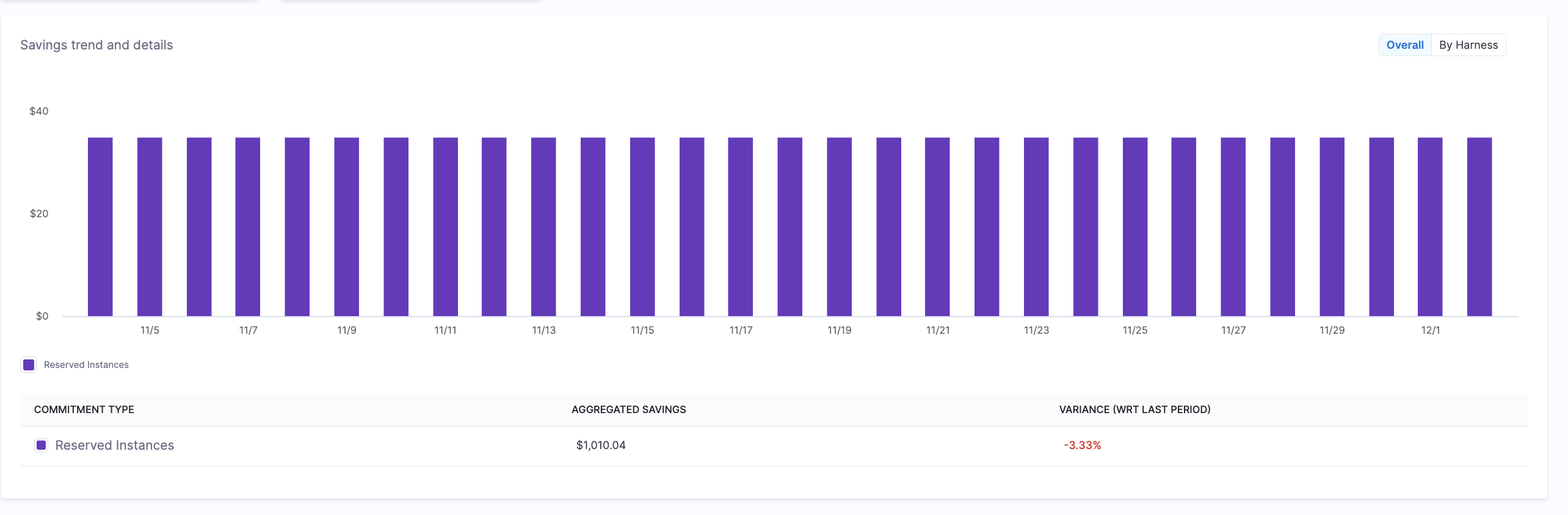
- Savings Breakdown: This provides information about total savings through on-demand and Reserved Instances, as well as savings orchestrated by Harness. You can also see a graph for savings trends and details where you will see all commitment types and aggregate savings with variance compared to the last period.
-
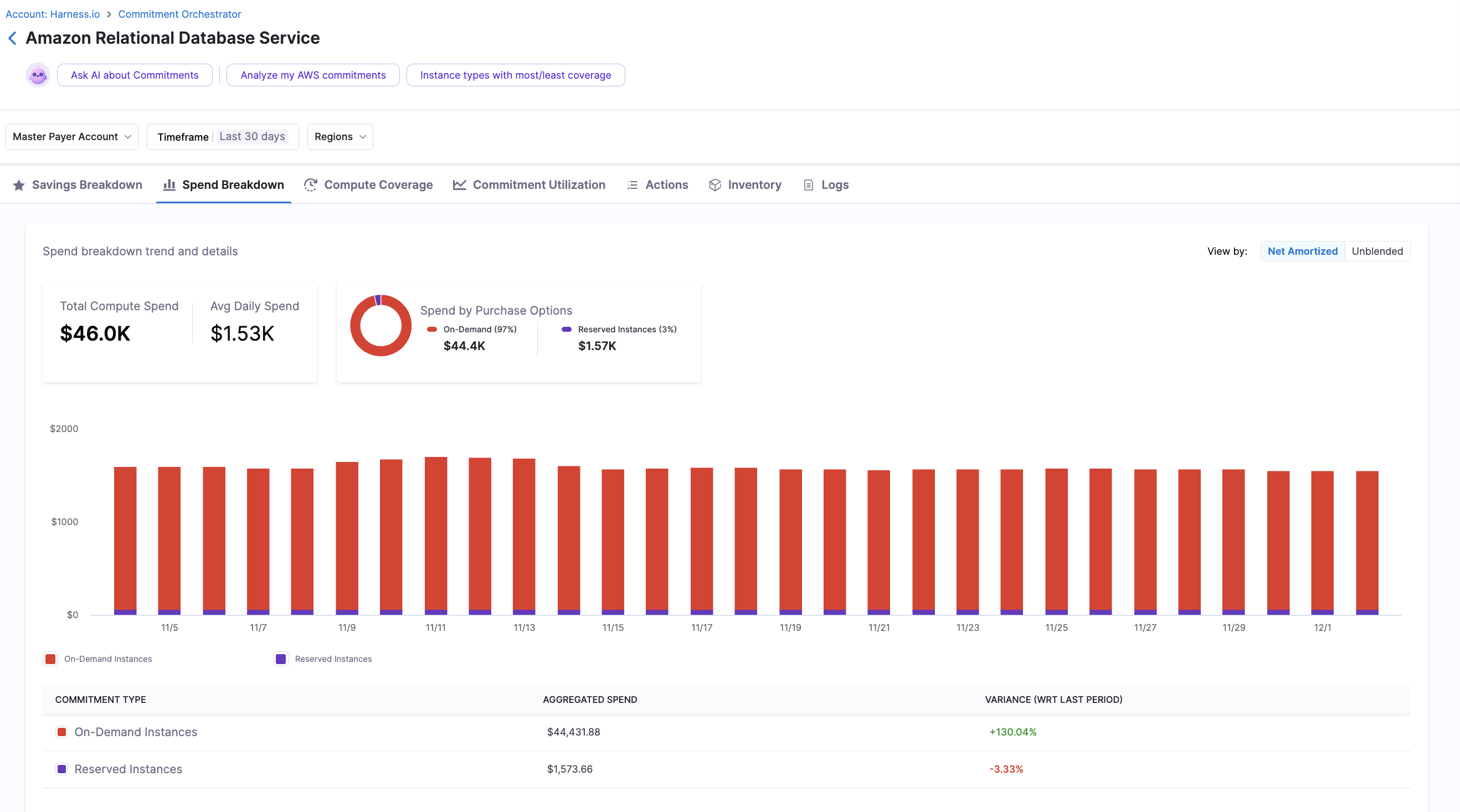
Spend Breakdown: This section provides a comprehensive view of your RDS compute usage costs, showing the distribution between Reserved Instances and On-Demand instances. Key metrics include:
-
Total Compute Spend: The overall cost of your RDS resources during the selected time period
-
Average Daily Spend: Your daily RDS compute expenditure averaged over the selected time period
-
Spend by Purchase Options: Visual breakdown of costs by instance purchasing model:
- On-Demand (percentage of total spend)
- Reserved Instances (percentage of total spend)
Both net amortized and unblended costs are displayed, allowing you to analyze your spend in the format that best suits your financial reporting needs.
-
-
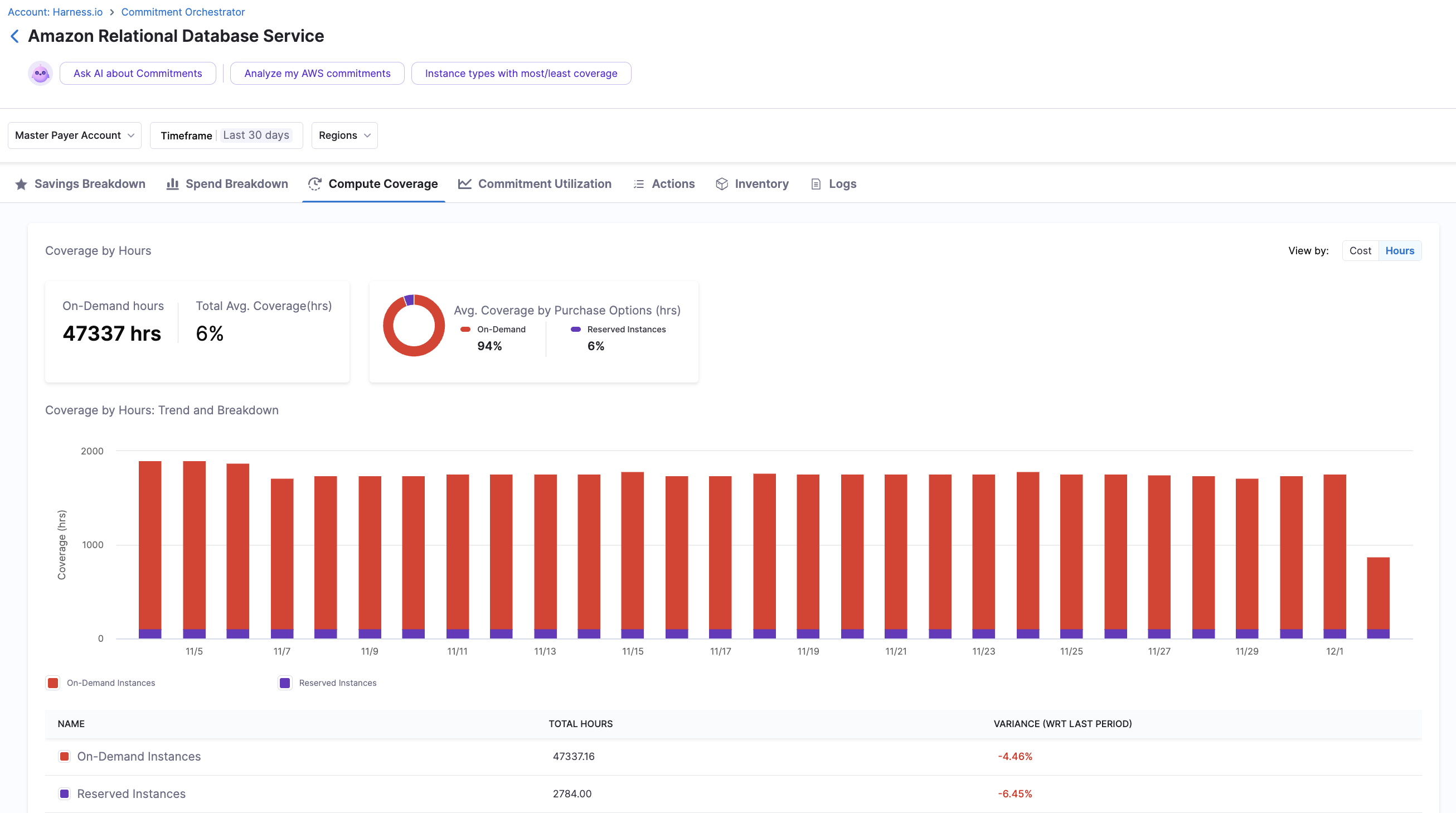
Compute Coverage: This represents the percentage of your RDS compute usage covered by Reserved Instances or On-Demand. It shows coverage by cost and displays how much you've spent on-demand as the total average coverage. It also shows average coverage by purchase options (On-Demand, Reserved Instances) along with a graph for trends and breakdown. You can view compute coverage either by cost or by hours. When viewing by hours, it shows you the commitment hours and the coverage by purchase option in hours.
-
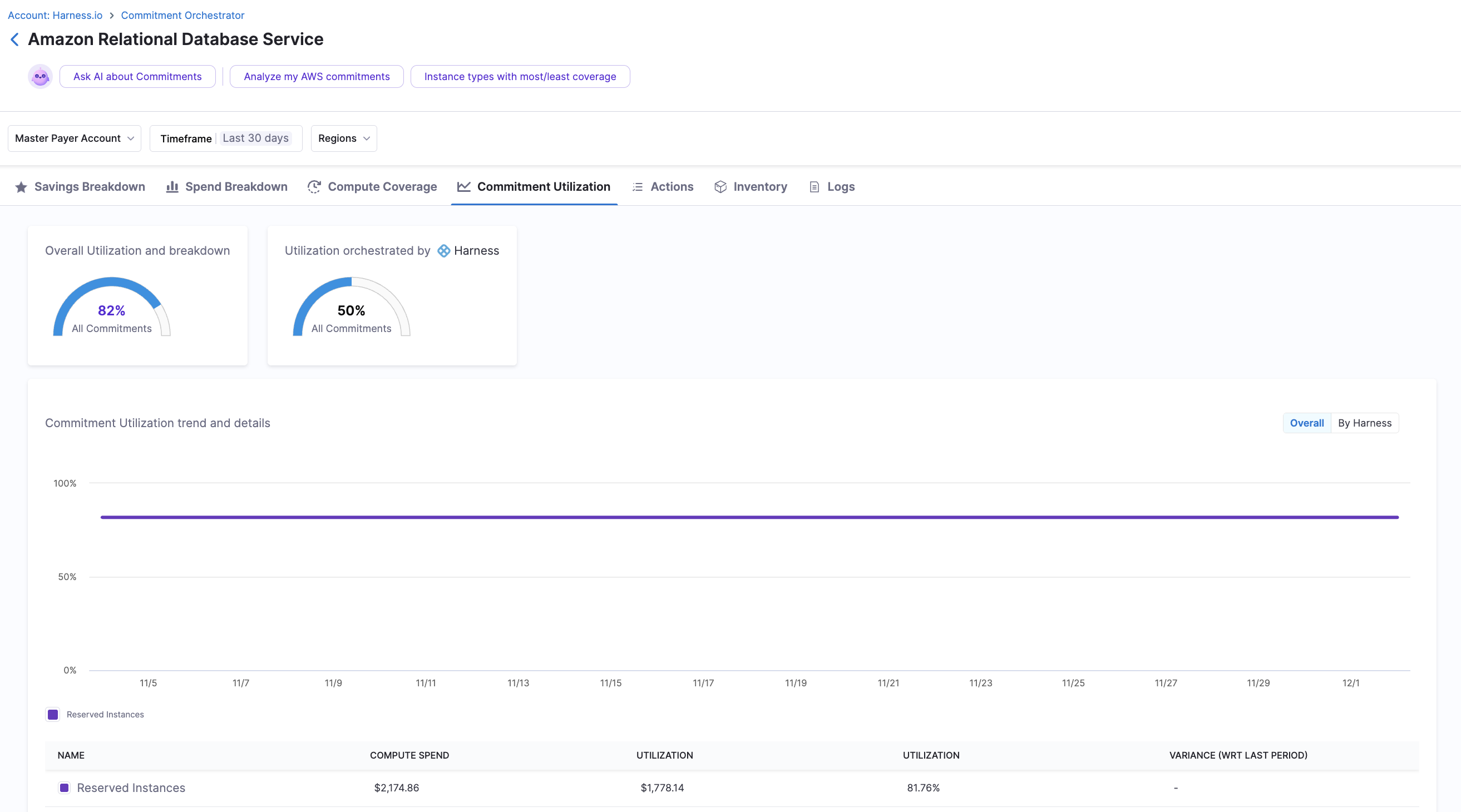
Commitment Utilization: This represents the percentage of your purchased Reserved Instances that are actively being used. It shows the commitment utilization by purchase options. You can view utilization for all your commitments, including Reserved Instances, as well as the utilization orchestrated by Harness. A graph displays the trend and details for compute utilization and variance over time.
-
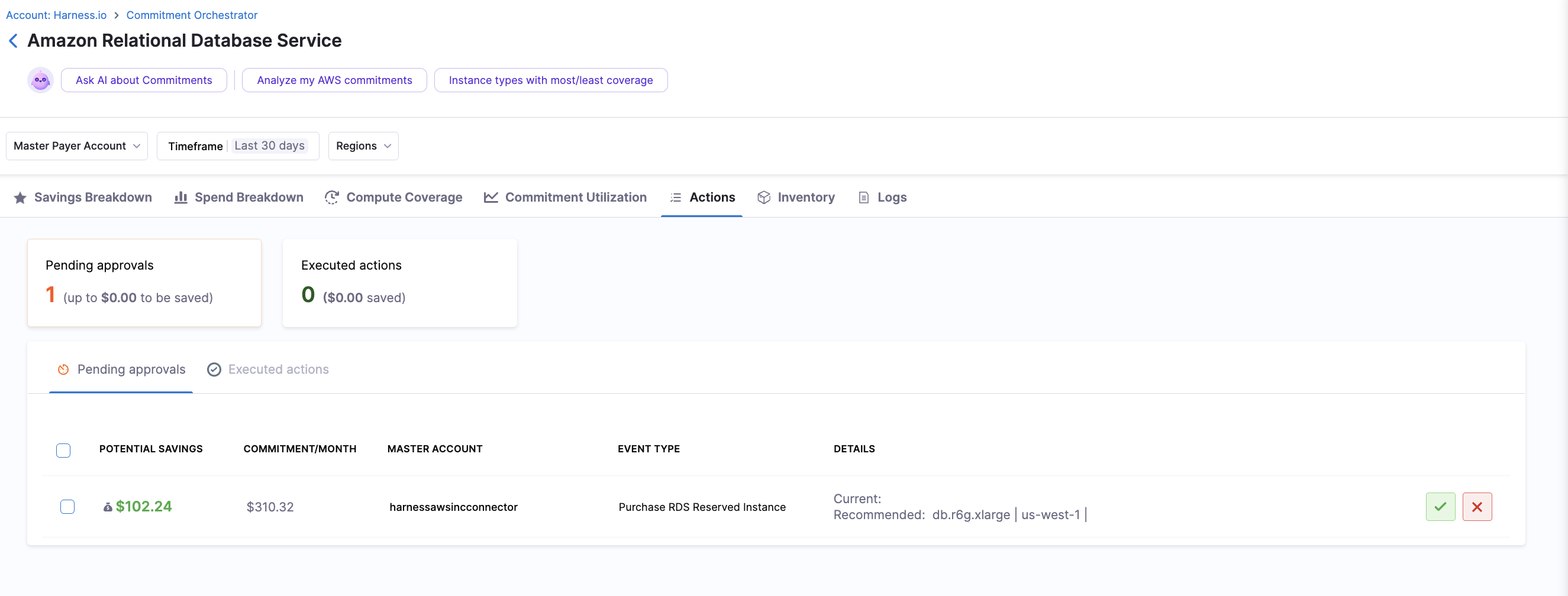
Actions: The Actions tab enables users to review and manage recommendations generated by the Commitment Orchestrator. You can view all the details regarding the pending approvals and executed actions categorized by day and type, then approve or reject them individually, in subsets, or all at once across different master accounts and regions. The Commitment Orchestrator currently supports six action states:
-
Completed: The approved recommendation has been successfully purchased in AWS.
-
Error: The commitment purchase encounters an API error in AWS.
-
Approved: You have approved the recommendation, allowing the action to proceed.
-
Rejected: The recommendation has been rejected, preventing the action from taking place.
-
Expired: The recommended action has expired.
-
Queued: The action is in the queue and waiting to be processed.
-
-
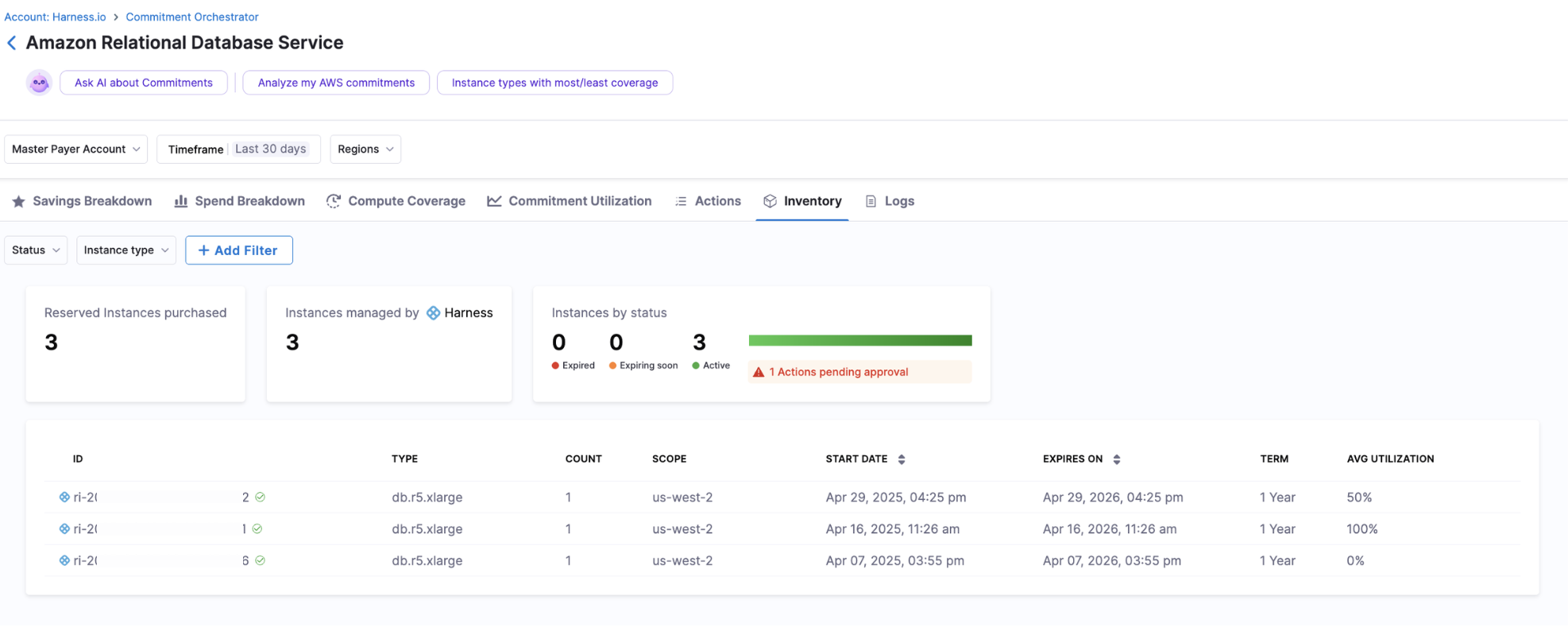
Inventory: With the new look of the Commitment Orchestrator, Harness has introduced the inventory feature where you can see all purchases along with their status (expired, expiring soon, or active). This unified inventory eliminates the need for separate AWS views or manual exports, giving you complete visibility directly inside Harness. You can select between Reserved Instances to view their status and type.
You can filter by status and instance type, with additional filters including:
- Platform
- Payment Option
- Term
The inventory table shows you all the details about the ID of the RI, type, count, scope (region), start date, expiry date, term and average utilization. You can also view the commitments purchased by Harness.
-
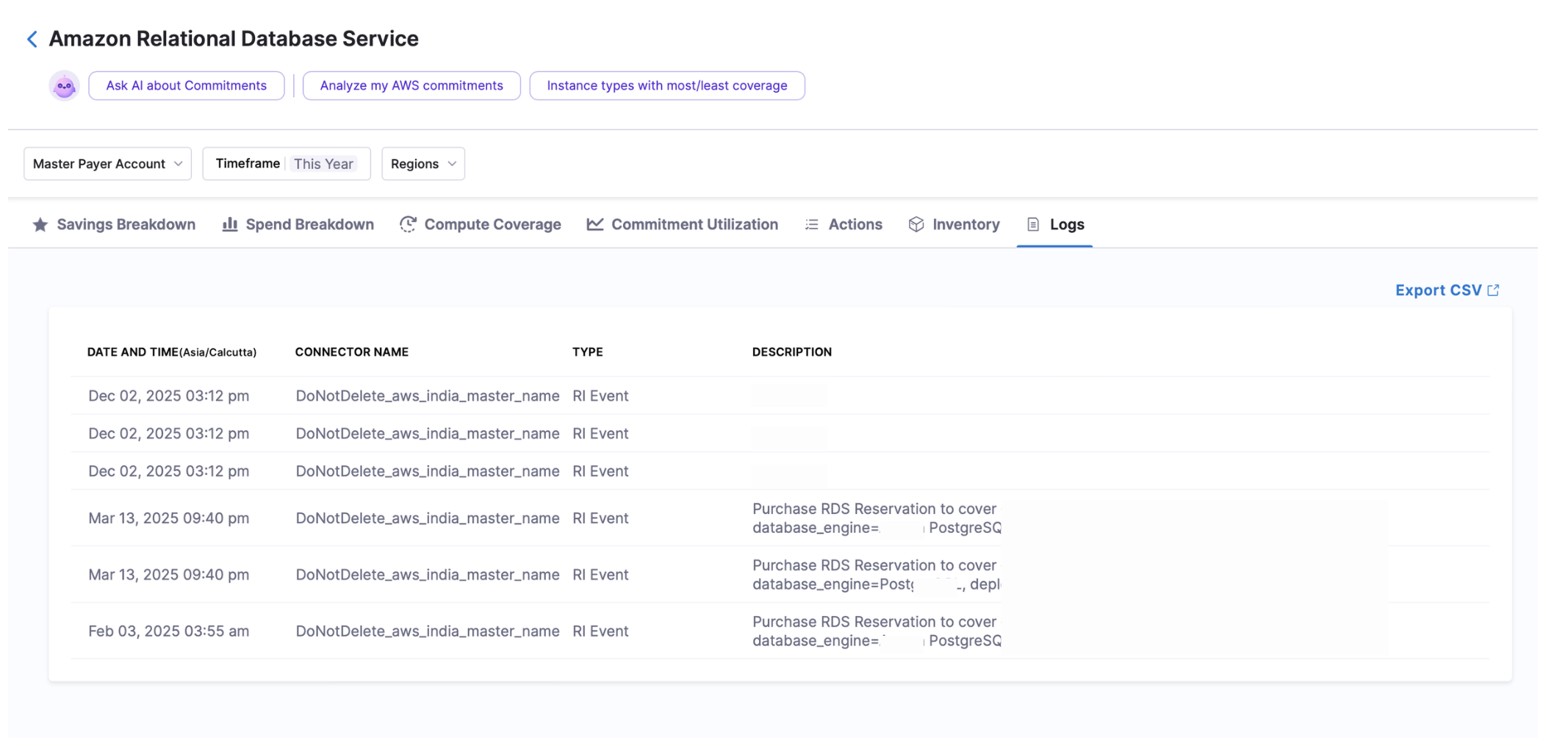
Logs: The Log History section provides a comprehensive audit trail of all Commitment Orchestrator activities, including date, connector name, type (RI Event), and description of purchases. You also have the ability to export the logs as a CSV file.