ectwo
Before You Begin
To setup Commitment Orchestrator in Harness CACM, you need:
-
Active CACM Connectors: You must have at least one active cloud connector set up for the cloud providers you want to categorize costs for: Set Up CACM Connectors.
-
A master account with the right permissions to be added via AWS connector on which you want to enable orchestration. Select the services for which you want to enable orchestration (permissions can be limited to specific service).
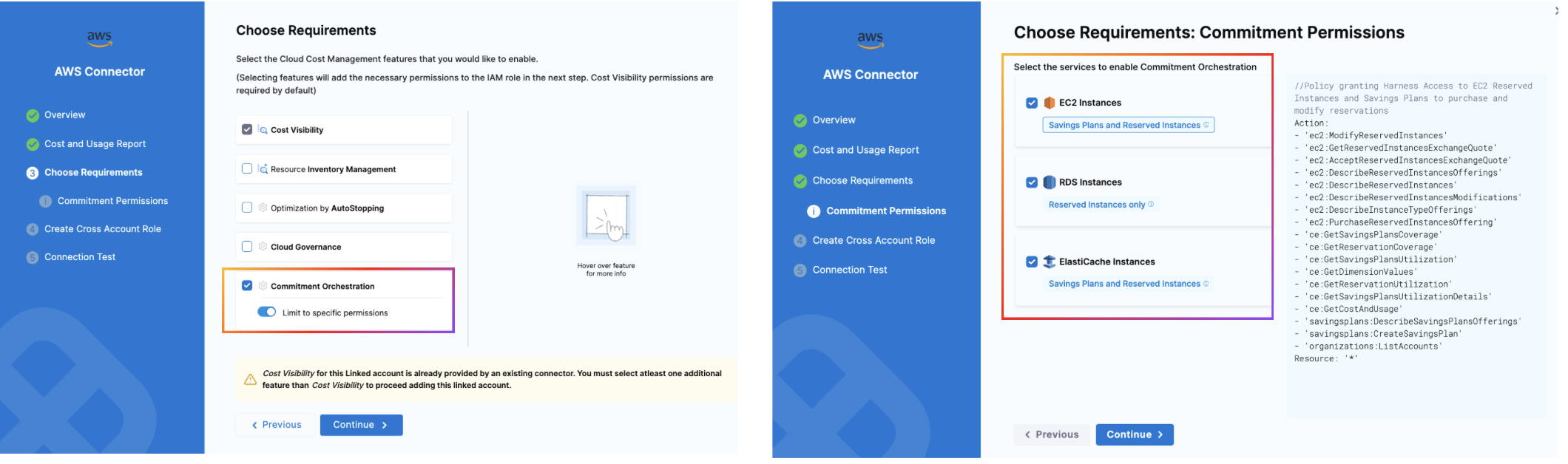
Available permissions for EC2:
Action:
- 'ec2:ModifyReservedInstances'
- 'ec2:GetReservedInstancesExchangeQuote'
- 'ec2:AcceptReservedInstancesExchangeQuote'
- 'ec2:DescribeReservedInstancesOfferings'
- 'ec2:DescribeReservedInstances'
- 'ec2:DescribeReservedInstancesModifications'
- 'ec2:DescribeInstanceTypeOfferings'
- 'ec2:PurchaseReservedInstancesOffering'
- 'ce:GetSavingsPlansCoverage'
- 'ce:GetReservationCoverage'
- 'ce:GetSavingsPlansUtilization'
- 'ce:GetDimensionValues'
- 'ce:GetReservationUtilization'
- 'ce:GetSavingsPlansUtilizationDetails'
- 'ce:GetCostAndUsage'
- 'savingsplans:DescribeSavingsPlansOfferings'
- 'savingsplans:CreateSavingsPlan'
- 'organizations:ListAccounts'
Resource: '*'
- Required Permissions: Your Harness user account must belong to a user group with the following role permissions:
Details
Required Read-Only Permissions
To enable visibility, in the master account connector, you need to add the following permissions."ec2:DescribeReservedInstancesOfferings",
"ce:GetSavingsPlansUtilization",
"ce:GetReservationUtilization",
"ec2:DescribeInstanceTypeOfferings",
"ce:GetDimensionValues",
"ce:GetSavingsPlansUtilizationDetails",
"ec2:DescribeReservedInstances",
"ce:GetReservationCoverage",
"ce:GetSavingsPlansCoverage",
"savingsplans:DescribeSavingsPlans",
"organizations:DescribeOrganization"
"ce:GetCostAndUsage"
And to enable actual orchestration, you need to add the following permissions.
"ec2:PurchaseReservedInstancesOffering",
"ec2:GetReservedInstancesExchangeQuote",
"ec2:DescribeInstanceTypeOfferings",
"ec2:AcceptReservedInstancesExchangeQuote",
"ec2:DescribeReservedInstancesModifications",
"ec2:ModifyReservedInstances"
"ce:GetCostAndUsage"
savingsplans:DescribeSavingsPlansOfferings
savingsplans:CreateSavingsPlan
Steps to configure:
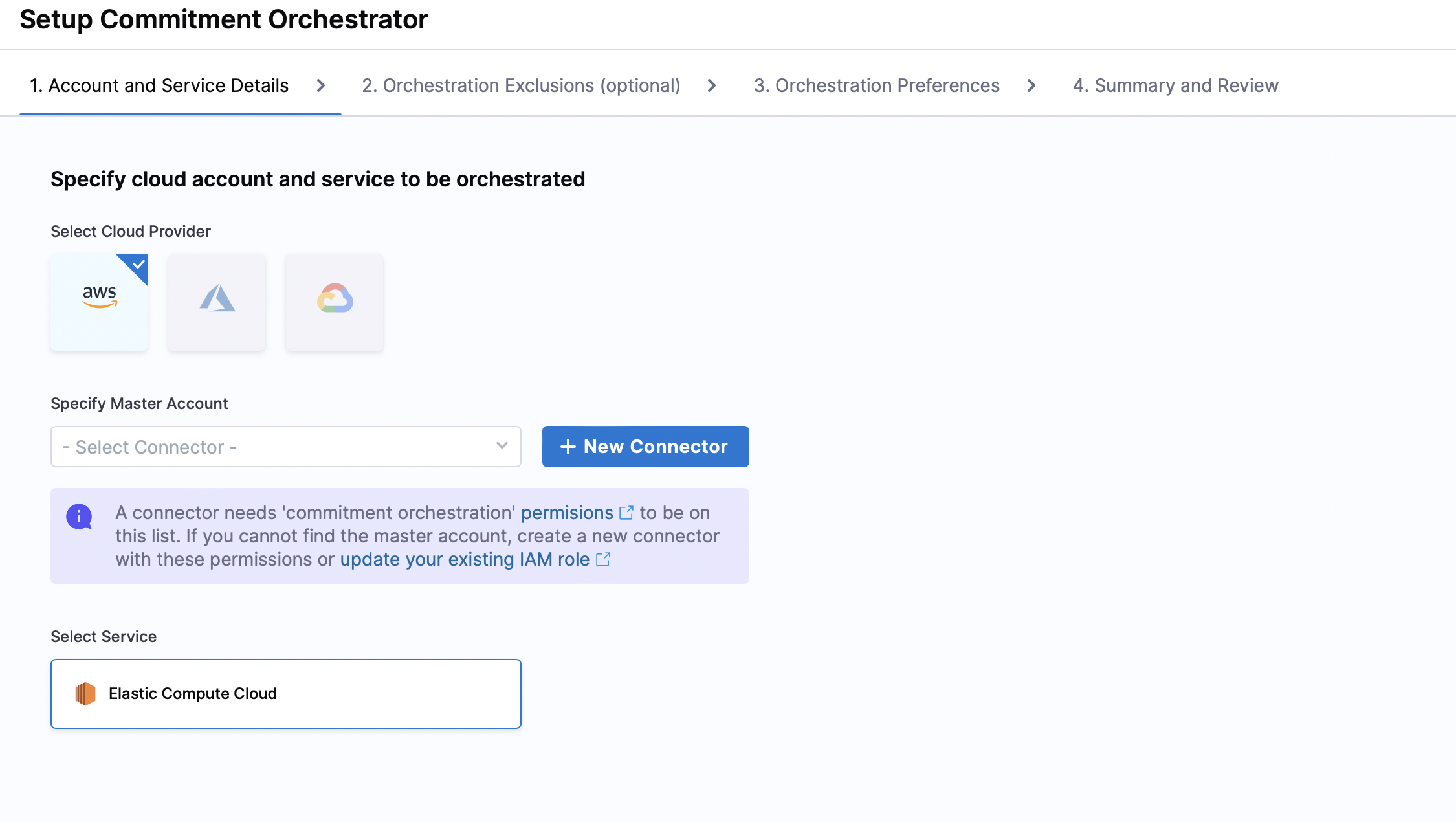
- Go to Commitment Orchestrator > Setup Orchestrator.
- Account and Service details
- Orchestrator Exclusions (Optional)
- Orchestration Preferences
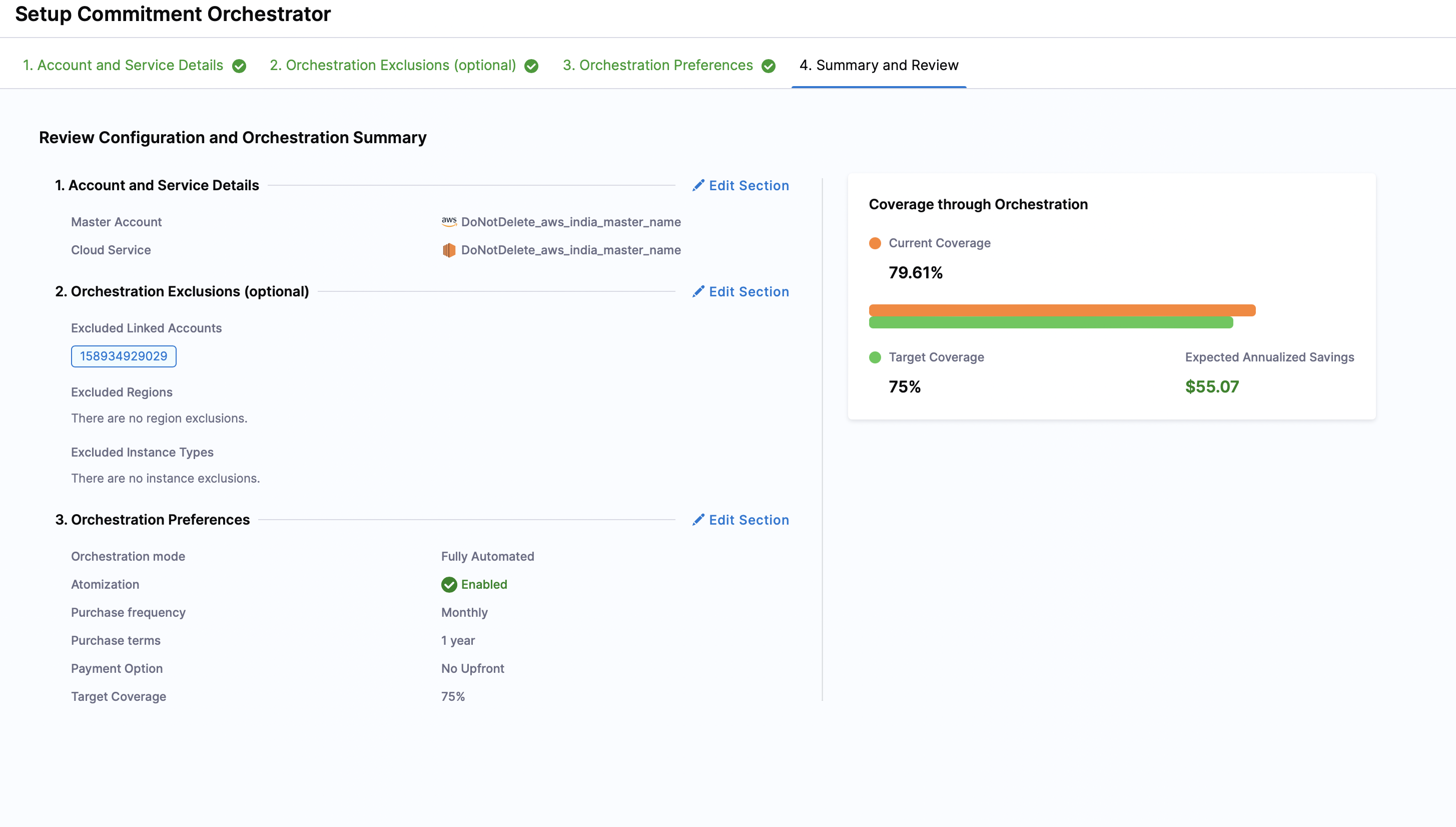
- Review & Complete
-
Specify the cloud account and service for which you want to enable orchestration. Currently, Commitment Orchestrator supports AWS Elastic Compute Cloud (EC2). Support for other cloud providers is in the works.
-
Specify the Master Account Connector. You need to select the master account with the right permissions to be added via connector on which you want to enable orchestration. You can either select an existing connector for your master account or create one. Please note, even if "Commitment Orchestrator" is enabled in Connector Set Up for any other Account except for Master, it will not be visible in the connector list in Commitment Orchestrator Setup since Commitment Orchestrator requires Master Account connector.
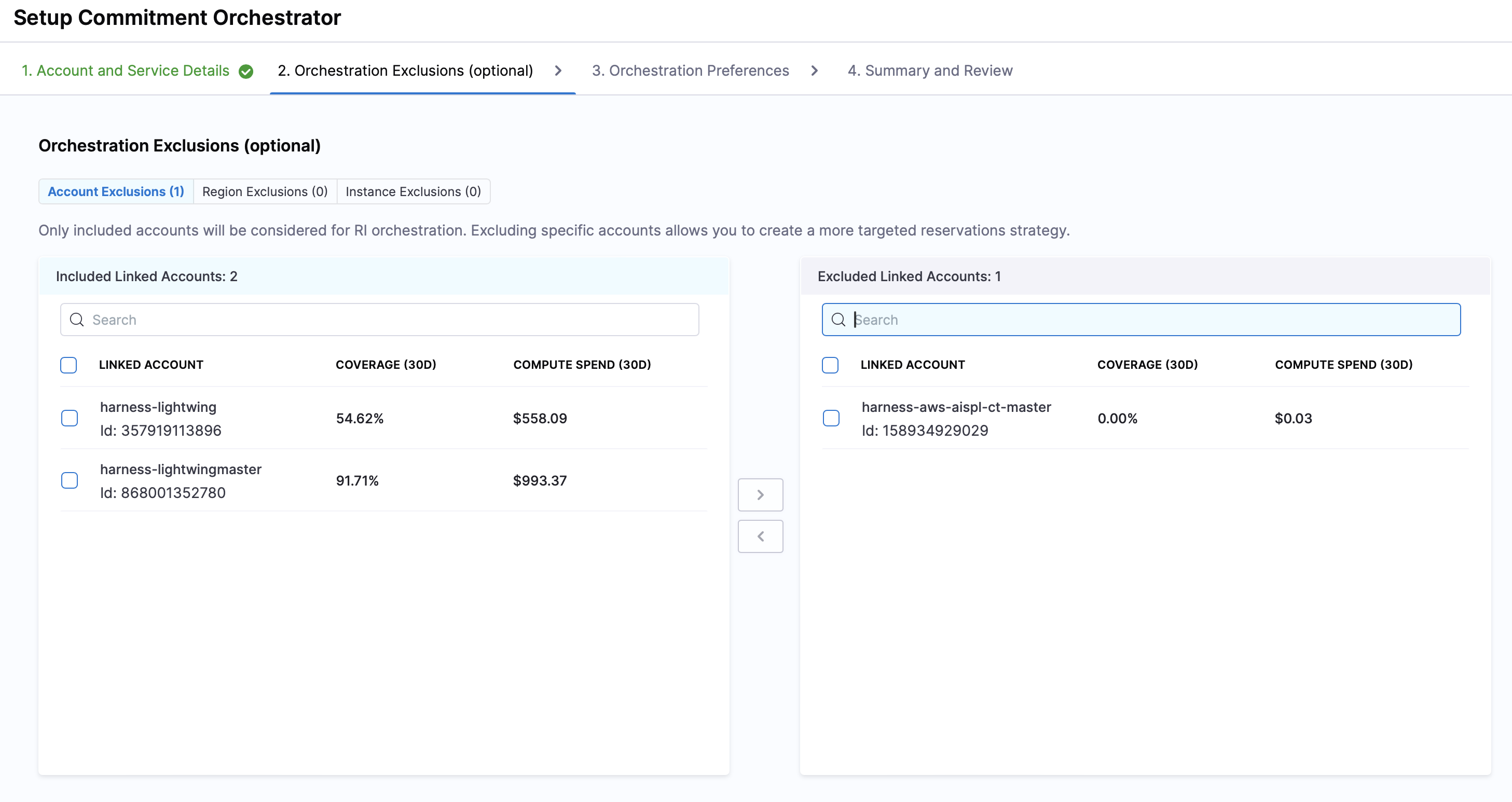
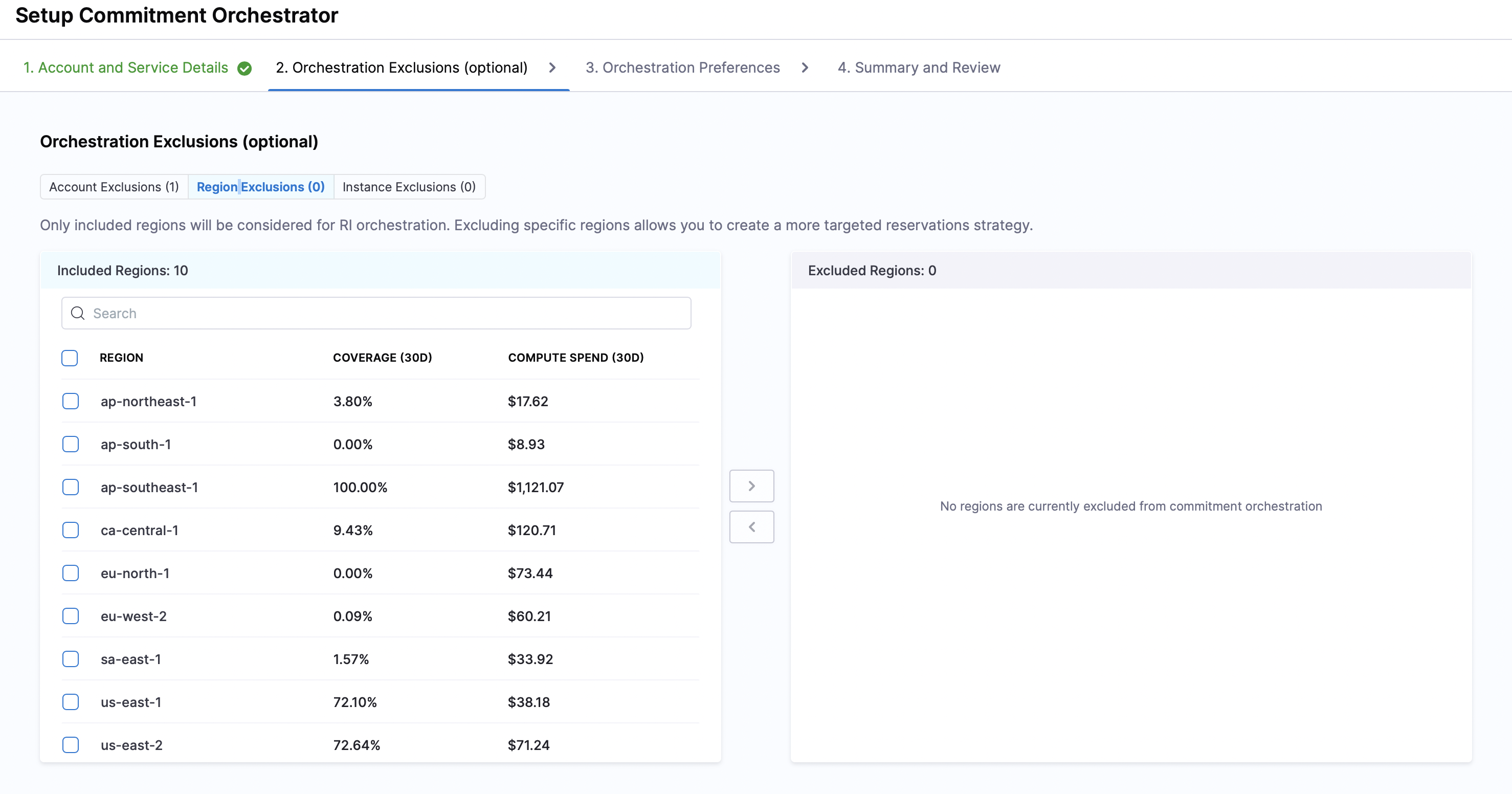
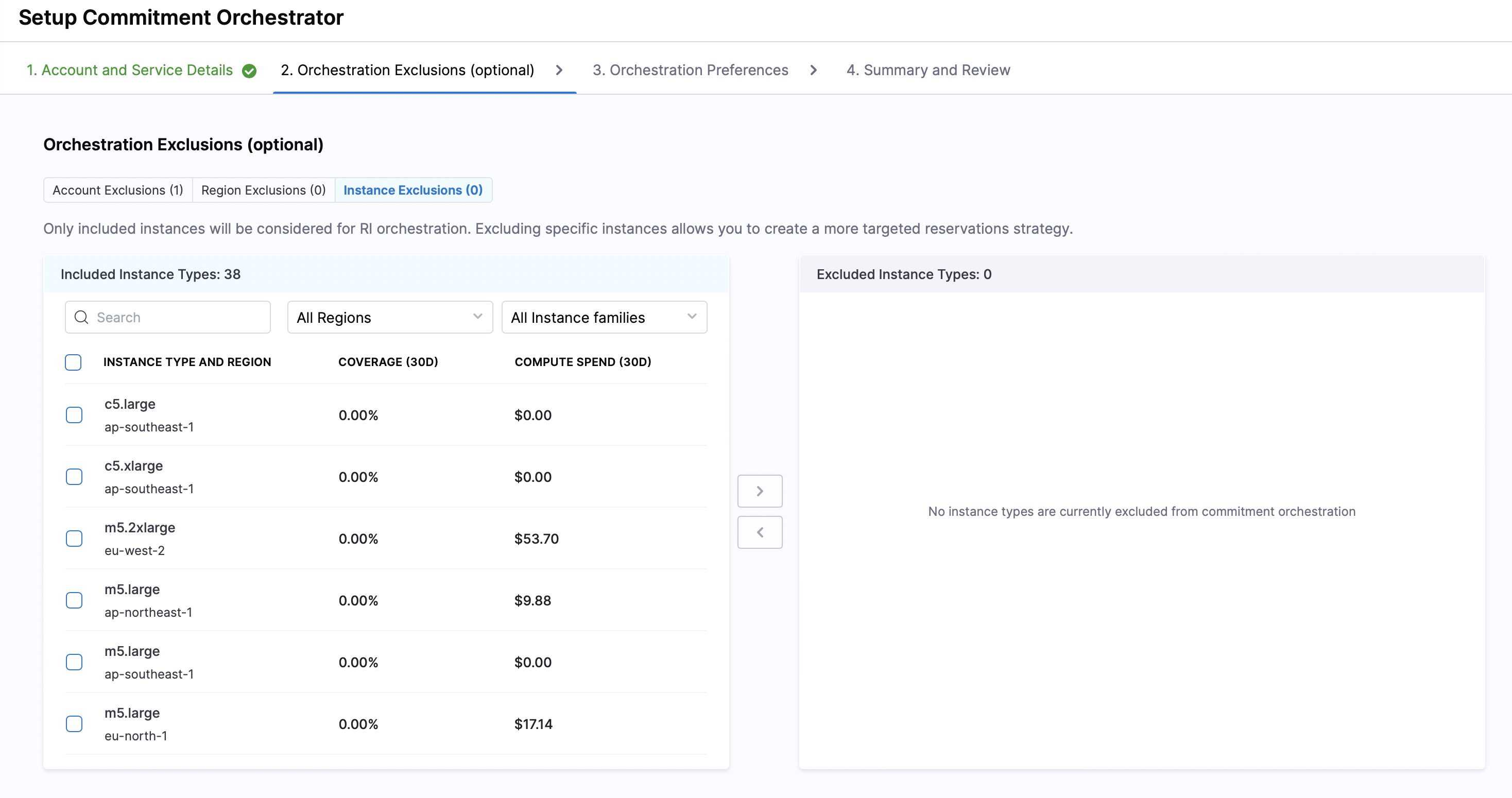
Commitment Orchestrator provides you with an option to exclude Accounts, Regions and Instances from the orchestration.
- Account Exclusions: You can include or exclude specific accounts from the orchestration. The accounts marked as included will be considered for RI Orchestration.
- Region Exclusions: You can include or exclude specific regions from the orchestration. All the regions are shown with their coverage and compute spend for making an informed decision
- Instance Exclusions: You can include or exclude specific instances from the orchestration.
The purchases will happen only at master account level and thus will be in turn applicable for child accounts as well. The exclusion list will only be considered for the compute spend calulations and actual RI/SP may be used against the instances if they are part of child accounts.
-
Target Coverage: The maximum percentage of your compute spend that you want covered by Savings Plans and/or Reserved Instances. Any remaining spend will continue to run on On-Demand. The Commitment Orchestrator automatically adjusts coverage levels based on evolving usage patterns.
-
Atomization: Atomization helps with restricting all RI based transactions to a specified date. To extend on this approach, Harness Commitment Orchestrator intends to buy a Atom RI on a monthly basis in each of the regions to create a situation where in the future there would be a Atom RI expiring on a monthly basis.
You can select the Atom purchase frequency and select the Atom purchase terms and you can also see the cost implications of Atomization. By default, CACM sets it for one year, but you can also set it for three years.
-
(Optional) Savings Plan Renewal Reduction % (Roll-Down Policy): Set a percentage to decide how much of an expiring commitment will be renewed. This feature gives you strategic control over how your expiring AWS Savings Plans are renewed and optimizes your commitment mix over time.
How it works: When a Savings Plan expires, the Roll-Down Policy automatically renews a specified percentage as another Savings Plan, while converting the remaining portion to Reserved Instances. For example, if set to 80% and you have a $10/hr SP expiring, we'll renew $8/hr as SP and shift the remaining $2/hr to RIs.
Benefits:
- Gradual portfolio adjustment: Allows you to shift your commitment strategy as your workload patterns evolve
- Risk management: Minimizes commitment risk through monthly expiring Atom RIs, allowing for better adaptation to changing usage patterns.
- Balanced flexibility: Maintains cost savings while introducing more flexibility into your commitment portfolio through a mix of SPs and RIs

-
Orchestration Mode: Select how the orchestrator executes recommended commitment purchases:
-
Fully Automated: Commitment purchases are executed automatically without requiring manual approval.
-
Manual: All commitment purchases require explicit manual approval before execution, giving you complete control over the process. All the recommendations are visible in the Actions tab on the dashboard.

-
-
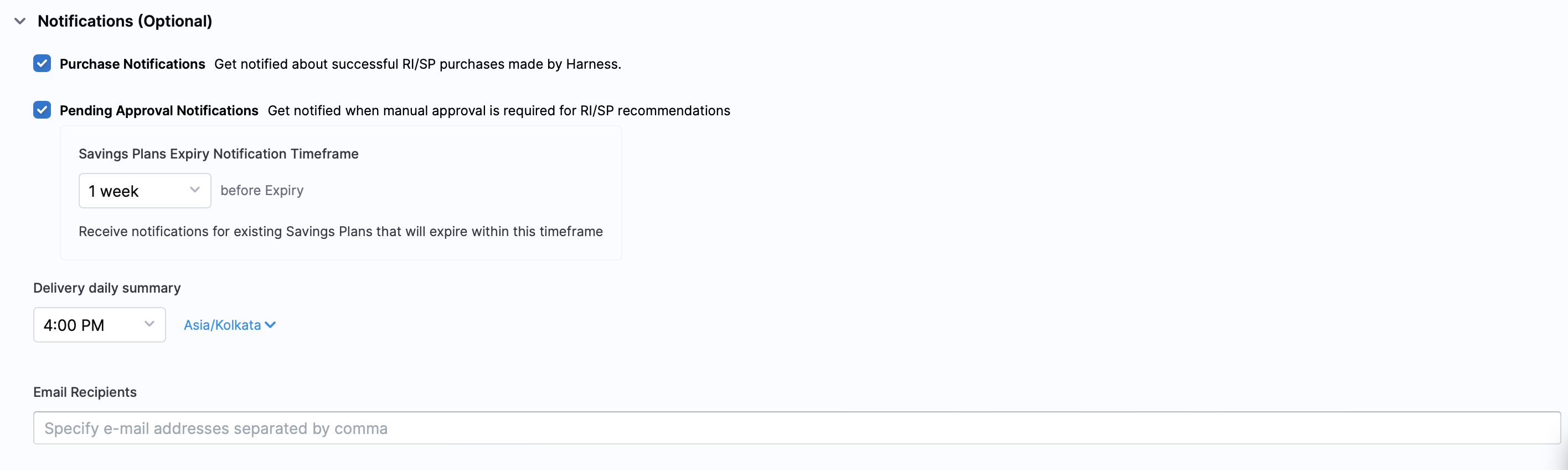
(Optional) Notifications: Configure alerts to stay informed about commitment-related activities. You can set up the following notification types:
-
Purchase Notifications: Receive alerts when Harness successfully executes RI/SP purchases on your behalf. These notifications include details such as commitment type, term length, upfront cost, and estimated savings.
-
Pending Approval Notifications: Get alerted when manual approval is required for RI/SP recommendations. This is particularly useful when using the Manual orchestration mode, ensuring you never miss an opportunity to approve cost-saving commitments.
-
Savings Plans Expiry Notifications: Set a timeframe (up to 7 days before expiry) to receive alerts about your existing Savings Plans that will soon expire. This gives you adequate time to plan for renewals or replacement commitments.
-
Email Recipients: Specify the email addresses that should receive these notifications. You can add multiple recipients by separating email addresses with commas. Notifications can also be configured to be sent to specific teams or distribution lists.
-
Overview Screen
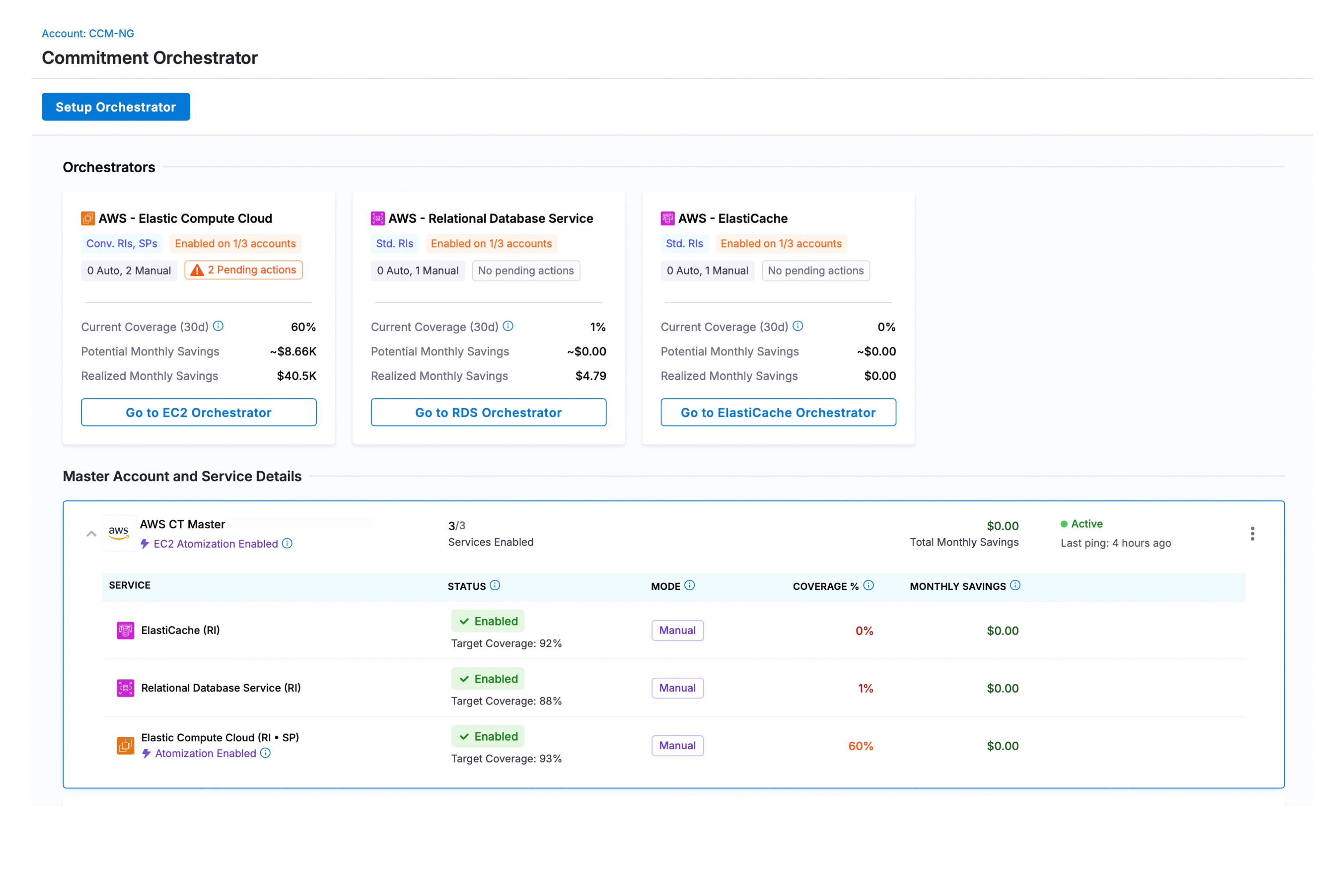
The Orchestration Setup page displays a comprehensive list of all Master Accounts with Commitment Orchestrator connector permissions. From this page, users can enable new orchestration setups and view key metrics including Last 30 Days Coverage, Savings, and the current status of each Orchestrator configuration.
Disable Commitment Orchestrator
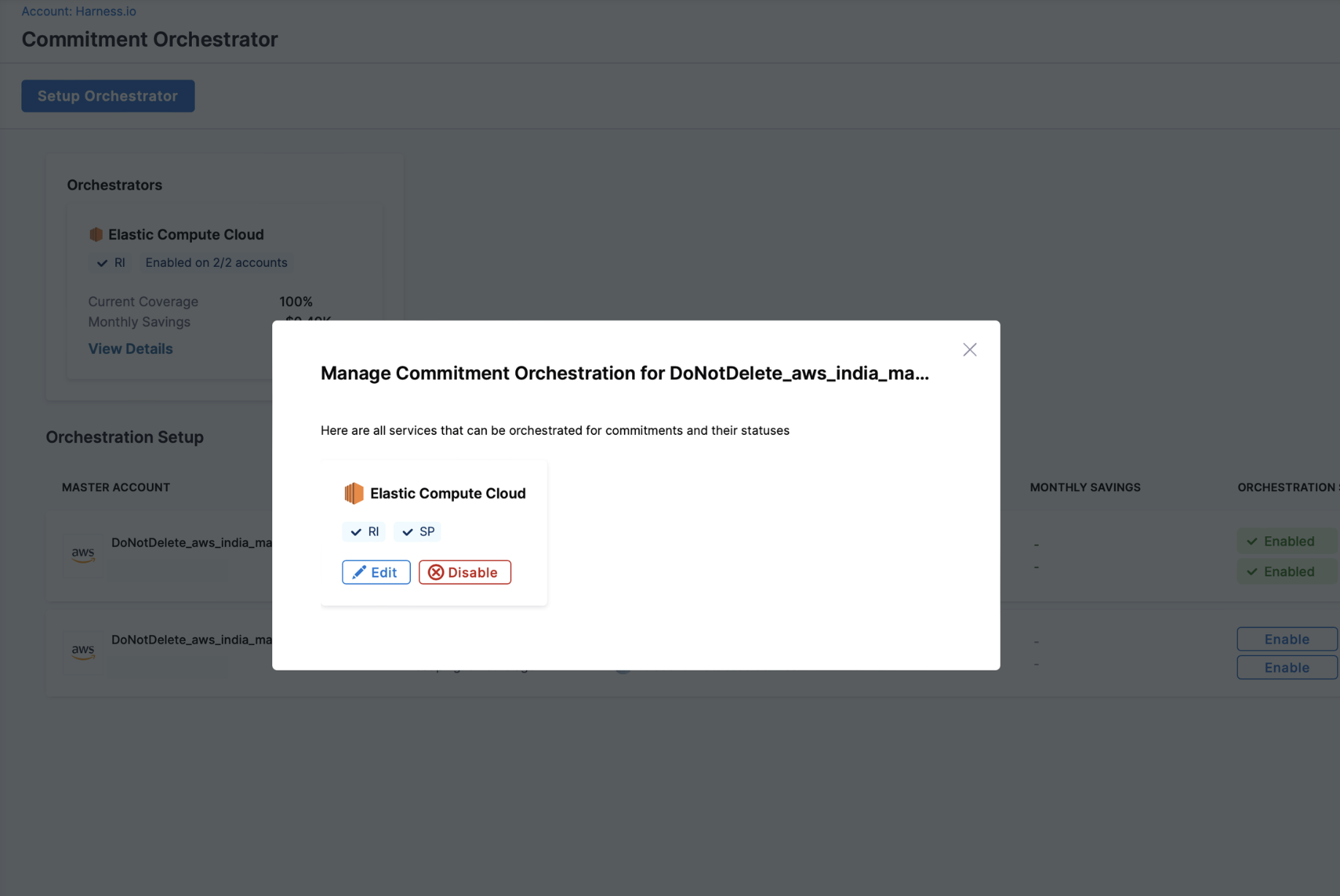
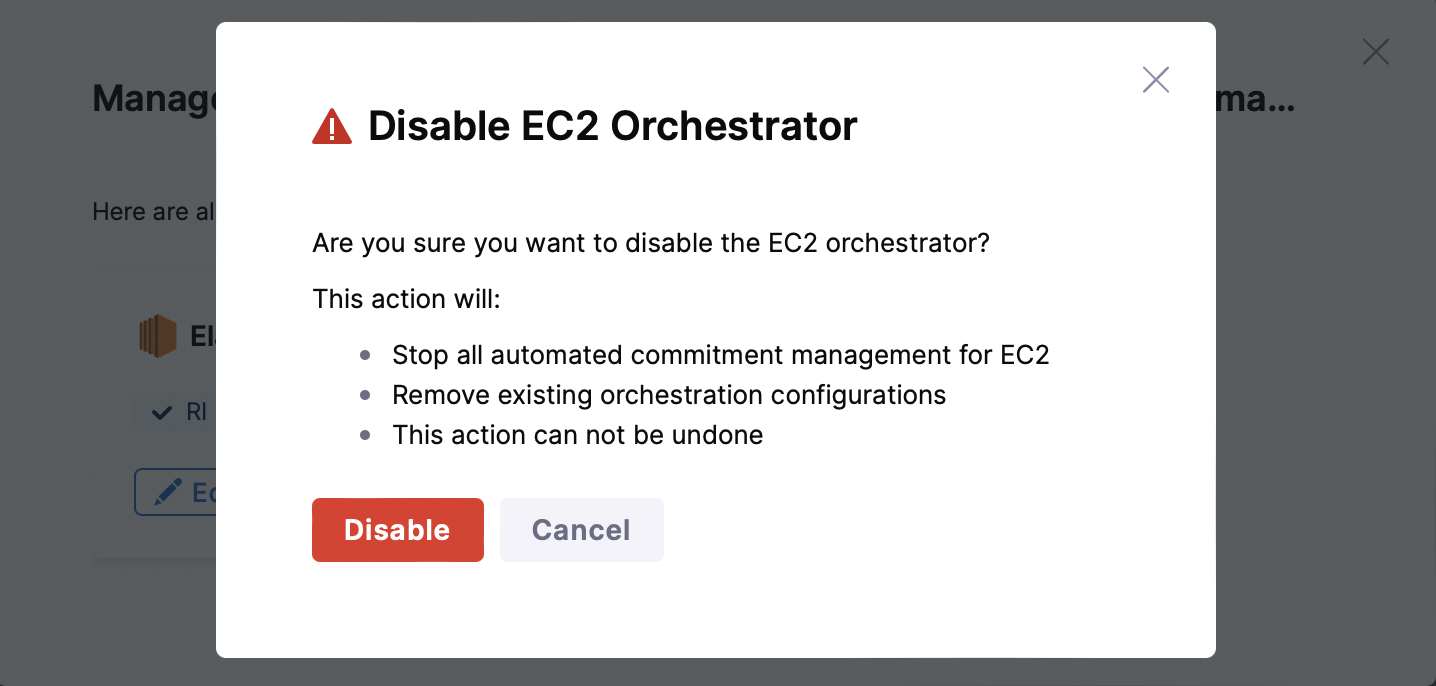
To disable a Commitment Orchestrator, navigate to Cloud & AI Cost Management > Commitment > Orchestration Setup. Click on the three ellipses for the orchestrator you want to disable > Manage Orchestration Setup > Disable.
Disabling the Commitment Orchestrator will:
-
Stop all automated commitment management for the selected orchestrator
-
Remove existing orchestration configurations