elasticache
Before You Begin
To setup Commitment Orchestrator in Harness CACM, you need:
- Active CACM Connectors: You must have at least one active cloud connector set up for the cloud providers you want to categorize costs for: Set Up CCM Connectors.
- A master account with the right permissions to be added via AWS connector on which you want to enable orchestration. Select the services for which you want to enable orchestration (permissions can be limited to specific service).
Below is the Elasticache permissions required:
HarnessCommitmentElastiCachePolicy:
    Type: 'AWS::IAM::ManagedPolicy'
    Condition: CreateHarnessCommitmentElastiCachePolicy
    Properties:
      Description: Policy granting Harness Access to ElastiCache Reserved Instances
      PolicyDocument:
        Version: 2012-10-17
        Statement:
          - Effect: Allow
            Action:
              - 'ce:GetSavingsPlansCoverage'
              - 'ce:GetReservationCoverage'
              - 'ce:GetSavingsPlansUtilization'
              - 'ce:GetDimensionValues'
              - 'ce:GetReservationUtilization'
              - 'ce:GetSavingsPlansUtilizationDetails'
              - 'ce:GetCostAndUsage'
              - 'organizations:ListAccounts'
              - 'elasticache:DescribeReservedCacheNodes'
              - 'elasticache:DescribeReservedCacheNodesOfferings'
              - 'elasticache:PurchaseReservedCacheNodesOffering'
            Resource: '*'
Steps to configure:
- Go to Commitment Orchestrator > Setup Orchestrator.
- Account and Service details
- Orchestrator Exclusions (Optional)
- Orchestration Preferences
- Review & Complete
-
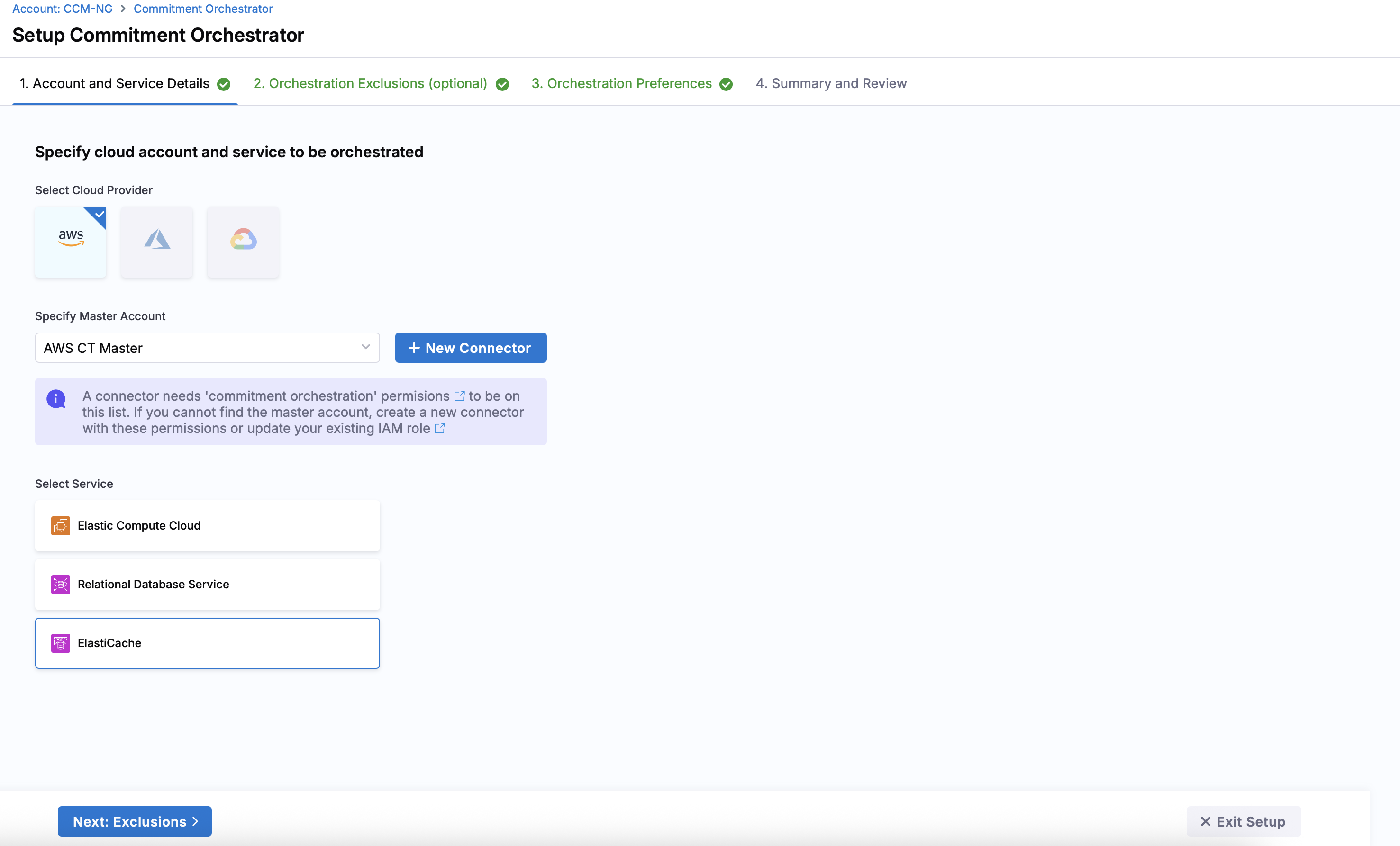
Specify the cloud account and service (Elasticache) for which you want to enable orchestration. Currently, Commitment Orchestrator supports AWS Elastic Compute Cloud (EC2), AWS Relational Database Service (RDS), and AWS Elasticache. Support for other cloud providers is in the works.
-
Specify the Master Account Connector. You need to select the master account with the right permissions to be added via connector on which you want to enable orchestration. You can either select an existing connector for your master account or create one.
Please note, even if "Commitment Orchestrator" is enabled in Connector Set Up for any other Account except for Master, it will not be visible in the connector list in Commitment Orchestrator Setup since Commitment Orchestrator requires Master Account connector.
Commitment Orchestrator provides you with an option to exclude Accounts, Regions and Instances from the orchestration.
-
Account Exclusions: You can include or exclude specific accounts from the orchestration. The accounts marked as included will be considered for RI Orchestration.
-
Region Exclusions: You can include or exclude specific regions from the orchestration. All the regions are shown with their coverage and compute spend for making an informed decision
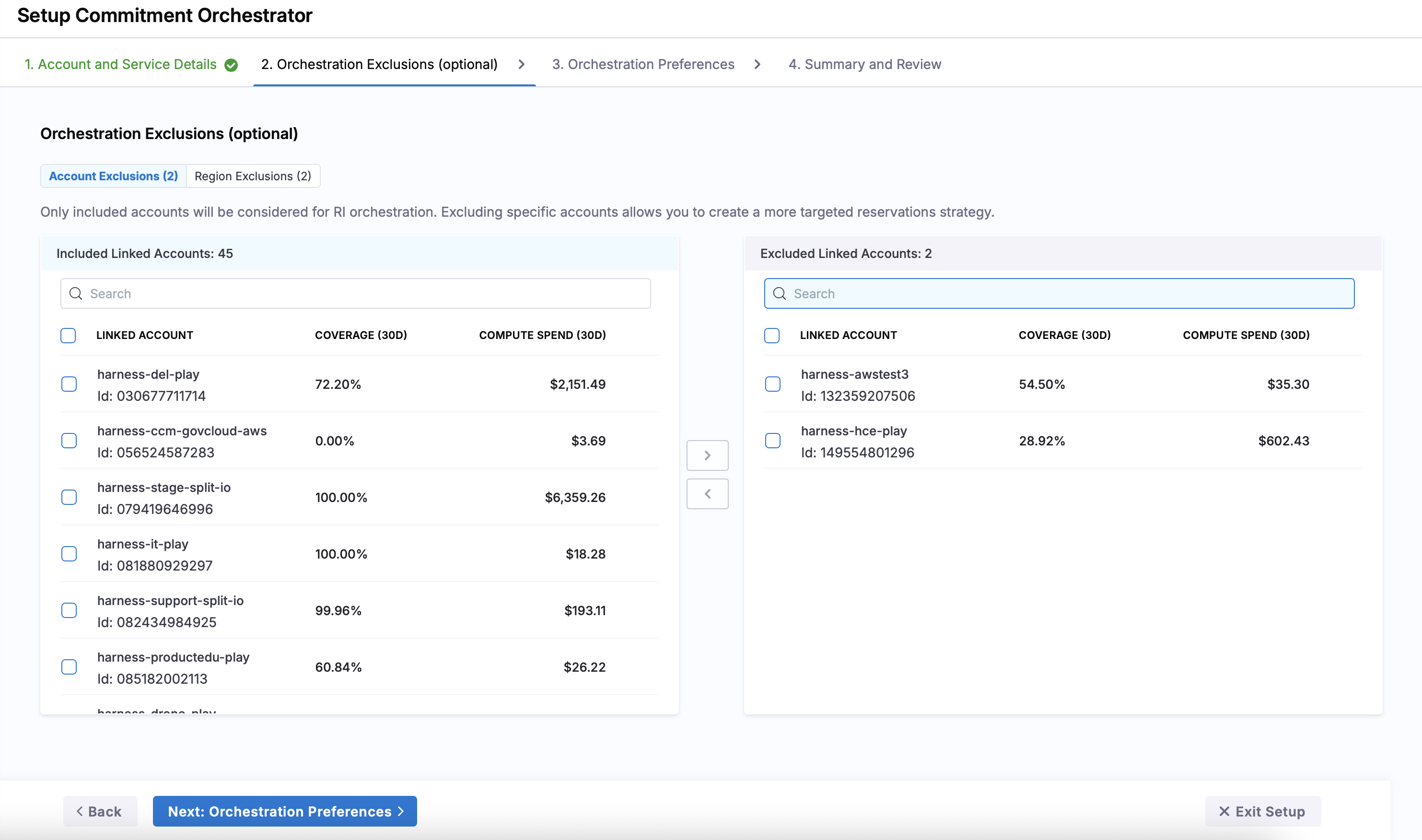
The purchases will happen only at master account level and thus will be in turn applicable for child accounts as well. The exclusion list will only be considered for the compute spend calculations and actual RI/SP may be used against the instances if they are part of child accounts.
-
Target Coverage: The maximum percentage of your compute spend that you want covered by Reserved Instances. Any remaining spend will continue to run on On-Demand. The Commitment Orchestrator automatically adjusts coverage levels based on evolving usage patterns.
-
Orchestration Mode: Select how the orchestrator executes recommended commitment purchases:
-
Fully Automated: Commitment purchases are executed automatically without requiring manual approval.
-
Manual: All commitment purchases require explicit manual approval before execution, giving you complete control over the process. All the recommendations are visible in the Actions tab on the dashboard.
-
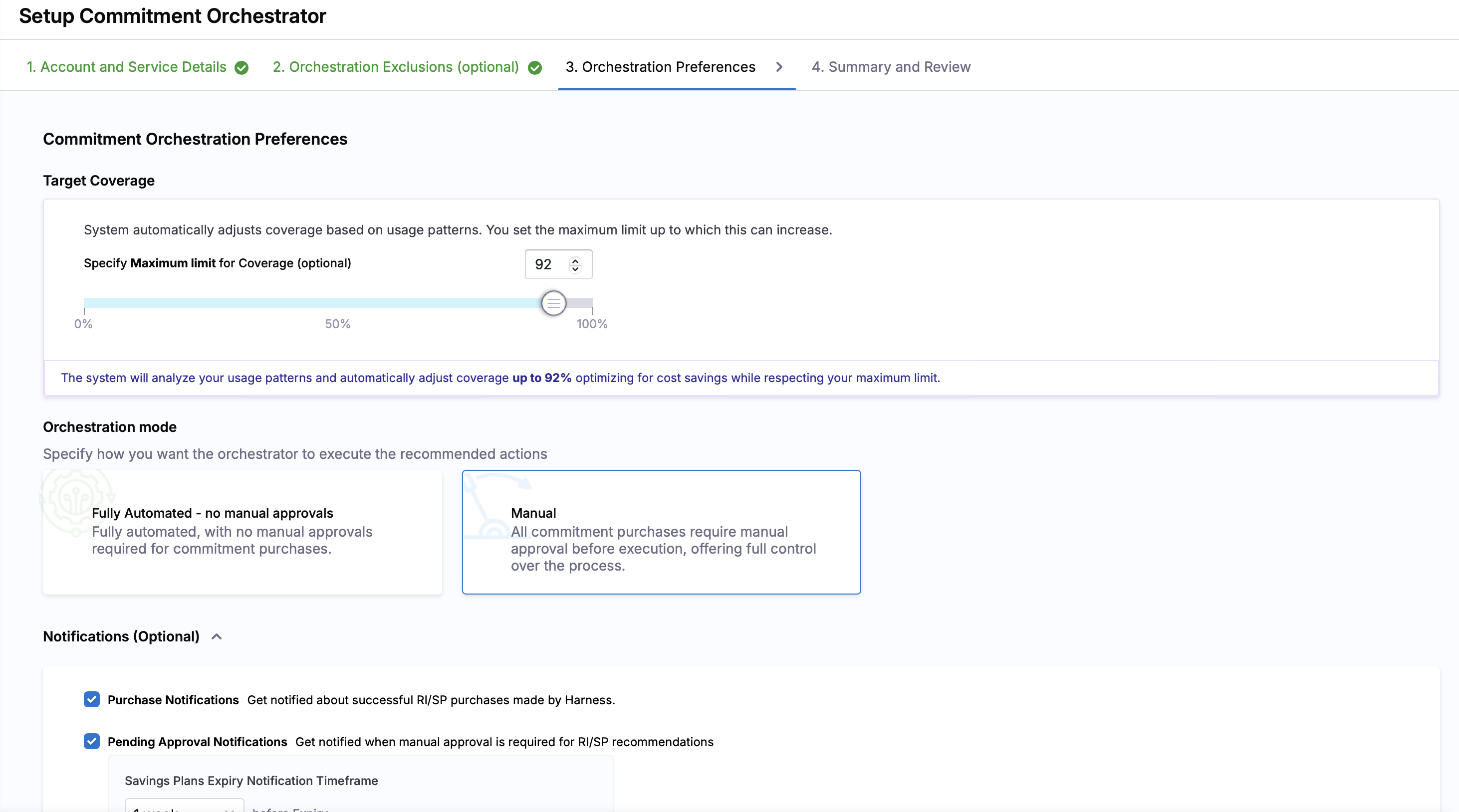
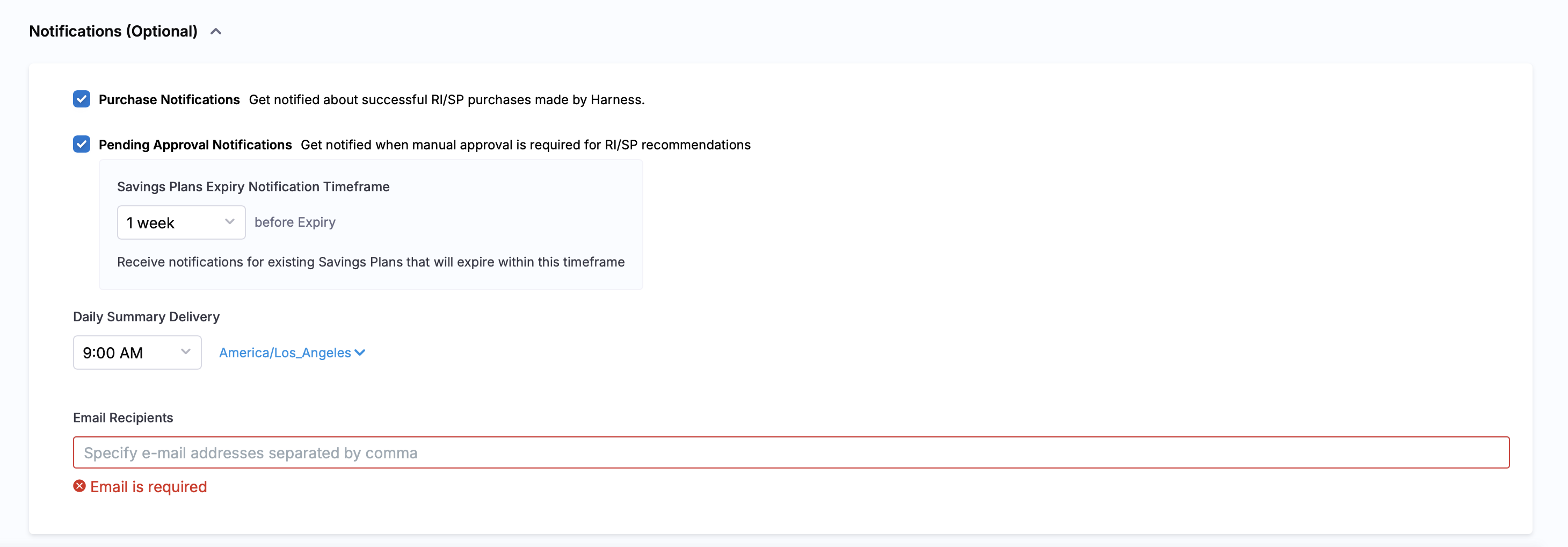
- Notifications: Configure alerts to stay informed about commitment activities:
- Purchase Notifications: Get notified about successful RI/SP purchases made by Harness.
- Pending Approval Notifications: Get notified when manual approval is required for RI/SP recommendations.
- Savings Plans Expiry Notifications: Receive notifications for existing Savings Plans that will expire within a specified timeframe.
- Daily Summary Delivery: Set your preferred timezone and email recipients for daily summary reports.
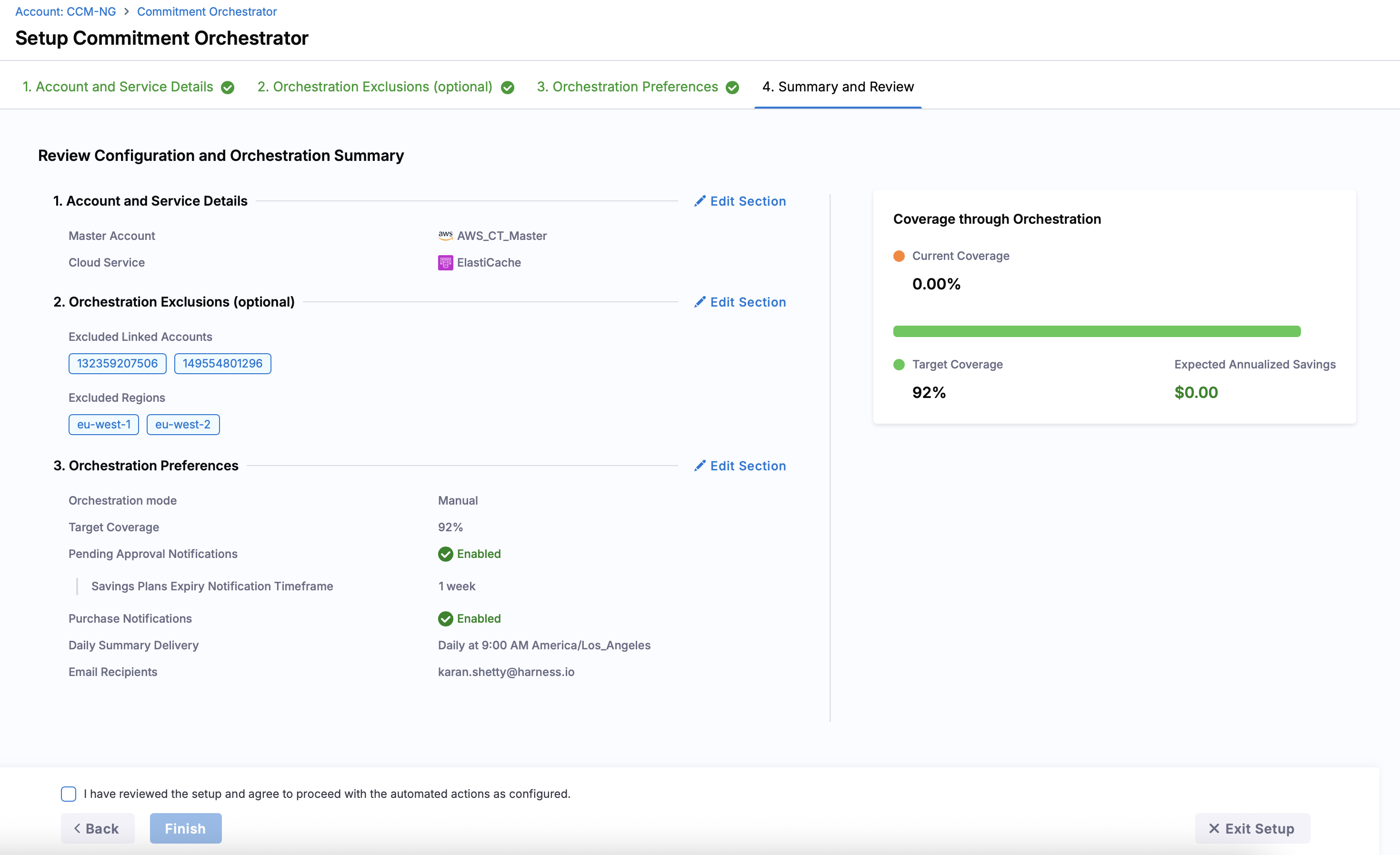
After all the set-up steps, you can review and finalise your inputs.
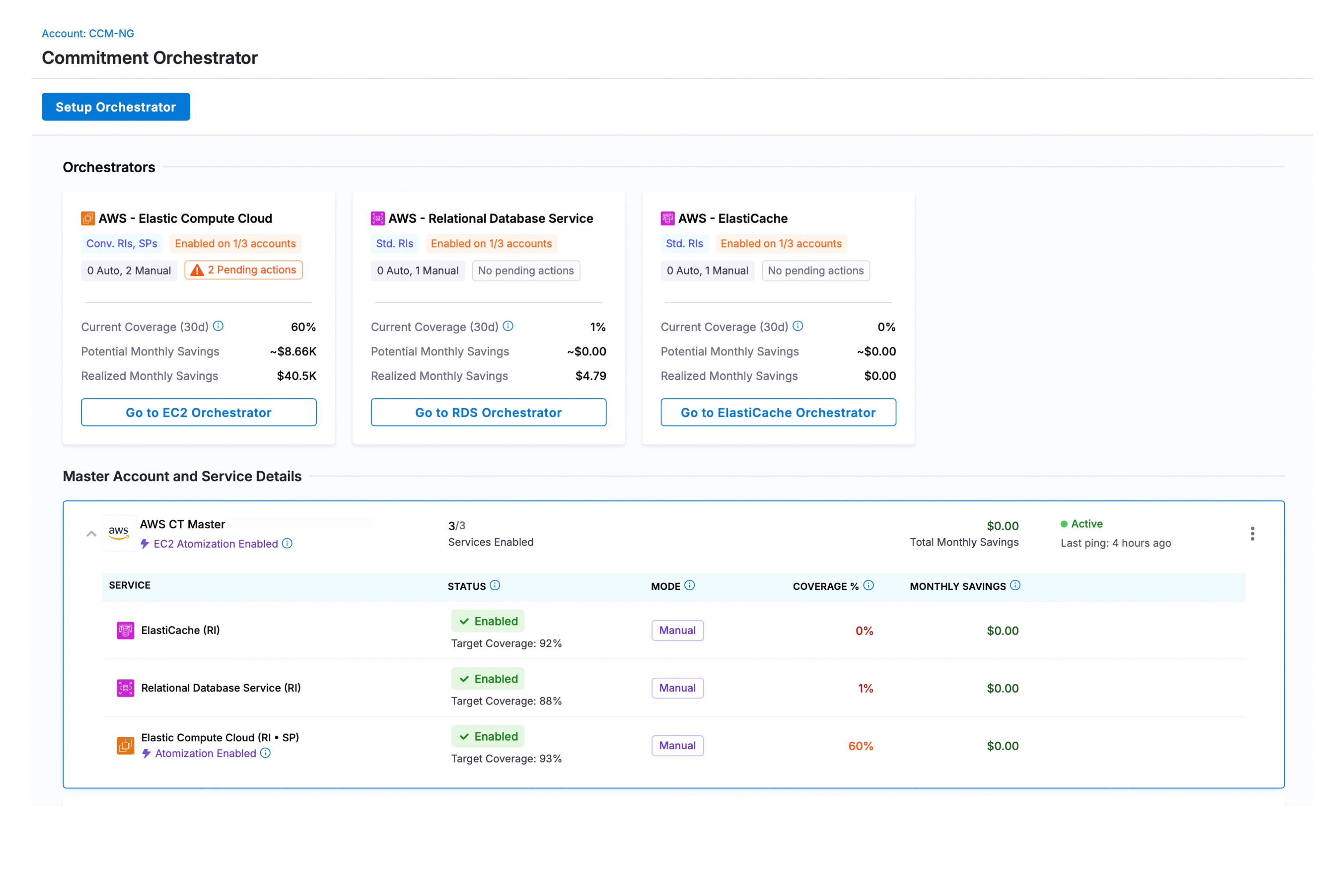
Overview Screen
The Orchestration Setup page displays a comprehensive list of all Master Accounts with Commitment Orchestrator connector permissions. From this page, users can enable new orchestration setups and view key metrics including Last 30 Days Coverage, Savings, and the current status of each Orchestrator configuration.
Disable Commitment Orchestrator
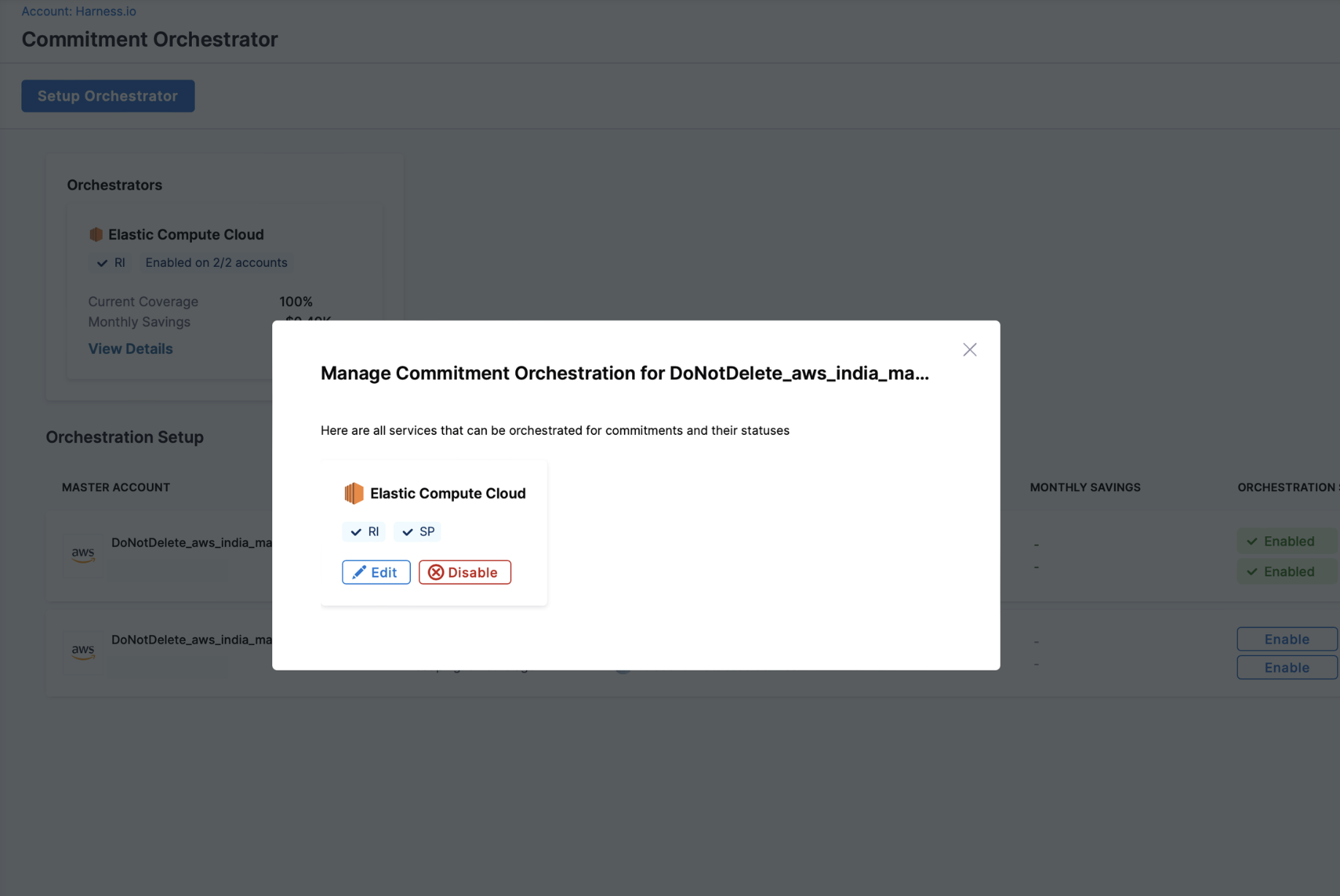
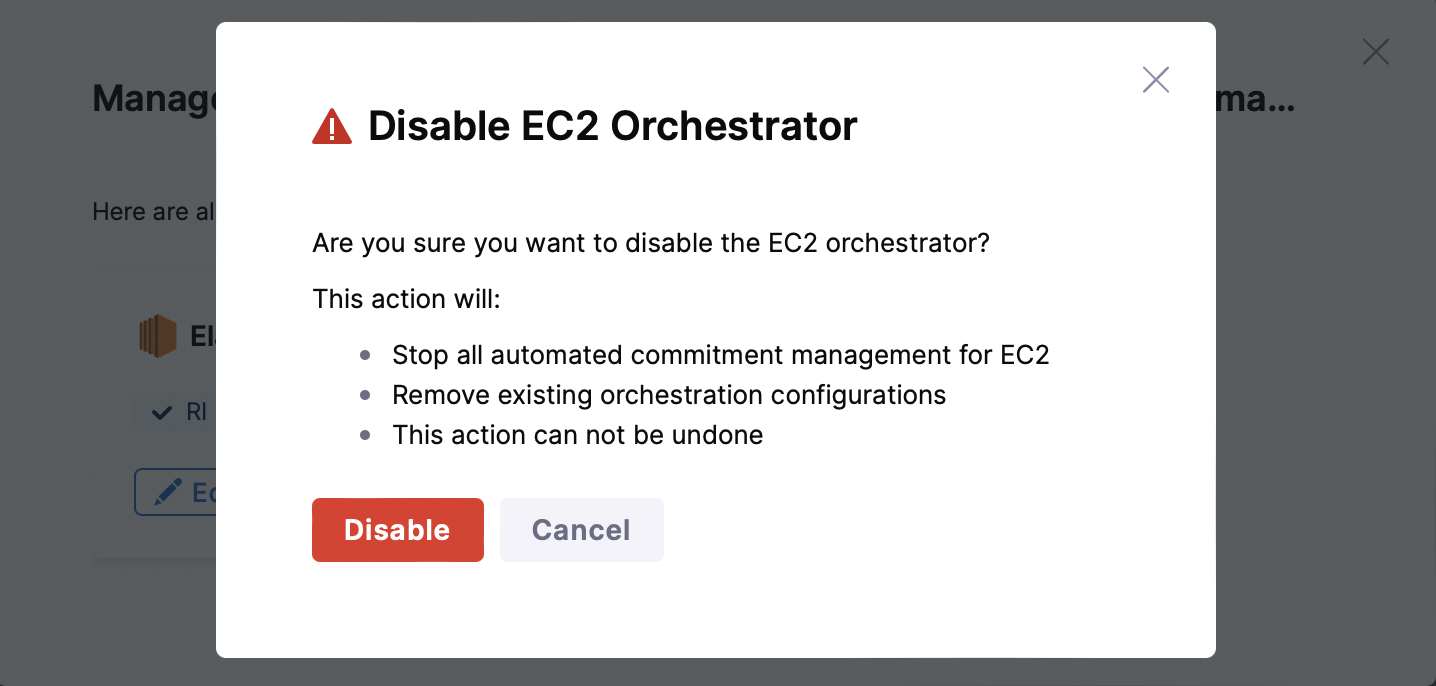
To disable a Commitment Orchestrator, navigate to Cloud & AI Cost Management > Commitment > Orchestration Setup. Click on the three ellipses for the orchestrator you want to disable > Manage Orchestration Setup > Disable.
Disabling the Commitment Orchestrator will:
-
Stop all automated commitment management for the selected orchestrator
-
Remove existing orchestration configurations