aws
- AWS Cost Dashboard
- Orphaned EBS Volumes & Snapshots
- EC2 Instance Metrics
- EC2 Inventory Cost
- Resource Breakdown
AWS Cost Dashboard
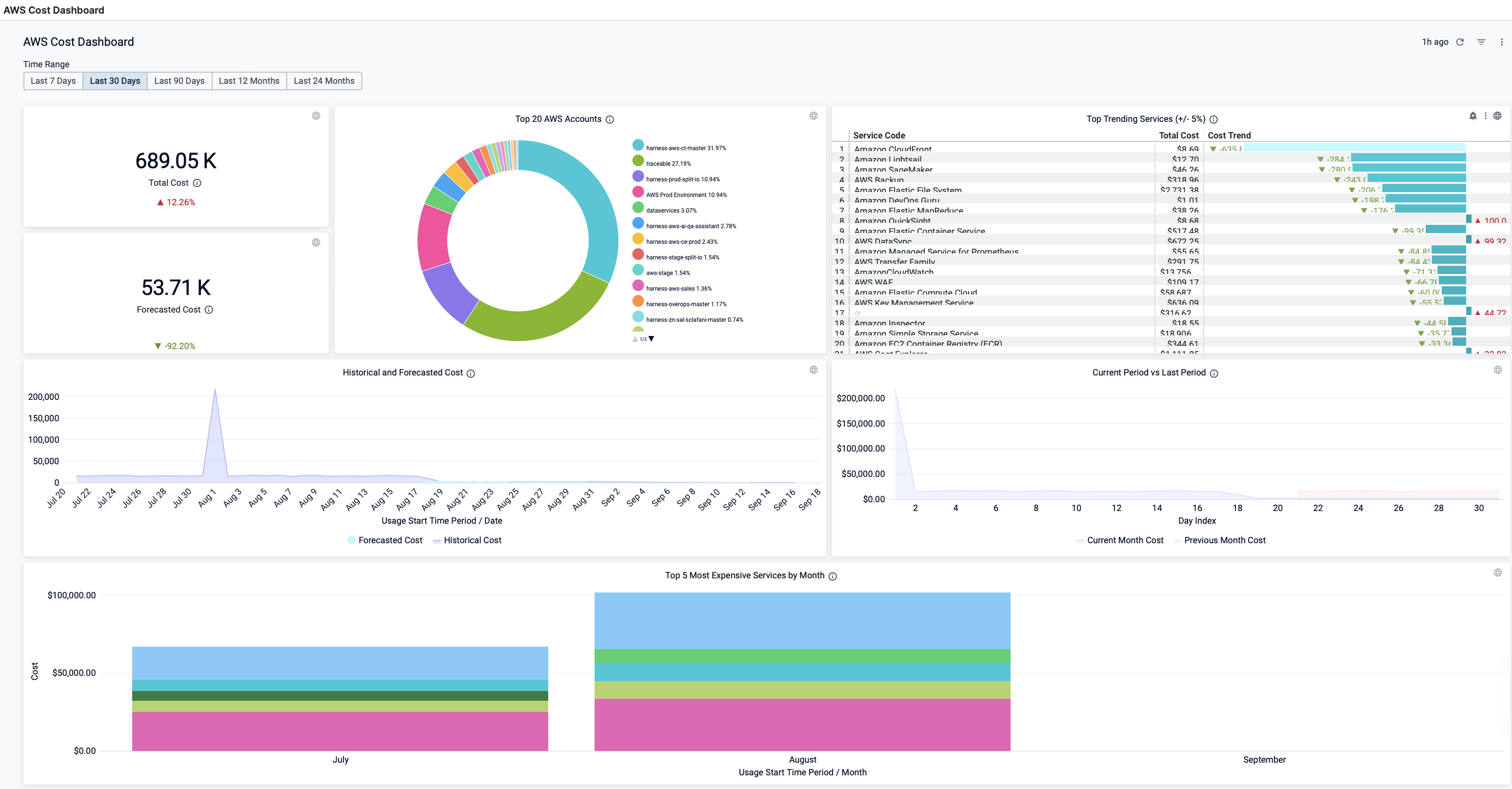
The AWS dashboard provides comprehensive cost visibility across your AWS environment. It displays your total AWS costs with trends, forecasted costs based on historical data, top 20 AWS accounts by spend, trending services showing cost increases or decreases, historical and forecasted cost charts, current vs previous period comparisons, and the top 5 most expensive services by month. This dashboard helps you track, analyze, and forecast your AWS cloud spending effectively.
Dimensions
Dimensions are key metrics and data visualizations that provide specific insights into your AWS cloud costs. Each dimension in the AWS Cost Dashboard focuses on a particular aspect of your cloud spending, such as total costs, forecasts, account-level spending, or service-specific trends.
| Dimensions | Description |
|---|---|
| Total Cost | The total AWS cost with cost trend. |
| Forecasted Cost | The forecasted cloud cost with cost trend. Forecasted cost is the prediction based on your historical cost data, and it is predicted for the same future time period as your selected time range. |
| Top 20 AWS accounts | The cost of the top 20 AWS account you are using to connect Harness to AWS via a Harness AWS Cloud Provider. |
| Top Trending Services | The top AWS services by cost increase or decrease |
| Historical and Forecasted Cost | The historical and forecasted AWS cost. Forecasted cost is the prediction based on your historical cost data and it is predicted for the same future time period as your selected time range. |
| Current Period vs Last Period | The cost of the current and previous time range. |
| Top 5 Most Expensive Services by Month | Top five services that incurred the maximum cost per month. |
Interacting with the AWS Cost Dashboard
Basic Controls
-
Time Filter: Select Time Range to filter data using pre-defined options: Last 7 days, Last 30 days, Last 90 days, Last 12 months, Last 24 months. After selecting, click the Refresh icon to update the data
-
Dashboard Options:
- Clear Cache and Refresh: Updates the dashboard with the latest data
- Download: Export the dashboard as PDF or CSV with options to:
- Set custom page size
- Expand tables to show all rows
- Arrange dashboard tiles in a single column
- Filter Icon: Toggle filter visibility
Exploring Dashboard Elements
-
Cost by AWS Account:
- Use up/down arrows to navigate through the list
- View percentage contribution of each AWS account to total cost
-
Historical and Forecasted Cost:
- Click on the chart to drill down by time period
- Toggle between Visualization (graph) and Table views
- Download specific data to your local system
-
Most Expensive Services by Month:
- Click on chart elements to explore detailed cost breakdowns
- Further drill down by time period in the resulting view
- View filtered cost data with precise metrics
Additional Actions
- Download Dashboard: Export the entire dashboard for offline analysis or sharing
- See Download Dashboard Data for more options
View Orphaned EBS Volumes and Snapshots Dashboard
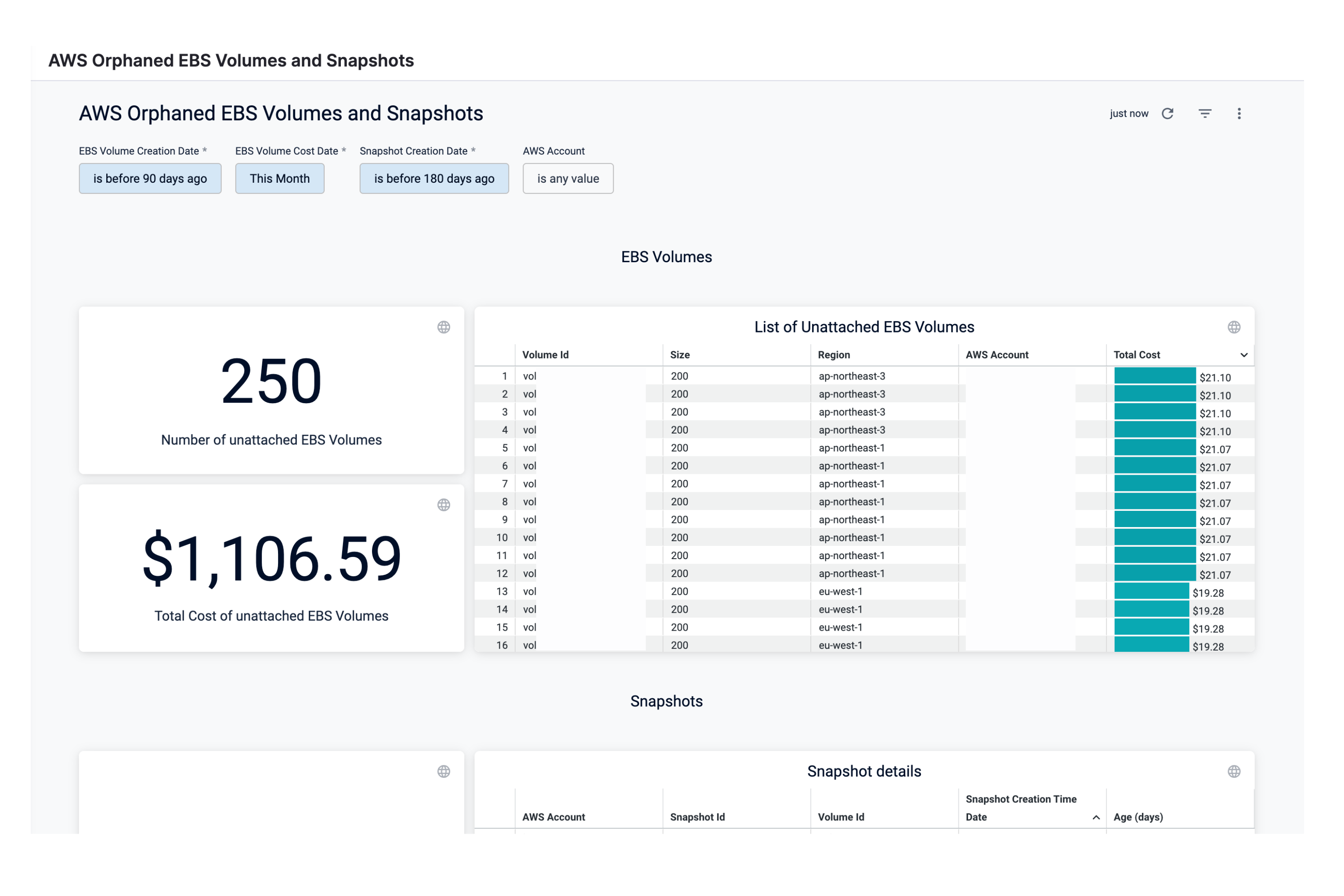
Perform the following steps to view Orphaned EBS Volumes and Snapshots Dashboard:
-
In Harness, click Dashboards.
-
Click Orphaned EBS Volumes and Snapshots Dashboard.
-
In EBS Volume Creation Date, select the date. You can add multiple OR conditions.
-
In EBS Volume Cost Date, select the date range.
By default, This Month is selected.
-
Presets: Select a Preset filter. For example, Today, Yesterday, etc.
-
Custom: Custom allows you to select the date range.
- In Snapshot Creation Date, select the date. You can add multiple OR conditions.
- Once you have selected all the filters, click Update.
The Orphaned EBS Volumes and Snapshots Dashboard is displayed.
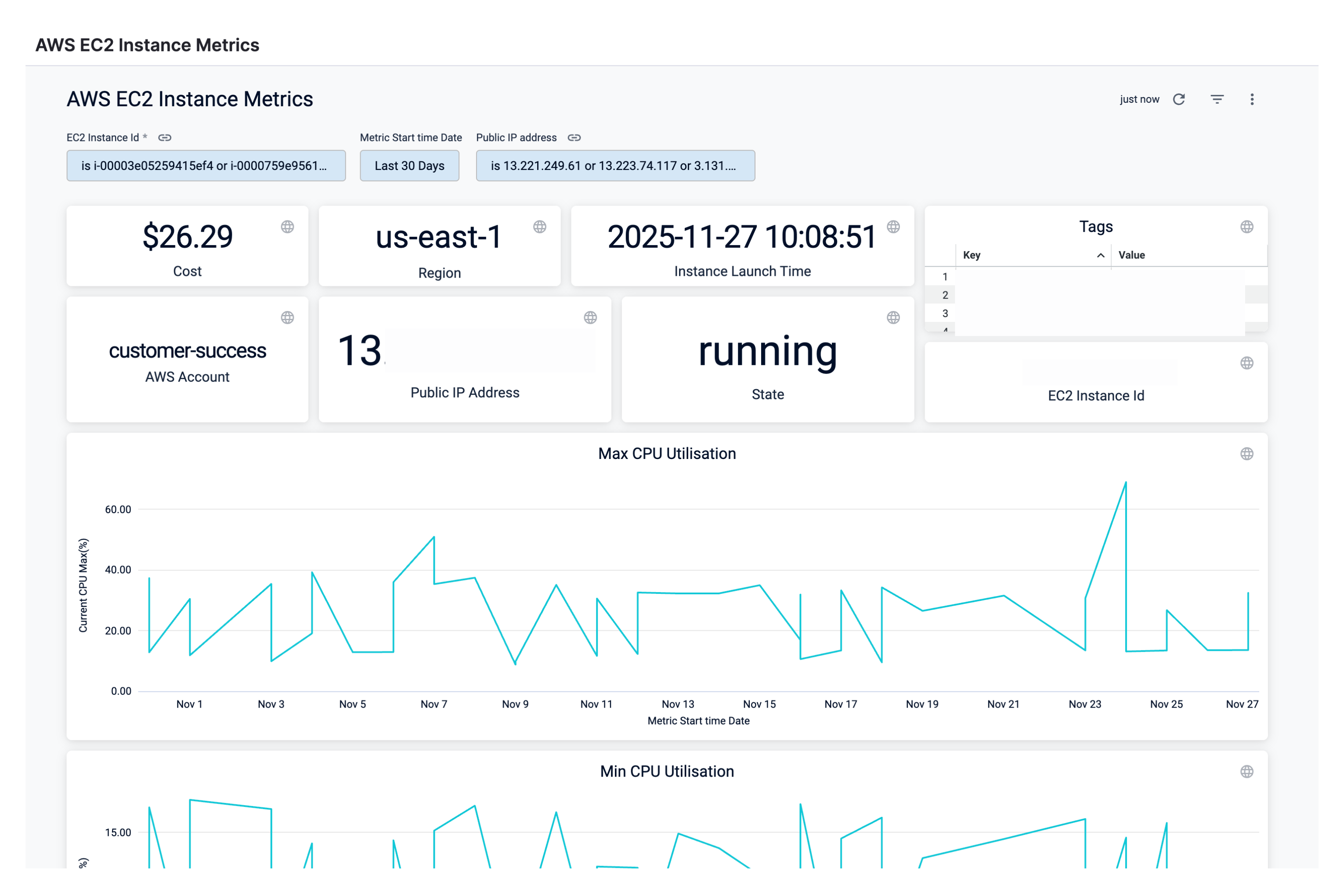
Perform the following steps to view AWS EC2 Instance Metrics Dashboard:
- In Harness, click Dashboards.
- Click AWS EC2 Instance Metrics Dashboard.
- Select EC2 Instance Id from the drop-down list for which you want to view the details. You can select multiple IDs.
- In Metrics start time date, select the time duration. You can select the preset value or use custom.
By default, the Last 30 Days is selected.- Presets: Select a Preset filter. For example, Today, Yesterday, etc.
- Custom: Custom allows you to select the date range.
- Select the Public IP Address.
- Once you have selected all the filters, click Update.
The EC2 Instance Metrics Dashboard is displayed.
AWS EC2 Inventory Cost Dashboard
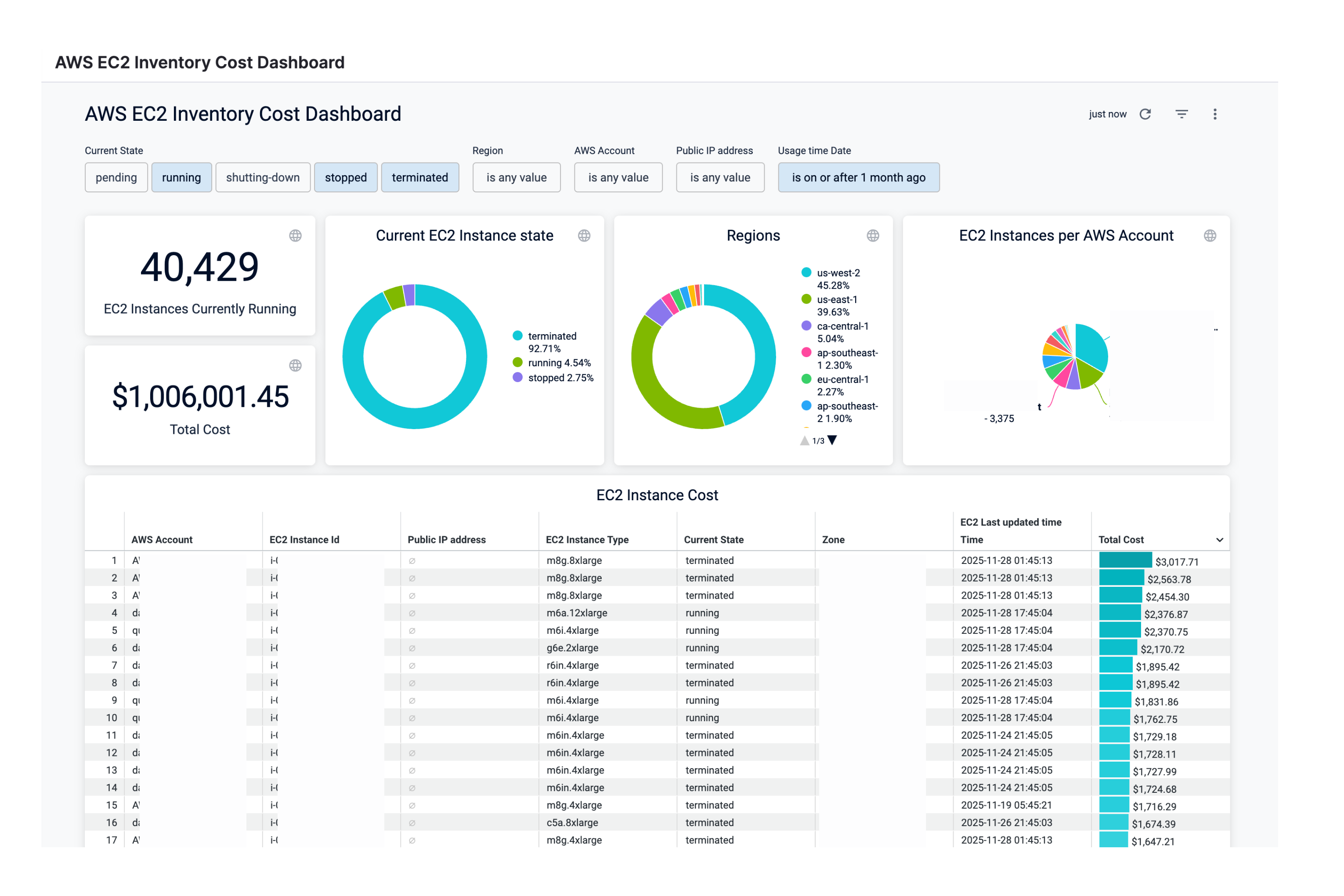
Perform the following steps to view AWS Cost Dashboard:
-
In Harness, click Dashboards.
-
Click AWS EC2 Inventory Cost Dashboard.
-
Select the Current State.
-
Select the Region.
-
Select the AWS Account.
-
Select EC2 Last updated time Date.
By default, the Last 30 Days is selected.
-
Presets: Select a Preset filter. For example, Today, Yesterday, etc.
-
Custom: Custom allows you to select the date range.
-
-
Drag the slider to define the Current CPU Max (%).
-
Select the value for Public IP Address.
-
Once you have selected all the filters, click Update.
The AWS EC2 Inventory Cost Dashboard is displayed.
View AWS Resource Breakdown Dashboard
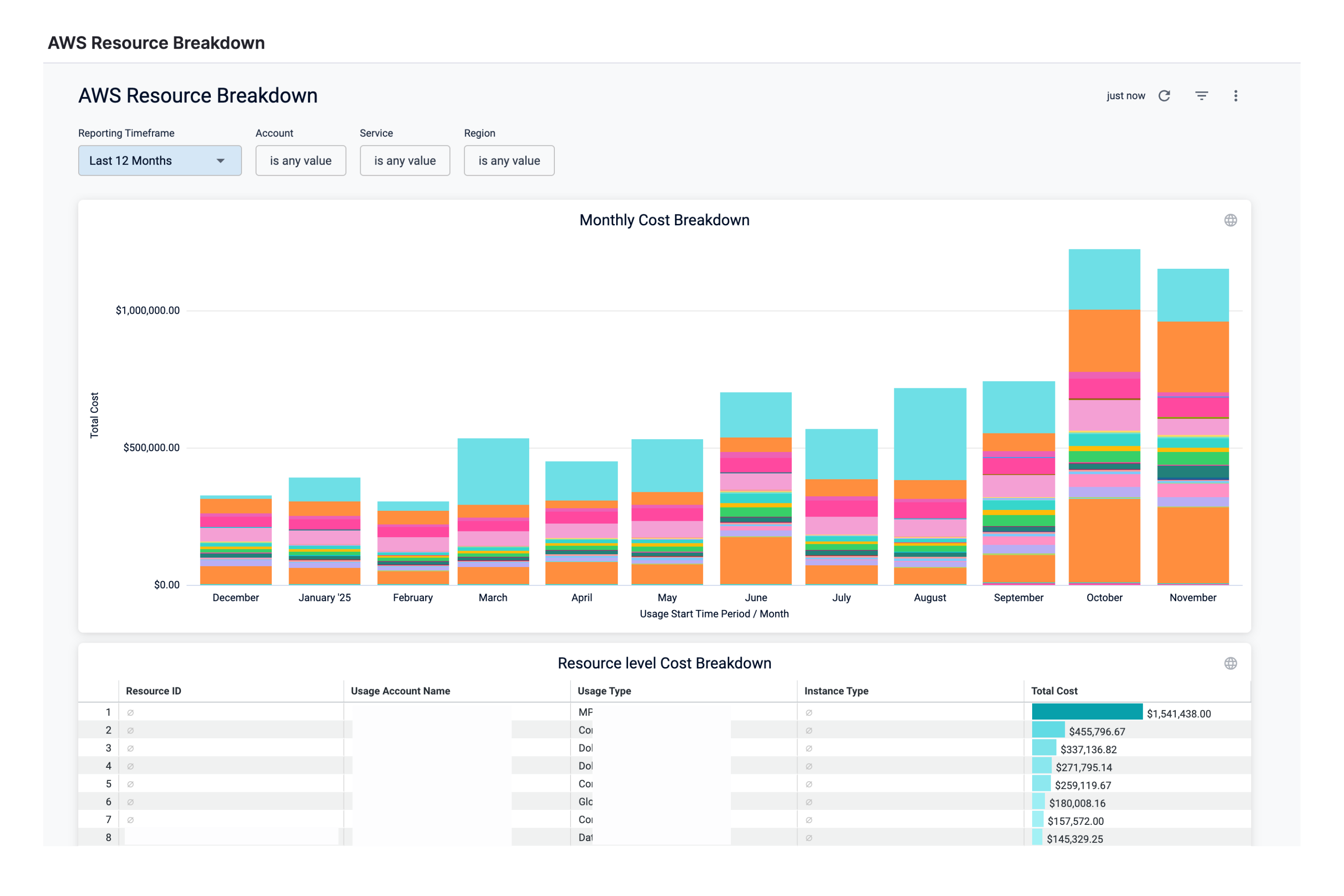
Perform the following steps to view AWS Resource Breakdown Dashboard:
- In Harness, clickDashboards.
- SelectBy Harnessand clickAWS Resource Breakdown.
The AWS Resource Breakdown Dashboard is displayed:
| Dimension | Description |
|---|---|
| Monthly Cost Breakdown | Includes the monthly cost of all the AWS resources. |
| Resource Level Cost Breakdown | Includes the resource level cost breakdown. |
- In Reporting Timeframe, select the time duration.
- In Account, select the account for which you want to view the cost. You can select multiple accounts.
- In Service, select the service for which you want to view the cost. You can select multiple Services.
- In Region, select the region. You can select multiple regions.
- Once you have made all the selections, click Update. The data is refreshed with the latest data from the database.
SCAD-Related Columns for AWS (Click to expand)
Split cost allocation data (SCAD) feature introduces cost and usage data for container-level resources—specifically ECS tasks and Kubernetes pods—into AWS Cost and Usage Reports (CUR). Previously AWS CUR was not including granular level K8S and ECS cost visibility. Now, split cost allocation calculates container-level costs by analyzing each container's consumption of EC2 instance resources, assigning costs based on the amortized cost of the instance and the percentage of CPU and memory resources utilized by containers running on it.
CACM has support for analyzing K8S cost data via SCAD CUR. Following are the columns which can be used.
parentresourceidreservedusageactualusagesplitusagesplitusageratiosplitcostnetsplitcostunusedcostnetunusedcostpublicondemandsplitcostpublicondemandunusedcost
Along with the following labels:
aws:eks:cluster-nameaws:eks:deploymentaws:eks:namespaceaws:eks:nodeaws:eks:workload-nameaws:eks:workload-type
Example: Calculating Split Cost Allocation Data for Containers (Click to expand)
Scenario:
- Usage in a single hour:
- One instance (m5.xlarge) shared by two namespaces and four pods, running for a full hour.
- Instance configuration: 4 vCPUs and 16 GB memory.
- Amortized cost of the instance: $1/hr.
Step 1: Compute the unit cost for CPU and memory
- Unit-cost-per-resource:
Split cost allocation data uses relative unit weights for CPU and memory based on a 9:1 ratio. This is derived from per vCPU per hour and per GB per hour prices in AWS Fargate.
| Instance | Instance Type | vCPU-available | Memory-available | Amortized-cost-per-hour | CPU-per-vCPU-hour | Cost-per-GB-hour |
|---|---|---|---|---|---|---|
| Instance1 | m5.xlarge | 4 | 16 | $1 | $0.17 | $0.02 |
Step 2: Compute the allocated capacity and instance unused capacity
Allocated capacity
- The memory and vCPU allocated to the Kubernetes pod from the parent EC2 instance, defined as the maximum of used and reserved capacity.
Instance unused capacity
- Unused vCPU and memory capacity.
| Pod Name | Namespace | Reserved vCPU | Used vCPU | Allocated vCPU | Reserved Memory | Used Memory | Allocated Memory |
|---|---|---|---|---|---|---|---|
| Pod1 | Namespace1 | 1 | 0.1 | 1 | 4 GB | 3 GB | 4 GB |
| Pod2 | Namespace2 | 1 | 1.9 | 1.9 | 4 GB | 6 GB | 6 GB |
| Pod3 | Namespace1 | 1 | 0.5 | 1 | 2 GB | 2 GB | 2 GB |
| Pod4 | Namespace2 | 1 | 0.5 | 1 | 2 GB | 2 GB | 2 GB |
| Unused | Unused | - | - | 0 | - | - | 2 GB |
| Total | - | - | - | 4.9 vCPU | - | 16 GB |
-
Pod1-Allocated-vCPU = Max (used, reeserved) = Max (1 vCPU, 0.1 vCPU)= 1 vCPU -
Pod1-Allocated-memory = Max (used, reeserved) = Max (4 GB, 3 GB)= 4 GB -
Instance-Unused-vCPU = Max (CPU-available - SUM(Allocated-vCPU), 0)= Max (4 – 4.9, 0) = 0 -
Instance-Unused-memory = Max (Memory-available - SUM(Allocated-memory), 0)= Max (16 – 14, 0) = 2 GB
In this example, there is CPU over-subscription, meaning the total vCPU used by the pods exceeds the available vCPU of the instance by 0.9 vCPU. This is attributed to Pod2, which uses more vCPU (1.9 vCPU) than what was reserved (1 vCPU).
Step 3: Compute the split usage ratios
Split usage ratio
The percentage of CPU or memory used by the Kubernetes pod compared to the overall CPU or memory available on the EC2 instance.
- Pod1 vCPU split usage ratio = Allocated vCPU / Total Allocated vCPU
- = 1 vCPU / 4.9 vCPU
- = 0.204
- Pod1 Memory split usage ratio = Allocated Memory / Total Memory
- = 4 GB / 16 GB
- = 0.25
- Pod2 vCPU split usage ratio = Allocated vCPU / Total Allocated vCPU
- = 1.9 vCPU / 4.9 vCPU
- = 0.388
- Pod2 Memory split usage ratio = Allocated Memory / Total Memory
- = 6 GB / 16 GB
- = 0.375
Unused ratio
The percentage of CPU or memory used by the Kubernetes pod compared to the overall CPU or memory used on the EC2 instance (that is, not factoring in the unused CPU or memory on the instance).
- Pod1 vCPU unused ratio = Pod1 vCPU split usage ratio / (Total vCPU split usage ratio - Instance unused vCPU)
- = 0 (since Instance unused vCPU is 0)
- Pod1 Memory unused ratio = Pod1 Memory split usage ratio / (Total Memory split usage ratio - Instance unused memory)
- = 0.25 / (1 - 0.125)
- = 0.286
| Pod Name | Namespace | vCPU Split Usage Ratio | vCPU Unused Ratio | Memory Split Usage Ratio | Memory Unused Ratio |
|---|---|---|---|---|---|
| Pod1 | Namespace1 | 0.204 | 0 | 0.250 | 0.286 |
| Pod2 | Namespace2 | 0.388 | 0 | 0.375 | 0.429 |
| Pod3 | Namespace1 | 0.204 | 0 | 0.125 | 0.143 |
| Pod4 | Namespace2 | 0.204 | 0 | 0.125 | 0.143 |
| Unused | Unused | 0 | 0.125 | ||
| 1 | 1 |
Step 4: Compute the split cost and unused costs
Split cost
The pay-per-use cost allocation of the EC2 instance cost based on allocated CPU and memory usage by the Kubernetes pod.
Unused instance cost
The cost of unused CPU or memory resources on the instance.
Pod1 Split Cost = (Pod1 vCPU split usage ratio * Total vCPU * Cost per vCPU hour) + (Pod1 Memory split usage ratio * Total Memory * Cost per GB hour)
= (0.204 * 4 vCPU * 0.02) = $0.22
Pod1 Unused Cost =(Pod1 vCPU unused ratio × Instance vCPU unused ratio × vCPU available × Cost per vCPU hour) + (Pod1 Memory unused ratio × Instance Memory unused ratio × Memory available × Cost per GB hour)
= (0 * 0 * 4 * 0.02) = $0.01
Pod1 Total Split Cost = Pod1 Split Cost + Pod1 Unused Cost
= $0.23
| Pod Name | Namespace | Split-cost | Unused-cost | Total-split-cost |
|---|---|---|---|---|
| Pod1 | Namespace1 | $0.22 | $0.01 | $0.23 |
| Pod2 | Namespace2 | $0.38 | $0.02 | $0.40 |
| Pod3 | Namespace1 | $0.18 | $0.01 | $0.19 |
| Pod4 | Namespace2 | $0.18 | $0.01 | $0.19 |
| Unused | Unused | $0.04 | ||
| $1 | $0.04 | $1 |
The cost of the service is the sum of the cost of pods associated with each namespace.
- Total cost of Namespace1 = 0.19 = $0.42
- Total cost of Namespace2 = 0.19 = $0.59
Example of a query and result with SCAD columns (Click to expand)
The eks_namespace labels won't display netamortisedcost and amortisedcost values, as only SCAD-related columns and values are accessible from AWS.
The kube-system namespace is the only one that will reflect netamortisedcost and amortisedcost values. This is because AWS provides blendedcost and unblendedcost fields exclusively for this namespace, allowing us to calculate the amortised and net amortised cost values. These calculated values are stored in the awscur_<<month_year>> table and subsequently persisted in the unifiedTable as awsAmortisedCost and awsNetAmortisedCost.