aws-quickstart
We recommend AWS CUR 2.0 (Data Exports), which covers all CACM features. CUR 1.0 (Legacy CUR) is also fully supported.
Before You Start
To ensure a smooth and error-free setup experience, complete the following steps in your AWS console before launching the Harness wizard. This will allow you to progress through the setup without delays or missing prerequisites.
| Required Info | Where to Find It | Why It’s Needed |
|---|---|---|
| AWS Account ID (12-digit number) | AWS Console → Account Settings | Used to associate your cloud costs with your Harness project. |
| Cost and Usage Report (CUR) | AWS Console → Billing → Cost & Usage Reports | Harness uses this to ingest detailed billing data. |
| S3 Bucket Name | AWS Console → S3 | Stores the CUR files for Harness to access. |
Set Up the Cost and Usage Report
Create the report in your AWS console, then use its name and S3 bucket when you configure the Harness connector. We recommend CUR 2.0, but Legacy CUR is also fully supported.
- CUR 2.0 (recommended)
- Legacy CUR
-
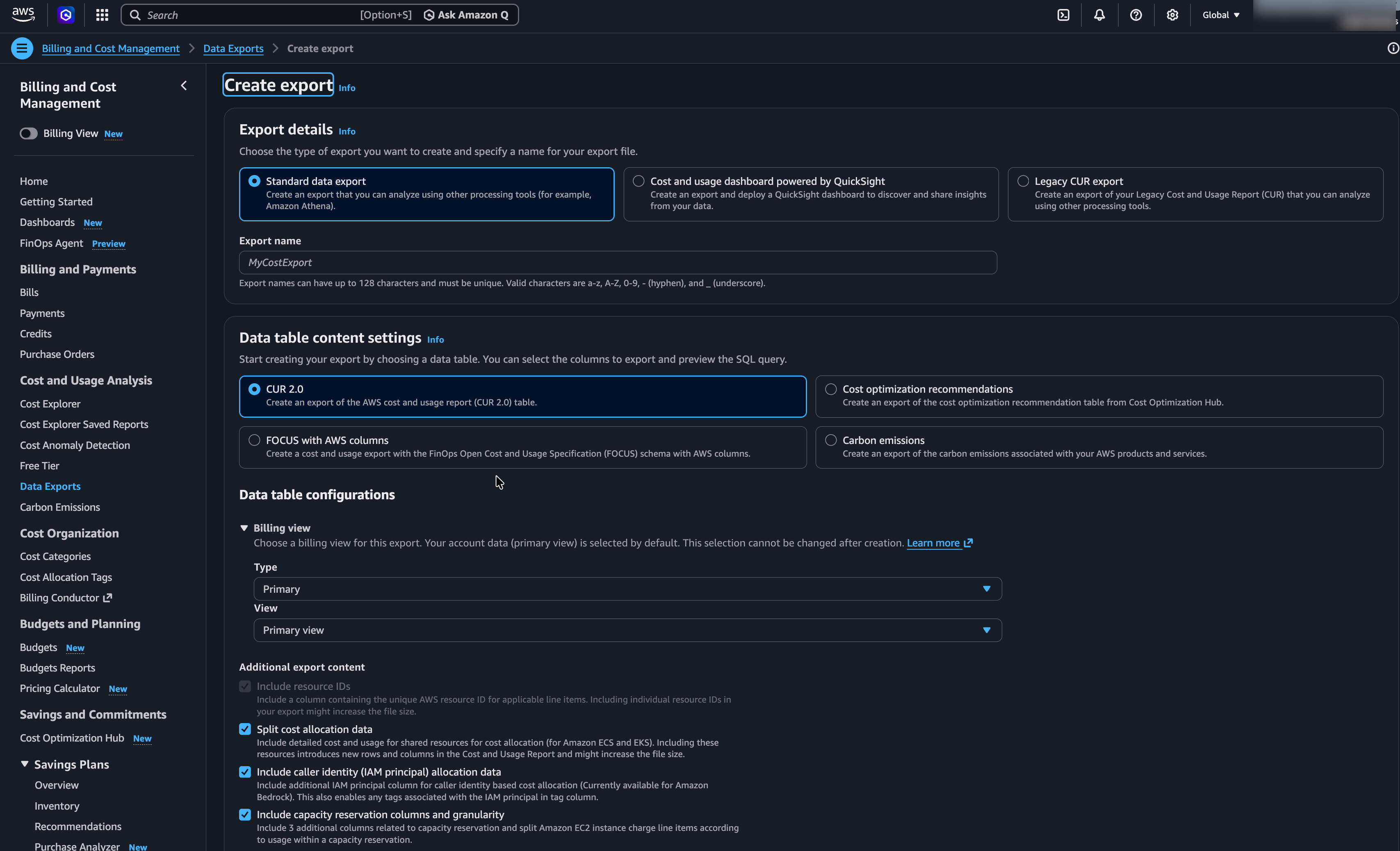
In the AWS console, navigate to Billing and Cost Management → Data Exports → Create export.
-
Under Report details, select all four options:
- Include resource IDs
- Split cost allocation data
- Include caller identity (IAM principal) allocation data
- Include capacity reservation columns and granularity
-
Under Delivery options, configure the following:
Setting Required Value Compression type Parquet S3 bucket Select or create a bucket. Copy the bucket name, as you will need it for the Harness connector. S3 path prefix Enter any prefix. -
Do not uncheck any columns.
-
Review and create the export. Copy the export name, as you will need it for the Harness connector.
-
In the AWS console, go to Billing → Cost & Usage Reports and click Create report.
-
Select Legacy CUR export and give the report a descriptive name. Copy this name, as you will need it for the Harness connector.
-
Under Report details, configure the following:
Setting Required Value Notes Include Resource IDs ✅ Enabled Must be checked in "Additional report details" Time Granularity Hourly Required for accurate cost tracking Report versioning Create new report version - -
Under Delivery options, configure the following:
Setting Required Value Notes S3 bucket Select or create a bucket Copy the bucket name for the Harness connector S3 path prefix Enter any prefix Note it if you set one Compression GZIP Required format File Format CSV Parquet is not supported Data Refresh Settings Automatic Enable "Automatically refresh" -
Review and create the report.
Related Documentation
It may take up to 24 hours for AWS to begin delivering cost and usage data. You can still proceed through the wizard, but the connection test may fail if data isn’t yet available.
In the meantime, explore the optional requirements and feature integrations available in Harness CACM, these will be available to select in your Choose Requirements step of the connection wizard:
Interactive Guide
Connect your AWS account to Harness using the connector wizard. Watch the walkthrough below, or follow the Step-by-Step instructions for the full detail on each step.
Step-by-Step
Step 1: Add AWS Account Details
- In the wizard, enter a name for your connector (e.g.,
ccm-aws-prod). - Enter your 12-digit AWS Account ID.
- (Optional) Add a description and tags to help identify this connector later.
- If you're using a GovCloud account, select Yes; otherwise, leave the default.
- Click Continue.
Step 2: Select or Create a Cost and Usage Report
In the connector wizard, select a report type. We recommend CUR 2.0, but CUR 1.0 (legacy) is also fully supported.
- CUR 2.0 (recommended)
- CUR 1.0 (legacy)
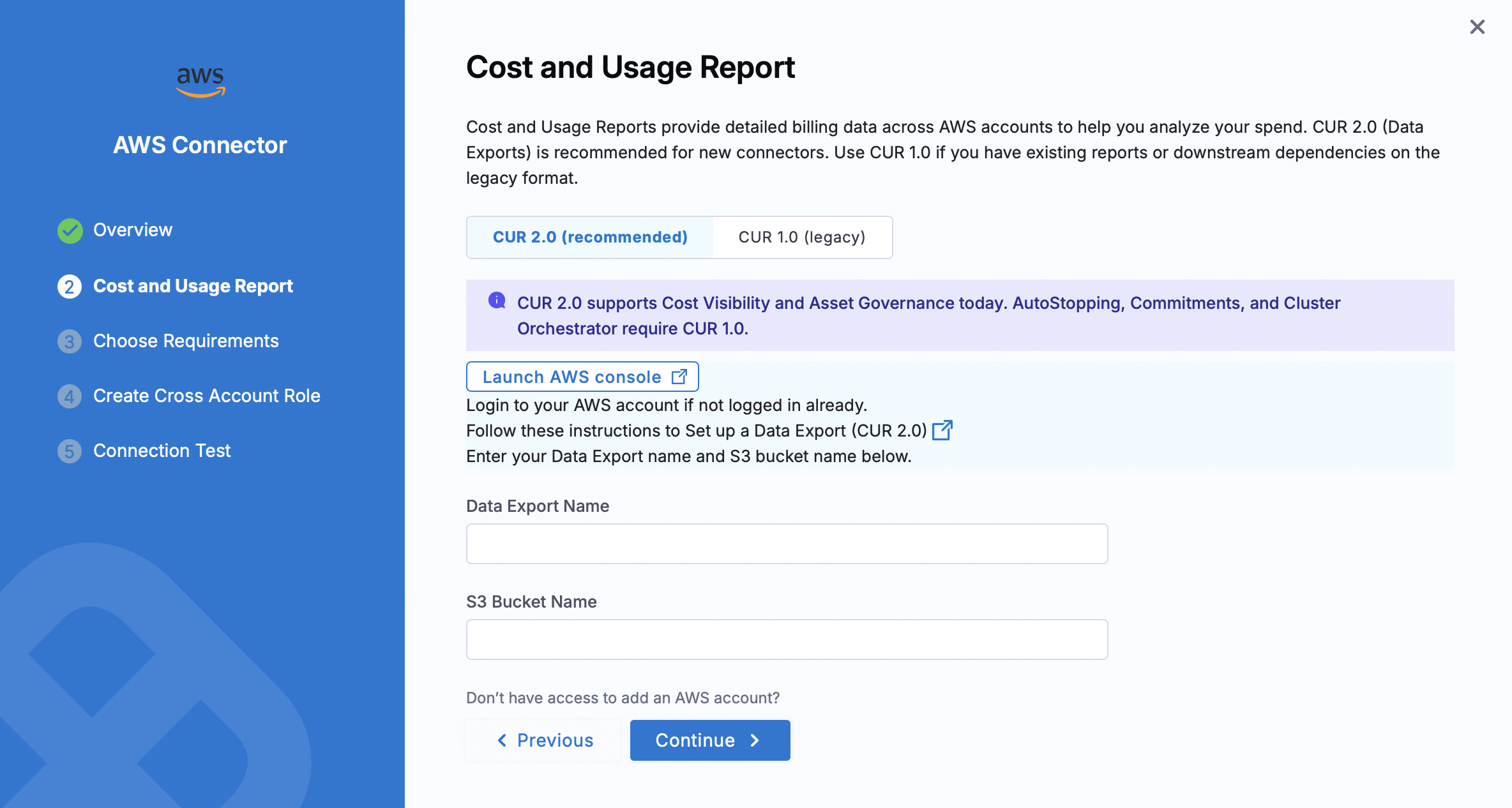
- In the connector wizard, select the CUR 2.0 (recommended) tab.
- Click Launch AWS console and follow the CUR 2.0 setup steps to create a Data Export if you have not done so already.
- Enter the Data Export Name and S3 Bucket Name in the fields provided.
- Click Continue.
- In the connector wizard, select the CUR 1.0 (legacy) tab.
- Click Launch AWS console and follow the Legacy CUR setup steps to create a report if you have not done so already.
- Enter the Cost and Usage Report Name and S3 Bucket Name in the fields provided.
- Click Continue.
Review Feature Permissions for CACM to understand the minimum IAM roles or policies needed for every CACM feature.
Step 3: Choose Requirements
- Cost Visibility is selected by default and is required, leave it checked.
- (Optional) You can enable any of the following features (they can also be added later):
- Resource Inventory Management
- Optimization by AutoStopping
- Cloud Governance
- Commitment Orchestration
- Click Continue.
Not sure which options to choose? Learn more about each feature.
Step 4: Authentication (Conditional)
If you have selected Optimization by AutoStopping, Cloud Governance or Commitment Orchestration, in previous step, you can set up Authentication using OIDC. If not selected, this step will not be prompted.
You can enable authentication for your AWS account via
- Cross Account Role: Created with custom permissions
- OIDC Authentication: Federated access with no stored credentials
Step 5: Enter Cross Account Role Details
- Paste the Cross Account Role ARN you created via the CloudFormation template. You can find it under CloudFormation → Stacks → Outputs tab in AWS.
If you are using CUR 2.0, ensure the Cross Account IAM role has been updated with the CUR 2.0 permissions by re-running the CloudFormation template or manually adding them as described in the Migrating from CUR 1.0 section.
- The External ID will be pre-filled. Leave it as is.
- Click Save and Continue.
Step 6: Verify the Connection
- Harness will attempt to validate the connection using your inputs.
- If this step fails, it's usually because AWS has not yet delivered the first CUR file.
- Wait up to 24 hours after setting up the CUR before trying again.
- Once validated, click Finish Setup.
🎉 You’ve now connected your AWS account and enabled cost visibility in Harness.
Migrating from CUR 1.0
If you already have an AWS billing connector configured with CUR 1.0 and want to migrate to CUR 2.0:
-
Edit the existing AWS billing connector.
-
In the Cost and Usage Report step, select the CUR 2.0 (recommended) tab.
-
Update the Cross Account IAM role with the required CUR 2.0 permissions using one of the following methods:
-
CloudFormation template (recommended): Re-run the CloudFormation template, which includes all required permissions for both CUR 1.0 and CUR 2.0.
-
Manual: Add the following permissions directly to the existing Cross Account IAM role:
{"Action": ["cur:DescribeReportDefinitions","bcm-data-exports:GetExport","bcm-data-exports:ListExports","organizations:Describe*","organizations:List*"]}
-
-
Ensure the role also has the required S3 bucket permissions and resource-level access for the Data Export location.
After you migrate, AWS generates all new billing data in CUR 2.0 format. Keep the following in mind:
- Historical data: Data from before the migration remains in CUR 1.0 format and is not automatically converted.
- Backfill: If you need pre-migration data in CUR 2.0 format, contact AWS Support. AWS can backfill up to 36 months. Harness recommends requesting at least the current year to maintain uninterrupted reporting in Harness CCM.
Go to Migration to CUR 2.0 - Cloud Intelligence Dashboards on AWS to understand the full impact of migrating.
Next Steps
Once your AWS billing data is flowing into Harness, explore these features to enhance your cloud & AI cost management:
- View and Create Perspectives to visualize cloud usage and trends.
- Create Budgets and Alerts to monitor spend thresholds.
- Use BI Dashboards to visualize cloud usage and trends.
- Revisit optional integrations you skipped earlier:
Take the next step in your cloud & AI cost management journey and turn visibility into action.