azure-quickstart
Before You Start
To ensure a smooth and error-free setup experience, set up Azure billing Export before launching the Harness wizard. This will allow you to progress through the setup without delays or missing prerequisites.
| Required Info | Where to Find It | Why It’s Needed |
|---|---|---|
| Storage Account Name | Azure Portal → Storage accounts | Source location of exported billing data. |
| Subscription ID | Azure Portal → Subscriptions | Identifies the subscription being monitored. |
| Storage Container | Azure Portal → Storage accounts → Containers | Target location for billing export data. |
| Storage Directory & Export Name | When configuring Billing Export in Azure | Required to locate and identify billing data exports. |
Set Up Azure Billing Export
- Go to Azure Portal → Cost Management → Exports.
- Click + Create to create a new export.
- Configure your export:
- 📝 Name: Enter a descriptive name (e.g.,
ccm-harness-export) - 📊 Type: Choose Actual cost or Amortized cost
- 🕒 Frequency: Set to Daily
- 📝 Name: Enter a descriptive name (e.g.,
- Set up storage destination:
- Choose your Storage account (or create new)
- Specify Container and Directory path
- 📄 Format: CSV (recommended)
- 🗜️ Compression: Gzip
- Click Create to complete setup.
Harness supports two billing types:
- Actual: Reflects real-time incurred charges.
- Amortised: Spreads out charges (e.g., reserved instances) evenly over usage.
Choose the one that aligns best with your internal reporting strategy. This cannot be changed later.
It may take up to 24 hours for Azure to begin delivering cost and usage data. You can still proceed through the wizard, but the connection test may fail if data isn’t yet available.
In the meantime, explore the optional requirements and feature integrations available in Harness CACM, these will be available to select in your Choose Requirements step of the connection wizard:
Interactive Guide
Connect your Azure account to Harness using the connector wizard. Watch the walkthrough below, or follow the Step-by-Step Guide for the full detail on each step.
Step-by-Step Guide
Step 1: Overview
- Launch the wizard and select Azure as the cloud provider.
- Provide the following required information:
- Name: Enter a descriptive name for your connector
- Azure Tenant ID: Find your Azure Tenant ID
- Azure Subscription ID: Find your Azure Subscription ID
- (Optional)Description: Add a description for your connector
- Click Continue to proceed to the next step.
Step 2: Azure Billing Exports
- If you have not created a Billing Export, follow the instructions to create a Billing Export.
- Enter the following:
| Required Info | Where to Find It | Why It’s Needed |
|---|---|---|
| Storage Account Name | Azure Portal → Storage accounts | Source location of exported billing data. |
| Subscription ID | Azure Portal → Subscriptions | Identifies the subscription being monitored. |
| Storage Container | Azure Portal → Storage accounts → Containers | Target location for billing export data. |
| Storage Directory & Export Name | When configuring Billing Export in Azure | Required to locate and identify billing data exports. |
- Select your Metric (Billing Type):
ActualorAmortised
- Click Continue.
Step 3: Choose Requirements
- Cost Visibility is selected by default.
- (Optional) You can enable any of the following features (they can also be added later):
- Resource Inventory Management
- Optimization by AutoStopping. If selected, you can select granular permissions for AutoStopping by clicking Continue
- Cloud Governance
- Click Continue.
Step 4: Create Service Principal
Harness uses a multi-tenant application to securely access your billing data and enable the features you selected.
- The wizard displays customized Azure CLI commands based on your feature selections from Step 3: Choose Requirements.
- Copy and execute these commands in Azure Cloud Shell or your local terminal with Azure CLI.
- After successful execution, click Continue.
The displayed commands are dependent on your specific feature selections. Always use the commands shown in your wizard interface.
Review Feature Permissions for CACM to understand the minimum roles or permissions needed for every CACM feature.
Step 5: Verify the Connection
- Harness will attempt to validate the connection using your inputs.
- If this step fails, it's usually because Azure has not yet delivered the first billing export.
- Wait up to 24 hours after setting up the billing export before trying again.
- Once validated, click Finish Setup.
🎉 You’ve now connected your Azure account and enabled cost visibility in Harness.
On-Demand Cost Export Triggering (Enterprise)
Harness CACM can trigger Azure Cost Management exports on demand to provide fresher billing data. By default, Azure only updates cost exports once per day. With on-demand triggering enabled, Harness can request new export files multiple times per day, allowing more fresher billing data for current month.
This feature requires Enterprise edition. Contact your Harness account team to enable it.
Prerequisites
- Harness CACM Enterprise plan
- Azure connector configured with billing export
Assigning the Role via Azure CLI
Run the following command in Azure Cloud Shell or Azure CLI:
az role assignment create \
  --assignee <Harness-Service-Principal-App-ID> \
  --role "Cost Management Contributor" \
  --scope /subscriptions/<Your-Subscription-ID>
Replace:
<Harness-Service-Principal-App-ID>— The App ID shown in the Harness connector setup wizard<Your-Subscription-ID>— Your Azure subscription ID
Assigning the Role via Azure Portal
- Navigate to Subscriptions → Select your subscription
- Go to Access control (IAM) → Add → Add role assignment
- Search for and select Cost Management Contributor
- Click Next, then Select members
- Search for the Harness service principal by its App ID
- Select it and click Review + assign
Connector Setup
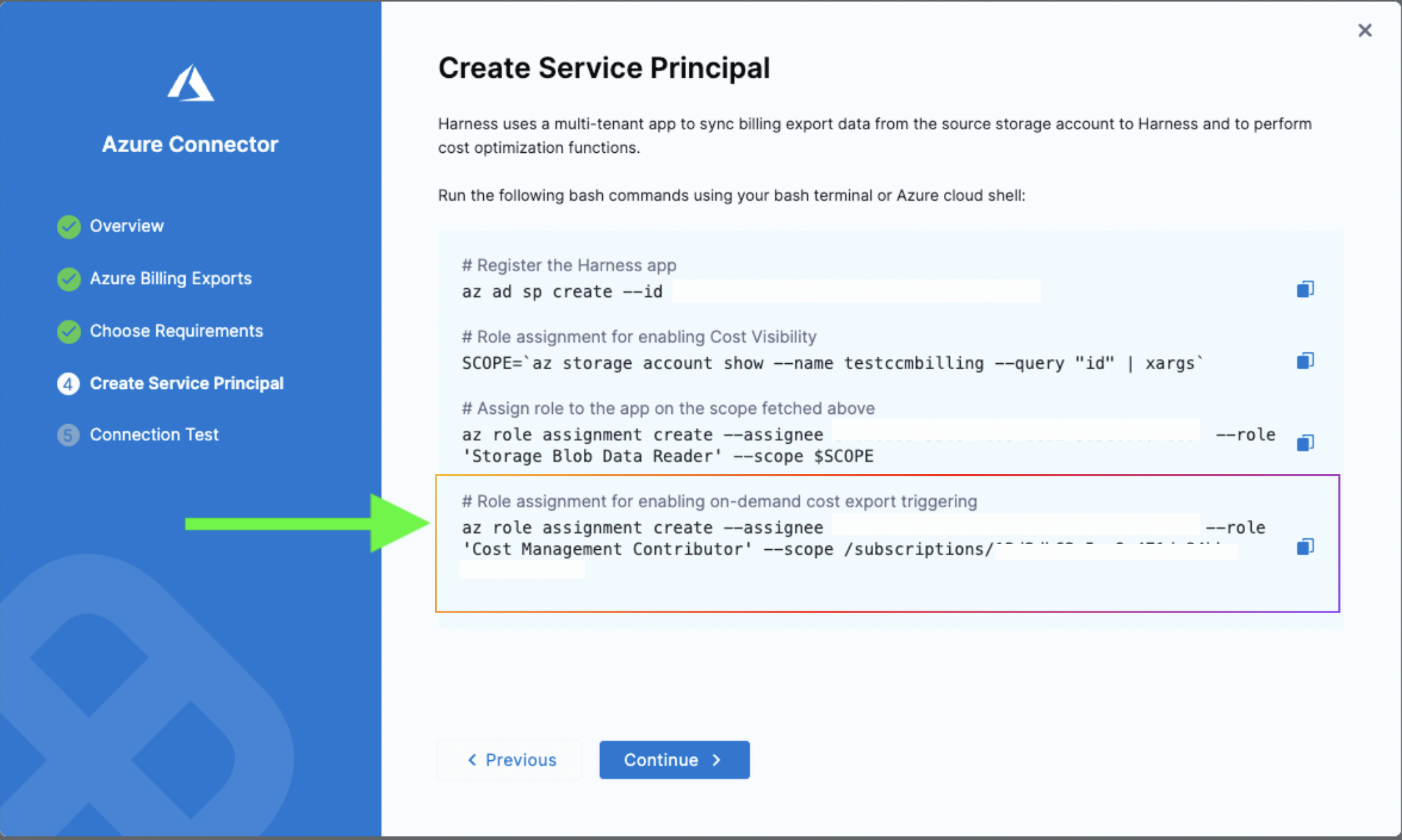
When creating or editing an Azure CACM connector with billing enabled, the setup wizard automatically displays the required CLI commands. For Enterprise accounts, you'll see an additional command for the Cost Management Contributor role:
# Register the Harness app
az ad sp create --id <app-id>

# Role assignment for enabling Cost Visibility
SCOPE=`az storage account show --name <storage-account-name> --query "id" | xargs`
az role assignment create --assignee <app-id> --role 'Storage Blob Data Reader' --scope $SCOPE

# Role assignment for enabling on-demand cost export triggering
az role assignment create --assignee <app-id> --role 'Cost Management Contributor' --scope /subscriptions/<subscription-id>
Data Freshness Expectations
| Scenario | Expected Data Latency |
|---|---|
| Without feature | Consumes exports available at source with default export frequency of once a day |
| With feature | Consumes exports three times a day. Thus giving more fresher cost data for current month |
Next Steps
Once your Azure billing data is flowing into Harness, explore these features to enhance your cloud & AI cost management:
- View and Create Perspectives to visualize cloud usage and trends.
- Create Budgets and Alerts to monitor spend thresholds.
- Use BI Dashboards to visualize cloud usage and trends.
- Revisit optional integrations:
Turn visibility into action and unlock cost efficiency across your Azure cloud infrastructure.