github-copilot-quickstart
Connecting GitHub Copilot brings your GitHub Copilot spend into Harness Cloud & AI Cost Management alongside your cloud costs. The connector uses an Admin key with read-only access to pull usage and cost data from your GitHub Copilot account. You can analyze AI spend in Cost Explorer, attribute it with Views and Cost Categories, and govern it with budgets and anomaly detection, the same way you manage cloud costs.
Before You Begin
GitHub Copilot Admin key: An Admin key with read-only access from your GitHub organization. The key lets Harness ingest billing and usage data. Go to the GitHub Copilot user management API documentation to generate one.
Set Up the GitHub Copilot Connector
To connect GitHub Copilot, go to Cloud & AI Cost Management > Account Settings > AI Providers and click AI Provider, and then select GitHub Copilot.
Step 1: Name the Connector
- On the Overview panel, enter a Name for the connector.
- Optionally, add a Description and Tags to organize and filter connectors.
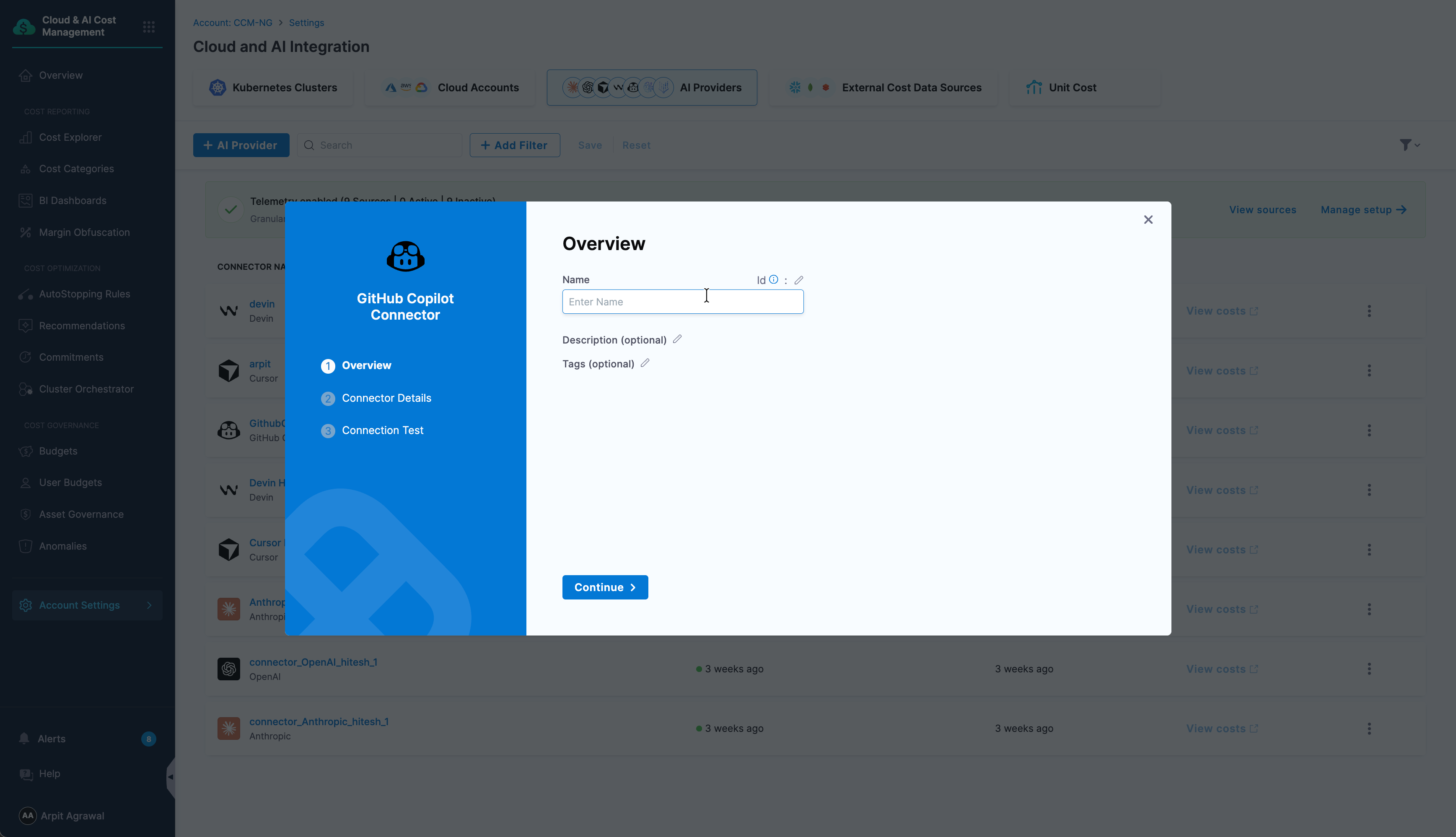
- Click Continue.
Step 2: Add the API Key
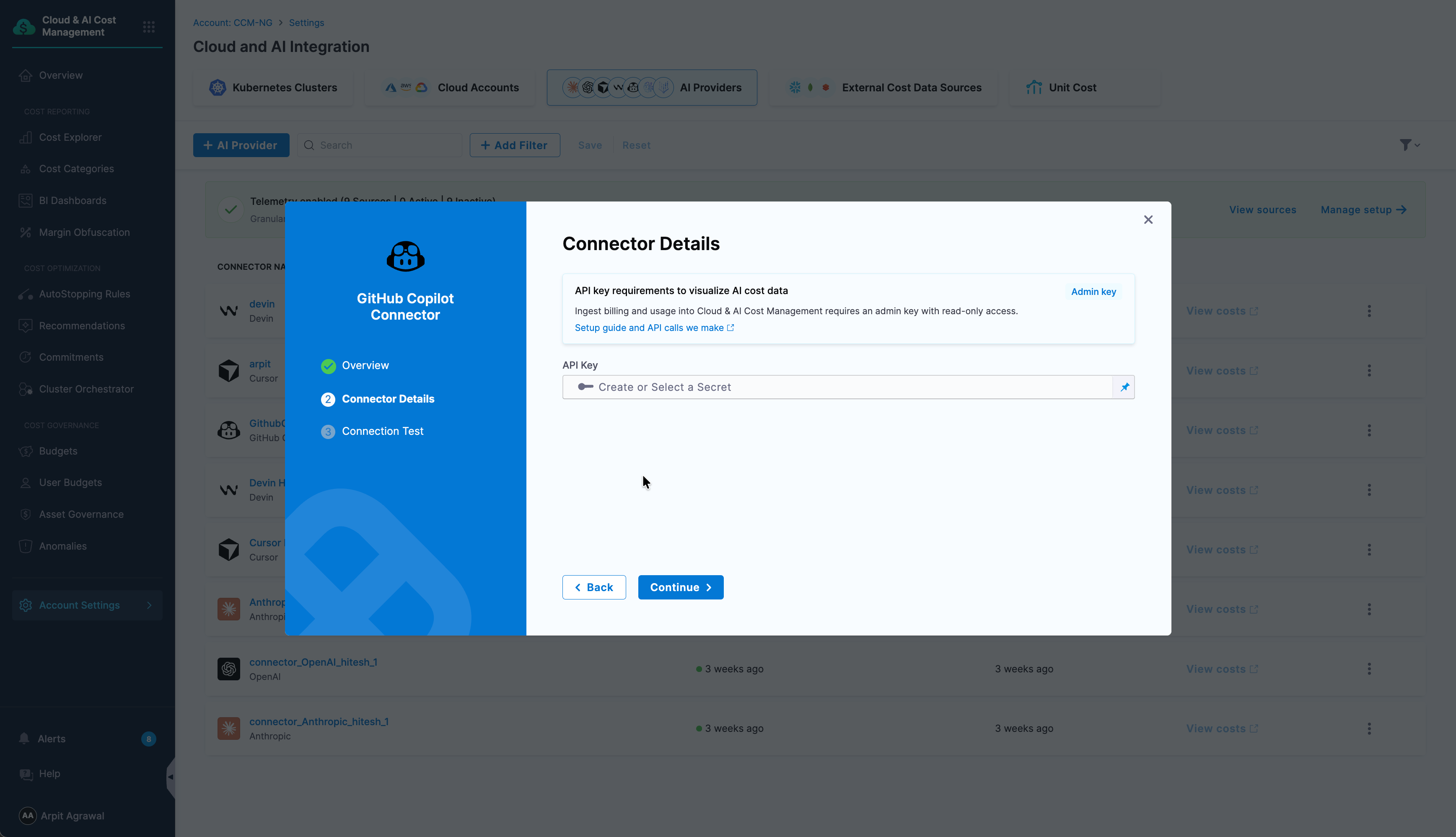
On the Connector Details panel, provide the GitHub Copilot Admin key as a Harness secret. Do the following:
-
In the API Key field, click Create or Select a Secret.
-
To use an existing secret, select it from the list, then click Apply Selected.
-
To add a new secret, click New Secret Text, enter a Secret Name, and provide your GitHub Copilot Admin key as the Secret Value.
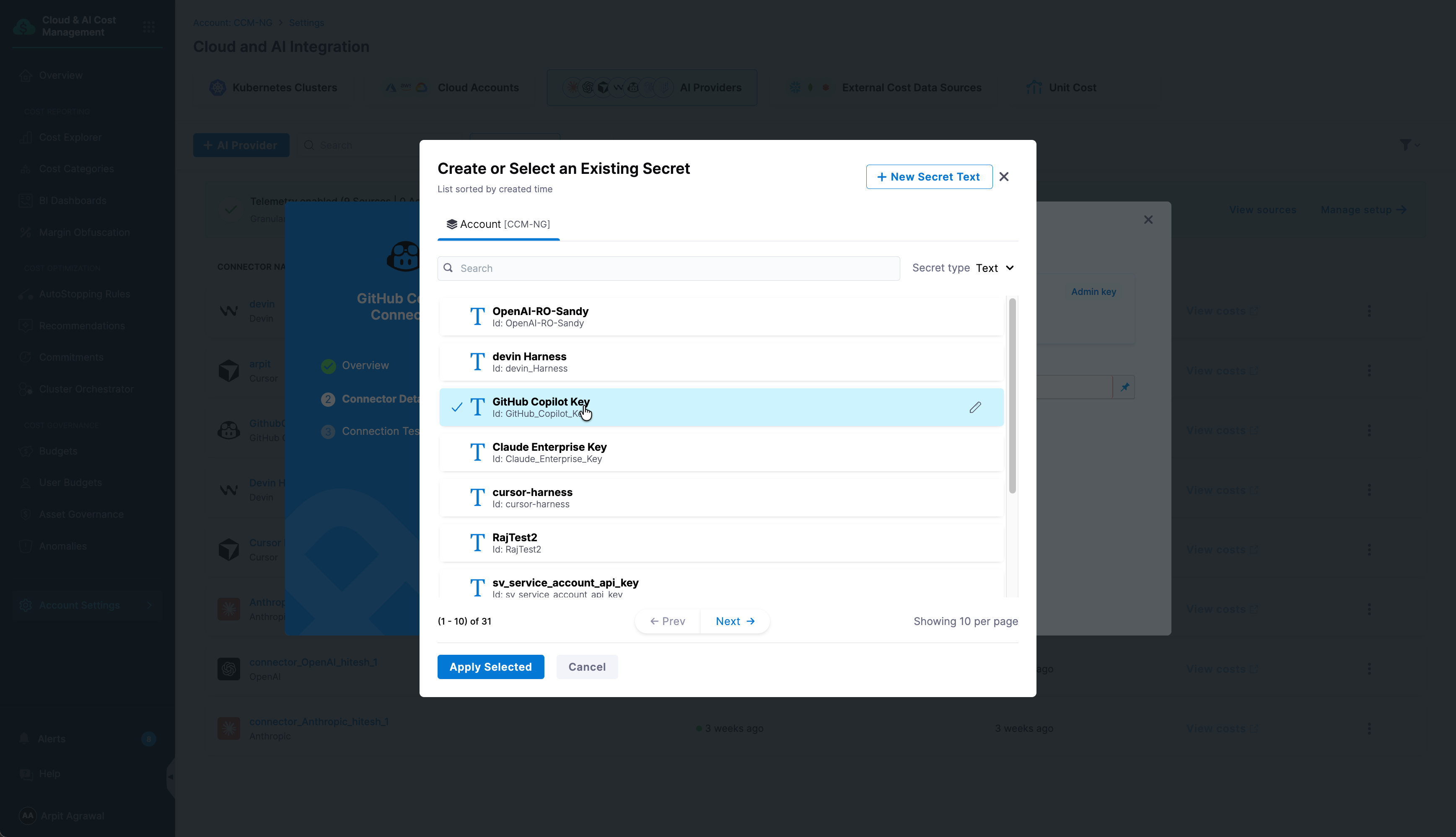
Go to Add and reference text secrets to review all secret creation options.
-
-
Click Continue.
Step 3: Verify the Connection
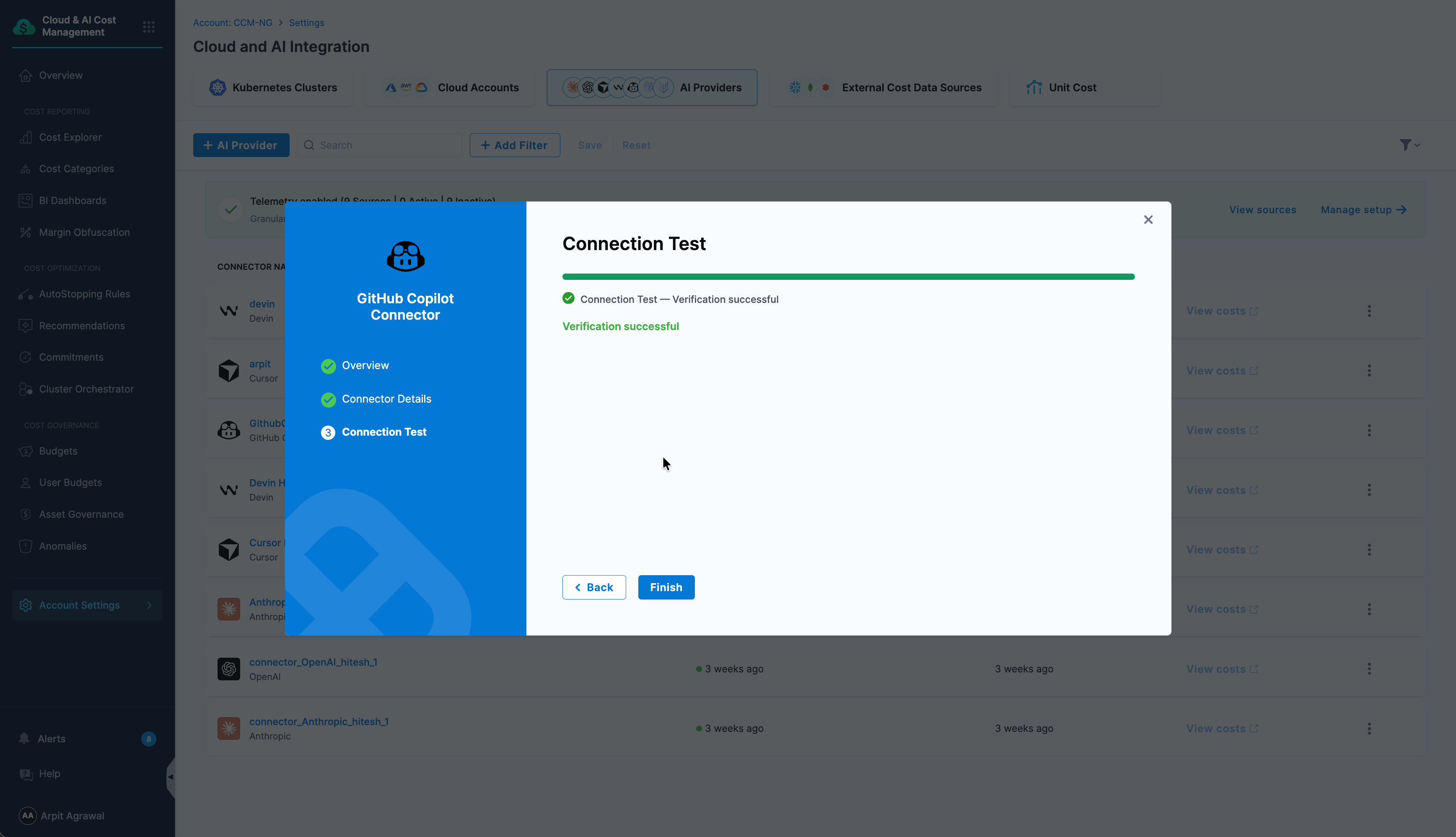
On the Connection Test panel, Harness validates the API key against your GitHub Copilot account. Once the verification is successful, click Finish to create the connector.