aws-rec
AWS Recommendations
Enablement Steps for New AWS EC2 Passthrough Recommendations
To use EC2 Passthrough Recommendations, ensure the following services are enabled in all AWS accounts where you want to view recommendations:
- AWS Cost Optimization Hub https://docs.aws.amazon.com/cost-management/latest/userguide/coh-getting-started.html
- AWS Compute Optimizer https://docs.aws.amazon.com/compute-optimizer/latest/ug/getting-started.html
These services are free of cost and may take up to 24 hours after enablement to start generating recommendations.
Additional IAM Permissions
You will also need to update the connector IAM role in the customer's AWS account with the following permissions:
cost-optimization-hub:GetRecommendation
cost-optimization-hub:ListRecommendations
ec2:DescribeInstanceTypes
compute-optimizer:GetEC2InstanceRecommendations
cost-optimization-hub:GetPreferences
compute-optimizer:GetRecommendationPreferences
compute-optimizer:PutRecommendationPreferences
compute-optimizer:GetEBSVolumeRecommendations
compute-optimizer:GetRDSDatabaseRecommendations
compute-optimizer:GetLambdaFunctionRecommendations
lambda:GetFunction
redshift:DescribeClusters
- EC2 Recommendations
- ECS Recommendations
- Governance Recommendations
Before You Begin
- Ensure that you have enabled the Resource Inventory Management feature enabled when creating a cloud connector.
- You must add the required permissions and enable EC2 recommendations in AWS. If you are an existing customer, you need to:
- Add
ce:GetRightsizingRecommendationpermission to theHarnessEventsMonitoringPolicyin your AWS Connector's IAM role - In AWS Cost Explorer > Preferences, enable "Receive Amazon EC2 resource recommendations" and "Recommendations for linked accounts"
- Add
- Enable CPU and Memory Metrics:
- CPU Metrics: CloudWatch has to be enabled for the AWS account.
- Memory Metrics: CloudWatch agent has to be installed on every EC2 instance.
You can use the external metrics ingestion feature in AWS to configure the AWS Compute Optimizer to ingest EC2 memory utilization metrics from observability products like Datadog, Dynatrace, Instana, and New Relic. In this case, EC2 recommendation will be generated by taking account of Memory metrics as well along with CPU metrics.
Types of EC2 Recommendations
1. Rightsize
Purpose: Optimize resource allocation by resizing to a more appropriate instance type or storage size
When to Expect:
- Your resource is over-provisioned (CPU/Memory utilization < 40%)
- You're paying for capacity you don't use
- A smaller instance type can handle your workload
Example Scenarios:
- EC2 instance running at 15% CPU utilization → Downsize from
m5.xlargetom5.large - EBS volume with 200GB allocated but only 50GB used → Resize to 100GB
- RDS instance with excessive memory → Downsize to appropriate db instance class
What to Expect:
- Monthly Savings: Typically 30-50% cost reduction
- Implementation Effort: Low to Medium
- Restart Needed: Usually Yes (brief downtime)
- Rollback Possible: Yes (can resize back)
2. Stop
Purpose: Stop or terminate idle or underutilized resources that are not actively being used
When to Expect:
- Resource has been idle for extended periods (7+ days)
- Zero or minimal traffic/usage detected
- Non-production environments running 24/7
Example Scenarios:
- Development EC2 instance running overnight and weekends with no activity
- Test database that hasn't been accessed in 2 weeks
- Staging environment left running after project completion
What to Expect:
- Monthly Savings: Up to 100% of resource cost
- Implementation Effort: Low
- Restart Needed: N/A (resource will be stopped)
- Rollback Possible: Yes (can restart anytime)
Important: This is a "terminated action" - the resource will be stopped. Ensure you don't need the resource before applying this recommendation.
3. Upgrade
Purpose: Upgrade to newer generation instances or storage types for better price-performance
When to Expect:
- You're using older generation instances (e.g., m4, t2)
- Newer generations offer better performance at same or lower cost
- Your workload can benefit from latest AWS features
Example Scenarios:
- Upgrade from
t2.mediumtot3.medium(same price, better performance) - Upgrade from
m4.largetom5.large(20% better performance, 10% lower cost) - Migrate EBS from
gp2togp3volumes (20% cost savings with same performance)
What to Expect:
- Monthly Savings: 10-30% cost reduction
- Performance Improvement: 10-40% better performance
- Implementation Effort: Low to Medium
- Restart Needed: Usually Yes
- Rollback Possible: Yes
4. MigrateToGraviton
Purpose: Migrate to AWS Graviton-based ARM processors for superior price-performance
When to Expect:
- Your workload is compatible with ARM architecture
- You're running general-purpose or compute-optimized workloads
- Your application supports ARM64 architecture
Example Scenarios:
- Migrate from
m5.xlarge(x86) tom6g.xlarge(Graviton2) - 20% cost savings - Move web servers to Graviton instances for better efficiency
- Containerized workloads that can run on ARM
What to Expect:
- Monthly Savings: 20-40% cost reduction
- Performance: Up to 40% better price-performance
- Implementation Effort: Medium to High
- Restart Needed: Yes
- Rollback Possible: Yes (but requires architecture change)
Important Considerations:
- Requires ARM64-compatible applications and dependencies
- May need code recompilation or Docker image updates
- Test thoroughly before production migration
5. Delete
Purpose: Permanently delete unused or orphaned resources
When to Expect:
- Resource is completely unused and abandoned
- Orphaned volumes not attached to any instance
- Snapshots or backups no longer needed
- Resources from deleted/terminated projects
Example Scenarios:
- Unattached EBS volumes from terminated EC2 instances
- Old RDS snapshots beyond retention policy
- Unused Elastic IPs
- Abandoned test resources
What to Expect:
- Monthly Savings: 100% of resource cost
- Implementation Effort: Low
- Restart Needed: N/A
- Rollback Possible: No (permanent deletion)
⚠️ Critical Warning: This is a permanent, destructive action. Ensure you have backups and no longer need the resource before deleting.
How are EC2 Recommendations computed?
Harness CACM provides EC2 recommendations by integrating directly with AWS services:
- Data Source: Recommendations are fetched directly from AWS Cost Explorer APIs rather than being computed natively by Harness. These recommendations do not factor in Reserved Instance (RI) or Savings Plan (SP) discounts you may already have
- Analysis Method: AWS analyzes historical CPU and memory utilization patterns of your EC2 instances to generate optimization suggestions
- Savings Calculations: Based on AWS EC2 Recommendations methodology, which compares current instance costs against recommended instance costs. For more details, see Savings Calculations
Recommendation Drilldown
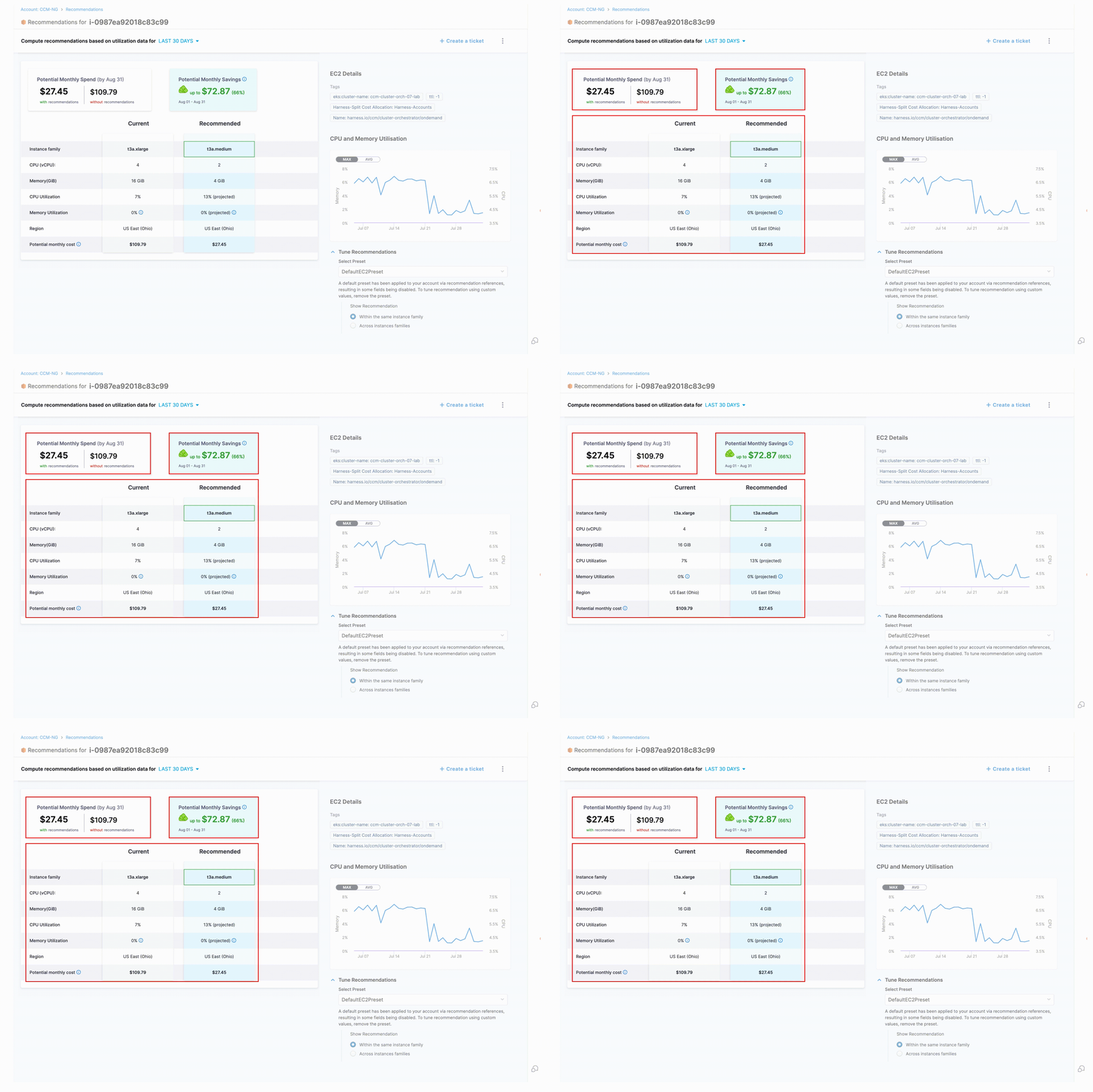
- Potential Monthly Spend: Projected cost if recommendation is applied
- Potential Monthly Savings: Expected monthly cost reduction
- Configuration Comparison: A detailed table comparing current and recommended configurations for:
- Instance Family: The category of EC2 instance types that share similar hardware configurations but vary in size.
- CPU (vCPU): The number of virtual CPU cores allocated to the instance.
- Memory (GiB): The amount of RAM available to the instance, measured in gibibytes.
- CPU Utilization: The percentage of allocated compute capacity being used by your instance over the analyzed period.
- Memory Utilization: The percentage of allocated memory being used by your instance.
- Region: The AWS region where the EC2 instance is located.
- Potential Monthly Cost: Calcuted on On-demand cost
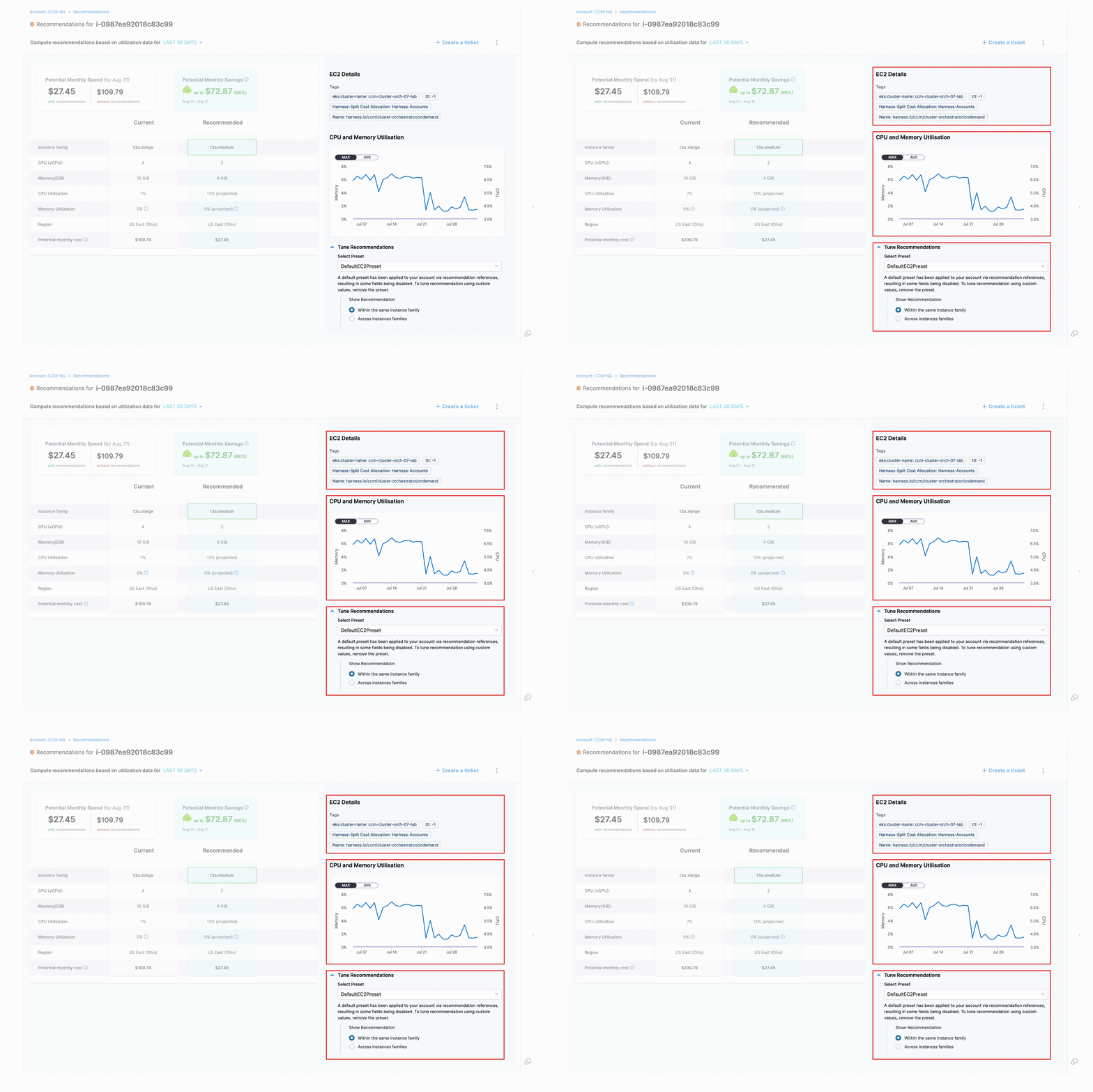
- EC2 Details: Resource metadata including any associated tags
- CPU and Memory Utilization Graph: Visual representation of historical resource usage
- Tune Recommendations: This section allows you to customize how EC2 recommendations are generated based on your specific requirements. A default preset has been applied to your account via recommendation references, which may result in some fields being disabled or set to custom values. The tuning parameter for EC2 recommendations is the instance family scope:
- Within the same instance family: When selected, recommendations will only suggest instance types from the same family as your current instance (e.g., if you're using a t3 instance, only other t3 instances will be recommended).
- Across instance families: When selected, recommendations can suggest any suitable instance type across all AWS instance families. These settings can be saved as presets for consistent application across your organization's recommendations. See Manage Presets
Before You Begin
-
To obtain ECS recommendations, configure an AWS CACM Connector with the Inventory Management feature enabled.
-
No Delegate setup is required. All utilization metrics are obtained using a cross account IAM role. See Set Up Cloud & AI Cost Management for AWS.
Types of ECS Recommendations
ECS recommendations have one primary type: Service Resizing. This recommendation analyzes your ECS service's CPU and memory utilization patterns and suggests optimized resource configurations to eliminate waste while maintaining appropriate performance levels. Service Resizing helps you right-size your container definitions based on actual workload requirements, reducing costs without compromising reliability.
How are ECS Recommendations computed?
Harness CACM computes ECS recommendations by analyzing historical CPU and memory utilization patterns of your services. Here's how the process works:
- Service Analysis: Recommendations analyze past utilization metrics for ECS workloads (called services)
- Coverage: Supports both AWS Fargate and EC2 spot instances
- Methodology: Uses histogram-based statistical analysis for accurate recommendations
- Default Buffer: Automatically adds a 15% safety buffer to recommended resources
Data Collection Process
When you enable Cost Visibility for your ECS cluster:
- Metric Collection: Harness collects CPU and memory utilization metrics for every service in the cluster at one-minute intervals
- Data Aggregation: The Delegate aggregates this data over 20-minute windows before sending to Harness
- Data Processing:
- CPU: Partial histograms for each 20-minute window are sent and later merged
- Memory: Maximum value is sent as a single data point per window
- These data points are used to compute the complete histograms displayed in the UI
Recommendation Calculation
- Equal Weighting: Each daily histogram receives equal weightage in the analysis (e.g., selecting 30 days of data means each day has equal importance)
- Customization: You can tune recommendations by adjusting the percentage buffer for CPU and memory requests
- Fargate Compatibility: For AWS Fargate, recommendations are rounded to the nearest available predefined configuration values. For more information, see AWS Fargate Task Definitions
Categorization
The recommendations are categorized as the following:
- Cost Optimized
- Performance Optimized
Cost Optimized
The cost-optimized recommendations are computed as follows:
- The lower bound is based on the 50th percentiles of CPU samples and memory peaks.
- There is no upper bound for CPU samples and memory peaks are based on the 95th percentile.
- It is recommended not to set the upper bound for the CPU samples, because the CPU is considered a compressible resource.
- There is no limit set for the CPU to avoid throttling of services when there is a spike in CPU usage.
- The potential monthly spend and savings are calculated based on the 90th percentiles of CPU samples and memory peaks.
Since the recommendations are computed using the 50th percentile of the CPU samples and memory peaks, this may potentially lead to system performance issues. Before using cost-optimized recommendations, ensure that you evaluate the recommendation's impact thoroughly.
Performance Optimized
The performance-optimized recommendations are computed using the 95th percentile of CPU samples and memory peaks. Because of this, the probability of having any effect on the performance is minimum. However, the cost may go high for the resources that are optimized using this method.
The potential monthly spend and savings are calculated based on the 90th percentiles of CPU samples and memory peaks.
Recommendation Drilldown
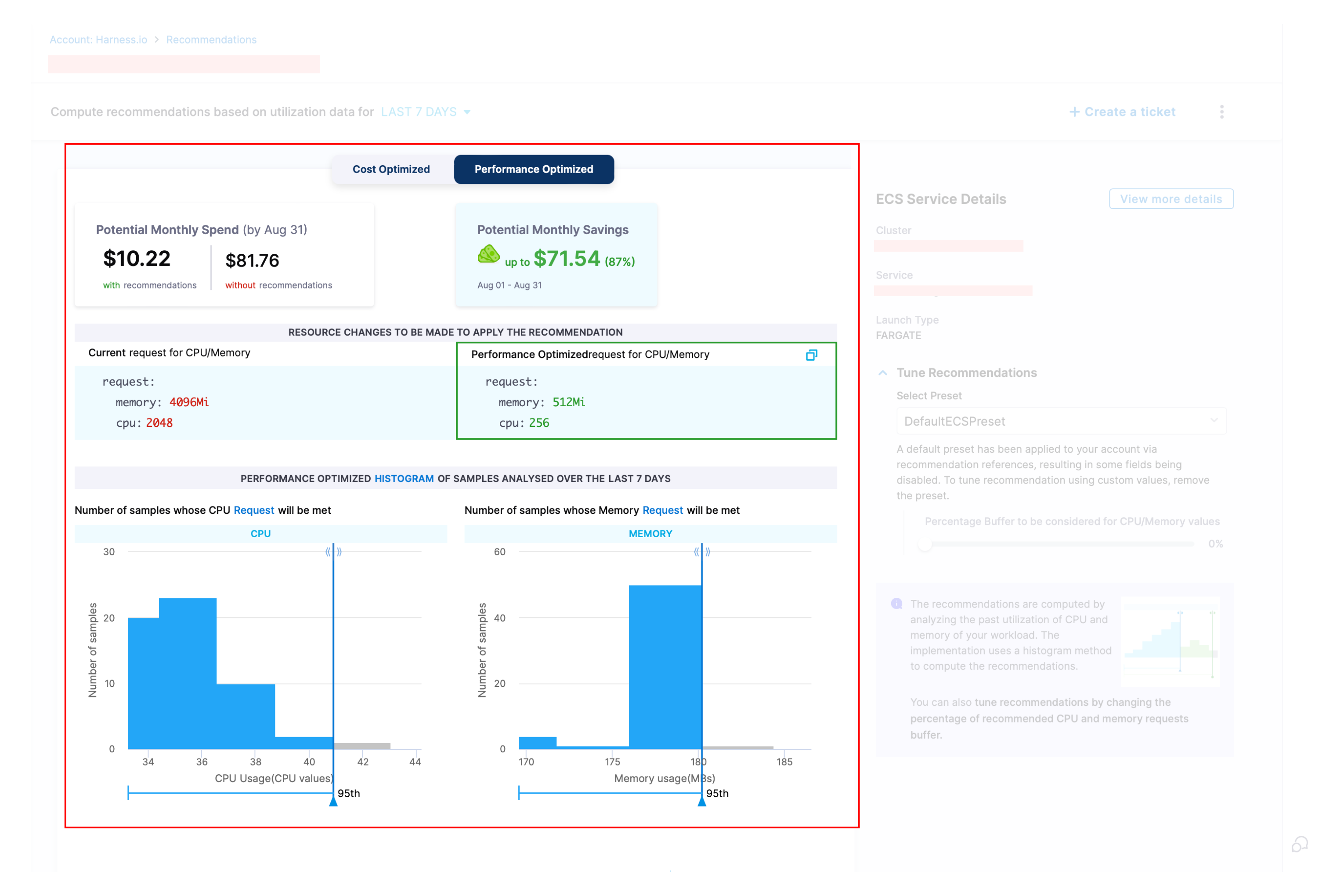
The recommendation details page provides comprehensive information about potential savings and resource changes:
- Potential Monthly Spend: Projected cost if the recommendation is applied to your ECS service
- Potential Monthly Savings: Expected monthly cost reduction after implementing the recommendation
- Resource Changes:
- Displays comparison between Current CPU/Memory requests and Recommended (Cost-Optimized or Performance-Optimized) values
- Shows exactly what configuration changes need to be made to realize the projected savings
- Resource Utilization Histogram:
- Visual representation of CPU/Memory usage patterns analyzed over your selected timeframe (7 or 30 days)
- Helps validate recommendation accuracy by showing the actual distribution of resource usage
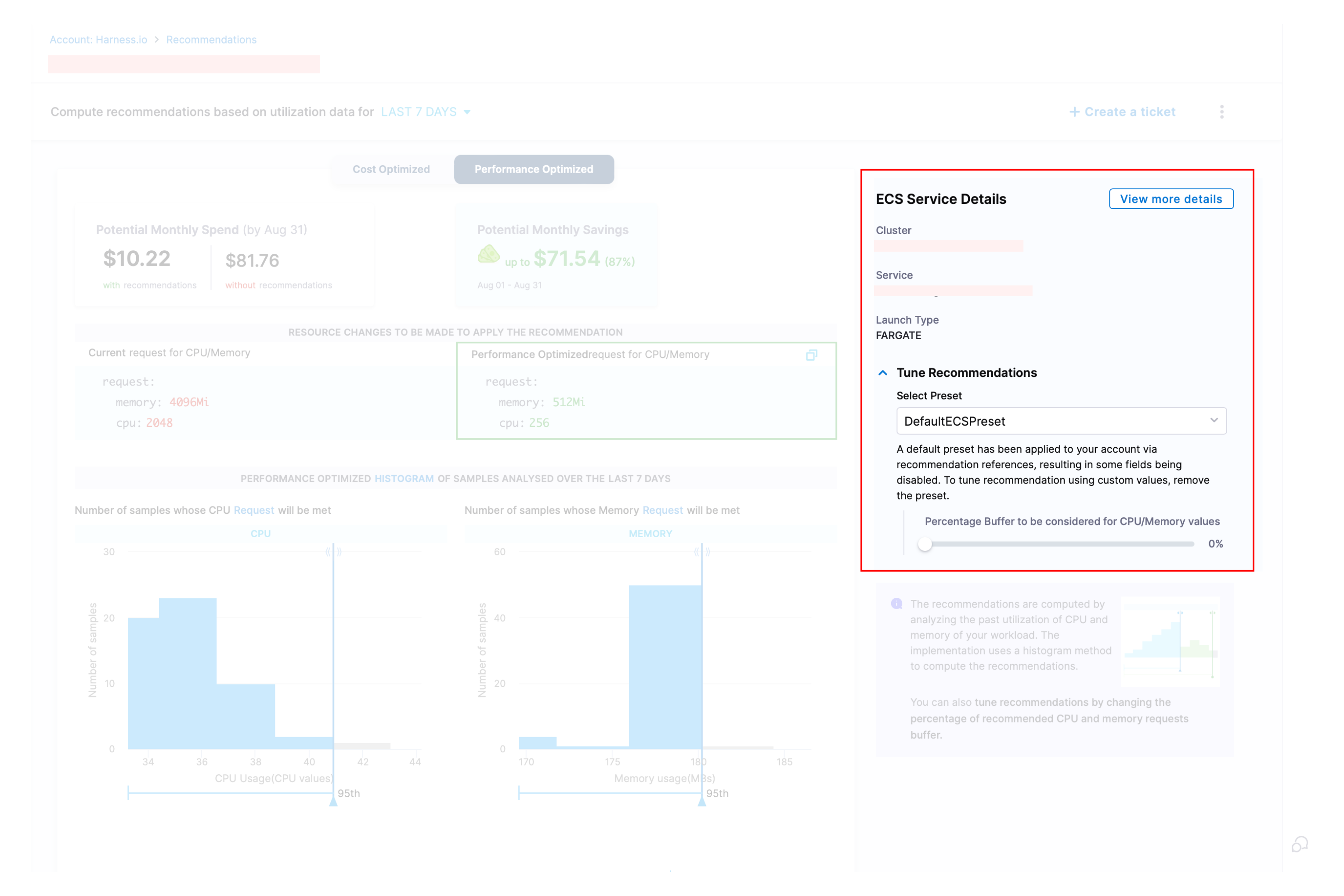
The tuning section provides configuration details and customization options:
-
ECS Service Details:
- Displays your Cluster name, Service name, and Launch Type (Fargate or EC2)
- Provides context for the recommendation based on your specific ECS configuration
-
Tune Recommendations:
- Customize resource allocations by adding a buffer percentage to CPU/Memory values
- Use the interactive slider to increase or decrease buffer percentage based on your risk tolerance
- Default buffer is set to 0% (recommendations use exact calculated values)
- All resource recommendations automatically adjust based on your selected buffer
Governance Recommendations
Governance recommendations help you implement best practices for managing your AWS resources according to your organization's policies and compliance requirements.
To see all AWS Governance recommendations, See here
AWS Resource Coverage (Examples)
- EC2 instances
- S3 buckets
- Lambda functions
- RDS (Relational Database Service) instances
- CloudFormation stacks
For a comprehensive list of all supported AWS resources, refer to the AWS Resource Reference — Cloud Custodian documentation.