Detect Anomalies using Harness CCM

Last updated on

Introduction

Infrastructure changes, new services, or inefficient resource utilization can lead to unexpected fluctuations in cloud expenses. Harness Cloud Cost Management (CCM) anomaly detection identifies unusually high cost spikes and promptly notifies users, ensuring better cost control and transparency.

Harness CCM leverages advanced detection mechanisms to monitor cost anomalies across your Kubernetes clusters and cloud accounts. This feature acts as a safeguard for managing cloud costs effectively. Additionally, it includes built-in alerting capabilities, sending notifications through notification channels including email and Slack to ensure stakeholders are informed as soon as anomalies are detected.


Get Started

Getting started with CCM anomaly detection is straightforward and requires just a few steps:

  1. Set up a Cloud Cost Connector - Connect your cloud provider accounts (AWS, GCP, Azure) to Harness CCM using the appropriate connectors.

  2. Allow Data Collection - Once connected, Harness will automatically begin collecting cost data from your cloud environments. The system requires approximately 42 days of historical data for optimal anomaly detection.

  3. Automatic Anomaly Detection - After data starts flowing in, the anomaly detection system will automatically begin analyzing your cost patterns and identifying potential anomalies. No additional configuration is required for basic anomaly detection.

Important

Harness CCM uses the Prophet Model for anomaly detection:

  • Prophet Model (Default) - Analyzes 42 days of historical data to establish baseline patterns and detect anomalies. This model is enabled by default for all customers and uses advanced time series forecasting to identify unusual spending patterns.

  • BQML and Seasonal Prophet Models - These advanced models utilize 16 months of historical data for enhanced pattern recognition and seasonal trend analysis. These models are behind feature flags and are available upon request through Harness Support.


Anomaly Detection Process

CCM's anomaly detection process works through four key steps:

Step 1: Data Collection

  • Harness continuously monitors your cloud spending across AWS, Azure, and GCP
  • Historical data is analyzed to understand your normal spending patterns
  • CCM collects 42 days of historical cost data for each cluster and cloud account to establish a baseline for normal spending patterns

Step 2: Anomaly Detection

  • Our models compare current spending against predicted costs using the Prophet model
  • The system applies sophisticated time series forecasting to predict expected costs with high precision, considering:
    • Historical trends and cyclical behaviors
    • Day-to-day and week-to-week fluctuations
  • Multiple validation checks ensure accuracy
  • Only statistically significant deviations are flagged
  • The Prophet model creates a "normal spending corridor" with confidence intervals based on your historical patterns
  • When actual costs fall outside this predicted confidence interval, the system flags them as anomalies

Step 3: Severity Classification

Detected anomalies are automatically classified by severity:

SeverityWhen It's Triggered
🔴 CRITICALCost impact ≥ $5,000 OR ≥100% increase
🟡 MEDIUMCost impact ≥ $1,000 OR ≥50% increase
🟢 LOWSmaller but notable cost changes

Step 4: Smart Filtering

  • You can customize detection thresholds to match your needs
  • Set minimum cost impact levels to focus on what matters
  • Filter out noise and focus on actionable anomalies
  • Configure anomaly preferences to control which anomalies are surfaced

Step 5: Notification

When anomalies are detected, alerts are sent through configured channels (email and Slack)

Event-Driven Anomaly Detection (Behind Feature Flag)

CCM also offers an advanced feature under a feature flag for AWS, GCP, and Azure that enables real-time anomaly detection:

  • Anomaly detection runs immediately when cost data is ingested, without waiting for the next day
  • Works with partial cost data as it becomes available throughout the day
  • Detection is limited to the specific cloud account receiving the cost ingestion event
  • If no anomalies are detected on partial data, standard day-1 jobs will still run to ensure complete analysis

Example: If today is November 1st and a cost ingestion event is received, anomaly detection runs immediately for November 1st data for that specific cloud account. If complete data becomes available the next day, regular jobs will still process it to ensure accuracy.


Anomalies Overview Page

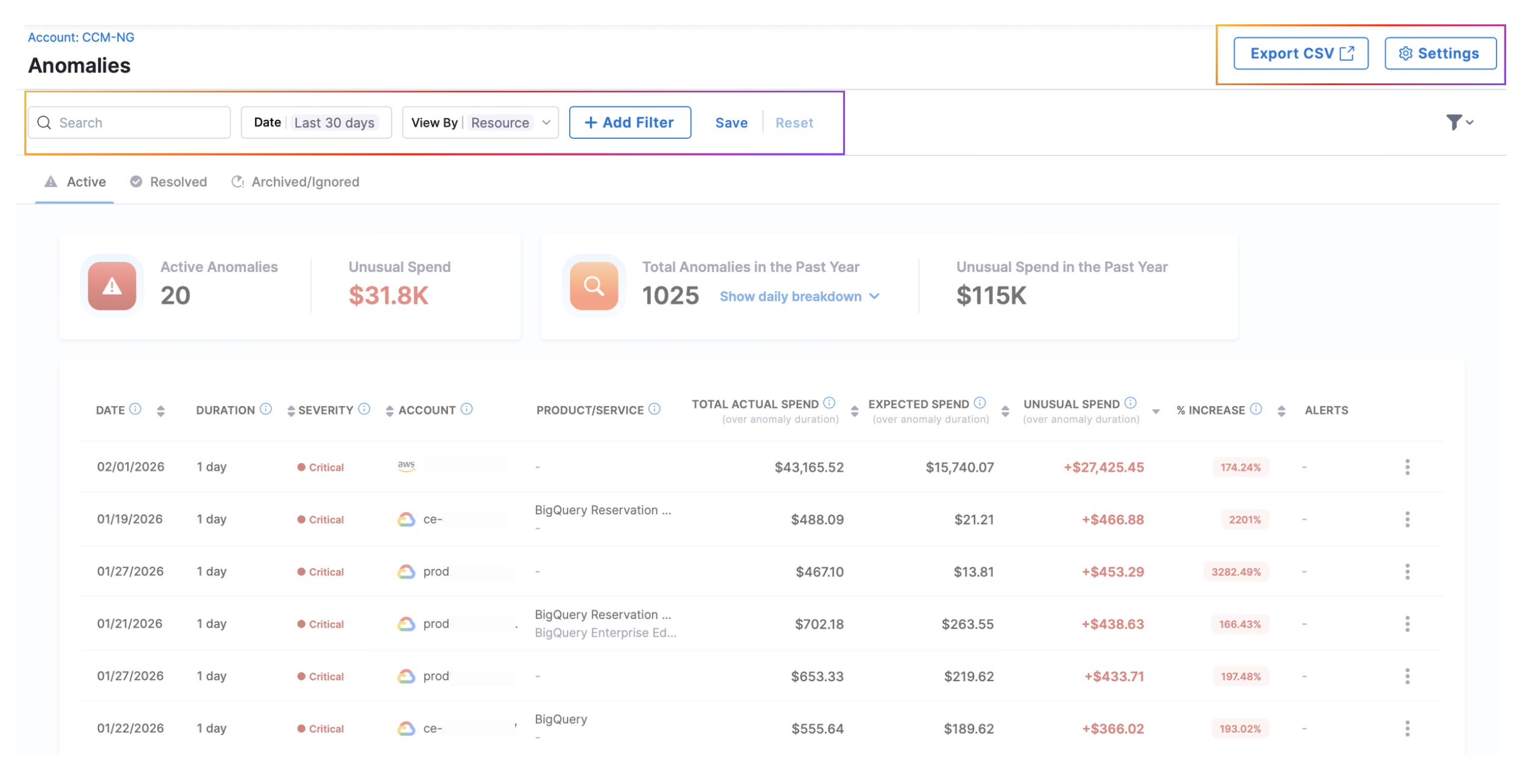
The Anomalies Overview page provides a comprehensive view of all detected anomalies across your cloud infrastructure.

On Overview page:

  • Time Range Selection: Quick select options include 7, 30, or 90 days, or you can pick a custom date range with specific start and end dates.

  • Filters: You can filter anomalies by multiple dimensions:

    • Generic Filters: Actual Spend, Anomalous Spend, Cost Category
    • Cluster Filters (for Kubernetes): Cluster Name, Namespace, Workload, Service
    • GCP Filters: GCP Project, GCP Product, GCP SKU Description
    • AWS Filters: AWS Account, AWS Service, AWS Usage Type
    • Azure Filters: Azure Subscription, Azure Meter Categories, Azure Resource
  • Export CSV: Export filtered anomalies to CSV for further analysis, reporting, or integration with other tools.

    • Export Scope Options:
      • All filtered results: Export all anomalies matching your current filters
      • Current page only: Export only the anomalies visible on the current page
    • Filters Applied: Choose which filters to apply to the export, such as:
      • Time Range: Specific date range (e.g., 12/30/2025 - 01/29/2026)
      • Status: Anomaly status (e.g., Active, Resolved, Archived/Ignored)
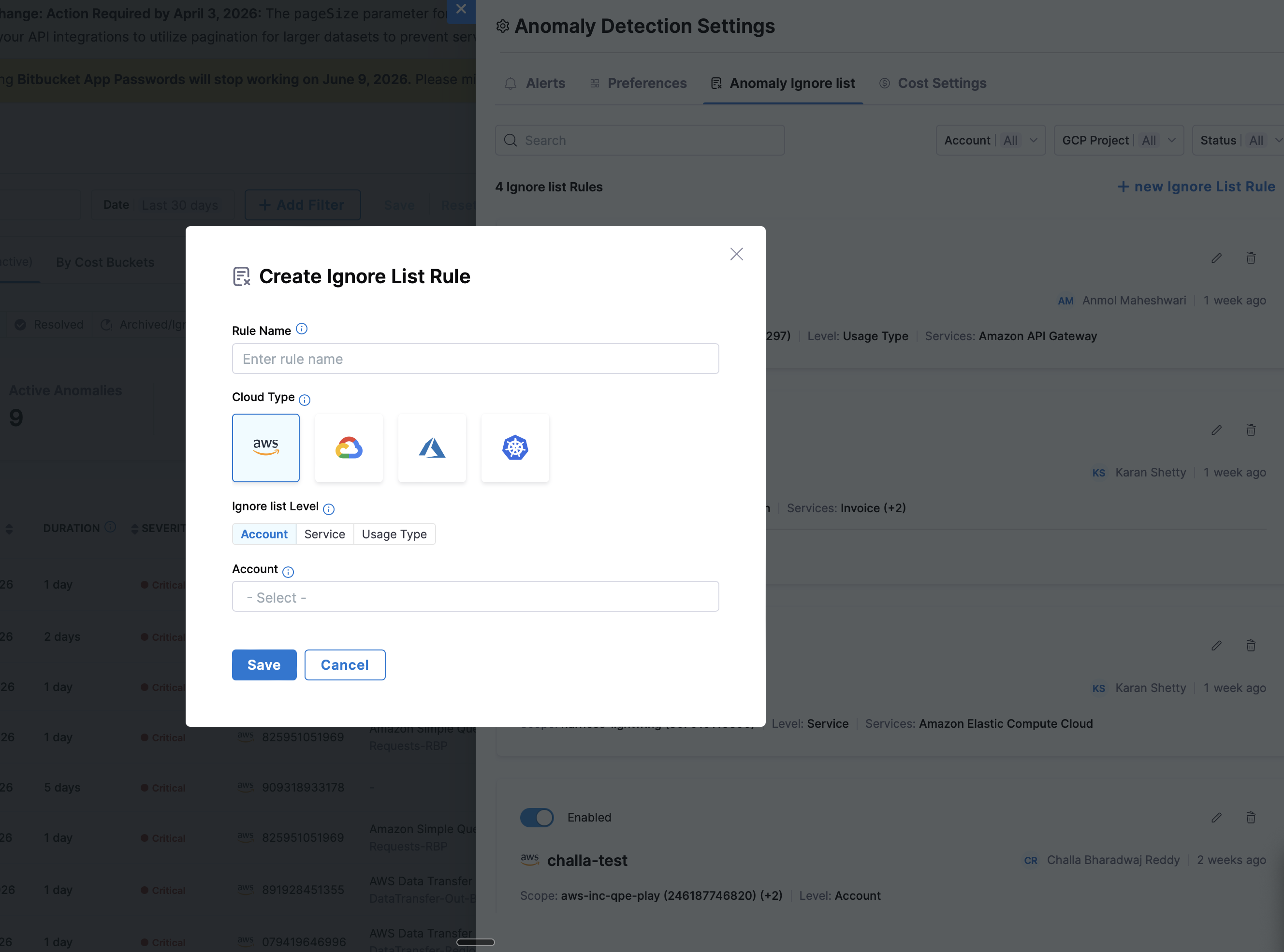
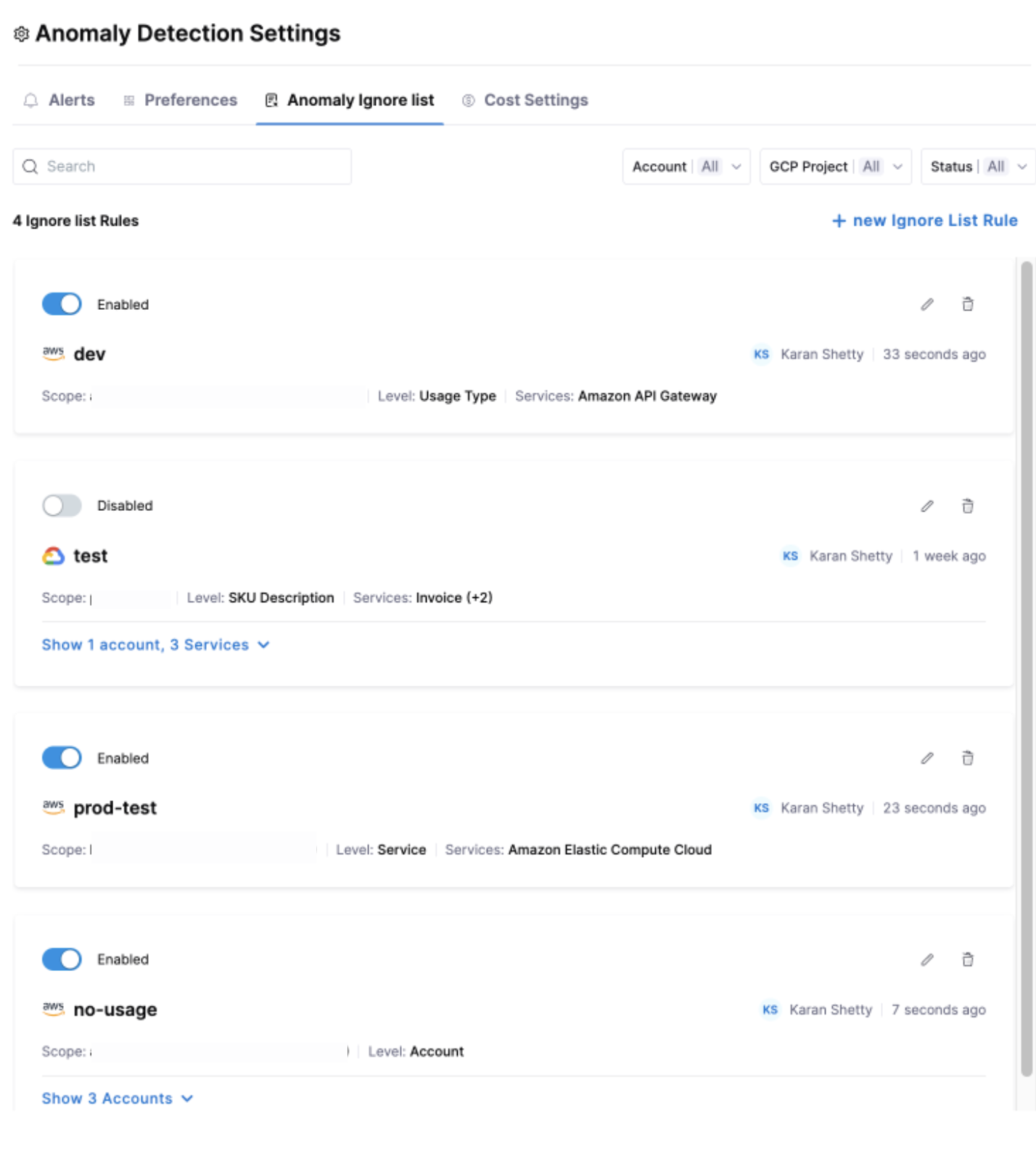
  • Settings: Configure anomaly detection behavior through :

    • Alerts (set up notifications)
    • Preferences (customize detection thresholds)
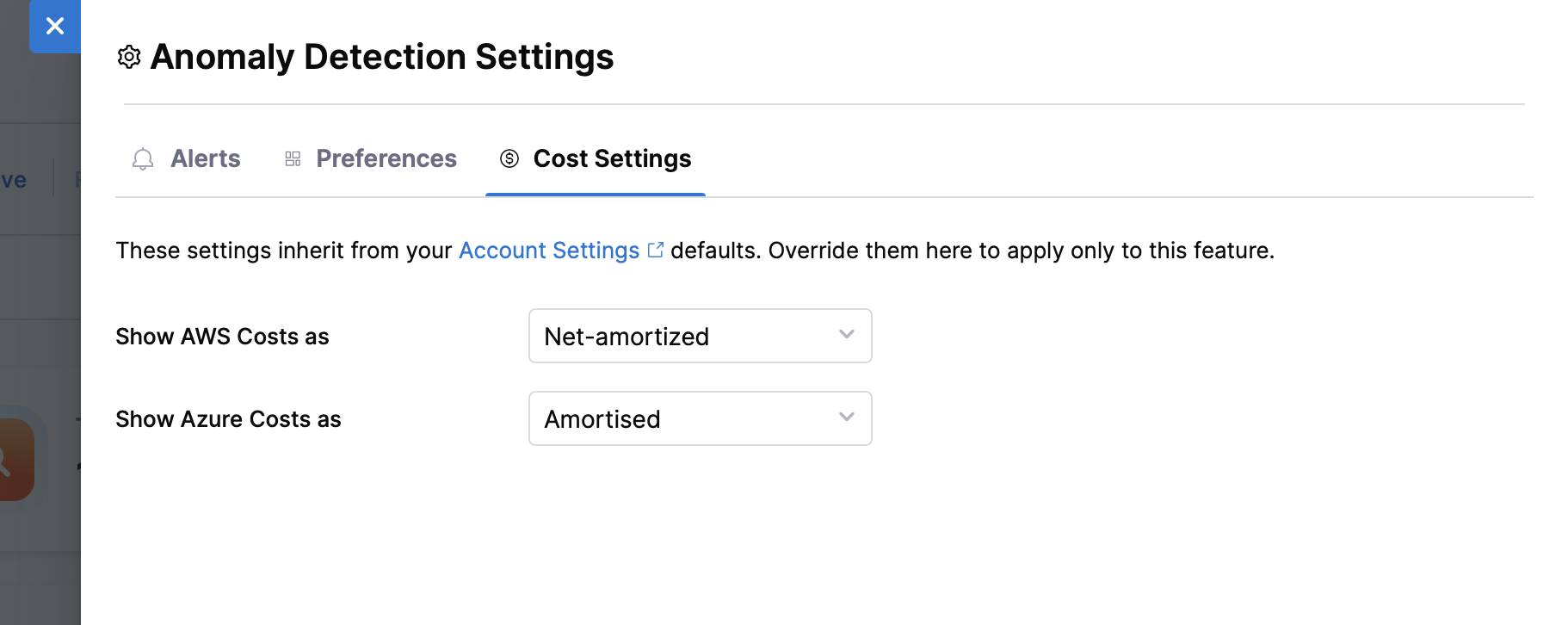
    • Cost Settings (configure how costs are displayed for AWS and Azure).

Anomaly Tabs

The page is organized into three main tabs to help you manage and track anomalies effectively.

Active Anomalies

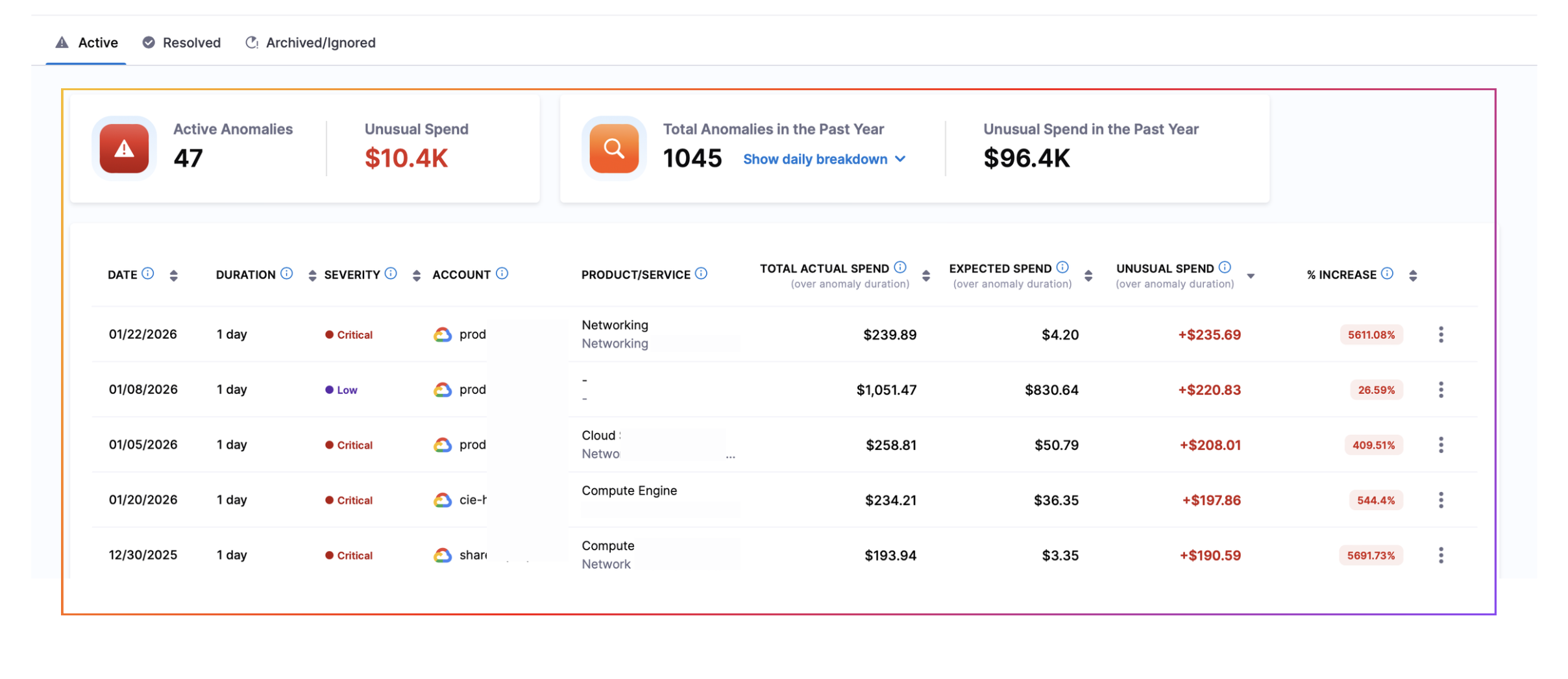
The Active tab displays newly detected anomalies that require attention and haven't been addressed yet.

When you navigate to the Active tab, you'll see key metrics that provide insights into your current anomaly landscape:

  • Active Anomalies: The total count of currently active anomalies requiring your attention
  • Unusual Spend: The total additional cost incurred due to active anomalies (difference between actual and expected spend)
  • Total Anomalies in Past Year: Historical count of all anomalies detected in the last 12 months
    • Click on "Show Daily Breakdown" to view a detailed heatmap
    • The heatmap visualizes all detected anomalies over the selected time range, displaying either:
      • Cost Impact: Shows the financial impact of anomalies
      • Number of Anomalies: Shows the frequency of anomalies
  • Unusual Spend in the Past Year: Total additional costs incurred from all anomalies over the last 12 months

Below the summary metrics, you'll find a detailed table listing all active anomalies with the following columns:

ColumnDescription
DateThe date when the anomaly was detected
DurationHow long the anomalous spending pattern persisted
SeverityThe severity level (Low, Medium, Critical) based on cost impact and percentage increase:
LOW: Minor deviations
MEDIUM: Noticeable change, warrants review
CRITICAL: Large cost jumps, requires immediate investigation
AccountThe cloud account or cluster where the anomaly occurred
Product/ServiceThe specific cloud service and product that caused the anomaly
Total Actual SpendThe actual amount spent over anomaly duration
Expected SpendThe predicted cost over anomaly duration
Unusual SpendThe difference between actual and expected spend over anomaly duration
Increase PercentageThe percentage increase over expected spend:
((Total Actual Spend - Expected Spend) / Expected Spend) × 100

You can click on any row in the table to view detailed drilldown information about that specific anomaly.

Available Actions:

For each anomaly in the table, you have the following options:

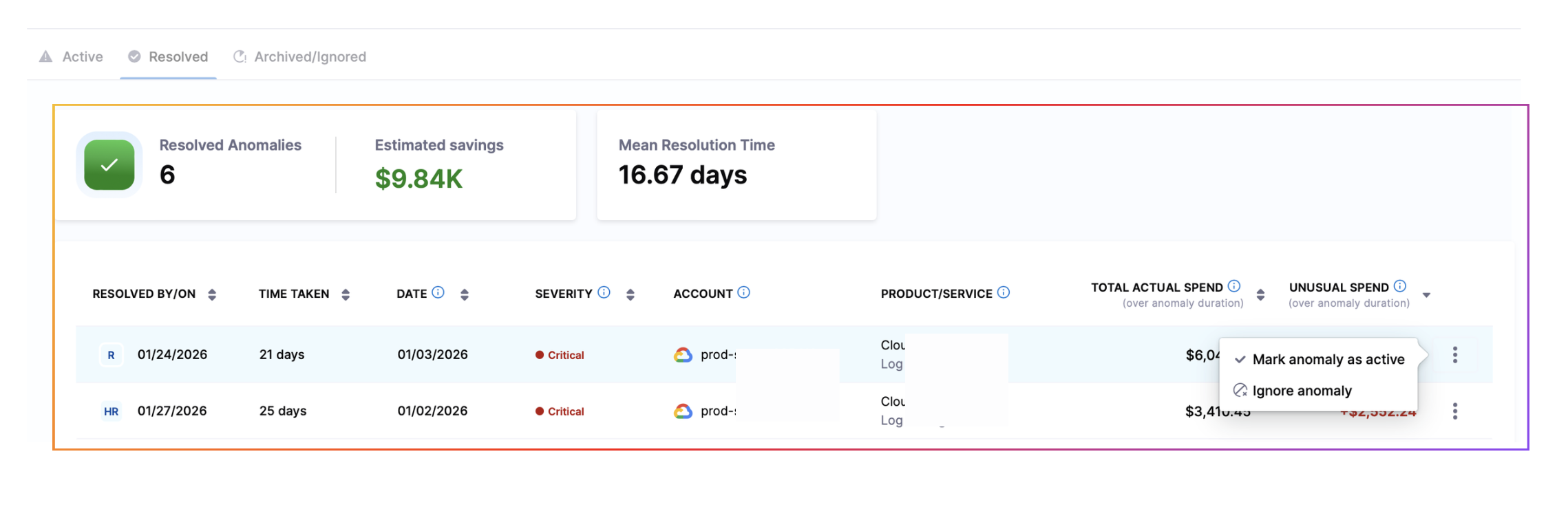
  • Mark Anomaly as Resolved: Move the anomaly to the Resolved tab
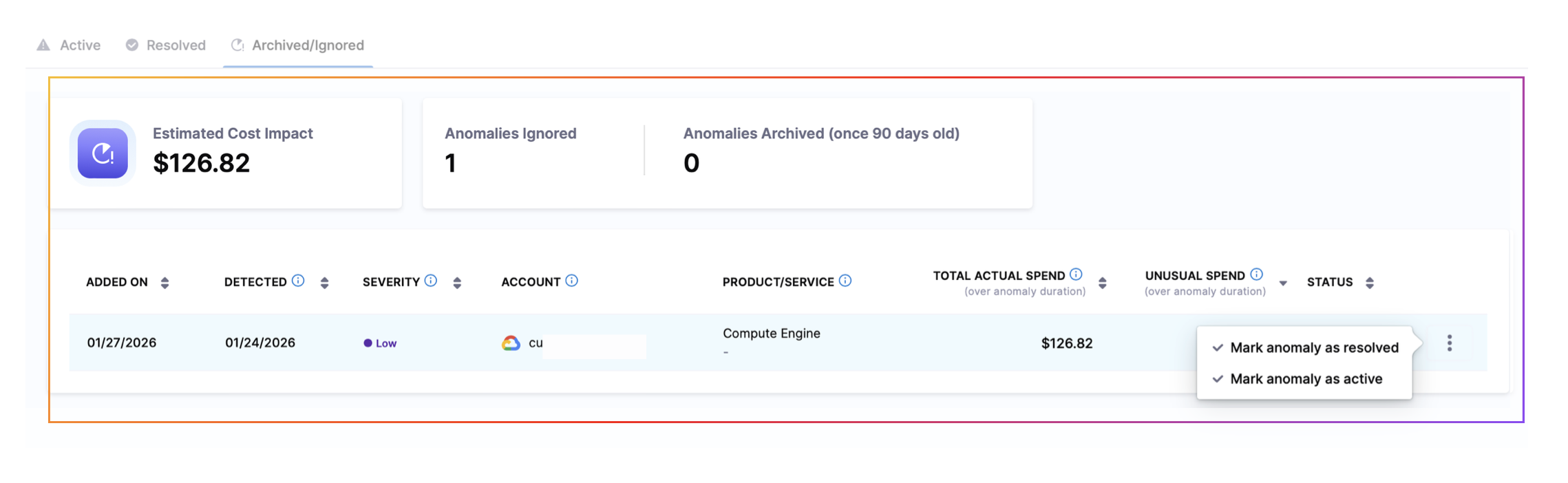
  • Ignore Anomaly: Move the anomaly to the Archived/Ignored tab

Managing Anomalies

Anomaly States

Anomalies exist in one of four states:

  • Active: Newly detected anomalies that haven't been addressed yet
  • Resolved: Anomalies that have been reviewed and marked as resolved
  • Ignored: Anomalies that have been marked as ignored but remain visible for reference
  • Archived: Anomalies automatically moved to archive after 90 days

Anomaly Drilldown

Once an anomaly is detected, for each of the anomaly detected, CCM provides insights into what are the resources which might be causing the anomaly.

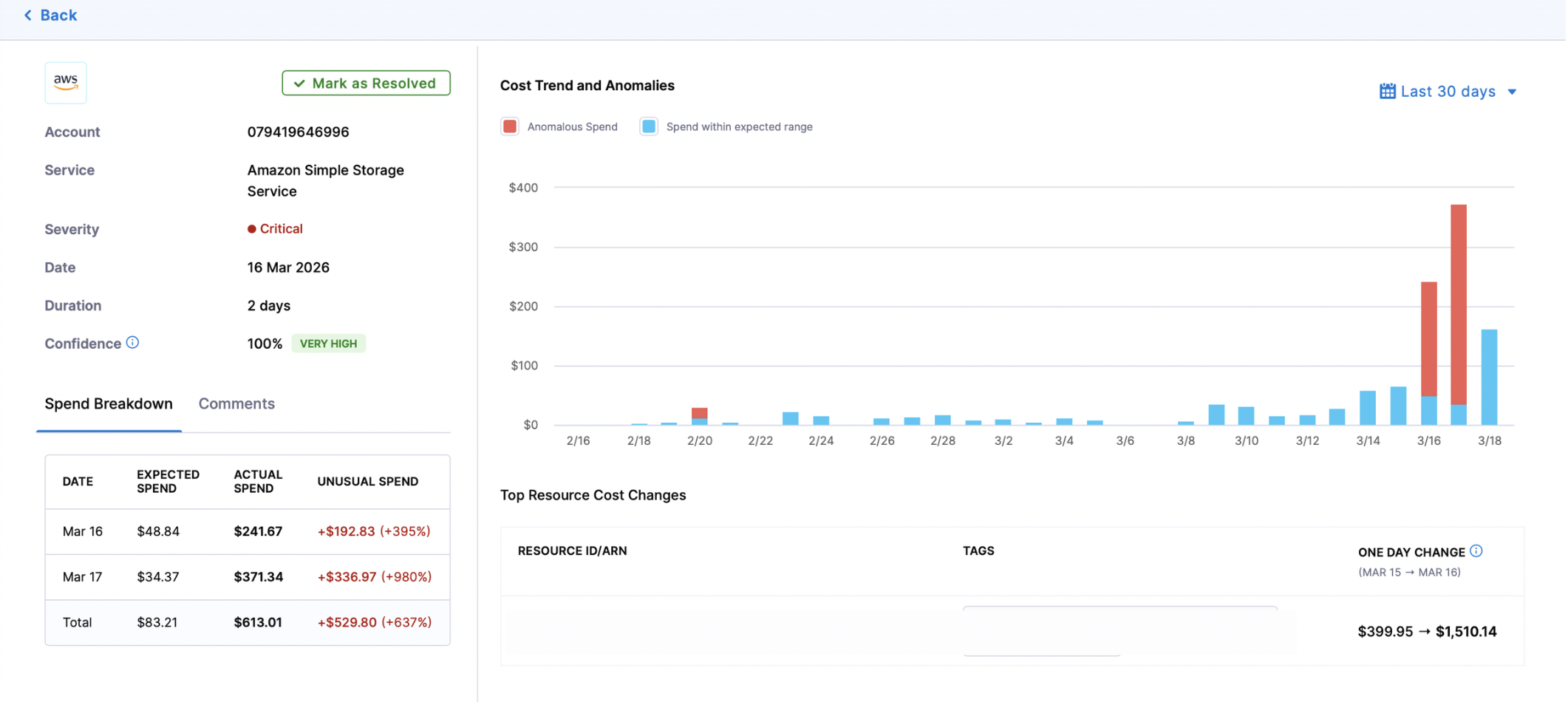
When you select an anomaly, you'll see detailed information organized into the following sections:

  • ID: Unique identifier for the anomaly
  • Severity: The severity level (Low, Medium, Critical) based on cost impact
  • Date: When the anomaly was detected
  • Duration: How long the anomalous spending pattern persisted
  • Spend Breakdown:
    • Expected Spend: The predicted cost based on historical patterns (e.g., $116.16)
    • Actual Spend: The actual amount spent during the anomaly period (e.g., $280.52)
    • Total Unusual Spend: The difference between actual and expected spend, shown as both dollar amount and percentage increase (e.g., +$164.36 (+142%) over 1 day)
  • Cost Trend and Anomalies Visualization:
    • A graph displaying historical data (30 or 90 days) that shows:
      • Anomalous spend that exceeded thresholds
      • Spend within normal range
  • Top Resource Cost Changes:
    • A detailed breakdown of the resources that contributed most to the anomaly, including:
      • Resource: The specific resource (e.g., EC2 instance, S3 bucket, etc.)
      • Cost Changes: The change in cost for each resource during the anomaly period
  • User Actions:
    • Add Comments: Users can add comments to document their investigation, findings, or actions taken
  • Feedback Options: Help improve detection accuracy by marking the anomaly as:
    • True Expected: The cost increase was anticipated
    • True Unexpected: The cost increase was not anticipated
    • False: The system incorrectly identified this as an anomaly

Advanced Settings

Anomaly Alerts

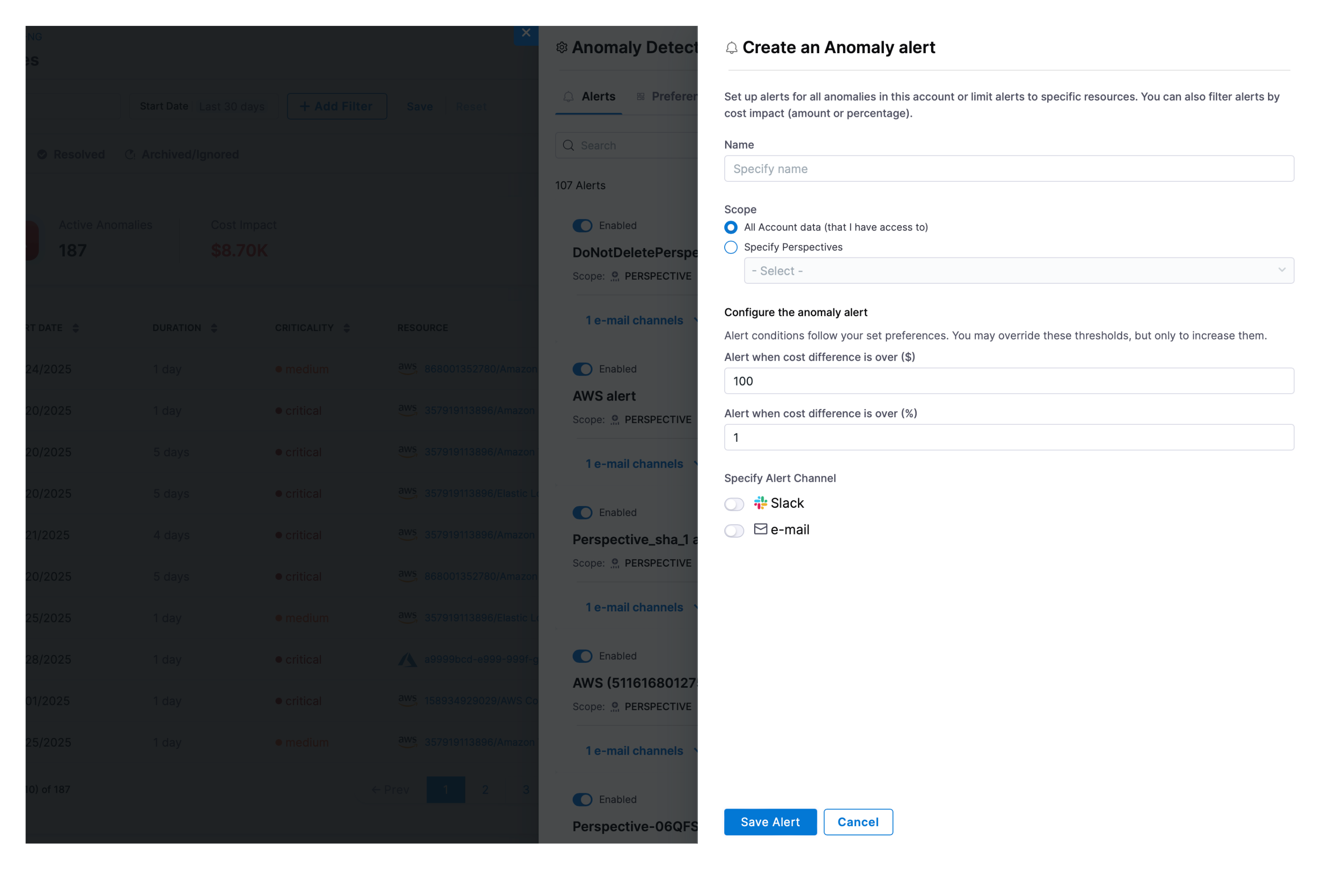
Set up alerts to receive notifications when anomalies are detected without having to check the dashboard. Configuration Options available:

  • Scope: Select all account data or specific perspectives for anomaly alerts.
  • Configure the anomaly alert: Alert conditions follow your set preferences. You may override these thresholds, but only to increase them. Currently, the user can set thresholds for “Alert when cost difference is over ($)” and/or “Alert when cost difference is over (%)” depending on whether they want to define a specific cost amount or a cost percentage.
  • Alert Channel: Currently, Harness CCM supports Slack and/or e-mail as possible methods of sending alerts.

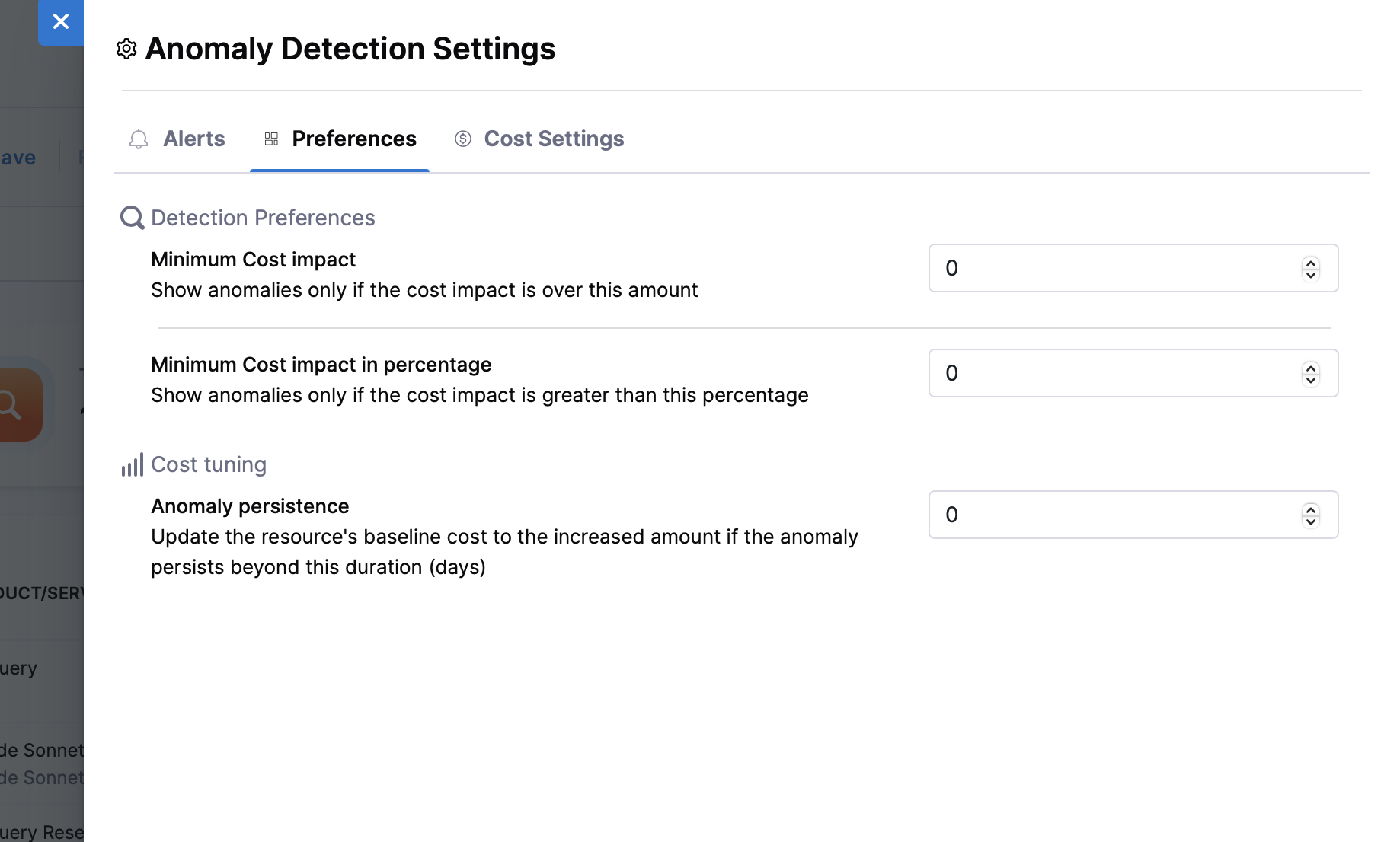
Anomaly Preferences

Configure system-wide anomaly detection settings to ensure only significant anomalies are flagged:

Available Settings:

  1. Minimum Cost Impact (Amount): This setting allows you to set a threshold for the cost impact in USD, meaning that anomalies will only be shown if the financial impact exceeds the specified amount.
  2. Minimum Cost Impact (Percentage): Similar to the above, this setting enables you to define a threshold based on the percentage of cost increase. Anomalies will only be flagged if the cost increase exceeds the specified percentage of the baseline cost.
  3. Anomaly Persistence: This setting allows the system to adjust the baseline cost of a resource if an anomaly persists beyond a specified number of days. If an anomaly is not resolved and continues to impact costs for the set duration, the resource's baseline cost is updated to reflect the higher cost. This helps maintain an accurate representation of the resource's true cost over time, ensuring that future anomalies are detected against the adjusted baseline.

Cost Settings

Cost Settings allow you to configure how costs are displayed for anomaly detection. These settings inherit from your Account Settings defaults, but you can override them here to apply only to the anomaly detection feature.

Currently, the following cost settings are available:

- Show AWS Costs as: Choose how AWS costs are calculated and displayed:

  • Amortized: Spreads upfront and recurring reservation costs across the billing period
  • Net-amortized: Amortized costs after applying discounts and credits
  • Unblended: Costs as they appear on your AWS bill without any modifications
  • Blended: Average cost across all accounts in a consolidated billing family
  • Effective: Actual costs after applying all discounts, credits, and savings plans

- Show Azure Costs as: Choose how Azure costs are calculated and displayed:

  • Actual: The actual costs incurred without any adjustments
  • Amortized: Spreads reservation costs across the usage period
info

Overriding these settings here will only affect how costs are displayed in the anomaly detection feature and will not change your global account settings.

FAQs

What happens after CCM detects an anomaly and how does it help me identify the root cause?

CCM queries the cloud provider's cost data and identifies resources that have experienced significant cost increases compared to previous periods. The system:

  • Aggregates total costs for each resource
  • Computes cost increases/decreases compared to the previous day
  • Ranks resources by highest cost increase
  • Stores anomalies in a time series database with metadata (reported cost, expected cost, anomaly score)
  • Flags anomalies for investigation and corrective action
How can I filter anomalies by cloud provider?

Harness provides filtering support for anomalies based on cloud account identifiers, ensuring alignment with perspective-based access control (RBAC) settings.

Filtering Support by Cloud Provider:

Cloud ProviderSupported FilterLimitations
AWSAWS Account IDNested Cost Categories not supported
GCPGCP Project IDNested Cost Categories not supported
AzureAzure Subscription IDNested Cost Categories not supported
How are anomaly severity levels determined and what do they mean?

Anomalies are categorized by severity based on deviation from expected behaviour:

SeverityDescription
LowMinor deviations
MediumNoticeable change, warrants review
HighSignificant impact or deviation
CriticalLarge cost jumps, requires immediate investigation
I received an anomaly alert for a particular day, but not on that day, it came later in the month. Why?

This can happen because anomaly alerts are triggered when the anomaly is detected, not when it occurred. There's no delay between detection and alerting. However, if the cost data available at the time didn't indicate an anomaly, the system wouldn't have flagged it initially. Later in the month, once cost data was refreshed and a spike became apparent, the anomaly was detected. To account for such cases, we rerun the anomaly detection job for the past 3 days — which is likely why the alert was sent at a later time.

Does our anomaly detection just look at cost, or can it also look at usage?

Currently, anomaly detection only monitors cost.