Cost Explorer
Cost Explorer is the next-generation cost analysis interface in Harness Cloud Cost Management (CCM). It provides a streamlined, modern experience for exploring and analyzing your multi-cloud spending through customizable views, advanced filtering, and flexible data visualization.
Cost Explorer is built on top of the existing Perspectives infrastructure but offers a redesigned user experience focused on faster exploration and easier view management.
To switch and use, jump directly to Switching between Cost Explorer and Perspectives.
Cost Explorer is enabled via the CCM_PERSPECTIVES_V2 feature flag. When enabled, users can switch between the new Cost Explorer and the classic Perspectives interface.
Drilldown
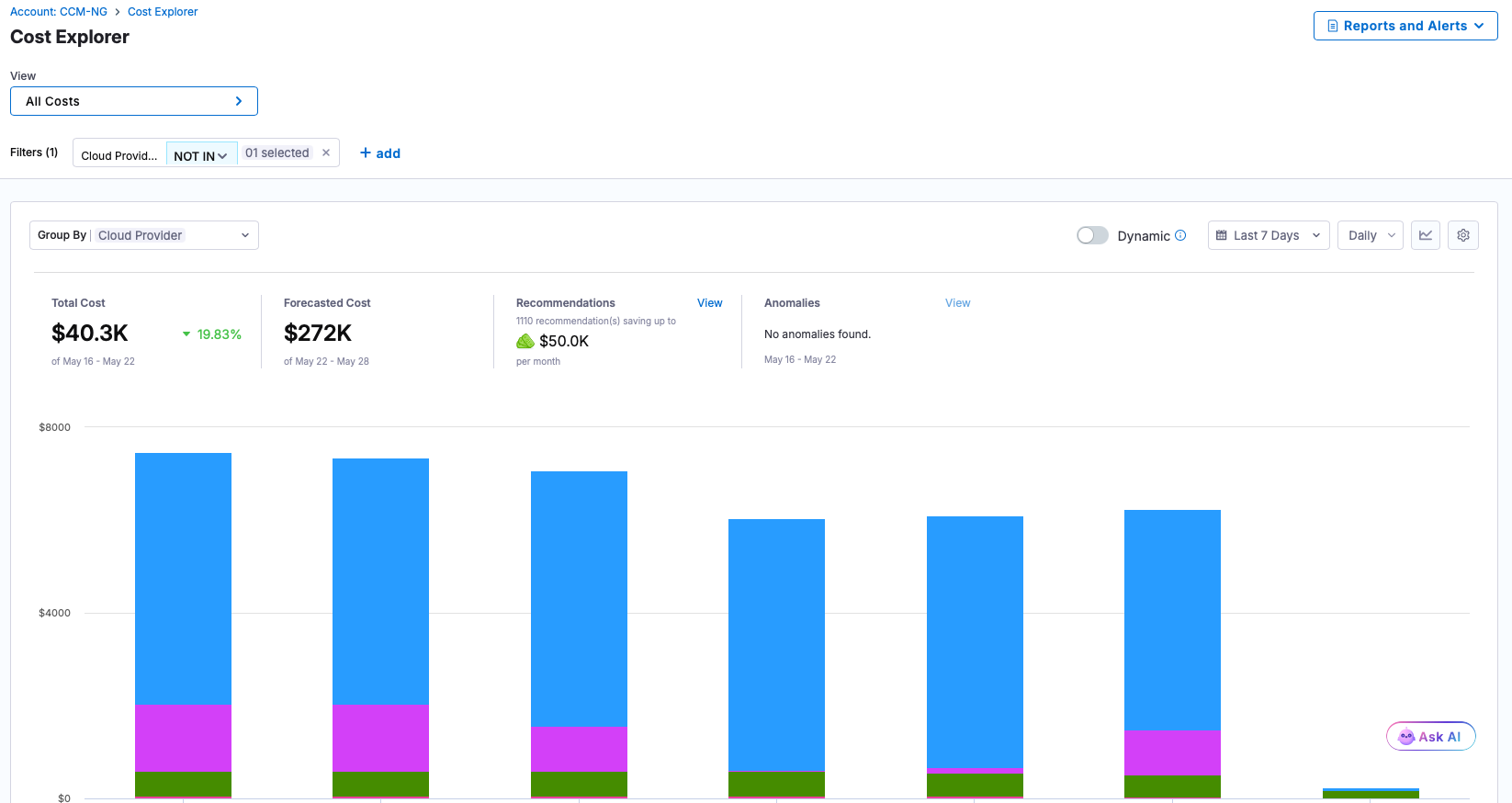
View-Based Navigation
Cost Explorer introduces a view-centric approach to cost analysis:
- Views replace the traditional perspective concept with a more intuitive interface
- Select any saved view from the View Selector dropdown
- Quick access to recently used views
- Seamless switching between views without page reloads
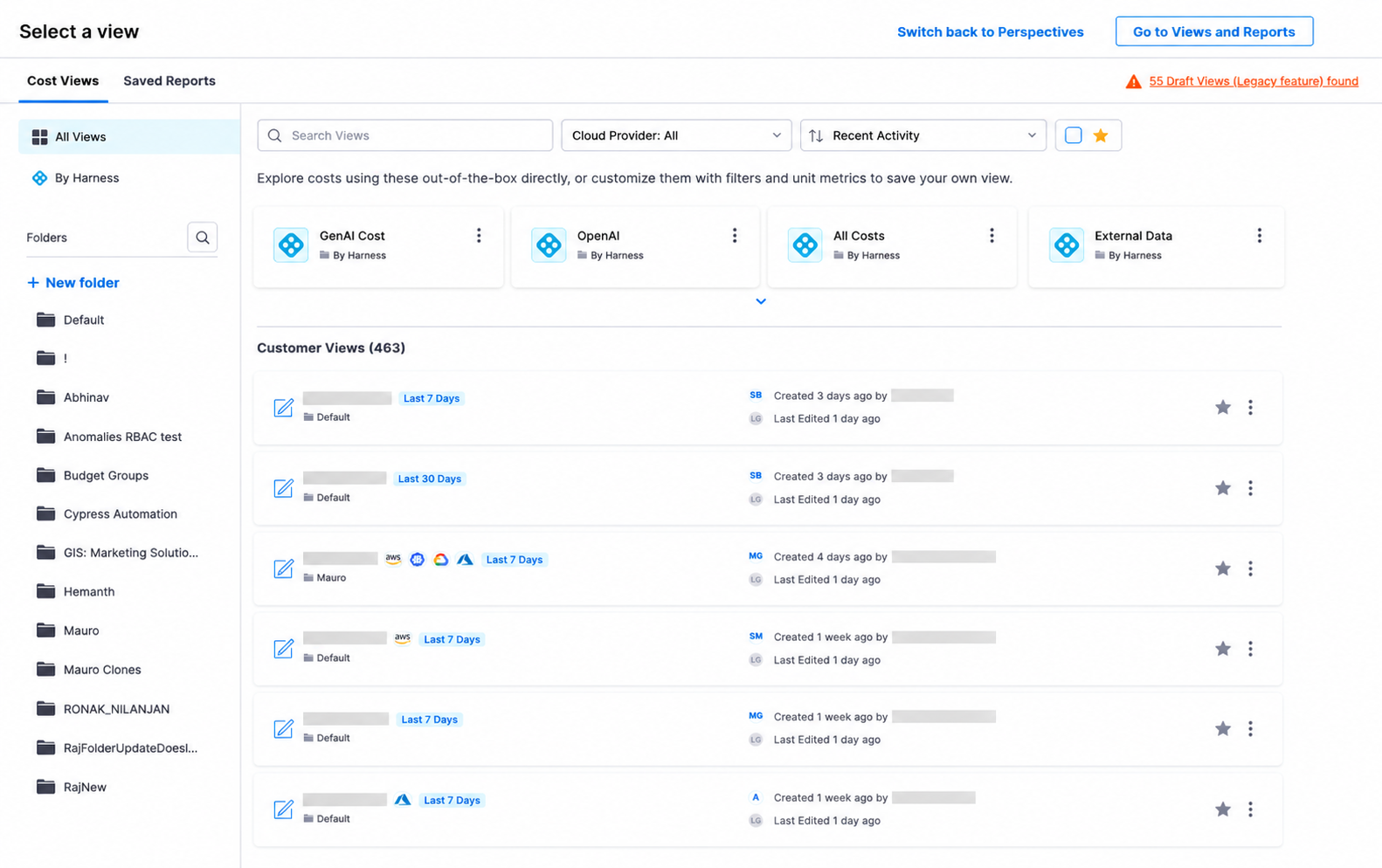
Views Explorer Drawer
Access all your views through the Views Explorer Drawer:
- Cost Views Tab: Browse all available views organized by folders
- Saved Reports Tab: Access previously saved reports
- Quick Search: Find views by name across all folders
- Folder Navigation: Browse views organized in folder structure
Advanced Filter Rule Builder
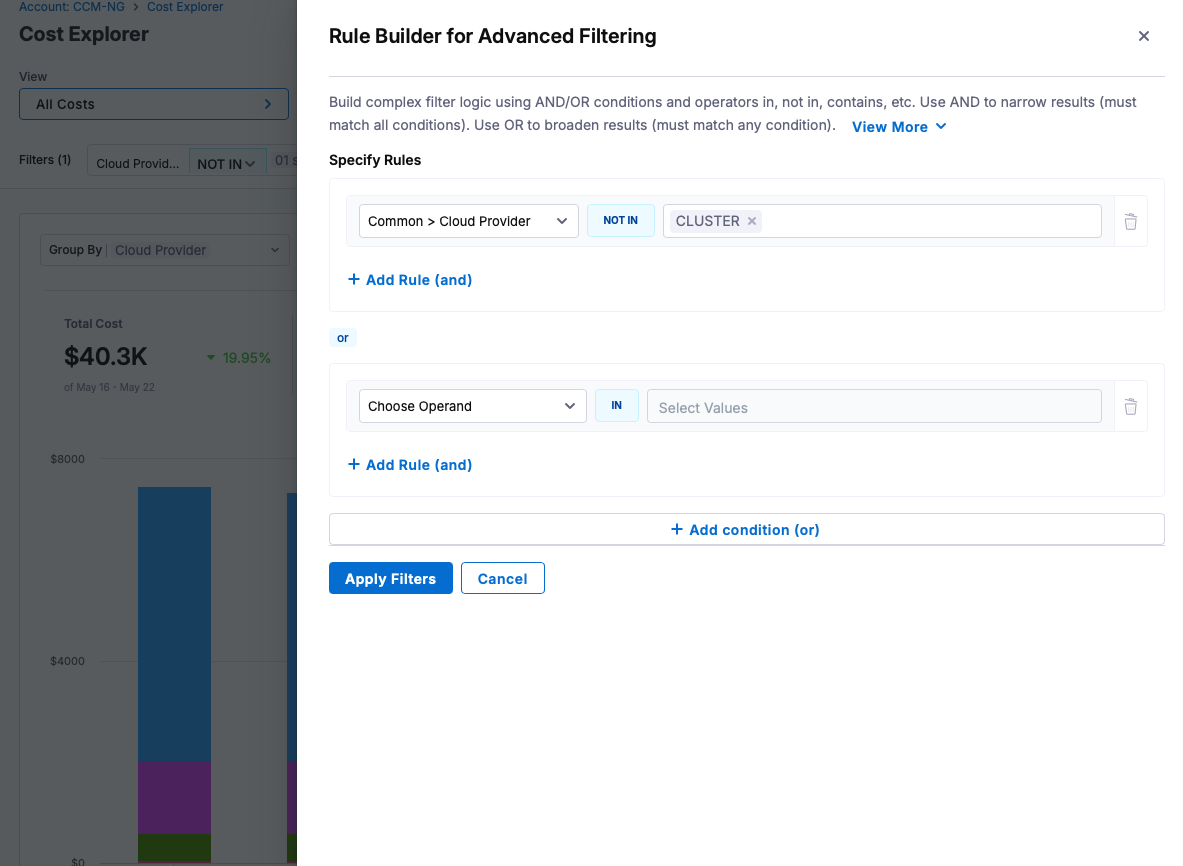
Create complex filter logic using the Advanced Filter Drawer:
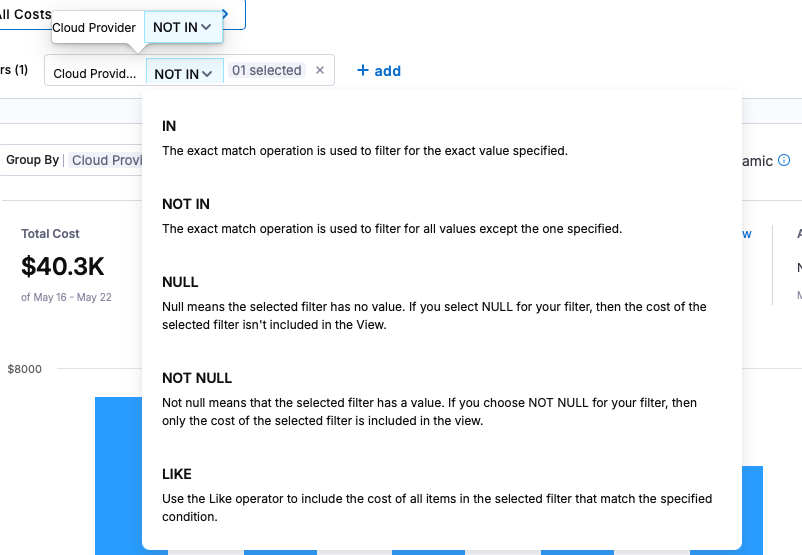
Filter Operators
- IN: Include only resources that exactly match the specified value
- NOT IN: Include all resources except those that match the specified value
- NULL: Include only resources where this field has no value (excludes resources with this field)
- NOT NULL: Include only resources where this field has a value
- LIKE: Include resources where the field partially matches a pattern (uses regular expressions)
- For exact pattern matching, use
^pattern$syntax
- For exact pattern matching, use
Using the Rule Builder
- Click "add advanced filter" o the filter chip to open the drawer
- Add conditions using the field selector and operator dropdown
- Add multiple conditions within a rule (AND logic)
- Add multiple rules (OR logic between rules)
- Click "Apply Filters" to execute
Inline Filter Chips
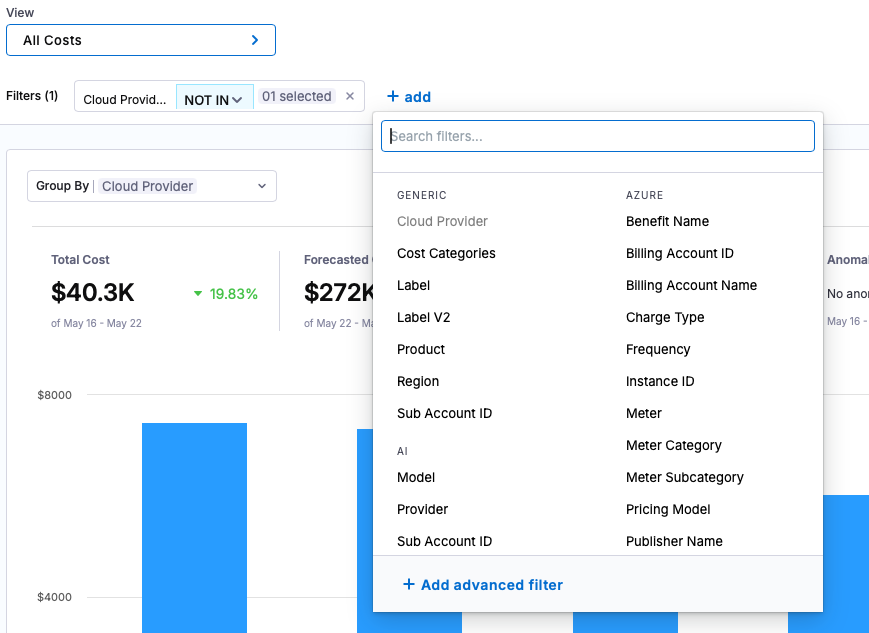
For simple filtering, use the inline filter chips:
- Click "add" to add a new filter
- Select field, operator, and values
- Multiple filters are combined with AND logic
- Click the chip to modify or remove
- Switch to Advanced Filter for complex OR logic
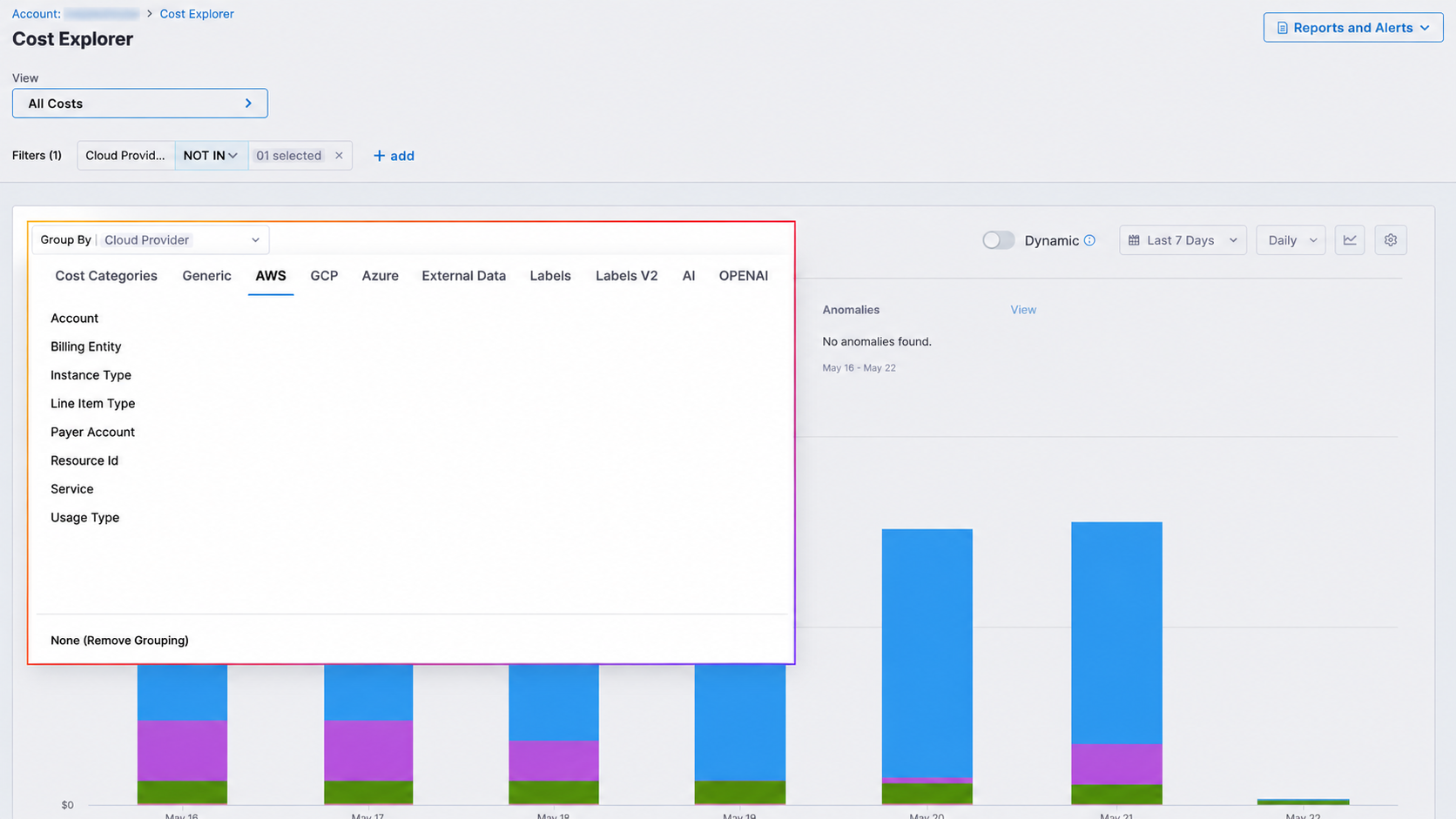
Group By Options
You can create a Perspective for your resources using rules and filters. The filters are used to group the resources. The following are the supported filters:
-
Cost Categories: You can create a perspective by filtering based on the cost categories you have created. To create cost categories, see Use Cost Categories.
-
Generic:
- Region: Each AWS, GCP, or Azure region you're currently running services in.
- Product: Each of your active products with its cloud costs.
- Cloud Provider: Filter and group costs by the cloud service provider (AWS, GCP, Azure, or Kubernetes clusters) to analyze spending across different cloud platforms.
- Sub Account Id:
-
AWS: CCM allows you to view your AWS costs at a glance, understand what is costing the most, and analyze cost trends across all your Amazon Web Services:
Grouping Option Description Account Cost by AWS account connected via Harness AWS Cloud Provider, showing account name and ID Billing Entity Distinguishes between AWS Marketplace transactions and other AWS service purchases (Learn more) Instance Type Cost by Amazon EC2 instance type (e.g., t2.micro, m5.large) Line Item Type Cost by charge type (Usage, Tax, Credit, etc.) (Learn more) Payer Account Cost by AWS account that pays for member accounts in an AWS Organization Resource Id Cost by unique AWS resource identifier (ARN), enabling granular tracking of individual resources like specific EC2 instances, S3 buckets, or RDS databases Service Cost by AWS service (EC2, S3, RDS, etc.) Usage Type Cost by specific resource usage measurement (e.g., BoxUsage:t2.micro(Hrs) for EC2 t2.micro instance hours) -
GCP: Analyze your Google Cloud Platform costs across products, projects, and other dimensions:
Grouping Option Description Billing Account Cost by billing account, allowing tracking across multiple linked projects Product Cost by GCP product (Compute Engine, Cloud Storage, BigQuery, etc.) Project Cost by GCP project Resource Global Name Cost by unique GCP resource identifier, enabling granular tracking of individual resources across your Google Cloud environment SKU Cost by specific SKU, representing the billable unit for GCP services -
Azure: Analyze your Microsoft Azure costs across services, resource groups, and other dimensions:
Grouping Option Description Benefit Name Cost by benefit applied to resources (Enterprise Agreement discounts, Azure Hybrid Benefit, etc.) Billing Account ID Cost by unique billing account identifier Billing Account Name Cost by billing account name Charge Type Cost by charge type (Usage, Purchase, Refund, etc.) Frequency Cost by charge frequency (OneTime, Recurring, UsageBased) Instance ID Cost by specific resource instance identifier Meter Cost by usage meter (Compute Hours, IP Address Hours, Data Transfer, etc.) Meter Category Cost by meter category (Cloud Services, Networking, etc.) Meter Subcategory Cost by meter subcategory (A6 Cloud Services, ExpressRoute, etc.) Pricing Model Cost by pricing structure (Pay-as-you-go, Reserved Instance, etc.) Publisher Name Cost by Marketplace service publisher Publisher Type Cost by publisher type (Microsoft/Azure, Marketplace, AWS) Reservation ID Cost by reservation instance identifier Reservation Name Cost by reservation instance name Resource Cost by specific Azure resource Resource GUID Cost by resource unique identifier Resource Group Name Cost by resource group Resource Name Cost by resource name Resource Type Cost by resource type (Virtual Machine, Storage Account, App Service, etc.) Service Name Cost by Azure service (Virtual Machines, App Service, DNS, etc.) Service Tier Cost by service tier (VMs, Dv3, Dsv3, etc.) Subscription ID Cost by subscription identifier Subscription Name Cost by subscription name Tenant ID Cost by Azure Active Directory tenant identifier, useful for organizations with multiple tenants -
External Data Grouping Options: Analyze costs from external data sources that you've integrated with CCM:
Grouping Option Description Account ID Cost by account identifier from external data sources Account Name Cost by account name from external data sources Billing Account ID Cost by billing account identifier from external systems Billing Account Name Cost by billing account name from external systems Provider Name Cost by provider or vendor name from external data Resource Cost by specific resource from external data sources SKU Cost by SKU or product identifier from external systems -
Label: Each label that you assign to your AWS resources. You can select a label name to get more granular details of your label. For more information, go to Tagging your AWS resources. For tags to appear in the Perspective, you must activate the user-defined cost allocation tags in the AWS Billing and Cost Management console. For more information, go to Activating User-Defined Cost Allocation Tags. CCM updates the tag keys as follows:
- For the user-defined tags,
user_prefix is added. - For the AWS system tags,
aws_prefix is added. - The characters that do not follow regex
[a-zA-Z0-9_]are changed to_. - The tags are case-sensitive. If the tags are specified as
UserNameandusername, then the number suffix_<Number>is added to the tag. For example,UserNameandusername_1.
- For the user-defined tags,
-
Label V2: Preserves the original structure from AWS similar to how GCP, Azure and Cluster tags are stored. See Understanding the Difference: Label vs. Label V2 and Migrate from Label to Label V2.
-
[NEW] AI: Analyze costs for AI and machine learning workloads across providers:
Grouping Option Description Model Cost by AI/ML model used (e.g., GPT-4, Claude, Llama) Provider Cost by AI service provider (OpenAI, Anthropic, Google, etc.) Sub Account ID Cost by sub-account identifier for multi-tenant AI deployments Sub Provider Cost by sub-provider or specific API endpoint Token Type Cost by token type (input tokens, output tokens, training tokens) -
[NEW] OpenAI: Analyze costs specifically for OpenAI API usage:
Grouping Option Description Model Cost by OpenAI model (GPT-4, GPT-3.5-turbo, DALL-E, Whisper, etc.) Project Id Cost by OpenAI project identifier Token Type Cost by token type (prompt tokens, completion tokens, embedding tokens)
Time Period & Granularity
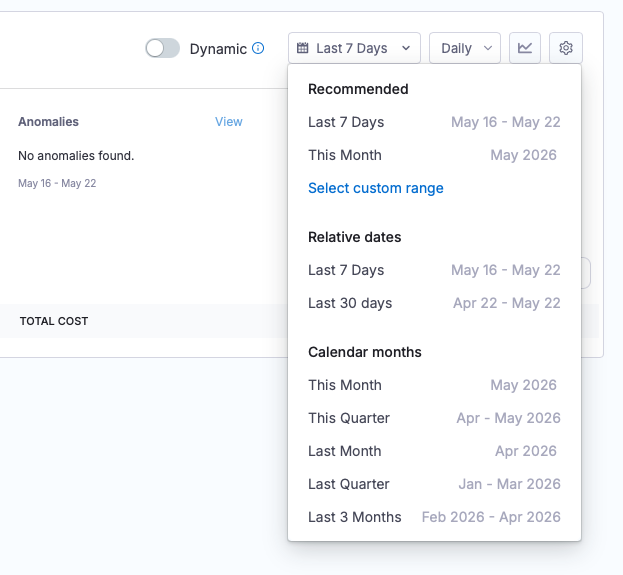
Time Period Options
- Last 7 Days
- Last 30 Days
- This Month
- Last Month
- Custom date range
Granularity Options
- Daily: Day-by-day breakdown
- Weekly: Week-over-week view
- Monthly: Month-over-month comparison
- Hourly: Available for Kubernetes cluster data within last 7 days
Preferences
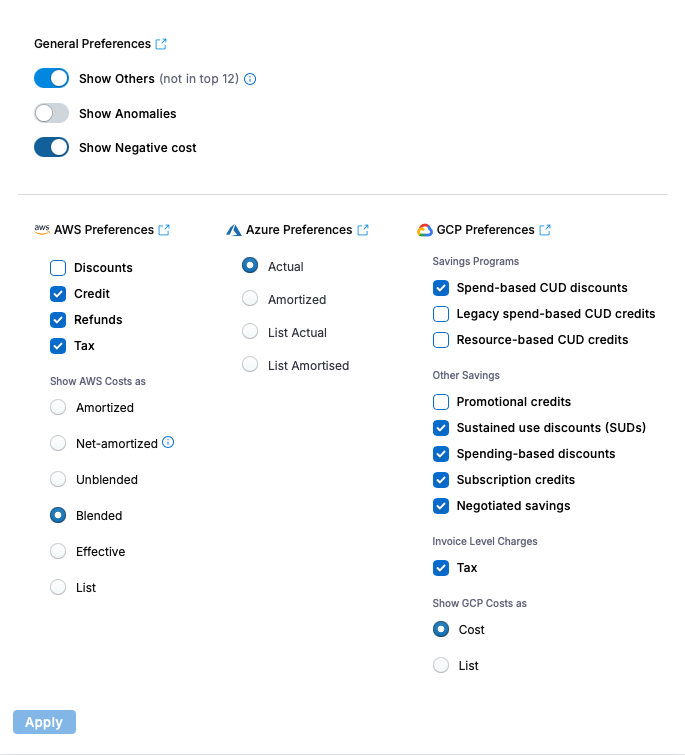
General Preferences
-
Show Others: The default perspective graph displays only the top 12 cost items. Enable this option to group all remaining costs into an "Others" category, ensuring you see your complete spending picture.
-
Show Anomalies: Highlight unusual spending patterns or sudden cost changes in your visualizations. This feature makes it easy to spot potential issues or unexpected charges that may require investigation. The number of anomalies are shown on the Group By graph in a red triangle.
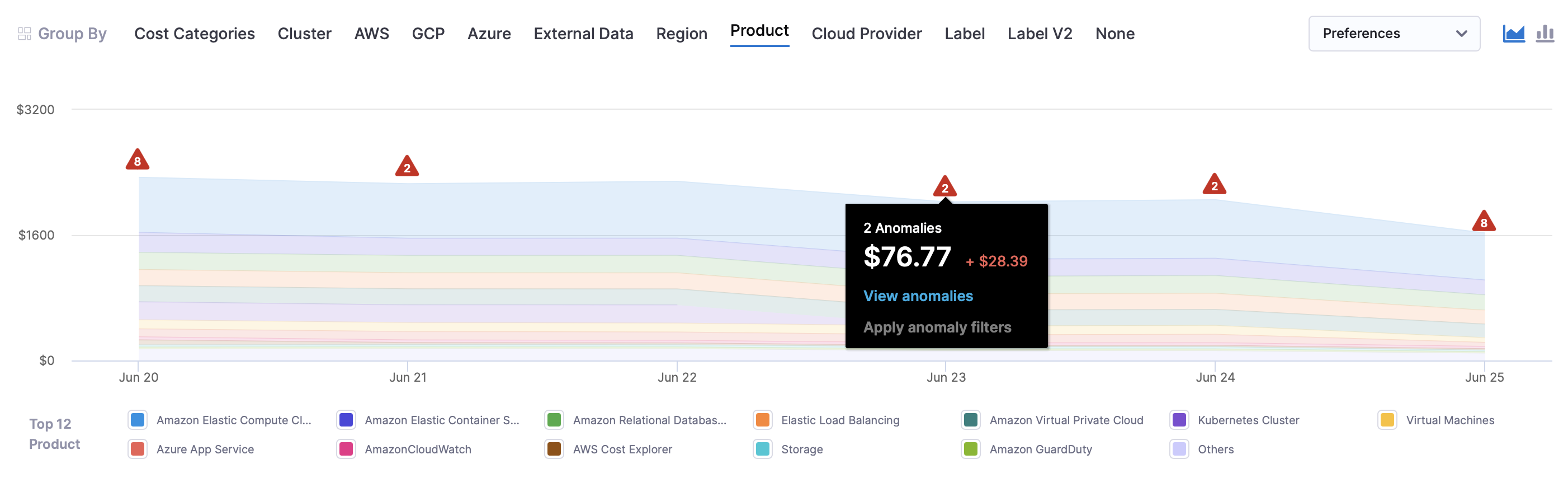
- Show Negative Cost: Displays instances where discounts exceed the actual billing amount, resulting in negative cost values in your reports. Displays the negative cost with a dotted red bar and labels it as NegativeCost in the legend. To view it, please select "Group By" as None because in other Group Bys, it might not appear in the top 12 entries.
Cloud Provider Preferences
Configure cost calculation preferences per cloud provider:
AWS Preferences
- Cost Type: Amortized, Net Amortized, Unblended, Blended, Effective, Lisy
- Include Discounts: Toggle discount visibility
- Include Credits: Toggle credit visibility
- Include Refunds: Toggle refund visibility
- Include Taxes: Toggle tax visibility
Azure Preferences
- Cost Type: Actual, Amortized, list Actual, List Amortised
GCP Preferences
- Savings Programs: Spend-based CUD discounts, Legacy spend-based CUD credits, Resource-based CUD credits
- Other Savings: Promotional credits, Sustained use discounts (SUDs), Spending-based discounts, Subscription credits, Negotiated savings
- Invoice Level Changes: Tax
- Show GCP costs as: cost or list
Read More
Cost Summary Cards
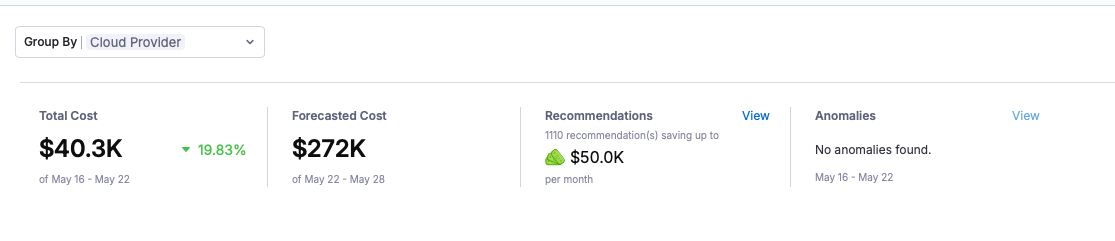
View key metrics at a glance:
- Total Cost: Current period spend with trend indicator
- Forecasted Cost: Projected end-of-period spend
- Budget Status: Budget utilization (if budget attached)
- Anomalies: Detected cost anomalies count
- Recommendations: Available optimization recommendations
Save & Manage Views
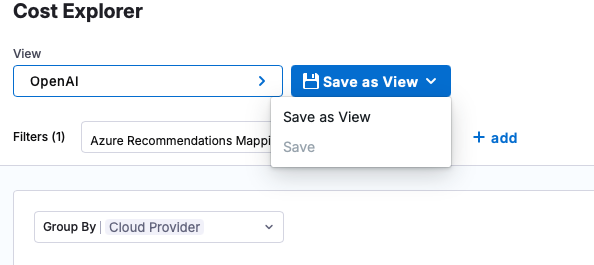
Save Current Configuration
- Apply filters, grouping, and preferences
- Click "Save as View" dropdown
- Choose "Save" (update existing) or "Save as View" (create new)
- Enter view name and select folder
- Click "Save"
Edit View Properties
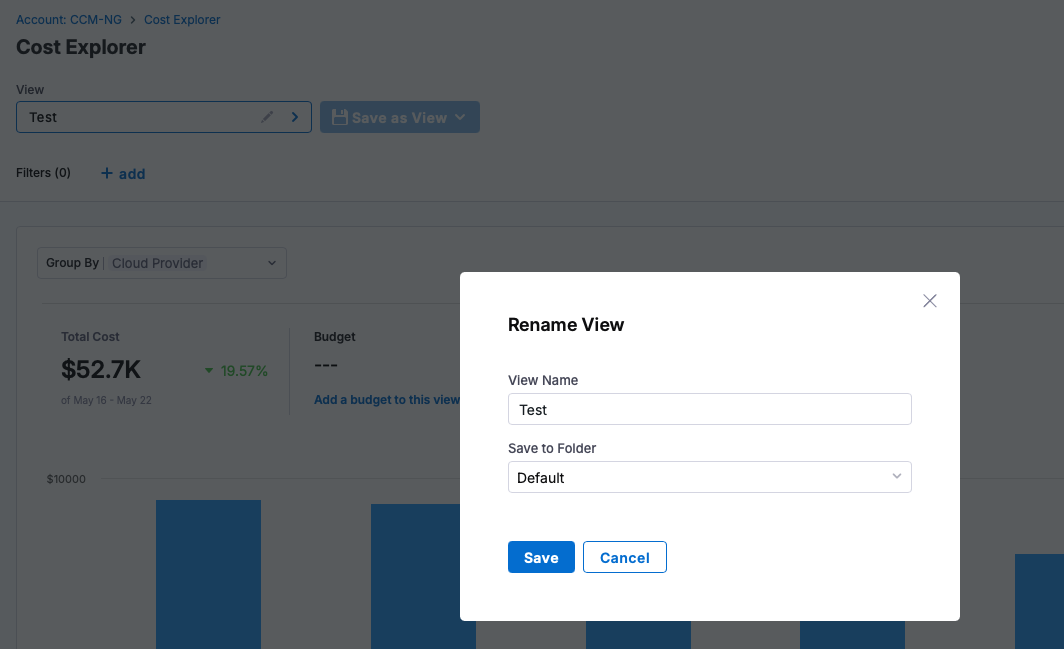
- Click the edit icon next to the view name
- Modify name and folder location
- Changes are saved when you save the view
Reports and Alerts
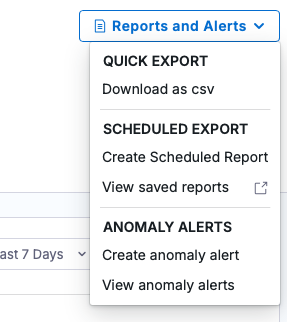
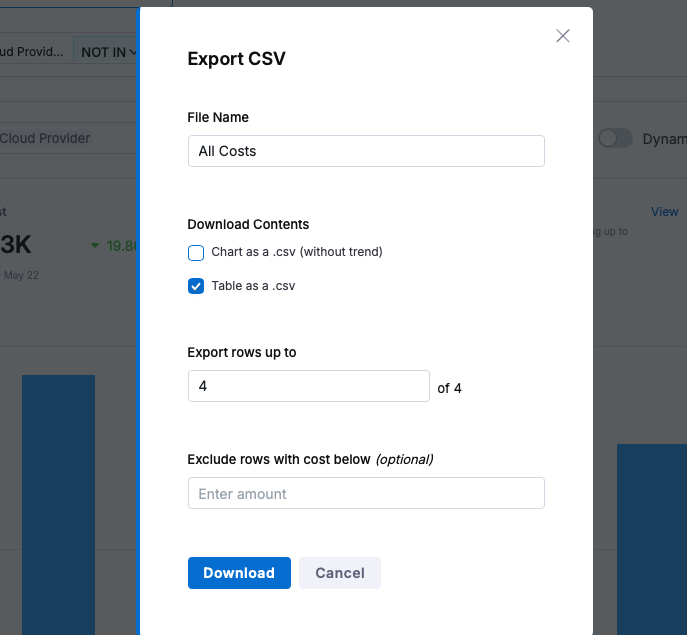
- Quick Export: Download as CSV either as a chart or as a table
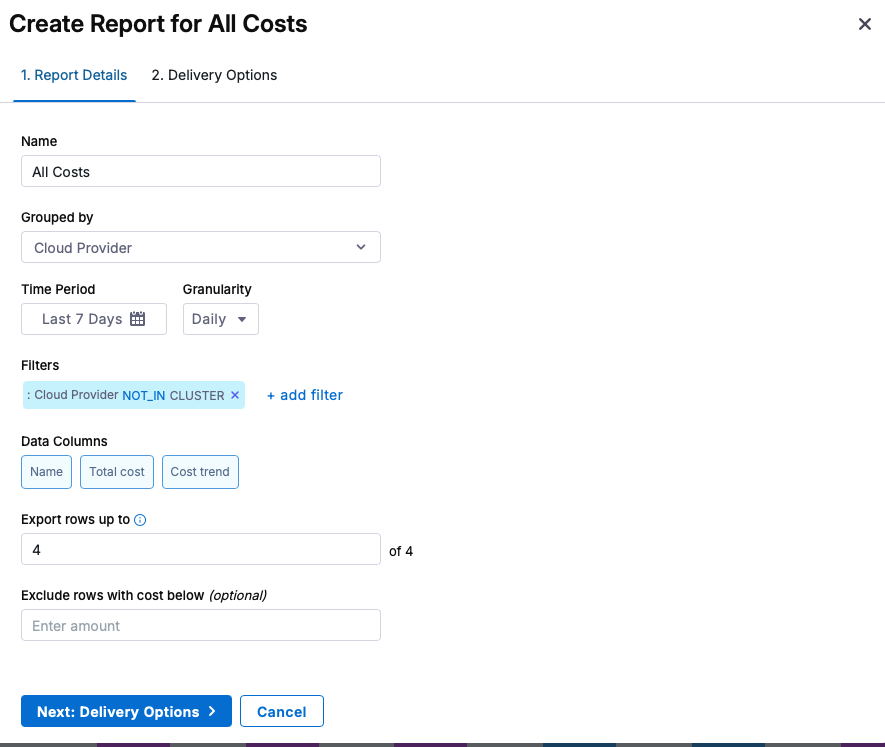
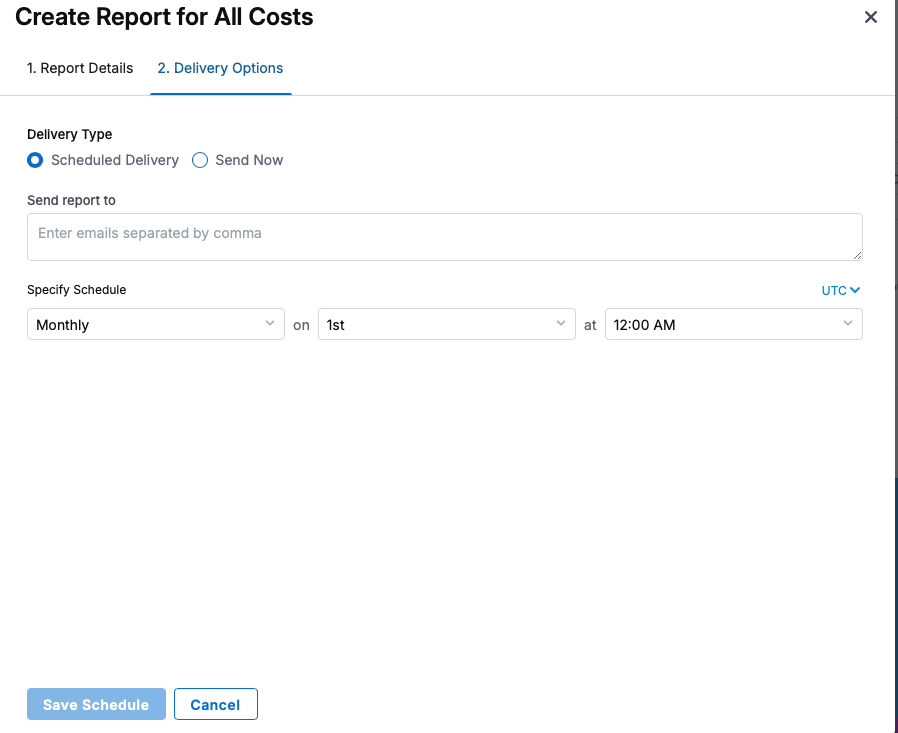
- Scheduled Reports: Create recurring reports from saved views
Dynamic vs Stored Data Toggle
Toggle between data calculation modes:
- Dynamic (ON): Cost Category rules applied in real-time
- Stored (OFF): Pre-calculated Cost Category data (faster)
Read More here: Dynamic Cost Categories Toggle
Switching Between Cost Explorer and Perspectives
Enable Cost Explorer

- Look for the "Switch to new Views Experience" banner on the Perspectives page
- Click "Switch" to enable Cost Explorer
- The page will reload with the new interface
Switch Back to Perspectives

- Open the Views Explorer Drawer (click the View selector)
- Click "Switch back to Perspectives" link in the header
- The page will reload with the classic Perspectives interface
Your preference is stored locally and persists across sessions.