gitspace-terraform-gcp
This is your second step in configuring Self Hosted Gitspaces on GCP Cloud Infrastructure.
Once you have added and configured the GCP Cloud Infrastructure in your Harness UI, you need to configure and set up the Harness Gitspaces Terraform Module to provision the GCP infrastructure and complete the setup in your selected GCP project. This guide will walk you through the detailed steps to configure and set it up.
Prerequisites
- Ensure you've enabled the feature flag
CDE_HYBRID_ENABLEDin your Harness account since Self Hosted Gitspaces are currently available behind this feature flag. Contact Harness Support to enable this feature flag. - Ensure you’ve read through the Overview & Key Concepts of Self Hosted Gitspaces. This will help you gain a deeper understanding of the basic concepts and setup steps.
- Make sure you have completed all the steps detailed out in Configuring GCP Cloud Infrastructure in Harness UI. This is a mandatory prerequisite, as the Infra Config YAML generated from that step is a required input here.
- You must have a Service Account with the "Owner" role in the same GCP project where your GCP VM instance will be created. Refer to the GCP documentation to learn how to create a service account. You can also follow the detailed steps in this section of our guide.
- You must create and download a Service Account Key for the same service account within the same GCP project. Refer to the GCP documentation for more information. Detailed steps are also provided in this section of our guide.
- Ensure that your GCP project (as defined in your infra config) has the following APIs enabled, here's a quick reference guide to learn more about enabling APIs in your GCP project:
- Cloud Resource Manager API –
api/cloudresourcemanager.googleapis.com - Compute Engine API –
api/compute.googleapis.com - Certificate Manager API –
api/certificatemanager.googleapis.com - Identity and Access Management (IAM) API –
api/iam.googleapis.com - Cloud DNS API –
api/dns.googleapis.com
- Cloud Resource Manager API –
Functions of the Terraform Module
The Harness Gitspaces Terraform Module is responsible for configuring and creating the infrastructure in GCP needed to host Self Hosted Gitspaces. This includes provisioning VPCs, Subnetworks, IAM, Cloud NAT, and other supporting services. It also creates the VM instance required to set up Runner and Delegate for self-hosted Gitspaces.
Terraform Inputs
The following Terraform variables are mandatory inputs required to apply and set up the Terraform module:
| Variable Name | Type | Description | Mandatory | Default / Validation |
|---|---|---|---|---|
service_account_key_file | string | Path to the service account key file. | Yes | — |
infra_config_yaml_file | string | Path to the infra config YAML file with infrastructure configuration. | Yes | — |
manage_dns_zone | bool | Indicates whether the DNS zone should be managed by the module. | Yes | — |
use_gcp_certificate_manager | bool | Indicates whether Google Certificate Manager should be used for SSL certificates. | No | true |
private_key_path | string | Path to the private key file for the SSL certificate (if not using Certificate Manager). | No | "" |
certificate_path | string | Path to the SSL certificate file (if not using Certificate Manager). | No | "" |
Refer to this documentation to learn more about the Inputs required for the Terraform Module.
Terraform Outputs
This module creates the GCP infrastructure and generates a pool.yaml file with all infrastructure details.
Refer to this documentation to get a detailed overview of all the Outputs generated from the Terraform Module.
Configuring the Terraform Module
Follow these steps to configure and apply the Terraform module. Ensure all prerequisites are completed before proceeding.
1. Prepare the Terraform Input Variables
Mandatory Input Variables
To apply the Terraform module, you need three mandatory input parameters:
- Service Account Key File: A Service Account Key with necessary permissions in your GCP project. Learn how to generate a Service Account Key.
- Infra Config YAML File: Contains all infrastructure details for setting up the Terraform module. Learn how to retrieve it here.
manage_dns_zone: Controls DNS management:yes: DNS will be managed automatically by the module.no: You'll need to manage DNS manually.
Optional Input Variables
These have default values and are not mandatory:
use_gcp_certificate_manager: Set totrue(default) to use GCP Certificate Manager for SSL.private_key_path: Provide if not using Certificate Manager (default:"").certificate_path: Provide if not using Certificate Manager (default:"").
2. Generate the Service Account Key
You need a Service Account Key with Owner role to apply the Terraform module:
- In your GCP project, create a Service Account with the
Ownerrole. Follow this guide to learn more about the same.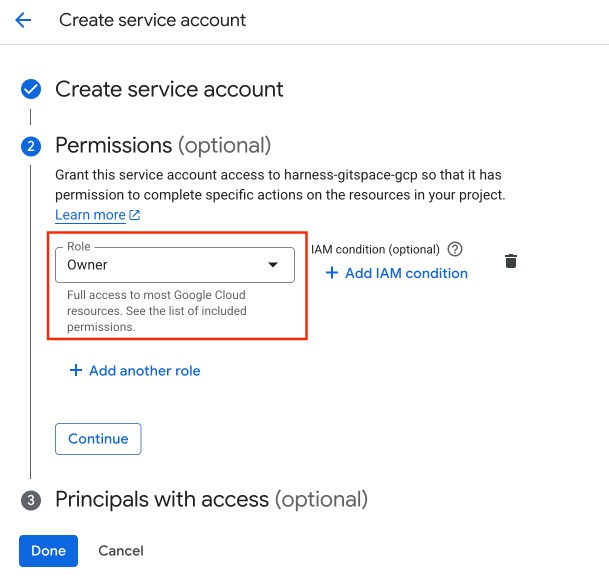
- Create a key for the Service Account. Follow this guide to learn more about the same.
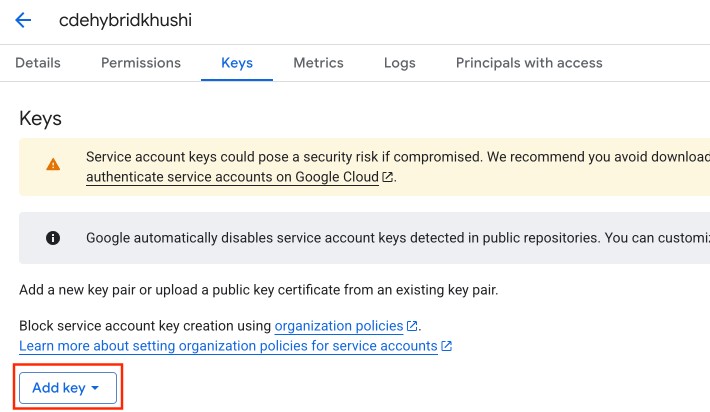
- Download the key file in
.jsonor.p12format.
3. Retrieve the Infra Config YAML
Use the Infra Config YAML file downloaded during Gitspace Infrastructure configuration in Harness UI. This is required for the Terraform module.
4. Create the Terraform Configuration
Now that all input parameters are ready:
- In the folder containing the Infra Config YAML and Service Account Key File, create a
main.tffile. - Paste the following Terraform snippet (taken from the Harness Gitspaces Terraform Module):
module "harness-gitspaces" {
    source  = "harness/harness-gitspaces/gcp"
    version = "[TO BE REPLACED FROM THE REGISTRY'S [OFFICIAL DOCUMENTATION](https://registry.terraform.io/modules/harness/harness-gitspaces/gcp/latest)]"
    # insert the required input variables below
}
- Insert the required parameters with their respective path values:
    infra_config_yaml_file      = "[INFRA CONFIG YAML FILE PATH]"
    service_account_key_file    = "[SERVICE ACCOUNT KEY FILE PATH]"
    manage_dns_zone             = true
}
- Optionally, add additional parameters.
- Save the configuration.
Example Terraform Configuration
module "harness-gitspaces" {
    source                      = "harness/harness-gitspaces/gcp"
    version                     = "[TO BE REPLACED FROM THE REGISTRY'S [OFFICIAL DOCUMENTATION](https://registry.terraform.io/modules/harness/harness-gitspaces/gcp/latest)]"
    infra_config_yaml_file      = "infra_config.yaml"
    service_account_key_file    = "service-account-key.json"
    manage_dns_zone             = true
    use_gcp_certificate_manager = true
    certificate_path            = "sample_domain.cert"
    private_key_path            = "sample_domain.key"
}
5. Initialize and Apply the Terraform Configuration
Once your Terraform config is ready:
- Initialize Terraform: Run
terraform initto initialize your backend. Refer to this guide to learn more about this command reference. - Plan Terraform: Run
terraform planto preview changes. Refer to this guide to learn more about this command reference. - Apply Terraform: Run
terraform applyto execute and provision infrastructure. Refer to this guide to learn more about this command reference.
This setup provisions the required infrastructure in your GCP project, including a GCP VM instance to host the Harness Delegate and Runner.
6. Download the Pool YAML File
After applying the Harness Gitspaces Terraform Module, a pool.yaml file is generated in the same folder as your main.tf. This file defines the VM specs for your Gitspace instances.
Keep this file handy — it will be required in the next step.
Next Steps
Now that your GCP infrastructure is fully set up, proceed to Configure the Runner and Delegate on the GCP VM instance created. Make sure you have the pool.yaml file ready for the next steps.