OPA Policy Support for GitOps Applications
Harness supports Open Policy Agent (OPA) policies for GitOps Applications, allowing you to enforce governance rules and compliance requirements during GitOps operations such as syncing applications.
With OPA policy support, you can:
- Enforce deployment freezes: Prevent syncing GitOps Applications during maintenance windows or specific time periods
- Control production deployments: Restrict manual syncs for production applications based on naming conventions or labels
- Validate application configurations: Ensure GitOps Applications meet organizational standards before syncing
- Implement time-based restrictions: Block or allow syncs based on specific time windows
For a comprehensive overview of Harness Policy As Code and OPA, see Harness Policy As Code overview.
How OPA Policies Work for GitOps Applications
When you create a policy for GitOps Applications, the policy is evaluated against the GitOps Application entity during specific events:
- On Save: Policies are evaluated when a GitOps Application is saved or updated
- On Sync: Policies are evaluated when a sync operation is initiated for a GitOps Application
The policy receives the GitOps Application configuration as input, including:
- Application metadata (name, namespace, labels)
- Application source configuration
- Application destination configuration
- Sync operation details
- OPA policies do not apply to auto-syncs. Policies are evaluated only when a sync is initiated through the Harness UI or API, not during automatic sync operations triggered by Argo CD.
- OPA policies do not prevent syncs triggered directly on the cluster. If a user logs into the cluster and triggers a sync from the command line (for example, using
argocd app sync), Harness OPA policies are not evaluated. - You can prevent auto-syncs using OPA. Because the
syncPolicyis set at the application level, you can write an On Save policy that denies applications configured with auto-sync enabled, effectively preventing auto-sync from being set on the application.
Prerequisites
Before creating OPA policies for GitOps Applications, ensure you have:
- GitOps Applications configured: At least one GitOps Application must exist in your project
- Policy permissions: Appropriate permissions to create and manage policies in Harness
- Understanding of Rego: Basic knowledge of the Rego policy language used by OPA
For more information about writing Rego policies, see OPA Policy Language and the Rego Cheatsheet.
Create a Policy for GitOps Applications
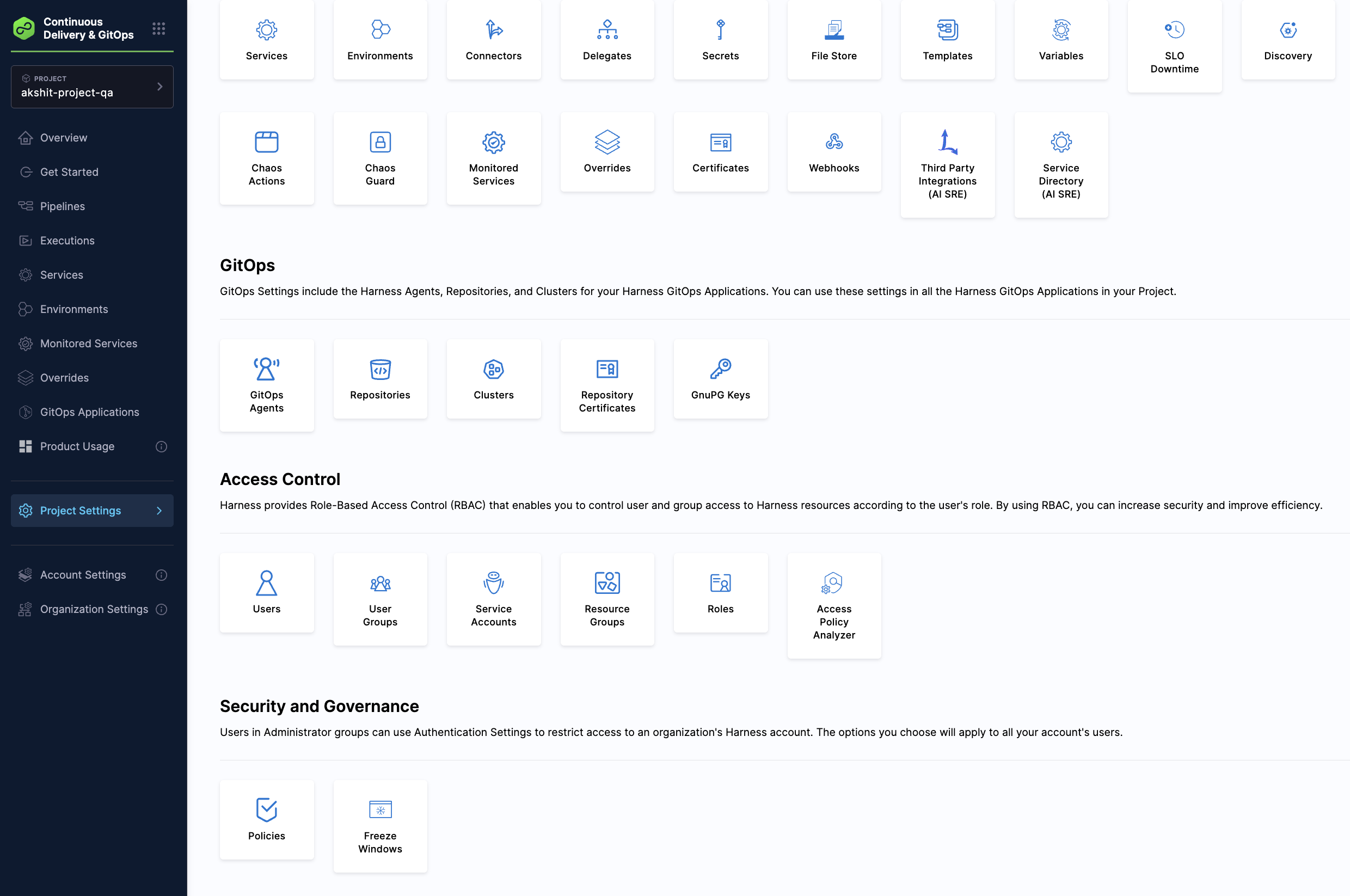
Step 1: Navigate to Policies
- In Harness, go to Settings.
- Under Security and Governance, click Policies.
Step 2: Create a New Policy
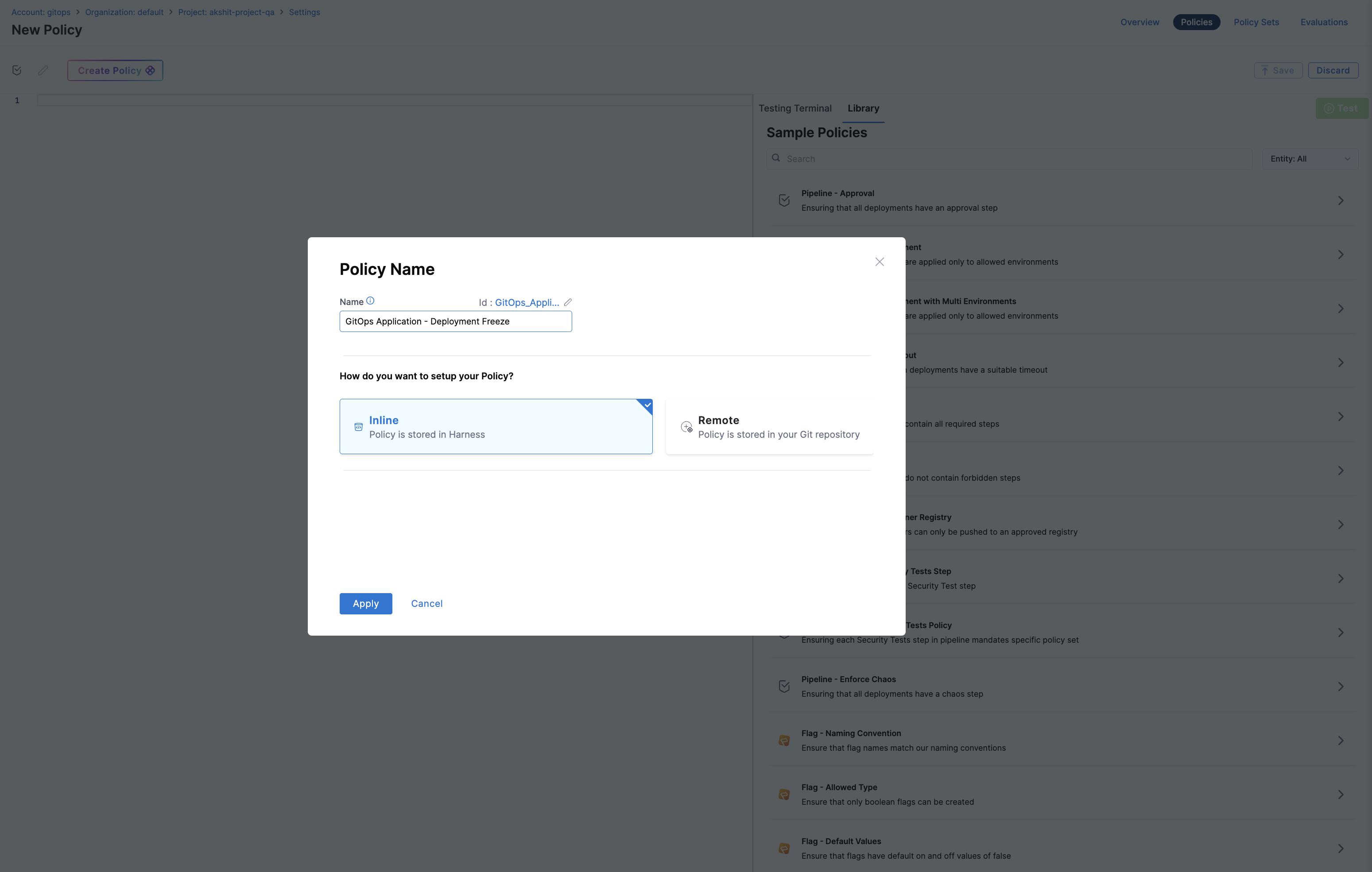
- Click + New Policy.
- Enter a name for your policy (for example, "GitOps Application - Deployment Freeze").
- Select Inline or Remote for policy storage.
- Click Apply.
Step 3: Define the Policy
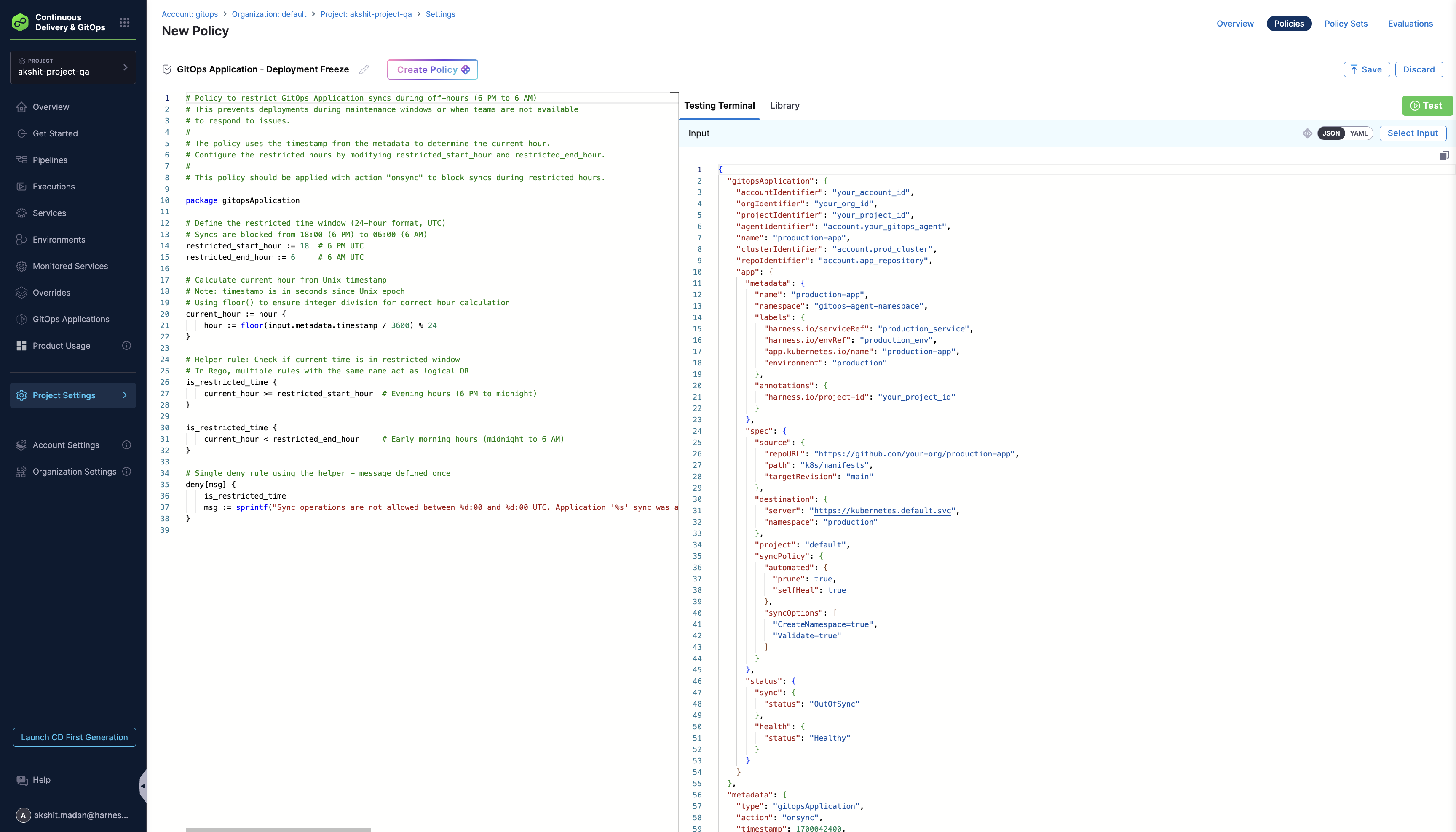
In the policy editor, write your Rego policy. The policy should use the gitopsApplication package and access the application data through the input.gitopsApplication object. You can also search GitOps in the Sample Policies & pick the template best suited for the usecase.
Step 4: Add Policy to a Policy Set
- Go to Policy Sets.
- Create a new Policy Set or edit an existing one.
- Set the Entity Type to GitOps Application.
- Select the event (On Save or On Sync).
- Add your policy to the Policy Set.
- Set the policy severity (Error and Exit or Warn and Continue).
- Save the Policy Set.
Sample Policies
Example: Restrict Sync During Off-Hours
This policy prevents GitOps Application syncs during off-hours (for example, between 6 PM and 6 AM UTC):
# Policy to restrict GitOps Application syncs during off-hours (6 PM to 6 AM)
# This prevents deployments during maintenance windows or when teams are not available
# to respond to issues.
#
# The policy uses the timestamp from the metadata to determine the current hour.
# Configure the restricted hours by modifying restricted_start_hour and restricted_end_hour.
#
# This policy should be applied with action "onsync" to block syncs during restricted hours.

package gitopsApplication

# Define the restricted time window (24-hour format, UTC)
# Syncs are blocked from 18:00 (6 PM) to 06:00 (6 AM)
restricted_start_hour := 18  # 6 PM UTC
restricted_end_hour := 6     # 6 AM UTC

# Calculate current hour from Unix timestamp
# Note: timestamp is in seconds since Unix epoch
# Using floor() to ensure integer division for correct hour calculation
current_hour := hour {
    hour := floor(input.metadata.timestamp / 3600) % 24
}

# Helper rule: Check if current time is in restricted window
# In Rego, multiple rules with the same name act as logical OR
is_restricted_time {
    current_hour >= restricted_start_hour  # Evening hours (6 PM to midnight)
}

is_restricted_time {
    current_hour < restricted_end_hour     # Early morning hours (midnight to 6 AM)
}

# Single deny rule using the helper - message defined once
deny[msg] {
    is_restricted_time
    msg := sprintf("Sync operations are not allowed between %d:00 and %d:00 UTC. Application '%s' sync was attempted at hour %d:00 UTC. Please schedule your sync during business hours.", [restricted_start_hour, restricted_end_hour, input.gitopsApplication.name, current_hour])
}
Example: Require Service and Environment Labels
This policy ensures that GitOps Applications have required Harness labels before syncing:
# Policy to enforce that GitOps Applications have required Harness Service and Environment labels
# These labels (harness.io/serviceRef and harness.io/envRef) are used to link GitOps Applications
# to Harness Services and Environments for tracking deployments and governance.
#
# This policy should be applied with action "onsync" to enforce labels before syncing.

package gitopsApplication

# Deny sync if the Service label (harness.io/serviceRef) is missing
deny[msg] {
    not input.gitopsApplication.app.metadata.labels["harness.io/serviceRef"]
    msg := sprintf("Application '%s' is missing required label 'harness.io/serviceRef'. Please add the Harness Service reference label to track deployments.", [input.gitopsApplication.name])
}

# Deny sync if the Service label is empty
deny[msg] {
    input.gitopsApplication.app.metadata.labels["harness.io/serviceRef"] == ""
    msg := sprintf("Application '%s' has an empty 'harness.io/serviceRef' label. Please provide a valid Harness Service identifier.", [input.gitopsApplication.name])
}

# Deny sync if the Environment label (harness.io/envRef) is missing
deny[msg] {
    not input.gitopsApplication.app.metadata.labels["harness.io/envRef"]
    msg := sprintf("Application '%s' is missing required label 'harness.io/envRef'. Please add the Harness Environment reference label to track deployments.", [input.gitopsApplication.name])
}

# Deny sync if the Environment label is empty
deny[msg] {
    input.gitopsApplication.app.metadata.labels["harness.io/envRef"] == ""
    msg := sprintf("Application '%s' has an empty 'harness.io/envRef' label. Please provide a valid Harness Environment identifier.", [input.gitopsApplication.name])
}
Example: Block Protected Namespaces
This policy prevents GitOps Applications from deploying to protected system namespaces:
# Policy to prevent GitOps Applications from deploying to protected/system namespaces
# This is a critical security policy to prevent accidental or unauthorized modifications
# to cluster infrastructure namespaces.
#
# Common protected namespaces include:
# - kube-system: Core Kubernetes components
# - kube-public: Public cluster info
# - kube-node-lease: Node heartbeats
# - argocd / gitops-agent namespaces: GitOps infrastructure
# - istio-system: Service mesh
# - cert-manager: Certificate management
#
# This policy can be applied with action "onsave" or "onsync".

package gitopsApplication

# List of namespaces that applications should not deploy to
blocked_namespaces := [
    "kube-system",
    "kube-public",
    "kube-node-lease",
    "default",
    "argocd",
    "gitops-system",
    "istio-system",
    "cert-manager",
    "monitoring",
    "logging"
]

# Check if namespace is in blocked list
is_blocked_namespace(ns) {
    blocked_namespaces[_] == ns
}

# Deny if destination namespace is a protected namespace
deny[msg] {
    ns := input.gitopsApplication.app.spec.destination.namespace
    is_blocked_namespace(ns)
    msg := sprintf("Application '%s' cannot deploy to protected namespace '%s'. Protected namespaces are reserved for system components. Please use a different destination namespace.", [input.gitopsApplication.name, ns])
}

# Deny if namespace starts with 'kube-' (Kubernetes reserved)
deny[msg] {
    ns := input.gitopsApplication.app.spec.destination.namespace
    startswith(ns, "kube-")
    msg := sprintf("Application '%s' cannot deploy to Kubernetes reserved namespace '%s'. Namespaces starting with 'kube-' are reserved for Kubernetes system components.", [input.gitopsApplication.name, ns])
}

# Deny if namespace starts with 'openshift-' (OpenShift reserved)
deny[msg] {
    ns := input.gitopsApplication.app.spec.destination.namespace
    startswith(ns, "openshift-")
    msg := sprintf("Application '%s' cannot deploy to OpenShift reserved namespace '%s'. Namespaces starting with 'openshift-' are reserved for OpenShift system components.", [input.gitopsApplication.name, ns])
}
Testing Policies
You can test your policies before applying them:
- In the policy editor, use the Testing Terminal tab.
- Select a sample GitOps Application payload or use a previous evaluation.
- Run the test to see if the policy evaluates correctly.
- Review the results and adjust the policy as needed.
For more information about testing policies, see Harness Policy As Code quickstart.
Policy Input Schema
The input payload for GitOps Application policies follows this structure:
{
  "gitopsApplication": {
    "app": {
      "metadata": {
        "name": "application-name",
        "namespace": "argocd",
        "labels": {
          "harness.io/serviceRef": "service-id",
          "harness.io/envRef": "environment-id"
        }
      },
      "spec": {
        "source": {
          "repoURL": "https://github.com/example/repo",
          "targetRevision": "main",
          "path": "manifests"
        },
        "destination": {
          "server": "https://kubernetes.default.svc",
          "namespace": "default"
        }
      },
      "operation": {
        "sync": {
          "syncStrategy": {
            "hook": {}
          }
        }
      }
    }
  },
  "metadata": {
    "action": "onsync",
    "user": {
      "email": "user@example.com",
      "uuid": "user-uuid"
    }
  }
}
Policy Severity
When adding a policy to a Policy Set, you can set the severity:
- Error and Exit: If the policy evaluation fails, the sync operation is blocked and an error message is displayed
- Warn and Continue: If the policy evaluation fails, a warning is displayed but the sync operation continues
View Policy Evaluation Results
You can view policy evaluation results in two ways:
View Evaluations in Policies
To view all policy evaluations across your GitOps Applications:
- Go to Settings > Policies > Evaluations.
- Filter evaluations by:
- Type: Select "GitOps Application"
- Action: Select "On Save" or "On Sync"
- Status: Filter by SUCCESS, WARNING, or FAILED
- Time range: Select the date range (for example, "Last 7 days")
The evaluations table shows:
- ENTITY: The GitOps Application name and path
- ENTITY TYPE: "GitOps Application"
- EXECUTION: The Policy Set name that was evaluated
- EVALUATED ON: When the evaluation occurred
- ACTION: The event that triggered the evaluation ("On Sync" or "On Save")
- STATUS: The evaluation result (SUCCESS, WARNING, or FAILED)
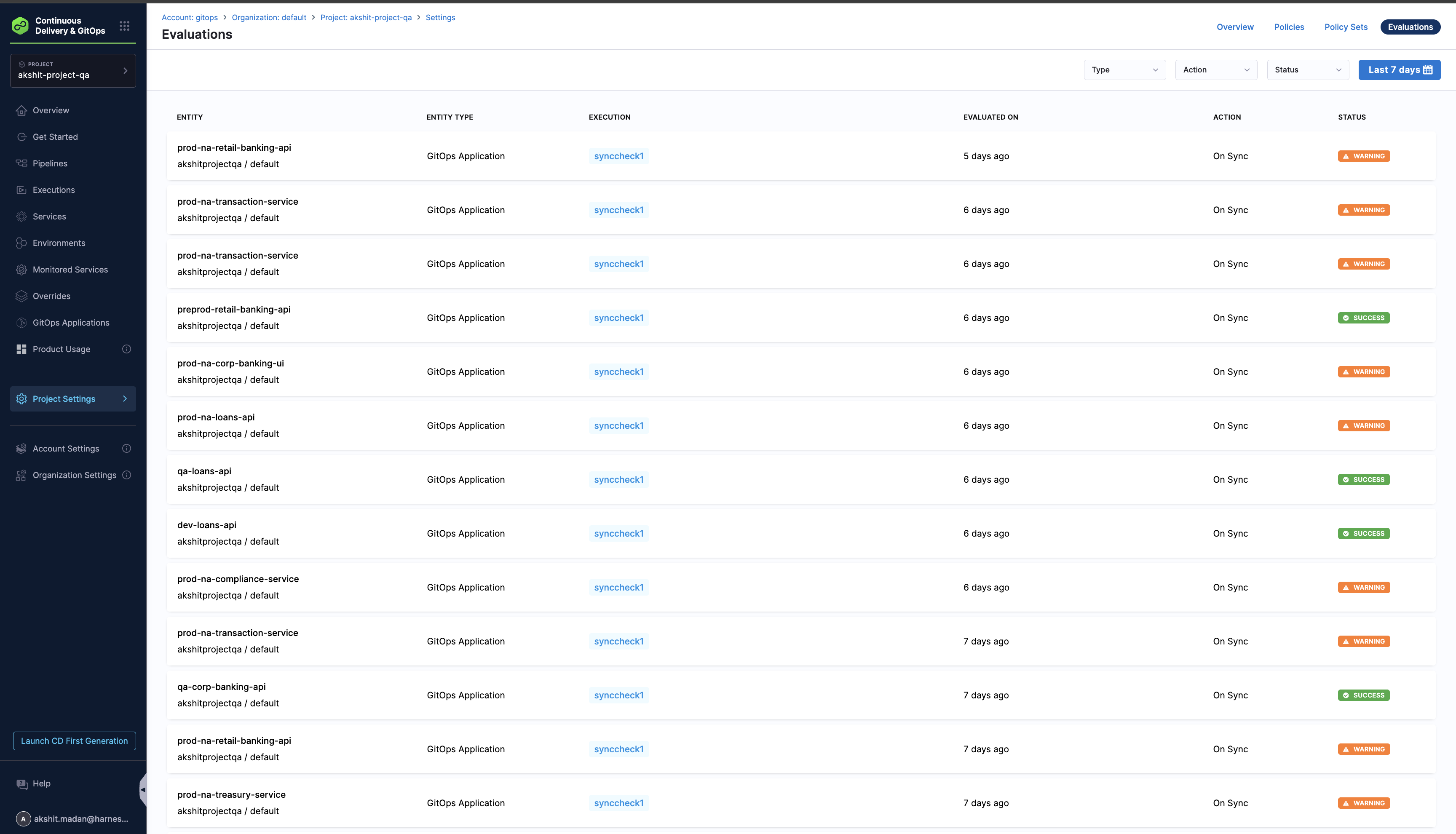
This view allows you to audit policy evaluations over time and identify patterns in policy violations across all your GitOps Applications.
View Evaluation Results During Sync
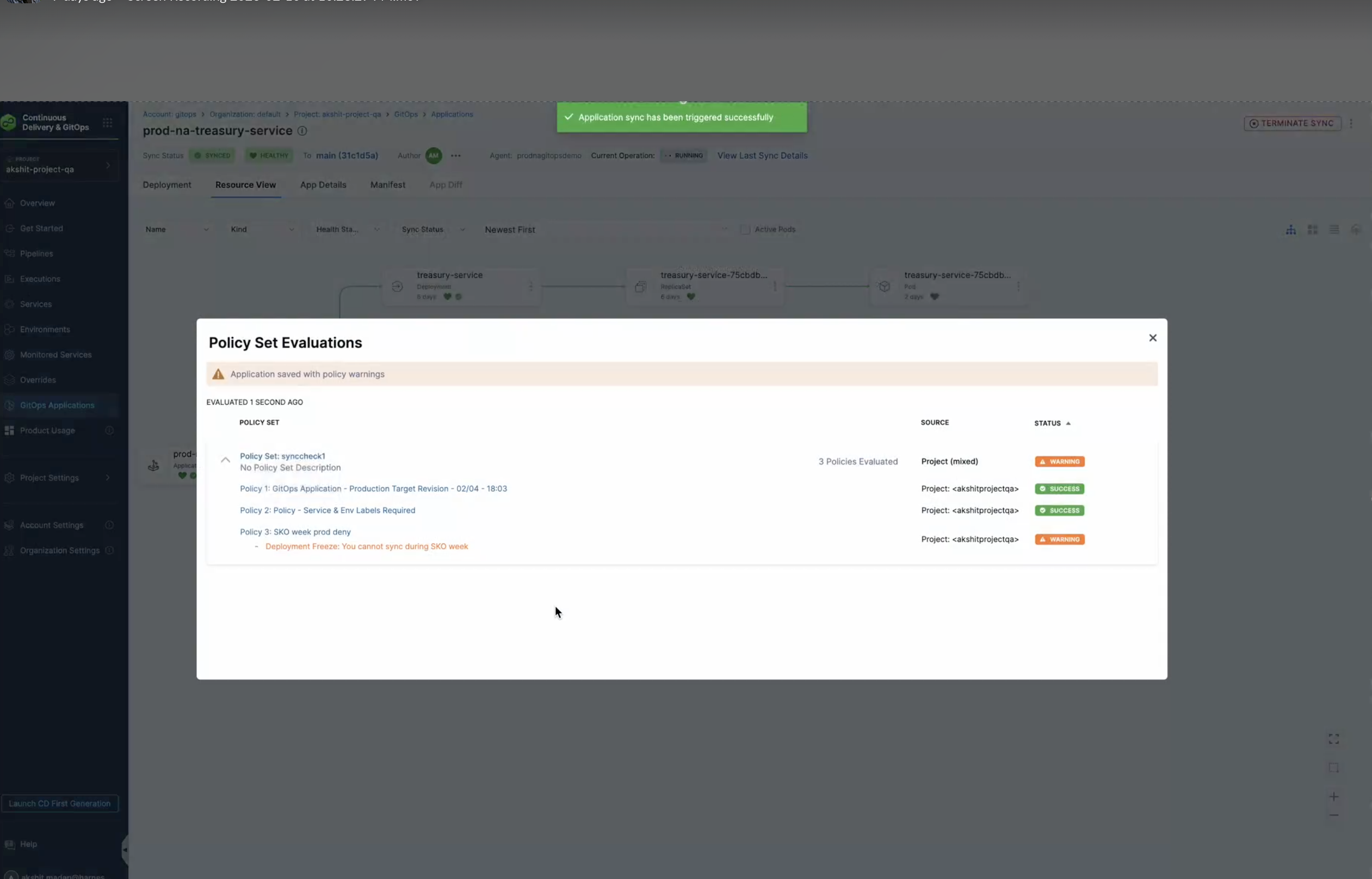
When you sync a GitOps Application, the Policy Set Evaluations modal appears automatically if policies are evaluated. This modal shows:
- Evaluation timestamp: When the policies were evaluated
- Policy Set information: The name and scope of the Policy Set
- Overall status: The combined status of all policies (SUCCESS, WARNING, or FAILED)
- Individual policy results: Each policy's status with specific messages
The modal displays a warning banner if any policies generate warnings, and shows detailed results for each policy in the Policy Set. Policies with SUCCESS status are marked with a green checkmark, while policies with WARNING or FAILED status show the specific error message from the policy evaluation.
This allows you to see immediately which policies passed or failed during the sync operation, helping you understand why a sync might have been blocked or why warnings were generated.
Best Practices
- Use descriptive policy names: Name your policies clearly to indicate their purpose (for example, "GitOps Application - Production Deployment Freeze")
- Test policies thoroughly: Use the Testing Terminal to verify policies work as expected before applying them
- Document policy logic: Add comments in your Rego code to explain complex logic
- Start with warnings: Initially set policies to "Warn and Continue" to monitor behavior before enforcing with "Error and Exit"
- Update time windows regularly: If using time-based policies, ensure maintenance windows and time restrictions are kept up to date
- Review evaluation results: Regularly review policy evaluation results to ensure policies are working as intended and to identify areas for improvement
Next Steps
You've learned how to create and apply OPA policies for GitOps Applications. You can now enforce governance rules and compliance requirements for your GitOps workflows.