GitOps Services
This topic walks you through creating and configuring a Harness GitOps service, section by section, so you understand every field you see in the UI and why it matters.
What is a GitOps Service?
A GitOps service in Harness is not the same as a traditional CD service. In traditional CD, a service defines the artifact and manifests that Harness deploys directly to your cluster. In GitOps, an ArgoCD agent handles the actual deployment by syncing your cluster to the desired state in Git.
A Harness GitOps service is a tracking and templating entity. It does three things:
- Points to your Git config: It stores references to the files in Git that PR pipelines need to read and update - typically Kubernetes manifests, Kustomize overlays, or Helm values files, depending on how your ArgoCD applications are configured.
- Carries variables: It defines variables (like
imageTag) that get written into those Git config files when a PR pipeline runs. - Maps to your applications: Together with an environment and cluster, it resolves which ArgoCD applications are affected by a pipeline run.
How it fits into the deployment flow
A GitOps service on its own does nothing. It comes to life when used in a PR pipeline or GitOps sync pipeline.
Your ArgoCD Application already has a source - a Git repo, branch, and path containing your Kubernetes manifests, Kustomize overlays, or Helm values. The Harness GitOps service points to that same source. When a PR pipeline runs, Harness uses the service's manifest reference and variables to update a file in that repo, creates a pull request, and merges it. ArgoCD then detects the change and syncs your cluster.
In short: the service tells Harness what to change in Git, and ArgoCD takes care of applying that change to the cluster.
For a detailed comparison, see GitOps Services vs CD Services.
Prerequisites
Before creating a GitOps service, make sure you have the following in place:
- Harness GitOps Agent: An agent installed and connected to your Kubernetes cluster. See Install a Harness GitOps Agent.
- Harness Git Connector (for PR pipelines): A connector configured in Harness that points to the same Git repository your ArgoCD Application uses as its source. This is only needed if you plan to use the Update Release Repo step in a PR pipeline to modify files in Git.
How much you need to configure inside the service depends on your use case:
- Syncing an independent application: If you only need to sync an existing ArgoCD Application (using the GitOps Sync or Update GitOps App steps), the service itself doesn't need any manifests or Git details - just link the application to the service and use it in a pipeline.
- Updating config via a PR pipeline: If you want a PR pipeline to modify files in Git (using the Update Release Repo step), you need to configure a Release Repo Manifest in the service that points to the file to update.
- Working with ApplicationSets: If your applications are generated by an ApplicationSet, you also need to configure a Deployment Repo Manifest or App Set Reference so Harness can discover the linked applications.
Create a GitOps Service
This section walks through every part of the service configuration screen. The screenshot below shows what you see after creating a new service with GitOps enabled:
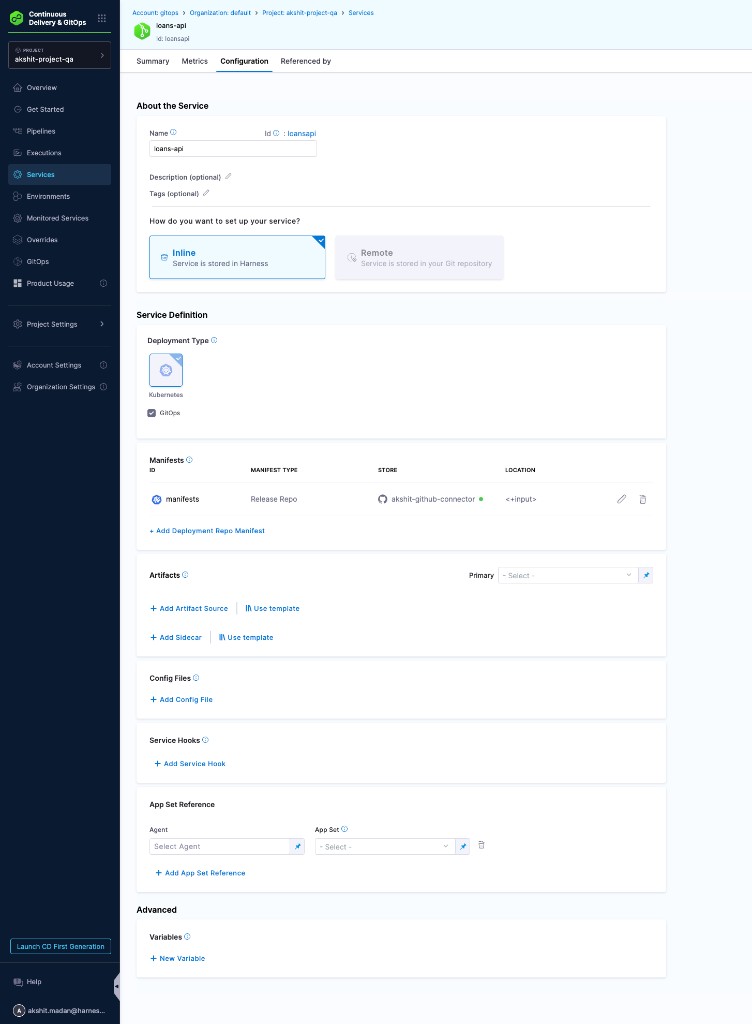
Step 1: Create and name the service
- Go to Deployments > Services in your Harness project.
- Click + New Service.
- Fill in the About the Service fields:
- Name: A human-readable name for your service (for example,
icans-api). - ID: Auto-generated from the name. You can edit it before saving, but it cannot be changed later.
- Description (optional): A short description of what this service represents.
- Tags (optional): Key-value tags for filtering and organization.
- Name: A human-readable name for your service (for example,
- Click Save.
Step 2: Choose service storage
After saving, you see two options for how the service configuration is stored:
- Inline: The service definition is stored in Harness. This is the default and simplest option.
- Remote: The service definition is stored in your Git repository. Use this if you want to version-control your service configuration alongside your application code.
Step 3: Configure the Service Definition
The Service Definition panel contains everything that makes this service work with GitOps. Each section is explained below.
Deployment Type
Select Kubernetes and check the GitOps checkbox.
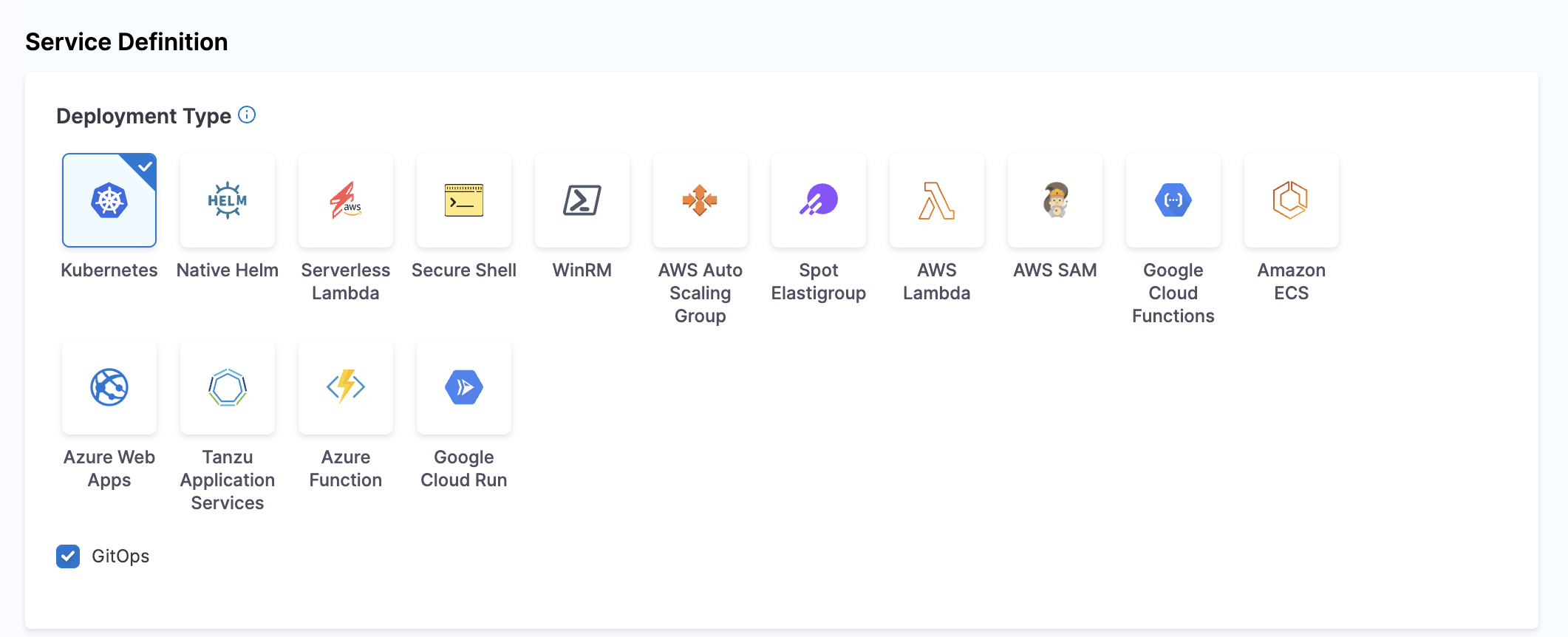
Enabling GitOps changes what the rest of the service definition expects. Instead of traditional Kubernetes manifests and artifact sources that Harness deploys directly, you configure manifest pointers that tell PR pipelines where your config lives in Git.
Manifests
This is the most important section for GitOps services. Manifests tell Harness where your configuration files live in Git.
| Manifest Type | What it points to | What pipeline step uses it | Required? |
|---|---|---|---|
| Release Repo Manifest | The config file that the PR pipeline should update (Kubernetes manifest, kustomization.yaml, or values.yaml) | Update Release Repo step | Yes - this is the primary manifest for GitOps services |
| Deployment Repo Manifest | ApplicationSet template YAML in Git | Fetch Linked Apps step | No - only needed if you use the ApplicationSet (App of Apps) pattern |
For most GitOps workflows, you only need a Release Repo Manifest. This points to the per-environment config file that your PR pipeline updates. See Release Repo Manifest below for step-by-step instructions and examples.
If your ArgoCD applications are independent (not generated by an ApplicationSet) and you only need to sync or update them without modifying files in Git, the Manifests section is optional. You can link applications to the service using labels and use pipeline steps like GitOps Sync or Update GitOps App directly, without configuring any manifests.
The Deployment Repo Manifest is only relevant if you use ApplicationSets to generate multiple ArgoCD applications from a single template. If your applications are independent, you do not need a Deployment Repo Manifest - link your applications to services using labels instead (see Linking Applications to a Service).
Artifacts
The Artifacts section lets you specify container images or other artifacts. In a GitOps service, artifacts are optional. The ArgoCD agent pulls images based on the manifests in your Git repository, not from Harness artifact configuration.
However, you can still configure an artifact source if you want to:
- Use the artifact tag as a service variable (for example, to write the image tag into your config file via a PR pipeline).
- Track which artifact version is associated with a deployment for auditing purposes.
If you don't need either of these, you can leave this section empty.
Config Files
Config Files let you attach plain-text or encrypted files to your service. In a GitOps context, this is rarely used because your configuration typically lives in your Git repository (as files referenced by the Release Repo Manifest).
Use Config Files only if you need to store additional configuration that isn't part of your Git-based workflow. See Service Config Files for details.
Service Hooks
Service Hooks let you run scripts before or after specific service events. In a GitOps service, this section is typically left empty. If you need to run custom logic during your deployment, add it as a pipeline step in your PR pipeline instead.
App Set Reference (ApplicationSet workflows only)
If you use ApplicationSets to generate multiple ArgoCD applications, App Set Reference lets you directly reference an existing ApplicationSet managed by a GitOps agent. This is an alternative to manually adding a manifest in the Deployment Repo Manifest field.
If you use standard ArgoCD Application YAML (not ApplicationSets), skip this section.
To configure:
- Select the Agent that manages the ApplicationSet.
- Select the App Set from the dropdown.
- Click + Add App Set Reference if you need to reference multiple ApplicationSets.
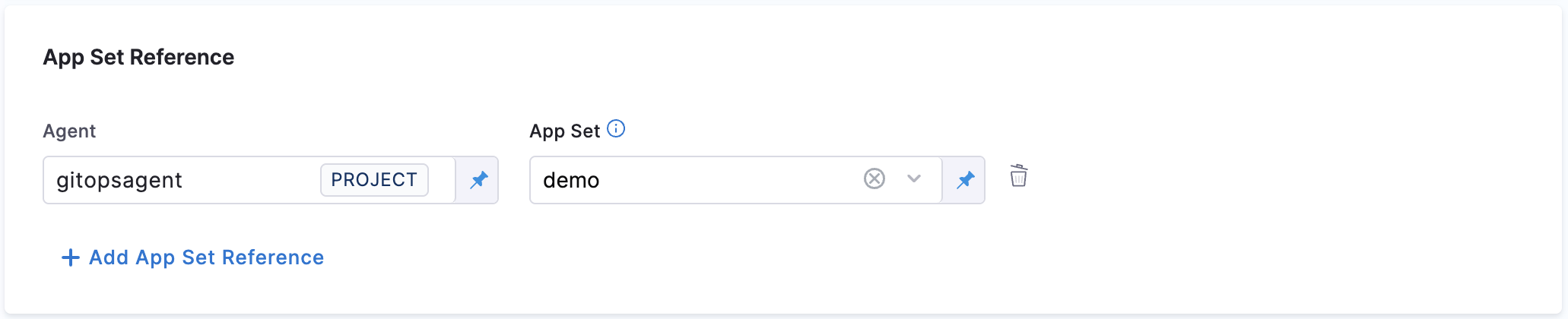
This feature is behind the feature flag GITOPS_APPLICATIONSET_FIRST_CLASS_SUPPORT. Contact Harness Support to enable it.
Variables (under Advanced)
Scroll to the Advanced section to find Variables. These are key-value pairs that flow into your Git config files when a PR pipeline runs. See Service Variables for a full explanation and examples.
Step 4: Save
Click Save to complete the service configuration. Your service is now ready to be used in a PR pipeline.
Manifest Types in Detail
Release Repo Manifest
A Release Repo manifest points to a file in your Git repository that the Update Release Repo step should modify during a PR pipeline run. The step reads the file, updates the specified key-value pairs, commits the change, and creates a pull request. After the PR is merged, ArgoCD detects the change and syncs your cluster.
The file you point to depends on how your ArgoCD Application's source is configured:
| ArgoCD Application source type | Release Repo points to | Example path |
|---|---|---|
| Kubernetes manifests | The manifest YAML file per environment | manifests/dev/deployment.yaml |
| Kustomize | kustomization.yaml per environment | overlays/dev/kustomization.yaml |
| Helm | values.yaml per environment | environments/dev/values.yaml |
The Git connector, repository, and branch you configure in the Release Repo Manifest should point to the same repository that your ArgoCD Application uses as its source. The file path should resolve to a file within that source path. This is how the PR pipeline knows which file to update so that ArgoCD picks up the change on its next sync.
To add a Release Repo Manifest:
- In the Manifests section, click + Add Release Repo Manifest.
- In Release Repo Store, select the Harness Git connector that points to the same repository your ArgoCD Application uses as its source.
- Configure the manifest details:
-
Manifest Name: A name for this manifest (for example,
release-config). -
Git Fetch Type: Select Latest from Branch.
-
Branch: The same branch your ArgoCD Application tracks (for example,
main). -
File Path: The path to the file the pipeline should update. Use the
<+env.name>expression to make the path resolve dynamically per environment.For Kubernetes manifests:
manifests/<+env.name>/deployment.yamlFor Kustomize:
overlays/<+env.name>/kustomization.yamlFor Helm:
environments/<+env.name>/values.yamlWhen you run the pipeline and select the
devenvironment, Harness resolves<+env.name>todev.
-
Example: Kubernetes manifest
This pattern is used when your ArgoCD Application source points to a directory of plain Kubernetes YAML manifests. Each environment has its own directory.
Directory structure:
my-service/
  └── manifests/
      ├── dev/
      │   └── deployment.yaml
      └── prod/
          └── deployment.yaml
Sample manifests/dev/deployment.yaml:
apiVersion: apps/v1
kind: Deployment
metadata:
  name: my-service
spec:
  replicas: 3
  template:
    spec:
      containers:
        - name: my-service
          image: ghcr.io/your-org/my-service:v2.3.0
          env:
            - name: ENVIRONMENT
              value: "dev"
When a PR pipeline runs with service variable spec.template.spec.containers[0].image: ghcr.io/your-org/my-service:v2.4.1, the Update Release Repo step updates the image value in this file. After the PR is merged, ArgoCD syncs the updated manifest to your cluster.
Example: kustomization.yaml (Kustomize overlay)
This pattern is used when your ArgoCD application sources are Kustomize overlays. Each environment has its own overlay directory with a kustomization.yaml that the PR pipeline updates.
Directory structure:
my-service/
  ├── base/
  │   ├── deployment.yaml
  │   ├── service.yaml
  │   └── kustomization.yaml
  └── overlays/
      ├── dev/
      │   └── kustomization.yaml
      └── prod/
          └── kustomization.yaml
Sample overlays/dev/kustomization.yaml:
apiVersion: kustomize.config.k8s.io/v1beta1
kind: Kustomization
namespace: my-service
bases:
  - ../../base
replicas:
  - name: my-service
    count: 3
patches:
  - target:
      kind: Deployment
      name: my-service
    patch: |-
      - op: add
        path: /spec/template/spec/containers/0/env
        value:
          - name: ENVIRONMENT
            value: "dev"
  - target:
      kind: ConfigMap
      name: my-service-config
    patch: |-
      - op: add
        path: /data/ENVIRONMENT
        value: "dev"
When a PR pipeline runs, the Update Release Repo step can update values in this YAML file using dot-notation variables. For example, a variable replicas[0].count: 5 updates the replica count, or patches[0].patch can update the environment value. After the PR is merged, ArgoCD applies the Kustomize overlay and syncs your cluster.
Example: values.yaml (Helm)
This pattern is used when your ArgoCD application source is a Helm chart with per-environment values files.
Directory structure:
my-service/
  ├── charts/
  │   └── my-service/
  │       ├── Chart.yaml
  │       └── templates/
  └── environments/
      ├── dev/
      │   └── values.yaml
      └── prod/
          └── values.yaml
Sample environments/dev/values.yaml:
image:
  repository: ghcr.io/your-org/my-service
  tag: v2.3.0
replicas: 3
environment: dev
When a PR pipeline runs with service variable image.tag: v2.4.1, the Update Release Repo step updates the nested image.tag value in the YAML file. After the PR is merged, ArgoCD re-renders the Helm chart with the new values and syncs your cluster.
You can scope config files per cluster as well as per environment by adding <+cluster.name> to the path:
overlays/<+env.name>/<+cluster.name>/kustomization.yaml
Your Git directories would look like:
overlays/dev/cluster1/kustomization.yaml
overlays/dev/cluster2/kustomization.yaml
This allows you to update only applications deployed in specific clusters.
Deployment Repo Manifest (ApplicationSet workflows only)
The Deployment Repo Manifest is only needed if you use the ApplicationSet (App of Apps) pattern to generate multiple ArgoCD applications from a single template. If you have standard ArgoCD Application YAML, you do not need this manifest - link your applications to services using labels instead.
A Deployment Repo manifest points to your ApplicationSet template YAML in Git. The Fetch Linked Apps pipeline step reads this template to discover which ArgoCD applications are generated from it and linked to your service.
To add a Deployment Repo Manifest:
- In the Manifests section, click + Add Deployment Repo Manifest.
- Select your Harness Git connector.
- Configure the manifest details:
- Manifest Name: A name for this manifest (for example,
appset-template). - Git Fetch Type: Select Latest from Branch.
- Branch: Your main branch name (for example,
main). - File Path: The path to your ApplicationSet YAML (for example,
applicationsets/my-service.yaml).
- Manifest Name: A name for this manifest (for example,
For a full ApplicationSet example, see the ApplicationSet tutorial.
Once your manifests are configured, learn how they are used in a PR pipeline. See GitOps PR Pipelines.
Service Variables
Service variables are key-value pairs defined on your service that flow into your Git config files at pipeline runtime. You configure them under Advanced > Variables in the service configuration screen.
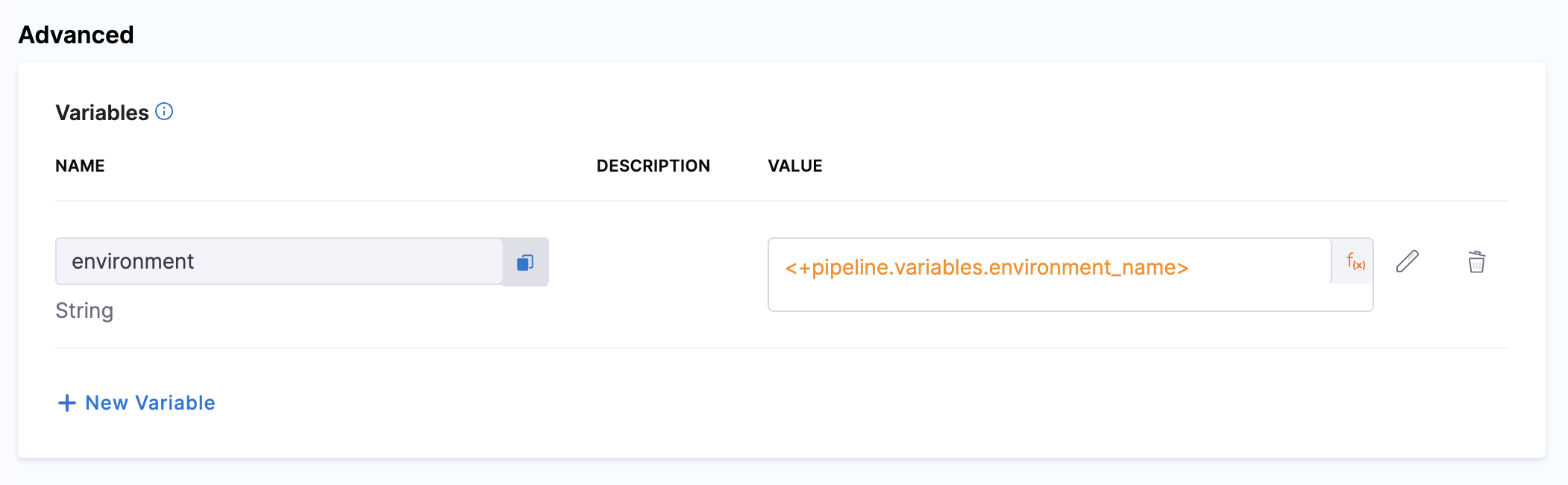
How variables flow from service to cluster
- You define a variable on the service (for example,
image.tag: latest). - A PR pipeline runs. The Update Release Repo step reads the variable value and writes it into the matching key in your config file (for example,
values.yamlorkustomization.yaml) in Git, then creates a pull request. - The Merge PR step runs. It takes the PR generated by the Update Release Repo step and merges it. Once merged, the manifests in Git are updated to the new version.
- The cluster syncs. You can trigger a sync using a subsequent Application Sync step in the same pipeline (recommended), or by configuring Auto Sync on the specific ArgoCD Applications.
Variable precedence
Variables can be overridden at multiple levels. The most specific override wins:
| Priority | Level | Where you set it |
|---|---|---|
| 1 (highest) | Pipeline step variables | In the Update Release Repo step configuration |
| 2 | Infrastructure / cluster-level overrides | In the environment's infrastructure definition |
| 3 | Environment-level overrides | In the environment configuration |
| 4 (lowest) | Service-level variables | In the service configuration (Advanced > Variables) |
Example: image.tag variable from service to cluster
1. Define the variable on the service:
| Variable | Value |
|---|---|
image.tag | latest |
2. Override it at the environment level (for prod):
| Variable | Value |
|---|---|
image.tag | v2.4.1 |
3. values.yaml in Git before the pipeline runs:
image:
  repository: ghcr.io/your-org/my-service
  tag: v2.3.0
replicas: 3
4. values.yaml in Git after the Update Release Repo step:
image:
  repository: ghcr.io/your-org/my-service
  tag: v2.4.1
replicas: 3
The environment override (v2.4.1) takes precedence over the service default (latest). The Update Release Repo step writes it into the config file via a pull request. After the PR is merged, ArgoCD syncs the cluster to the new image tag.
Runtime inputs
You can set a variable value to <+input> to make it a runtime input. When someone runs the pipeline, they are prompted to enter the value. This is useful for values that change with every release, like a new image tag.
Linking Applications to a Service
You can associate a Harness service with your GitOps applications at multiple points - when creating the application or after it already exists.
When creating an application
Via the Harness UI (recommended): When creating an application in Deployments > GitOps > Applications, select the service and environment in the application configuration form. The application is automatically linked to the service.
Via Application labels: Add the harness.io/serviceRef and harness.io/envRef labels to the Application resource metadata. When the agent syncs the application, Harness automatically maps it to the matching service and environment.
metadata:
  name: my-service-dev
  labels:
    harness.io/serviceRef: my-service
    harness.io/envRef: dev
These labels can be set through the Harness UI, the ArgoCD UI, or kubectl. The label values must match the Harness service ID and environment ID.
Via ApplicationSet YAML (App of Apps pattern only): If you use ApplicationSets, add the harness.io/* labels in the template metadata so every generated application is automatically mapped. See the ApplicationSet tutorial for details.
After an application already exists
If an application was created without service labels (for example, imported from an existing Argo CD setup), you can link it to a service after the fact:
- Open the application: Go to Deployments > GitOps > Applications and select the application.
- Map to a service: In the App Details tab, choose to create a new service or map to an existing one.
- Apply: Complete the mapping and click Apply Changes.
GitOps Service Dashboard
The Service Dashboard gives you two levels of visibility: a services list showing all services in your project, and an individual service detail page showing deployment history and application status for a single service.
Service instances only appear on the dashboard after a PR pipeline has been executed with that specific service and environment. A newly created service with no pipeline runs shows zero instances.
Services list
Navigate to Deployments > Services to see all services in your project. The list includes both traditional CD and GitOps services.
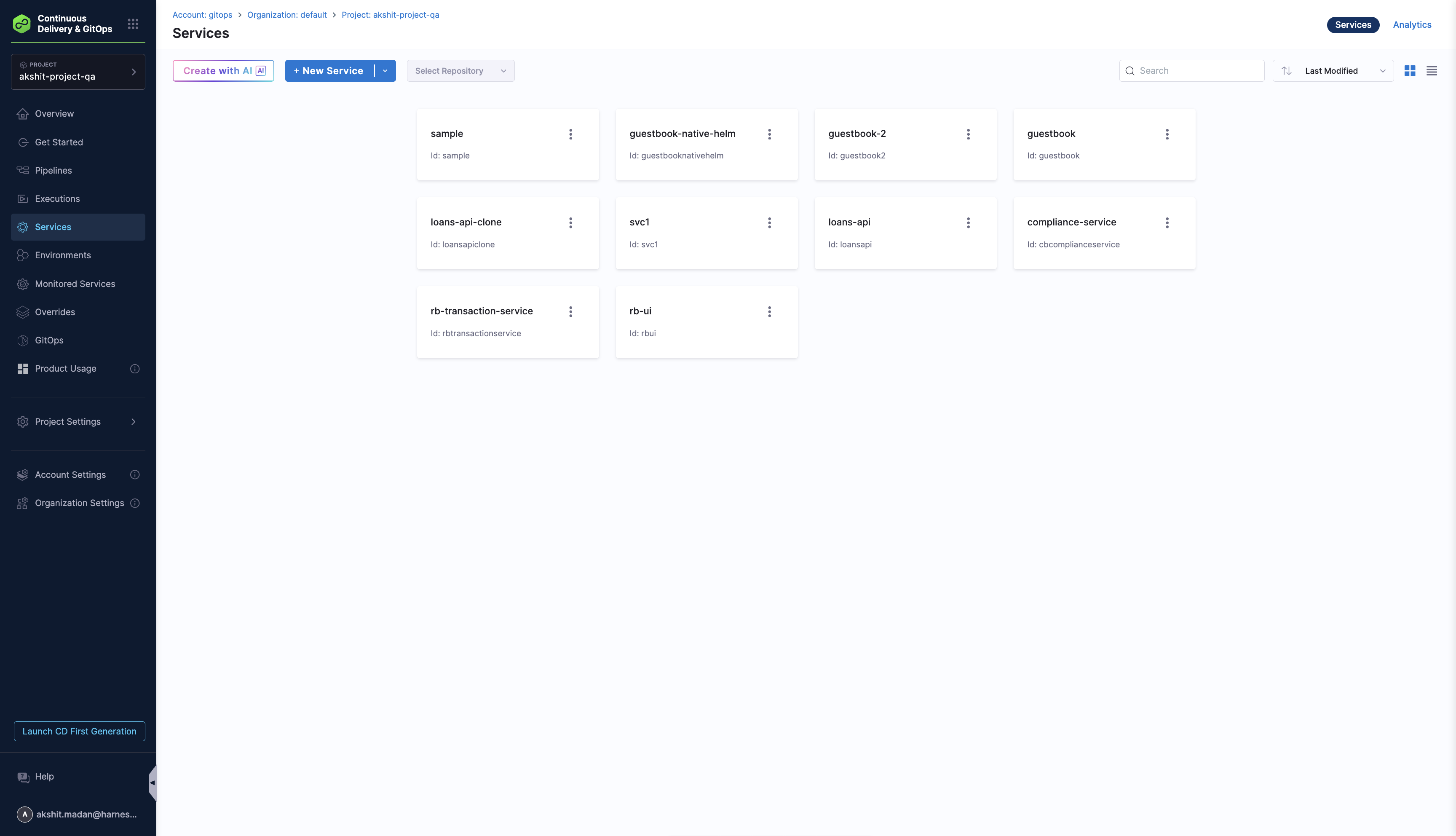
Summary metrics at the top of the page:
| Metric | Description |
|---|---|
| Total Services | Total number of services in your project |
| Service Instances | Number of active service instances across all services |
| Deployments | Total deployments in the selected time period |
| Failure Rate | Percentage of failed deployments |
| Frequency | Average number of deployments per day |
You can filter by time range (last 7 days, 30 days, or custom).
Click a service name to open its detail page.
Individual service detail
When you click into a service, you land on the Summary tab. This page shows the full deployment history and application status for that service.
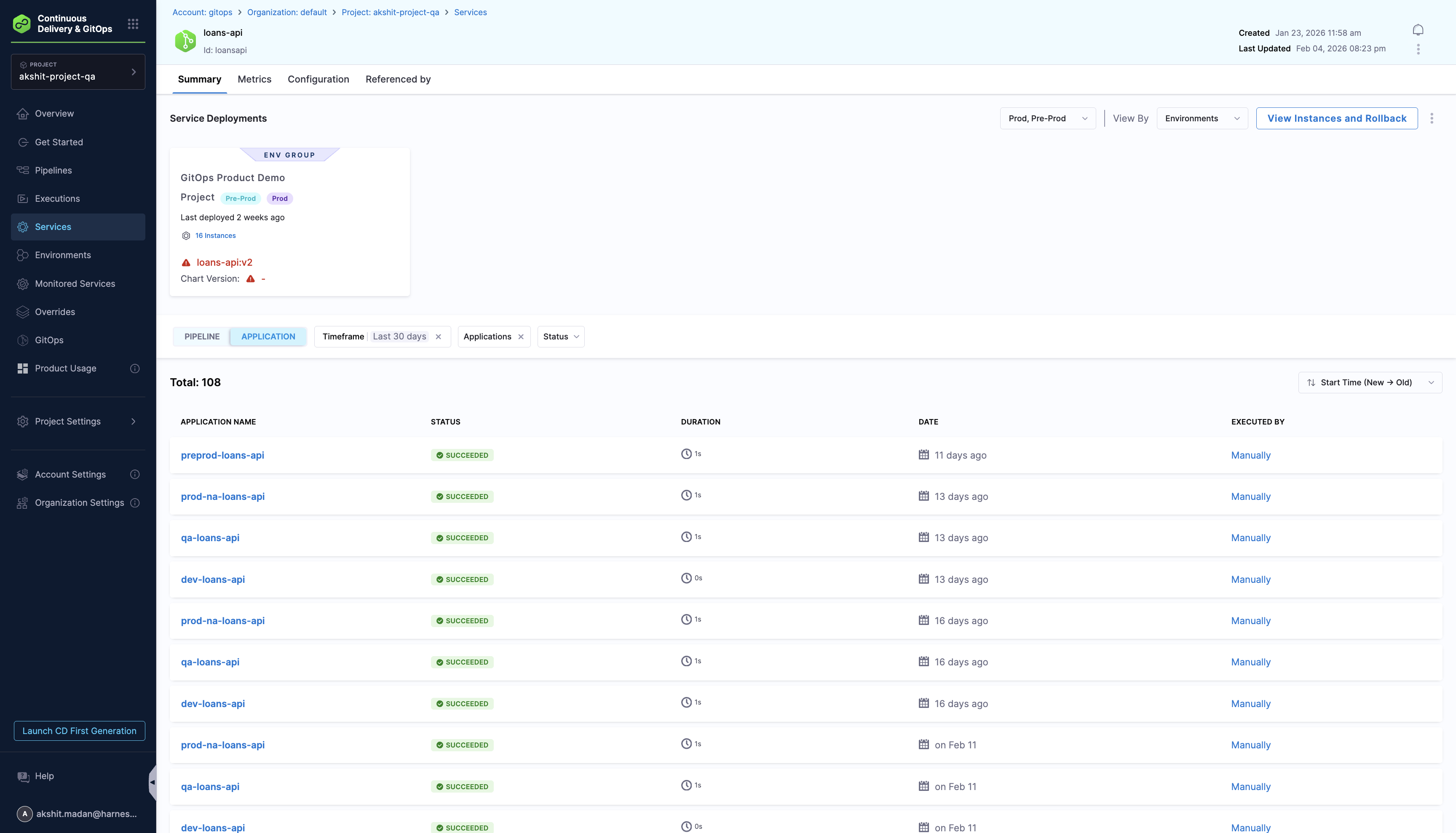
The service detail page has four tabs:
| Tab | What it shows |
|---|---|
| Summary | Deployment history, environment groups, linked applications, and instance counts |
| Metrics | Deployment frequency, success rate, and trends over time |
| Configuration | The service definition you configured (deployment type, manifests, variables, etc.) |
| Referenced by | Pipelines and other entities that reference this service |
Summary tab
The Summary tab is divided into two parts:
Environment and instance overview (top):
- Environment groups and environments where this service is deployed, shown as cards.
- Each card displays the environment name, environment type badges (Prod / Pre-Prod), last deployment time, instance count, and the current artifact version (for example,
loans-api:v2). - View Instances and Rollback button opens a detailed view of all active instances with the option to trigger a rollback.
- Use the View By dropdown to group by Environments or other dimensions, and filter by Prod, Pre-Prod, or both.
Deployment history (bottom):
- Toggle between Pipeline and Application views:
- Pipeline view: Shows PR pipeline executions that targeted this service.
- Application view: Shows individual ArgoCD application syncs associated with this service.
- Filter by Timeframe, Applications, and Status.
Click any row to view the full execution or sync details.
Using GitOps Services with PR Pipelines
GitOps services are the foundation for PR pipelines. A PR pipeline reads the manifest references and variables from your service, uses them to update configuration files in Git via pull requests, and then syncs the changes to your clusters through ArgoCD.
To learn how each pipeline step uses your service configuration, see GitOps PR Pipelines.