> For the complete documentation index, see [llms.txt](https://developer.harness.io/llms.txt). Markdown versions of documentation pages are available by appending `.md` to page URLs; this page is available as [Markdown](https://developer.harness.io/continuous-integration/use-harness-ci/use-harness-ci/run-step-settings.md).

# Use CI Run steps

This topic describes settings for the CI Run step.

You can use a **Run** step to run commands or scripts in a CI pipeline. Here are some examples of different ways you can use **Run** steps.

{% tabs %}
{% tab title="Run tests" %}
This example runs `pytest`, includes [code coverage](broken://pages/Betsy2HRrmXeJm1QsuAo), and produces a report in JUnit XML format.

```yaml
    - step:
        type: Run
        name: Run pytest
        identifier: Run_pytest
        spec:
          connectorRef: YOUR_IMAGE_REGISTRY_CONNECTOR
          image: python:latest
          shell: Sh
          command: |-
            echo "Welcome to Harness CI"
            uname -a
            pip install pytest
            pip install pytest-cov
            pip install -r requirements.txt

            pytest -v --cov --junitxml="result.xml" test_api.py test_api_2.py test_api_3.py

            echo "Done"
          reports:
            type: JUnit
            spec:
              paths:
                - "**/*.xml"
```

{% hint style="info" %}
In Harness CI, you can [use test splitting (parallelism)](/continuous-integration/use-harness-ci/use-harness-ci/run-tests/speed-up-ci-test-pipelines-using-parallelism.md) to improve test times for any language or test tool.
{% endhint %}
{% endtab %}

{% tab title="Install dependencies" %}
This example installs Go dependencies.

```yaml
    - step:
        type: Run
        identifier: dependencies
        name: Dependencies
        spec:
          shell: Sh
          command: |-
            go get example.com/my-go-module
```

{% endtab %}

{% tab title="Specify versions" %}
This example uses a **Run** step to select a version of Xcode.

```yaml
    - step:
        type: Run
        name: set_xcode_version
        identifier: set_xcode_version
        spec:
          shell: Sh
          command: |-
            sudo xcode-select -switch /Applications/Xcode_15.1.0.app
            xcodebuild -version
```

{% endtab %}

{% tab title="Clone a repo" %}
This example clones a GitHub repository.

```yaml
    - step:
        type: Run
        identifier: clone
        name: clone
        spec:
          shell: Sh
          command: |-
            git clone https://GH_PERSONAL_ACCESS_TOKEN@github.com/ACCOUNT_NAME/REPO_NAME.git
```

To use this command, you would replace:

* `ACCOUNT_NAME` with your GitHub account name.
* `REPO_NAME` with the name of the GitHub repo to clone.
* `PERSONAL_ACCESS_TOKEN` with a [GitHub personal access token](https://docs.github.com/en/authentication/keeping-your-account-and-data-secure/creating-a-personal-access-token) that has pull permissions to the target repository. Additional permissions may be necessary depending on the Action's purpose. Store the token as a [Harness secret](/harness-ai/use-harness-platform/secrets.md) and use a variable expression, such as `<+secrets.getValue("YOUR_TOKEN_SECRET")>`, to call it.
  {% endtab %}

{% tab title="Run scripts" %}
**Run** steps are highly versatile, and you can use them to run all manner of individual commands or multi-line scripts.

For example, this step produces [output variables](#output-variables) from Terraform value. This step is from the [Terraform notifications trigger tutorial](/harness-ai/use-harness-platform/triggers/tutorial-terraform-cloud-notification-trigger.md), and these output variables are used by another step later in the same pipeline.

```yaml
    - step:
        type: Run
        name: Terraform Outputs
        identifier: tf_outputs
        spec:
          connectorRef: YOUR_IMAGE_REGISTRY_CONNECTOR
          image: kameshsampath/kube-dev-tools
          shell: Sh
          command: |-
            cd /harness/vanilla-gke/infra
            terraform init
            GCP_PROJECT=$(terraform output -raw project-name)
            GCP_ZONE=$(terraform output -raw zone)
            GKE_CLUSTER_NAME=$(terraform output -raw kubernetes-cluster-name)
          envVariables:
            TF_TOKEN_app_terraform_io: <+secrets.getValue("terraform_cloud_api_token")>
            TF_WORKSPACE: <+trigger.payload.workspace_name>
            TF_CLOUD_ORGANIZATION: <+trigger.payload.organization_name>
          outputVariables:
            - name: GCP_PROJECT
            - name: GCP_ZONE
            - name: GKE_CLUSTER_NAME
          imagePullPolicy: Always
        description: Get the outputs of terraform provision
```

{% hint style="info" %}
Consider [creating plugins](/continuous-integration/use-harness-ci/use-harness-ci/use-drone-plugins/custom_plugins.md) for scripts that you reuse often.
{% endhint %}
{% endtab %}

{% tab title="Connect with SSH" %}
This example demonstrates how to set up SSH authentication in a **Run** step, such as when connecting to a private Git server or remote machine.

The SSH private key must be stored in Harness as a **File-type Secret** to be used securely in the pipeline.

```yaml
    - step:
        type: Run
        name: SSH setup and build
        identifier: SSH_Build
        spec:
          shell: Sh
          command: |-
            mkdir -p ~/.ssh
            echo '<+secrets.getValue("account.your-ssh-private-key")>' > ~/.ssh/id_rsa
            chmod 600 ~/.ssh/id_rsa
            export GIT_SSH_COMMAND="ssh -o StrictHostKeyChecking=no"
            git clone git@github.com:your-org/private-repo.git
            ./build.sh
```

{% hint style="info" %}

* Replace `account.your-ssh-private-key` with your actual secret reference.
* The `StrictHostKeyChecking=no` flag disables host verification. For production pipelines, consider managing known hosts instead.
* Ensure your build image has OpenSSH tools (ssh, git, etc.) installed.
  {% endhint %}
  {% endtab %}

{% tab title="Annotations" %}

```yaml
    - step:
        identifier: build_and_test
        type: Run
        name: Build and Test
        spec:
        connectorRef: my-k8s-connector
        image: harness/ci-addon:latest
        shell: Bash
        command: |-
            # Step 1: Create markdown content for our reports
            # A comprehensive build report
            cat > build-results.md << 'EOF'
            # 🚀 Build Pipeline Results
            ![Build Status](https://img.shields.io/badge/build-passing-brightgreen.svg)
            > **Note:** View full build logs [here](https://example.com).
            ## 🧪 Test Summary
            - **Total Tests:** 247
            - **Passed:** ✅ **245**
            - **Failed:** ❌ **2**
            - **Coverage:** **92.4%**
            EOF

            # Step 2: Publish the annotations using hcli

            # Publish the main build report with a WARNING style and high priority
            hcli annotate --context "build-validation" --style "warning" --summary-file "build-results.md" --priority 8

            # Step 3: Append additional notes to an existing context
            echo "Flaky tests have been quarantined." > extra-notes.md
            hcli annotate --context "build-validation" --summary-file "extra-notes.md" --mode "append"
```

{% hint style="info" %}
Go to [Pipeline Annotations](/harness-ai/use-harness-platform/pipelines/harness-annotations.md) to learn more about how you could summarize critical pipeline metrics.
{% endhint %}
{% endtab %}
{% endtabs %}

### Add the Run step <a href="#add-the-run-step" id="add-the-run-step"></a>

You need a [CI pipeline](/continuous-integration/use-harness-ci/use-harness-ci/prep-ci-pipeline-components.md) with a [Build stage](/continuous-integration/use-harness-ci/use-harness-ci/set-up-build-infrastructure/ci-stage-settings.md) where you'll add the **Run** step.

In order for the **Run** step to execute your commands, the build environment must have the necessary binaries for those commands. Depending on the stage's build infrastructure, **Run** steps can use binaries that exist in the build environment or pull an image, such as a public or private Docker image, that contains the required binaries. For more information about when and how to specify images, go to the [Container registry and image settings](#container-registry-and-image).

{% tabs %}
{% tab title="Visual" %}

1. Go to the **Build** stage in the pipeline where you want to add the **Run** step.
2. On the **Execution** tab, select **Add Step**, and select the **Run** step from the Step Library.
3. Configure the [Run step settings](#run-step-settings) and then select **Apply Changes** to save the step.
   {% endtab %}

{% tab title="YAML" %}
In Harness, go to the pipeline where you want to add the `Run` step. In the `CI` stage, add a `Run` step and configure the [Run step settings](#run-step-settings).

```yaml
    - step:
        type: Run
        name: run pytest # Specify a name for the step.
        identifier: run_pytest # Define a step ID, usually based on the name.
        spec:
          connectorRef: YOUR_IMAGE_REGISTRY_CONNECTOR 
          image: python:latest # Specify an image, if required.
          shell: Sh
          command: |- # Provide your commands
            pytest test_main.py --junit-xml=output-test.xml
```

{% endtab %}
{% endtabs %}

### Run step settings <a href="#run-step-settings" id="run-step-settings"></a>

The CI **Run** step has the following settings.

{% hint style="info" %}
Depending on the stage's build infrastructure, some settings might be unavailable or optional. Settings specific to containers, such as **Set Container Resources**, are not applicable when using the step in a stage with VM or Harness Cloud build infrastructure.
{% endhint %}

#### Metadata <a href="#metadata" id="metadata"></a>

* **Name:** Enter a name summarizing the step's purpose. Harness automatically assigns an [ID](/harness-ai/use-harness-platform/references/entity-identifier-reference.md) based on the **Name**.
* **Description:** Optional text string describing the step's purpose.

#### Container Registry and Image <a href="#container-registry-and-image" id="container-registry-and-image"></a>

**Container Registry** and **Image** ensure that the build environment has the binaries necessary to execute the commands that you want to run in this step. For example, a cURL script may require a cURL image, such as `curlimages/curl:7.73.0`.

<details>

<summary>When are Container Registry and Image required?</summary>

The stage's build infrastructure determines whether these fields are required or optional:

* [Kubernetes cluster build infrastructure](/continuous-integration/use-harness-ci/use-harness-ci/set-up-build-infrastructure/k8s-build-infrastructure/set-up-a-kubernetes-cluster-build-infrastructure.md): **Container Registry** and **Image** are always required.
* [Local runner build infrastructure](/continuous-integration/use-harness-ci/use-harness-ci/set-up-build-infrastructure/define-a-docker-build-infrastructure.md): **Run** steps can use binaries available on the host machine. The **Container Registry** and **Image** are required if the machine doesn't have the binary you need.
* [Self-managed AWS/GCP/Azure VM build infrastructure](/continuous-integration/use-harness-ci/use-harness-ci/set-up-build-infrastructure/vm-build-infrastructure.md): **Run** steps can use binaries that you've made available on your build VMs. The **Container Registry** and **Image** are required if the VM doesn't have the necessary binaries. These fields are located under **Optional Configuration** for stages that use self-managed VM build infrastructure.
* [Harness Cloud build infrastructure](/continuous-integration/use-harness-ci/use-harness-ci/set-up-build-infrastructure/use-harness-cloud-build-infrastructure.md): **Run** steps can use binaries available on Harness Cloud machines, as described in the [image specifications](/continuous-integration/use-harness-ci/use-harness-ci/set-up-build-infrastructure/use-harness-cloud-build-infrastructure.md#platforms-and-image-specifications). The **Container Registry** and **Image** are required if the machine doesn't have the binary you need. These fields are located under **Optional Configuration** for stages that use Harness Cloud build infrastructure.

</details>

**What are the expected values for Container Registry and Image**

For **Container Registry** settings, provide a Harness container registry connector, such as a [Docker connector](broken://spaces/3F2TpHXhur2QtQnORSM9/pages/LZPXMHJjbQyZXdwC5Omo), that connects to a container registry, such as Docker Hub, where the **Image** is located.

For **Image**, provide the FQN (fully-qualified name) or artifact name and tag of the Docker image to use when this step runs commands, for example `us-docker.pkg.dev/gar-prod-setup/harness-public/harness/cache:latest` or `maven:3.8-jdk-11`. If you don't include a tag, Harness uses the `latest` tag. Depending on the connector and feature flags set, **an FQN may be required**.

You can use any Docker image from any Docker registry, including Docker images from private registries. Different container registries require different name formats, for example:

* **Docker Registry:** Input the name of the artifact you want to deploy, such as `library/tomcat`. Wildcards aren't supported. FQN is required for images in private container registries.
* **ECR:** Input the FQN of the artifact you want to deploy. Images in repos must reference a path, for example: `40000005317.dkr.ecr.us-east-1.amazonaws.com/todolist:0.2`.
* **GAR:** Input the FQN of the artifact you want to deploy. Images in repos must reference a path starting with the project ID that the artifact is in, for example: `us-docker.pkg.dev/gar-prod-setup/harness-public/harness/cache:latest`.

  ![](https://4226796345-files.gitbook.io/~/files/v0/b/gitbook-x-prod.appspot.com/o/spaces%2FqKtVmwAGTfGQS1MVC97G%2Fuploads%2Fgit-blob-d85318ad66a11eb441aa3298dd35b0263632e296%2Frun-step-settings-03.png?alt=media)

  Configuring a Container Registry and Image settings.

{% hint style="info" %}
**REMOVE FQN REQUIREMENT**

Customers who want to utilize non-FQN references for non public Docker-registry connectors will need to contact Harness Support to add the feature flags, `CI_REMOVE_FQN_DEPENDENCY_FOR_PRIVATE_REGISTRY_CONNECTOR_DOCKER` and `CI_REMOVE_FQN_DEPENDENCY`.
{% endhint %}

**Pulling images from JFrog Artifactory Docker registries**

If you need to pull images from a JFrog Artifactory Docker registry, create a Docker connector that connects to your JFrog instance. **Don't use the Harness Artifactory connector** - The Artifactory connector only supports JFrog non-Docker registries.

To create a Docker connector for a JFrog Docker registry:

1. Go to **Connectors** in your Harness project, organization, or account resources, and select **New Connector**.
2. Select **Docker Registry** under **Artifact Repositories**.
3. Enter a **Name** for the connector. The **Description** and **Tags** are optional.
4. For **Provider Type**, Select **Other**.
5. In **Docker Registry URL**, enter your JFrog URL, such as `https://mycompany.jfrog.io`.
6. In the **Authentication** settings, you must use **Username and Password** authentication.
   * **Username:** Enter your JFrog username.
   * **Password:** Select or create a [Harness text secret](/harness-ai/use-harness-platform/secrets/add-use-text-secrets.md) containing the password corresponding with the **Username**.
7. Complete any other settings and save the connector. For information all Docker Registry connector settings, go to the [Docker connector settings reference](broken://spaces/3F2TpHXhur2QtQnORSM9/pages/LZPXMHJjbQyZXdwC5Omo).

One completed, please remember to use the FQN location of the image unless you have set the [appropriate feature flags as listed above](#what-are-the-expected-values-for-container-registry-and-image)

{% hint style="info" %}
**JFROG URLS**

The JFrog URL format depends on your Artifactory configuration, and whether your Artifactory instance is local, virtual, remote, or behind a proxy. To get your JFrog URL, you can select your repo in your JFrog instance, select **Set Me Up**, and get the repository URL from the server name in the `docker-login` command. ![](https://4226796345-files.gitbook.io/~/files/v0/b/gitbook-x-prod.appspot.com/o/spaces%2FqKtVmwAGTfGQS1MVC97G%2Fuploads%2Fgit-blob-40ea99861b466b0e5c5011164f9c9d2922586a63%2Fartifactory-connector-settings-reference-09.png?alt=media)

For more information, go to the JFrog documentation on [Repository Management](https://www.jfrog.com/confluence/display/JFROG/Repository+Management) and [Configuring Docker Repositories](https://www.jfrog.com/confluence/display/RTF/Docker+Registry#DockerRegistry-ConfiguringDockerRepositories).
{% endhint %}

#### Shell and Command <a href="#shell-and-command" id="shell-and-command"></a>

Use these fields to define the commands that you need to run in this step.

For **Shell**, select the shell type. Options include: **Bash**, **PowerShell**, **Pwsh** (PowerShell Core), **Sh**, and **Python**. If the step includes commands that aren't supported for the selected shell type, the build fails. Required binaries must be available on the build infrastructure or through a specified [Container Registry and Image](#container-registry-and-image).

In the **Command** field, enter [POSIX](https://en.wikipedia.org/wiki/POSIX) shell script commands for this step. The script is invoked as if it were the entry point. If the step runs in a container, the commands are executed inside the container.

{% tabs %}
{% tab title="Bash" %}
For Bash, set the `shell` to `Bash` and enter your Bash script in `command`. For example, the following step runs a Bash script that checks the Java version:

```yaml
    - step:
        ...
        spec:
          shell: Bash
          command: |-
            JAVA_VER=$(java -version 2>&1 | head -1 | cut -d'"' -f2 | sed '/^1\./s///' | cut -d'.' -f1)
            if [[ $JAVA_VER == 17 ]]; then
              echo successfully installed $JAVA_VER
            else
              exit 1
            fi
```

{% endtab %}

{% tab title="PowerShell" %}
For PowerShell, set the `shell` to `Powershell` and enter your PowerShell script in `command`, for example:

```yaml
    - step:
        ...
        spec:
          shell: Powershell
          command: Wait-Event -SourceIdentifier "ProcessStarted"
```

{% hint style="info" %}
You can run PowerShell commands on Windows VMs running in AWS build farms.
{% endhint %}
{% endtab %}

{% tab title="Pwsh (PowerShell Core)" %}
You can run PowerShell Core commands in pods or containers that have `pwsh` installed. For PowerShell Core, set the `shell` to `Pwsh` and enter your PowerShell Core script in `command`. For example, this step runs `ForEach-Object` over a list of events.

```yaml
    - step:
        ...
        spec:
          shell: Pwsh
          command: |-
            $Events = Get-EventLog -LogName System -Newest 1000
            $events | ForEach-Object -Begin {Get-Date} -Process {Out-File -FilePath Events.txt -Append -InputObject $_.Message} -End {Get-Date}
```

{% endtab %}

{% tab title="Sh" %}
You can use the `Sh` option to run any shell script, provided the necessary binaries are available. For example, this step pulls the latest `python` image and then executes a shell script (`Sh`) that runs `pytest` with code coverage.

```yaml
    - step:
        ...
        spec:
          connectorRef: YOUR_IMAGE_REGISTRY_CONNECTOR
          image: python:latest
          shell: Sh
          command: |-
            echo "Welcome to Harness CI"
            uname -a
            pip install pytest
            pip install pytest-cov
            pip install -r requirements.txt

            pytest -v --cov --junitxml="result.xml" test_api.py test_api_2.py test_api_3.py
```

{% endtab %}

{% tab title="Python" %}
For Python, set the `shell` to `python` and enter your Python commands in `command`, for example:

```yaml
    steps:
      - step:
          ...
          spec:
            shell: Python
            command: |-
              print('Hello, world!')
```

{% endtab %}
{% endtabs %}

**Reference background services**

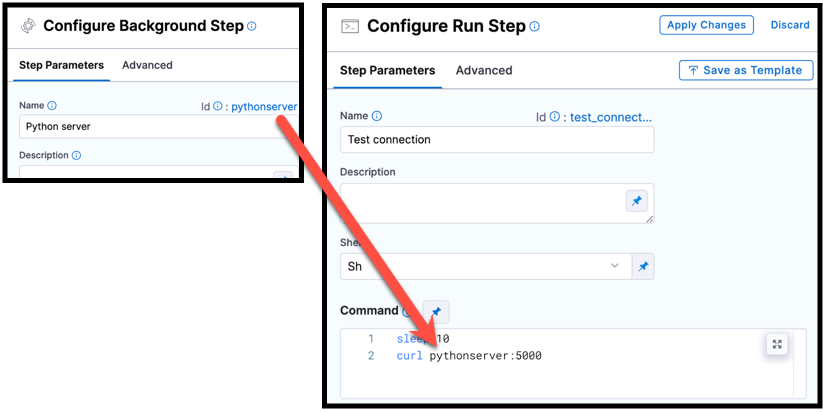
You can reference services started in [Background steps](/continuous-integration/use-harness-ci/use-harness-ci/manage-dependencies/background-step-settings.md) by using the Background step's **Id** in your Run step's **Command**. For example, a cURL command could call `BackgroundStepId:5000` where it might otherwise call `localhost:5000`. The exact format depends on your build infrastructure. For more information, go to [Background step settings - Name and ID](/continuous-integration/use-harness-ci/use-harness-ci/manage-dependencies/background-step-settings.md#name-and-id) and [Background step settings - Port Bindings](/continuous-integration/use-harness-ci/use-harness-ci/manage-dependencies/background-step-settings.md#port-bindings).

<figure><img src="https://4226796345-files.gitbook.io/~/files/v0/b/gitbook-x-prod.appspot.com/o/spaces%2FqKtVmwAGTfGQS1MVC97G%2Fuploads%2Fgit-blob-9346ca5fb56fbecc230c375383a12fef0f6c5a7d%2Fbackground-step-settings-call-id-in-other-step.png?alt=media" alt=""><figcaption><p>The Background step ID, <code>pythonscript</code>, is used in a cURL command in a Run step.</p></figcaption></figure>

If the Background step is inside a step group, you must include step group ID, such as `StepGroupId_BackgroundStepId:5000`, even if both steps are in the same step group.

**Scripts that produce output variables**

If your script produces an output variable, you must declare the output variable in the Run step's [Output Variables](#output-variables). For example, the following step runs a `python` script that defines an output variable called `OS_VAR`, and `OS_VAR` is also declared in the `outputVariables`.

```yaml
    - step:
        type: Run
        name: Run_2
        identifier: Run_2
        spec:
          shell: Python
          command: |-
            import os
            os.environ["OS_VAR"] = value
          outputVariables:
            - name: OS_VAR
```

**Images without a shell**

To support Docker images without a shell, the **Command** field is optional. You must provide either **Image**, **Command**, or both. If you provide only **Image**, Harness runs the image entrypoint.

If **Command** is empty or omitted, then Harness ignores **Shell**. The default value for **Shell** is `Sh`; however the presence of **Shell** doesn't require **Command**.

#### Report Paths <a href="#report-paths" id="report-paths"></a>

If relevant to the commands in your Run step, you can specify one or more paths to files that store [test results in JUnit XML format](/continuous-integration/use-harness-ci/use-harness-ci/run-tests/test-report-ref.md). You can add multiple paths. If you specify multiple paths, make sure the files contain unique tests to avoid duplicates. [Glob](https://en.wikipedia.org/wiki/Glob_\(programming\)) is supported.

This setting is required for the Run step to be able to [publish test results](/continuous-integration/use-harness-ci/use-harness-ci/run-tests/viewing-tests.md).

For example, this step runs `pytest` and produces a test report in JUnit XML format.

```yaml
    - step:
        type: Run
        name: Pytest
        identifier: Pytest
        spec:
          shell: Sh
          command: |-
            pytest test_main.py --junit-xml=output-test.xml
          reports:
            type: JUnit
            spec:
              paths:
                - output-test.xml
```

#### Environment Variables <a href="#environment-variables" id="environment-variables"></a>

You can inject environment variables into the step container and use them in the commands executed in this step. You must input a **Name** and **Value** for each variable.

You can reference environment variables by name in commands. For example, a Bash script would use `$var_name` or `${var_name}`, and a Windows PowerShell script would use `$Env:varName`.

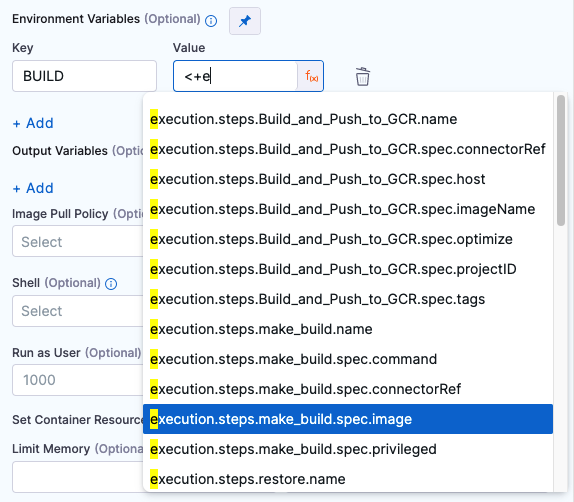
Variable values can be [fixed values, runtime inputs, or expressions](/harness-ai/use-harness-platform/variables-and-expressions/runtime-inputs.md). For example, if the value type is expression, you can input a value that references the value of some other setting in the stage or pipeline.

<figure><img src="https://4226796345-files.gitbook.io/~/files/v0/b/gitbook-x-prod.appspot.com/o/spaces%2FqKtVmwAGTfGQS1MVC97G%2Fuploads%2Fgit-blob-c912c445f1ae4ca8fc05231b65d75fe92fb1a7e3%2Frun-step-settings-04.png?alt=media" alt=""><figcaption><p>Using a Harness expression for an environment variable value.</p></figcaption></figure>

{% hint style="info" %}
**STAGE VARIABLES**

[Stage variables](/harness-ai/use-harness-platform/pipelines/add-a-stage.md#stage-variables) are inherently available to steps as environment variables.
{% endhint %}

#### Output Variables <a href="#output-variables" id="output-variables"></a>

Output variables expose values for use by other steps or stages in the pipeline.

<details>

<summary>YAML example: Output variable</summary>

In the following YAML example, step `alpha` exports an output variable called `myVar`, and then step `beta` references that output variable.

```yaml
              - step:
                  type: Run
                  name: alpha
                  identifier: alpha
                  spec:
                    shell: Sh
                    command: export myVar=varValue
                    outputVariables:
                      - name: myVar
              - step:
                  type: Run
                  name: beta
                  identifier: beta
                  spec:
                    shell: Sh
                    command: |-
                      echo <+steps.alpha.output.outputVariables.myVar>
                      echo <+execution.steps.alpha.output.outputVariables.myVar>
```

</details>

{% hint style="warning" %}

* **Secrets in output variables exposed in logs:** If an output variable value contains a secret, be aware that the secret will be visible in the [build details](/continuous-integration/use-harness-ci/use-harness-ci/viewing-builds.md). Such secrets are visible on the **Output** tab of the step where the output variable originates and in the build logs for any later steps that reference that variable. For information about best practices for using secrets in pipelines, go to the [Secrets documentation](https://app.gitbook.com/s/3F2TpHXhur2QtQnORSM9/use-harness-platform/secrets/README).
* **64KB length limit:** If an output variable's length is greater than 64KB, steps can fail or truncate the output. If you need to export large amounts of data, consider [uploading artifacts](/continuous-integration/use-harness-ci/use-harness-ci/build-and-upload-artifacts/build-and-upload-an-artifact.md#upload-artifacts) or [exporting artifacts by email](/continuous-integration/use-harness-ci/use-harness-ci/build-and-upload-artifacts/drone-email-plugin.md).
* **Single line limit:** By default, output variables are limited to a single line. To enable multi-line output variables, use the feature flag `CI_ENABLE_MULTILINE_OUTPUTS_SECRETS`. To export multi-line data, you can also consider [uploading artifacts](/continuous-integration/use-harness-ci/use-harness-ci/build-and-upload-artifacts/build-and-upload-an-artifact.md#upload-artifacts) or [exporting artifacts by email](/continuous-integration/use-harness-ci/use-harness-ci/build-and-upload-artifacts/drone-email-plugin.md).
* **Exit Codes:** In the event that an exit code is defined and set in the script, the output variables will not be available as an output from the step because it is a "forced" exit. The output from the step will be empty which can be desired depending on the situation. This includes `exit 0` definitions. Therefore, customers should not define an **exit 0 situation**, as "completing the script" to the end is what is expected as a "healthy" completion of the script.
  {% endhint %}

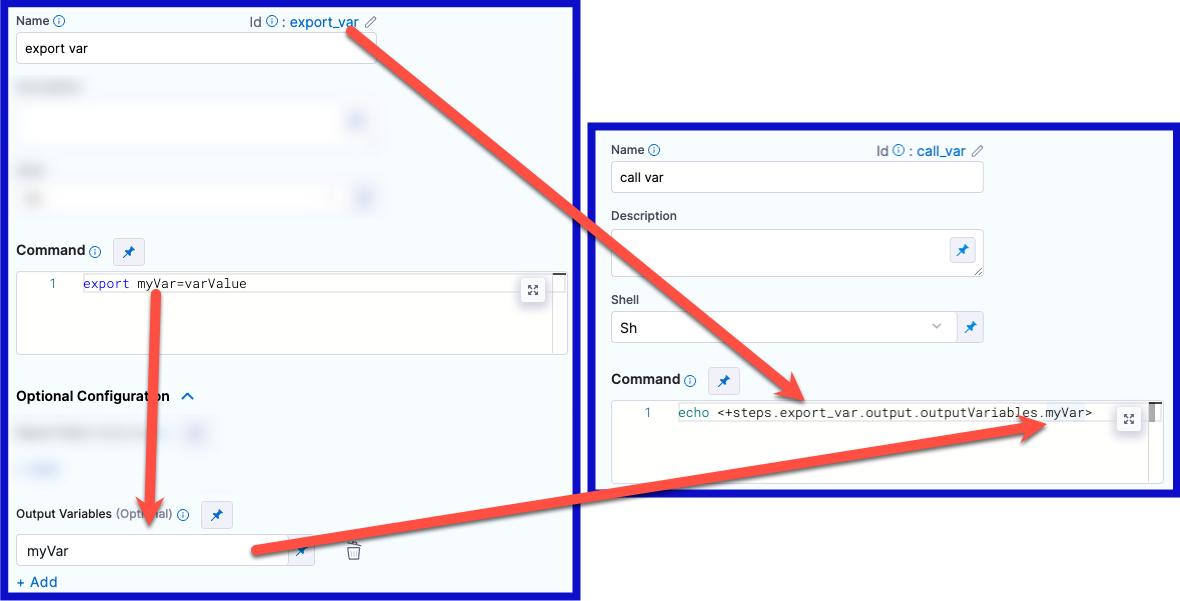
**Create an output variable**

To create an output variable, do the following in the step where the output variable originates:

1. In the **Command** field, export the output variable. For example, the following command exports a variable called `myVar` with a value of `varValue`:

   ```
   export myVar=varValue
   ```
2. In the step's **Output Variables**, declare the variable name, such as `myVar`.

**Reference an output variable**

To reference an output variable in a later step or stage in the same pipeline, use a variable [expression](/harness-ai/use-harness-platform/variables-and-expressions/runtime-inputs.md#expressions) that includes the originating step's ID and the variable's name.

Use either of the following expressions to reference an output variable in another step in the same stage:

```
<+steps.[stepID].output.outputVariables.[varName]>
<+execution.steps.[stepID].output.outputVariables.[varName]>
```

To reference an output variable in a stage other than the one where the output variable originated, use either of the following expressions:

```
<+stages.[stageID].spec.execution.steps.[stepID].output.outputVariables.[varName]>
<+pipeline.stages.[stageID].spec.execution.steps.[stepID].output.outputVariables.[varName]>
```

<figure><img src="https://4226796345-files.gitbook.io/~/files/v0/b/gitbook-x-prod.appspot.com/o/spaces%2FqKtVmwAGTfGQS1MVC97G%2Fuploads%2Fgit-blob-d3a578c471ccfaaeecbdae1df7d2f8347c173590%2Frun-step-output-variable-example.png?alt=media" alt=""><figcaption><p>To reference an output variable, the variable expression must include the originating step's ID and the variable's name.</p></figcaption></figure>

<details>

<summary>Early access feature: Secret type selection</summary>

{% hint style="info" %}
Currently, this [early access feature](/release-notes/features.md) is behind the feature flag `CI_ENABLE_OUTPUT_SECRETS`. Contact [Harness Support](mailto:support@harness.io) to enable the feature.
{% endhint %}

You can enable type selection for output variables in **Run** steps.

<figure><img src="https://4226796345-files.gitbook.io/~/files/v0/b/gitbook-x-prod.appspot.com/o/spaces%2FqKtVmwAGTfGQS1MVC97G%2Fuploads%2Fgit-blob-e133a2d9a7241601b98b7cb8b479258f46d99dcb%2Frun-step-output-var-type.png?alt=media" alt=""><figcaption><p>Click to view full size image</p></figcaption></figure>

If you select the **Secret** type, Harness treats the output variable value as a secret and applies [secrets masking](/harness-ai/use-harness-platform/secrets/add-use-text-secrets.md#secrets-in-outputs) where applicable.

</details>

<details>

<summary>Early access feature: Output variables as environment variables</summary>

{% hint style="info" %}
Currently, this [early access feature](/release-notes/features.md) is behind the feature flag `CI_OUTPUT_VARIABLES_AS_ENV`. Contact [Harness Support](mailto:support@harness.io) to enable the feature.
{% endhint %}

With this feature flag enabled, output variables from steps are automatically available as environment variables for other steps in the same Build (`CI`) stage. This means that, if you have a Build stage with three steps, an output variable produced from step one is automatically available as an environment variable for steps two and three.

In other steps in the same stage, you can refer to the output variable by its key without additional identification. For example, an output variable called `MY_VAR` can be referenced later as simply `$MY_VAR`. Without this feature flag enabled, you must use an expression to [reference the output variable](#reference-an-output-variable), such as `<+steps.stepID.output.outputVariables.MY_VAR>`.

With or without this feature flag, you must use an expression when referencing output variables across stages, for example:

```
name: <+stages.[stageID].spec.execution.steps.[stepID].output.outputVariables.[varName]>
name: <+pipeline.stages.[stageID].spec.execution.steps.[stepID].output.outputVariables.[varName]>
```

If multiple variables have the same name, variables are chosen according to the following hierarchy:

1. Environment variables defined in the current step
2. Output variables from previous steps
3. Stage variables
4. Pipeline variables

This means that Harness looks for the referenced variable within the current step, then it looks at previous steps in the same stage, and then checks the stage variables, and, finally, it checks the pipeline variables. It stops when it finds a match.

If multiple output variables from previous steps have the same name, the last-produced variable takes priority. For example, assume a stage has three steps, and steps one and two both produce output variables called `NAME`. If step three calls `NAME`, the value of `NAME` from step two is pulled into step three because that is last-produced instance of the `NAME` variable.

{% hint style="warning" %}
**UNPREDICTABILITY WITH PARALLELISM**

For stages that use [looping strategies](/harness-ai/use-harness-platform/pipelines/looping-strategies/looping-strategies-matrix-repeat-and-parallelism.md), particularly parallelism, the last-produced instance of a variable can differ between runs. Depending on how quickly the parallel steps execute during each run, the last step to finish might not always be the same.
{% endhint %}

To avoid conflicts with same-name variables, either make sure your variables have unique names or use an expression to specify a particular instance of a variable, for example:

```
name: <+steps.stepID.output.outputVariables.MY_VAR>
name: <+execution.steps.stepGroupID.steps.stepID.output.outputVariables.MY_VAR>
```

</details>

<details>

<summary>Early access feature: Multi-line Output Variables</summary>

\- \*\*Multiline Output Variables\*\*: CI steps support multiline output variables, including special characters such as \`\n\`, \`\t\`, \`\r\`, \`\b\`, maintaining shell-like behavior. - \*\*Complete Output Support\*\*: Output variables support both output secrets and output strings. - \*\*JSON Preservation\*\*: JSON data can be passed as-is without automatic minification. - \*\*Increased Output Variable Capacity\*\*: The maximum output variable size is approximately \*\*131,072 characters\*\*, up from 65,536.

**Technical Limitations**

* The **maximum size** of output variables is constrained by the operating system's `ARG_MAX` parameter, which limits command line arguments and environment variables.
* Exceeding this limit will result in the error:

  ```shell
  fork/exec /bin/sh: argument list too long
  ```
* This limitation is imposed by the operating system, not by the implementation of this feature.

**Behavior Changes: Current vs. New**

The following table outlines changes in how special characters are handled in output variables:

| Command           | Current Behavior | New Behavior      |
| ----------------- | ---------------- | ----------------- |
| `export out="\b"` | `"\b"`           | Backspace         |
| `export out="\f"` | `"\f"`           | Form feed         |
| `export out="\n"` | `"\n"`           | Newline character |
| `export out="\r"` | `"\r"`           | Carriage return   |
| `export out="\t"` | `"\t"`           | Tab character     |
| `export out="\v"` | `"\v"`           | Vertical tab      |

**Best Practices**

**Python Shell**\
For multiline strings in Python, use triple quotes (`"""` or `'''`) to maintain formatting properly.

**Step 1:** Export an output variable:

```python
out = """line1,
line2,
line3"""
os.environ["out"] = out
```

**Step 2:** Read the output variable:

```python
str_value = """<+execution.steps.Step_name.output.outputVariables.out>"""
```

**PowerShell**\
For PowerShell, use the `@"..."@` syntax to handle multiline strings effectively.

**Step 1:** Export an output variable:

```powershell
$out=@"
line1,
line2,
line3
"@
$env:out = $out
```

**Step 2:** Read the output variable:

```powershell
$str_value = @"
<+execution.steps.Step_name.output.outputVariables.out>
"@
```

These best practices ensure proper handling of multiline strings across different environments while maintaining consistency in CI workflows.

</details>

**Scoping output variables using aliases**

To prevent variable name conflicts, you can use **Publish Variable Names (Alias)** to scope output variables to different entities.

1. **Export the variables:** Use **Output Variables** to export the variables.
2. **Define an alias:** In **Publish Variable Names (Alias)**, enter an alias to use to reference the exported output variables.
3. **Select a scope:** In **Scope**, select the scope for the exported output variable.

The following screenshot shows the output alias configured with **Stage** scope:

![Stage-scoped output alias configuration](https://4226796345-files.gitbook.io/~/files/v0/b/gitbook-x-prod.appspot.com/o/spaces%2FqKtVmwAGTfGQS1MVC97G%2Fuploads%2Fgit-blob-74fe370a3565b6309e5f2c3cf201ba7c6ba3ca19%2Fstage-output-vars.png?alt=media)

The following screenshot shows the output alias configured with **Pipeline** scope:

![Pipeline-scoped output alias configuration](https://4226796345-files.gitbook.io/~/files/v0/b/gitbook-x-prod.appspot.com/o/spaces%2FqKtVmwAGTfGQS1MVC97G%2Fuploads%2Fgit-blob-a0fd90866d260269b201a0adfee3bd7af8233874%2Fpipeline-output-vars.png?alt=media)

You can scope output variables to the following entities:

* **Step group:**
  * The output variable must be used in the same step group, including nested child step groups.
  * The format for referencing an exported step group output variable using its alias is:

    ```
    <+exportedVariables.getValue("stepGroup.ALIAS_NAME.OUTPUT_VARIABLE_NAME")>
    ```
* **Stage:**
  * The output variable can be used anywhere in the same stage, including step groups in the same stage. It cannot be used outside of the same stage.
  * The format for referencing an exported stage output variable using its alias is:

    ```
    <+exportedVariables.getValue("stage.ALIAS_NAME.OUTPUT_VARIABLE_NAME")>
    ```
* **Pipeline:**
  * The output variable can be used anywhere in the same pipeline but not in a [chained pipeline](/harness-ai/use-harness-platform/pipelines/pipeline-chaining.md).
  * The format for referencing an exported pipeline output variable using its alias is:

    ```
    <+exportedVariables.getValue("pipeline.ALIAS_NAME.OUTPUT_VARIABLE_NAME")>
    ```

To reference a map of exported output variables, reference the alias in the format `<+exportedVariables.getValue("SCOPE.ALIAS_NAME")>`, like `<+exportedVariables.getValue("stepGroup.info")>`.

{% hint style="info" %}
**IMPORTANT NOTES**

* Exported variables are immutable.
* Variables cannot be exported in looping strategies.
* Exported variables are not supported in pipeline chaining.
* All output variables are exported. You cannot select a subset.
  {% endhint %}

<details>

<summary>Step group scope pipeline example</summary>

```yaml
pipeline:
  projectIdentifier: myproject
  orgIdentifier: default
  tags: {}
  stages:
    - stage:
        identifier: testSimple
        type: CI
        name: testSimple
        description: ""
        spec:
          execution:
            steps:
              - stepGroup:
                  identifier: stepGroup1
                  name: stepGroup1
                  steps:
                    - step:
                        identifier: Run_1
                        type: Run
                        name: Run_1
                        spec:
                          shell: Bash
                          command: |-
                            export var1="val1"
                            export var2="val2"
                          outputVariables:
                            - name: var1
                            - name: var2
                          outputAlias:
                            key: info
                            scope: StepGroup
                        timeout: 10m
                    - step:
                        type: Run
                        name: outputs
                        identifier: outputs
                        spec:
                          shell: Bash
                          command: |-
                            echo "reference using aliases:"

                            echo "var1:" <+exportedVariables.getValue("stepGroup.info.var1")>
                            echo "var2:" <+exportedVariables.getValue("stepGroup.info.var2")>
                            echo "var map:" <+exportedVariables.getValue("stepGroup.info")>

                            echo "reference using standard output exp:"

                            echo "var1:" <+pipeline.stages.testSimple.spec.execution.steps.stepGroup1.steps.Run_1.output.outputVariables.var1>
                            echo "var2:" <+pipeline.stages.testSimple.spec.execution.steps.stepGroup1.steps.Run_1.output.outputVariables.var2>
                          outputVariables: []
                        timeout: 10m
        tags: {}
  identifier: StepGroupExport
  name: StepGroupExport
```

</details>

For more information, go to [Scoping output variables using aliases](/continuous-delivery/use-continuous-delivery/cd-building-blocks/cd-steps/utilities/shell-script-step.md#scoping-output-variables-using-aliases) in the Shell Script step documentation.

#### Additional container settings <a href="#additional-container-settings" id="additional-container-settings"></a>

Settings specific to containers are not applicable in a stages that use VM or Harness Cloud build infrastructure.

**Privileged**

Enable this option to run the container with escalated privileges. This is equivalent to running a container with the Docker `--privileged` flag.

**Image Pull Policy**

If you specified a [Container Registry and Image](#container-registry-and-image), you can specify an image pull policy:

* **Always**: The kubelet queries the container image registry to resolve the name to an image digest every time the kubelet launches a container. If the kubelet encounters an exact digest cached locally, it uses its cached image; otherwise, the kubelet downloads (pulls) the image with the resolved digest, and uses that image to launch the container.
* **If Not Present**: The image is pulled only if it is not already present locally.
* **Never**: The image is assumed to exist locally. No attempt is made to pull the image.

**Run as User**

If you specified a [Container Registry and Image](#container-registry-and-image), you can specify the user ID to use for running processes in containerized steps.

For a Kubernetes cluster build infrastructure, the step uses this user ID to run all processes in the pod. For more information, go to [Set the security context for a pod](https://kubernetes.io/docs/tasks/configure-pod-container/security-context/#set-the-security-context-for-a-pod).

**Set Container Resources**

Maximum resources limits for the resources used by the container at runtime:

* **Limit Memory:** Maximum memory that the container can use. You can express memory as a plain integer or as a fixed-point number with the suffixes `G` or `M`. You can also use the power-of-two equivalents, `Gi` or `Mi`. Do not include spaces when entering a fixed value. The default is `500Mi`.
* **Limit CPU:** The maximum number of cores that the container can use. CPU limits are measured in CPU units. Fractional requests are allowed. For example, you can specify one hundred millicpu as `0.1` or `100m`. The default is `400m`. For more information, go to [Resource units in Kubernetes](https://kubernetes.io/docs/concepts/configuration/manage-resources-containers/#resource-units-in-kubernetes).

#### Timeout <a href="#timeout" id="timeout"></a>

Set the timeout limit for the step. Once the timeout limit is reached, the step fails and pipeline execution continues. To set skip conditions or failure handling for steps, go to:

* [Step Skip Condition settings](/harness-ai/use-harness-platform/pipelines/step-skip-condition-settings.md)
* [Step Failure Strategy settings](/harness-ai/use-harness-platform/pipelines/failure-handling/define-a-failure-strategy-on-stages-and-steps.md)

### Run step logs and test results <a href="#run-step-logs-and-test-results" id="run-step-logs-and-test-results"></a>

During and after pipeline runs, you can find step logs on the [Build details page](/continuous-integration/use-harness-ci/use-harness-ci/viewing-builds.md).

If your pipeline runs tests, you can [view test reports](/continuous-integration/use-harness-ci/use-harness-ci/run-tests/viewing-tests.md) on the Build details page.

### Run step and Pipeline Annotations <a href="#run-step-and-pipeline-annotations" id="run-step-and-pipeline-annotations"></a>

Pipeline Annotations allow you to publish rich, structured insights directly into the Harness pipeline execution page. Instead of sifting through thousands of lines of logs to find critical information like test summaries, security scan results, or deployment notes, you can use the `hcli annotate` command to push this data to a dedicated **Annotations** tab in the Harness UI.

For more information visit [Pipeline Annotations](/harness-ai/use-harness-platform/pipelines/harness-annotations.md)

### Hidden/Invisible Characters <a href="#hiddeninvisible-characters" id="hiddeninvisible-characters"></a>

Customers may occasionally encounter unexplained behavior in their scripts caused by hidden or invisible characters. These characters often appear when copying and pasting from non-plain-text sources and can lead to unexpected script errors. Harness includes a feature to display invisible characters, which is enabled by default.

When invisible characters are present, users will see a highlighted space in their scripts. ![](https://4226796345-files.gitbook.io/~/files/v0/b/gitbook-x-prod.appspot.com/o/spaces%2FqKtVmwAGTfGQS1MVC97G%2Fuploads%2Fgit-blob-fbed49ef0a7f53bc55a524de5e9f73045589d889%2Finvisiblechr-01.png?alt=media)

They can hover over the highlight to view the character and click "Adjust settings" to manage the display. ![](https://4226796345-files.gitbook.io/~/files/v0/b/gitbook-x-prod.appspot.com/o/spaces%2FqKtVmwAGTfGQS1MVC97G%2Fuploads%2Fgit-blob-596f267a8dbc14c7b9cf8acf401cb57bd95159ad%2Finvisiblechr-hover.png?alt=media)

If a selection was accidentally made, the user can right-click within the script area and open the **Command Palette**. ![](https://4226796345-files.gitbook.io/~/files/v0/b/gitbook-x-prod.appspot.com/o/spaces%2FqKtVmwAGTfGQS1MVC97G%2Fuploads%2Fgit-blob-0ce687ee388337907d8f0bcb6b248b2a067448db%2Finvisiblechr-cmdplt.png?alt=media)

A dialog box will appear, allowing the user to search for and toggle the setting that controls how invisible characters are highlighted. ![](https://4226796345-files.gitbook.io/~/files/v0/b/gitbook-x-prod.appspot.com/o/spaces%2FqKtVmwAGTfGQS1MVC97G%2Fuploads%2Fgit-blob-e9b47e6db907353ab9521c956fd4702690d8965b%2Finvisiblechr-toggle.png?alt=media)

### Troubleshoot script execution (Run steps) <a href="#troubleshoot-script-execution-run-steps" id="troubleshoot-script-execution-run-steps"></a>

Go to the [CI Knowledge Base](/continuous-integration/troubleshooting-and-resources/ci-articles-and-faqs/continuous-integration-faqs.md) for questions and issues related to script execution and using Run steps, such as:

* [Can I use an image that doesn't have a shell in a Run step?](/continuous-integration/troubleshooting-and-resources/ci-articles-and-faqs/continuous-integration-faqs.md#can-i-use-an-image-that-doesnt-have-a-shell-in-a-run-step)
* [Is a Docker image required to use the Run step on local runner build infrastructure?](/continuous-integration/troubleshooting-and-resources/ci-articles-and-faqs/continuous-integration-faqs.md#is-a-docker-image-required-to-use-the-run-step-on-local-runner-build-infrastructure)
* [When attempting to export an output variable from a Run step using a Python shell, the step fails with "no such file or directory"](/continuous-integration/troubleshooting-and-resources/ci-articles-and-faqs/continuous-integration-faqs.md#when-attempting-to-export-an-output-variable-from-a-run-step-using-a-python-shell-the-step-fails-with-no-such-file-or-directory)
* [What does the "Failed to get image entrypoint" error indicate in a Kubernetes cluster build?](/continuous-integration/troubleshooting-and-resources/ci-articles-and-faqs/continuous-integration-faqs.md#what-does-the-failed-to-get-image-entrypoint-error-indicate-in-a-kubernetes-cluster-build)
* [Does the Harness Run step overwrite the base image container entry point?](/continuous-integration/troubleshooting-and-resources/ci-articles-and-faqs/continuous-integration-faqs.md#does-the-harness-run-step-overwrite-the-base-image-container-entry-point)
* [Why is the default entry point not running for the container image used in the Run step?](/continuous-integration/troubleshooting-and-resources/ci-articles-and-faqs/continuous-integration-faqs.md#why-is-the-default-entry-point-not-running-for-the-container-image-used-in-the-run-step)
* [How do I start a service started in a container that would usually be started by the default entry point?](/continuous-integration/troubleshooting-and-resources/ci-articles-and-faqs/continuous-integration-faqs.md#since-the-default-entry-point-isnt-executed-for-the-container-image-used-in-the-run-step-how-do-i-start-a-service-started-in-a-container-that-would-usually-be-started-by-the-default-entry-point)
* [How do I run the default entry point of the image used in the Run step?](/continuous-integration/troubleshooting-and-resources/ci-articles-and-faqs/continuous-integration-faqs.md#how-do-i-run-the-default-entry-point-of-the-image-used-in-the-run-step)
* [Does CI support running Docker-in-Docker images?](/continuous-integration/troubleshooting-and-resources/ci-articles-and-faqs/continuous-integration-faqs.md#does-ci-support-running-docker-in-docker-images)
* [Can't connect to Docker daemon with Docker-in-Docker Background step.](/continuous-integration/troubleshooting-and-resources/ci-articles-and-faqs/continuous-integration-faqs.md#cant-connect-to-docker-daemon)
* [Concatenated variable values in PowerShell scripts print to multiple lines](/continuous-integration/troubleshooting-and-resources/ci-articles-and-faqs/continuous-integration-faqs.md#concatenated-variable-values-in-powershell-scripts-print-to-multiple-lines)

{% @harness-feedback/feedback %}