Jira Cloud
The Harness FME for Jira integration lets you associate feature flags with Jira work items and view those relationships in both Jira and Harness FME.
By linking feature flags to Jira issues, teams can track feature delivery work alongside development activities, navigate between Jira and Harness FME, and maintain visibility into which feature flags are associated with specific work items.
Setup
This integration only works with Jira Cloud product offerings and does not work with Jira Server.
In Harness FME
To set up the integration in Harness FME:
-
From the FME navigation menu, click FME Settings and navigate to the Integrations page.
-
Locate the Jira Cloud integration and click Add.
-
Select the project and associated environments you want to connect to Jira Cloud. You can select multiple projects but only one environment per project.
-
Click Save.
-
Select the Jira integration you just configured and navigate to the Harness FME Token section.
-
Click Copy to copy the Harness FME token to the clipboard. You can now use this token to configure the Jira Cloud.
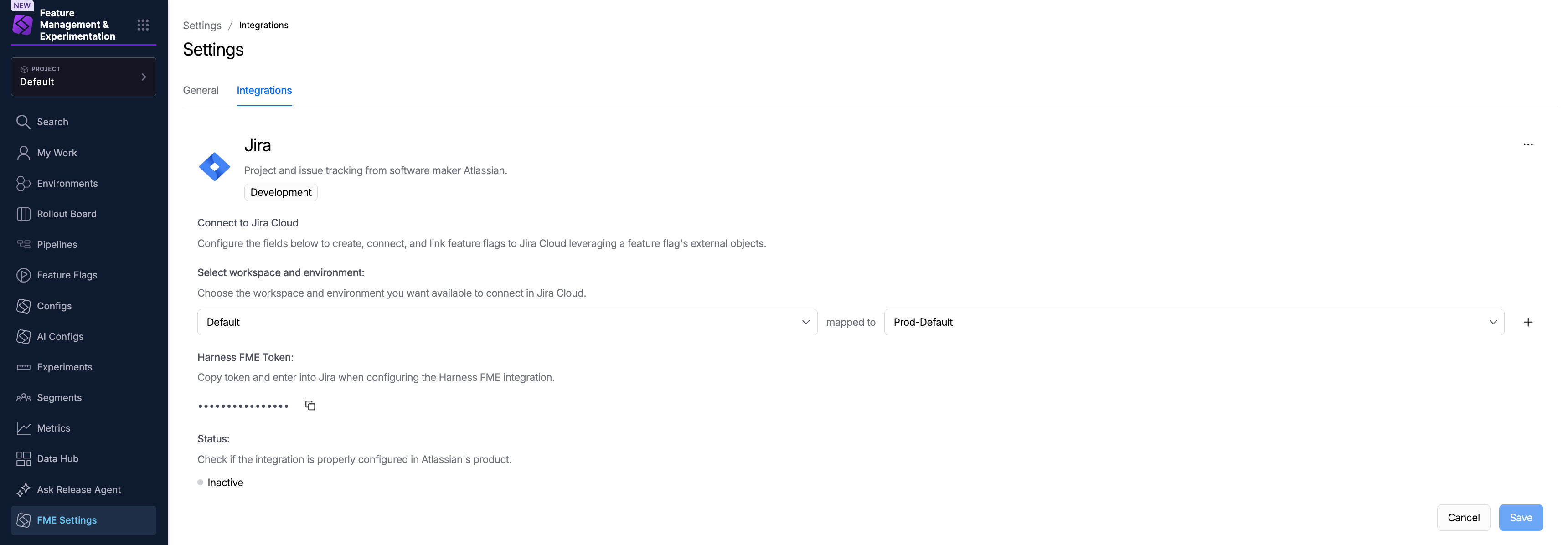
A Jira instance is associated with a single Harness account, and the integration can be configured for multiple Harness projects.
In Jira
To set up the integration in Jira:
-
In the Atlassian Marketplace, install the Harness FME integration for your Harness account region:
- For US accounts, use Harness FME - Standard.
- For EU accounts, use Harness FME - Europe.
-
Within Apps in Jira Cloud, open Harness FME and click Configure integration.
-
Enter the token you copied from Harness FME and click Save.

Enable the feature flag panel on work items
-
Create or open a work item in Jira.
-
Click the App Actions icon next to + under the issue title.
-
Select Harness FME Feature Flags.
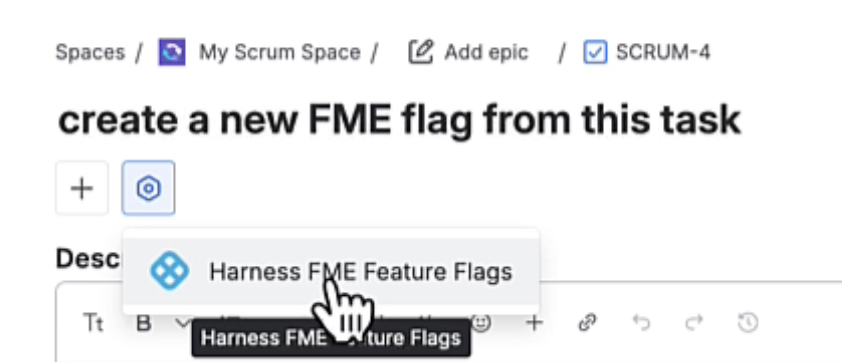
This adds a
Harness FME Feature Flagssection under Linked work items. -
In the Harness FME Feature Flags section, click the ... menu and select Show for all work items.
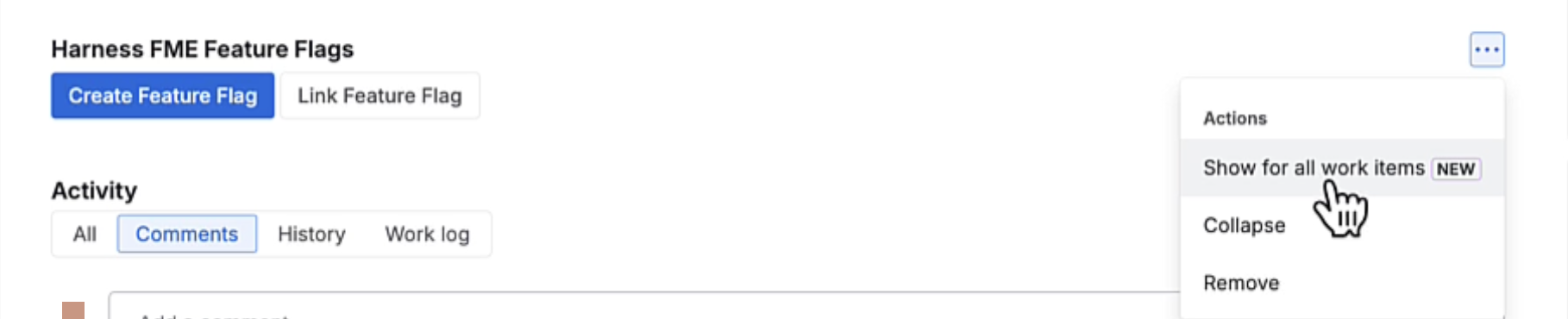
This ensures that the Harness FME Feature Flags panel is displayed across all Jira work items.
Connect feature flags to work items
Once the integration is configured, you can connect feature flags to Jira work items from either Harness FME or Jira.
- From Harness FME
- From Jira
Navigate to a feature flag's Integrations tab and click Connect Jira Issue. Enter the desired issue number.
In a Jira work item, use the Harness FME Feature Flags panel to create a feature flag or connect an existing feature flag.
- Create feature flag takes you to Harness FME, where the feature flag creation dialog opens with the current Jira work item entered.
- Connect feature flag opens a dialog where you can select an existing feature flag.
You can associate multiple feature flags with a Jira issue and multiple Jira issues with a feature flag.
View your connections
After you create or link a feature flag to a Jira work item, you can view the association from either platform.
In Harness FME
Navigate to the feature flag's Integrations tab to view associated Jira work items. For each connected work item, you can view details such as the issue key, assignee, and issue status.
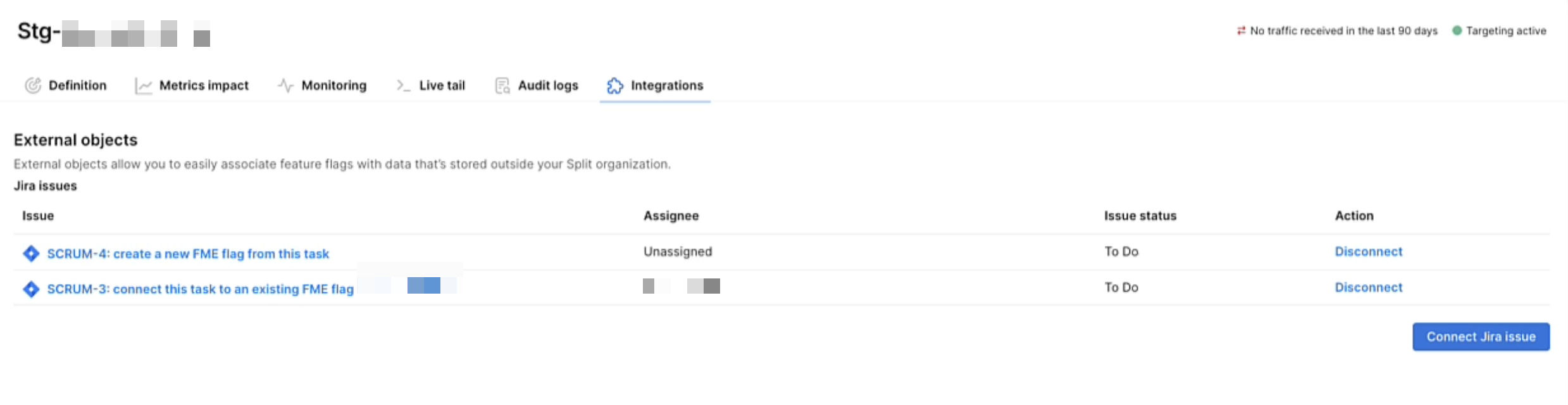
Click a work item to open it in Jira, or click Disconnect to remove the association.
In Jira
Navigate to the work item's Development section and expand Releases to view associated Harness FME feature flags.
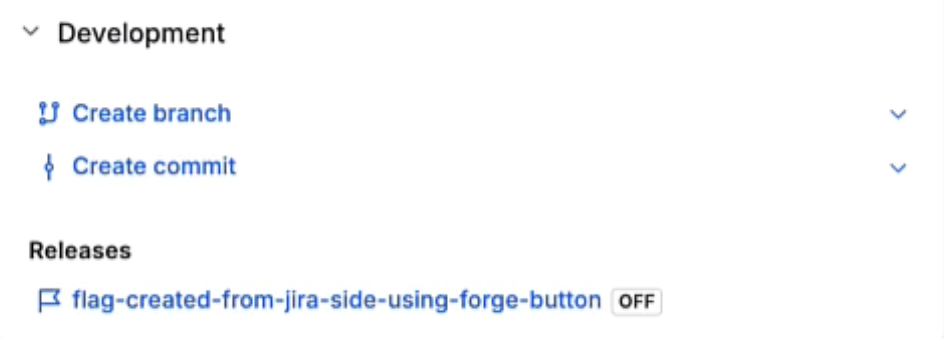
Click a feature flag to open it in Harness FME and view its configuration, targeting rules, and rollout details.
Disconnect a work item
To remove the association between a Jira work item and a feature flag, navigate to the feature flag's Integrations tab in Harness FME and click Disconnect.