Workflows
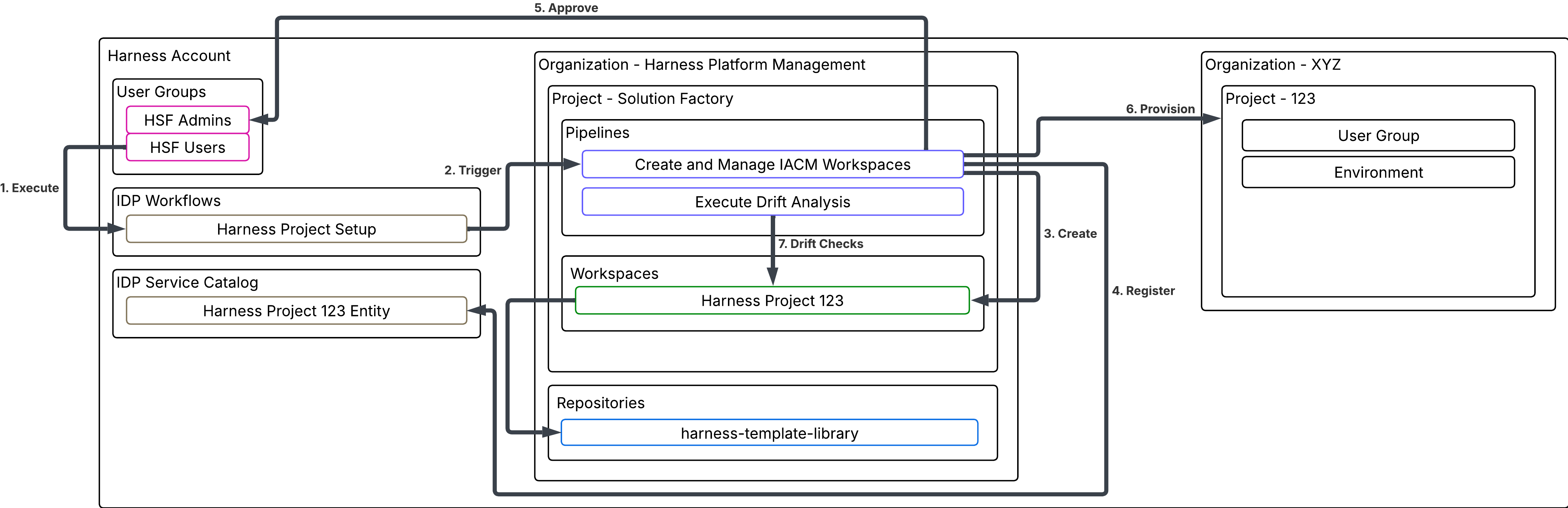
When workflows are triggered, it creates an IaCM workspace to create and manage the resources. A workspace maps to a single Terraform state file. If you don't want to maintain ongoing state, there is an option to create ephemeral workspaces. Workspaces for platform-level resources (creating orgs, projects, connectors) live inside the Solutions Factory project.
By default, approval notifications are sent by email to members of the HSF Admins group. If your team uses Microsoft Teams or Slack, this can be reconfigured in the notification settings on the user group. There are two distinct approvals — one before entity creation and one before the Terraform plan is applied. The IaCM plan approval shows the resource diff so the approver can see exactly what will change before confirming.
After a workflow completes, the outputs are pushed directly into the IDP catalog entry for that workspace.
Default Workflows
Below are the workflows that are automatically created when HSF is deployed into your account. These workflows are created by harness-template-library repository and registered into IDP via the Register Custom IDP Templates pipeline.
Harness Organization Setup
Harness Organization Setup is a workflow that creates and manages organizations within your Harness account. It standardizes the process for requesting new organizations and provides an easy way to manage them consistently. The workflow provisions an organization with a defined name.
- Use Cases: Standardize the process of requesting a Harness organization and have the ability to manage it.
- Persona: Platform Engineering/ Developer
- Resources Created: An organization with defined name
Harness Project Setup
Harness Project Setup is a workflow that creates and manages projects within your Harness account. It standardizes the process for requesting new projects and ensures they are provisioned with consistent configurations. The workflow provisions a project with a defined name, environments, multiple user groups, predefined roles, and user bindings.
- Use Cases: Standardize the process of requesting a Harness project and have the ability to manage it.
- Persona: Platform Engineering/ Developer
- Resources Created: A project with defined name, 3 environments (dev, prod, test), 4 user groups, 2 roles and 7 user bindings
| approvers | project_admins | project_engineers | all project users | |
|---|---|---|---|---|
| project viewer | ✅ | ✅ | ✅ | ✅ |
| project admin | ❌ | ✅ | ❌ | ❌ |
| developer | ❌ | ✅ | ✅ | ❌ |
Harness Central Build Farm Setup
Harness Central Build Farm Setup configures the core components required for CI, including the build farm location, container registry, and source code manager. It provides a streamlined way to get Harness CI up and running. A centralized build farm reduces Kubernetes cluster ownership costs and simplifies operations by consolidating workloads into a single, autoscaling cluster.
- Use Cases: Centralized location for all builds
- Persona: Platform Engineering
- Resources Created: Connectors to code repository, artifact manager and build infrastructure and secrets (build farm container registry password and username, build farm source code manager password and username)
- Secrets create an easy way to manage without having to worry about state.
Getting Started:
- Decide and choose if you want a build farm that supports self-hosted build infrastructure, CI cloud infrastructure or both
- If you are using Harness CI cloud it won’t create the connector needed for Kubernetes for the build farm.
- Choose your container registry and add in the appropriate URL.
- Choose your source code manager, URL and validation repository.
- Note if you are using enterprise you will need to have a delegate already deployed with access and if you are using enterprise with Harness cloud you will need a secure connect proxy
- Once you click create, the workflow will build an IaCM workspace called harness-central-build-farm-setup.
- In the workspace you can make changes at any point to any of the inputs above and re-execute the workspace to enable the changes.
Changing HSF to use Build Farm Infrastructure:
- Go into Solutions Factory → IaCM → Workspaces → Harness Pilot Light
- Under Variables → OpenTofu Variables change
kubernetes_connectorfromskippedtoaccount.buildfarm_infrastructureand save - Run Manage Pilot Light
- After this is completed you will see that the
Deploy Solutions Factorypipeline will be setup to use the build infrastructure.
- After this is completed you will see that the
- Under Variables → OpenTofu Variables change
- Go into Workspaces → Harness Solutions Factory
- Under Variables → OpenTofu Variables change
kubernetes_connectorfromskippedtoaccount.buildfarm_infrastructureand save
- Under Variables → OpenTofu Variables change
Deploy Harness SAST & SCA Templates
Deploy Harness SAST & SCA Templates is a workflow that deploys to the account level a series of step group, stage and pipeline templates to provide OOTB capabilities to run chosen security scanners on repository scans.
- Use Case: Day one operations of bringing repositories into Harness to scan and check for vulnerabilities even before CI team is involved.
- Persona: Platform Engineering
- Resources Created: step group templates, stage templates, pipeline templates
Getting Started:
- Choose your Build Farm Infrastructure
- You will need to think about how am I going to configure this since every repo needs a scan. You will want to create a stage template with a defined build infrastructure to promote consistency.
- Set up config manager
- One of the biggest challenges of setting up the scanner is being able to handle the nuance of many different applications. To solve this we created a hierarchical approach to managing scanners so a central devsecops team can provide overrides
- You can create your own repo or bring your own.
- This will use a plugin we created called
harness-sto-config-manager- This plugin is available on dockerhub as a public repository and allows you to create overrides and exclude files based on a hierarchy of details
- Choose your scanners for repository scans
- The order does not matter because running in parallel
- Verify and Create!
- HSF will build a workspace with variables and any defaults that are included to configure and connect back to specific code repos. It will also create another workflow which the end user will use to register repository for scans.
To make adjustments you can go into the STO_SCA_SAST_PRIMER workspace and look at the variables. We included skipped variables to make it easier to consume and edit in the future. The code knows how to handle it and treats it like null.
Harness CI Image Factory
Harness CI Image Factory is a workflow designed to mirror and replicate the lifecycle of images used by Harness CI module steps.
- Use Case: Standardizing build process
- Persona: Developers
- Resources Created: Pipeline
Deploy Harness CI Golden Standard Templates
Deploy Harness CI Golden Standard Templates is workflow that provides a starting point for building out CI pipelines in Harness. These templates give teams day-one support with a preconfigured pipeline that follows best practices, while still allowing customization to fit specific build processes. By using a golden template, customers can accelerate onboarding, reduce setup effort, and ensure consistency across pipelines.
- Use Cases: Jumpstart CI pipeline creation with a best-practice template that can be customized for different build processes.
- Persona: Platform Engineering
- Resources Created: A CI pipeline based on Harness Golden Templates.
Harness Delegate Image Factory
Harness Delegate Image Factory is a workflow that helps create and manage custom delegate images when the default Harness delegates don’t meet enterprise requirements. It provides a controlled and repeatable way to build, version, and release these custom delegates.
- Use Cases: Create and manage custom delegate images with enterprise-required tools (e.g. AWS CLI), and/or certifications and trust stores baked in
- Persona: Platform Engineering
- Resources Created: A pipeline that builds custom delegates, and a repository (
harness-delegate-factory) with a pre-optimized Dockerfile and configuration to copy certificates and trust stores.
Typical scenarios include:
- Adding tools not bundled with the default delegate (e.g., AWS CLI).
- Embedding enterprise CA certificates and Java trust stores to avoid x509 errors.
- Installing custom utilities required for specific CD or pipeline workloads.
Adding in Harness Official Workflows
By default there are 6 workflows that are deployed into HSF regardless of purchased modules but you have the ability to deploy any of the workflows that are available in harness-template-library. For workflow specific content refer to the READMEs.
- Run Mirror Official Solutions Factory Pipeline to pull down the latest version of
harness-template-library - Run Register IDP Templates to load the desired workflows into IDP.
- To filter add in the ID of the workflow you want to load into
filter_template
- To filter add in the ID of the workflow you want to load into
Executing a Workflow
-
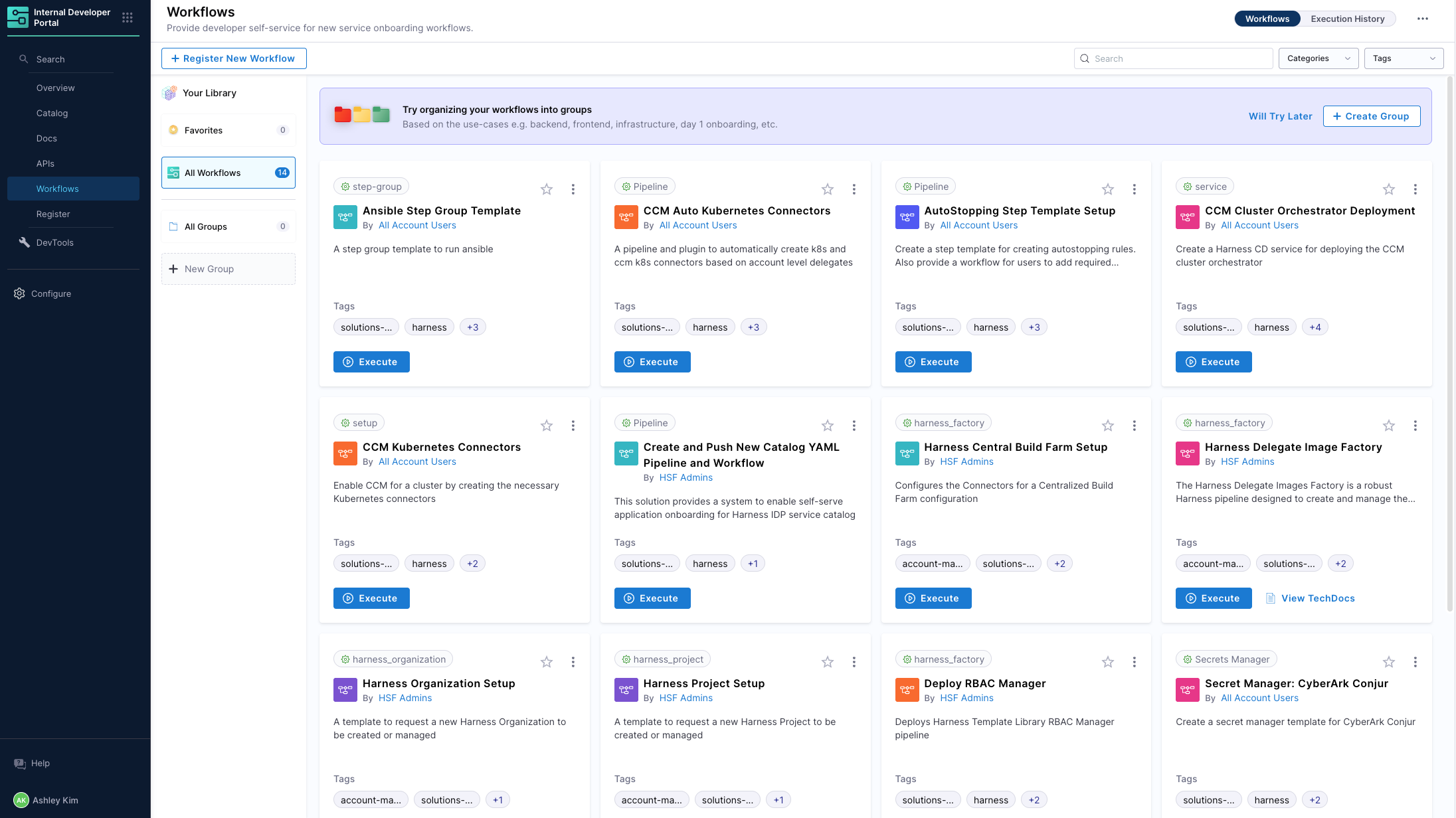
Go to IDP, then select Workflows to see available workflows or deploy a workflow.
-
Click Execute and follow the prompts to add in additional configurations.
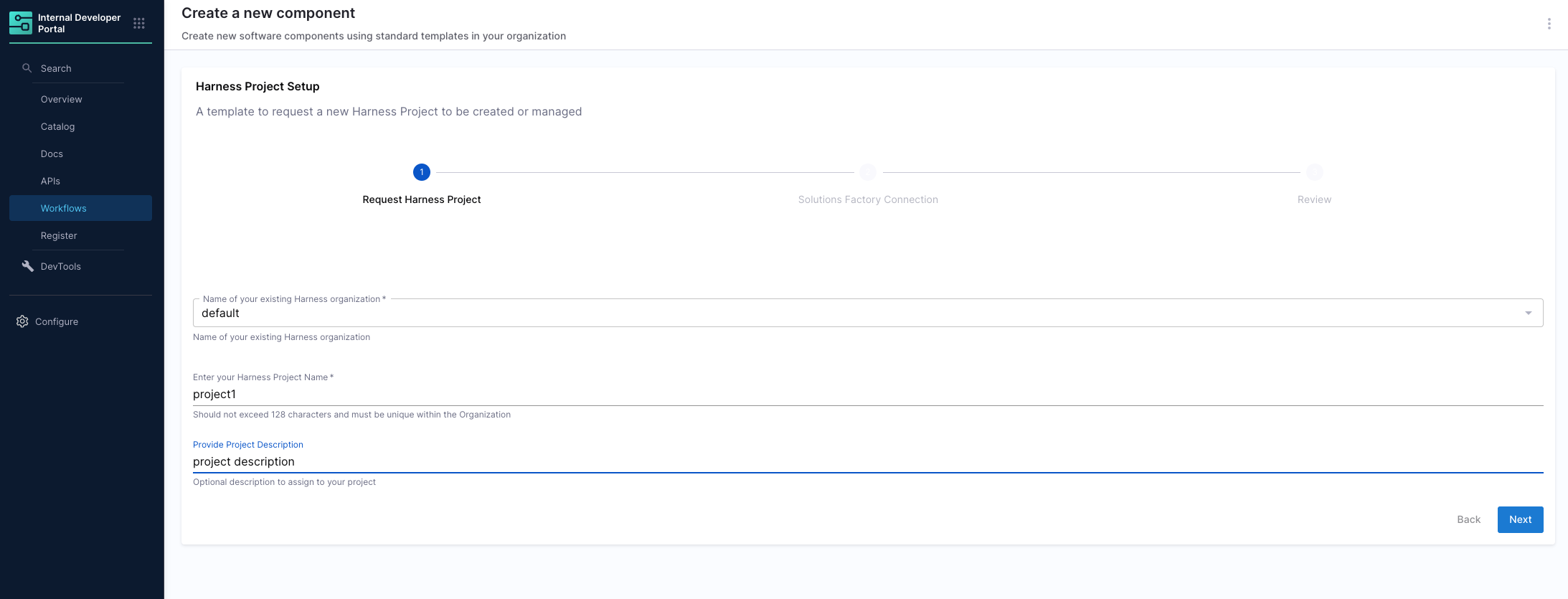
For this example, we are going to create a new project managed by HSF.
Debug or monitor workflows
-
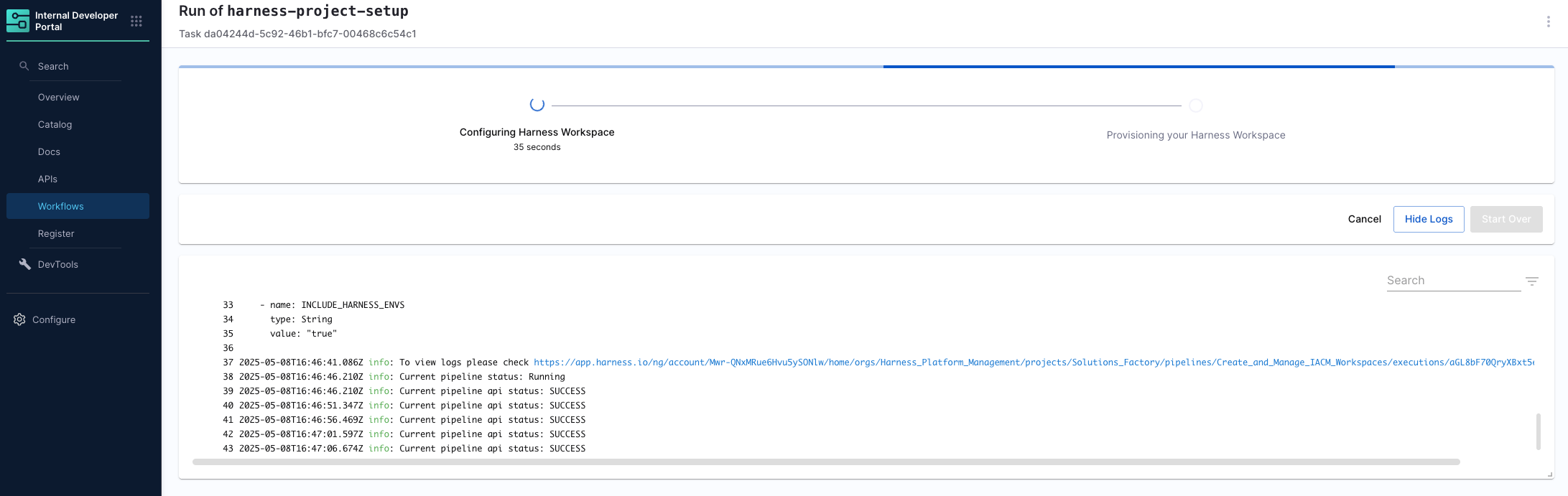
Click create to run the workflow, and select Show Logs to see the output.
-
Scroll down to see another link that will direct you to the Create and Manage IACM Workspaces pipeline that is being run to start the workflow.
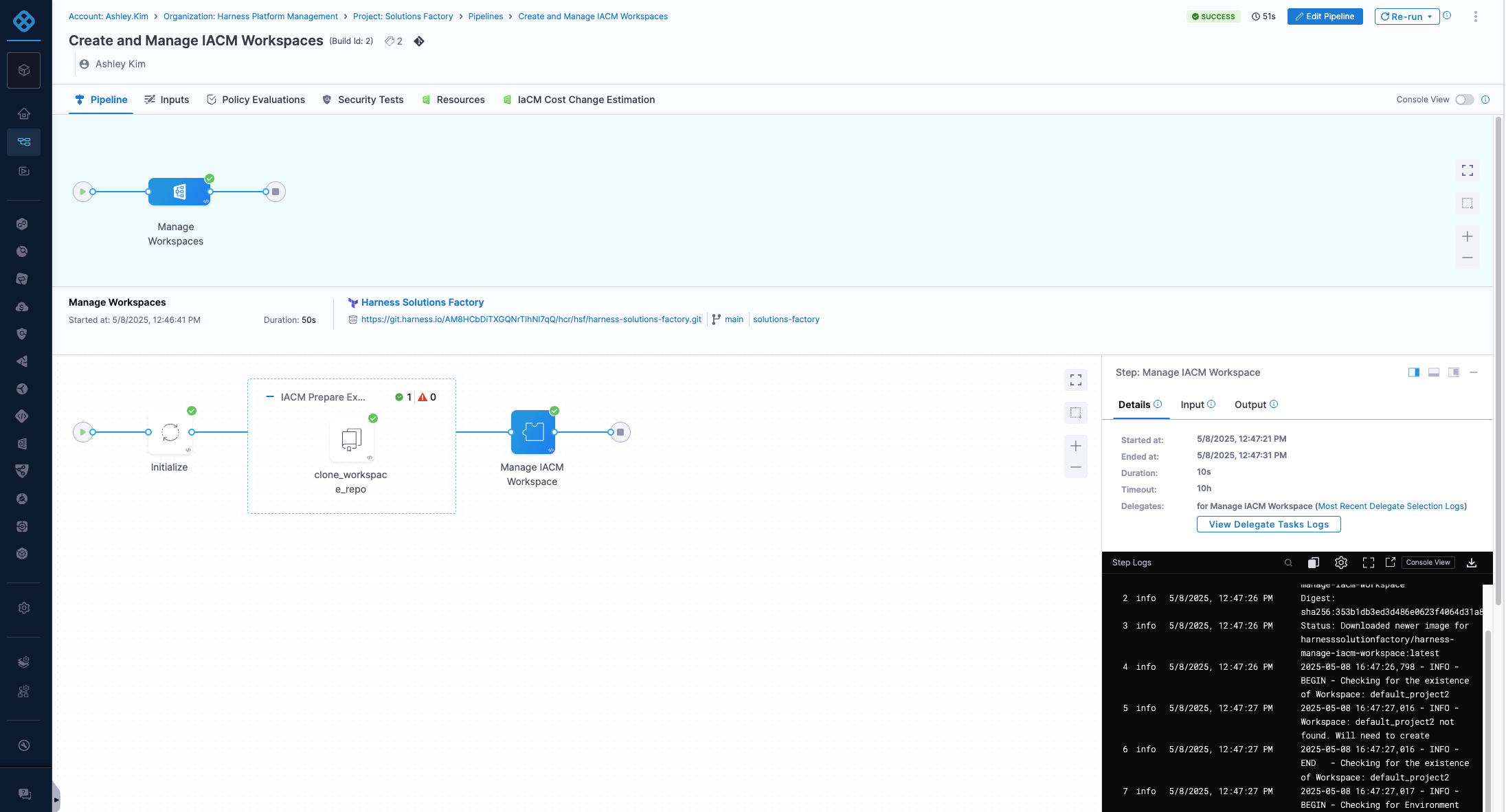
-
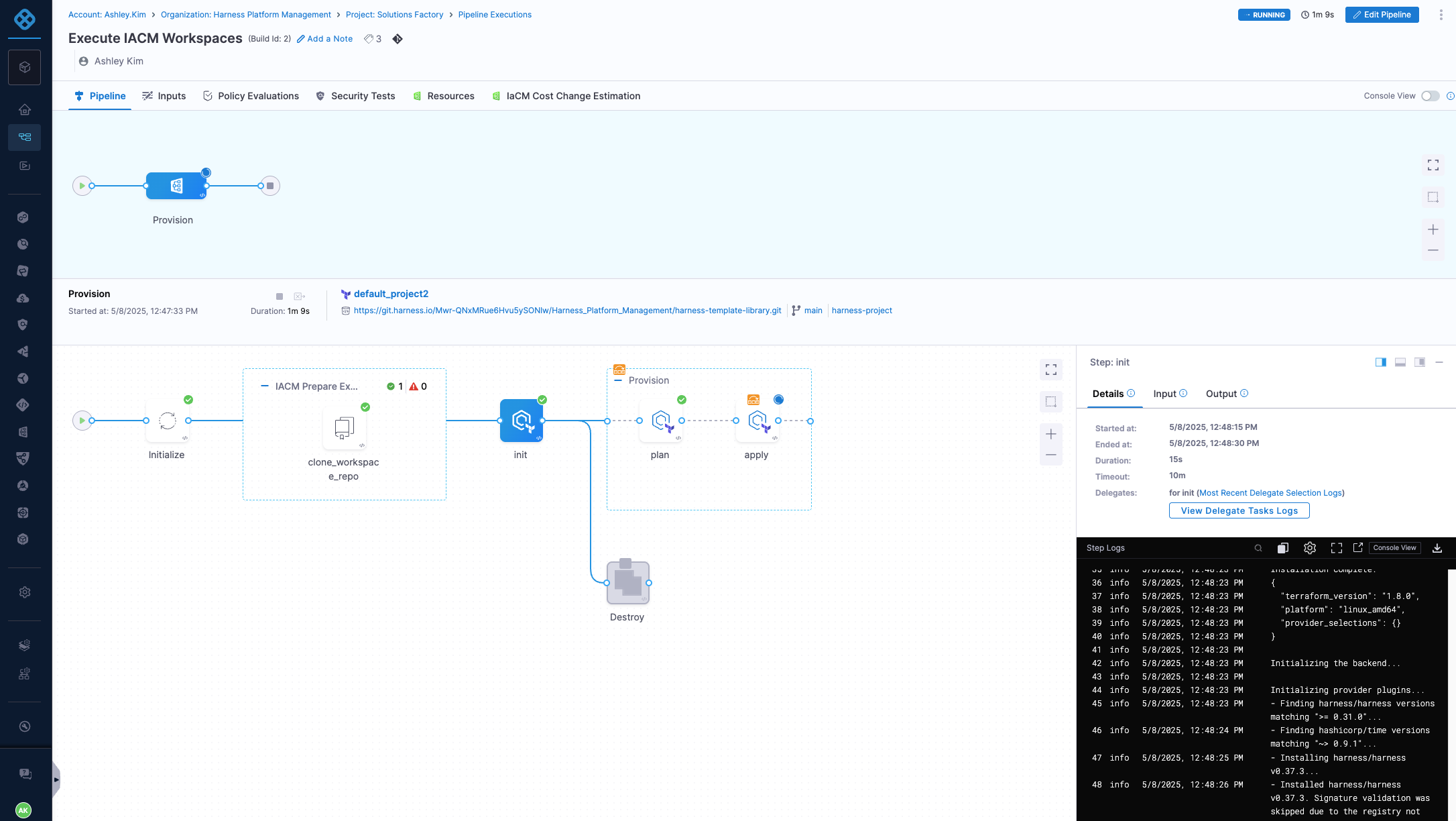
After this pipeline is done, it will kick off the Execute IACM Workspace pipeline.

To see the logs, navigate to the running instance of the pipeline and monitor it.
Execution Flow
The below diagram shows how the different components of the HSF work together when provisioning patterns through workflows: