> For the complete documentation index, see [llms.txt](https://developer.harness.io/llms.txt). Markdown versions of documentation pages are available by appending `.md` to page URLs; this page is available as [Markdown](https://developer.harness.io/infrastructure-as-code-management/platform/iacm-connectors-variables/variable-sets.md).
# Variable Sets
Learn how Variable Sets let you define reusable environment variables, Terraform variables, and secrets once, then apply them across multiple IaCM workspaces.
{% hint style="success" %}
This feature is in Limited GA[^1] and requires enablement. [View all early access features.](/release-notes/features.md)
{% @harness-feature-flag-access/request-feature-flag-access module="infrastructure-as-code-management" pagePath="infrastructure-as-code-management/platform/iacm-connectors-variables/variable-sets" featureFlags="%5B%7B%22name%22%3A%22Multi-level%20Variable%20Set%20attachment%22%2C%22key%22%3A%22IACM\_MULTI\_LEVEL\_VARIABLE\_SETS%22%2C%22status%22%3A%22LIMITED\_GA%22%2C%22description%22%3A%22Enables%20attaching%20account-%20and%20org-scoped%20Variable%20Sets%20directly%20to%20project-level%20workspaces.%20Without%20this%20flag%2C%20Variable%20Sets%20must%20be%20created%20and%20attached%20within%20the%20same%20scope.%22%7D%5D" %}
{% endhint %}
A Variable Set is a reusable collection of connectors, environment variables, OpenTofu or Terraform variables, and secrets. You define a Variable Set once at the account, org, or project level and attach it to multiple workspaces, reducing repeated variable definitions across your infrastructure configuration.
When multiple Variable Sets are attached to a workspace, Harness evaluates them in priority order. Variables from a higher-priority set override those from lower-priority sets, giving you fine-grained control over which values take effect when the same variable name appears in more than one set.
***
## What you will learn
* **Variable Set scopes:** The account, org, and project levels at which Variable Sets can be created and managed.
* **CRUD operations:** How to create, update, and delete Variable Sets.
* **Workspace attachment:** How to attach a Variable Set to a workspace via the Connectors and Variables tab.
* **Priority control:** How to reorder Variable Sets in a workspace to determine which values take precedence when conflicts occur.
* **Downstream impact:** How to use the Referenced By tab to identify all workspaces affected by a Variable Set change.
***
## Create, update, or delete a Variable Set
Variable Sets are managed from Harness Account Settings.
1. Navigate to **Account Settings**, then select **IaCM Settings**.
2. Select **Variable Sets**.
3. To create a Variable Set, click **Create a new Variable Set** and configure your variables.
4. To update a Variable Set, click its tile to open and edit it.
5. To delete a Variable Set, click the **More** icon on the tile, then select **Delete**.
***
## Attach a Variable Set to a workspace
After you create a Variable Set, attach it to one or more workspaces from the workspace configuration.
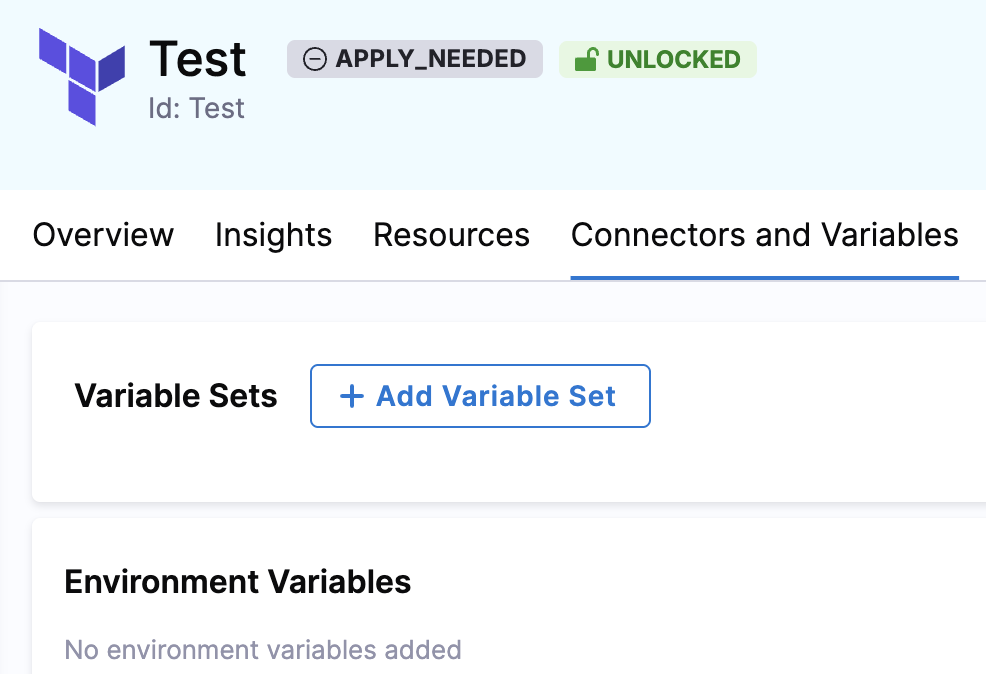
1. Open the workspace, then select the **Connectors and Variables** tab.
2. In the **Variable Sets** section, click **Add Variable Set**.
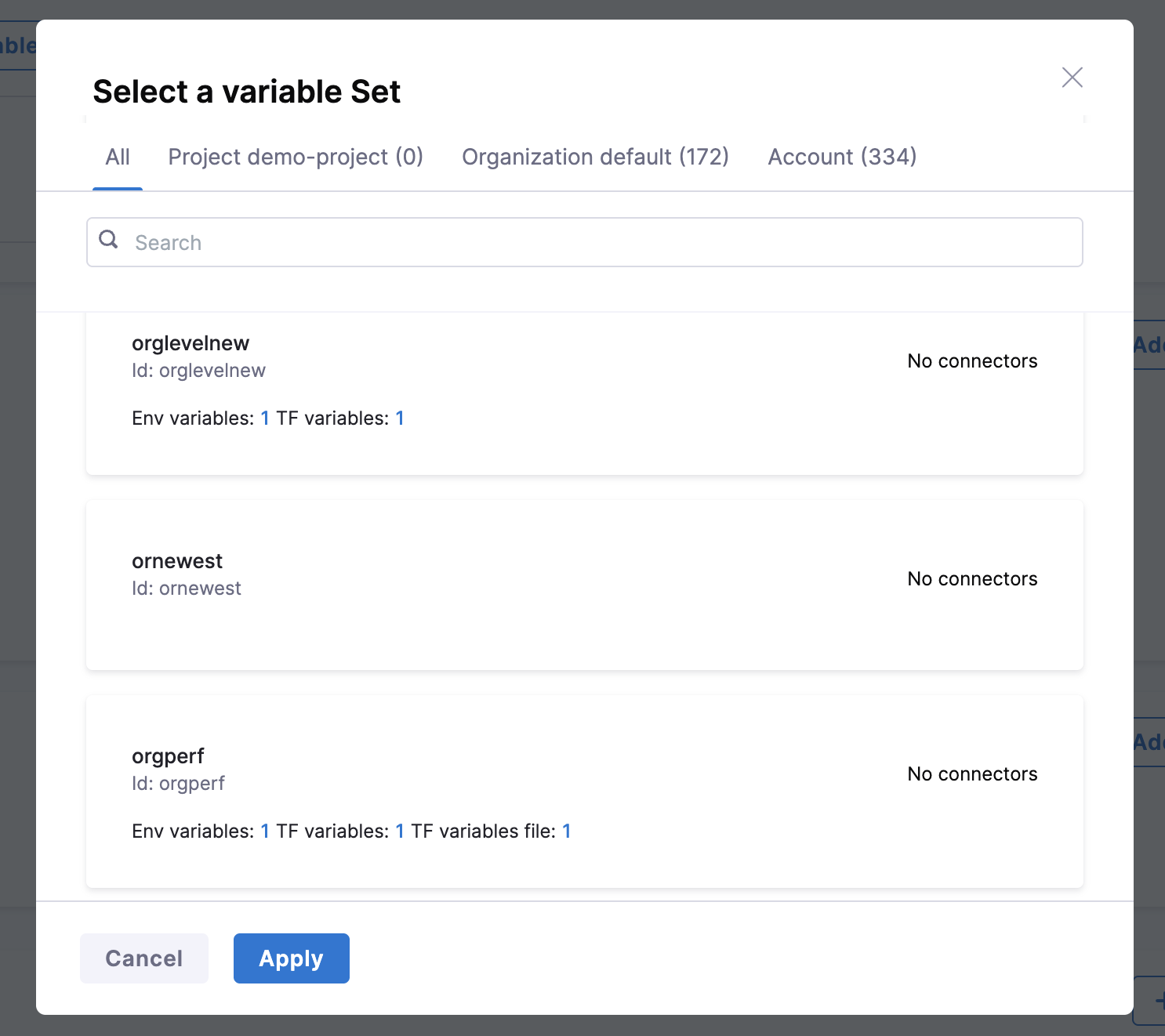
3. Select the Variable Set from the list to attach it to the workspace, then click **Apply**.
Go to [Connectors and Variable Sources](/infrastructure-as-code-management/platform/iacm-connectors-variables/connectors-variables.md) to review how Variable Sets interact with other variable sources and to understand the full order of precedence.
***
## Set Variable Set priority
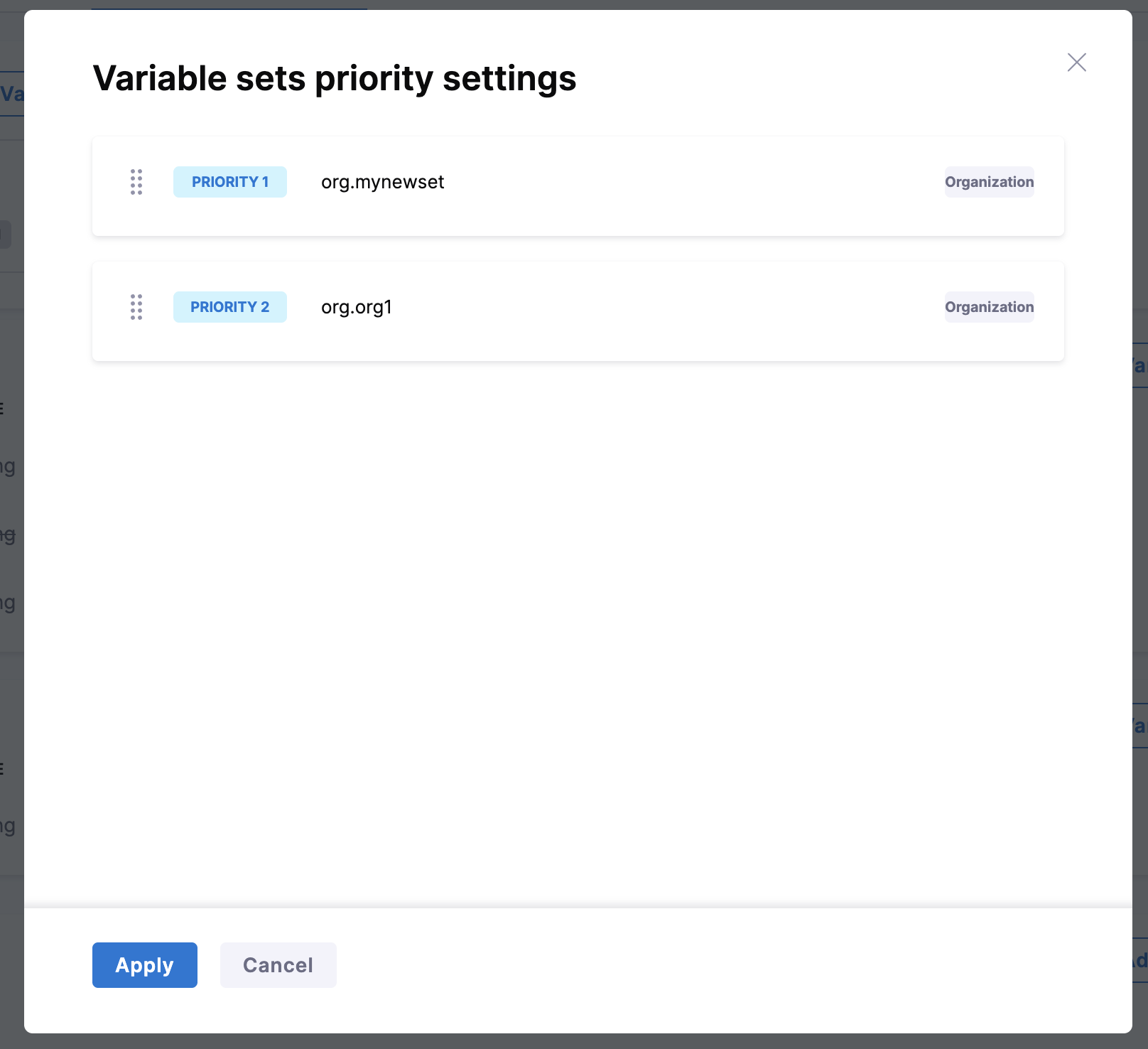
When more than one Variable Set is attached to a workspace, Harness uses priority order to resolve conflicts. Variables from the highest-priority set override those from lower-priority sets when the same variable name exists in multiple sets. The workspace shows which Variable Set provides the value used during execution.
To set Variable Set priority:
1. Open the workspace and select the **Connectors and Variables** tab.
2. Click **Priority Settings**.
3. In the panel, drag the Variable Sets into your preferred order: highest priority at the top, lowest at the bottom.
Priority 1 is the highest priority. Priority 2 is lower than Priority 1, and so on.
***
## Identify downstream impact
When you modify a Variable Set, every workspace that uses it is affected. Use the **Referenced By** tab on a Variable Set to see all workspaces where it is applied before you make changes.
To view downstream workspaces:
1. Navigate to **Account Settings**, then select **IaCM Settings**.
2. Select **Variable Sets**, then open the Variable Set.
3. Select the **Referenced By** tab.
The tab lists every workspace that has this Variable Set attached, so you can assess the impact of your changes before saving them.
***
## Input sources and runtime behavior
Each variable in a workspace shows its source:
* `TEMPLATE`: inherited from the workspace template.
* `CUSTOM`: defined directly in the workspace or Variable Set.
Use `<+input>` as a variable value to prompt the pipeline executor for a value at runtime. Go to [Fixed values, runtime inputs, and expressions](https://developer.harness.io/harness-platform/use-harness-platform/variables-and-expressions/runtime-inputs) to understand how runtime inputs work. Go to [Connectors and Variable Sources](/infrastructure-as-code-management/platform/iacm-connectors-variables/connectors-variables.md) to review all variable input sources and their order of precedence.
***
## Multi-level Variable Set attachment
You can create Variable Sets at the **account**, **org**, or **project** level. By default, you attach a Variable Set to workspaces at the same scope where it was created.
You can attach account- and org-scoped Variable Sets to workspaces in projects under the same account or org. This lets you define shared variable configurations once and reuse them across projects without duplicating Variable Sets.
To attach an account- or org-scoped Variable Set to a workspace, go to the workspace **Connectors and Variables** tab, select **Add Variable Set**, and select a Variable Set listed under **Organization** or **Account** scope in the picker.
***
## Next steps
After creating or updating a Variable Set:
* Go to [Connectors and Variable Sources](/infrastructure-as-code-management/platform/iacm-connectors-variables/connectors-variables.md) to attach the Variable Set to a workspace and review the full variable precedence order.
* Go to [Provision a workspace](/infrastructure-as-code-management/platform/workspaces/provision-workspace.md) to run a pipeline that uses your Variable Set configuration.
* Go to [Workspace Templates](/infrastructure-as-code-management/platform/workspaces/workspace-templates.md) to apply Variable Sets consistently across multiple workspaces through a template.
## FAQs
Can a project workspace use Variable Sets from account or org scope?
Yes, with the `IACM_MULTI_LEVEL_VARIABLE_SETS` feature flag enabled. Without that flag, a Variable Set must be created and attached within the same scope as the workspace. You can attach more than one Variable Set to a workspace at any scope. When the same variable name appears in more than one attached set, the set with the highest priority (Priority 1) wins.
{% @harness-feedback/feedback %}
[^1]: On by default, ready for production use and rolling out to every Harness environment incrementally. If you want it before it reaches your environment, request access and Harness will turn it on for your account. Rollout happens in stages, so a feature can reach some environments a week or two before others. Harness can also turn it off via the same **Request access** process for your account if you need it off.