terragrunt-quickstart
Terragrunt simplifies managing multiple OpenTofu/Terraform modules by orchestrating shared configurations and keeping your infrastructure code consistent across environments.
In Harness IaCM, Terragrunt extends rather than replaces OpenTofu or Terraform. It still runs their plan and apply commands under the hood. When creating a Terragrunt workspace, select your preferred binary (OpenTofu or Terraform) and version to execute infrastructure changes.
Terragrunt in Harness Infrastructure as Code Management (IaCM) lets you run Terragrunt-driven workflows from a workspace backed by your Git repository and cloud connectors, with the same pipeline patterns (init, plan, apply) you use for standalone OpenTofu or Terraform.
Use this guide when you want a repeatable path from connectors and workspace creation through a provision pipeline, including optional per-run Folder Path Override on each Terragrunt pipeline step (init, plan, and apply) for monorepos and multi-environment layouts.
What will you learn?
This guide covers the following:
- Connectors and workspace: Create cloud and Git connectors, then create a Terragrunt workspace wired to your repository and provisioner settings.
- Provision pipeline: Generate or author a pipeline that runs Terragrunt init, plan, and apply (and optionally add an approval between plan and apply).
- Folder path override: Use the workspace Folder Path as the default, and optionally set Folder Path Override per run on each Terragrunt step (
init,plan, andapply).
Before you begin
Before you use this guide, ensure you have the following:
-
Harness account with IaCM enabled: You need Infrastructure as Code Management under Infrastructure in Harness when it is entitled on your account. Go to Getting started with Harness Platform to access or create a Harness account.
Contact Harness supportIf IaCM does not appear, go to Get started with IaCM, or contact your account administrator or Harness Support.
-
Pipeline permissions: View, Create/Edit, and Execute on Pipelines. Go to RBAC in Harness to review the permissions model, and go to Manage roles to assign a role that includes them.
-
Git repository: Access to a Git provider with your Terragrunt project.
-
Cloud provider: Access to a cloud provider such as AWS or Google Cloud Platform for the infrastructure you manage.
-
Harness organization and project: An organization and project set up on the Harness Platform.
Sample Terragrunt
The following example Terragrunt (.hcl) file declares:
- Provider Configuration: Specifies the AWS provider and sets the region to "us-east-1". Go to AWS Regions & Availability Zones for a complete region list.
- Resource Definition: Creates an EC2 instance with the identifier
my_first_ec2_instance. - AMI: Utilizes ami-123abc321cba18, go to AWS EC2 User Guide to find your AMI image ID.
- Instance Type: Configures the instance to use a t2.micro. Go to the AWS t2 instances list.
Tags: To facilitate easy identification and management within AWS resources, a tag name with the valuemy_first_ec2_instanceis applied.
provider "aws" {
  region = "us-east-1"
}

resource "aws_instance" "my_first_ec2_instance" {
  ami = "ami-123abc321cba18"
  instance_type = "t2.micro" # Go to https://aws.amazon.com/ec2/instance-types/t2/ for a full T2 instance type list.

  tags = {
    Name = "my_first_ec2_instance"
  }
}
Go to Terragrunt Documentation to review currently supported workspace types.
Set up your workspace
A workspace is a named environment for storing your Terragrunt configurations and resources. You connect your cloud provider and code repository through Connectors so Harness IaCM pipelines can run against your repository and credentials.
Harness recommends configuring your connector before creating your workspace; you can also add new connectors during the Create Workspace flow.
Step 1: create a connector
Use Harness AI to create and configure your cloud provider and code repository connectors before you create a workspace:
- Create a Connector
- Step-by-step
When adding any connector, start by:
- Sign in to app.harness.io.
- In the module pane, select Infrastructure.
- Select Project Setup, and then select Connectors.
- Select New Connector (AI).
- Select an option, for example "Create a GitHub connector", or type your request to create a connector for your chosen cloud provider or code repository.
Harness creates a YAML file for your connector. Once you select Create, Harness creates your connector and adds it to your project.
Edit your connector by updating the AI generated YAML file, or by selecting Edit Details in the connectors panel.
Go to Connect your Cloud Provider and Connect your Code Repository to connect your cloud provider and code repository.
For easier access and token management, use the OIDC (OpenID Connect) option in the Credentials panel. This allows your connector to assume roles with permissions set in your Cloud Provider, updated only by authorized users. Go to the Use OIDC tab for setup details.
Step 2: create your workspace
Once you have configured your connectors, create a workspace and select those connectors in the New Workspace wizard.
For first-time use, use our migration tool to create new workspaces and import your existing Terraform projects into the Harness Platform.
- Interactive Guide
- Step-by-step
- In the module pane, select Infrastructure.
- Select an existing project or create a new project.
- Select Workspaces, and then select New Workspace.
- Select Create new Workspace, then select Start from scratch and complete the following fields in the new workspace wizard:
About workspace
- Name - Enter a unique name to identify the workspace.
- Description (optional): Enter an optional description to help identify the workspace.
- Tags (optional): Add a unique tag to identify the workspace.
Configure repository details
- Select your Git provider, either Harness Code Repository or Third-party Git provider for other providers like GitHub or GitLab.
- Git Connector: Select the Git connector you created in the previous step.
- Git Fetch Type: Select the Git fetch type, either Latest from branch, Git tag or Commit SHA.
- Git Branch: Specify the branch you want to use for the workspace.
You can configure the workspace branch as a JEXL expression that references a pipeline variable, and then set the pipeline variable as a runtime input.

Set your branch variable as a runtime input in the pipeline:
variables:
 - name: iacm_branch
   type: String
   description: ""
   required: true
   value: <+input>.default(main)
- Folder Path: Specify the path from the root of the repository to the directory containing your Terragrunt configuration.
The Folder Path you set here applies when a Terragrunt pipeline step does not set an override. For a specific run, you can override it with Folder Path Override on each Terragrunt step: init, plan, and apply. Go to Configure Terragrunt folder path override to set it.
Advanced options allow you to include submodules if your code repository includes modules and submodules. Go to Module Registry to review module registry concepts.
Provisioner
- Connector: Select the cloud provider connector you created in the previous step.
- Workspace Type: Select Terragrunt as the workspace type you want to use for the workspace.
- Terragrunt Version: Select the Terragrunt version you want to use for the workspace.
- Terragrunt TF Binary: Select either Open Tofu or Terraform as your Terragrunt TF binary for your workspace.
- Terragrunt TF Version: Select the Open Tofu or Terraform version to use for the Terragrunt TF binary.
- Optional: Run all Terragrunt modules.
When enabled, Harness reviews your Terragrunt modules at both the root level and nested folders and runs all detected Terragrunt modules in your repository as part of a single workspace execution. Disable this option if you prefer to only review Terragrunt modules at the root level.
Add variable set (optional)
If you have configured variable sets for reuse, select the variable set you want to use for the workspace.
- Select Create.
Step 3: add a provision pipeline
A pipeline structures workflows to manage tasks like planning infrastructure changes, enforcing policies, and approvals. Go to Harness Pipelines to review pipeline concepts. You can also add pipelines through the Harness Platform or use a code-first approach with YAML.
Harness AI pipeline generation
- Interactive Guide
- Step-by-step
Start by adding the pipeline:
- Select the Infrastructure module.
- Select Pipelines, then select Create a Pipeline.
- Select an option from Harness AI chat or type a request to generate one, for example:
- "Create a pipeline to Provision an OpenTofu files with an init, plan and apply step."
- Review the generated YAML and Harness AI chat summary, and make any changes if necessary.
- Select Accept.
The Provision operation adds three Terraform plugin steps: init, plan, and apply. Go to Tofu/Terraform Plugins to review supported OpenTofu/Terraform commands.
Configure Terragrunt folder path override
Terragrunt provision pipelines use init, plan, and apply steps. Each of these steps exposes an optional Folder Path Override in the pipeline editor (or the equivalent in YAML) so Harness knows which repository directory to use for that step.
- Folder Path Override (optional): Enter the path from the root of the repository to the directory containing your Terragrunt configuration for this step. When set, it overrides the workspace Folder Path for that step’s execution only.
Folder Path Override on a Terragrunt step takes precedence over the Folder Path defined in the workspace configuration for that step. If Folder Path Override is left empty on a step, the workspace Folder Path is used.
For a single run against one directory, use the same override value on init, plan, and apply so every step targets the same Terragrunt context.
Example (monorepo): Set the workspace Folder Path to the repository root so one workspace represents the whole Terragrunt monorepo. For environment-specific runs, for example environments/dev versus environments/prod, set Folder Path Override to that subdirectory on init, plan, and apply for each pipeline execution instead of maintaining a separate workspace per environment.
Step 4: add an approval step (optional)
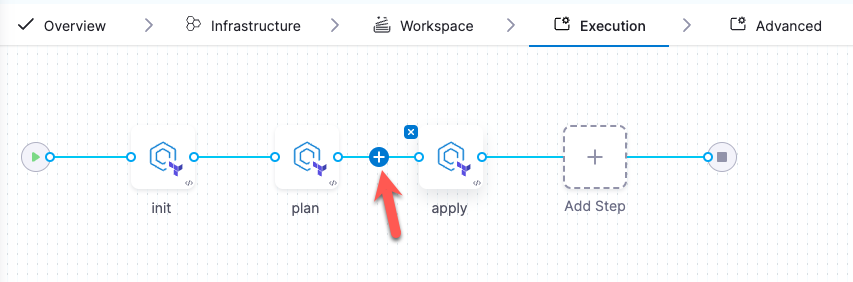
You can add the Approval step to prompt a review of the previous pipeline stage before proceeding. The most common use case is to add the Approval step between the plan and apply steps so you can review infrastructure changes and estimated costs (if cost estimation is enabled on your workspace) before applying them.
When using an Approval step, the underlying machine running the pipeline remains active until the approval is resolved. This means it will continue consuming compute resources.
- Interactive Guide
- Step-by-step
- From the Pipeline > Execution tab, click the Add icon between
planandapply.
- Click Add Step.
- Under IACM, select IACM Approval.
- Name the approval step and click Apply Changes.
- Click Save, then click Run to run your pipeline.