Creating a Team
You can create a Team from the Harness IDP user interface, from YAML, by importing an existing definition from Git, or through the Entity API. All four methods produce the same entity.
Before you begin
| Prerequisite | Details |
|---|---|
| Permissions | You need Create/Edit permission on the Teams resource at the scope where you want to create the Team. Go to Team access control for details. |
| Scope | Decide whether the Team belongs at the Account, Organization, or Project scope. Go to Scopes to review what each scope means. |
| Parent team | If this Team is a sub-team, the parent Team must already exist at the same scope or at a parent scope. |
Create a Team from the user interface
There are two entry points.
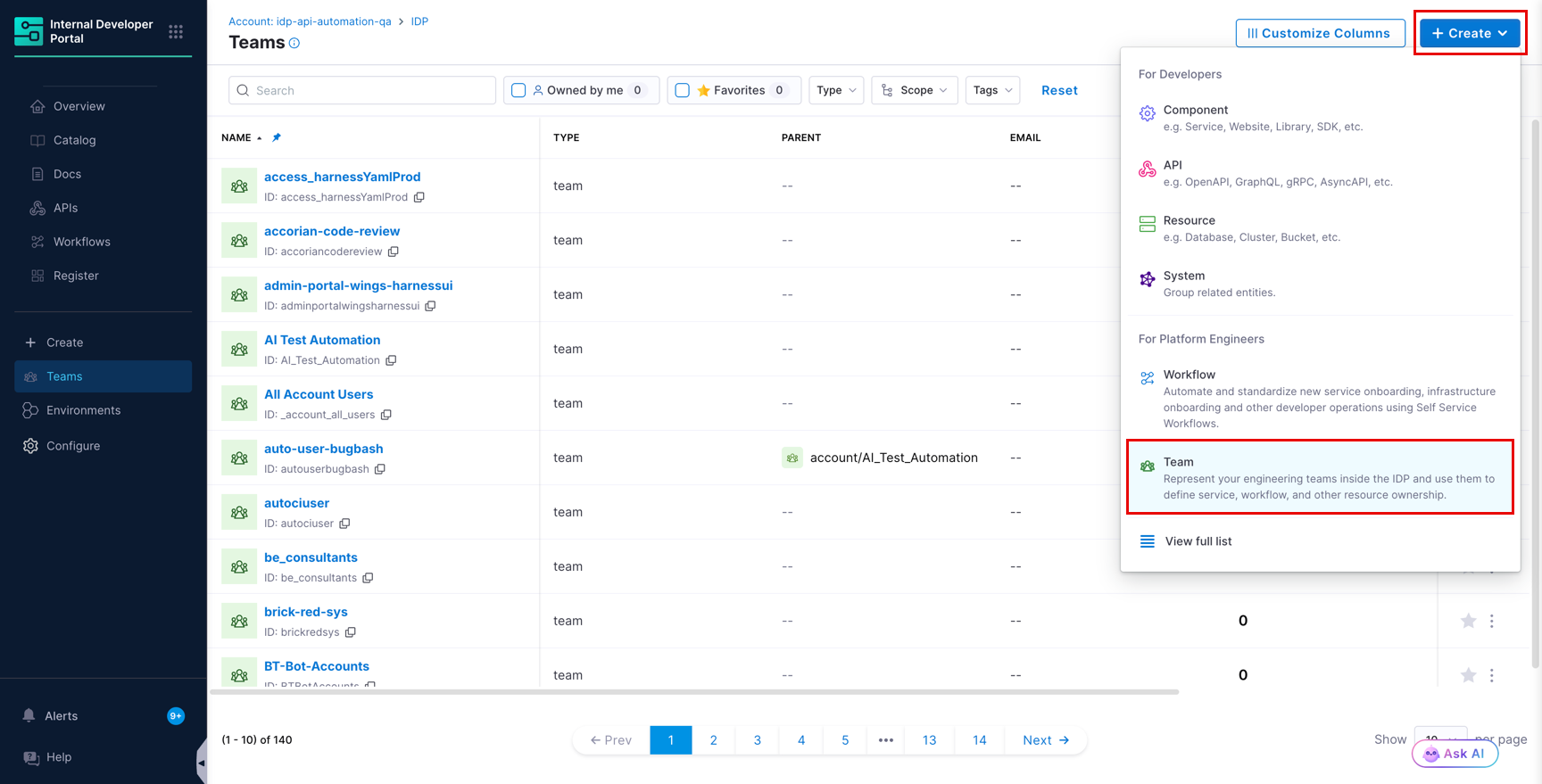
- Go to Teams in the IDP sidebar and click + Create.
- Go to Catalog, click + Create, and select Team under For Platform Engineers.
Step 1: Fill in the basic details
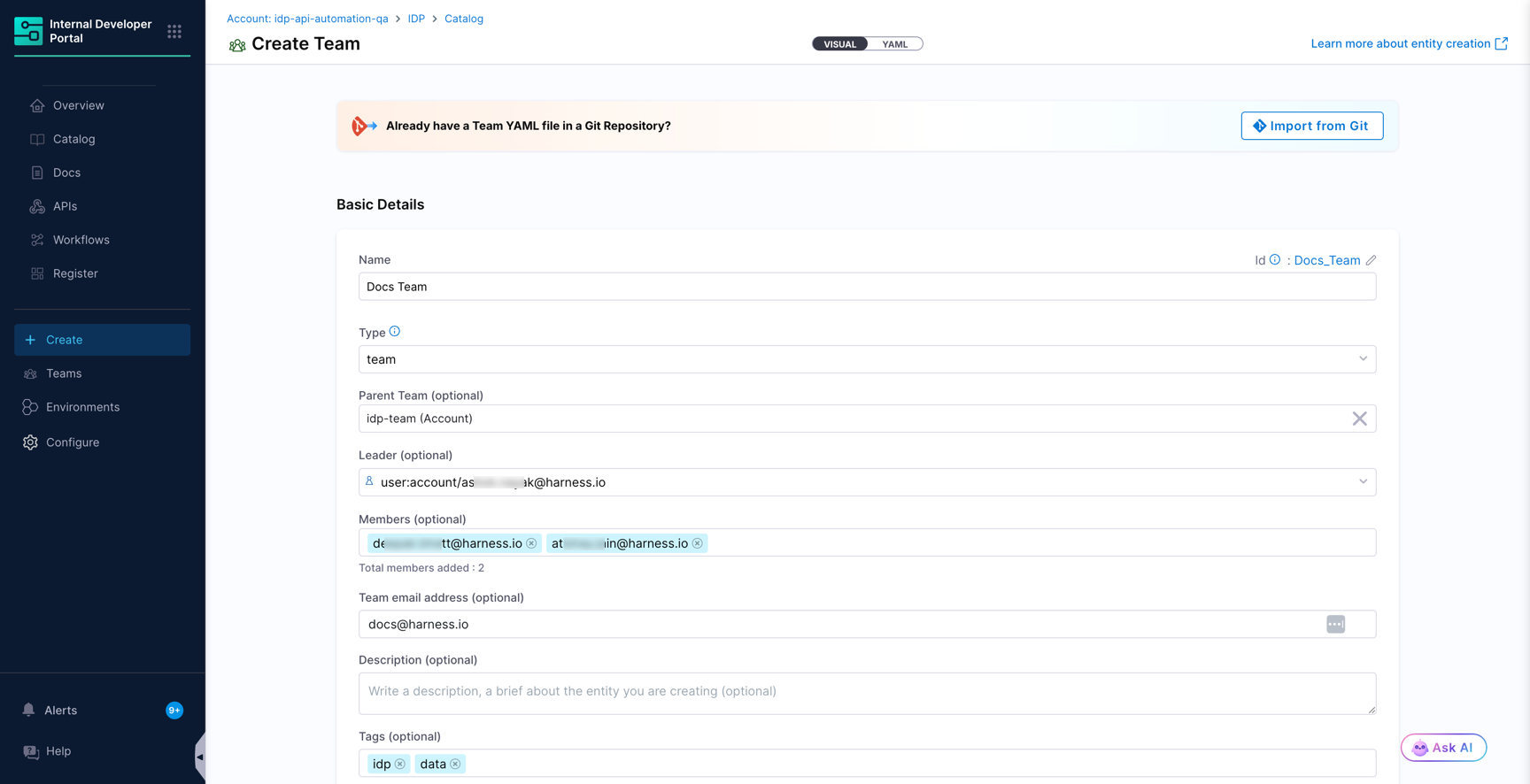
| Field | Required | Description |
|---|---|---|
| Name | Yes | The display name of the Team, for example Payments Platform. The identifier is generated from the name and can be edited using the pencil icon. |
| Type | Yes | A classification for the Team, for example team or squad. Select an existing type or enter a new one. |
| Parent Team | No | The Team that this Team reports into. Leave this empty for a top-level Team. |
| Leader | No | The person who leads the Team. Setting this creates a hasLeader relation from the Team to the user, visible in the Catalog graph. In YAML, this maps to spec.leaders. |
| Members | No | The users who belong to the Team. A Team can be created with no members and populated later. |
| Team email address | No | A shared contact address for the Team, for example payments@example.com. |
| Description | No | A short explanation of what the Team is responsible for. |
| Tags | No | Labels used for filtering and discovery in the Catalog. |
Step 2: Define the scope
Under Define Scope, choose where the Team lives.
| Scope | Behavior |
|---|---|
| Account | The Team is created at the account level and is accessible by all organizations and projects by default. |
| Organization | The Team is created at the organization level and is accessible by all projects in that organization by default. |
| Project | The Team is created at the project level and is accessible only by users added to that project. Select the project from the Select a Project list. |
The Parent Team list is scope-aware. A Team can take sub-teams from its own scope or from any child scope. For example, a Team at the Organization scope can have sub-teams that live in different projects inside that organization. It cannot take a sub-team from a parent scope.
Step 3: Choose where to store the Team
Under Where to store the Team?, select one of the following.
- Inline: The Team definition is stored in Harness and is managed entirely through the user interface or the API. This is the default.
- Remote: The Team definition is stored in your Git repository. Select a Git connector, repository, branch, and YAML path. Go to Git Experience Journey to learn more.
If you already have a Team definition in Git, click Import from Git at the top of the page instead of filling in the form.
Step 4: Review the YAML and create the Team
Click Review YAML to see the generated definition. The visual view and the YAML view stay in sync, so a change in one is reflected in the other.
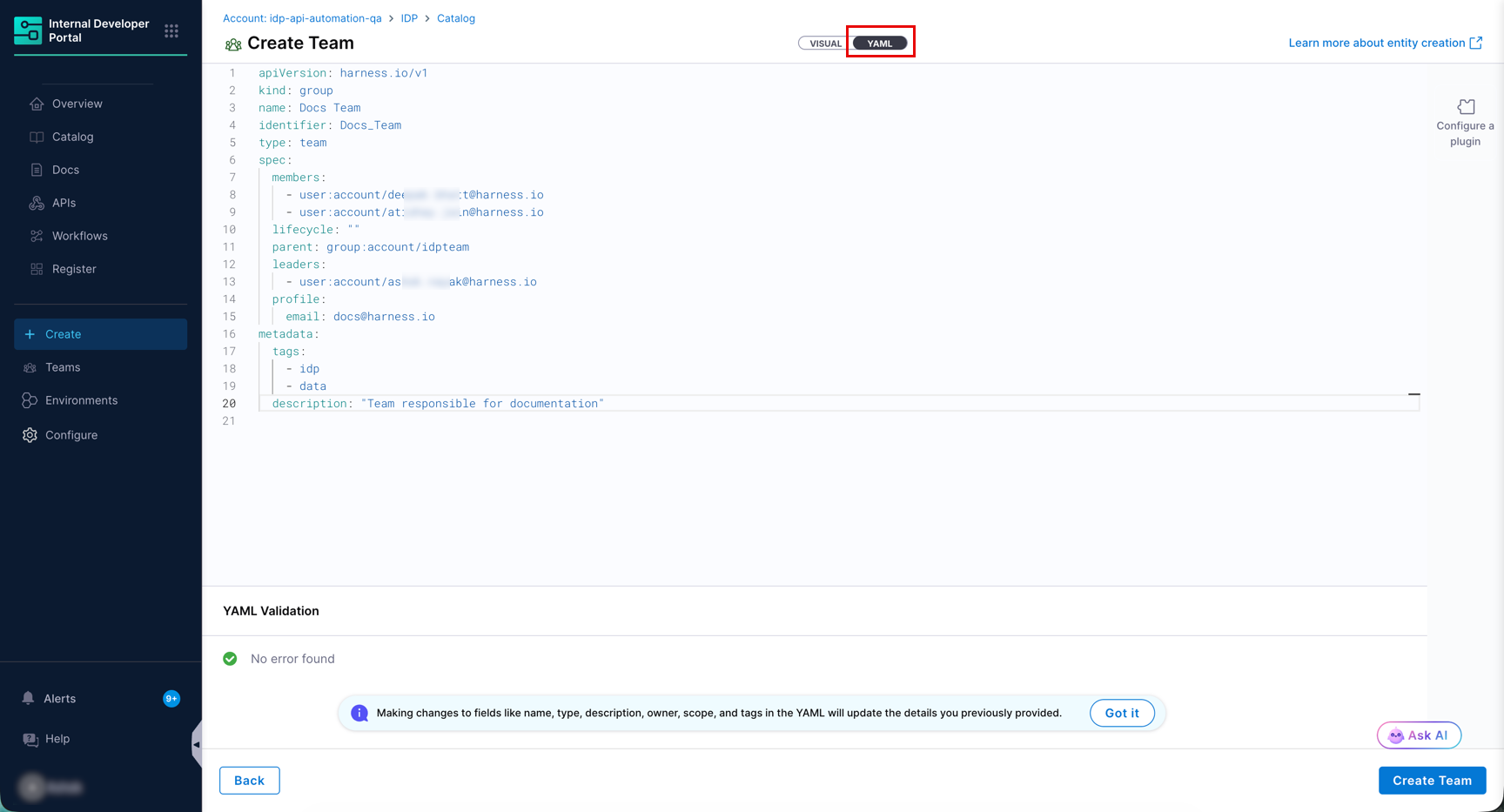
Check the YAML Validation panel, then click Create Team.
Ensure your identifier follows the identifier naming rules. An invalid identifier causes the entity registration to fail.
Create a Team using YAML
You can write the definition yourself instead of using the form. Switch to the YAML view using the toggle at the top of the Create Team page, or use the Entity API with kind set to Group.
apiVersion: harness.io/v1
kind: Group
type: team
identifier: payments_platform
name: Payments Platform
spec:
  members:
    - user:account/jane.doe@example.com
    - user:account/john.smith@example.com
  leaders:
    - user:account/matt.mathew@example.com
  parent: group:account/platform_engineering
  profile:
    email: payments-platform@example.com
metadata:
  description: Owns the payment gateway, settlement services, and their APIs.
  tags:
    - payments
    - platform
Field reference
| Field | Description |
|---|---|
apiVersion | Always harness.io/v1. |
kind | Always Group. This is the entity kind that backs a Team. |
type | A classification for the Team, for example team, squad, or department. |
identifier | The unique reference for the Team. |
name | The display name shown in the Catalog. |
spec.members | The users who belong to the Team, referenced as user:account/<email>. |
spec.leaders | The Team leader, referenced as user:account/<email>. |
spec.parent | A reference to the parent Team, which creates the hierarchy. |
spec.profile.email | The shared contact address for the Team. |
metadata | Description, tags, and any additional key-value pairs you want to carry on the Team. |
If you are bringing entity definitions across from Backstage, keep kind: Group in your YAML. Harness IDP accepts it without modification.
You do not need to declare child teams. When you set spec.parent on a Team, Harness IDP generates the reverse relations automatically, so both childOf and parentOf are visible in the Catalog graph.
Add more information to a Team
Beyond the fields above, a Team can carry any metadata that is useful to your organization, such as a region, a focus area, or an on-call rotation. You can add these directly under metadata in the YAML, or push them from an external system. Go to Team metrics and scorecards to learn how.