Team Access Control
Teams give you a second way to grant access to your Catalog. If a Team owns an entity, then holding a permission on that Team gives you the same permission on the entity.
This matters at scale. Instead of granting permissions on thousands of individual entities, you grant permissions on the handful of Teams that own them.
The two paths to a Catalog entity
A user can view, edit, or delete a Catalog entity if either of the following is true.
- The user holds that permission on the Catalog resource at the entity's scope.
- The user holds that permission on the Team that owns the entity.
Neither path replaces the other. A direct Catalog grant behaves exactly as it always has, and it is not limited by team boundaries.
An example
Consider a service called payments-api that lives in the retail project and is owned by the Payments Platform Team at the organization scope.
| The user holds | The result |
|---|---|
View on Catalog at the retail project scope | The user sees payments-api, along with everything else in that project. |
View on the Payments Platform Team, and nothing else | The user sees payments-api and the rest of what that Team owns, wherever those entities live. The user does not see other entities in the retail project. |
| Neither of the above | The user does not see payments-api. |
What inheritance covers
Ownership inherits View, Create/Edit, and Delete on the entities a Team already owns.
-
Creating a new entity is never inherited - To create a catalog entity, you need Catalog Create/Edit permission at the scope where the entity will live. A permission on a Team lets you edit and delete the entities that Team already owns. It does not let you create new ones.
-
Sub-teams do not inherit - A permission on a Team applies only to the entities that Team owns directly. It does not extend to the Team's sub-teams, and it does not extend to the entities those sub-teams own. Grant permission on each Team whose entities you want to reach. Go to Add Teams to a resource group to grant access across a Team and its sub-teams.
What team ownership does not cover
Team-based inheritance applies to Catalog entities only. Workflows, Environments, and Environment Blueprints are separate resource types with their own permissions, and they do not inherit access from team ownership. Grant permissions on those resources directly.
Entities of a custom entity kind do inherit team-based access, because they fall under the Catalog resource in the same way that Components, APIs, and Resources do.
Add Teams to a resource group
Team is a resource type in Harness resource groups. Because permissions do not pass down to sub-teams, a resource group is where you decide exactly which Teams a role can reach.
Go to Account Settings, Organization Settings, or Project Settings, then select Resource Groups under Access Control. Create a resource group, or open an existing one.
Step 1: Set the resource scope
Resource Scope decides which Teams the resource group can reach.
| Resource Scope | Teams covered |
|---|---|
| Account only | Teams at the Account scope. |
| All (including all Organizations and Projects) | Teams at every scope in the account. |
| Specified Organizations (and their Projects) | Teams in the organizations you select, and in their projects. |
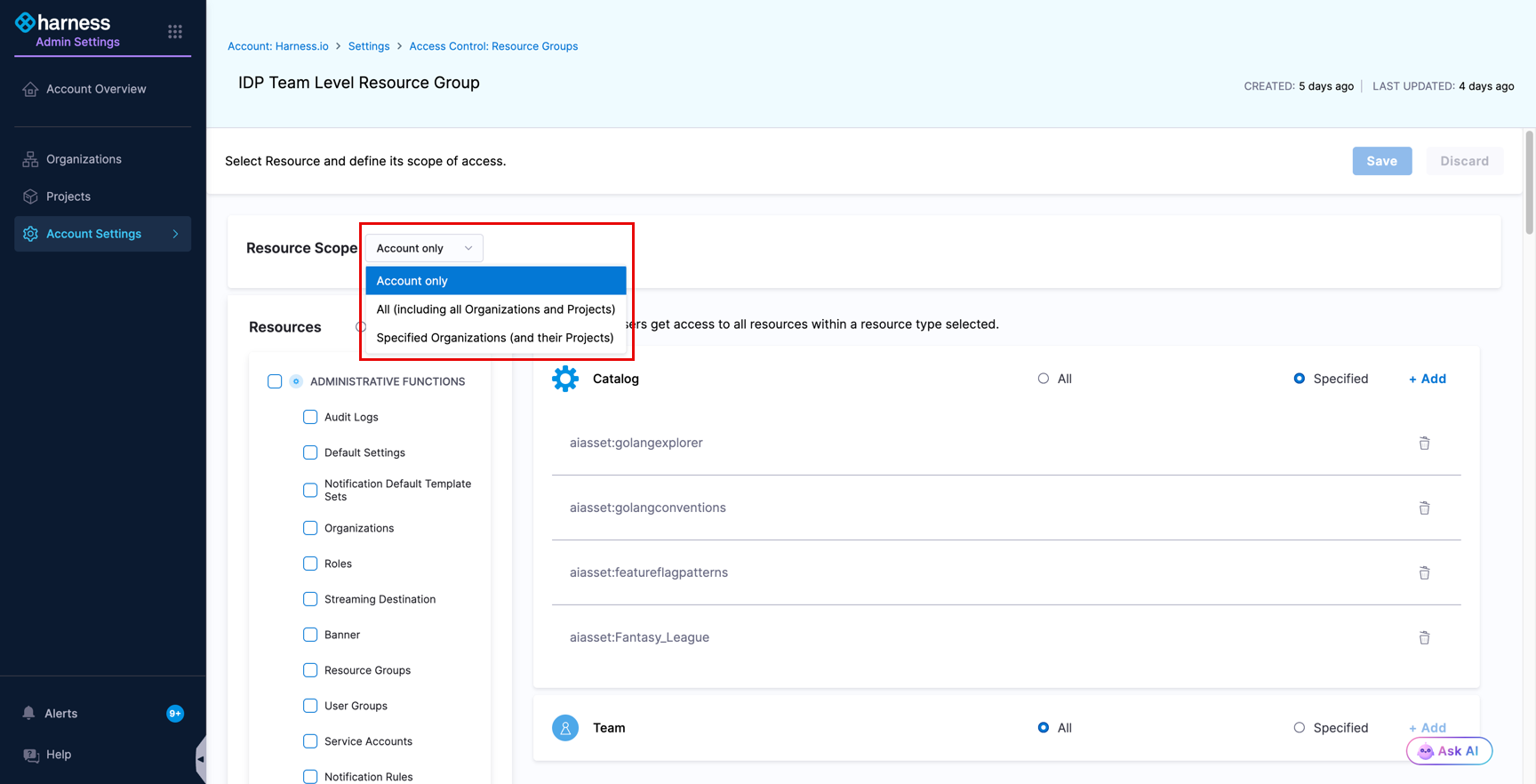
A Team is covered when it falls inside the Resource Scope and is included by your Resources choice. This applies to every Team, including sub-teams. Selecting a parent Team does not add its sub-teams, so select each sub-team you want the resource group to reach.
Step 2: Add the Team resource
Under Resources, select Specified, then find the Team row.
- Choose All to include every Team available in the resource scope you set.
- Choose Specified, then click + Add, to pick individual Teams.
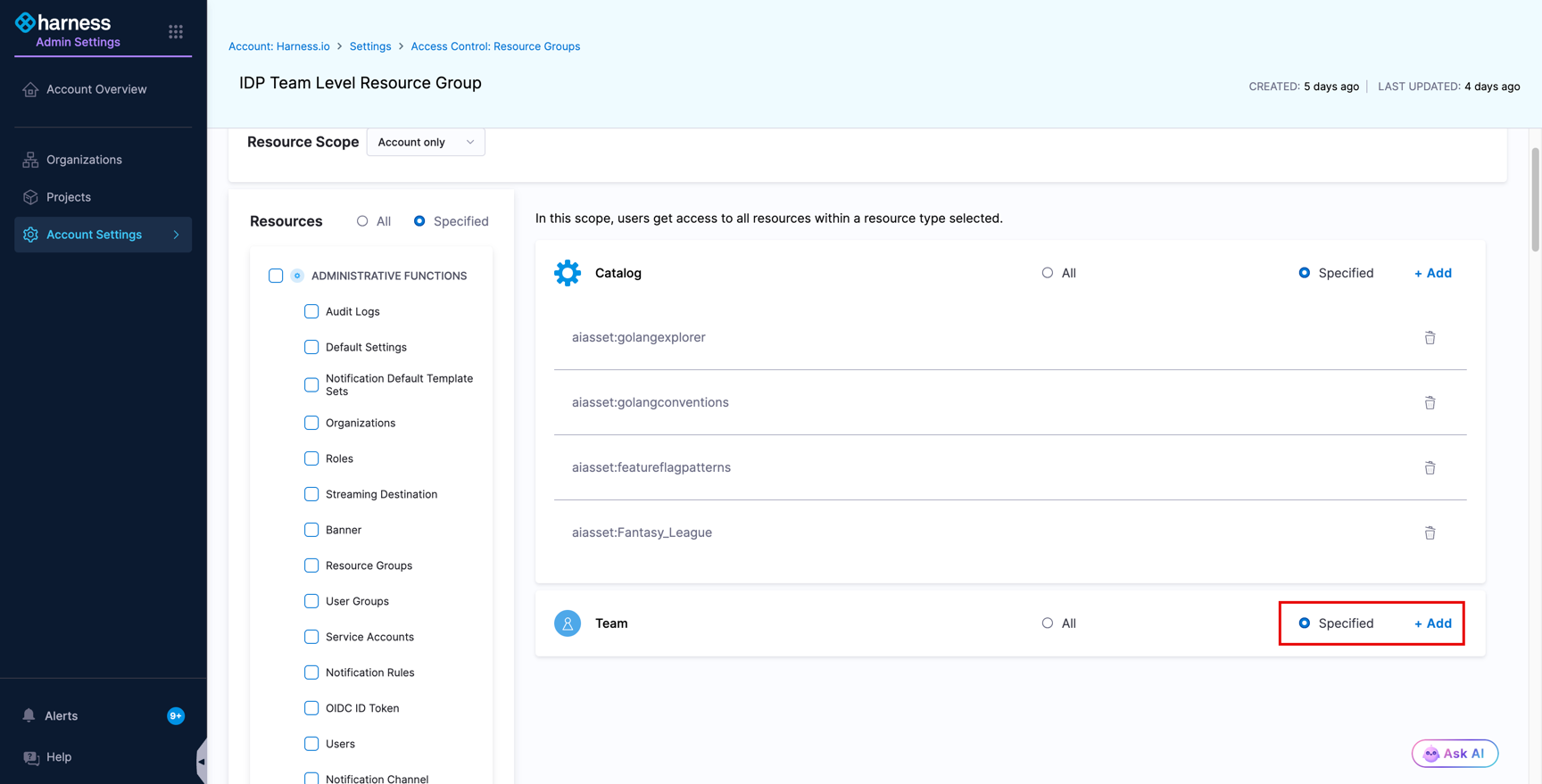
Step 3: Select Teams, including sub-teams
The Add Team dialog lists Teams as a hierarchy. Click the arrow beside a Team to expand it and see the sub-teams.
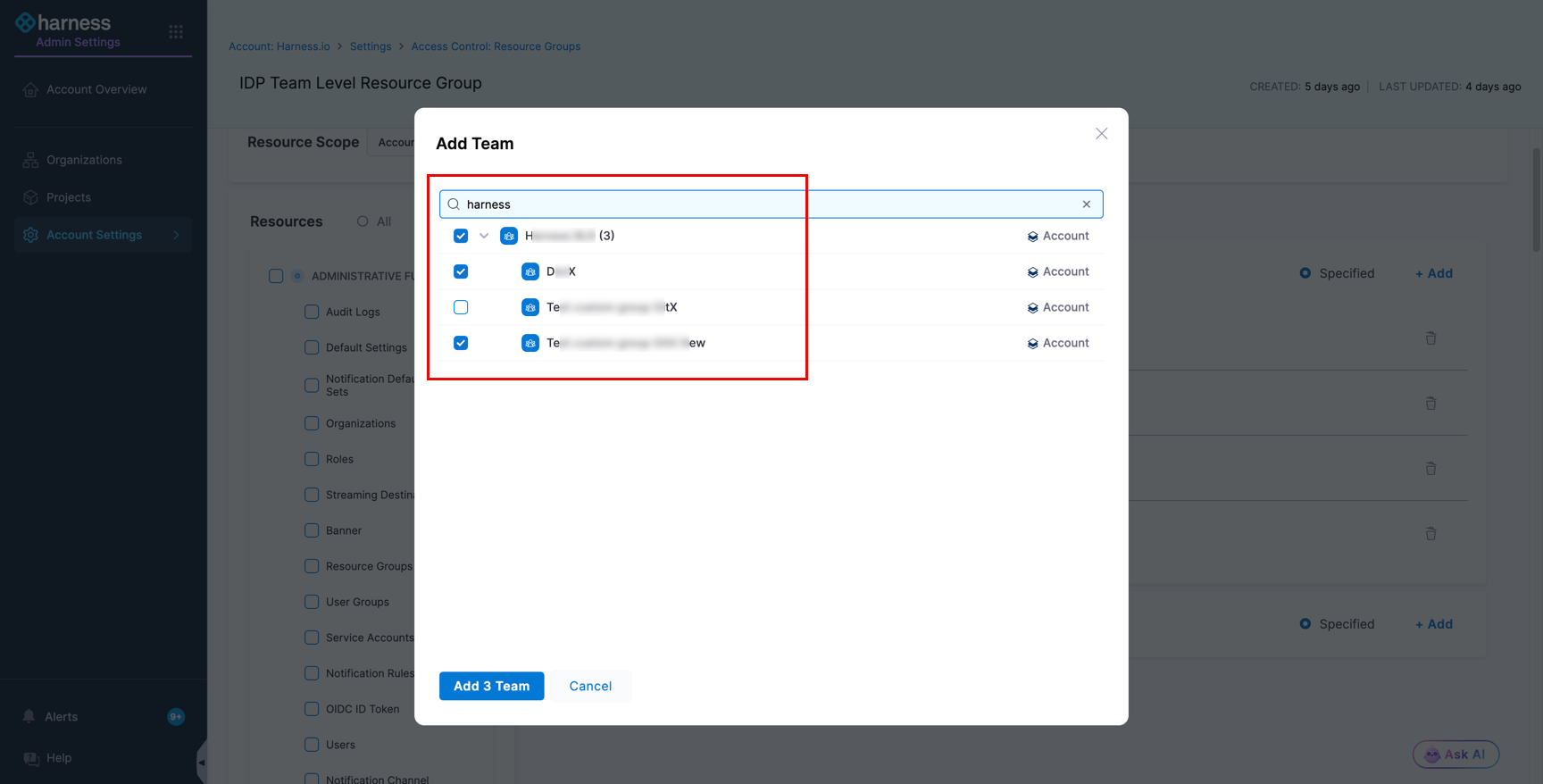
Each Team (parent and sub-team), carries its own checkbox and grants access only to the entities it owns directly. Select every sub-team you want the resource group to reach.
Go to Manage resource groups for the full resource group reference.
Set up team-based access
The steps below follow the same pattern as Catalog RBAC.
- Go to the settings for the scope where you want to configure access.
- Create a role with the permissions you want on the Teams resource.
- Create a resource group and add the Teams that the role should apply to.
- Create a user group and add users to it.
- Assign the role and the resource group to that user group.
Frequently asked questions
Does the owner field affect permissions?
Yes. When a Team is set as the owner of a Catalog entity, users who hold a permission on that Team hold the same permission on the entity. The owner field records responsibility and drives inherited access.
What happens to access when an entity changes owner?
An entity has one owner. When you assign it to a new Team, the previous ownership relation is removed. Users who had access only through the previous Team lose that access, and users with a permission on the new Team gain it.
Does a user need both a Catalog grant and a Team grant?
To view, edit, or delete an existing entity, no. Either one is sufficient, and holding both is not a problem. To create a new entity, yes: that always requires Catalog Create/Edit permission at the entity's scope, whatever Team permissions you hold.
I have permission on a parent Team. Can I reach the entities owned by its sub-teams?
No. Permissions apply to the entities a Team owns directly. To reach the entities owned by sub-teams, add those sub-teams to the resource group as well. In the Add Team dialog, expand the parent Team and select each sub-team you want to include. Go to Select Teams, including sub-teams for the steps.