Team Metrics and Scorecards
A Team page is more useful when it answers the question every engineering leader asks: how healthy is the software my part of the organization owns? Harness IDP supports this in three ways. You can enrich a Team with your own properties, roll metrics up from the entities a Team owns, and run scorecards against Team entities.
All three write data onto the Team entity. None of them appear on the Team page until you add the matching component to the Team layout, which is covered in the last section of this page.
Enrich a Team with custom properties
Team entities are supported by the Catalog Ingestion API in exactly the same way as Components, APIs, and Resources. This lets you push properties from any external system, such as a headcount figure, an on-call rotation name, or a maturity score.
Reference a Team using the group: entity ref format, followed by the scope and the Team identifier.
curl \
--location 'https://app.harness.io/gateway/v1/catalog/custom-properties/property?dry_run=false' \
--header 'Content-Type: application/json' \
--header 'x-api-key: <HARNESS_TOKEN>' \
--data '{
    "property": "metadata.testScore1",
    "entity_refs": [
      {
        "entity_ref": "group:account/payments_platform",
        "value": 55
      }
    ]
}'
A successful request returns the following.
{
  "status": "SUCCESS",
  "message": "Entity has been updated successfully with property metadata.testScore1"
}
To verify the result, open the Team, click View YAML, and select Ingested Properties.
Go to Catalog Ingestion API for the other endpoints, including updating several properties at once and updating several entities at once.
Roll metrics up to a Team
Aggregation rules collect a numeric field from lower-level entities and write the result onto a higher-level entity. Team is available as a roll-up scope, alongside Account, Organization, Project, and System.
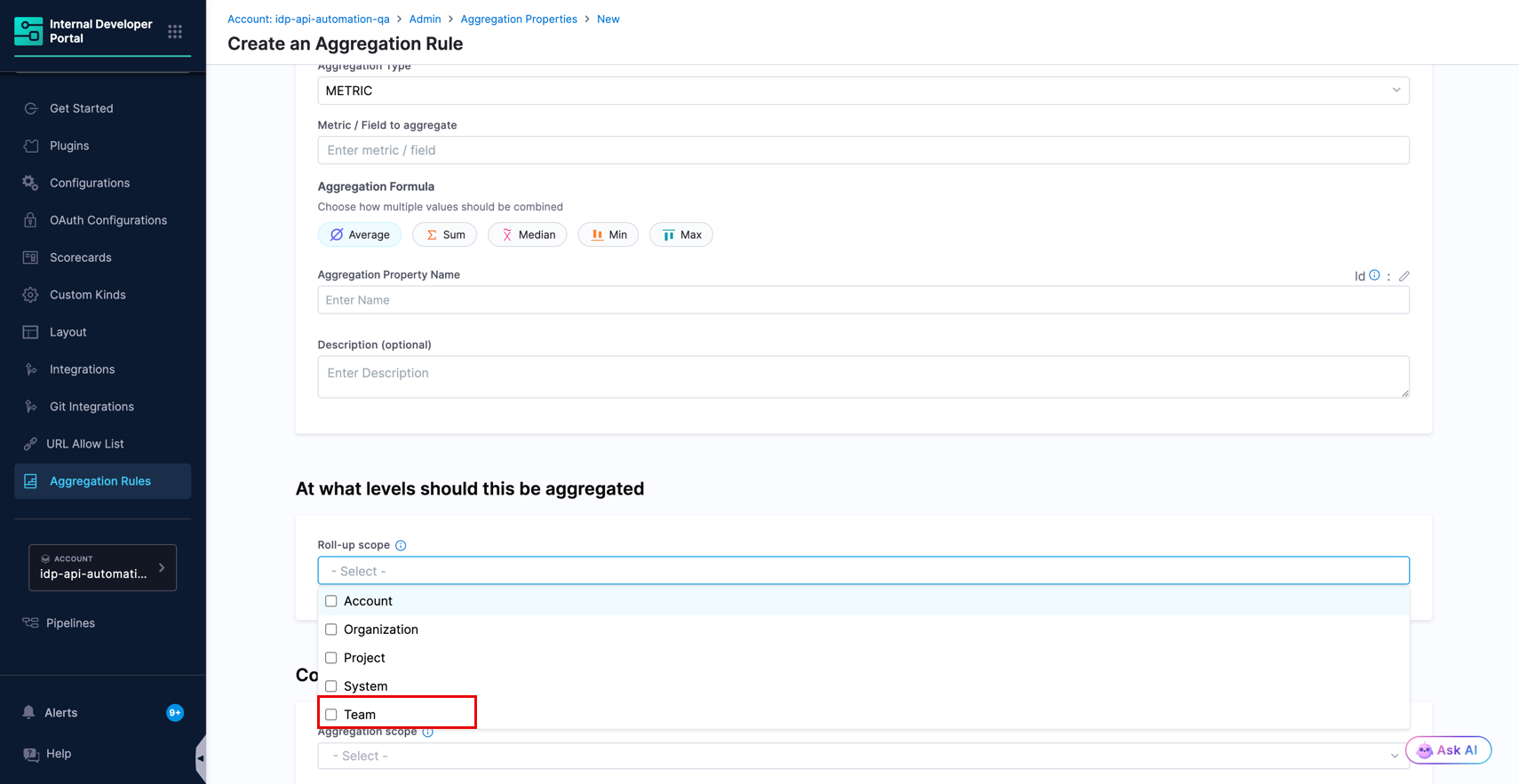
A Team roll-up collects values from the entities that the Team owns. Because Teams nest, the aggregation flows upward through the sub-team tree, so a parent Team reflects the entities owned by every Team below it and not only its own direct entities.
Create a Team roll-up rule
- Go to Configure, then Aggregation Rules, and click + New Aggregation Rule.
- Set Aggregation Type to
METRIC. - In Metric / Field to aggregate, enter the dot-notation path of the field you want to roll up, for example
metadata.testScore1. Field paths are case-sensitive. - Choose an Aggregation Formula: Average, Sum, Median, Min, or Max.
- In Aggregation Property Name, enter the name of the new property to write onto the Team, for example
avg_test_score. - Under Roll-up scope, select Team. You can select more than one level at a time.
- Under Configure entities to aggregate from, set the Entity kind and any other filters that describe the source entities, for example
Component. - Click Save.
The rule shows a SUCCESS status once the first computation completes. To verify the result, open a Team, click View YAML, and check Ingested Properties for the new property.
Go to Metric Aggregation Rule for the full field reference, and to Scorecard Aggregation Rule to roll up a scorecard score instead of a raw metric.
Run scorecards on Teams
Scorecards can be evaluated against Team entities, so you can measure the Teams themselves and not only the services they own.
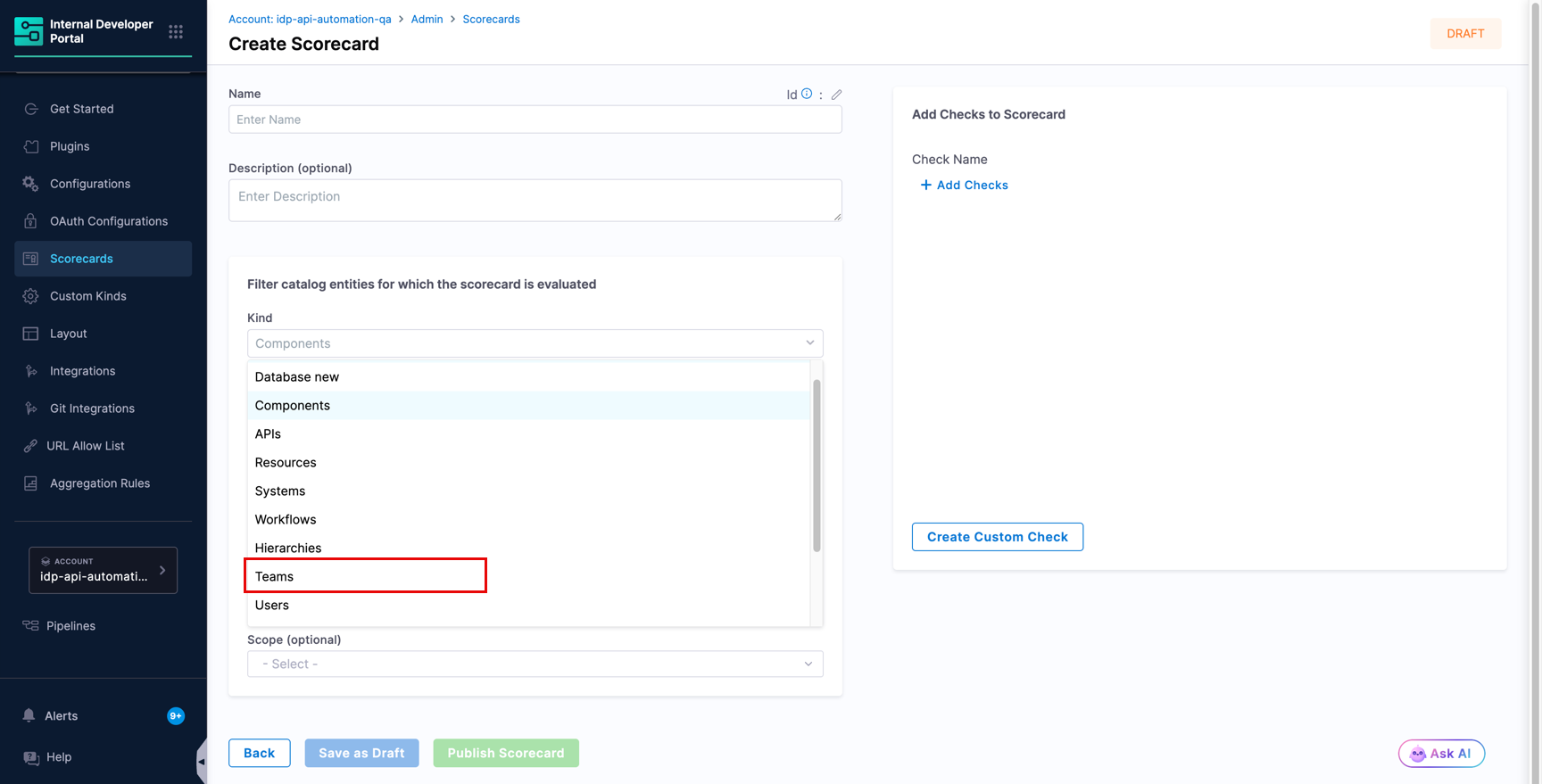
- Go to Configure, then Scorecards, and click Create New Scorecard.
- Enter a Name and a Description.
- Under Filter catalog entities for which the scorecard is evaluated, set Kind to Teams.
- Add the checks you want to run. Custom checks are usually the most useful here, because most built-in checks are written for software entities.
- Click Publish Scorecard.
Go to Create Scorecards and Scorecard Checks for details.
Some scorecard filters, such as Lifecycle and Owners, are shared across all entity kinds and are not meaningful for Teams. Leave them empty when you target Teams.
Show metrics and scores on the Team page
Aggregated values and scorecard results are stored on the Team entity, but the default Team layout does not display them. Add the components you need once, and they apply to every Team.
Go to Configure, then Layout, then Catalog Entities. Under Human based Entities, select Team, and click Edit Layout.
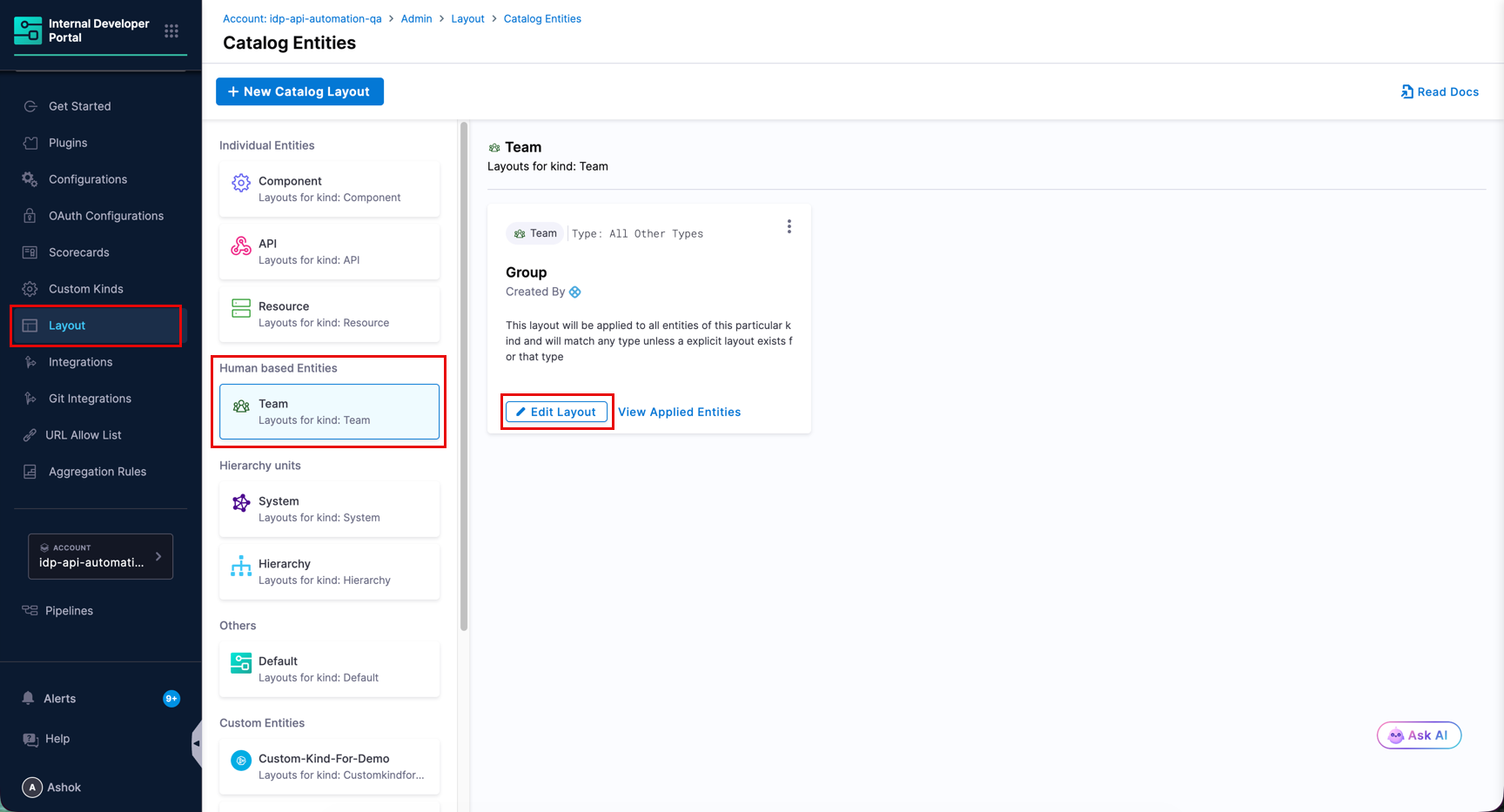
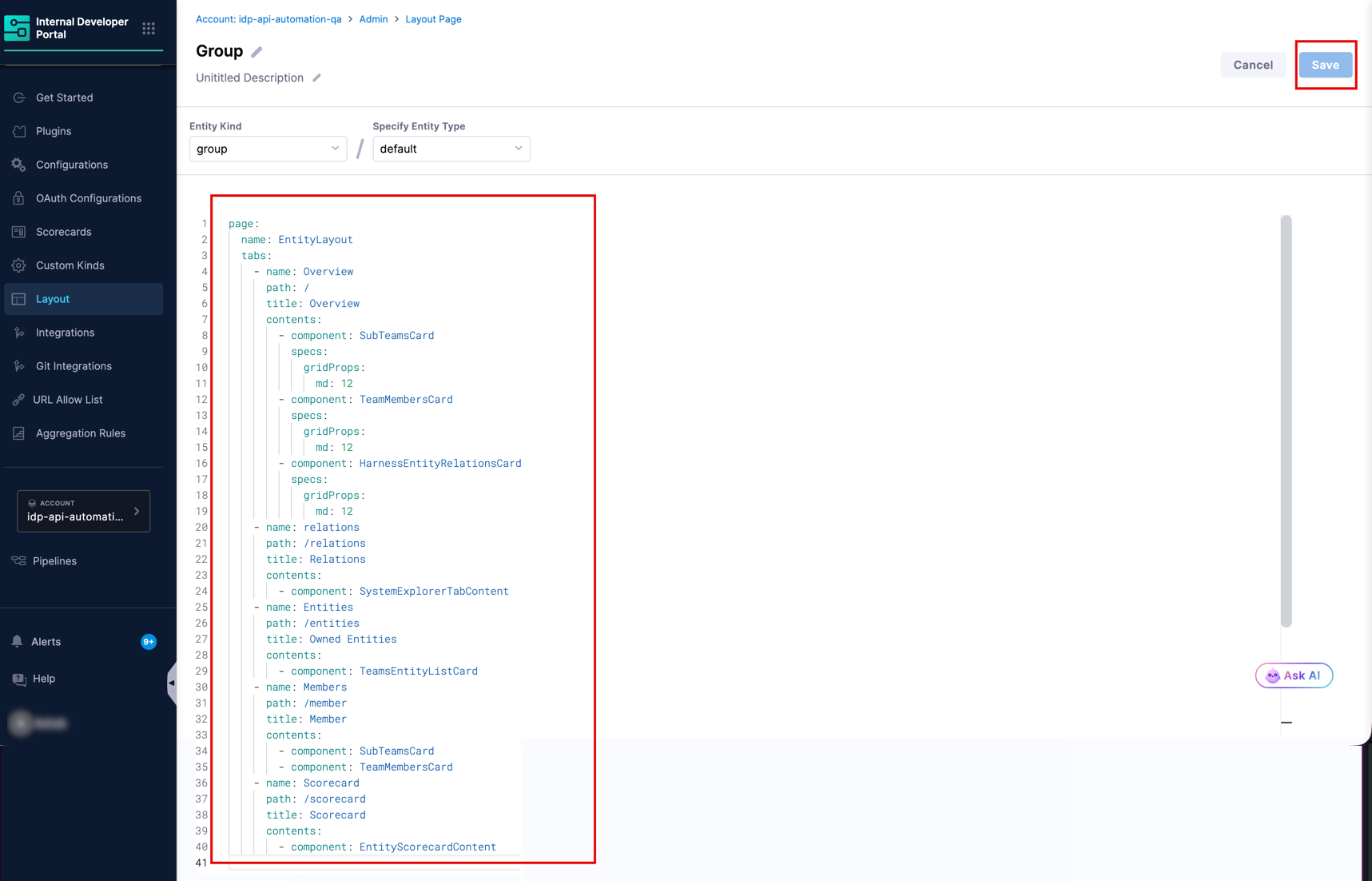
To show an aggregated value on the Overview tab, add a StatsCard that references the property your rule created.
- component: StatsCard
  specs:
    props:
      title: Average Test Score
      subtitle: Across everything this team owns
      value: <+metadata.avg_test_score>
To add a full scorecard report as its own tab, add the following to the tabs list.
- name: Scorecard
  path: /scorecard
  title: Scorecard
  contents:
    - component: EntityScorecardContent
Click Save. Go to Team entity layouts for the complete list of components available on a Team page.
Frequently asked questions
I created a Team roll-up rule, but nothing appears on the Team page.
Check the following in order.
- The rule status is SUCCESS. If it shows an error, click Compute from the three-dot menu next to the rule to trigger a fresh run.
- The field path in the rule matches the key in the source entities exactly, including casing.
- At least one entity owned by the Team carries the field.
- A
StatsCardreferencing the aggregated property has been added to the Team layout. Aggregated values never appear automatically.
Why is the Scorecard tab missing on my Team pages?
The default Team layout does not include the scorecard components. Add EntityScorecardContent as a tab, and optionally EntityScoreCard to the Overview tab, in the Team layout.
Does a Team roll-up include entities owned by its sub-teams?
Yes. Aggregation flows upward through the team hierarchy, so a parent Team reflects the entities owned by every Team beneath it.