manage-workflow-1o
This page is part of IDP 1.0 and is no longer maintained.
This guide will walk you through the process of registering and managing your Workflows directly from Harness IDP. Let's dive in!
Workflows in Software Catalog
Once a workflow is registered, it is stored in the Software Catalog under the kind "Template".
Access Workflows
- Navigate to the "Catalog" page in Harness IDP.
- Select "Template" from the catalog component filter to view all workflows.
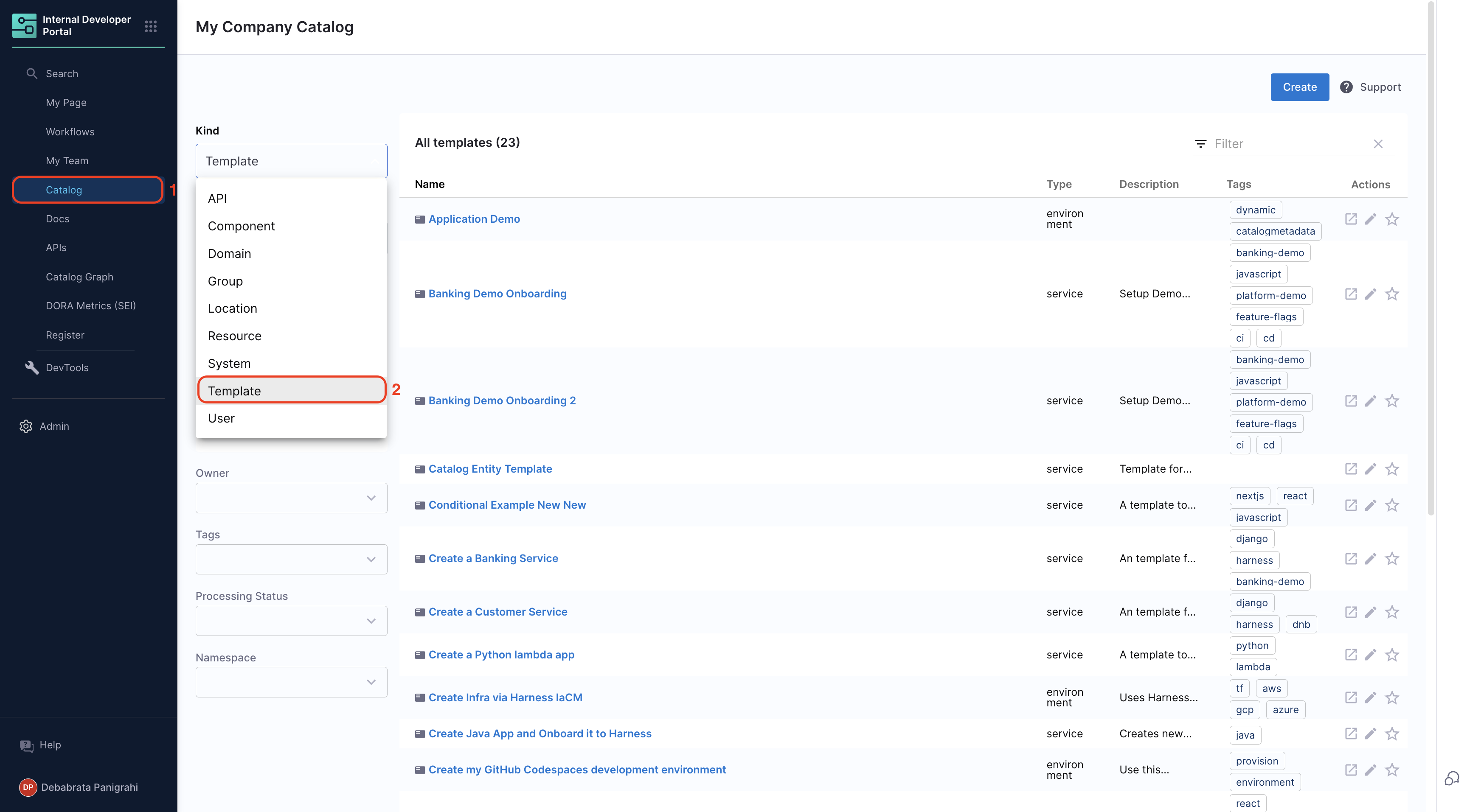
You can also inspect the catalog metadata for a workflow by clicking on the three dots in the top-right corner and selecting "Inspect Entity".
Manage Workflows
You can manage your workflows from Harness IDP directly. Let's dive deeper into specific functions.
Register Workflow
You can register a new workflow just like you register a new entity in your software catalog, refer to this guide for more details.
- Create a
workflow.yamlfile in your source code repository. - Go to the "Workflows" page in Harness IDP and click "Register a new workflow".
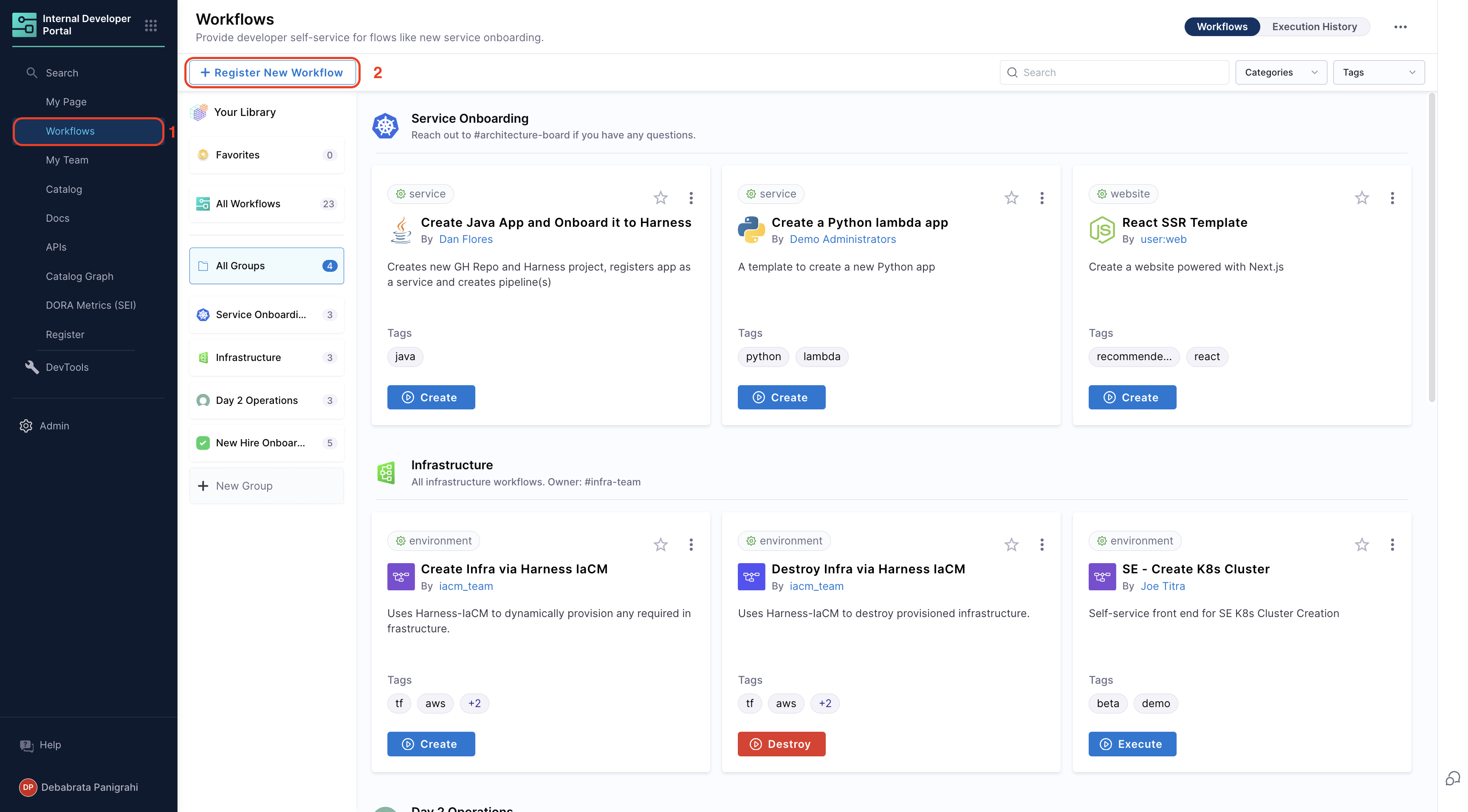
- Provide the URL of the
workflow.yamlfile. Learn more about registering workflows.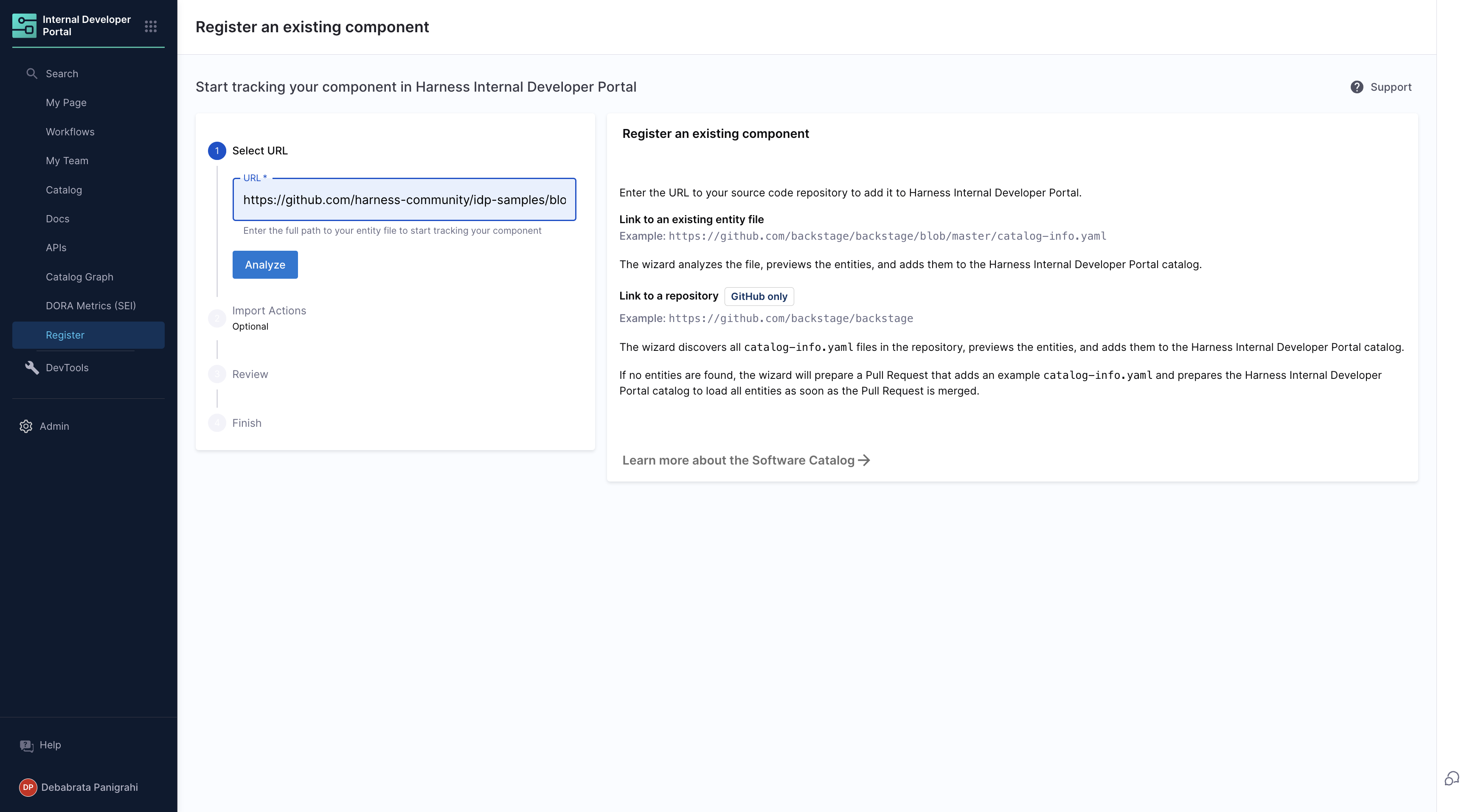
Update Workflow
You can update/edit your workflows from your Harness IDP by updating your workflow.yaml file:
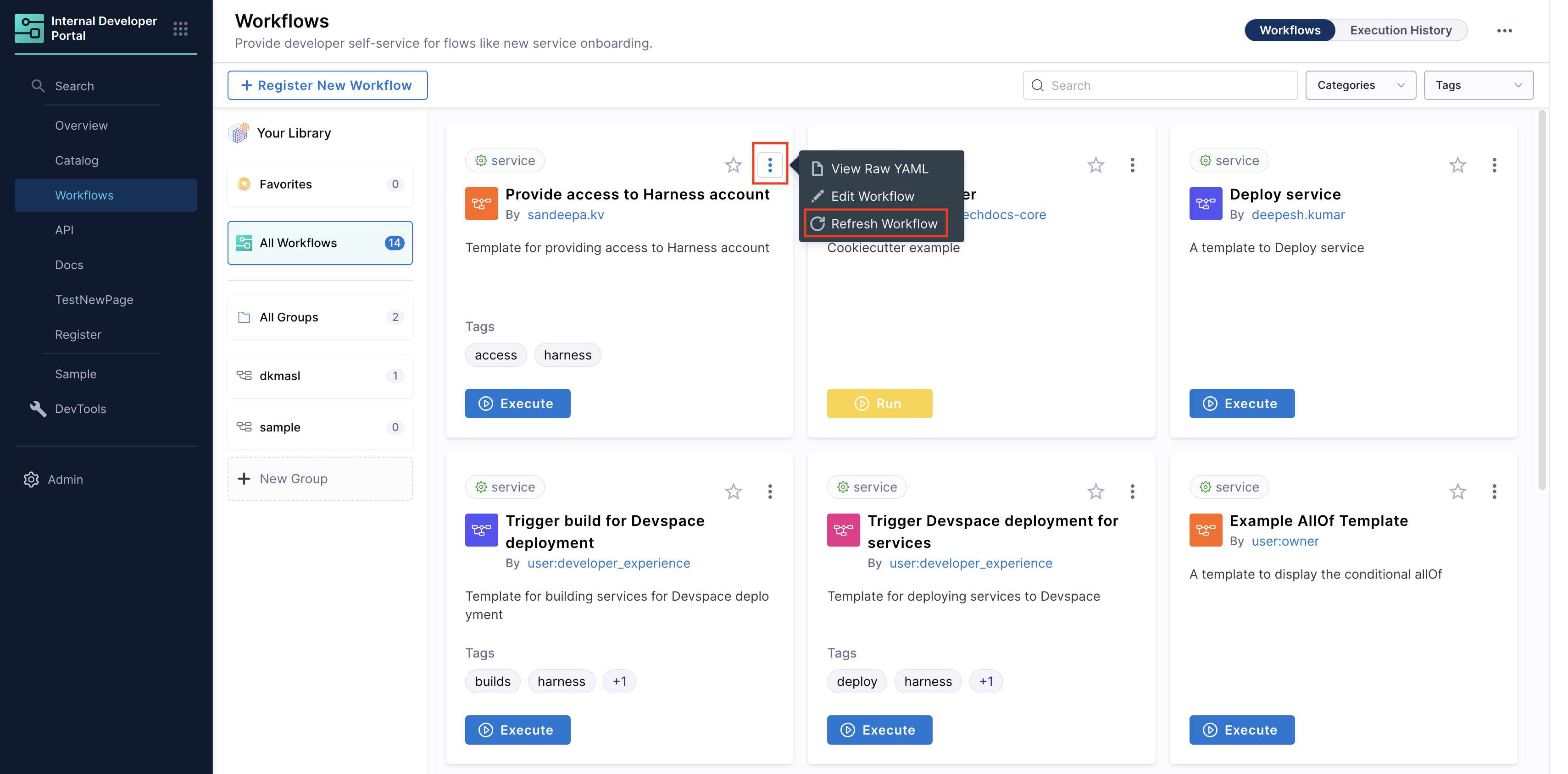
- In the workflows page, click the three dots on the desired workflow.
- Select "Edit Workflow" to modify the YAML file.
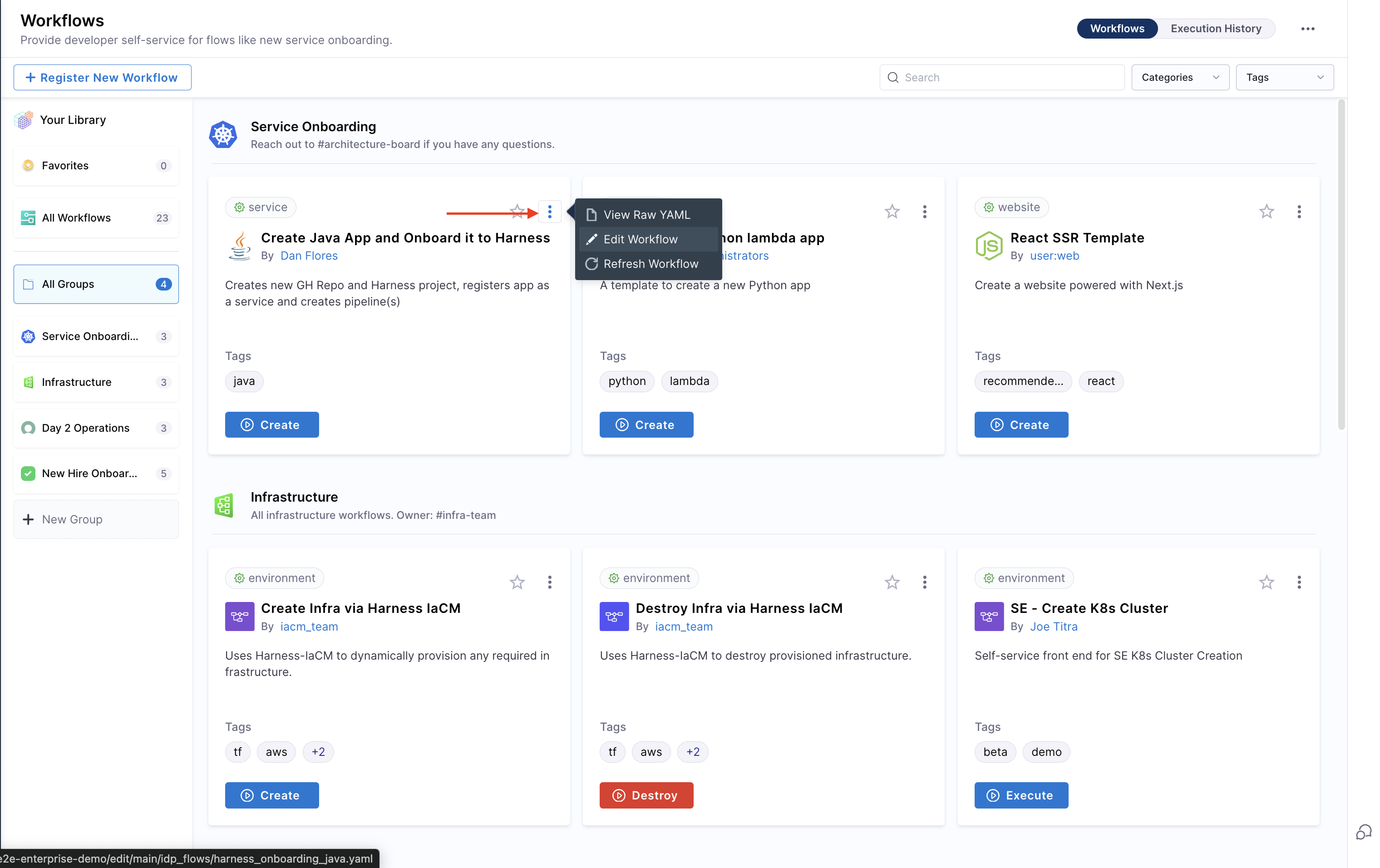
- Save changes by committing the updated YAML file.
- Refresh the workflow in Harness IDP to apply changes.
Unregister Workflow
You can delete your workflow as well:
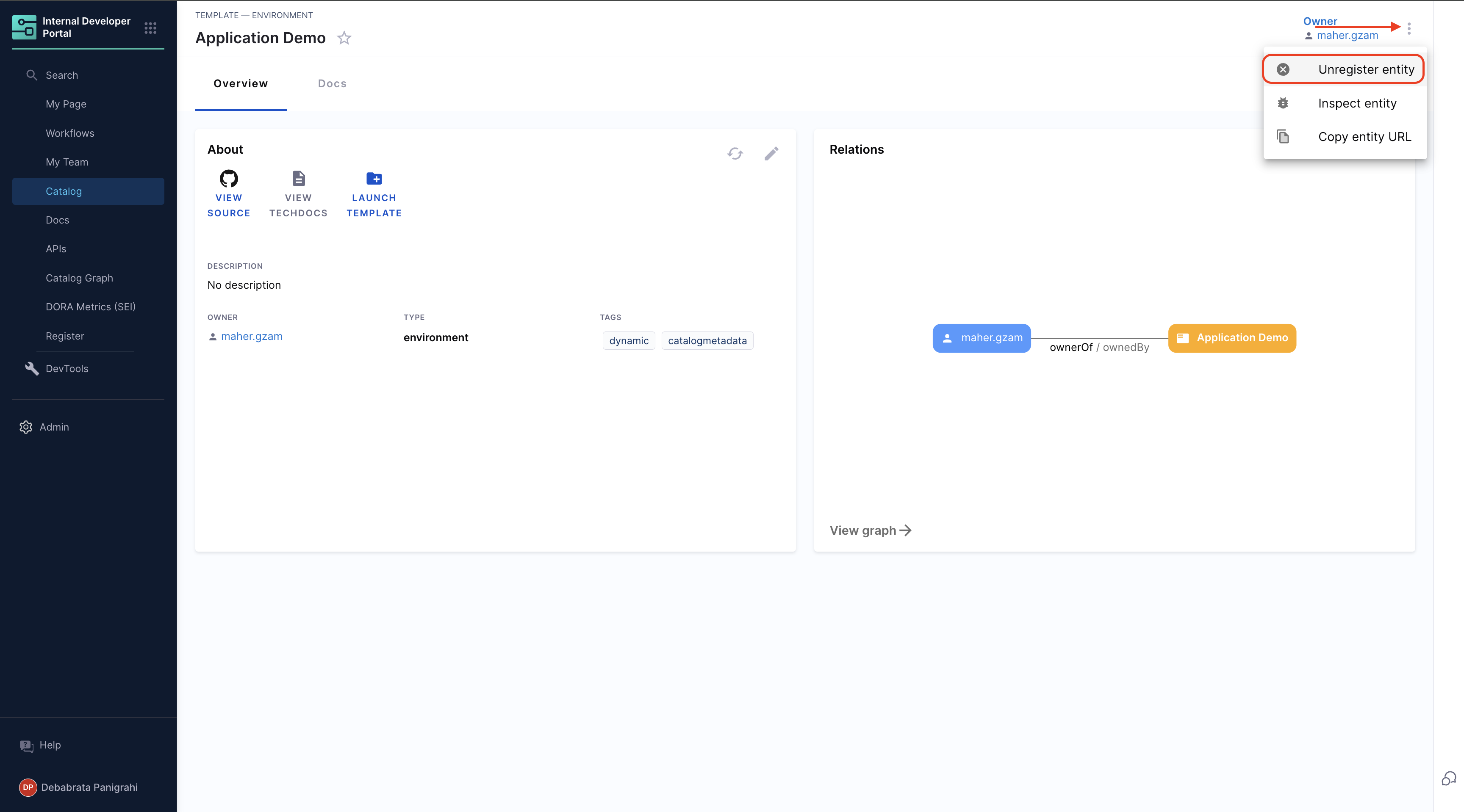
- Select the workflow from the software catalog view.
- Click the three dots in the top-right corner and choose "Unregister Entity".
Execute Workflow
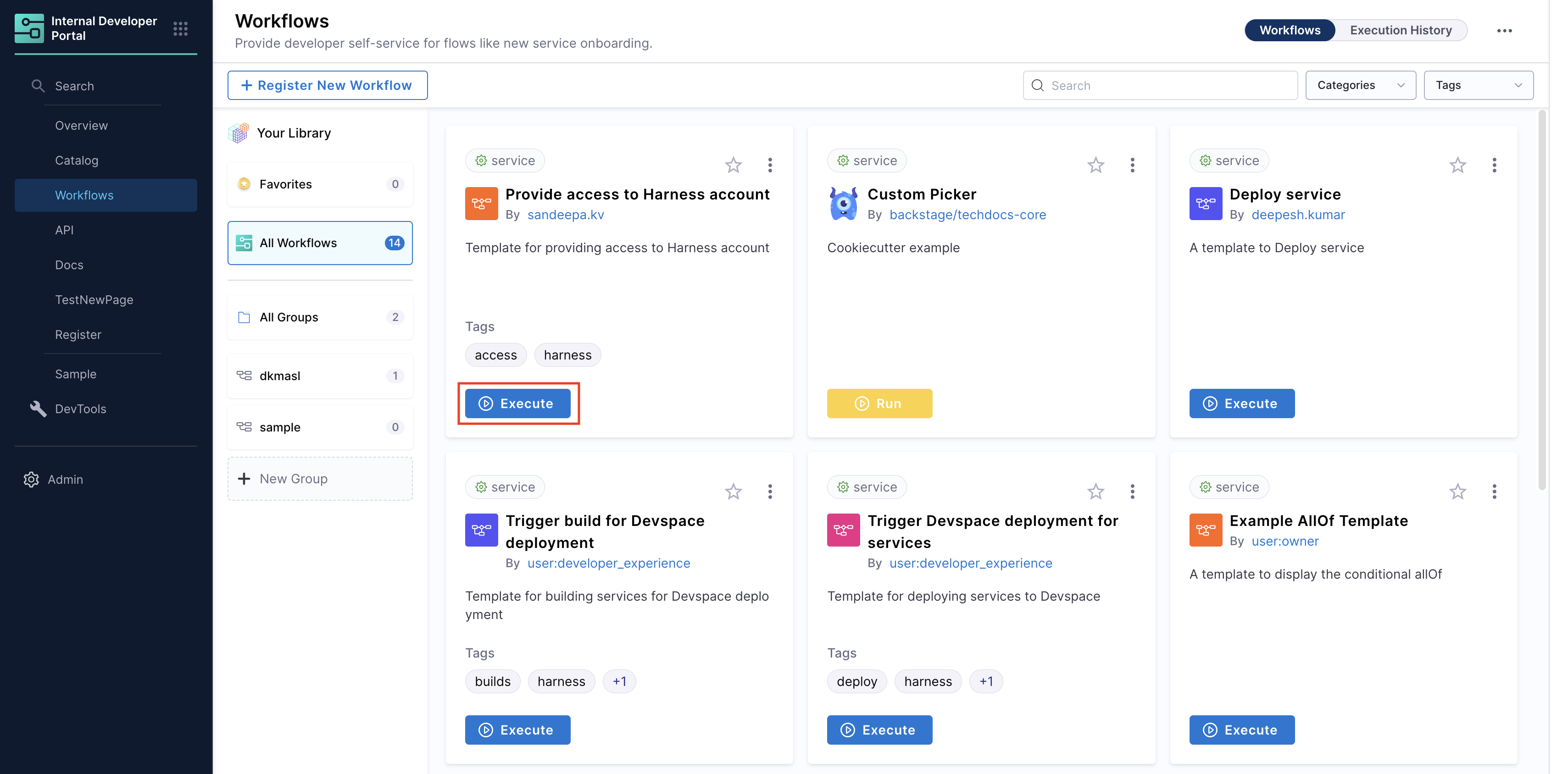
You can launch workflows directly from the "Workflows" page in Harness IDP. Users will be prompted to provide input details via the configured frontend, and the workflow will execute accordingly.
Set the Owner
It's a good practice to assign an Owner to a Workflow so developers can easily reach out to them if they have any questions or encounter issues. The spec.owner field in Harness allows you to specify the owner in several ways:
- Assign a User Group for better collaboration and role-based access.
- Specify an email, such as team@mycompany.net, to direct queries to a team or individual.
- Use a plain text identifier like Infra Team for simplicity.
Here's an example of a basic workflow.yaml definition:
...
# these are the steps which are rendered in the frontend with the form input
spec:
  owner: debabrata.panigrahi@harness.io
  type: service
  parameters:
    - title: Service Details
      properties:
        owner:
          title: Choose an Owner for the Service
          type: string
          ui:field: OwnerPicker
          ui:options:
            allowedKinds:
              - Group
        # This field is hidden but needed to authenticate the request to trigger the pipeline
        token:
          title: Harness Token
          type: string
          ui:widget: password
          ui:field: HarnessAuthToken