create-entity-manually
Create entities manually
In IDP 2.0, entity creation is simplified with full UI support and optional YAML-based creation. Entities are now "inline," which means their entire lifecycle can be managed through the UI or API, without Git integration.
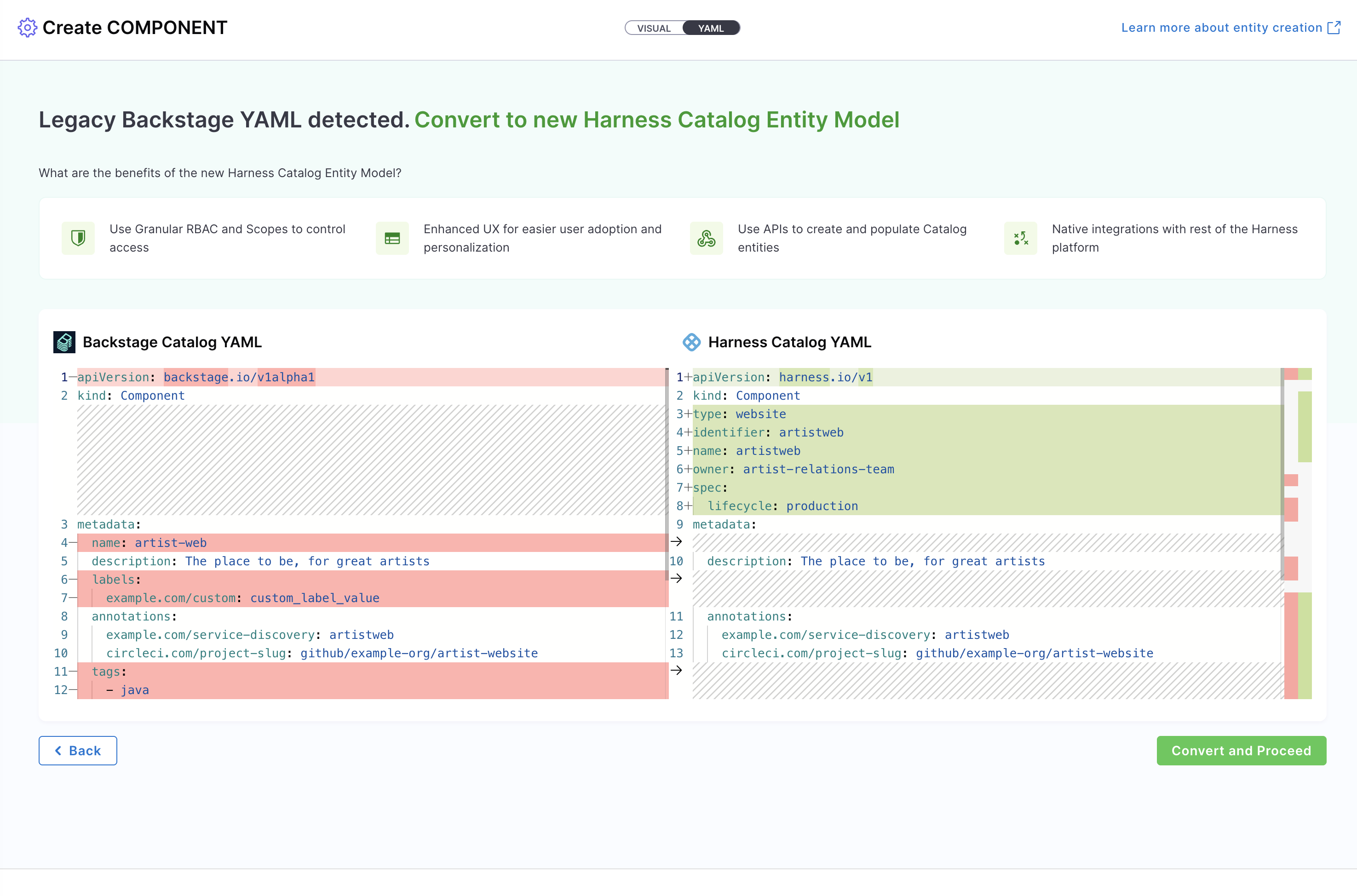
You can create entities directly via the Harness IDP UI, no YAML required for a streamlined, code-free experience. Alternatively, you can use your existing catalog YAML files, and Harness will automatically convert legacy Backstage YAML into the new Harness Catalog Entity Model.
- Interactive Guide
- Step-by-Step
Let us walk through creating a Component entity using both the Visual View and YAML View methods.
Method 1: Visual view
Step 1: Navigate to Create
- Navigate to the Harness IDP portal and click "Create" in the sidebar.
- Select Component from the available options.
- You will enter the Visual View, where you can fill out entity details interactively.
Ensure your identifier follows naming rules. Invalid identifiers may lead to entity registration errors. The identifier is a unique key for your entity and cannot be changed after creation.
Step 2: Configure Entity Details
-
Specify the Entity Scope (Account, Org, or Project). For this example, choose Account scope. Read more about Catalog RBAC.
-
Link to Source Code Repository
Configure the source code repository associated with this component. This link enables several key capabilities:-
Automatically configuring plugins like Scorecards, TechDocs, and STO
-
Displaying the View Source option in the UI
-
Enabling advanced features like CI/CD integration and security scanning
Harness IDP also auto-generates the legacy
backstage.io/source-locationannotation for backwards compatibility. -
Step 3: Choose Management Option
You have two options for managing your Component configuration:
- Inline (default): Manage the Component YAML directly within Harness.
- Git-based: Store the Component YAML in your Git repository and sync it with Harness.
Step 4: Configure Plugins (Optional)
If applicable, configure a plugin by referring to its documentation and adding the necessary annotations in the Catalog YAML.
Step 5: Save the Entity
Click Save to create your entity.
YAML validation is performed to ensure compatibility with the Harness-native Catalog YAML model. Any errors will be shown in the Validation logs.
Method 2: YAML view
Step 1: Navigate to Create
- Navigate to the Harness IDP portal and click "Create" in the sidebar.
- Select Component from the available options.
- Switch to the YAML View by clicking the toggle.
Step 2: Paste Your YAML
Paste your Catalog YAML in the editor. You can use the following template:
apiVersion: harness.io/v1
kind: component
name: artist-lookup-api
identifier: artistlookupapi
type: service
owner: team-a
scope: account
projectIdentifier: myproject
orgIdentifier: myorg
spec:
  lifecycle: production
  sourceCode:
    provider: github
    repoName: myorg/artist-lookup-api
    connectorRef: github_connector
    branch: main
metadata:
  tags:
    - java
    - api
  description: "Artist lookup API service"
You can even paste your existing Backstage YAML if available. Harness will auto-convert it into the native format.
Step 3: Save the Entity
Click Save to create your entity.
Example Component YAML Template
apiVersion: harness.io/v1
kind: component
name: artist-lookup-api
identifier: artistlookupapi
type: service
owner: <owner-name>
scope: <scope>
projectIdentifier: <project-identifier>
orgIdentifier: <org-identifier>
spec:
  lifecycle: production
  sourceCode:
    provider: <provider>
    repoName: <repo-name>
    connectorRef: <connector-ref>
    branch: <branch>
    monoRepo: <mono-repo>
metadata:
  tags: []
  description: ""