Authentication overview
Harness access control includes:
- Authentication: Checks who the user is.
- Authorization: Checks what the user can do.
- Auditing: Logs what the user does.
This topic focuses on authentication. For information about authorization, go to RBAC in Harness.
To manage authentication settings, you need permission to create/edit and delete authentication settings.
Users in Administrator groups can use Authentication Settings to restrict access to an organization's Harness account. The options you choose apply to all account users. These options include:
- Configure Authentication
- Enforce Password Policies
- Enforce Two Factor Authentication
- Set Up Vanity URL
- Restrict Email Domains
- Set inactive session timeout
- Set absolute session timeout
Configure authentication
To configure authentication, do the following:
-
In Home, select Account Settings, and then select Authentication.
The Authentication page opens.

-
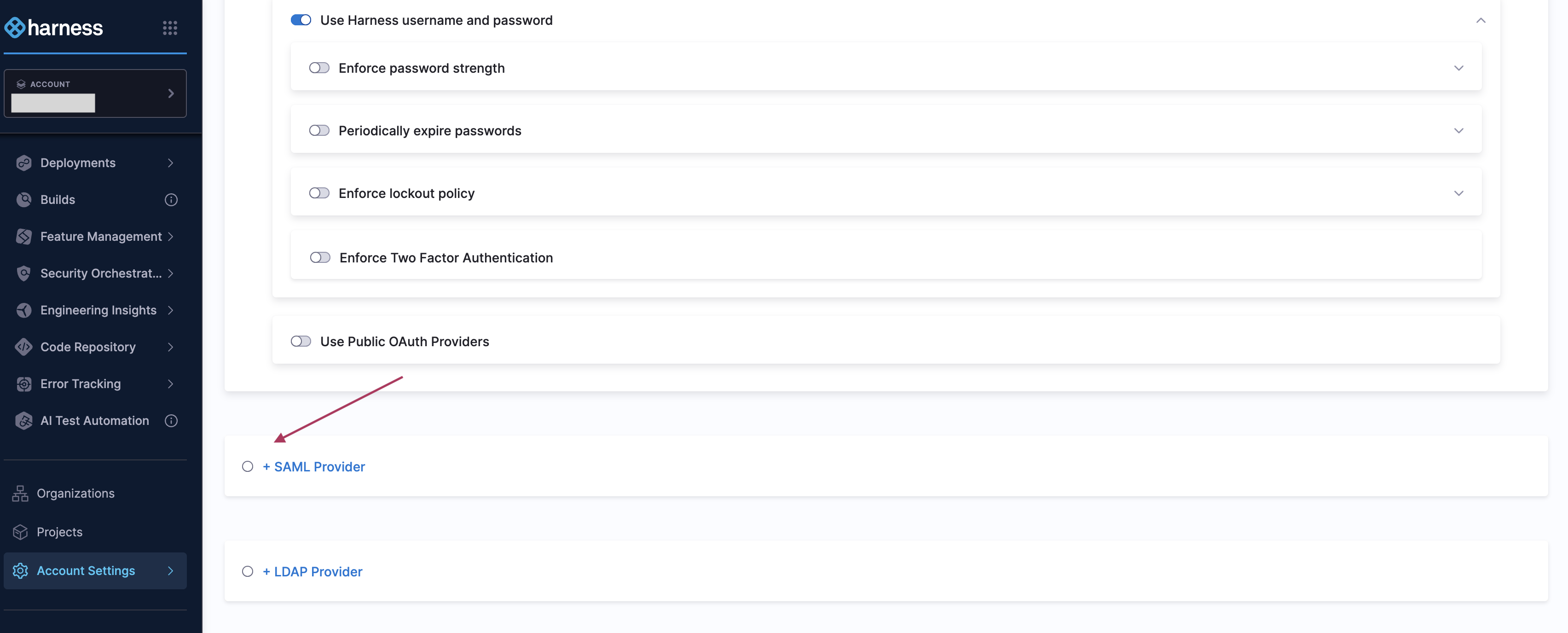
Select one of the below default Authentication methods:
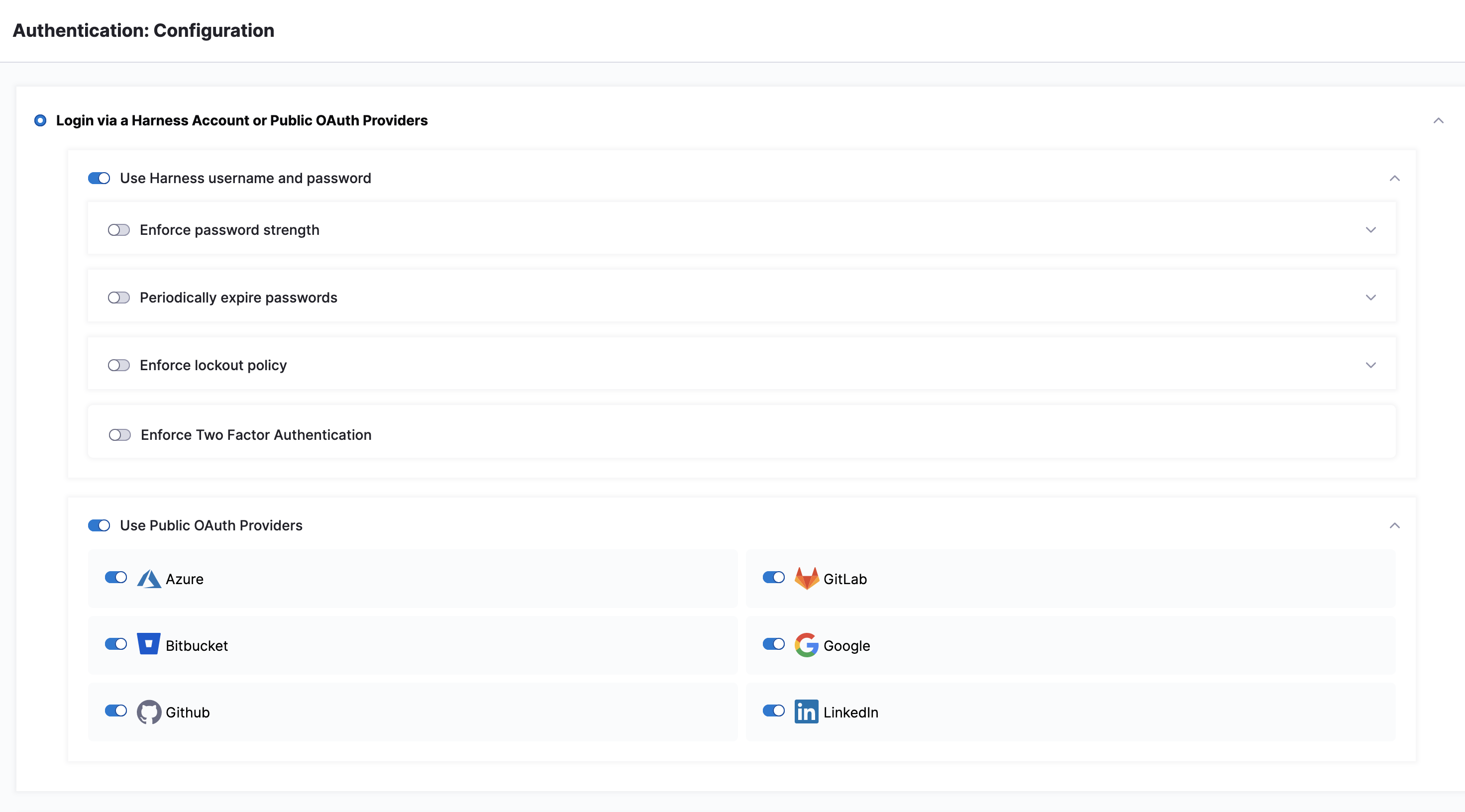
- Login via a Harness Account or Public OAuth Providers
- SAML Provider
- LDAP Provider
-
Configure your settings for the selected method.
Enable public OAuth providers
In the Use Public OAuth Providers section, you can enable Harness logins via a range of single sign-on mechanisms. Enable this slider to expose sliders for enabling individual OAuth partners. For more on OAuth Providers, go to Single Sign-On with OAuth.

Enable Security Assertion Markup Language (SAML) providers
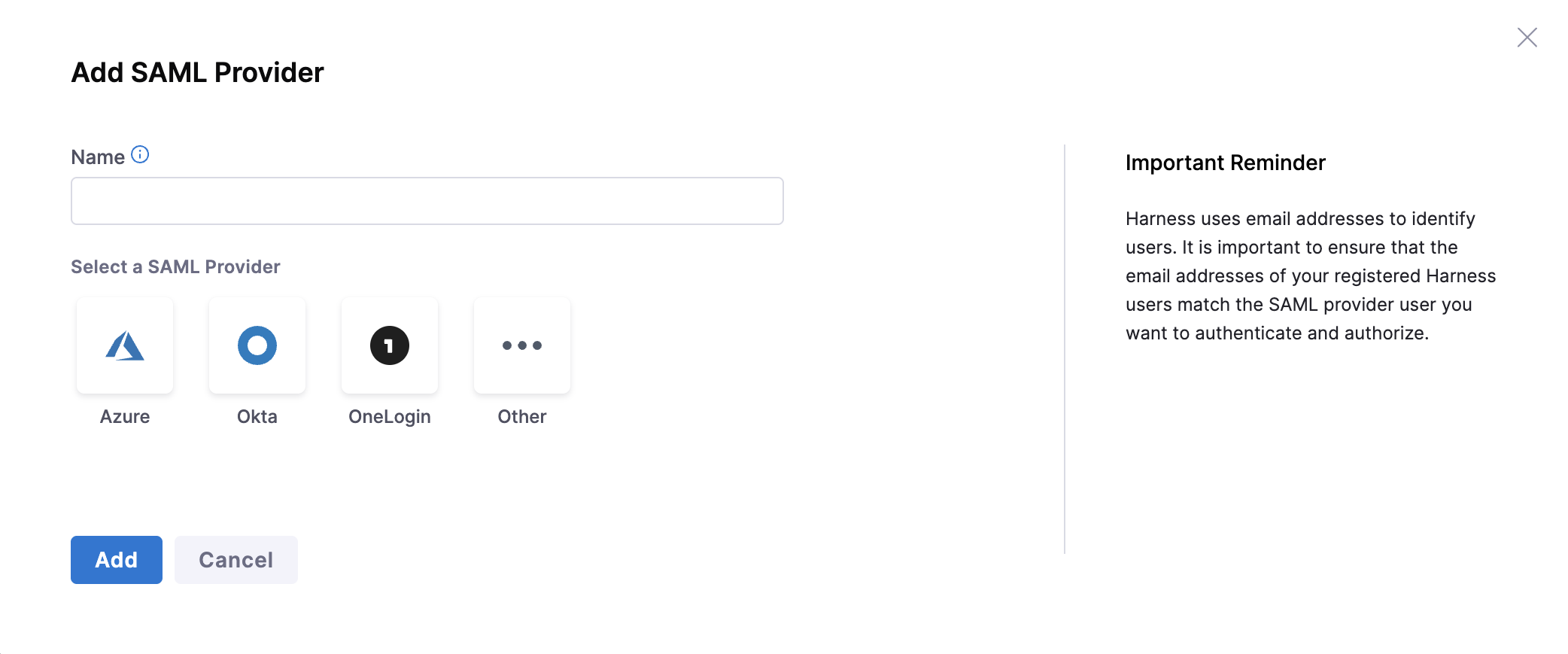
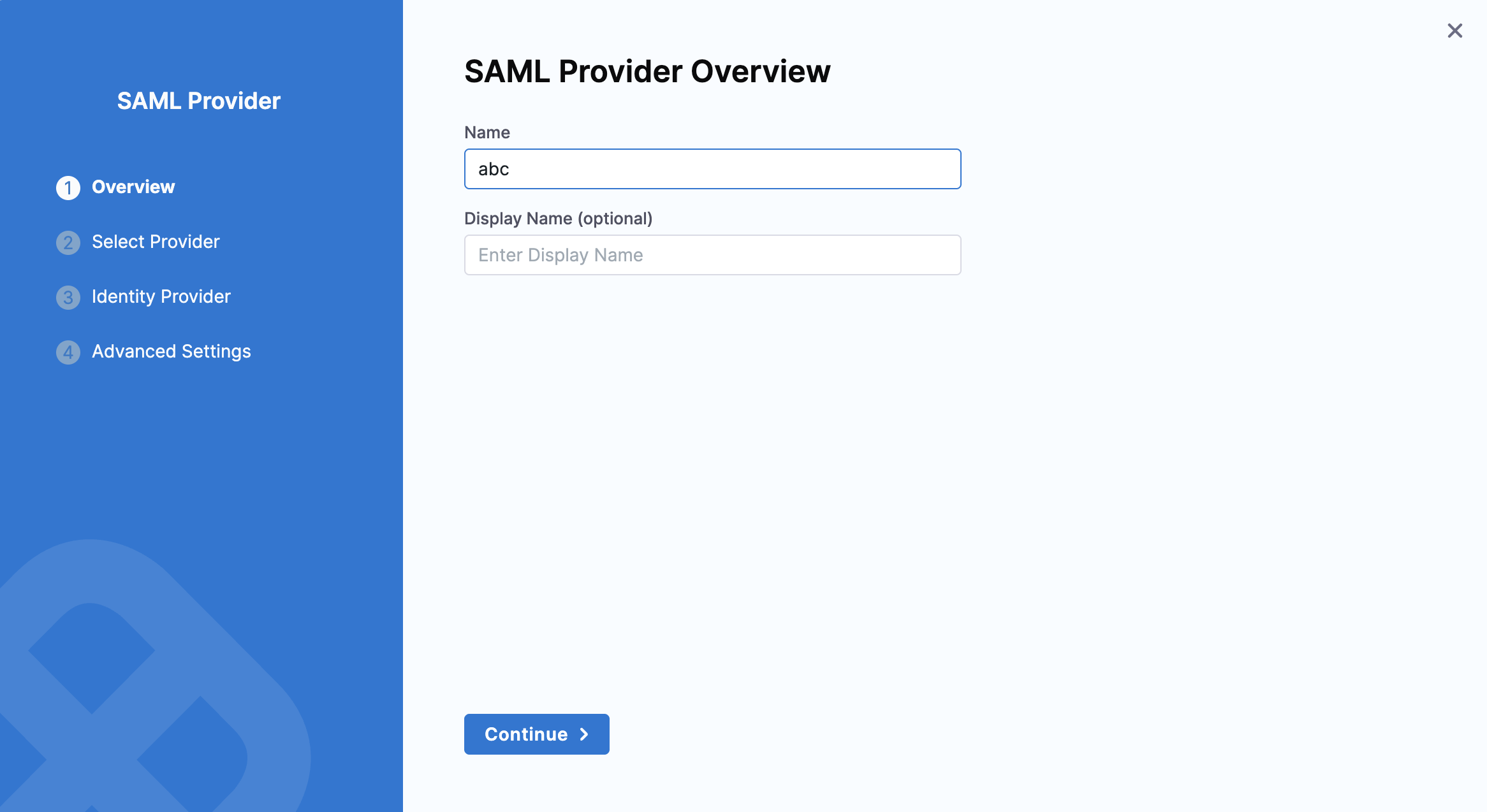
Select SAML Provider to enable a SAML Provider. To do this, you should first disable any configured public OAuth providers. For more on adding a SAML Provider, go to Single Sign-On with SAML.
Enforce password policies
You'll see specific controls to govern the following password requirements:
- Enforce password strength
- Periodically expire passwords
- Enforce Two Factor Authentication
Enforce password strength
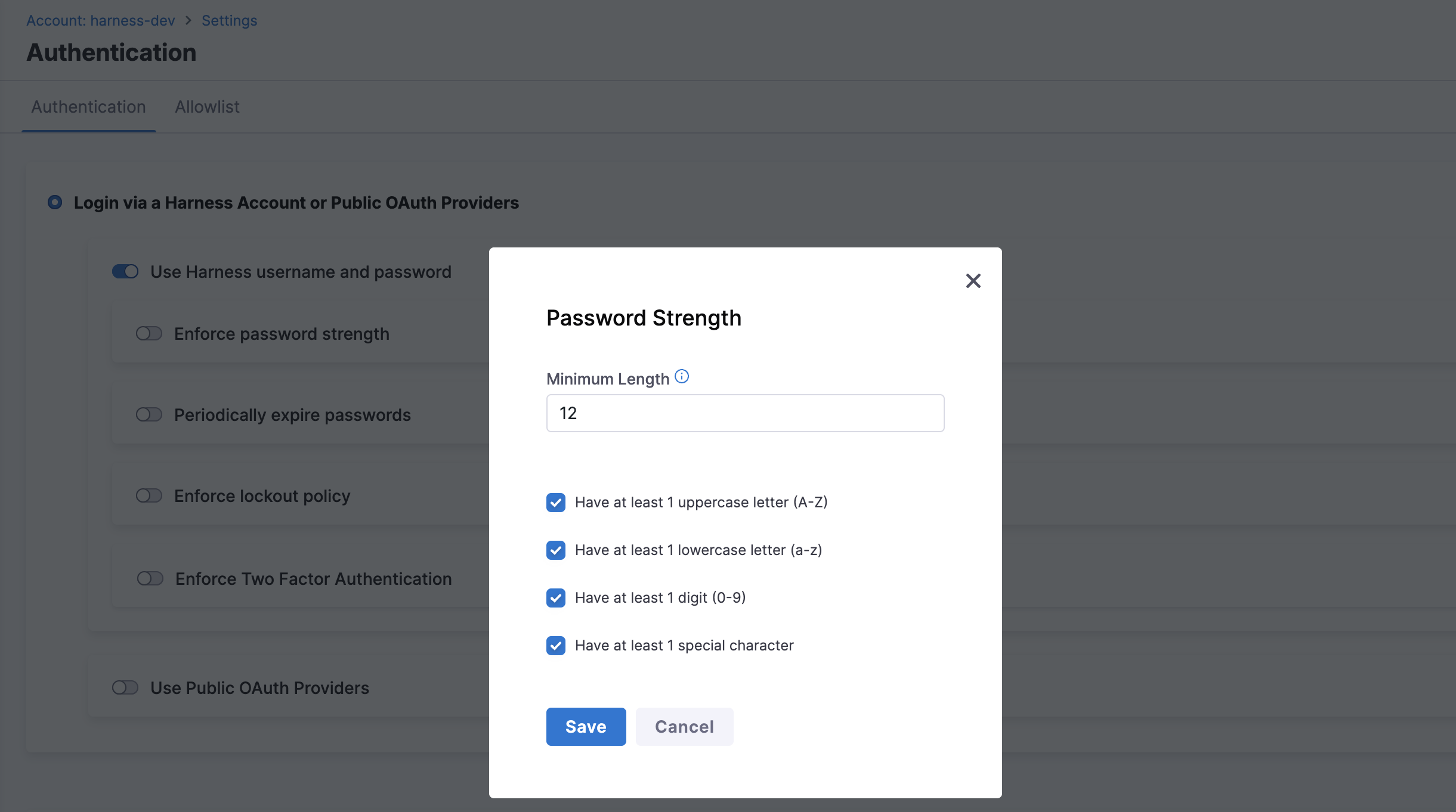
Select Enforce password strength to open the dialog shown below.
- Here you can specify and enforce any or all of the below options:
- Minimum password length.
- Include at least one uppercase letter.
- Include at least one lowercase letter.
- Include at least one digit.
- Include at least one special character.
If you enforce Have at least one special character, each password must include one or more of the following characters: ! @ # $ % ^ & * ( ) - _ = + \ | [ ] { } ; : / ? . >
Enforce password expiration
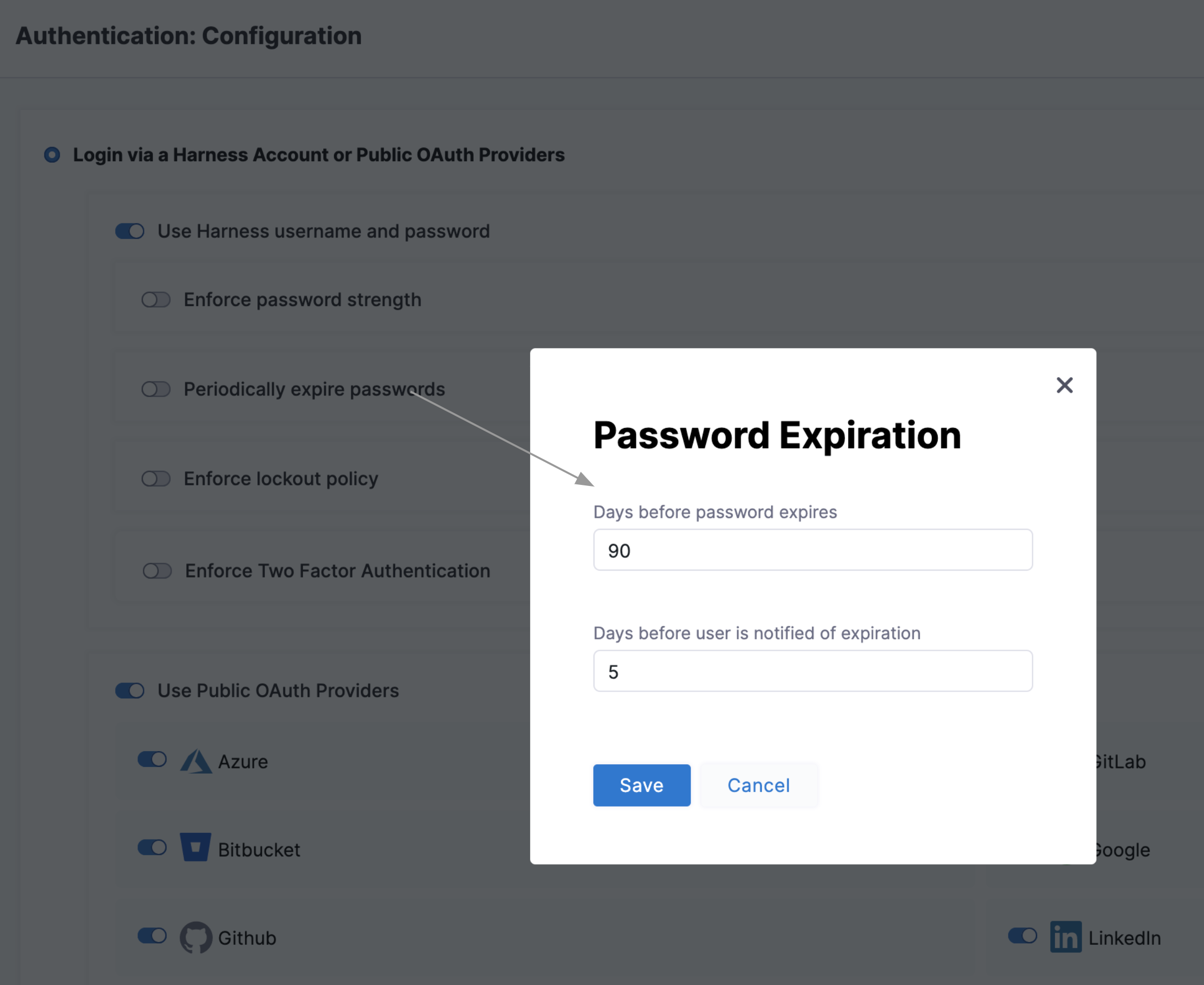
Select Periodically expire passwords to set an interval at which users must refresh their Harness passwords. In the same dialog, you can also set an advance notification interval.

Enforce lockout after failed logins
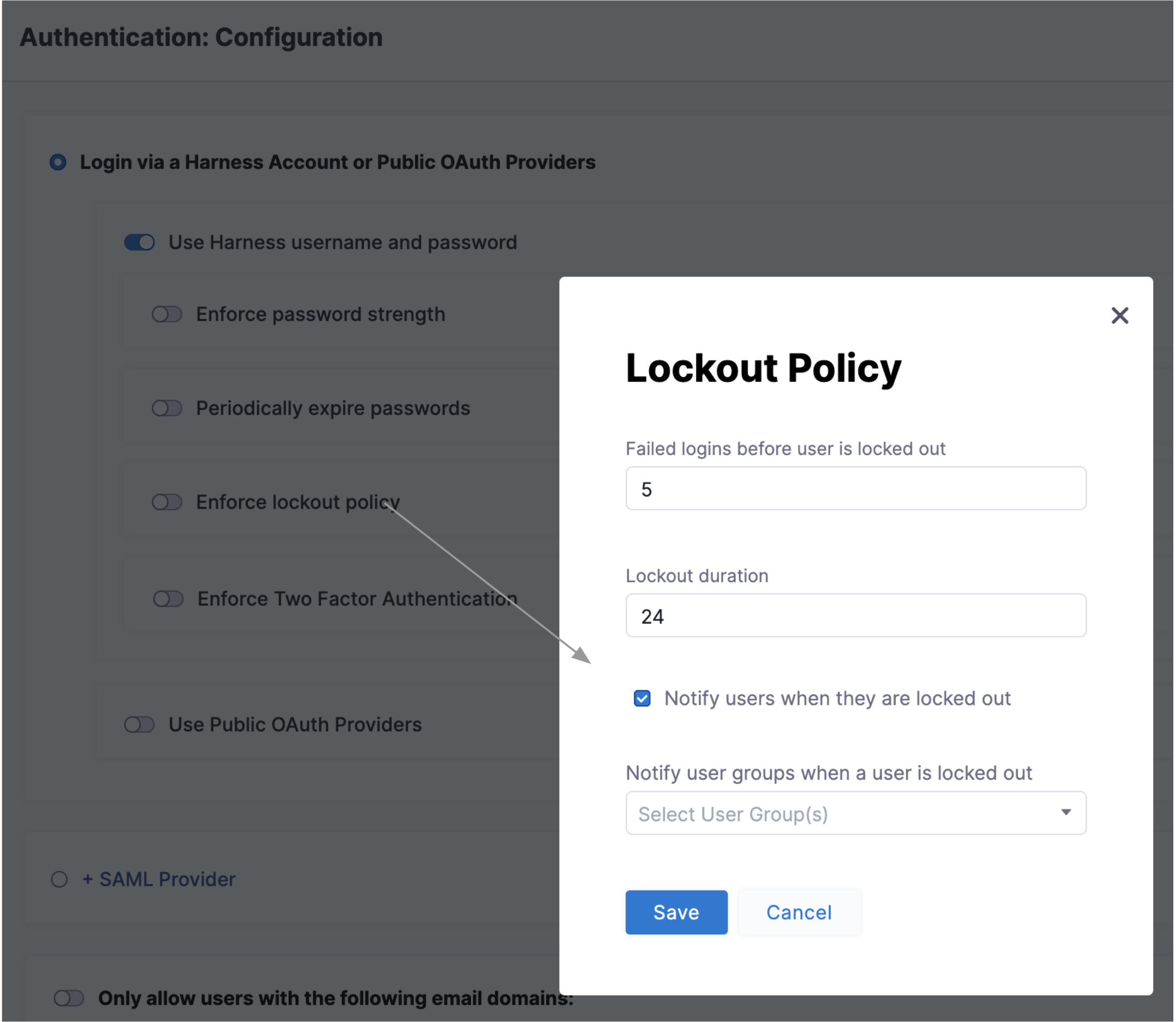
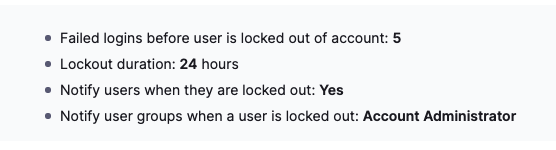
Select Enforce lockout policy to open the dialog shown below. It offers independent controls over the lockout trigger (how many failed logins), lockout time (in days), and notifications to locked-out users and to Harness user groups.
You can see a summary on the main Authentication page:

Enforce two factor authentication
Select Enforce Two Factor Authentication to enforce 2FA for all users in Harness. This option will govern all logins — whether through SSO providers or Harness username/password combinations. For more information on Two-Factor Authentication, go to Two-factor authentication.

Set up vanity URL
You can access app.harness.io using your own unique subdomain URL.
The subdomain URL will be in the following format, with {company} being the name of your account:
https://\{company}.harness.io
Contact Harness Support to set up your Account's subdomain URL. The subdomain URL cannot be changed later. Harness automatically detects your Account ID from the subdomain URL and redirects you to the Account's login mechanism.
Restrict email domains
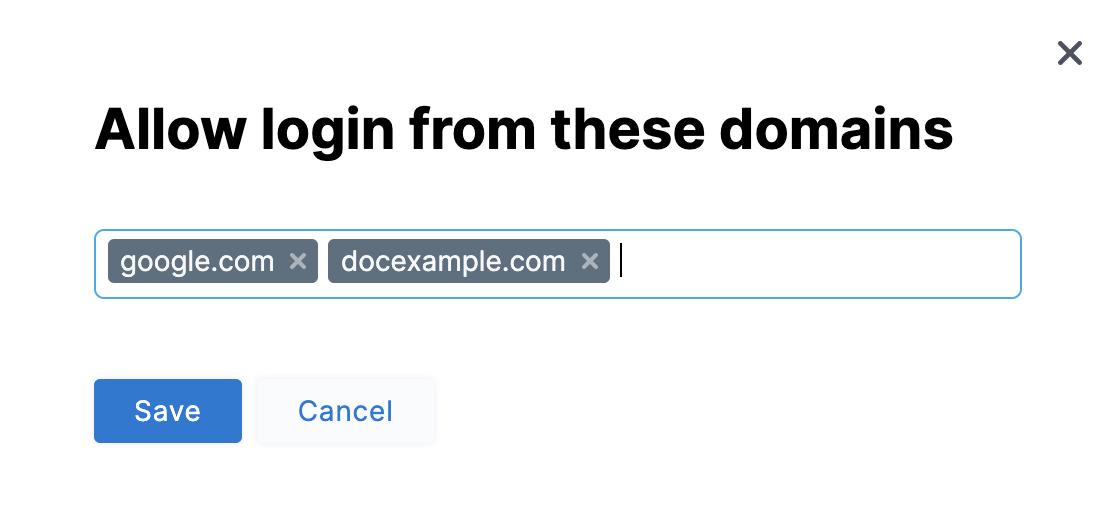
Select Only allow users with the following email domains: to allow (whitelist) only certain domains as usable in login credentials. In the dialog shown below, build your allowlist by simply typing your chosen domains into the Domains multi-select field.

Select Save. You can see the success message - Domain restrictions have been updated successfully displayed on top of the page and the domains you have whitelisted in the panel.

Your resulting allowlist will impose a further filter on logins to Harness via both SSO providers and Harness username/passwords. You can modify your domain selections by clicking the Edit icon.

Allow public access to resources
Currently, this feature is behind the feature flag PL_ALLOW_TO_SET_PUBLIC_ACCESS. Contact Harness Support to enable the feature.
Public access to resources allows you to grant public access to view Harness resources without requiring authentication.
Currently, with this feature, you can allow public access to your pipelines. For more information, go to Allow public access to executions.
Set inactive session timeout
Harness logs a user out of their account after a session timeout if there has been no activity.
To configure your account's session inactivity timeout, do the following:
-
In your Harness account, select Account Settings.
-
Select Authentication.
-
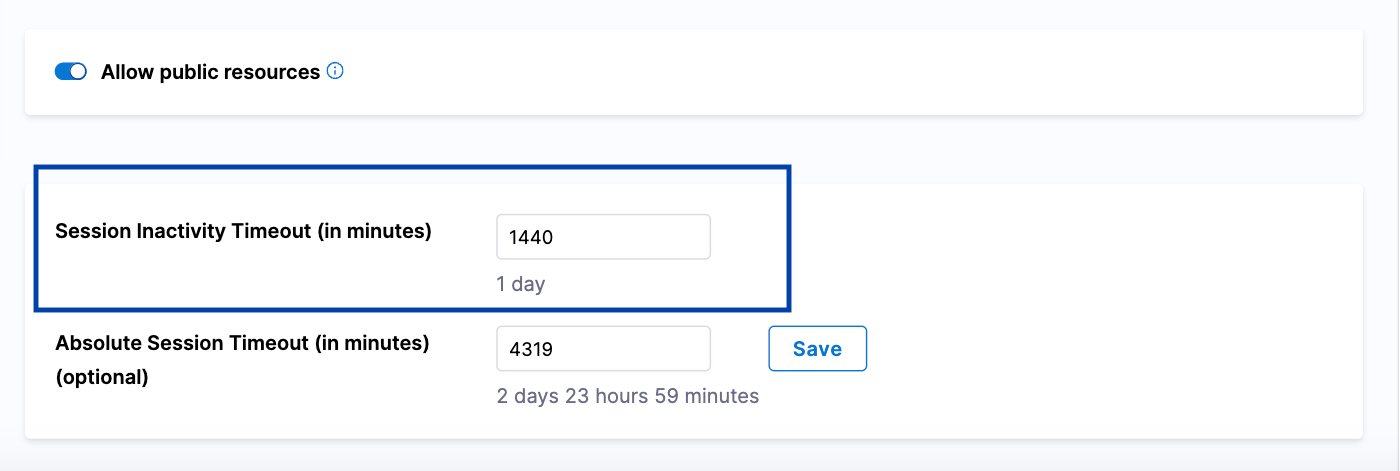
In Session Inactivity Timeout (in minutes), enter the time in minutes to set the session inactivity time out.
The default session inactivity timeout value is 1440 minutes (1 day).
You can set this to a minimum of 30 minutes and a maximum of 4320 minutes (3 days). The field automatically converts the minutes you enter to higher units of time, and displays the result under the field. For example, if you enter 1440, the UI shows 1 day below the field.

-
Select Save.
Set absolute session timeout
When the Absolute Session Timeout (in minutes) is set, users will be logged out of their account after the configured timeout, regardless of any activity.
To configure your account's absolute session timeout, do the following:
-
In your Harness account, select Account Settings.
-
Select Authentication.
-
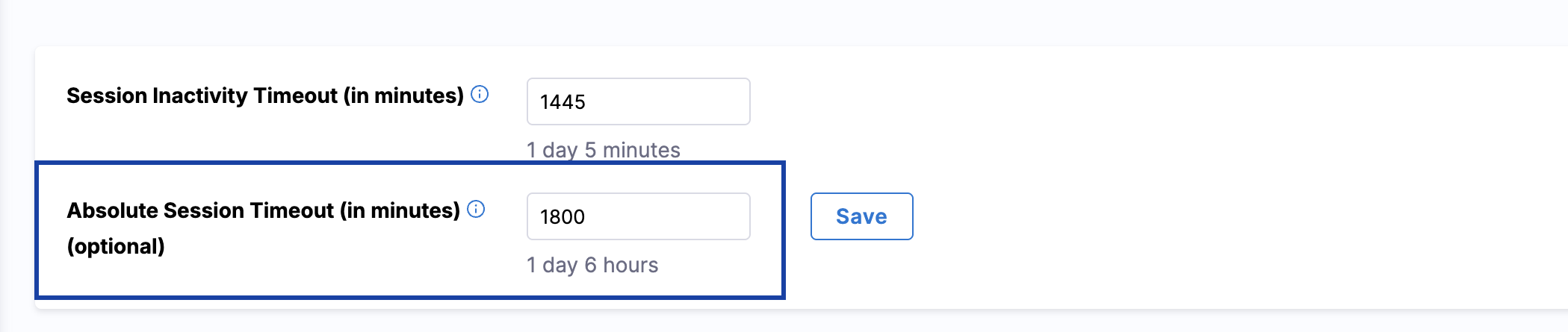
In Absolute Session Timeout (in minutes), enter the time in minutes to set the absolute session timeout.
The default absolute session timeout is 0, which means that it is not set.
You can set this to a maximum of 4320 minutes (3 days). The field automatically converts the minutes you enter to higher units of time, and displays the result under the field. For example, if you enter 1440, the UI shows 1 day below the field.
-
Select Save.
When both the session inactivity timeout and the absolute session timeout are set, the condition that is met first will be honored.
Audit Logs for Authentication
Harness audit trails record login attempts across all supported authentication methods. These audit events help administrators monitor authentication activity and investigate both successful and failed login attempts. Audit logs are generated for the following methods:
- LDAP
- SAML
- Two-Factor Authentication (2FA)
- Password-based authentication
Each audit entry shows how the login was attempted, whether it was successful or failed, and the reason for failure, if applicable. Audit logs are only created for users who exist in your Harness account and are associated with a valid email address. No audit log is generated for login attempts by users who do not exist in the account.
While successful login events are common, you should pay closer attention to unsuccessful attempts. You may encounter the following failure reasons in the audit trail or in the JSON output when audit streaming is enabled for your account.
1. LDAP authentication
Unsuccessful login attempts can occur for the following reasons:
- Domain not whitelisted: The user’s email domain is not permitted for the account.
- LDAP not configured for the account: LDAP authentication is not set up.
- Invalid credentials: The username or password provided is incorrect.
- Unable to fetch LDAP configuration: Harness could not retrieve LDAP settings due to an internal error.
- LDAP not configured for NextGen: LDAP authentication is not configured for NextGen in the account.
- LDAP authentication error: An unexpected error occurred during the LDAP authentication process.
Example JSON:
{
"module": "CORE",
"resource": {
"type": "USER",
"identifier": "demouser@harness.io",
"labels": {
"resourceName": "Demo Test",
"userId": "68xLsmP7RzOJ_F3M_LBBHw"
}
},
"action": "UNSUCCESSFUL_LOGIN",
"auditEventData": {
"type": "UnsuccessfulLoginEventData",
"loginType": "LDAP",
"failureReason": "Invalid LDAP credentials"
}
}
2. SAML authentication
Unsuccessful login attempts can occur for the following reasons:
- Domain not whitelisted: The user’s email domain is not included in the account’s allowed domain list.
- Replay attack: A previously used SAML login request was detected and blocked for security reasons.
Example JSON:
{
"module": "CORE",
"resource": {
"type": "USER",
"identifier": "demouser@harness.io",
"labels": {
"resourceName": "Demo Test",
"userId": "jWF23r4XQjyRTLVsAS_mVw"
}
},
"action": "UNSUCCESSFUL_LOGIN",
"auditEventData": {
"type": "UnsuccessfulLoginEventData",
"loginType": "SAML",
"failureReason": "Domain not whitelisted"
}
}
3. Two-Factor Authentication (2FA)
Unsuccessful login attempts can occur for the following reasons:
- Invalid two-factor configuration: Two-factor authentication is not properly set up for the account or user.
- Invalid TOTP token: The one-time password provided is incorrect or has expired.
- Two-factor authentication failed: The security code could not be verified.
Example JSON:
{
"module": "CORE",
"resource": {
"type": "USER",
"identifier": "demouser@harness.io",
"labels": {
"resourceName": "Demo Test",
"userId": "jWF23r4XQjyRTLVsAS_mVw"
}
},
"action": "UNSUCCESSFUL_LOGIN",
"auditEventData": {
"type": "UnsuccessfulLoginEventData",
"loginType": "TWOFA",
"failureReason": "Invalid TOTP token"
}
}
4. Username/password authentication
Failed login attempts using username/password occur when:
- Credentials are incorrect
- The user's account temporarily locked, deactivated, or their access has been revoked.
Example JSON:
{
"metaData": null,
"resource": null,
"responseMessages": [
{
"code": "INVALID_CREDENTIAL",
"level": "ERROR",
"message": "Invalid credentials: INVALID_CREDENTIAL"
}
]
}