Two-factor authentication
Two-factor authentication (2FA) adds a second verification step when you log in to Harness. After you enter your password, Harness prompts you for a time-based code from an authenticator app on your phone. This protects your account even if your password is compromised.
You can enable 2FA for your own profile without impacting other user accounts, or an account administrator can enforce it for all users in the account.
What you will learn in this topic
By the end of this topic, you will know how to:
- Set up 2FA for your user profile.
- Enforce 2FA for all users in the account if you are an account administrator.
- Reset 2FA for a user who has lost access to their authenticator app.
Before you begin
Before you begin, ensure you have the following:
- Authentication permissions: To enforce account-wide 2FA, you need a Harness account with Create/Edit permissions on Authentication Settings. Go to Permissions reference to review required permissions.
- Authenticator app: Install a 2FA token generator app on your phone, such as Google Authenticator.
Set up 2FA for your profile
To enable 2FA for your own account without affecting other users:
-
Select your User Profile icon in the bottom-left corner of the Harness UI.
-
On the Profile page, toggle Two-Factor Authentication on. The Enable Two-Factor Authentication dialog appears with a QR code.
-
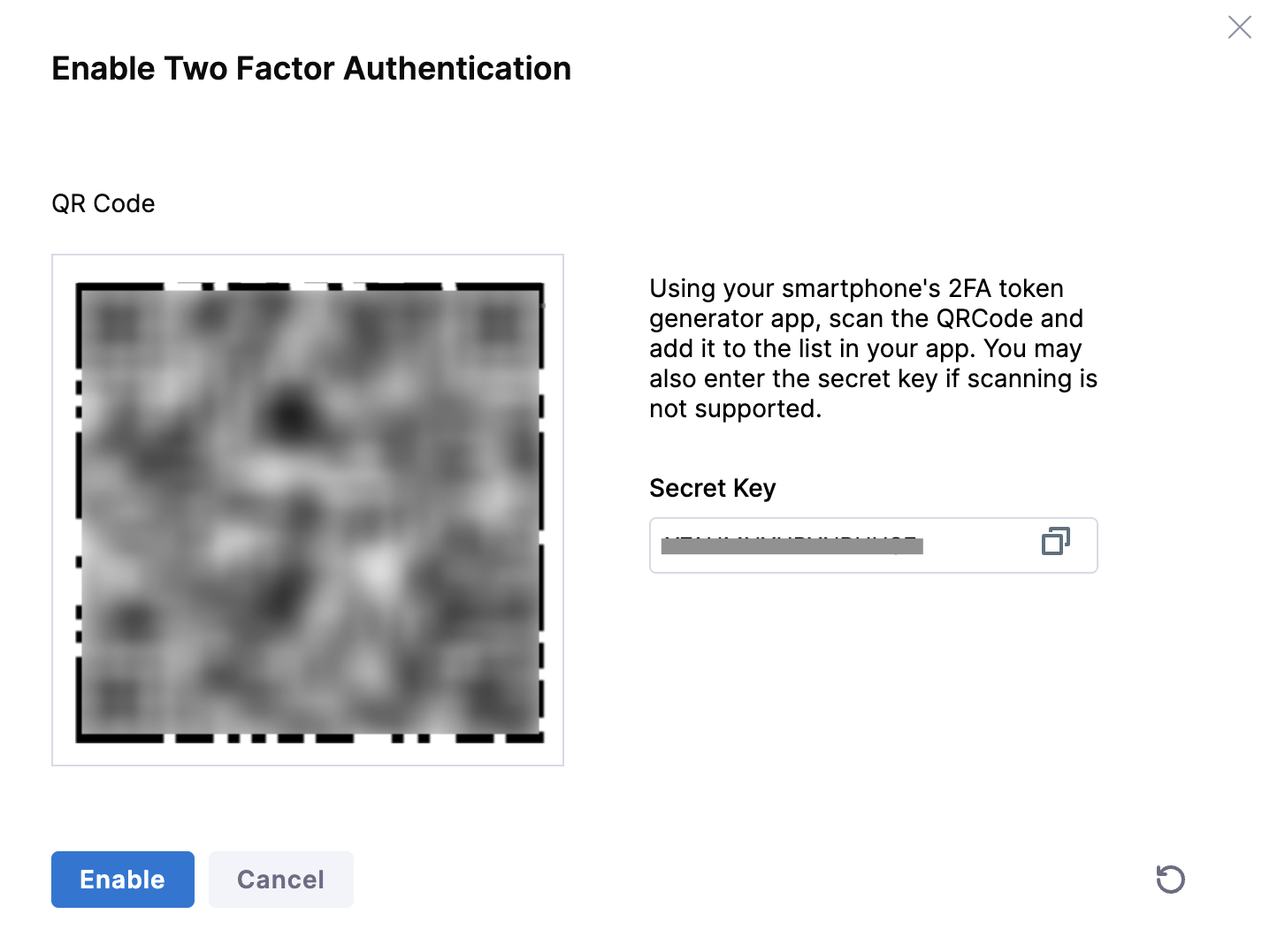
Open your authenticator app and scan the QR code. The app adds Harness-Inc to your token list.
Cannot scan the QR code?The dialog also displays a Secret Key. Enter this key manually in your authenticator app to add the account.
-
Select Enable.
The next time you log in, Harness prompts you for the 2FA code from your authenticator app after you enter your password.
Enforce 2FA for all account users
An account administrator or a user with the Create/Edit permissions to Authentication Settings can enforce 2FA for all users in the account. When an administrator enforces account-wide 2FA:
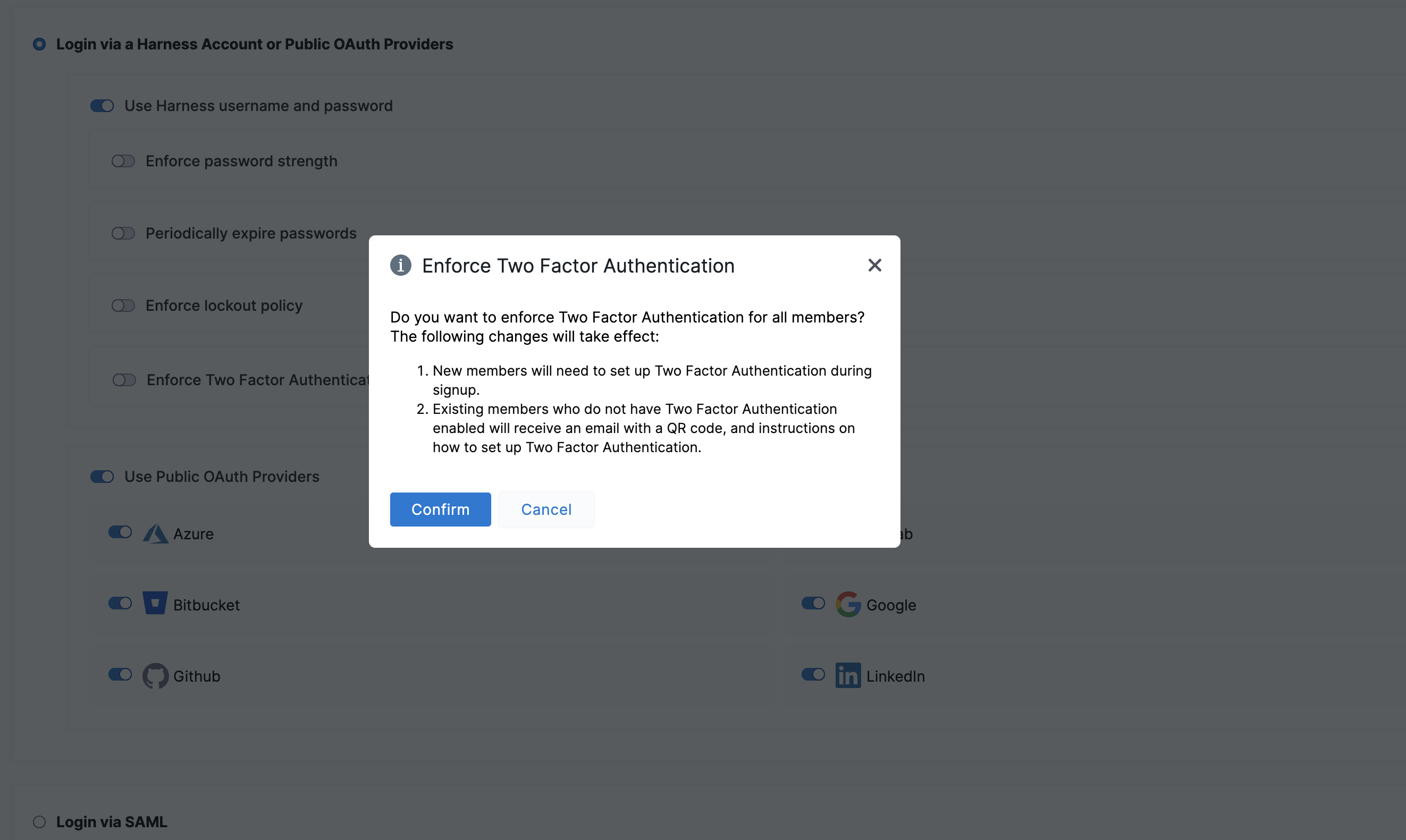
- New members set up 2FA during signup.
- Existing members who have not enabled 2FA receive an email with a QR code and setup instructions.
To enforce 2FA for all users:
-
Enable 2FA for your own profile as described in Set up 2FA for your profile.
-
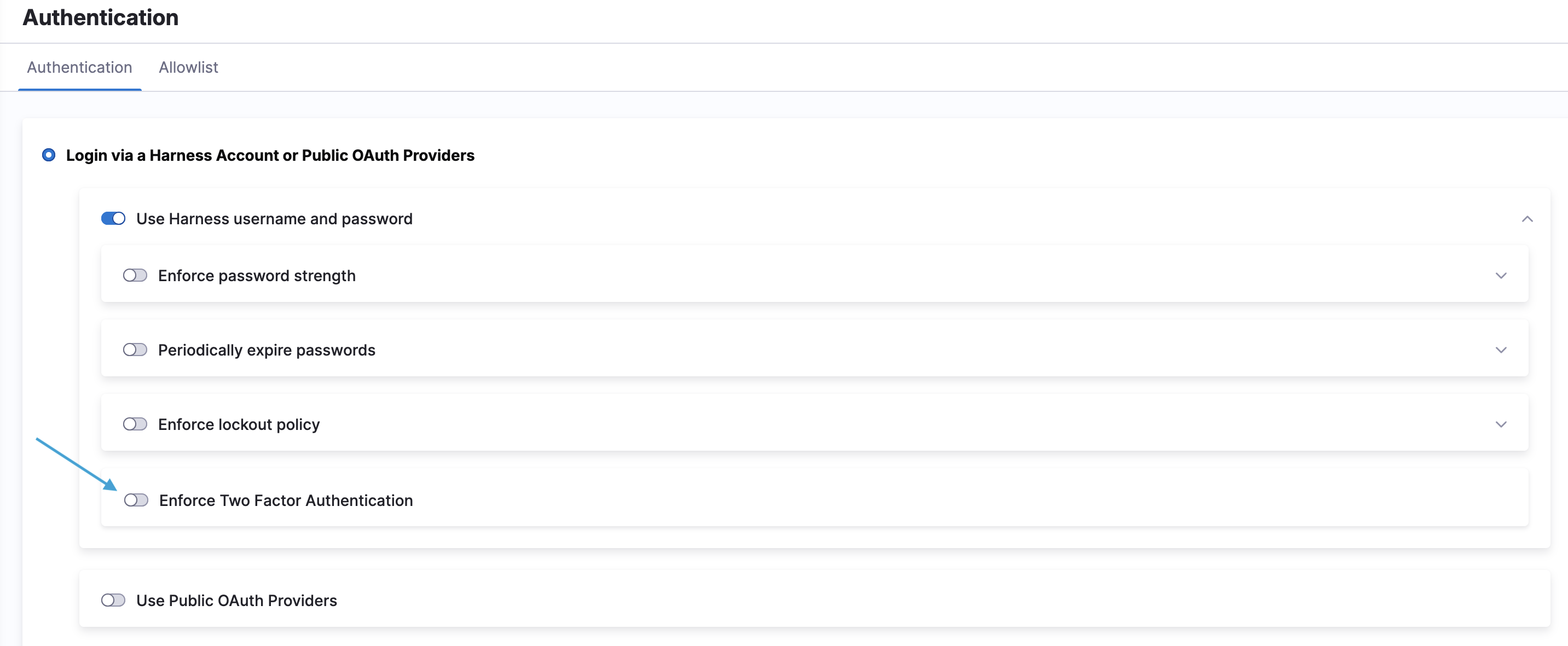
Go to Account Settings and select Authentication. The Authentication page appears.
-
Toggle Enforce Two Factor Authentication on.
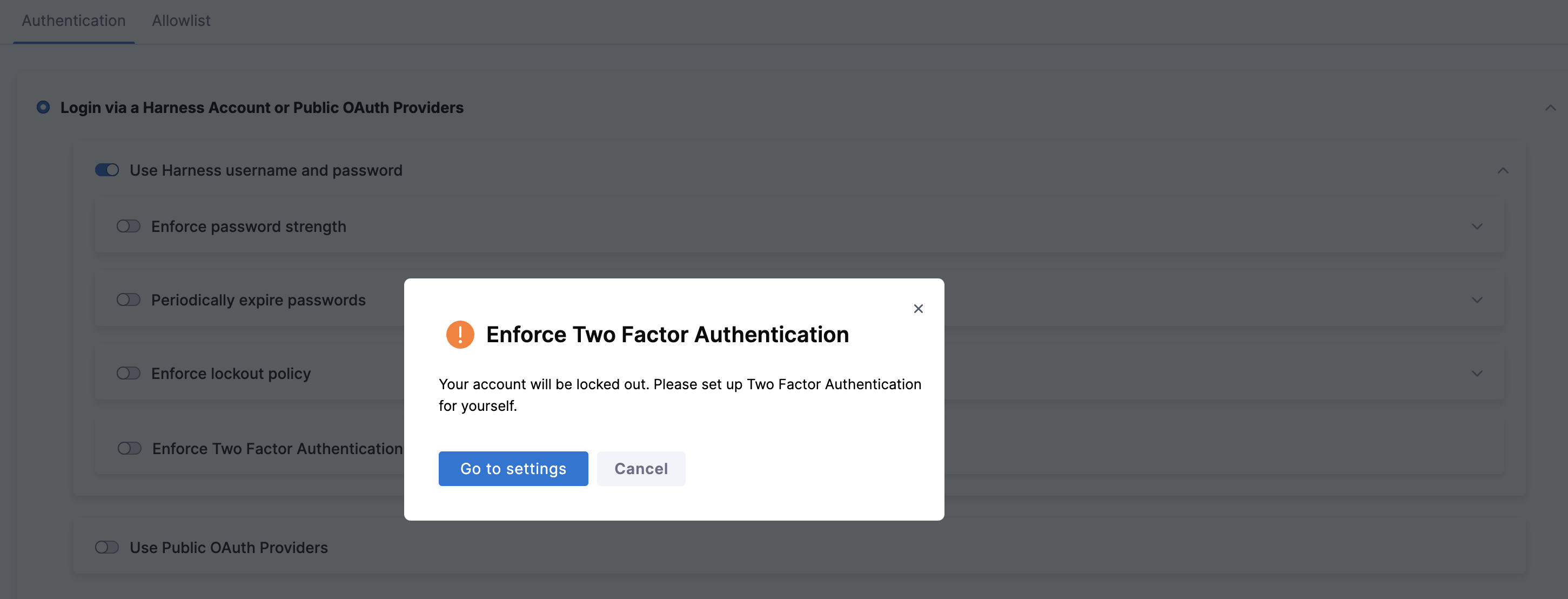
If you have not set up 2FA for your own profile, Harness displays a prompt to protect your login first.
-
If prompted, select Go to settings and complete 2FA setup for your profile. Store the QR code and secret key for your account recovery.
-
Return to Account Settings and select Authentication.
-
Toggle Enforce Two Factor Authentication on. Harness displays a confirmation dialog:
-
Select Confirm.
How account-level and user-level 2FA settings interact
Harness evaluates two settings at login:
- The account-level 2FA setting
- The user-level 2FA setting
Harness sends a 2FA challenge if one or both of these settings are enabled. Harness skips the 2FA challenge only when both settings are disabled.
-
If the 2FA settings is enabled at the account-level, all users receive a 2FA challenge at login, regardless of their user-level setting.
-
If the 2FA settings is disabled at the account-level but enabled at the user-level, only that individual user receives a 2FA challenge.
When an administrator enables account-level 2FA, Harness sends 2FA setup emails to users but does not change their individual user-level setting. Users can still enable or disable their own user-level setting independently from their profile.
Reset 2FA for a user
If a user loses access to their authenticator app or QR code, an account administrator can reset 2FA and email them a new QR code and secret key.
To reset 2FA for a user:
-
Go to Account Settings and select Access Control, then select Users.
-
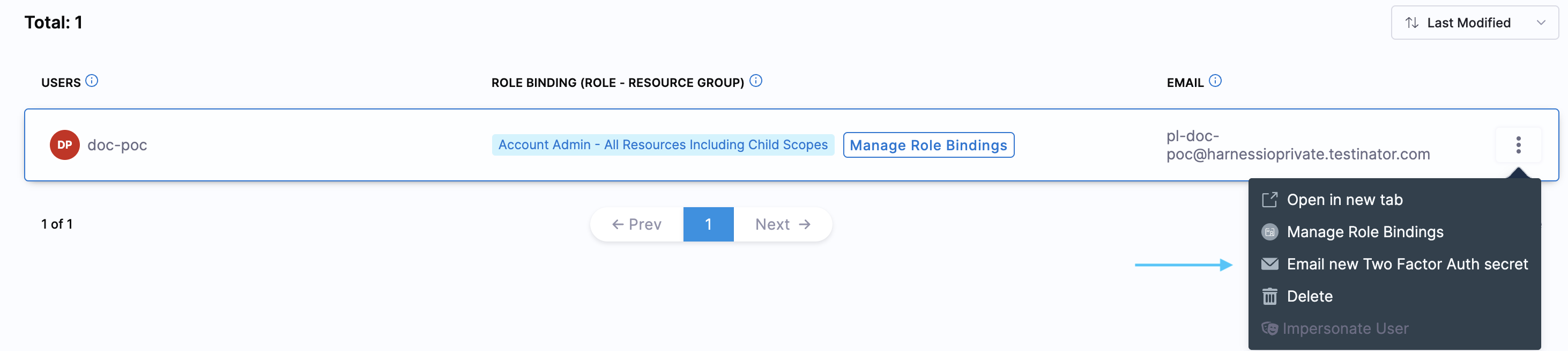
Locate the user and select More Options (⋮) next to their name.
-
Select Email new Two Factor Auth secret. The user receives an email with a new QR code and secret key to reconfigure their authenticator app.
Related articles
- Authentication overview: Review all authentication methods available in Harness.
- Switch account: Switch between multiple Harness accounts and understand re-authentication behavior.