> For the complete documentation index, see [llms.txt](https://developer.harness.io/llms.txt). Markdown versions of documentation pages are available by appending `.md` to page URLs; this page is available as [Markdown](https://developer.harness.io/resilience-testing/shared-capabilities/application-maps.md).
# Application Maps
Visualize and manage your application dependencies and service relationships in chaos engineering
An application map groups several [services](/resilience-testing/shared-capabilities/services.md) into one logical application so you can visualize related targets together.
A service represents a single target. An application map represents the thing your users actually depend on, which is usually several services working together.
{% hint style="info" %}
**NOT PART OF SERVICE ONBOARDING**
Application maps are a separate Insights feature. They are not created by the Resilience Testing service onboarding wizard, and application-level resilience scoring across a map is not available in this release.
{% endhint %}
***
## Before you begin
* [Service discovery](https://developer.harness.io/harness-platform/use-harness-platform/service-discovery)
* [Automated service onboarding](/resilience-testing/shared-capabilities/services/service-discovery.md)
* [Services](/resilience-testing/shared-capabilities/services.md)
* [Create Discovery Agent](https://developer.harness.io/harness-platform/use-harness-platform/service-discovery/customize-agent#create-discovery-agent)
* [What is Application Map?](https://developer.harness.io/harness-platform/use-harness-platform/application-map)
***
## Review your application maps
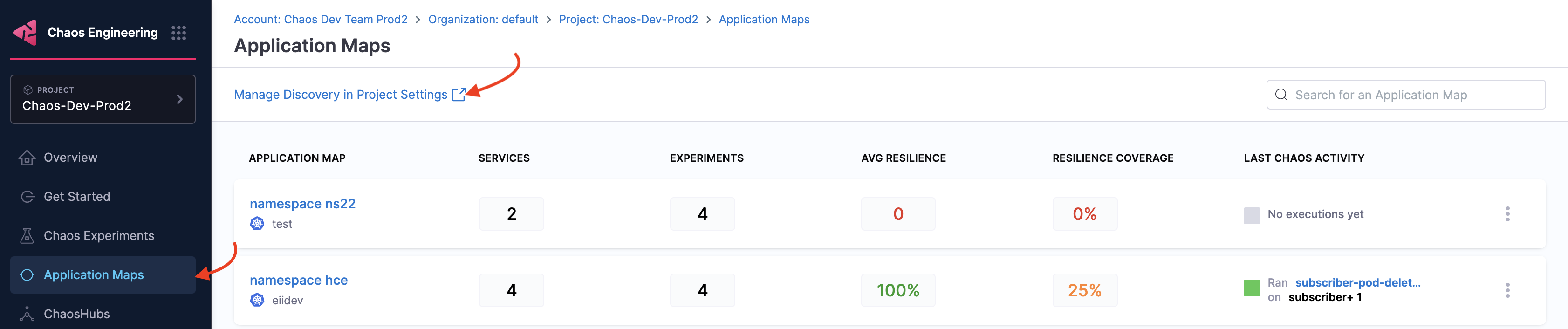
Go to **Resilience Testing → Insights → Application Maps** to open the list. Each row names the map and the infrastructure it belongs to.
| Column | What it shows |
| ----------------------- | --------------------------------------------------------------------------------------- |
| **Application map** | The map name, with the infrastructure it was built from beneath it. |
| **Services** | How many services the map groups. |
| **Experiments** | How many chaos experiments target the map. |
| **Avg resilience** | The average resilience score across the map. A map with no completed runs shows a dash. |
| **Resilience coverage** | How much of the map your experiments actually exercise. |
| **Last chaos activity** | The most recent experiment run against the map, or **No executions yet**. |
A map with services but no experiments is grouped but untested, and a map with experiments but low coverage is only partly tested. Both read as gaps rather than results.
***
## Create application map
Go to [create an application map](https://developer.harness.io/harness-platform/use-harness-platform/application-map#create-application-map) and follow the steps, except, navigate to the **Resilience Testing** module, and select **Project Settings**, and then select **Discovery**.
{% hint style="info" %}
**NOTE**
Alternatively, navigate to **Resilience Testing** -> **Insights** -> **Application Maps** -> **Manage Discovery in Project Settings**. This also leads you to the page in step 2.
 {% endhint %}
In the step where you select one or more discovered services, choose a specific service on which you want to inject chaos, and click **Next**.

{% hint style="info" %}
**NOTE**
* To view chaos-enabled experiment map, navigate to the **Resilience Testing** module and select **Insights** -> **Application Maps**.

* To manually associate the experiment as a part of an application map, specify the tag `applicationmap=` in the experiment.
{% endhint %}
***
## Next steps
* [Edit Application Map](https://developer.harness.io/harness-platform/use-harness-platform/application-map#edit-application-map)
* [Delete Application Map](https://developer.harness.io/harness-platform/use-harness-platform/application-map#delete-application-map)
* [Services](/resilience-testing/shared-capabilities/services.md): Onboard the services you want to group into a map.
{% @harness-feedback/feedback %}
{% endhint %}
In the step where you select one or more discovered services, choose a specific service on which you want to inject chaos, and click **Next**.

{% hint style="info" %}
**NOTE**
* To view chaos-enabled experiment map, navigate to the **Resilience Testing** module and select **Insights** -> **Application Maps**.

* To manually associate the experiment as a part of an application map, specify the tag `applicationmap=` in the experiment.
{% endhint %}
***
## Next steps
* [Edit Application Map](https://developer.harness.io/harness-platform/use-harness-platform/application-map#edit-application-map)
* [Delete Application Map](https://developer.harness.io/harness-platform/use-harness-platform/application-map#delete-application-map)
* [Services](/resilience-testing/shared-capabilities/services.md): Onboard the services you want to group into a map.
{% @harness-feedback/feedback %}