results-k6
Run overview
The left panel, titled About This Test, shows the test metadata and the live status of the execution.
| Field | Description |
|---|---|
| Test Name | Name of the load test. |
| Load Test Infrastructure | The infrastructure that ran the test, with its connection status. |
| Type | Reads JavaScript. |
| Users | Peak concurrent virtual users configured. |
| Duration | Total configured test duration. |
| Replicas | Number of runner pods the load was split across for distributed execution. |
| Peak VUs | Highest number of virtual users reached during the run. |
| Run Started | Timestamp when the execution began. |
| Time Elapsed | How long the test has run, or the total runtime once complete. |
| Status | Execution status: Running, Finished, or Failed. |
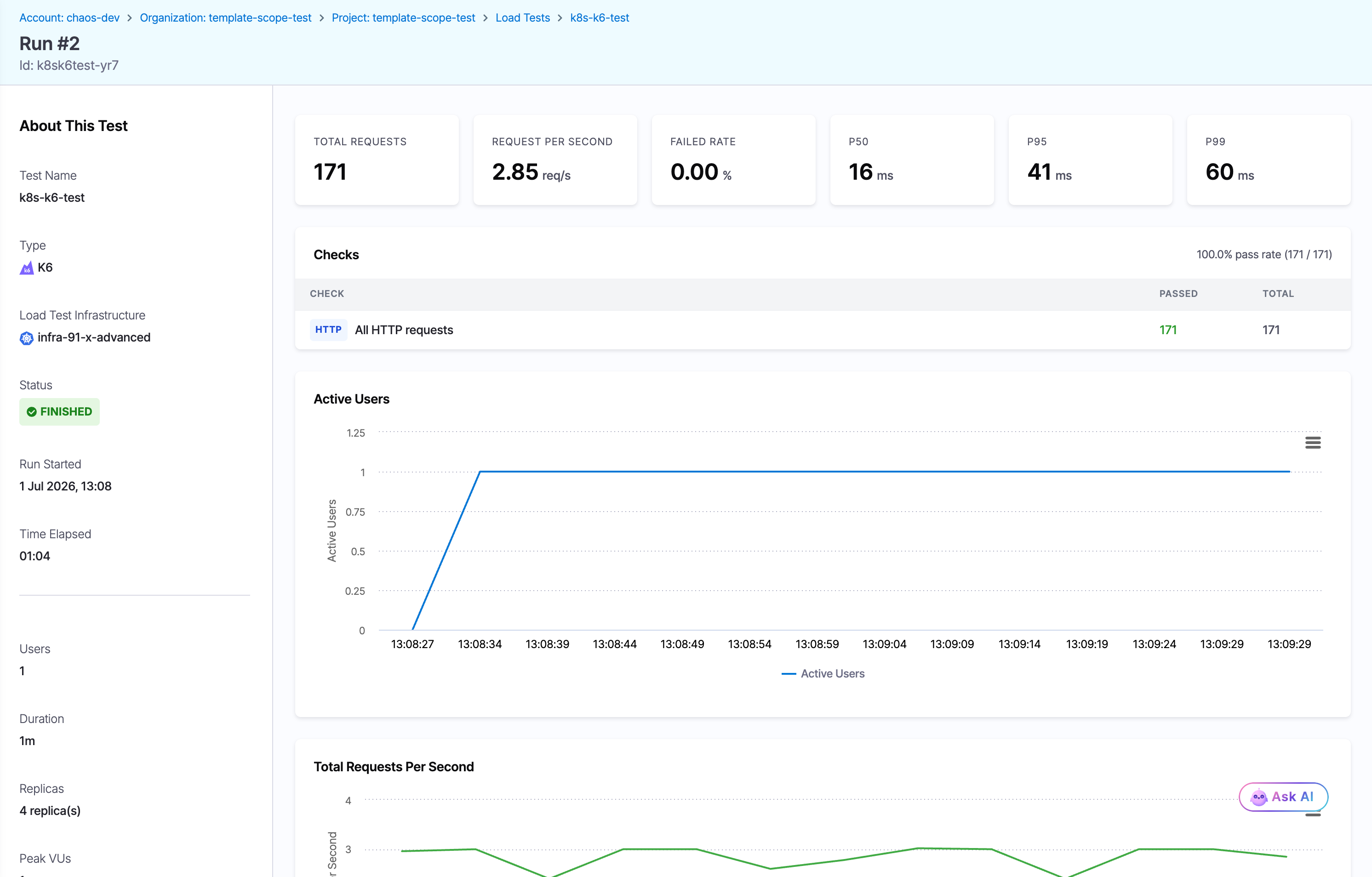
The Run detail page for a finished k6 run. The k6 cards report Failed Rate and the P50, P95, and P99 percentiles, and the Checks table shows a 100% pass rate. This run defined no thresholds, so no Thresholds table appears.
Summary cards
The cards across the top of the results panel report the headline metrics for a k6 run:
| Metric | What it measures |
|---|---|
| Total Requests | Total number of requests sent during the test. |
| Request Per Second | Average throughput across the whole run, in requests per second. |
| Failed Rate | Percentage of requests that failed. |
| P50 | Median response time, in milliseconds. |
| P95 | 95th-percentile response time. Five percent of requests were slower than this. |
| P99 | 99th-percentile response time, useful for spotting tail latency. |
Thresholds and checks
Below the summary cards, k6 runs show up to two extra tables.
- Thresholds: This table appears only when the test defines thresholds. Each row shows a Metric, its pass/fail Condition (for example,
p(95)<5000), the Actual measured value, and a Status. A breached threshold marks the whole run as Failed, which is how a k6 test becomes a release gate. The status readsPENDINGwhile the run is in progress. A test with no thresholds shows no Thresholds table. - Checks: Validations declared in the script or built in the UI. The table lists each Check with its Passed and Total counts and an overall pass rate (for example,
100.0% pass rate (171 / 171)). Failed checks are recorded but do not fail the run on their own.
Go to k6 to configure thresholds and checks.
Charts
The charts visualize how the test behaved over time.
Active users
A time-series line chart of concurrent virtual users. Use it to confirm the load followed the shape you configured:
- The ramp-up phase, where users rise linearly from zero to the configured peak.
- The steady-state phase, where the count plateaus at the peak.
- The ramp-down at the end, or an early drop if the run stopped or failed.
Total requests per second
A time-series chart with two lines:
- Request Per Second (green): throughput over time.
- Errors/sec (red): errors over time.
Read the two lines together to see whether throughput holds under sustained load and whether errors climb as users increase. A rising red line while the green line flattens is a strong sign the system is at capacity.
Response time distribution
A scatter plot of individual request response times over the run. Each point is color-coded by request name and outcome:
- Success: requests that returned a successful response and passed all assertions.
- Failure: requests that failed or violated an assertion.
Use it to spot latency that drifts upward as load increases, outlier requests, and whether response times stay within your target.
Response time histogram
A histogram that bins the per-request response times and plots how many requests fell into each latency band. The subtitle notes that the top one percent of samples is clipped so a few slow outliers do not distort the scale. Use it to see the typical latency band and how tightly response times cluster.
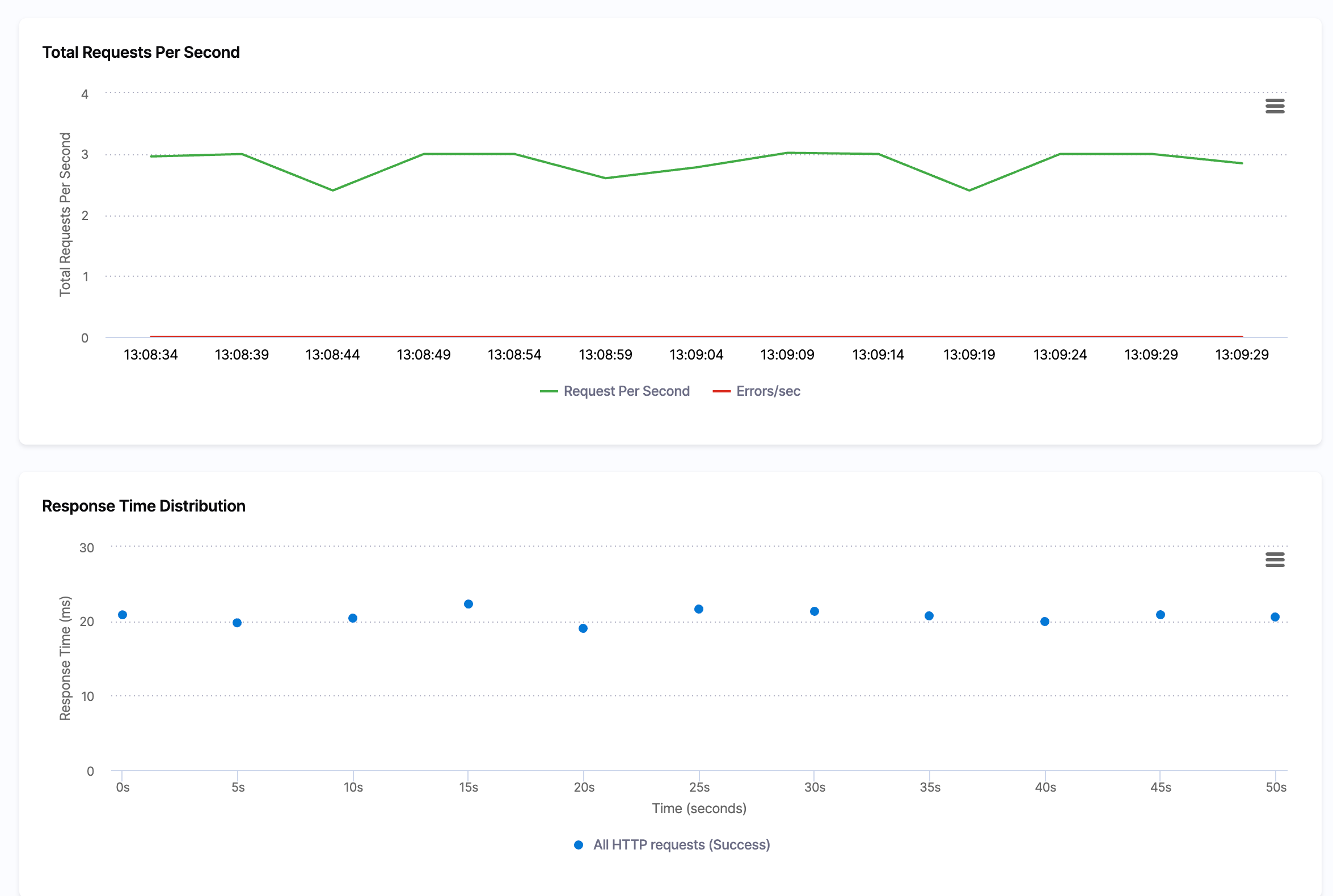
A k6 run. Alongside the Total Requests Per Second and Response Time Distribution charts, k6 adds a Response Time Histogram that groups requests into latency bands.
Console logs and endpoint statistics
Below the charts, two sections give you the raw detail behind the summary.
- Load Test Logs: An expandable Console Logs panel with the streamed k6 output. You can search, download, or open it full screen. It lists the built-in k6 metrics, such as
http_req_durationwith its avg, min, med, max,p(95), andp(99)values,http_req_failed,http_reqs,iteration_duration, andvus. - Endpoint Statistics: A per-endpoint breakdown. Each row shows the Endpoint, Requests, Fails, a Latency (ms) bar marking the median (M), 95th (95), and 99th (99) percentiles, the Avg (ms), and the Current RPS. An Aggregated row totals every endpoint.
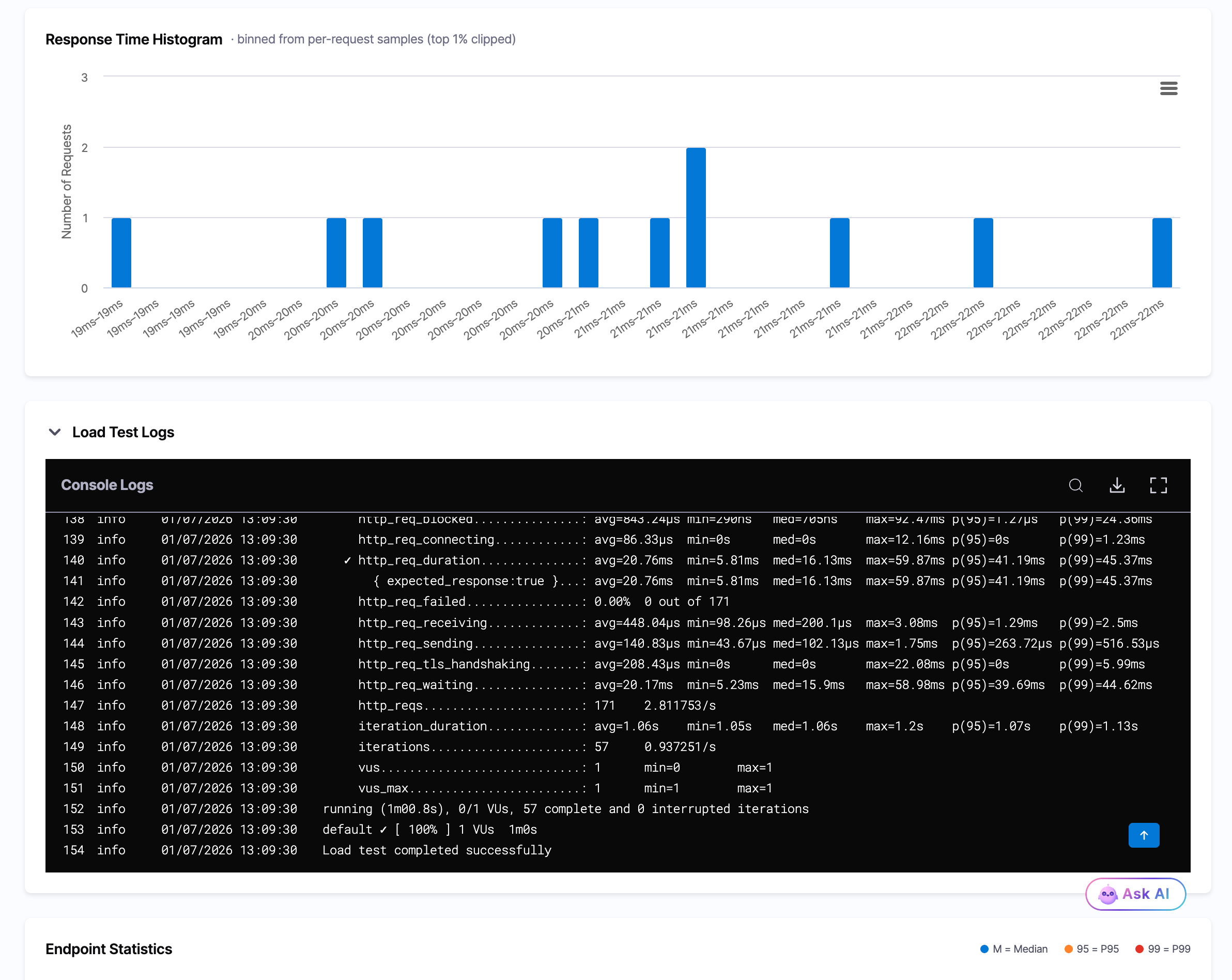
The k6 Response Time Histogram above the Console Logs panel, which lists the built-in k6 metrics, and the Endpoint Statistics table below.