results-locust
Run overview
The left panel, titled About This Test, shows the test metadata and the live status of the execution.
| Field | Description |
|---|---|
| Test Name | Name of the load test. |
| Load Test Infrastructure | The infrastructure that ran the test, with its connection status. |
| Type | Reads Python. |
| Users | Peak concurrent virtual users configured. |
| Duration | Total configured test duration. |
| Ramp Up Duration | Time to ramp linearly from zero to peak users. |
| Worker Count | Number of worker processes generating load. |
| Run Started | Timestamp when the execution began. |
| Time Elapsed | How long the test has run, or the total runtime once complete. |
| Status | Execution status: Running, Finished, or Failed. |
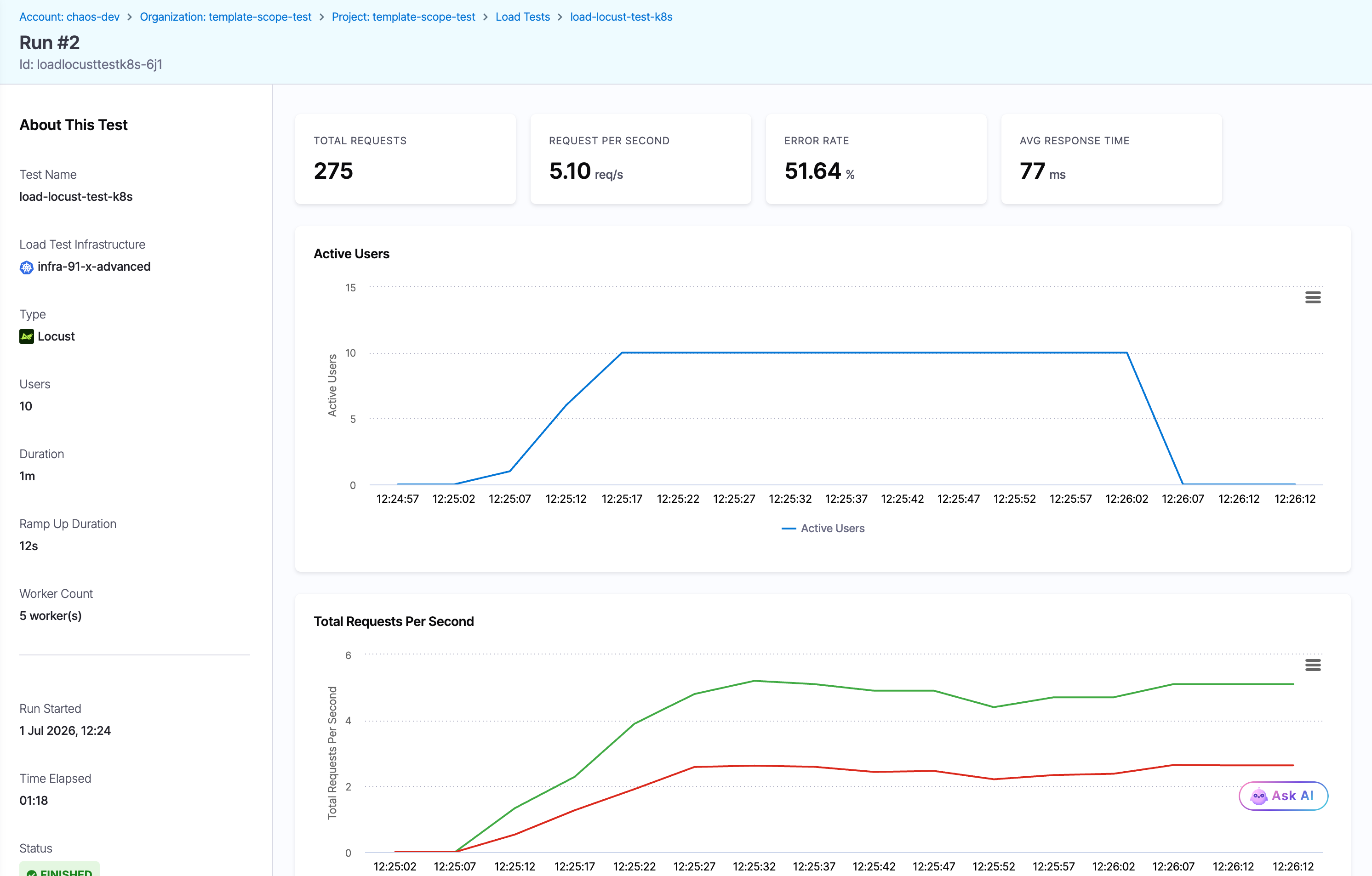
The Run detail page for a finished Locust run. The About This Test panel on the left shows metadata and status, the summary cards report headline metrics, and the Active Users chart plots concurrency over time.
Summary cards
The cards across the top of the results panel report the headline metrics for a Locust run:
| Metric | What it measures |
|---|---|
| Total Requests | Total number of requests sent during the test. |
| Request Per Second | Average throughput across the whole run, in requests per second. |
| Error Rate | Percentage of requests that failed, either a non-2xx response or a failed assertion. |
| Avg Response Time | Mean response time across all requests, in milliseconds. |
Charts
The charts visualize how the test behaved over time.
Active users
A time-series line chart of concurrent virtual users. Use it to confirm the load followed the shape you configured:
- The ramp-up phase, where users rise linearly from zero to the configured peak.
- The steady-state phase, where the count plateaus at the peak.
- The ramp-down at the end, or an early drop if the run stopped or failed.
Total requests per second
A time-series chart with two lines:
- Request Per Second (green): throughput over time.
- Errors/sec (red): errors over time.
Read the two lines together to see whether throughput holds under sustained load and whether errors climb as users increase. A rising red line while the green line flattens is a strong sign the system is at capacity.
Response time distribution
A scatter plot of individual request response times over the run. Each point is color-coded by request name and outcome:
- Success: requests that returned a successful response and passed all assertions.
- Failure: requests that failed or violated an assertion.
Use it to spot latency that drifts upward as load increases, outlier requests, and whether response times stay within your target.
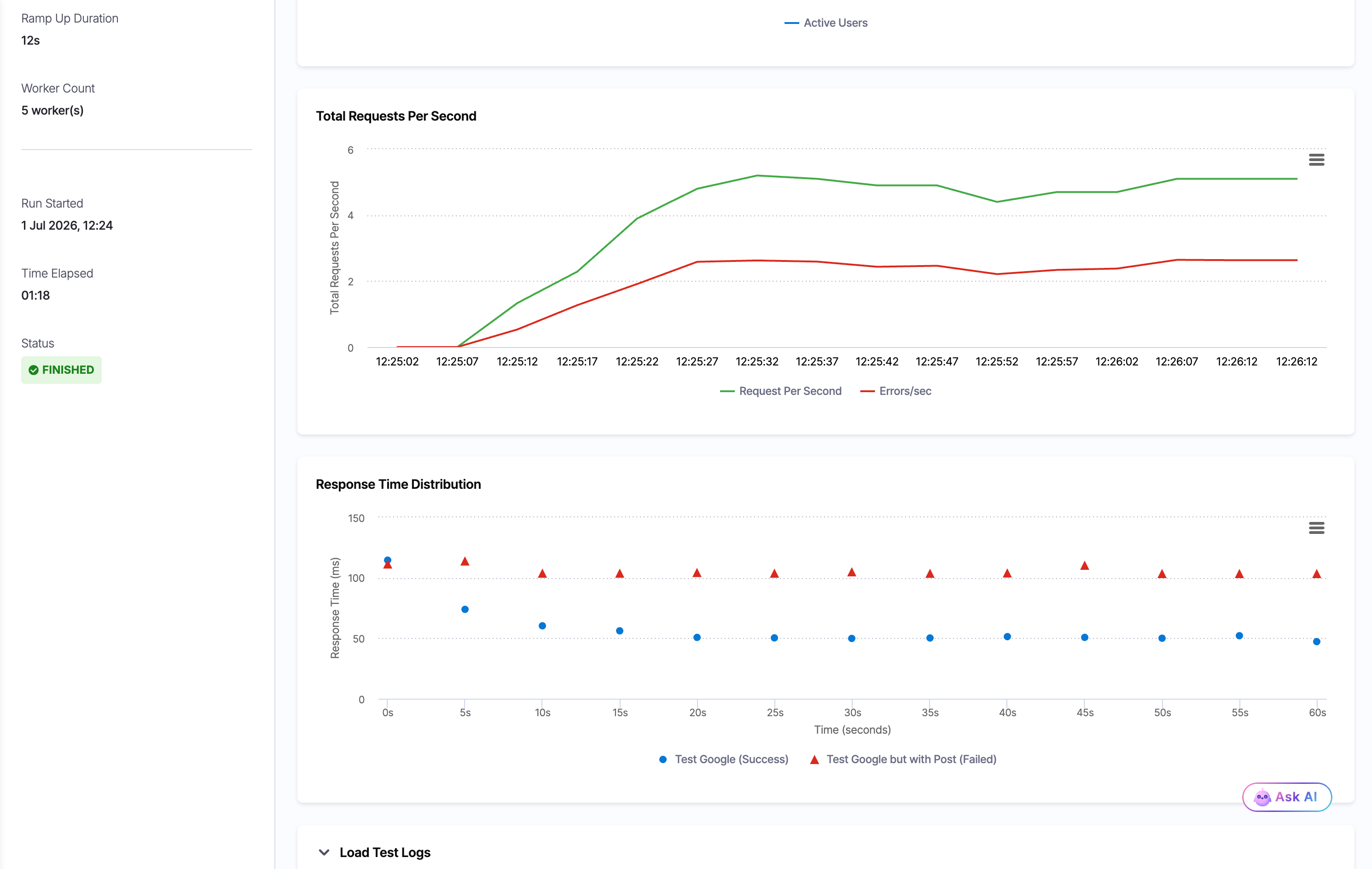
The Total Requests Per Second chart (throughput in green, errors in red) and the Response Time Distribution scatter plot. Here the failed POST requests cluster higher than the successful GET requests.
Console logs and endpoint statistics
Below the charts, two sections give you the raw detail behind the summary.
- Load Test Logs: An expandable Console Logs panel with the streamed output from the load generator. You can search, download, or open it full screen. It includes the aggregated request table, approximated response-time percentiles, and an error report that names the failing requests and their causes (for example,
405 Client Error: Method Not Allowed). - Endpoint Statistics: A per-endpoint breakdown. Each row shows the Endpoint, Requests, Fails, a Latency (ms) bar marking the median (M), 95th (95), and 99th (99) percentiles, the Avg (ms), and the Current RPS. An Aggregated row totals every endpoint. Use this table to find which specific endpoint is slow or failing rather than reading the whole-test averages.
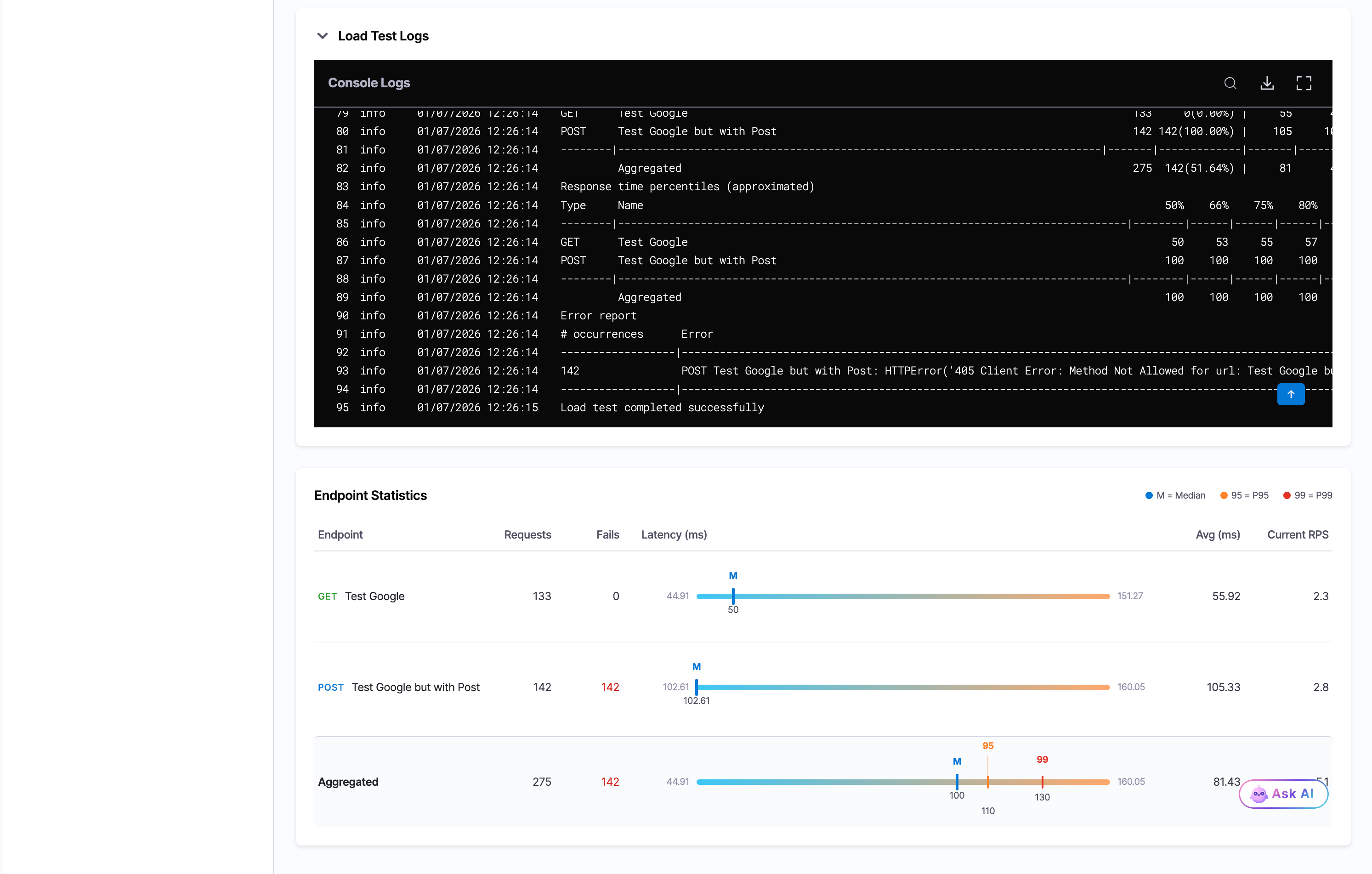
The Console Logs panel and the Endpoint Statistics table. The per-endpoint rows isolate the failing POST endpoint (142 of 142 requests failed) from the healthy GET endpoint.