Manage SCS Access Control with RBAC

Last updated on

Supply Chain Security (SCS) often involves multiple users working across security workflows, integrations, and remediation activities. Without clear access controls, users can unintentionally perform actions beyond their responsibilities, leading to misconfigurations and operational risks.

Role-Based Access Control (RBAC) for SCS addresses this by enabling administrators to define controlled access to SCS operations. This helps organizations enforce secure access boundaries and maintain better governance across security workflows.

note

The SCS RBAC enhancements described in this topic are enabled by default. However, if you are an existing SCS customer, these enhancements are placed behind the SCS_RBAC feature flag to prevent breaking changes to your current setup. Contact Harness Support to enable the feature in your account.

What will you learn in this topic?

By the end of this topic, you will be able to understand:

  • How Role-Based Access Control (RBAC) works in Supply Chain Security (SCS).
  • How to identify supported SCS resources and their available permissions.
  • How to configure SCS RBAC permissions across Account, Organization, and Project scopes.
  • How to create and modify roles with custom SCS permissions.
  • How to create and manage resource groups for SCS access control.

Before you Begin

Make a note of the following before you proceed with configuring RBAC in SCS:

  • Understanding of Role-based access control (RBAC) in Harness. Harness RBAC helps you manage user access to specific features, resources, and actions across the platform. For more information on Harness RBAC, see Role-based Access Control (RBAC).

Understand Role-Based Access Control in SCS

RBAC in SCS helps organizations control who can access and manage different SCS operations. In large environments, multiple users often work on integrations, remediation workflows, and security configurations simultaneously. RBAC helps ensure that only authorized users can perform sensitive actions within SCS, reducing the risk of unauthorized changes and operational issues.

RBAC for SCS introduces granular permissions for key SCS workflows, including integrations, configurations, external tickets, and remediation pull requests. Permissions can be assigned at the Account, Organization, and Project levels based on your organizational needs. Each permission category includes access controls such as View, Create, Edit, and Delete, allowing administrators to provide users, user groups, and service accounts with only the level of access they require within SCS.

The following table provides an overview of why RBAC is important for SCS, when it should be used, and how organizations can leverage it to manage access across SCS workflows and operations.

Why use it?When to use?How can you leverage it?
Helps control access to sensitive SCS operations and workflows. Reduces the risk of unauthorized configuration changes and unintended operations. Helps enforce least-privilege access across SCS resources.When multiple teams manage integrations, configurations, and remediation workflows within SCS. When you want to restrict create, edit, or delete access for specific users or teams. When managing SCS access across Account, Organization, and Project scopes.Assign granular SCS permissions based on user responsibilities and operational requirements. Configure resource-specific permissions to control access across different SCS workflows and operations. Configure RBAC permissions through existing Harness managed roles or custom roles.

Default Managed Role Access for SCS

SCS RBAC permissions are automatically mapped to selected existing Harness managed roles based on their access level. This helps organizations apply SCS access controls without manually configuring permissions for commonly used administrative and viewer roles.

The following table shows how the existing Harness managed roles are mapped to SCS permissions across different scopes:

Managed RoleAvailable ScopeSCS Access Level
ViewerAccount, Organization, and ProjectProvides view-only access to supported SCS resources and workflows. Users cannot perform create, edit, or delete operations.
AdminAccount, Organization, and ProjectProvides full access to supported SCS resources and workflows, including configuration and management operations.
Security Testing AppSecAccount, Organization, and ProjectProvides access to supported SCS security and remediation workflows, including integrations, external tickets, configurations, and remediation pull requests.

Supported SCS Resources and Permissions

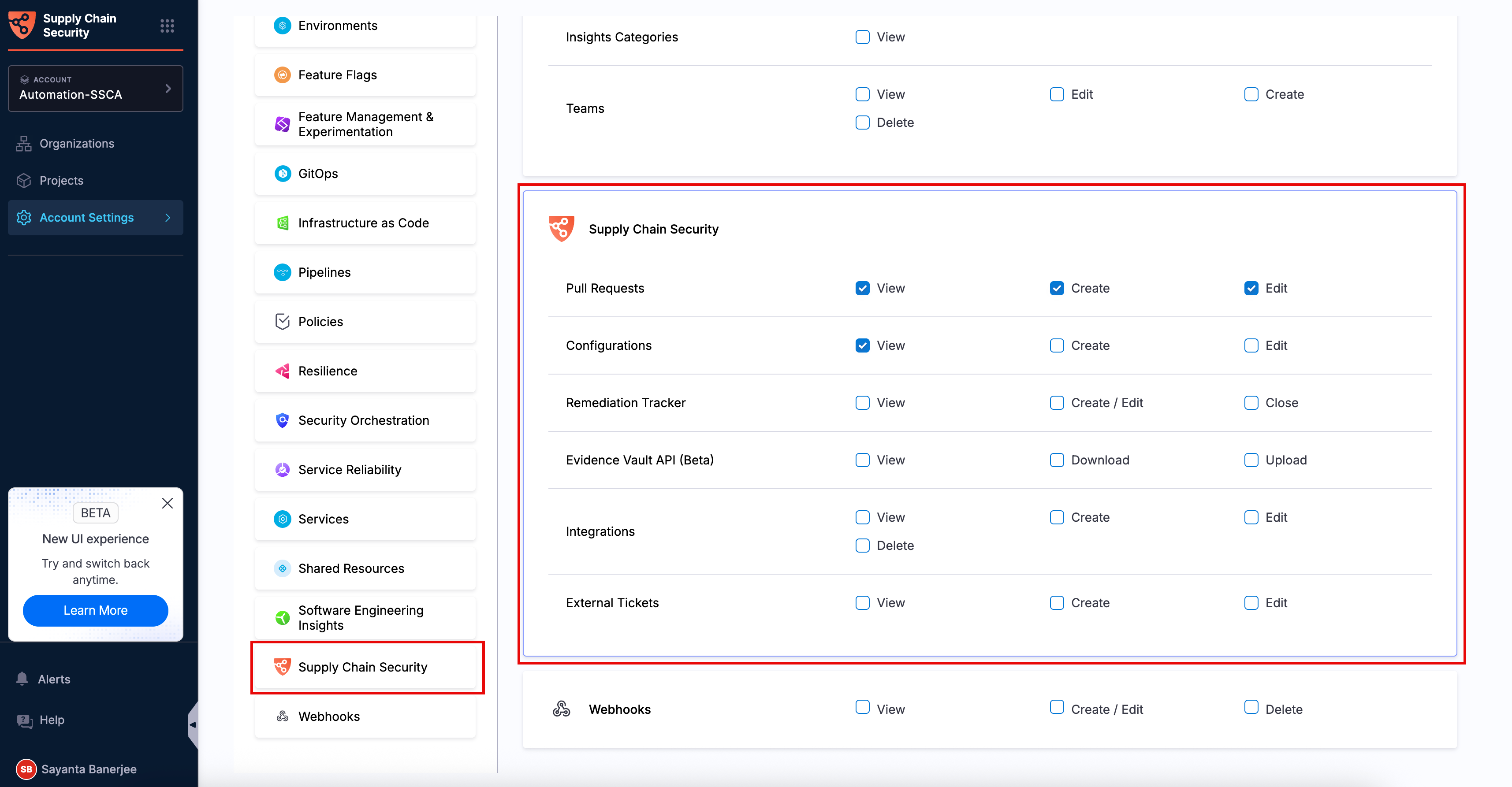
SCS RBAC permissions help administrators control access to different SCS resources and workflows based on user responsibilities and operational requirements. The following table describes the supported SCS resources, their available permissions, and the actions each permission allows within SCS.

SCS ResourcePermissionDescription
IntegrationsViewGrants users read-only access to configured integrations.
CreateAllows users to create new integrations for supported repositories and platforms.
EditEnables users to modify existing integrations and manage associated repository selections.
DeleteAllows users to remove integrations from SCS.
ConfigurationsViewGrants users read-only access to SCS configuration settings.
CreateAllows users to create supported SCS configurations.
EditEnables users to modify existing SCS configurations and related settings.
External TicketsViewGrants users read-only access to external remediation tickets, such as Jira tickets, linked within SCS workflows.
CreateAllows users to create external remediation tickets from supported workflows.
EditEnables users to manage supported external ticket workflows and settings.
Pull RequestsViewGrants users read-only access to remediation pull requests.
CreateAllows users to create remediation pull requests for supported dependencies and vulnerabilities.
EditEnables users to manage supported remediation pull request workflows.
Remediation TrackerViewGrants users the ability to view remediation trackers in read-only mode.
Create/EditEnables users to create new remediation trackers and modify existing trackers.
CloseAllows users to close remediation trackers.

Configure RBAC for SCS

Configuring RBAC for SCS helps administrators control access to different SCS resources and workflows based on user responsibilities and operational requirements. By assigning granular permissions, organizations can restrict unauthorized actions while ensuring that users have the appropriate level of access required for their tasks.

You can configure RBAC permissions for SCS at the Account, Organization, and Project scopes. Depending on your access management requirements, you can configure SCS RBAC in the following ways:

The configuration workflow remains similar across all scopes, with only the navigation path changing based on the selected scope. Use the following navigation paths based on where you want to configure SCS permissions:

ScopeNavigation Path
AccountUse the scope selector to select the required Account scope, and then go to Account Settings > Access Control > Roles.
OrganizationUse the scope selector to select the required Organization scope, and then go to Organization Settings > Access Control > Roles.
ProjectUse the scope selector to select the required Project scope, and then go to Project Settings > Access Control > Roles.

Create a New Role with SCS Permissions

Creating a new role allows administrators to define custom SCS permissions based on specific user responsibilities and access requirements. To create a new role with SCS permissions, complete the following steps:

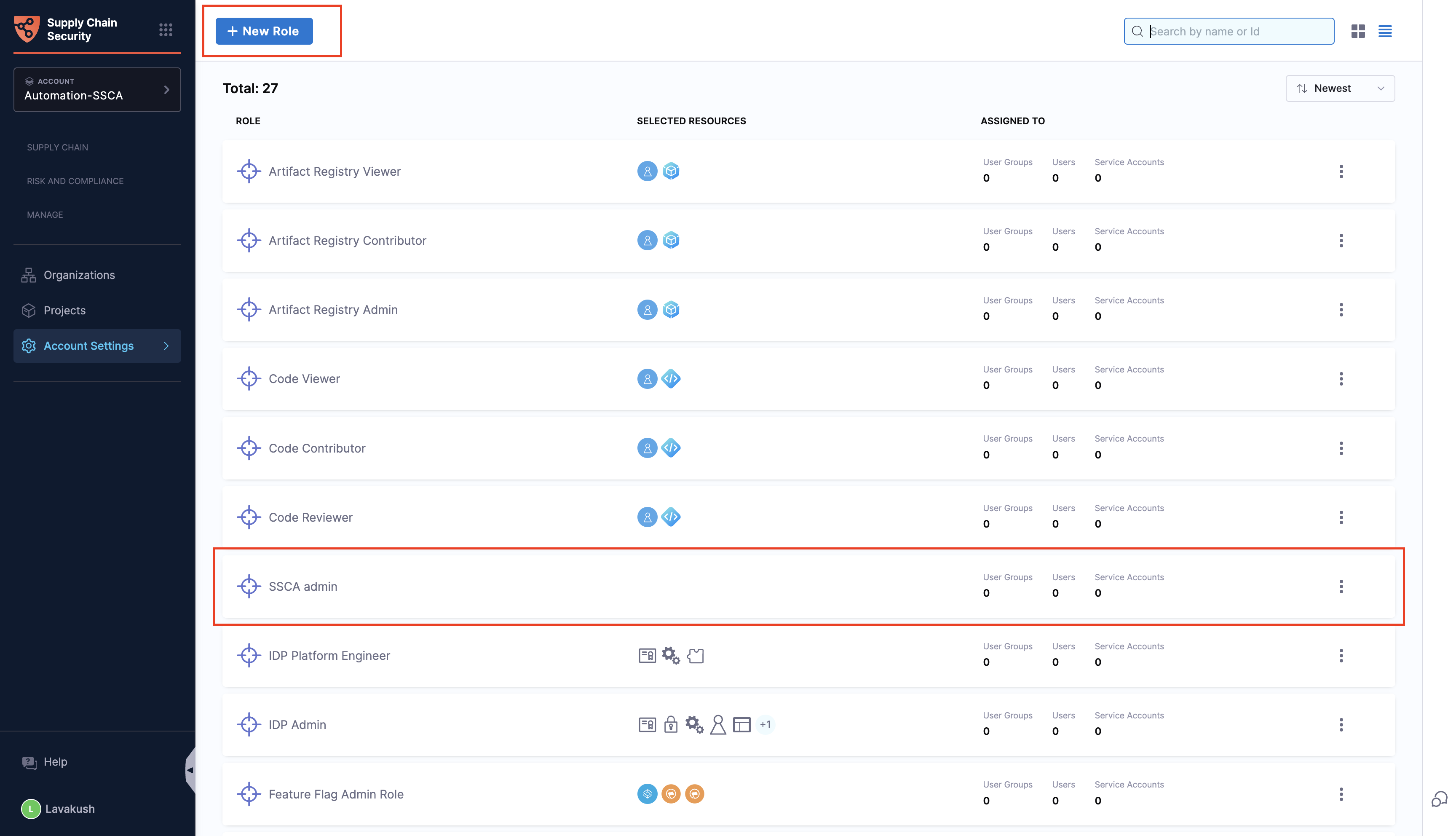
  1. Navigate to the appropriate Roles page based on your selected scope.

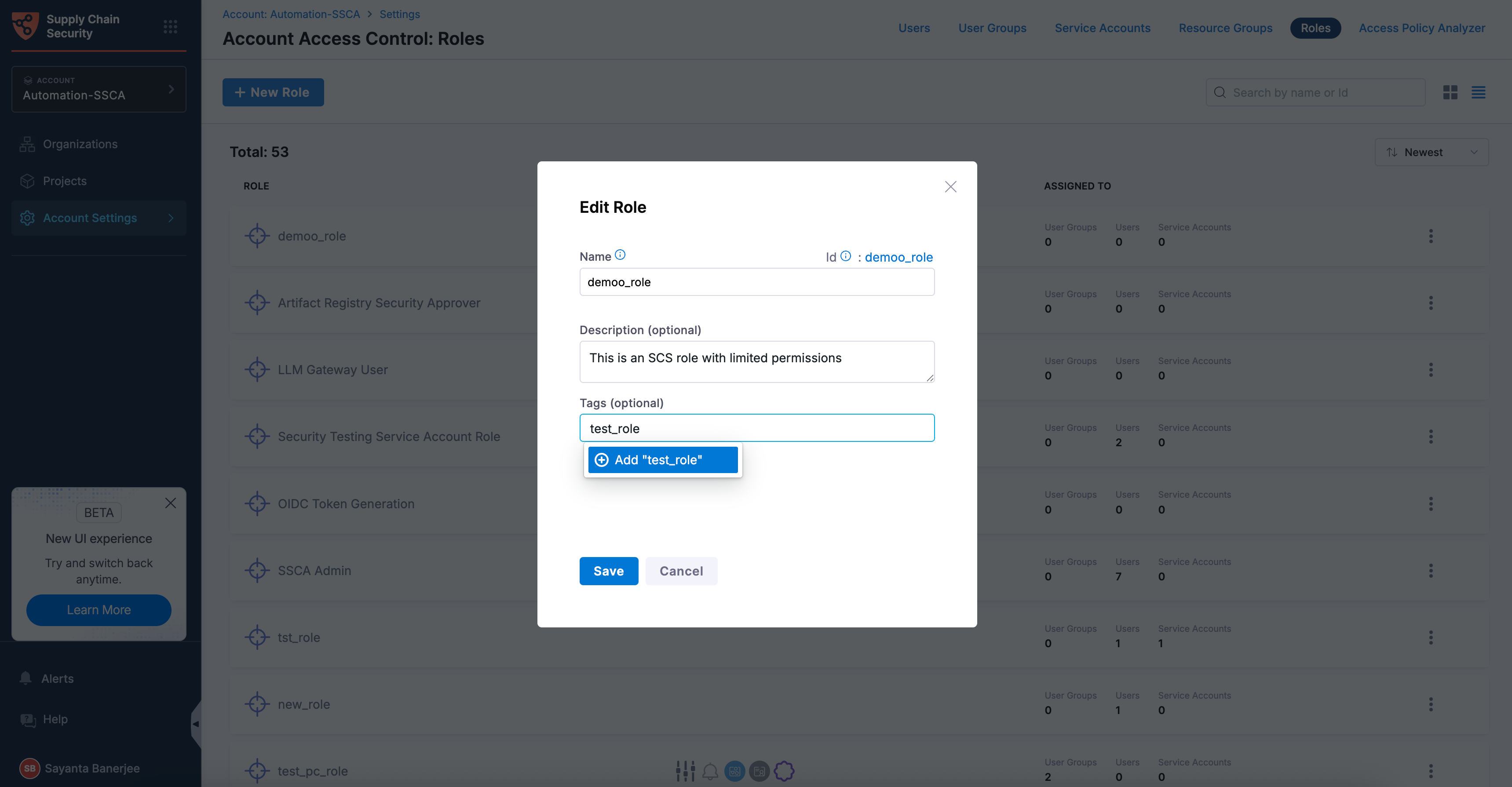
  2. Click the + New Role button on the top left to open the New Role dialog.

  3. Specify the Name of the role, for example, demo_role. Harness automatically generates a role ID from the role name. Once the role is created, you can't change the ID.

  4. (Optional) Enter a description for the role.

  5. (Optional) Specify tags for the role by clicking on + Add “<tag_name>” . The option appears automatically as you enter a tag name.

  6. After verifying the details, click Save. Once saved, you can view the Role created successfully toaster message at the top, indicating the successful creation of a new role. The role details page opens automatically with the default Permissions tab, where you can configure permissions for the required SCS resources.

  7. Scroll down through the different categories or through the Update Role Permissions section to locate Supply Chain Security.

  8. Select the checkboxes for the required permissions across different SCS resources based on your access requirements.

  9. Scroll up to the top of the page and click Apply Changes. Once done, the Permissions updated successfully toaster message will appear at the top indicating the successful assigning of custom permissions.

    note

    You can assign the newly created role to a new or existing user. For more information on creating new users and assigning roles, see Manage Users.

  10. (Optional) After assigning the role to a user, user group, or service account, click the Assigned To tab to view the associated users, user groups, and service accounts.

Modify/Delete an Existing Role

Modifying an existing role allows administrators to update the role name, description, tags, and assigned SCS permissions, while deleting an existing role removes it from SCS.

Modify SCS Permissions for an Existing Role

To modify the SCS permissions for an existing role, complete the following steps:

  1. Navigate to the appropriate Roles page based on your selected scope.
  2. From the list of available roles, locate and select the role that you want to modify. The role details page opens with the default Permissions tab.
  3. Scroll down through the different categories or through the Update Role Permissions section to locate Supply Chain Security.
  4. Select or unselect the checkboxes for the required permissions across different SCS resources based on your access requirements.
  5. Scroll up to the top of the page and click Apply Changes. Once done, the Permissions updated successfully toaster message will appear at the top indicating the successful modification of custom permissions.

Modify the Role Name, Description, or Tags for an Existing Role

Modifying an existing role allows administrators to update the role name, description, or tags to reflect changing organizational and access management requirements. For more information, see Edit a Role

Delete an Existing Role

Deleting an existing role allows administrators to remove roles that are no longer required or are no longer used within the organization. For more information, see Delete a Role

note

For more information on managing roles, see Manage Roles.

Create and Manage Resource Groups

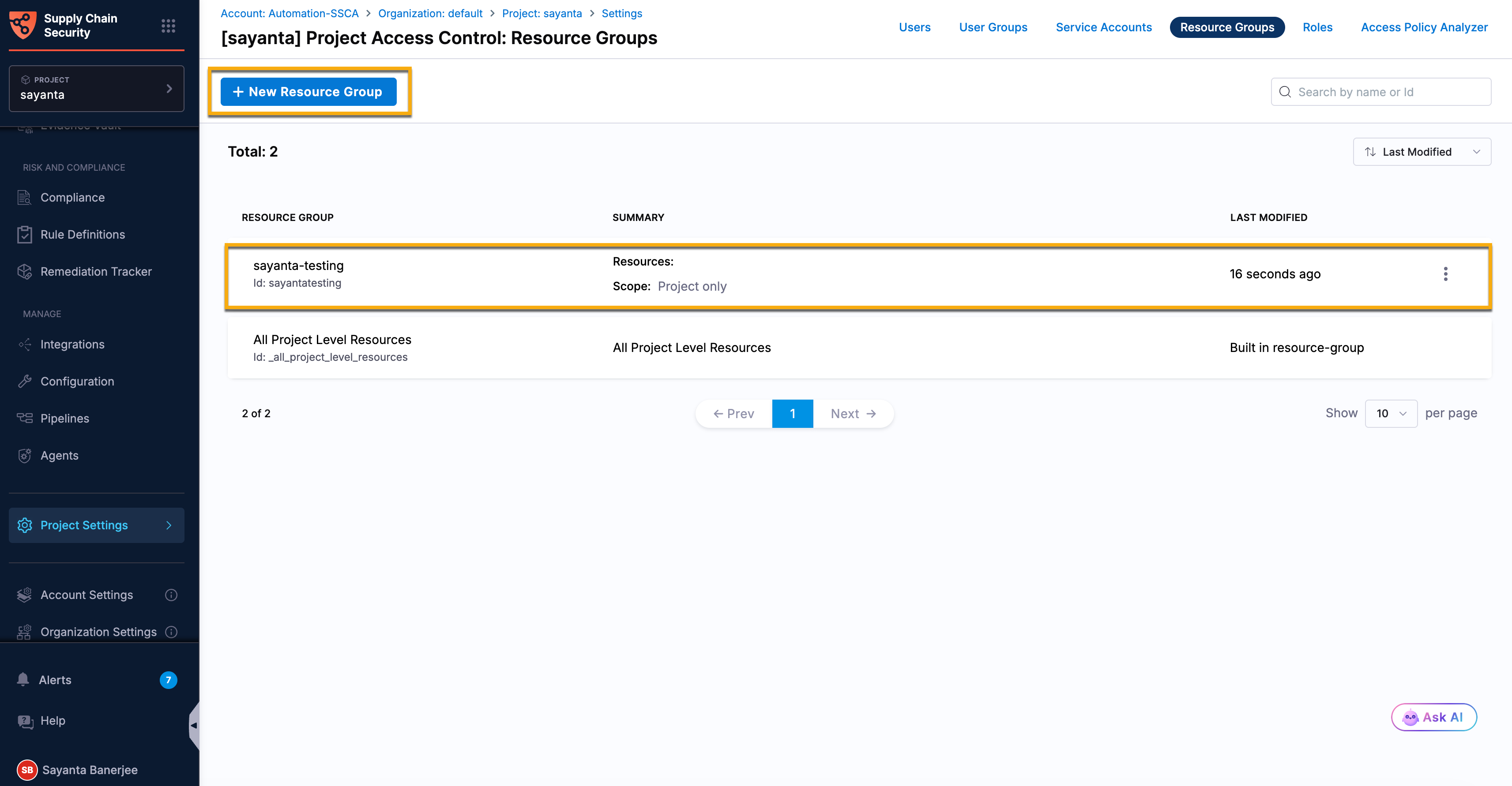
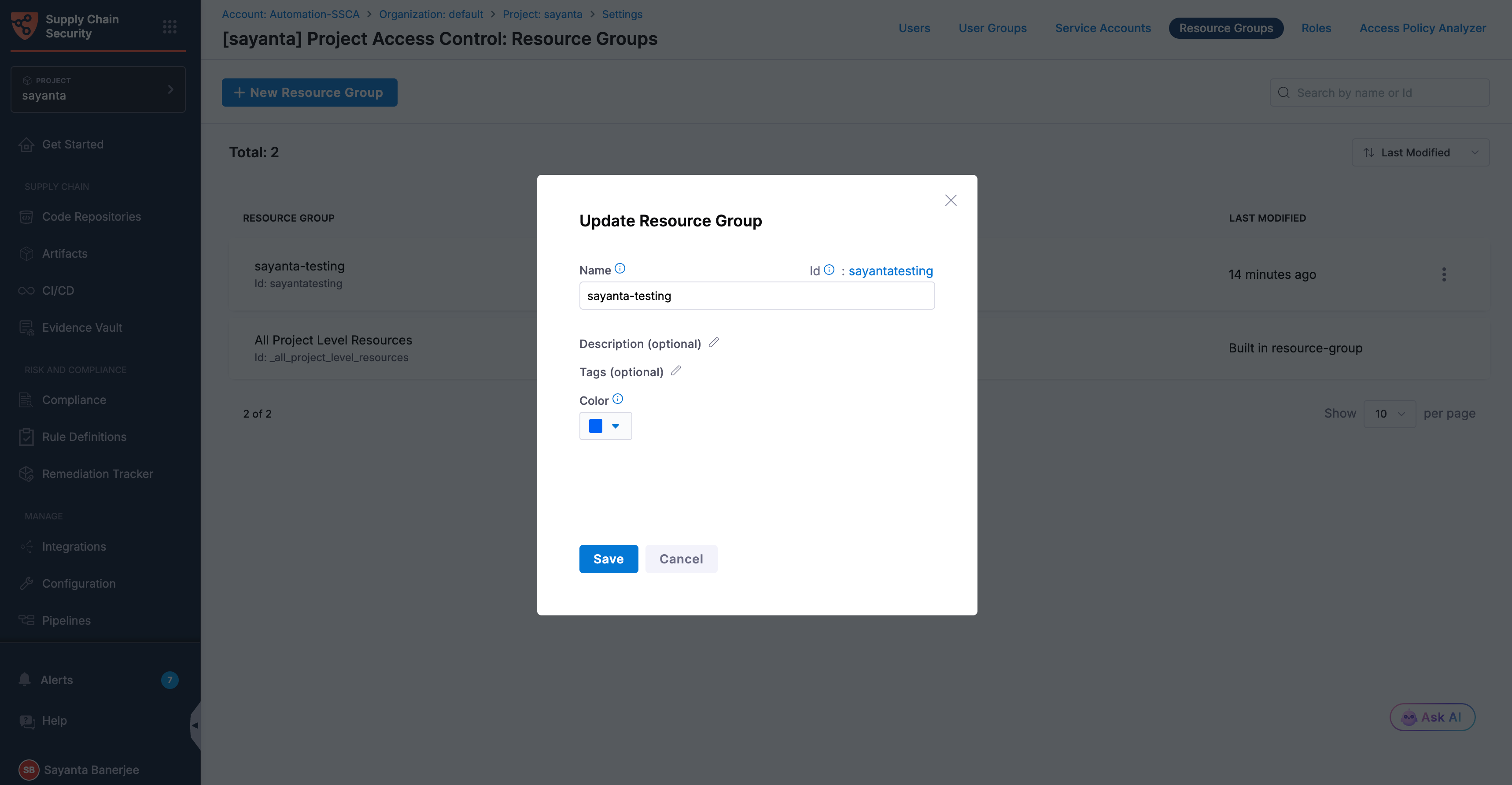
Here's how you can create and manage resource groups for the remediation tracker at the account level. Additionally, you can refer to Manage Resource Groups document to learn more.

  1. Navigate to Account Settings > Access Control > Resource groups within your Harness Account.
  2. Add a new resource group or select an existing one to modify.
  3. Set the "Resource Scope" accordingly if you are creating one.
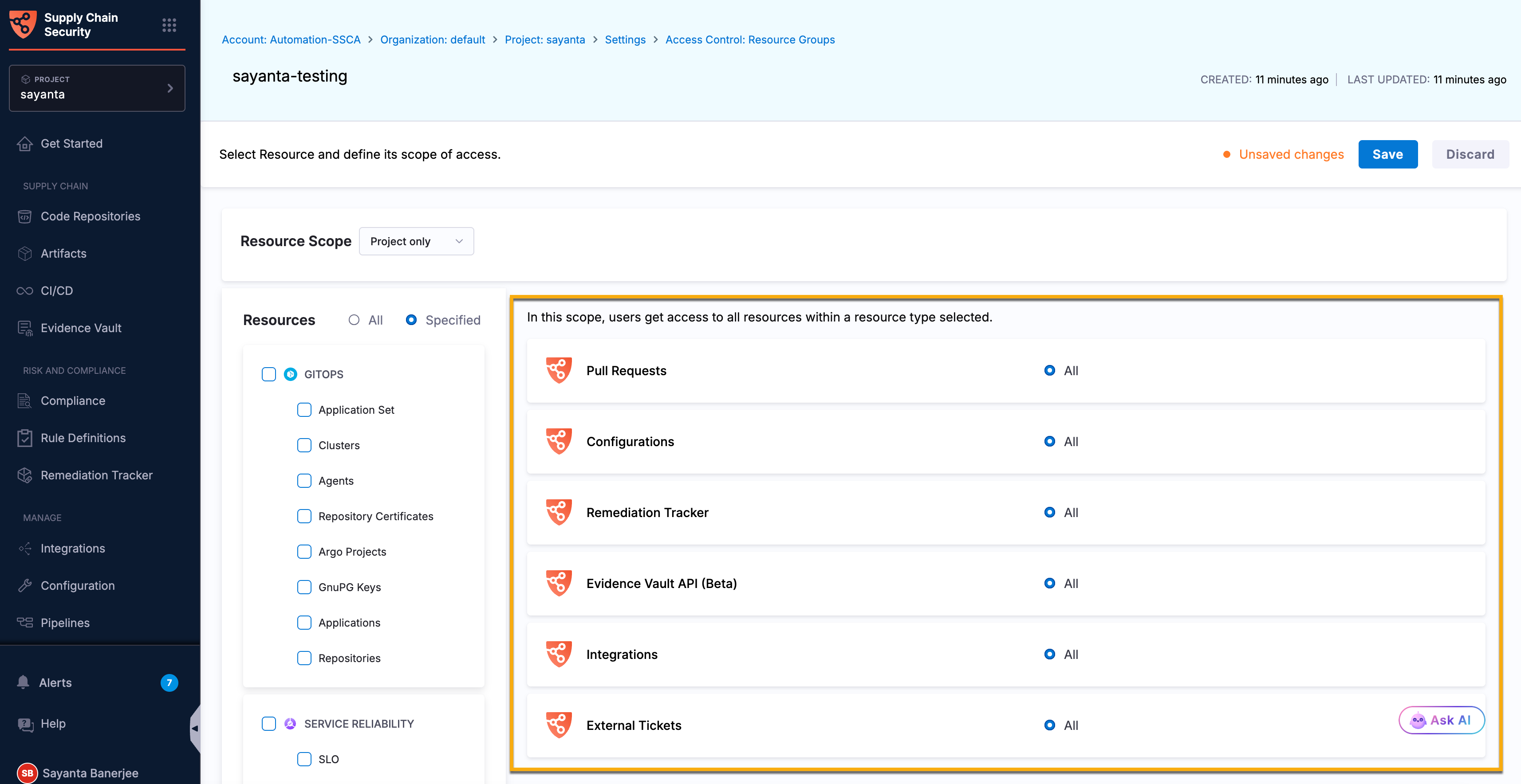
  4. Within the Resources, select Supply Chain Assurance.
note
  • The Remediation Tracker resource can be configured within resource groups only at the Project scope. It is not available for resource group configuration at the Account or Organization scopes.
  • You can currently use resource groups only with Remediation Tracker permissions. Support for resource groups with other SCS permissions is not yet available and is planned for a future release.

For configuring at both the organization and project levels, the navigation process is similar to what was detailed in the previous section.

Next Steps