> For the complete documentation index, see [llms.txt](https://developer.harness.io/llms.txt). Markdown versions of documentation pages are available by appending `.md` to page URLs; this page is available as [Markdown](https://developer.harness.io/feature-management-experimentation/troubleshooting-and-resources/split-to-harness-migration/migrate-from-split-to-harness/migrated-account.md).
# Account Migrated to Harness
Learn about next steps once your Split account has been migrated to Harness.
### Overview
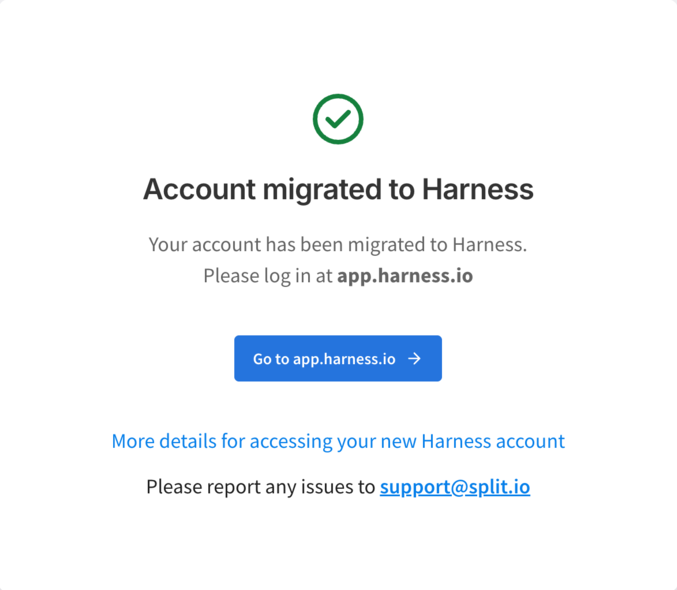
If you see the following message when attempting to log in to Split, your account has been migrated to Harness, and you need to access it from there going forward:
The migration keeps your familiar workflows intact. Non-admin users will work as they did in Split, while administrators will notice a few changes as settings move into Harness platform features.
Migrated Split Account?
When a Split account is migrated to Harness FME, the structure of your [Harness organizations](/feature-management-experimentation/troubleshooting-and-resources/split-to-harness-migration/administering-migrated-account.md#harness-organizations-and-environments), [projects](/feature-management-experimentation/troubleshooting-and-resources/split-to-harness-migration/administering-migrated-account.md#projects), and [resource groups](/feature-management-experimentation/troubleshooting-and-resources/split-to-harness-migration/administering-migrated-account.md#user-groups) depend on whether your account is on the **Free** or **Enterprise Plan** at the time of the migration.
| Plan | Organization created | Project location | Resource group |
| -------------- | --------------------------------- | -------------------------- | ----------------------------- |
| **Free** | Default Harness organization | Default organization | `All Project Level Resources` |
| **Enterprise** | ` FME` | Dedicated FME organization | `FME All Resources` |
* On the **Free plan**, legacy Split projects are recreated as Harness projects in the default Harness organization.
* On the **Enterprise plan**, a Harness organization named **` FME`** is created, and legacy Split projects are recreated as Harness projects within this organization.
In both cases, each Harness project created by the migration script links to its corresponding legacy Split (FME) project.
Access and permissions are controlled using [Harness RBAC](/feature-management-experimentation/management-and-administration/permissions/rbac.md) and authentication (such as SSO or 2FA) is configured at the [platform level](/harness-ai/use-harness-platform/authentication.md#configure-authentication). [Permissions](/feature-management-experimentation/management-and-administration/permissions.md) granted to users and user groups depend on their associations with resources and resource groups, which are controlled at the account, organization, and project level in Harness.
Harness clusters and base URLs
When your account is [migrated from Split to Harness](/feature-management-experimentation/troubleshooting-and-resources/split-to-harness-migration/migrate-from-split-to-harness/migrated-account.md), you will access **Feature Management & Experimentation (FME)** through the Harness platform. Most migrated accounts use `app.harness.io`, but some customers (depending on their cluster) will use a different base URL.
To identify which Harness cluster your account is in, navigate to **Account Settings** and select **Account Details**.

Your Harness base URL depends on which cluster your account is hosted in.
| Cluster | Base URL |
| ------------- | ------------------------ |
| Prod1 | `app.harness.io` |
| Prod2 | `app.harness.io` |
| Prod3 | `app3.harness.io` |
| Prod0 / Prod4 | `accounts.harness.io` |
| EU clusters | `accounts.eu.harness.io` |
### Next Steps
#### To log in with user/password
1. Go to `app.harness.io`.
2. Attempt to log in with your Split login and a random password.
3. After the login fails, click **Forgot password?**.
4. Enter your Split login email and click **Reset password**.
5. Find the email in your inbox with the subject, “Reset your Harness Platform password”.
6. Click the **Reset Password** button in the email and set your password in the page that appears.
7. Log in to `app.harness.io` with your new password.
#### To log in with a single sign-on (SSO) tile
If your administrator has configured SSO for Harness, and you usually click a tile in your portal, look for a new tile named "Harness" or similar and click that.
#### To log in with single sign-on (SSO) from the Harness login screen
If your administrator has configured SSO for Harness, and you usually go to `app.split.io` and then log in via SSO, you can now do the same on `app.harness.io`.
### Questions?
If you want to learn more about the migration, have a look at the [Split to Harness Migration Overview](/feature-management-experimentation/troubleshooting-and-resources/split-to-harness-migration/migrate-from-split-to-harness/split-to-harness.md).
If you have questions not answered there, or need help accessing your account, drop us a line at .
{% @harness-feedback/feedback %}