For the complete documentation index, see llms.txt. This page is also available as Markdown.

Okta (OIN app)

Use the Harness app integration from the Okta Integration Network (OIN) to let your users log in to Harness with their Okta credentials.

Because the Harness integration is published in the OIN, you add it directly from the Okta app catalog instead of building a custom SAML app. The SAML endpoints, audience URI, and signing settings are pre-configured, so the only value you supply is the ACS URL from your Harness account.

Okta acts as a SAML identity provider (IdP) for Harness. When a user attempts to log in to Harness, Harness redirects them to Okta for authentication. After successful authentication, Okta sends a signed SAML assertion containing user attributes back to Harness, which validates it and grants access. Optionally, Okta includes group membership information in the SAML assertion through group attribute statements, so Harness assigns users to corresponding Harness user groups for role-based access control (RBAC).

Looking for the custom SAML app setup instead? Okta (custom SAML app) explains how to create and configure a SAML 2.0 app integration manually. Keep whichever path matches how your Okta org adds the Harness app.


What you will learn in this topic

By the end of this topic, you will be able to:


Before you begin

Before you configure the Harness OIN app as the SAML identity provider for Harness, ensure you have the following:

  • Harness account access: A Harness account with Account Admin permissions.

  • Okta account access: An Okta account with admin access.

  • Provisioned Okta users: Users already provisioned in Okta, with the same email addresses they use in Harness.

If you use Harness Self-Managed Enterprise Edition, your instance must be accessed through an HTTPS load balancer, otherwise SAML authentication fails over HTTP.

  • Users are not created as part of the SAML SSO integration. Okta user accounts must exist before you exchange information between your Okta account and Harness.

  • Users are invited to Harness using their email addresses. After they log into Harness, their email addresses are registered as Harness users.


Set up your workspace

Prepare both applications before you configure SAML so you can copy values between them without losing your place. Use two browser windows or tabs for this process: open Okta in one tab and Harness in the other.


Step 1: Set up user accounts in Okta and Harness

To set up SAML support in the Harness OIN app, ensure that the app has corresponding users in Harness:

  1. In Harness, add the users you want to set up for SAML SSO by inviting them to Harness using the same email addresses that they use in Okta.

  2. In Okta, assign them to the Harness app integration. You do this in Step 4, after the app is added.

  • The only user property that must match between a Harness user and its corresponding Okta user account is its email address.

  • Sometimes users have mixed case email addresses in Okta. In these situations, Harness converts the email address to lowercase when adding them to Harness.


Step 2: Copy the SAML endpoint (ACS) URL from Harness

The Harness SAML endpoint URL is the only value you enter manually in the OIN app, so copy it first.

The Add SAML Provider panel starts collapsed. It shows only a name field and the provider tiles until you select a provider, and then it expands to show the SAML endpoint URL, the metadata upload control, and the authorization options.

  1. In Harness, navigate to Account Settings, and then select Authentication.

  2. Select SAML Provider, and then select Add SAML Provider. The Add SAML Provider panel opens with a Name field and the Select a SAML Provider tiles.

  3. Enter a Name for the SAML configuration, and then under Select a SAML Provider select Okta. The panel expands to show the rest of the configuration.

    The collapsed Harness Add SAML Provider panel showing the Name field and the provider tiles
    Click to view full size image
  4. Copy the endpoint URL from Enter this SAML Endpoint URL as your Harness application's ACS URL. Use the copy icon at the end of the field.

  5. Leave the Add SAML Provider panel open, and do not click Add yet. You return to this panel in Step 5 to upload the Okta metadata and submit the configuration.

Select a SAML Provider offers Azure, Okta, OneLogin, and Other. Once you select a tile, it shows a checkmark and a Change link, so you can switch providers without starting over. The Add button at the bottom of the panel submits the whole configuration, so leave it until last.


Step 3: Add the Harness OIN app in Okta

Add the Harness integration from the Okta app catalog, give it a label, and enter the ACS URL you copied in Step 2.

  1. Sign in to your Okta administrator account, and select Applications and Resources > Applications.

  2. Click Browse App Catalog. The Browse App Integration Catalog page opens.

    The Applications page in the Okta Admin Console with the Browse App Catalog button
    Click to view full size image
  3. In the catalog search field, enter harness, and then select Harness from the results. The integration is tagged SAML and SCIM.

  4. Click Add Integration.

    The Harness entry in the Okta app catalog with the Add Integration button and the SAML and SCIM tags
    Click to view full size image
  5. On the General Settings tab, specify the following:

    • Application label: Enter a name for the app, for example Harness. This label displays under the app on the Okta dashboard.

    • ACS URL: Paste the Harness SAML endpoint URL you copied in Step 2.

    • Application Visibility: Optionally select Do not display application icon to users.

  6. Click Done. Okta creates the Harness app instance in your org and opens the app, where the General, Sign On, Provisioning, Import, Assignments, and Push Groups tabs are available.

The Add Harness General Settings step in Okta showing the Application label, ACS URL, and Application Visibility fields
Click to view full size image

Because the Harness integration comes from the OIN, the SAML endpoints, Audience URI (SP Entity ID) (app.harness.io), Name ID format (Unspecified), and signing settings are pre-configured. The ACS URL is the only SAML value you enter.

The Harness integration also supports SCIM provisioning, which you configure on the Provisioning tab of the app. SCIM provisioning is separate from SAML SSO and is not covered on this page.


Step 4: Assign users and groups to the app

Only assigned users and groups can authenticate to Harness through the app.

  1. In Okta, open the Harness app and select the Assignments tab.

  2. Click Assign, and then select Assign to People or Assign to Groups.

  3. Find the user or group that needs access to Harness, and then click Assign.

    • For a group, no further fields appear. The group is assigned as soon as you click Assign.

    • For a person, confirm the Username. It defaults to the user's Okta email address, which must match the email address of the corresponding Harness user. Click Save and Go Back.

  4. Repeat for each user or group you want to assign. The Assign action changes to Assigned for each one.

  5. Click Done.

The Assign Harness to People dialog in Okta with a user shown as Assigned
Click to view full size image

When you assign people, if the Username does not match the email address the user is registered with in Harness, SSO succeeds in Okta but the user is not matched to their Harness account.


Step 5: Add the Okta SAML metadata to Harness

Download the Identity Provider metadata XML from the Harness app in Okta and upload it into the expanded Add SAML Provider panel to complete the trust exchange.

  1. In the Harness app in Okta, navigate to the Sign On tab and locate the SAML signing certificate and metadata details.

  2. Copy the Identity Provider metadata into a file, and save it with an .xml extension.

  3. In Harness, on the Add SAML Provider panel, in Upload the Identity Provider metadata XML downloaded from your app, click Choose a file or Upload, and select the metadata file.

    The Harness upload control for the identity provider metadata XML file
    Click to view full size image
  4. Optionally, enter a Logout URL.

  5. Leave Enable Authorization cleared. It is cleared by default, and selecting it reveals a Group Attribute Name field beneath the checkbox. Authorization depends on the group attribute statement and on a Harness user group linked to an Okta group, so you enable it in Step 7 once SSO is working.

  6. The default entity ID is app.harness.io. To use a different one, select Add Entity Id and enter your custom entity ID.

  7. To have Harness create a user account automatically the first time someone signs in through Okta, select Enable JIT Provisioning. For more information, go to Just-in-time (JIT) provisioning.

  8. Click Add to save the SAML provider configuration.

Enable Authorization, Add Entity Id, and Enable JIT Provisioning are grouped together in a box at the bottom of the panel, below Logout URL, and all three are cleared by default. If you have already configured the group attribute statement and linked a Harness user group, you can select Enable Authorization and enter the Group Attribute Name here instead of returning in Step 7. This page enables it later so that you confirm SSO works before authorization is in play.

The Add SAML Provider panel also offers Encryption Certificate for SAML assertions - Download. Download this certificate if you want Okta to encrypt the SAML assertions it sends to Harness.

Your Okta configuration appears under Login via SAML.

The saved Okta configuration listed under Login via SAML in Harness authentication settings
Click to view full size image

Step 6: Enable and test SSO with Okta

Now that the Harness OIN app is set up in Harness as a SAML SSO provider, enable and test it.

  1. In Harness, navigate to Account Settings, and then select Authentication.

  2. Select Login via SAML.

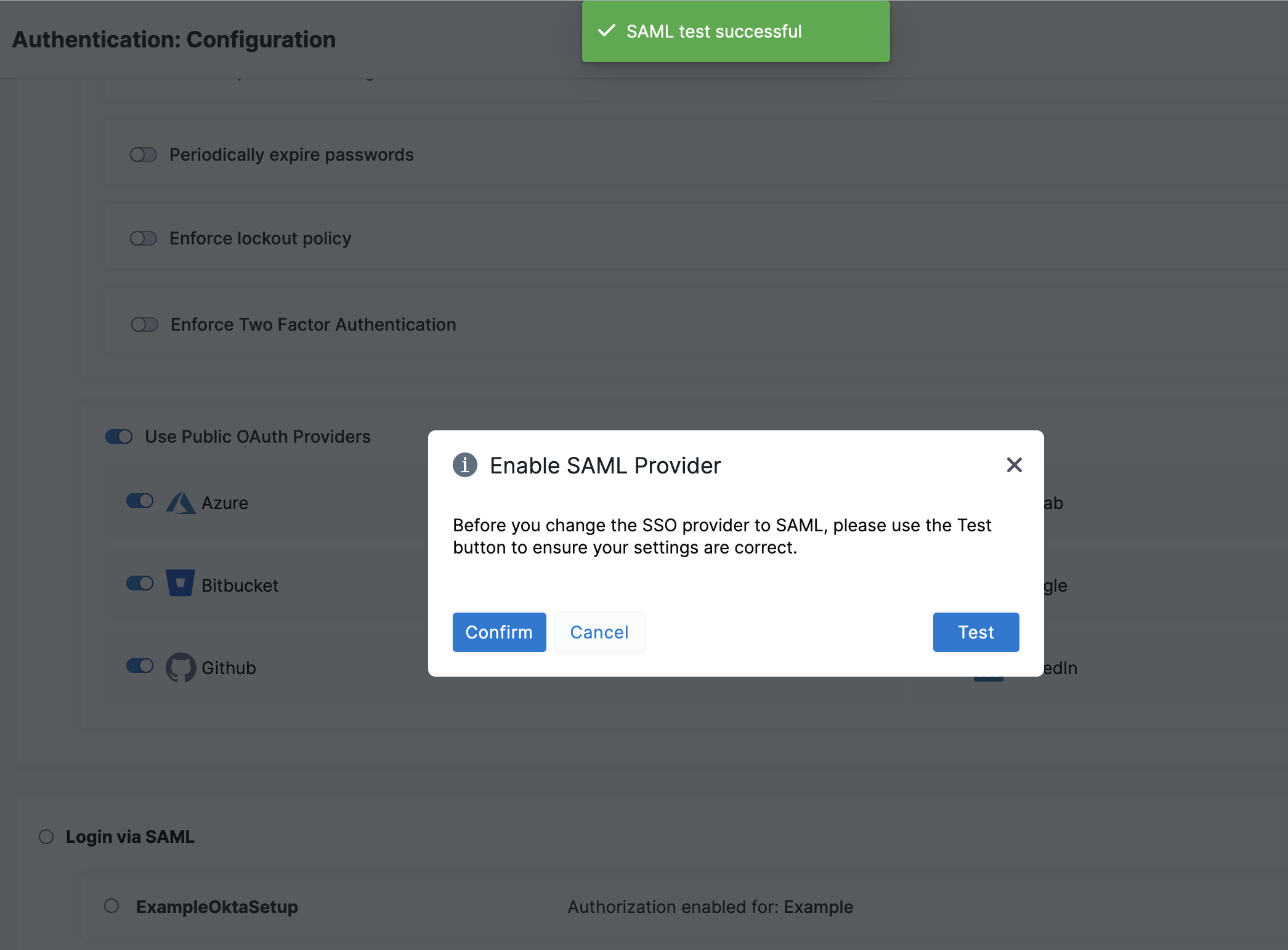
  3. On the Enable SAML Provider confirmation window, click Test to verify the connection. A new browser tab opens where you log in to Okta. If the connection test succeeds, Harness displays a SAML test successful banner.

    The Enable SAML Provider confirmation window with the Test button
    Click to view full size image
  4. Click Confirm to enable Okta SAML SSO in Harness.

Keep at least two accounts available while you set this up: a Harness Administrator account to configure and, if needed, roll back SSO, and an ordinary Harness user account to test with. That way a failed test never locks you out.

Test SSO configuration

To test the SSO configuration, log into Harness through a different user account. Do this in a separate private browsing (Incognito) window so you can disable SSO in your Harness Administrator account if there are any errors.

If you get locked out of Harness due to an SSO issue, you can log into Harness through local login.

  1. In a private browsing window, navigate to Harness.

  2. Log in using a Harness user account that has a corresponding email address registered in Okta. If successful, Harness redirects you to the Okta login page.

  3. On the Okta login page, enter the email address associated with the Harness user account. The Harness account and Okta account can have different passwords. If successful, you are returned to Harness.

If you belong to multiple accounts, confirm the default account is set before attempting to use Harness Local Login.


Step 7: SAML authorization with Okta

Once you have enabled Harness SSO with the Harness OIN app, set up and enable Okta SAML authorization in Harness.

To set up SAML authorization in Harness, link a Harness user group to an Okta user group. When an Okta user in that Okta user group logs in to Harness, Harness adds them automatically to the associated Harness user group, and the user inherits all permissions and access assigned to that group. For more information on permissions, go to RBAC in Harness.

  1. In Okta, create a user group and add users to the group, if you do not already have one.

    1. Sign in to Okta using an admin account.

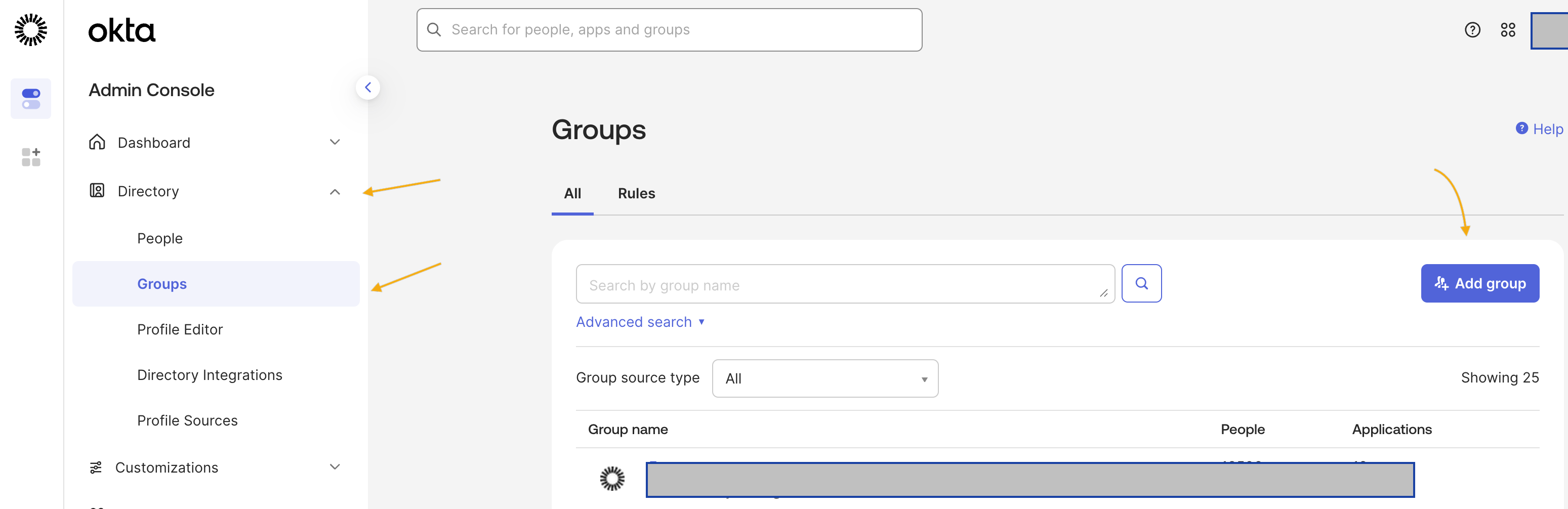
    2. Under Directory, select Groups, and then click Add Group.

      The Groups page in the Okta Directory with the Add Group button
      Click to view full size image
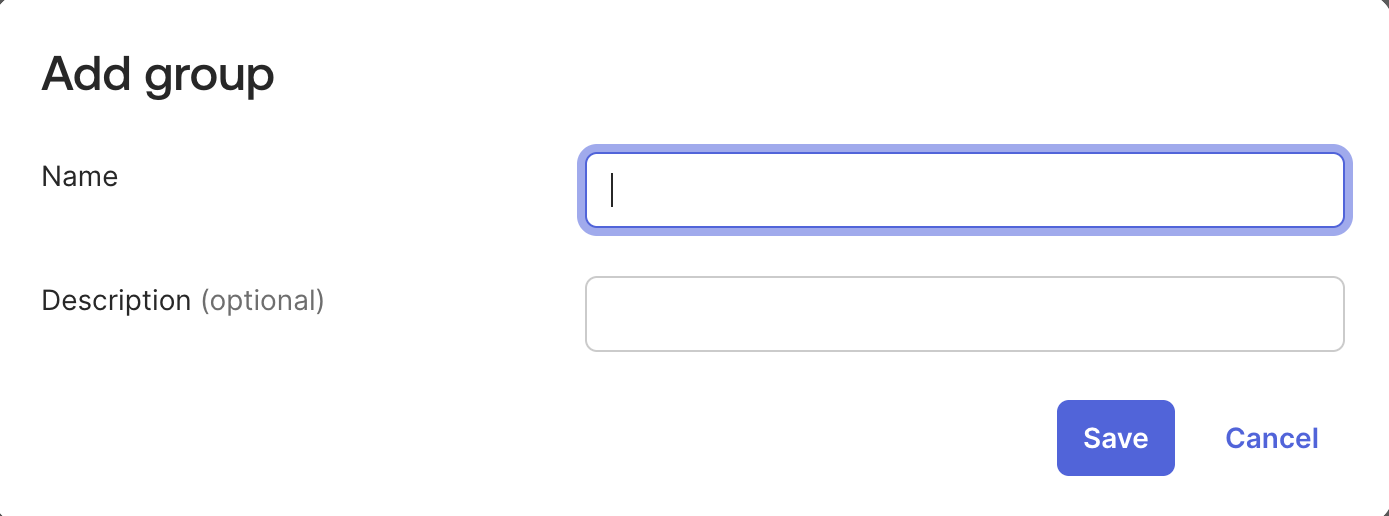
    3. Enter a Name and group description. Click Save.

      The Okta Add Group dialog with the group name and description fields
      Click to view full size image
    4. Search for the group you created, and then select it.

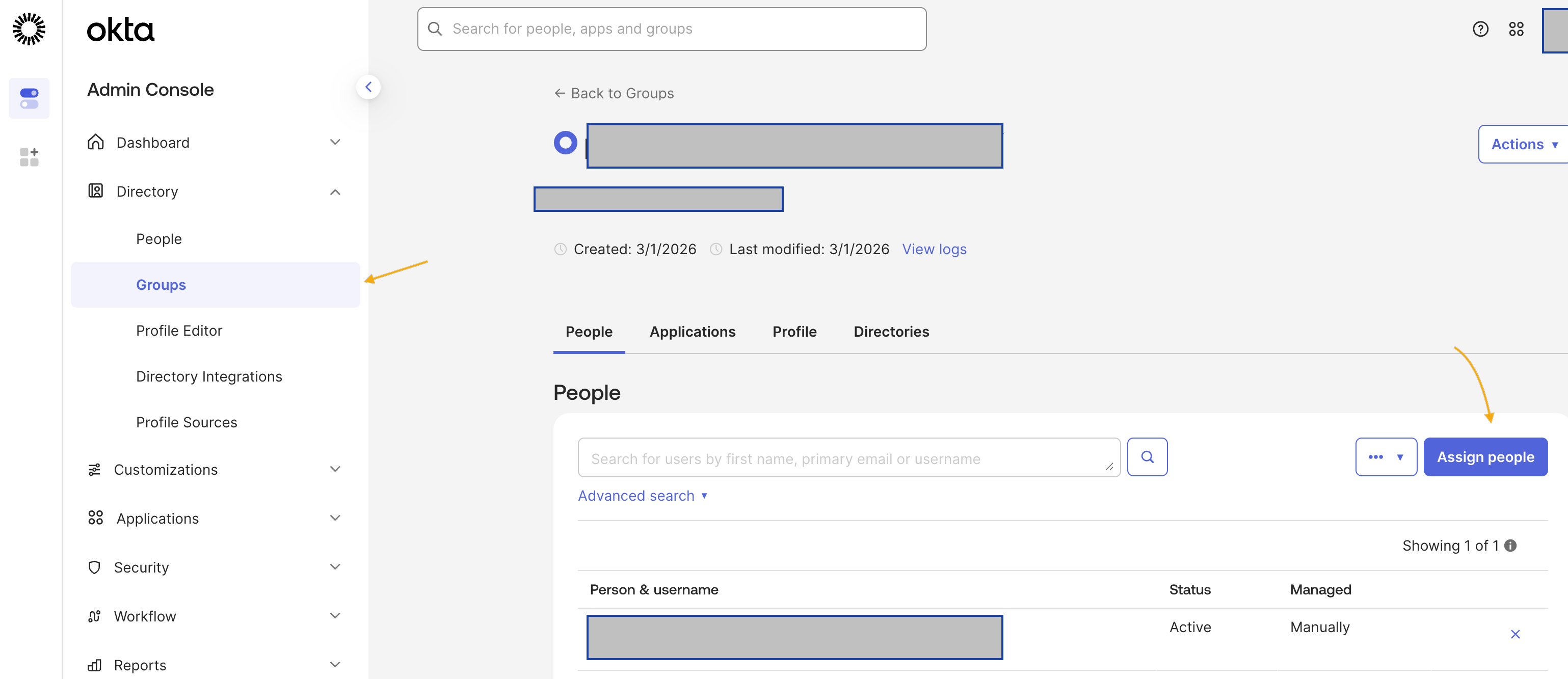
    5. Click Assign People. Find and add members to your group. Click Done.

      The Assign People view used to add members to an Okta group
      Click to view full size image
  2. Make a note of the Okta group name. You need it later to link the Okta group to a Harness user group.

  3. Make sure the Okta user group is assigned to the Harness app.

    1. In Okta, under Directory, select Groups. Find and select your Okta user group.

    2. Click Assign applications. Find the Harness app and click Assign. Click Done.

    3. Under Applications and Resources, select Applications. Find and select the Harness app. On the Assignments tab, select Groups, and make sure your Okta user group is listed there.

  4. In the Harness app, on the Sign On tab, click Edit in the Settings card, expand Attributes (Optional), and confirm that the Group Attribute Statements (optional) Filter is set to Matches regex with the .* value. Make a note of the group attribute Name, for example groups. This is the Group Attribute Name you enter in Harness.

  5. In Harness, navigate to Account Settings, and select Authentication.

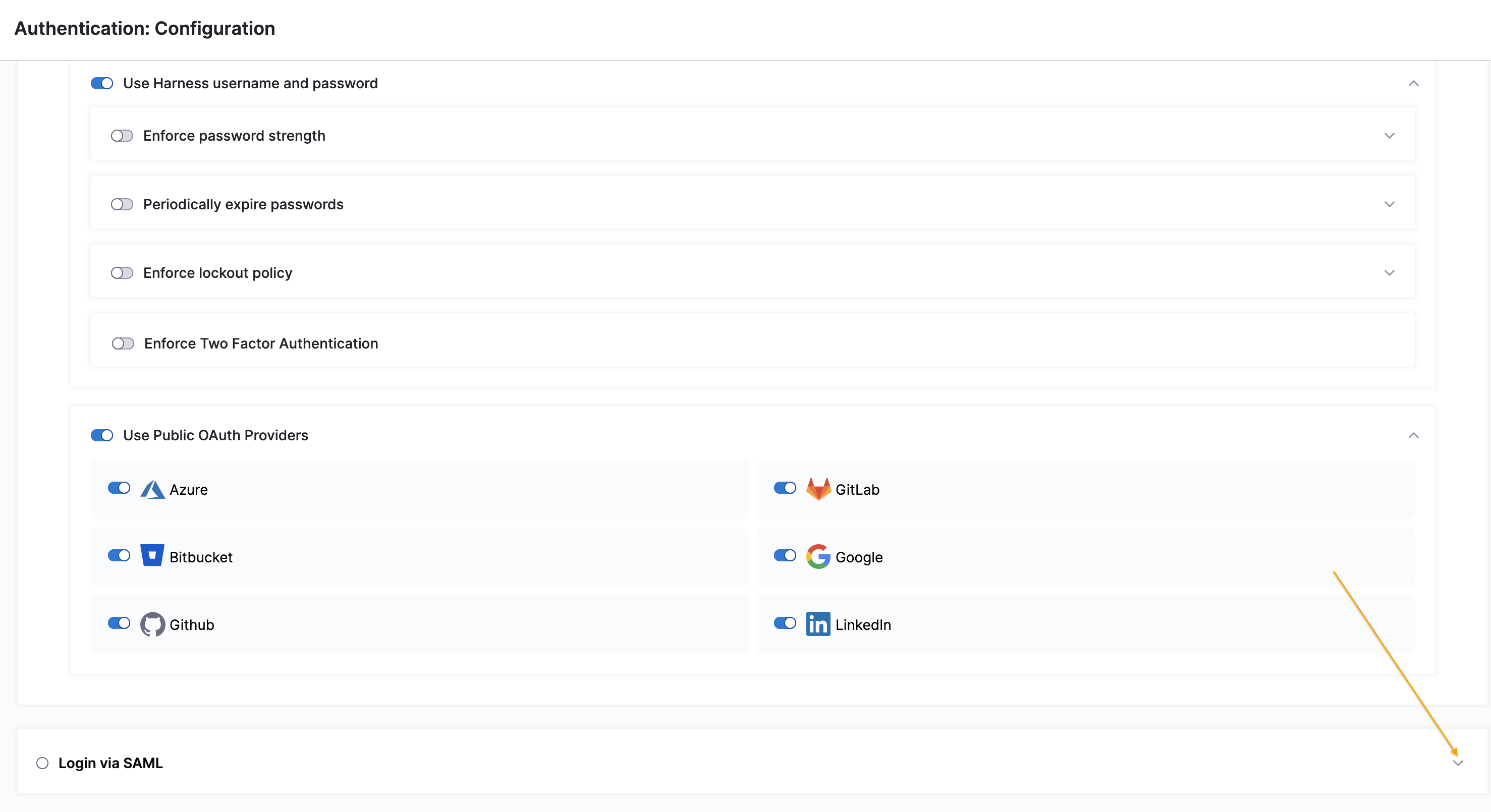
  6. Select the arrow to expand the Login via SAML section.

    The expanded Login via SAML section in Harness authentication settings
    Click to view full size image
  7. Select More options (⋮) next to your Okta provider configuration, and then select Edit.

    The More options menu for a Harness SAML provider with the Edit action
    Click to view full size image
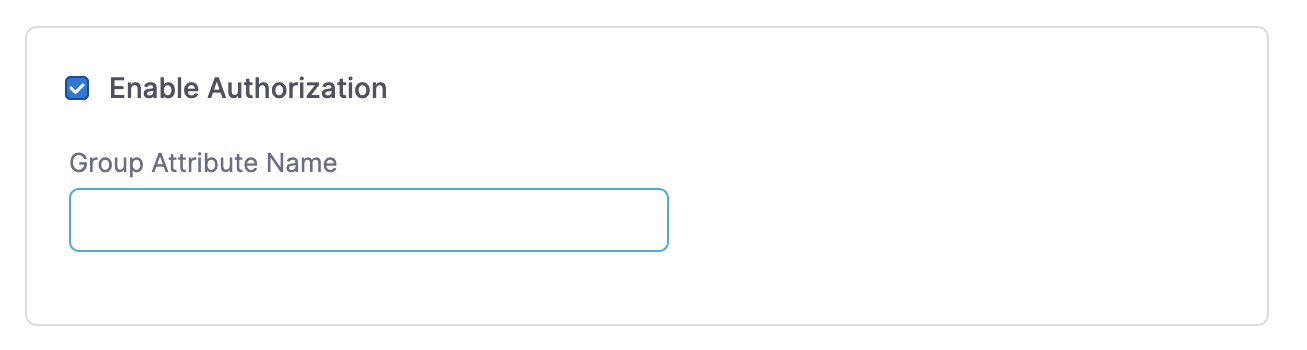
  8. On the Edit SAML Provider page, select Enable Authorization. A Group Attribute Name field appears beneath the checkbox.

  9. Enter the Group Attribute Name you noted in step 4.

    The Group Attribute Name field on the Harness Edit SAML Provider page
    Click to view full size image
  10. Click Add. Your Okta configuration now uses the Group Attribute Name for authorization.

  11. Link your Okta user group to a corresponding Harness user group. You can create a user group or use an existing group if your Harness user account is a member and your user account is registered under the same email address as in Okta.

    1. In Harness, navigate to Account Settings, and select Access Control.

    2. Select User Groups in the header, and locate the user group that you want to connect to your Okta user group.

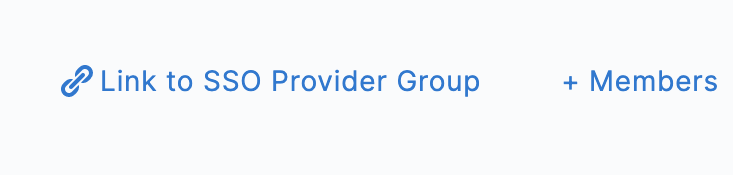
    3. Select Link to SSO Provider Group.

      The Link to SSO Provider Group action on a Harness user group
      Click to view full size image
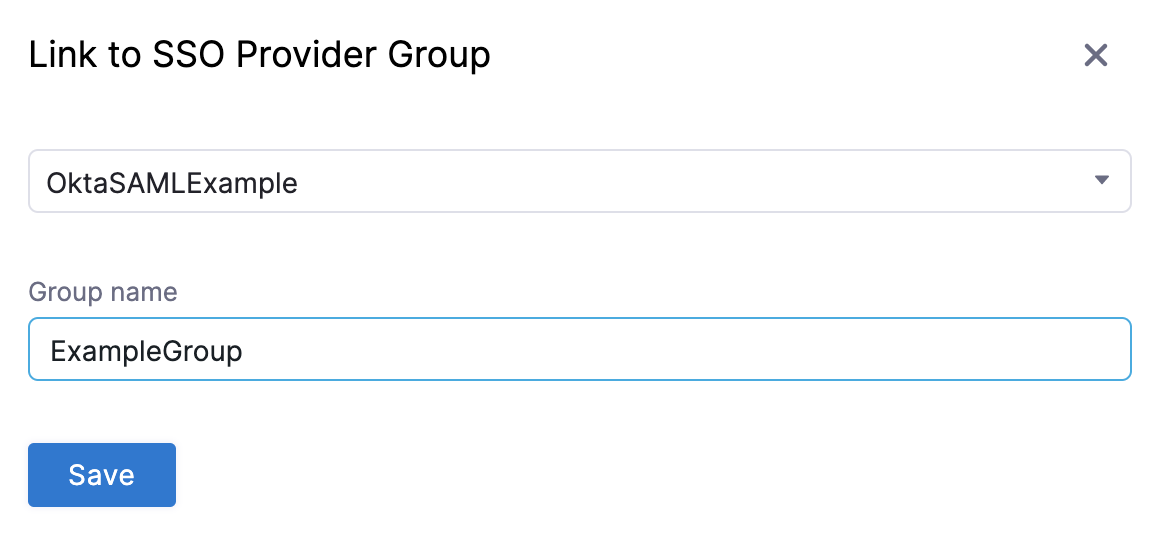
    4. In Search SSO Settings, select your Okta SAML SSO configuration. Enter the Okta Group Name, and click Save.

      The Link to SSO Provider Group dialog with the Okta SSO setting and group name entered
      Click to view full size image
    5. Repeat these steps if you need to connect more user groups.

The Group Attribute Name is different from an Okta Group Name. Your company might have many groups set up in Okta, and the Group Attribute Name filters the groups that you want to authenticate to Harness.

Test SAML authorization

To test the SAML authorization configuration, log into Harness through a different user account.

  1. Follow the steps mentioned in test SSO configuration.

  2. In your other browser window (where you are logged in to your admin account), make sure the user appears in the Harness user group. Navigate to Account Settings, select Access Control, select User Groups in the header, select the user group you linked to Okta, and make sure the user you just logged in with is listed as a member.

By being a member of this user group, the user receives the permissions and access granted to that group.


OIN app field reference

The following table lists the values you set or see when you add the Harness app from the Okta catalog.

Field
Value
Where you set it

Application label

Any name, for example Harness

General Settings tab when you add the integration. Display name on the Okta dashboard.

Application Visibility

Optional

General Settings tab. Select to hide the app icon from end users.

ACS URL

The Harness SAML endpoint URL

General Settings tab when you add the integration (Step 3). Copied from the Add SAML Provider panel in Harness.

Group Attribute Statements

For example groups, Filter Matches regex with .*

Sign On tab > Edit > Attributes (Optional). The name you enter here is the Group Attribute Name in Harness.

Disable Force Authentication

Selected by default

Sign On tab > Edit, below the attribute statements. Clear it to make Okta prompt users to re-authenticate.

Username

The user's Okta email address

Assignments tab, per person when you use Assign to People. Must match the user's Harness email address. Group assignments have no such field.

Audience URI (SP Entity ID)

app.harness.io

Pre-configured by the OIN integration. No action needed.

Name ID format

Unspecified

Pre-configured by the OIN integration. No action needed.


Just-in-time (JIT) provisioning

Harness supports SAML configuration with or without JIT user provisioning. To turn it on, select Enable JIT Provisioning on the Add SAML Provider panel in Step 5. For more information on how Harness creates users on first SAML login when JIT is enabled, go to Just-in-Time (JIT) user provisioning.


If you no longer want a Harness user group to be connected with an Okta user group, delink the groups without losing group members.

Delinking groups is required to remove a SAML SSO provider configuration from Harness. You cannot delete the SAML SSO provider from Harness until you have delinked all associated Harness user groups.

  1. In Harness, navigate to Account Settings, and select Access Control.

  2. Select User Groups in the header, and locate the user group that you want to delink.

  3. Select Delink Group.

    The Delink Group action on a Harness user group linked to an Okta group
    Click to view full size image
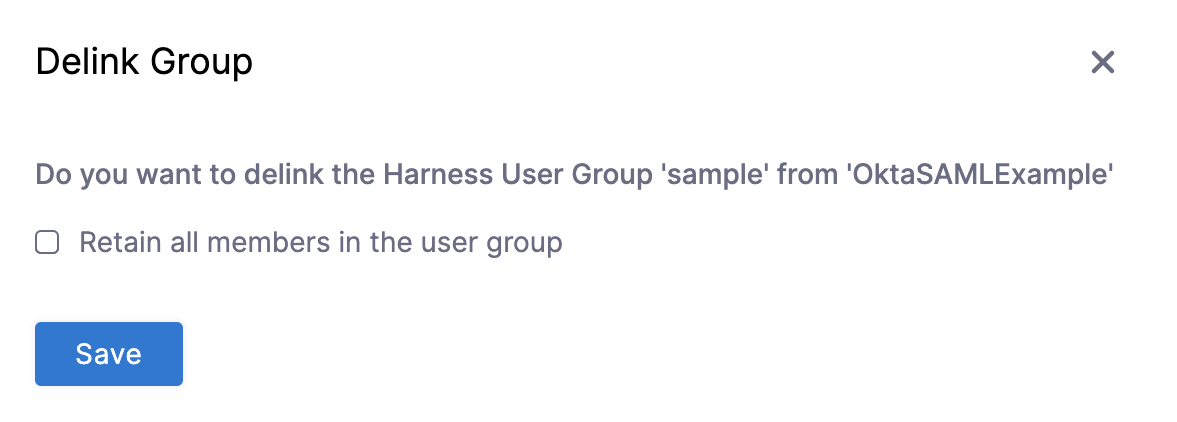
  4. On the Delink Group window, select Retain all members in the user group to keep the users (as local Harness user accounts) in the Harness user group. If unselected, the groups are delinked and the group members who were authenticated through Okta are removed from the Harness user group.

    The Delink Group window with the option to retain all members in the user group
    Click to view full size image
  5. Click Save.


Troubleshooting

SAML assertion validation failed when signing in to Harness with Okta

Ensure the SAML endpoint URL from Harness is entered in the ACS URL field of the Harness OIN app in Okta. You set the ACS URL on the General Settings tab when you add the integration. Verify the Audience URI (SP Entity ID) is app.harness.io. Confirm users or groups are assigned to the Harness app on the Assignments tab.

The user signs in to Okta but is not recognized as a Harness user

On the Assignments tab of the Harness app, check the Username set for that user. It must match the email address the user is registered with in Harness. Harness converts mixed case email addresses to lowercase when adding users.

Users sign in but are not added to their Harness user groups

On the Sign On tab of the Harness app, click Edit and expand Attributes (Optional). The Group Attribute Statements section is collapsed by default and is easy to miss, so confirm a group attribute statement exists, that its Filter is set to Matches regex rather than the default Starts with, and that the name matches the Group Attribute Name entered in Harness. Then confirm Enable Authorization is selected on the Edit SAML Provider page in Harness, because it is cleared by default, and that the Group Attribute Name field beneath it is filled in.


For related SAML provider setups, go to the following topics:

Last updated

Was this helpful?