> For the complete documentation index, see [llms.txt](https://developer.harness.io/llms.txt). Markdown versions of documentation pages are available by appending `.md` to page URLs; this page is available as [Markdown](https://developer.harness.io/harness-ai/use-harness-platform/notifications-alerts-and-banners/notifications/configure-notifications.md).

# Configure notifications

Configure notification channels and pipeline notifications for Slack, Microsoft Teams, email, webhooks, PagerDuty, and Datadog.

Notifications keep your teams informed about pipeline events such as start, success, failure, and pause. You can create a reusable notification channel at the scope you need, then attach notifications to a pipeline so that the relevant people are alerted through Slack, Microsoft Teams, email, webhooks, PagerDuty, or Datadog.

***

### What you will learn in this topic <a href="#what-you-will-learn-in-this-topic" id="what-you-will-learn-in-this-topic"></a>

By the end of this topic, you will be able to:

* [Create a reusable notification channel](#configure-new-channels) at any scope and select its connectivity mode.
* [Configure pipeline notifications](#configure-pipeline-notifications) for the pipeline events you want to track.
* Identify the credentials each channel type requires, such as a webhook URL, a PagerDuty service key, or a Datadog API key.

***

### Before you begin <a href="#before-you-begin" id="before-you-begin"></a>

Before you configure notifications, ensure you have the following:

* A Harness pipeline with active delegates and connectors. You can follow the [tutorial to get started with Harness Continuous Delivery (CD)](/continuous-delivery/troubleshooting-and-resources/tutorials/kubernetes-container-deployments/manifest.md) to set up a sample pipeline.
* These steps use [Harness user groups](/harness-ai/use-harness-platform/platform-access-control/add-user-groups.md) to manage user access. If you want to follow along, create a user group named `notification-demo` at the account level, and then add yourself as a user in that group.

***

### Configure new channels <a href="#configure-new-channels" id="configure-new-channels"></a>

Follow the interactive walkthrough to see the flow end to end, or the next section for the step-by-step instructions.

{% embed url="<https://demo.arcade.software/jkqOeBievR5MDNVdwNOF?embed&embed_mobile=tab&embed_desktop=inline&show_copy_link=true>" %}

1. To set up a channel, navigate to **Settings** in your desired scope (Account, Organization, or Project), then under **Notifications and alerts**, select **Notification Channels**.
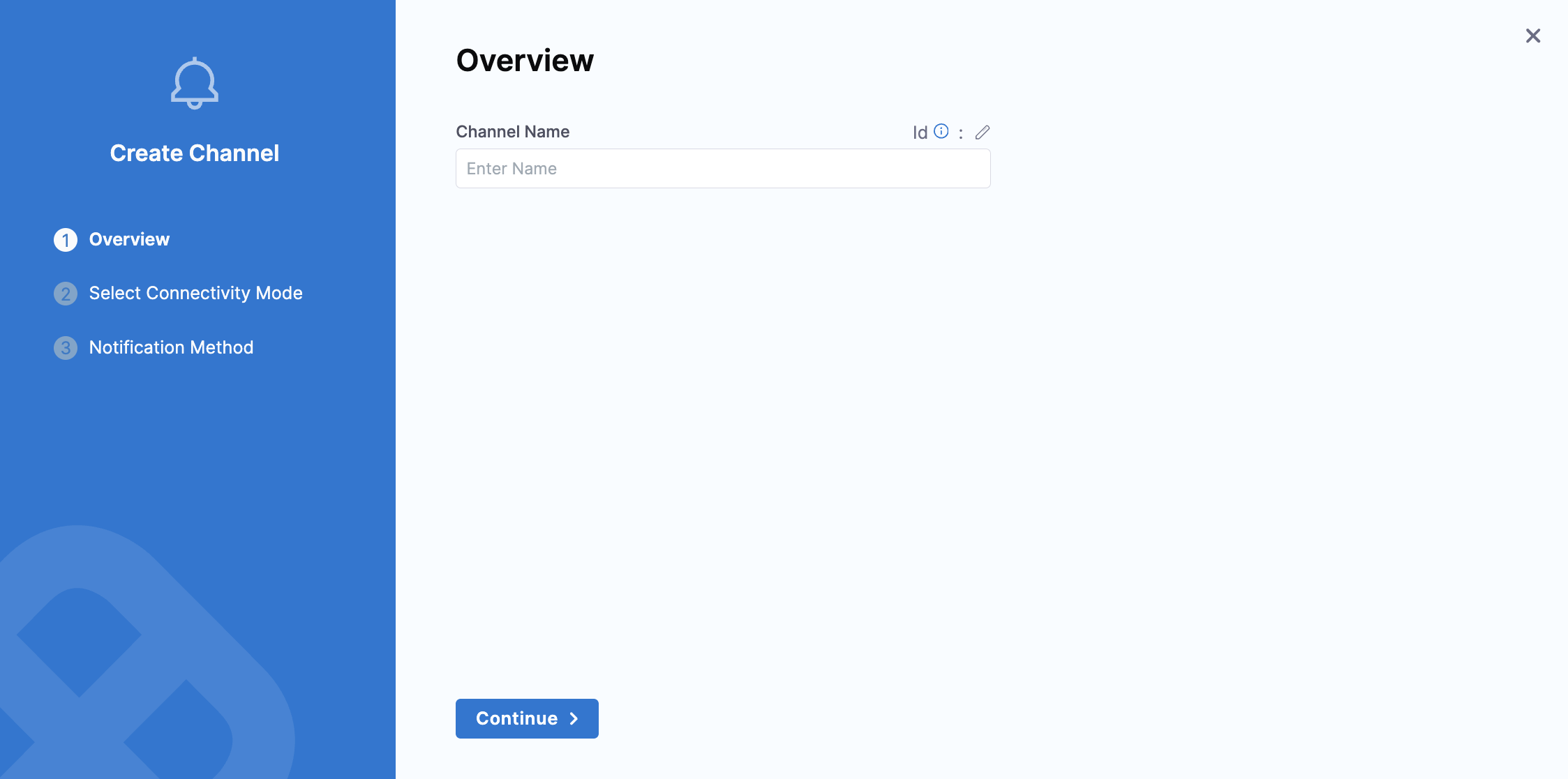
2. Click **New Channel** and enter a **Channel Name**. Click **Continue**.

   <figure><img src="https://173309742-files.gitbook.io/~/files/v0/b/gitbook-x-prod.appspot.com/o/spaces%2F3F2TpHXhur2QtQnORSM9%2Fuploads%2Fgit-blob-f5b98418f230b8a20a143b5d2f64b49b87b8722d%2Fnew-channel.png?alt=media" alt=""><figcaption><p>Click to view full size image</p></figcaption></figure>

   The **Select Connectivity Mode** tab appears.
3. Select a **Connectivity Mode**. You can send notifications directly through the Harness Platform or through a Harness Delegate. Click **Continue**.

   The **Notification Method** tab appears.
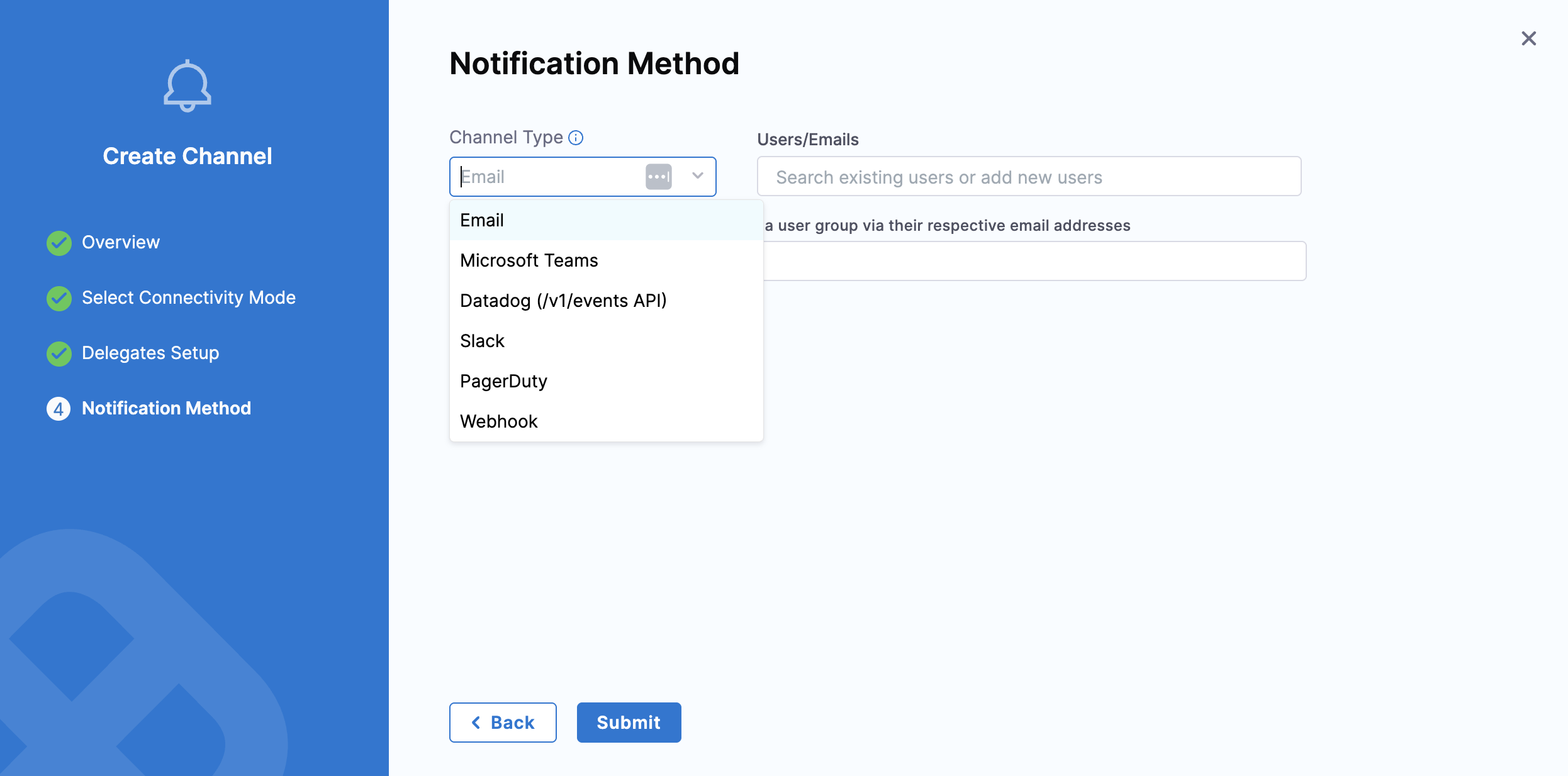
4. Once the connectivity mode is configured, select the [Channel Type](#configure-pipeline-notifications) and add details related to the channel type to proceed. Click **Submit**.

   <div data-gb-custom-block data-tag="hint" data-style="info" class="hint hint-info"><p>If you select the <strong>Connectivity Mode</strong> as "Connect through a Harness Delegate" and <strong>Channel Type</strong> as "Email", add a <a href="/harness-ai/use-harness-platform/notifications-alerts-and-banners/notifications/add-smtp-configuration.md">Simple Mail Transfer Protocol (SMTP) configuration</a> to which the Harness delegate has access. If this is not done, then the email notifications fail.</p></div>

   <div data-gb-custom-block data-tag="hint" data-style="warning" class="hint hint-warning"><p><strong>USER GROUPS REQUIRE A NOTIFICATION PREFERENCE</strong></p><p>If you target a Harness user group instead of entering a recipient directly, the channel delivers through the channels configured in that group's <strong>Notification Preferences</strong>. When the group has no preference configured for the channel type you selected, no notification is delivered and Harness does not report an error.</p><p>Add the preference to the user group before you rely on the channel. Go to <a href="/harness-ai/use-harness-platform/platform-access-control/add-user-groups.md#edit-notification-preferences">Edit notification preferences</a> to add a channel to a user group.</p></div>

   <figure><img src="https://173309742-files.gitbook.io/~/files/v0/b/gitbook-x-prod.appspot.com/o/spaces%2F3F2TpHXhur2QtQnORSM9%2Fuploads%2Fgit-blob-2a75e66877b4bbdfa96d992f2cc0badd32866a95%2Fcreate-new-channel.png?alt=media" alt=""><figcaption><p>Click to view full size image</p></figcaption></figure>

The channel is now available at the scope where you created it, and you can reference it when you configure pipeline notifications.

***

### Configure pipeline notifications <a href="#configure-pipeline-notifications" id="configure-pipeline-notifications"></a>

When you configure pipeline notifications, you select the **Pipeline Events** that trigger the notification. Available pipeline-level events include start, end, success, failure, pause, and **Waiting for User Action**. The **Waiting for User Action** event fires whenever a pipeline pauses because it needs user input, such as an **Approval** step, **Manual Intervention**, or runtime execution input. For the full list of events and their behavior, see [Add a pipeline notification strategy](/continuous-delivery/use-continuous-delivery/cd-building-blocks/cd-steps/notify-users-of-pipeline-events.md#select-events).

Select the tab for the channel type you want to use. Each channel type requires different delivery details.

{% tabs %}
{% tab title="Email" %}

1. Click the **Notify** icon on the right side of the Harness pipeline studio.
2. In **New Notification**, add a name for your notification.
3. In **Pipeline Events**, select the events (pipeline or stages) that trigger the notification.
   * For stage-based events, select the stage name that you want to trigger the notification and click **Next**.
4. In **Notification Method**, select `Email`. For email notifications, enter the email addresses that you want to notify.
   * Enter multiple addresses as a comma-separated list. For example, `john.doe@example.io,qateam@example.io`.
   * You can also use the user group that you created above to receive notifications.
5. You can optionally add **notification templates** to get custom notifications based on the event. For more information, see [Custom notification templates for pipeline notifications](/harness-ai/use-harness-platform/templates/customized-notification-template.md).
6. Select the **Connectivity Mode**.
   * Connect through Harness Platform to send notifications.
   * Connect through Harness Delegate to send notifications.
     * Select the delegate that you want to use to send notifications.
7. Click **Submit** and your notification is created.
   {% endtab %}

{% tab title="Slack" %}
To configure Slack notifications, you need to create a Slack webhook. For more information, see the [sending messages using incoming webhooks](https://api.slack.com/messaging/webhooks) tutorial provided by Slack. Copy and store the webhook URL for use in Harness.

1. Click the **Notify** icon on the right side of the Harness pipeline studio.
2. In **New Notification**, add a name for your notification.
3. In **Pipeline Events**, select the events (pipeline or stages) that trigger the notification.
   * For stage-based events, select the stage name that you want to trigger the notification and click **Next**.
4. In **Notification Method**, select `Slack`.
   * Paste the webhook in **Slack Webhook URL**. Harness recommends that you add the webhook as an [encrypted text secret](/harness-ai/use-harness-platform/secrets/add-use-text-secrets.md) and reference it in **Slack Webhook URL** as an expression, such as `<+secrets.getValue("slackwebhookURL")>`.
   * You can also use the user group created above, if it is associated with the Slack channels to send notifications. For more information, see [Notify Slack channels in user groups](/continuous-delivery/use-continuous-delivery/cd-building-blocks/cd-steps/notify-users-of-pipeline-events.md#notify-slack-channels-in-user-groups).
5. You can optionally add **notification templates** to get custom notifications based on the event. For more information, see [Custom notification templates for pipeline notifications](/harness-ai/use-harness-platform/templates/customized-notification-template.md).
6. Select the **Connectivity Mode**.
   * Connect through Harness Platform to send notifications.
   * Connect through Harness Delegate to send notifications.
     * Select the delegate that you want to use to send notifications.
7. Click **Submit** and your notification is created.
   {% endtab %}

{% tab title="PagerDuty" %}
To configure PagerDuty notifications, you need a PagerDuty [service key](https://support.pagerduty.com/docs/services-and-integrations) to integrate with Harness. Copy or store this key from PagerDuty's **Configuration** > **Services** > **Service Details dialog** > **Integrations** tab.

1. Click the **Notify** icon on the right side of the Harness pipeline studio.
2. In **New Notification**, add a name for your notification.
3. In **Pipeline Events**, select the events (pipeline or stages) that trigger the notification.
   * For stage-based events, select the stage name that you want to trigger the notification and click **Next**.
4. In **Notification Method**, select `Pagerduty`.

   * Create an [encrypted text](/harness-ai/use-harness-platform/secrets/add-use-text-secrets.md) secret with the name `pagerdutykey` for the PagerDuty service you created above, and reference it in **PagerDuty Key** using an expression. Harness sends notifications using this key.

   For example, you can reference a secret within the **Organization** scope using an expression with `org`:

   ```
   <+secrets.getvalue("org.your-secret-Id")>
   ```
5. You can optionally add **notification templates** to get custom notifications based on the event. For more information, see [Custom notification templates for pipeline notifications](/harness-ai/use-harness-platform/templates/customized-notification-template.md).
6. Select the **Connectivity Mode**.
   * Connect through Harness Platform to send notifications.
   * Connect through Harness Delegate to send notifications.
     * Select the delegate that you want to use to send notifications.
7. Click **Submit** and your notification is created.
   {% endtab %}

{% tab title="Microsoft Teams" %}
In Microsoft Teams, you can use webhook notifications to inform an external application of a pipeline or stage event.

1. Click the **Notify** icon on the right side of the Harness pipeline studio.
2. In **New Notification**, add a name for your notification.
3. In **Pipeline Events**, select the events (pipeline or stages) that trigger the notification.
   * For stage-based events, select the stage name that you want to trigger the notification and click **Next**.
4. In **Notification Method**, select `Microsoft Teams`. In **Enter the Microsoft Teams Webhook URL**, paste the webhook URL for your Microsoft Teams channel.
5. You can optionally add **notification templates** to get custom notifications based on the event. For more information, see [Custom notification templates for pipeline notifications](/harness-ai/use-harness-platform/templates/customized-notification-template.md).
6. Select the **Connectivity Mode**.
   * Connect through Harness Platform to send notifications.
   * Connect through Harness Delegate to send notifications.
     * Select the delegate that you want to use to send notifications.
7. Click **Submit** and your notification is created.
   {% endtab %}

{% tab title="Webhook" %}
In Harness you can use webhook notifications to inform an external application of a pipeline or stage event.

1. Click the **Notify** icon on the right side of the Harness pipeline studio.
2. In **New Notification**, add a name for your notification.
3. In **Pipeline Events**, select the events (pipeline or stages) that trigger the notification.
   * For stage-based events, select the stage name that you want to trigger the notification and click **Next**.
4. In **Notification Method**, select `Webhook`. In **Enter the URL to be called**, use expressions to compose the URL to be called when the event occurs. For example, `https://companyurl.notify.com/execution=-<+pipeline.executionId>`.
   * The webhook call is made as a POST request, and includes a JavaScript Object Notation (JSON) object containing the properties of the triggered event.
   * The expression must be evaluated in the context of the event. For example, stage-related expressions might not be valid for pipeline start events.
5. You can optionally add **notification templates** to get custom notifications based on the event. For more information, see [Custom notification templates for pipeline notifications](/harness-ai/use-harness-platform/templates/customized-notification-template.md).
6. Select the **Connectivity Mode**.
   * Connect through Harness Platform to send notifications.
   * Connect through Harness Delegate to send notifications.
     * Select the delegate that you want to use to send notifications.
7. Click **Submit** and your notification is created.
   {% endtab %}

{% tab title="Datadog" %}
{% hint style="info" %}
Currently, the Datadog notifications feature is behind the feature flag `PIPE_DATADOG_NOTIFICATIONS`. Contact [Harness Support](mailto:support@harness.io) to enable this feature.
{% endhint %}

To configure Datadog notifications, you need a Datadog [API key](https://docs.datadoghq.com/account_management/api_keys/) to integrate with Harness. Copy or store this key from Datadog's **Configuration** > **API Keys** > **API Key Details dialog** > **Integrations** tab.

1. Click the **Notify** icon on the right side of the Harness pipeline studio.
2. In **New Notification**, add a name for your notification.
3. In **Pipeline Events**, select the events (pipeline or stages) that trigger the notification.
   * For stage-based events, select the stage name that you want to trigger the notification and click **Next**.
4. In **Notification Method**, select `Datadog`. Create an [encrypted text](/harness-ai/use-harness-platform/secrets/add-use-text-secrets.md) secret with the name `datadogkey` for the Datadog service you created above, and reference it in **Datadog Key** using an expression. Harness sends notifications using this key.

   * For example, you can reference a secret within the **Organization** scope using an expression with `org`:

   ```
   <+secrets.getvalue("org.your-secret-Id")>
   ```
5. You can optionally add **notification templates** to get custom notifications based on the event. For more information, see [Custom notification templates for pipeline notifications](/harness-ai/use-harness-platform/templates/customized-notification-template.md).
6. Select the **Connectivity Mode**.
   * Connect through Harness Platform to send notifications.
   * Connect through Harness Delegate to send notifications.
     * Select the delegate that you want to use to send notifications.
7. Click **Submit** and your notification is created.
   {% endtab %}
   {% endtabs %}

When you run the pipeline, you receive notifications on the platform you set up.

***

### Next steps <a href="#next-steps" id="next-steps"></a>

* [Notify users of pipeline events](/continuous-delivery/use-continuous-delivery/cd-building-blocks/cd-steps/notify-users-of-pipeline-events.md): Configure the notification at the receiver end and review the full list of pipeline events.
* [Custom notification templates](/harness-ai/use-harness-platform/templates/customized-notification-template.md): Customize the content of a notification based on the event that triggers it.
* [Add SMTP configuration](/harness-ai/use-harness-platform/notifications-alerts-and-banners/notifications/add-smtp-configuration.md): Configure SMTP for email-based deployment notifications, approvals, and tracking.

{% @harness-feedback/feedback module="harness-ai" pagePath="harness-ai/use-harness-platform/notifications-alerts-and-banners/notifications/configure-notifications" %}