> For the complete documentation index, see [llms.txt](https://developer.harness.io/llms.txt). Markdown versions of documentation pages are available by appending `.md` to page URLs; this page is available as [Markdown](https://developer.harness.io/harness-ai/use-harness-platform/references/private-network-connectivity/vpn-harness-cloud.md).
# VPN for Harness Cloud
Establish VPN connectivity from Harness Cloud VMs to your private network using OpenVPN or WireGuard.
For teams that need to connect Harness Cloud VMs to on-premises or private cloud resources through a traditional VPN tunnel, Harness supports two VPN solutions:
**OpenVPN** Establishes a TLS-encrypted tunnel from the Cloud VM to your OpenVPN server. Supports both UDP and TCP, certificate-based and username/password authentication, and enterprise PKI integration.
**WireGuard** A modern, high-performance VPN that creates an encrypted tunnel using the Noise protocol. Offers faster connection times, higher throughput, and a simpler configuration compared to OpenVPN.
Both solutions run a VPN client directly on the ephemeral Harness Cloud VM, creating a secure tunnel to your VPN server. You store the VPN configuration as a base64-encoded Harness secret and decode it at runtime.
### OpenVPN
#### Architecture
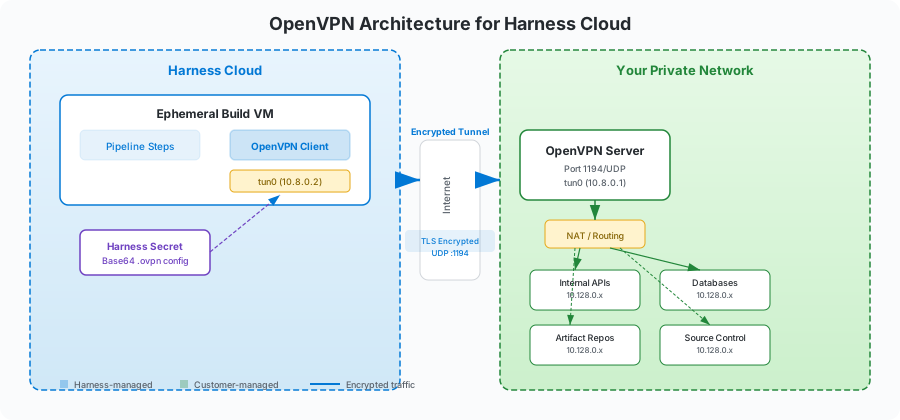
The OpenVPN client runs on the Harness Cloud VM, establishes a TLS-encrypted tunnel over UDP (port 1194) to your OpenVPN server, and creates a `tun0` virtual interface. Traffic destined for your private network is routed through this tunnel.
**Connection flow:**
1. TLS handshake and certificate exchange
2. Server validates client certificate
3. Session keys established via Diffie-Hellman
4. `tun0` interface created (client gets IP like `10.8.0.2`)
5. Routes pushed from server to client
6. Encrypted data transfer begins
#### Prerequisites
* An OpenVPN server accessible from the internet with a public IP or domain
* A client configuration file (`.ovpn`) with embedded certificates
* The `.ovpn` config stored as a **base64-encoded** [**Harness file secret**](/harness-ai/use-harness-platform/secrets/add-file-secrets.md)
#### Setup VPN client in pipeline
Store your `.ovpn` configuration file as a base64-encoded Harness secret:
```bash
base64 -w 0 config.ovpn # Copy the output and save as a Harness secret
```
Add the following steps to your pipeline stage to establish and verify the VPN connection:
**Install and connect**
```yaml
- step:
type: Run
name: Install OpenVPN and Connect
identifier: install_openvpn_and_connect
spec:
shell: Sh
command: |
# Install OpenVPN
apt-get update && apt-get install -y openvpn
# Decode config from Harness secret
echo "<+secrets.getValue("openvpn_config_b64")>" | base64 -d > /tmp/client.ovpn
# Load TUN kernel module
modprobe tun
# Start OpenVPN in daemon mode
openvpn --config /tmp/client.ovpn \
--daemon \
--log /tmp/openvpn.log \
--writepid /tmp/openvpn.pid
# Wait for connection to establish
timeout=60
elapsed=0
while [ $elapsed -lt $timeout ]; do
if grep -q "Initialization Sequence Completed" /tmp/openvpn.log 2>/dev/null; then
echo "VPN connected successfully"
exit 0
fi
sleep 2
elapsed=$((elapsed + 2))
done
echo "VPN connection timed out"
cat /tmp/openvpn.log
exit 1
```
**Verify connectivity**
```yaml
- step:
type: Run
name: Verify VPN Connection
identifier: verify_vpn_connection
spec:
shell: Sh
command: |
# Verify VPN interface exists
ip addr show tun0
# Test connectivity to private resource
ping -c 3 <+pipeline.variables.private_resource_ip>
# Show routing table
ip route
```
**Cleanup**
```yaml
- step:
type: Run
name: Cleanup VPN Connection
identifier: cleanup_vpn
spec:
shell: Sh
command: |
kill $(cat /tmp/openvpn.pid) 2>/dev/null || true
rm -f /tmp/client.ovpn /tmp/openvpn.log /tmp/openvpn.pid
when:
stageStatus: All
```
### WireGuard
#### Architecture
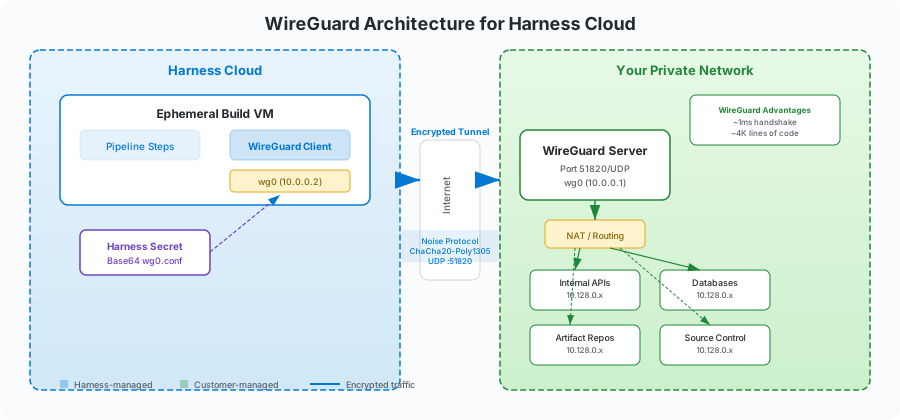
The WireGuard client runs on the Harness Cloud VM, establishes an encrypted tunnel using the Noise protocol over UDP (port 51820) to your WireGuard server, and creates a `wg0` virtual interface. Traffic to your private subnets is routed through this tunnel.
**Connection flow:**
1. Client sends encrypted handshake with public key
2. Server validates client public key and responds
3. Session established in under 1 RTT
4. `wg0` interface created (client gets IP like `10.0.0.2`)
5. Each packet individually authenticated with replay protection
#### Prerequisites
* A WireGuard server accessible from the internet with a public IP or domain
* A client configuration file (`wg0.conf`) with keys and peer configuration
* The `wg0.conf` config stored as a **base64-encoded** [**Harness file secret**](/harness-ai/use-harness-platform/secrets/add-file-secrets.md)
#### Setup VPN client in pipeline
Store your WireGuard configuration as a base64-encoded Harness secret:
```bash
base64 -w 0 wg0.conf # Copy the output and save as a Harness secret
```
Add the following steps to your pipeline stage. WireGuard steps require `privileged: true` and `runAsUser: "0"`:
**Install WireGuard**
```yaml
- step:
type: Run
name: Install WireGuard
identifier: install_wireguard
spec:
shell: Sh
privileged: true
runAsUser: "0"
command: |
apt-get update && apt-get install -y wireguard wireguard-tools
# Load WireGuard kernel module
modprobe wireguard || echo "Using userspace WireGuard"
# Install DNS resolver
apt-get install -y openresolv
```
**Configure and connect**
```yaml
- step:
type: Run
name: Configure and Connect WireGuard
identifier: configure_and_connect_wireguard
spec:
shell: Sh
privileged: true
runAsUser: "0"
command: |
# Decode config from Harness secret
mkdir -p /etc/wireguard
echo "<+secrets.getValue("wireguard_config_b64")>" | base64 -d > /etc/wireguard/wg0.conf
chmod 600 /etc/wireguard/wg0.conf
# Bring up WireGuard interface
wg-quick up wg0
# Verify connection
ip addr show wg0
wg show wg0
```
**Verify connectivity**
```yaml
- step:
type: Run
name: Verify WireGuard Connection
identifier: verify_wireguard_connection
spec:
shell: Sh
privileged: true
runAsUser: "0"
command: |
# Check handshake completed
wg show wg0 latest-handshakes
# Test connectivity to private resource
ping -c 3 <+pipeline.variables.private_resource_ip>
# Show transfer stats
wg show wg0 transfer
```
**Cleanup**
```yaml
- step:
type: Run
name: Cleanup WireGuard
identifier: cleanup_wireguard
spec:
shell: Sh
privileged: true
runAsUser: "0"
command: |
wg-quick down wg0 || true
rm -f /etc/wireguard/wg0.conf
when:
stageStatus: All
```
### Tunnel configuration
#### Split tunnel (recommended)
Split tunneling routes only traffic destined for your private subnets through the VPN. All other traffic (internet, package downloads) uses the default route. This is the recommended approach for CI/CD pipelines.
**OpenVPN** - Configure on your server:
```bash
push "route 10.128.0.0 255.255.255.0"
push "route 192.168.1.0 255.255.255.0"
# Do NOT use redirect-gateway
```
**WireGuard** - Configure in `wg0.conf`:
```ini
[Peer]
AllowedIPs = 10.0.0.0/24, 10.128.0.0/24
```
#### Full tunnel
Full tunneling routes all traffic through the VPN. Use this when compliance requires complete traffic encryption or when accessing geo-restricted resources.
**OpenVPN** - Configure on your server:
```bash
push "redirect-gateway def1 bypass-dhcp"
push "dhcp-option DNS 10.128.0.1"
```
**WireGuard** - Configure in `wg0.conf`:
```ini
[Peer]
AllowedIPs = 0.0.0.0/0, ::/0
```
{% hint style="warning" %}
Full tunnel routing increases latency and VPN server bandwidth usage. Use split tunneling unless you have a specific requirement for full tunnel.
{% endhint %}
### Best practices
Keep the following in mind when you configure VPN connectivity for Harness Cloud VMs:
* **Store credentials as Harness secrets** - Never hardcode VPN keys or certificates in pipeline YAML.
* **Always include cleanup steps** - Use `when: stageStatus: All` to ensure VPN resources are cleaned up even on failure.
* **Verify connectivity before proceeding** - Add a verification step after connecting to confirm the VPN is operational.
* **Use split tunneling** - Route only necessary traffic through the VPN to minimize latency and bandwidth overhead.
* **Use PersistentKeepalive** - Set `PersistentKeepalive = 25` in WireGuard configs to prevent NAT timeout issues.
* **Set connection timeouts** - Avoid indefinite hangs by implementing timeout logic when waiting for VPN connections.
## Next steps
Go to [Private network connectivity options](https://github.com/harness/harness-developer-hub/tree/main/docs/platform/use-harness-platform/references/private-network-connectivity.md) to compare VPN connectivity with IP allowlisting and PrivateLink or Private Service Connect.
{% @harness-feedback/feedback module="harness-ai" pagePath="harness-ai/use-harness-platform/references/private-network-connectivity/vpn-harness-cloud" %}