> For the complete documentation index, see [llms.txt](https://developer.harness.io/llms.txt). Markdown versions of documentation pages are available by appending `.md` to page URLs; this page is available as [Markdown](https://developer.harness.io/harness-platform/knowledge-base-and-faqs/articles/ansible.md).
# Ansible
Run Ansible in a Harness pipeline
This guide shows you how to run Ansible playbooks in a Harness pipeline using containerized step groups. Containerized step groups run pipeline steps inside Kubernetes pods, allowing you to use any Docker image with Ansible pre-installed without maintaining delegates with Ansible dependencies.
Go to the [Harness Community Solutions repository](https://github.com/harness-community/solutions-architecture/tree/main/kb/reference-architectures/ansible) to view a complete step group template example.
***
### What you will learn in this topic
* **Containerized step groups:** How to configure a containerized step group that runs Ansible inside a Kubernetes pod.
* **Git integration:** How to clone Ansible playbooks from a Git repository within your pipeline.
* **Credential management:** How to pass SSH credentials and Harness secrets to Ansible securely.
* **Runtime customization:** How to customize the setup with runtime variables, vault passwords, and extra vars.
***
### Prerequisites
Before you begin, ensure you have the following configured in your Harness account:
* **Harness account access:** You need access to create and run pipelines. Go to [Getting started with Harness Platform](/harness-platform/new-to-harness-platform/get-started.md) to create an account or join an existing organization.
* **Pipeline permissions:** You need **View**, **Create/Edit**, and **Execute** permissions for [Pipelines](/harness-platform/use-harness-platform/platform-access-control/permissions-reference.md#pipelines). An administrator must assign you a role that includes these permissions. Go to [RBAC in Harness](/harness-platform/use-harness-platform/platform-access-control.md) and [Manage roles](/harness-platform/use-harness-platform/platform-access-control/add-manage-roles.md) to configure roles.
* **Git connector:** A configured connector with access to the repository containing your Ansible playbooks. Go to [Git connector settings reference](/harness-platform/use-harness-platform/connectors/code-repositories/add-a-git-connector/git-connector-settings-reference.md) to create one.
* **Docker connector:** A configured connector with access to Docker Hub or a container registry hosting Ansible images. Go to [Docker connector](https://github.com/harness/harness-developer-hub/tree/main/docs/platform/use-harness-platform/connectors/artifact-repositories/connect-to-harness-container-image-registry-using-docker-connector.md) to configure one.
* **Kubernetes connector:** A configured connector with pod creation permissions in the target namespace. Go to [Kubernetes cluster connector](https://github.com/harness/harness-developer-hub/tree/main/docs/platform/use-harness-platform/connectors/cloud-providers/add-a-kubernetes-cluster-connector.md) to set up the connector.
* **SSH private key:** Your SSH private key stored as a Harness file secret for Ansible host authentication. Go to [Add and reference file secrets](/harness-platform/use-harness-platform/secrets/add-file-secrets.md) to upload your key.
***
#### Create a containerized step group
Containerized step groups allow you to run multiple steps inside a single Kubernetes pod using a specified container image. This approach ensures all Ansible dependencies are available without requiring custom delegate configurations.
Create a new Harness pipeline. For the stage type, select **Custom**, but you can leverage this same pattern in CI, CD, or IaC stages depending on your use case.
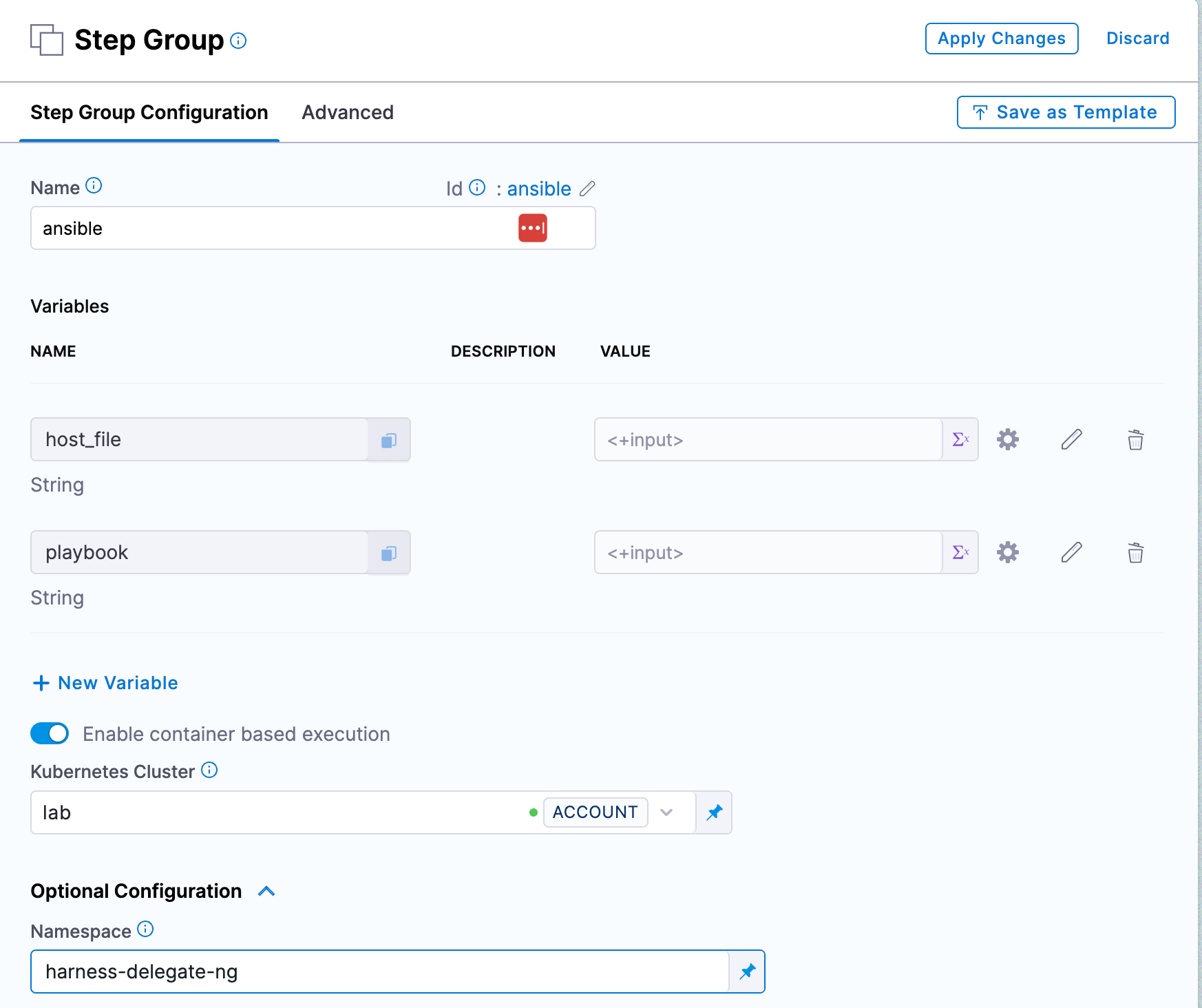
Select **Add Step** and then **Add Step Group**. Give the step group a name and toggle the setting for **Enable container based execution**.
Select your Kubernetes connector where you want the pipeline to run. Expand the optional configuration to specify a namespace for the Ansible container to run in. If you do not specify a namespace, the default namespace configured in your Kubernetes connector will be used.
Create two step group variables to specify which Ansible inventory and playbook to use at runtime:
Select **+ New Variable** and create a variable named `hosts_file`. Set it to **Runtime input**. Create a second variable named `playbook` and also set it to **Runtime input**. These variables allow you to specify different inventories and playbooks each time you execute the pipeline, making the step group reusable across different Ansible tasks.
Click to view full size
*Configure step group variables for Ansible hosts file and playbook paths*
Select **Apply Changes** in the top right to create the step group.
***
#### Add a Git clone step
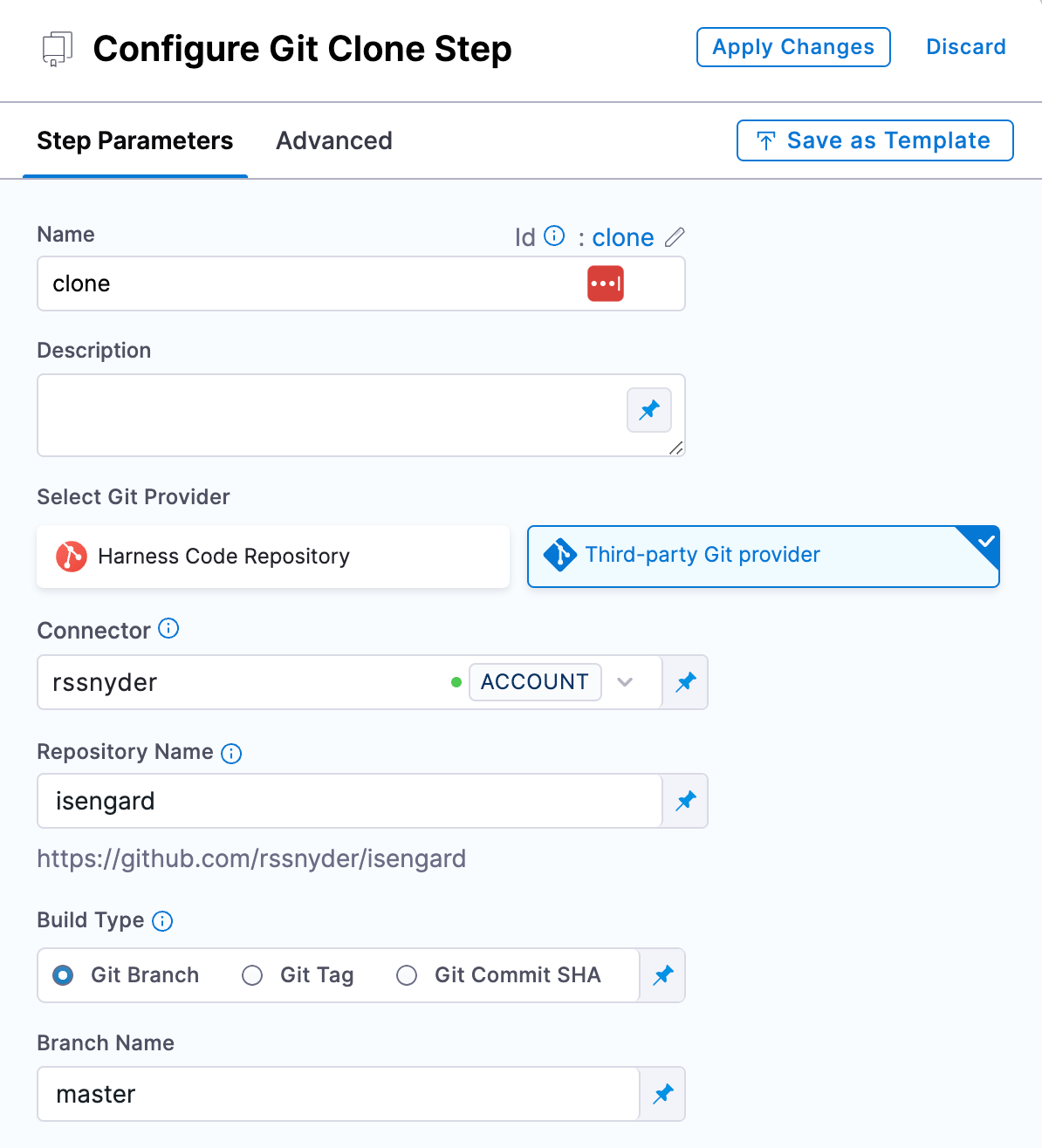
Within the step group you created, select **Add Step** and add a new **Git Clone** step.
Select your Git provider and fill in the repository details based on the location of your Ansible playbooks. Specify the repository URL, branch, and any authentication credentials configured in your Git connector.
Click to view full size
*Configure the Git clone step to pull your Ansible playbooks into the pipeline workspace*
Select **Apply Changes** in the top right to save your repository settings.
***
#### Add a run step for Ansible execution
Hover your mouse to the right of the clone step within your step group. Select the blue **+** icon, then **Add Step**, and add a new **Run** step.
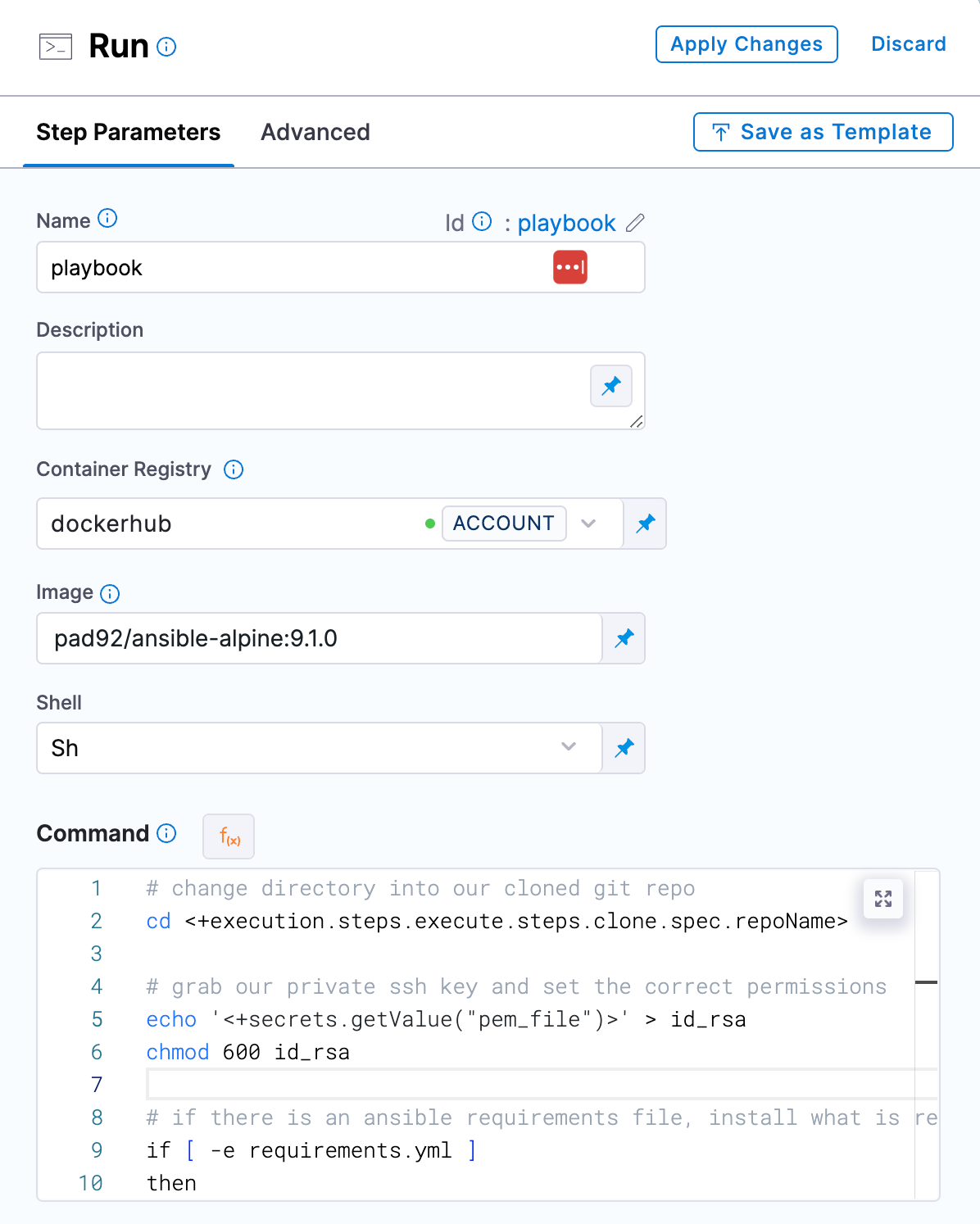
Select your Docker connector and specify an image that has the Ansible version you wish to use. For this example, we use `pad92/ansible-alpine:9.1.0`, but you can use any Docker image that has Ansible included. Check the image documentation to verify the Ansible version and ensure it supports the modules and features your playbooks require.
In the **Command** section, write the execution script for your Ansible playbook. Harness expressions use JEXL syntax to reference pipeline execution data at runtime. An example command is included below:
```bash
# change directory into our cloned git repo
cd <+execution.steps.ansible.steps.clone.spec.repoName>
# grab our private ssh key and set the correct permissions
echo '<+secrets.getValue("pem_file")>' > id_rsa
chmod 600 id_rsa
# if there is an ansible requirements file, install what is required
if [ -e requirements.yml ]
then
ansible-galaxy install -r requirements.yml
else
echo "no requirements.yml found"
fi
# execute the playbook
ansible-playbook --private-key=id_rsa -i <+execution.steps.ansible.variables.hosts_file> <+execution.steps.ansible.variables.playbook>
```
The JEXL expressions in the command reference the step group identifier (`ansible`), the clone step identifier (`clone`), and the step group variables you created earlier (`hosts_file` and `playbook`). Adjust these expressions if you used different identifiers when naming those resources. The expression `<+secrets.getValue("pem_file")>` retrieves your SSH private key from Harness Secrets. Go to [Harness expressions reference](/harness-platform/use-harness-platform/variables-and-expressions/harness-variables.md) to learn more about JEXL syntax and available expressions.
Note that the SSH key file (`id_rsa`) is created inside the Kubernetes pod and is ephemeral. It exists only during pipeline execution and is not persisted after the pod terminates.
Click to view full size
*Configure the run step with your Ansible playbook execution command and JEXL expressions*
Select **Apply Changes** in the top right to save your run step settings.
***
#### Execute the pipeline
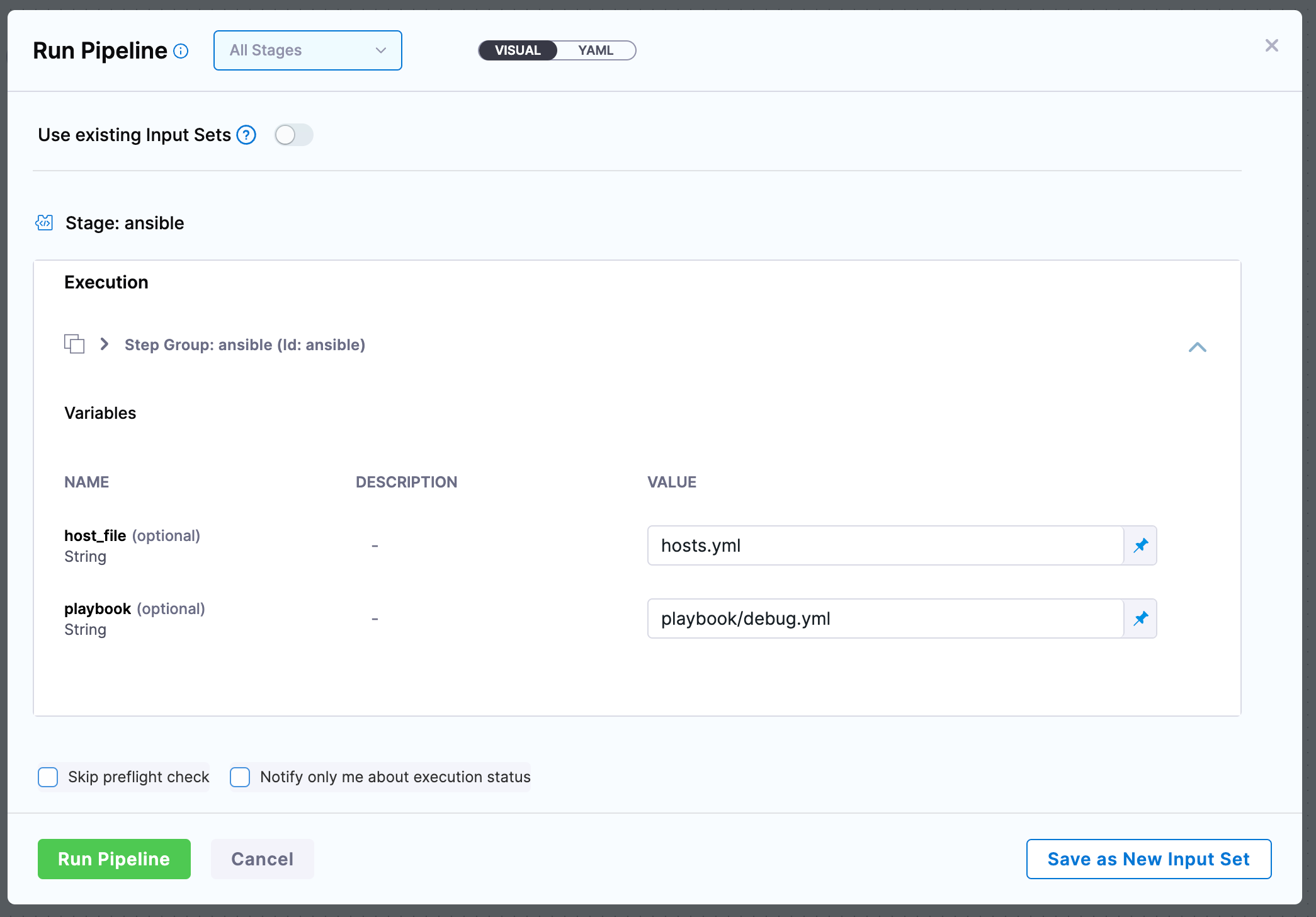
Save your pipeline and execute it. You will be prompted to provide values for the `hosts_file` and `playbook` variables you configured in the step group. Enter the paths to your Ansible inventory file and playbook relative to the repository root.
Click to view full size
*Provide runtime input values for your Ansible inventory and playbook paths*
During execution, Harness creates a Kubernetes pod using the specified Docker image, clones your Git repository, and runs the Ansible playbook. Logs appear in the pipeline execution view in real time. Execution time varies based on playbook complexity and the number of target hosts. If the playbook succeeds, the step shows a success status. If Ansible encounters errors, the step fails and displays the Ansible output in the logs.
***
### Extend the configuration
Based on how you run Ansible, you can manipulate the step group variables to include more inputs or add more commands to account for additional steps in your Ansible workflow.
#### Vault passwords
If you need to decrypt Ansible vault-encrypted files in your playbooks, you can store the vault password as a Harness secret and pass it to Ansible at runtime.
Add the following to your run step command to write the vault password to a file:
```bash
echo '<+secrets.getValue("vault_password")>' > .vault_password
```
Then modify your Ansible command to reference the vault password file:
```bash
ansible-playbook --vault-password-file=.vault_password --private-key=id_rsa -i <+execution.steps.ansible.variables.hosts_file> <+execution.steps.ansible.variables.playbook>
```
This approach securely passes vault passwords without exposing them in logs or command history.
#### Extra vars
If you have variables you need to pass to Ansible at runtime, create a new step group variable (for example, `extra_vars`) and set it to **Runtime input**. Add the variable to your Ansible command using the `-e` flag:
```bash
ansible-playbook --private-key=id_rsa -i <+execution.steps.ansible.variables.hosts_file> -e '<+execution.steps.ansible.variables.extra_vars>' <+execution.steps.ansible.variables.playbook>
```
At execution time, you can pass JSON or key-value pairs in the format `key1=value1 key2=value2`. Go to [Ansible extra variables documentation](https://docs.ansible.com/ansible/latest/playbook_guide/playbooks_variables.html#defining-variables-at-runtime) to learn more about variable precedence and formatting.
#### Required vars
If you have Ansible variables that must be set on every run but you want to accept them as pipeline inputs, create a step group variable for each required variable (for example, `my_req_var`) and add them to your Ansible command:
```bash
ansible-playbook --private-key=id_rsa -i <+execution.steps.ansible.variables.hosts_file> -e 'my_req_var=<+execution.steps.ansible.variables.my_req_var> <+execution.steps.ansible.variables.extra_vars>' <+execution.steps.ansible.variables.playbook>
```
This example adds a variable `my_req_var` to the extra vars flag while also passing any additional variables specified via pipeline input. This ensures required variables are always provided while maintaining flexibility for ad-hoc variables.
***
### Troubleshooting SSH permission denied error when Ansible attempts to connect to target hosts in Harness pipeline
Verify the SSH private key stored in Harness Secrets matches the public key on target hosts. Ensure the key format is correct (PEM format for RSA/ED25519) and that the Ansible user has appropriate permissions on target hosts. Check that the key identifier in secrets.getValue() matches the secret name in Harness.
Git clone step fails with authentication error in Harness containerized step group
Verify the Git connector is configured with valid credentials. If using SSH authentication, ensure the SSH key is added to the Git provider. If using HTTPS with token authentication, verify the token has not expired and has repository read permissions.
Ansible command not found in Docker container during Harness pipeline run step
Verify the Docker image specified in the run step includes Ansible. Use docker run -it \[image-name] ansible --version locally to confirm. If Ansible is not pre-installed, either switch to an image that includes Ansible or add an installation step before running your playbook.
JEXL expression evaluation error in Harness pipeline run step for Ansible execution
Verify that step identifiers and variable names in JEXL expressions match the actual identifiers configured in your pipeline. Common issues include mismatched step group names (execution.steps.\[step-group-id]), incorrect variable names (execution.steps.\[step-group-id].variables.\[variable-name]), or missing quotes around secret expressions. Go to Harness expressions reference to review JEXL syntax.
Kubernetes pod fails to schedule or encounters resource limit errors during Harness pipeline execution
Verify the Kubernetes cluster has available resources (CPU, memory) in the target namespace. Check that the namespace specified in the containerized step group exists and that the service account has pod creation permissions. Review Kubernetes events (kubectl get events) for detailed scheduling failure reasons. Consider setting explicit resource requests and limits in the optional configuration of the step group.
***
### Next steps
You have successfully configured a Harness pipeline to run Ansible playbooks using containerized step groups. You can now execute infrastructure automation, configuration management, and deployment tasks using Ansible within your Harness workflows.
* Go to [Harness CD key concepts](/continuous-delivery/new-to-continuous-delivery/overview.md) to integrate Ansible with deployment strategies like blue-green and canary deployments.
* Go to [Approval steps](/harness-platform/use-harness-platform/approvals/approvals-tutorial.md) to require manual review before running Ansible playbooks in production environments.
* Go to [Pipeline notifications](/harness-platform/use-harness-platform/notifications-alerts-and-banners/notifications/notifications-overview.md) to configure alerts when Ansible execution completes or fails.
{% @harness-feedback/feedback module="harness-ai" pagePath="harness-ai/knowledge-base-and-faqs/articles/ansible" %}