> For the complete documentation index, see [llms.txt](https://developer.harness.io/llms.txt). Markdown versions of documentation pages are available by appending `.md` to page URLs; this page is available as [Markdown](https://developer.harness.io/harness-platform/use-harness-ai/govern-ai-output/harness-ai-rules.md).
# Harness AI Rules
Use Harness AI Rules to tailor AI output to enterprise standards before Harness resources are created or changed.
Harness AI Rules are reusable instructions that Harness AI uses as context before it creates, edits, or reviews Harness resources. You can use rules to encode pipeline standards, security controls, cost limits, code norms, and team workflows so AI output is aligned to team standards before users save AI-generated resources.
Harness recommends you start with a small set of **Account** or **Project** rules, review AI output with your team, and then expand by category.
***
### What you will learn in this topic
By the end of this topic, you will be able to understand:
* [How rules guide Harness AI output](#rule-behavior).
* [How Account, Organization, Project, and personal rules apply](#rule-scopes).
* [Which software development lifecycle (SDLC) areas rules can target](#rule-categories).
* [How to create, review, and enable rules](#create-a-rule).
* [How to write rules for pipelines, builds, security, cost, and code](#example-rule-set).
***
### Before you begin
Before you create Harness AI Rules, ensure you have the following:
* **Harness AI access**: Harness AI must be active for your account. For more information on enabling Harness AI, go to [Overview of Harness AI](/harness-platform/use-harness-ai/harness-ai.md#enable-ai).
* **Policy context**: Rules guide AI output before save. For more information on enforcing Open Policy Agent (OPA) policies after a resource is saved or run, go to [Harness Policy As Code overview](/harness-platform/use-harness-platform/governance/policy-as-code/harness-governance-overview.md).
***
### Rule behavior
Harness AI applies active rules to the current chat, page, and resource context. For example, when you use Harness AI in Pipeline Studio, pipeline rules can require security scan stages, approval steps, rollback plans, or specific deploy strategies before Harness AI proposes pipeline YAML.
Rules help with these tasks:
* **AI output**: Tailor chat answers, resource definitions, pipeline YAML, code, and setup advice to your standards.
* **Context-aware guidance**: Apply relevant standards based on the current page, selected scope, and rule category.
* **Earlier governance**: Guide AI-generated resources before users spend time manually editing output.
{% hint style="info" %}
**RULES AND POLICY AS CODE**
Harness AI Rules and Policy as Code solve related but separate governance needs. Rules use natural language guidance to shape AI output early. Policy as Code uses OPA [Rego](https://www.openpolicyagent.org/docs/latest/policy-language/) policies to enforce hard gates on Harness resources and pipeline runs. Use both when you want AI output to start in the right shape and policies to enforce required controls.
{% endhint %}
***
### Rule scopes
Harness AI merges applicable rules from each scope. When multiple rules address the same requirement, the most narrowly scoped rule takes precedence. **Project** rules override **Organization** rules, and **Organization** rules override **Account** rules.
| Scope | Typical owner | Common use |
| ---------------- | ------------------ | ------------------------------------------------------------------------------ |
| **Account** | Account admin | Security requirements, compliance controls, cloud standards, cost controls. |
| **Organization** | Organization admin | Team standards, deploy windows, approval workflows, environment rules. |
| **Project** | Project admin | Service rules, project integrations, monitor thresholds, deploy patterns. |
| **Personal** | Individual user | Personal defaults, notification choices, reusable shortcuts, chat preferences. |
Rule override controls are part of upcoming rule management capabilities. For more information, go to [Manage rule access](#manage-rule-access).
***
### Rule categories
Categories help Harness AI choose the right rules for the current page, entity, and task. Common categories include:
* **Pipeline**: Pipeline stages, deploy flow, approvals, rollback rules, timeouts, and health checks.
* **Builds**: Test coverage, image rules, scan requirements, build cache, and build time limits.
* **Deployment**: Deploy strategy, environment promotion, production controls, and release notes.
* **Infrastructure**: Cloud provider, region, instance, Kubernetes, and Terraform requirements.
* **Cloud Cost Management**: Budgets, alert thresholds, instance rules, and cost guardrails.
* **Security**: Static application security testing (SAST), dependency scans, secret rules, license checks, and least privilege controls.
* **Code**: Branch names, pull requests, commit messages, README files, and code comment standards.
* **Verification**: Health checks, smoke tests, canary checks, load tests, and post-deploy checks.
***
### Create a rule
Create a rule at the scope where the standard must apply so Harness AI picks it up as context. Each rule captures a name, a category, a status, and the rule content itself.
1. Open Harness AI from the Harness page where you want AI help.
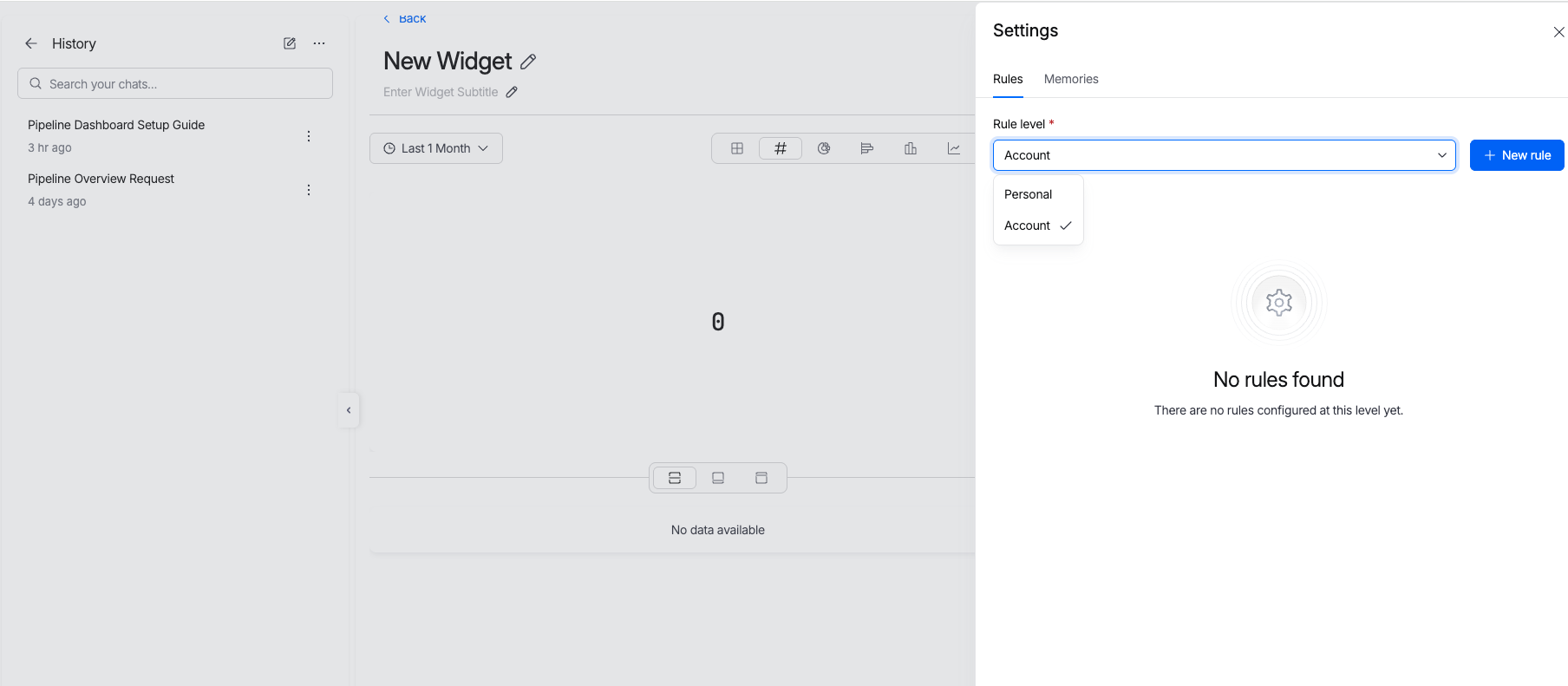
2. Select the more options menu, then select **Settings**.
3. Select the **Rules** tab.
4. Select the **Rule level** for the scope where the rule must apply.
5. Click **New rule**.
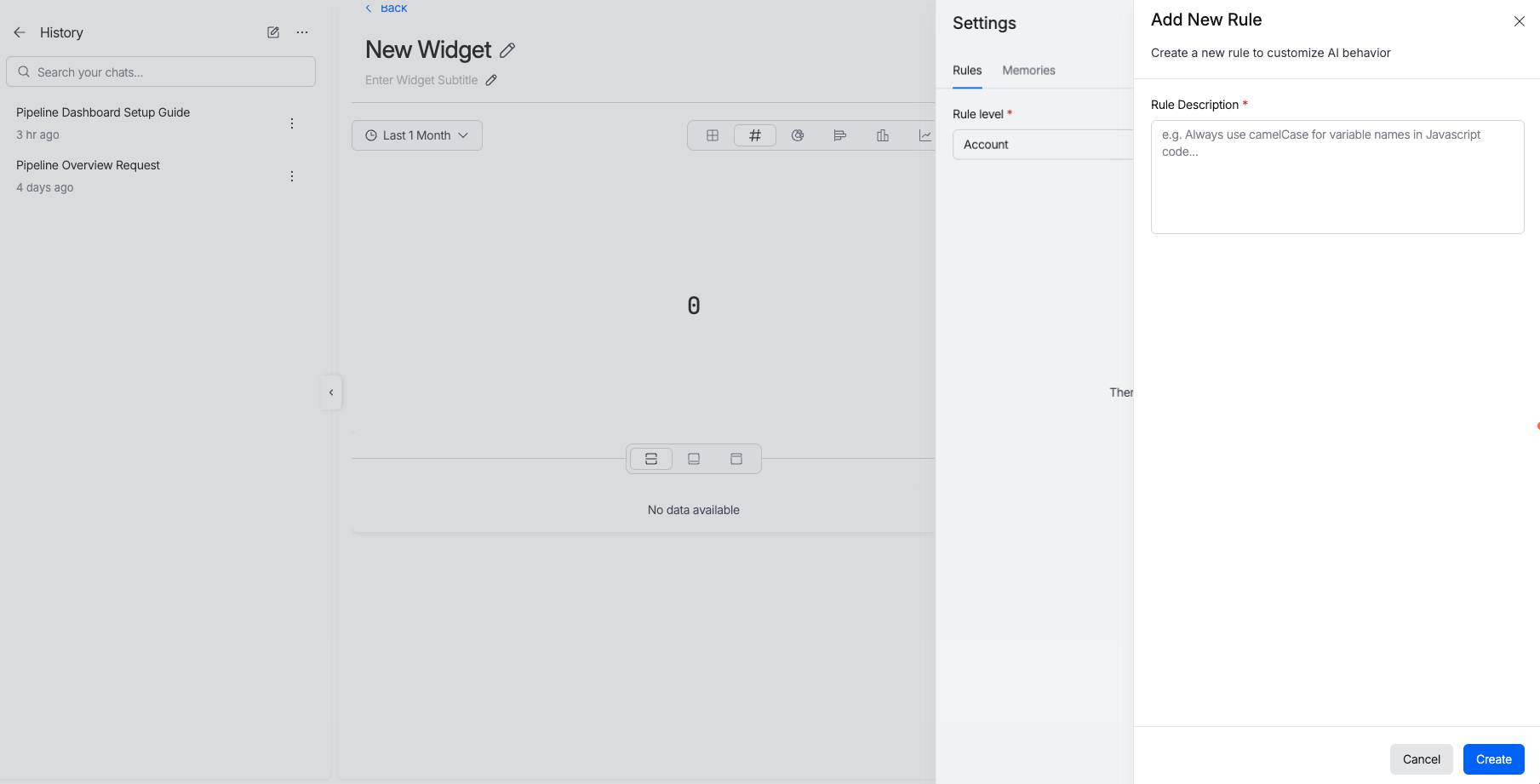
6. Enter the rule name, category, status (`draft` or `active`), and Markdown content.
7. Click **Save**.
Click to view full size image
*Use the Rules tab to choose a scope and add a new rule.*
Click to view full size image
*The rule form captures rule content before Harness AI applies it.*
***
### Use AI to write rules
Harness AI can help you create rule content from a plain-language prompt. Use this when you want a complete rule set but do not want to start from a blank editor.
1. Open the rule editor.
2. Select **Generate with AI**.
3. Describe the standard you want. For example, enter `All production pipelines must include an approval step, a security scan stage, and rollback logic`.
4. Review the generated Markdown.
5. Edit the rule so it matches your exact control.
6. Save the rule as draft or active.
Use **Enhance with AI** to improve existing rule text. Harness AI can make the rule clearer, more precise, and easier to evaluate.
***
### Manage rule access
Rules saved at a shared scope affect everyone who uses Harness AI in that scope, so decide who owns them before you roll them out broadly.
{% hint style="info" %}
**COMING SOON**
Rule-specific role-based access control (RBAC) is coming soon. Harness will add permissions that control who can create, edit, and delete rules at **Account**, **Organization**, and **Project** scope.
{% endhint %}
Until rule-specific RBAC is available, use your current Harness administrative controls and internal change process to decide who should manage shared rules.
***
### Write effective rules
Use clear, specific rule text. Harness AI can evaluate direct requirements more reliably than broad preferences.
* **State the resource**: Name the resource type, such as pipeline, build, service, environment, connector, code repo, or dashboard.
* **Use required terms**: Use words such as `must`, `must not`, `require`, and `block`.
* **Name the condition**: State when the rule applies, such as production deploys or services with more than 1000 daily active users.
* **Set the result**: State what must pass, fail, exist, or stay absent.
* **Avoid vague text**: Replace phrases such as `secure enough` with exact controls such as `zero critical vulnerabilities`.
***
### Example rule set
Use the following examples as a starting point for **Account** or **Project** rules.
```md
## Pipeline
- Production deploy pipelines must use blue-green or canary deploy strategy.
- Production deploy pipelines must include approval from a team lead or DevOps engineer.
- Every pipeline must include a security scan stage before deploy.
- Production deploy pipelines must include rollback steps.
- Pipeline runtime must not exceed 45 minutes.
- Production deploy notifications must go to the #deployments Slack channel.
## Builds
- Unit test coverage must exceed 80 percent before deploy.
- API changes must run integration tests.
- Services with more than 10000 requests per day must run load tests.
- Container images must come from an approved base image registry.
- Image tags must use semantic version format.
- Build runtime must not exceed 20 minutes.
## Security
- SAST scans must pass with zero critical vulnerabilities.
- Dependency scans must pass before deploy.
- License checks must pass before deploy.
- Do not include hardcoded secrets, API keys, or tokens.
- Error messages must not expose internal system details.
## Cloud Cost Management
- Production team budget must not exceed 50000 USD per month.
- Development team budget must not exceed 10000 USD per month.
- Budget alerts must exist at 50 percent, 80 percent, and 100 percent.
- Development and stage workloads can use spot instances.
## Code
- Pull requests must have at least two approvers before merge.
- Direct commits to main or master are not allowed.
- Branch names must use the format feature/JIRA-123-description.
- Each repository must include a README.md file.
```
***
### Next steps
Continue with the following topics:
* [Overview of Harness AI](/harness-platform/use-harness-ai/harness-ai.md): Review available AI features.
* [Effective Prompting with Harness AI](/harness-ai/3.0/new-to-harness-ai/getting-started/effective-prompting-ai.md): Write prompts that produce better output.
* [Harness AI DevOps Agent](/harness-ai/3.0/use-harness-ai/ai-agents/devops-agent.md): Create and update pipelines with AI.
* [Harness Policy As Code overview](/harness-platform/use-harness-platform/governance/policy-as-code/harness-governance-overview.md): Enforce resource and pipeline policy gates.
{% @harness-feedback/feedback module="harness-ai" pagePath="harness-ai/use-harness-ai/govern-ai-output/harness-ai-rules" %}