> For the complete documentation index, see [llms.txt](https://developer.harness.io/llms.txt). Markdown versions of documentation pages are available by appending `.md` to page URLs; this page is available as [Markdown](https://developer.harness.io/harness-platform/use-harness-platform/authentication/switch-account.md).
# Switch account
Learn how to switch between multiple Harness accounts and understand when re-authentication is required.
If you belong to more than one Harness account, you may need to switch between accounts to manage resources or configure settings in a different account. Instead of signing out and back in, you can switch between accounts directly from the Harness UI. If the target account uses a different authentication method, Harness asks you to re-authenticate to keep access secure.
***
### What you will learn in this topic
By the end of this topic, you will know how to:
* View which Harness accounts you belong to.
* Switch between accounts and set a default account.
* Determine whether switching requires re-authentication based on the authentication settings of each account.
***
### Before you begin
Before you switch accounts, ensure you have the following:
* You belong to at least two Harness accounts. If you only have one account, the **Switch Account** option does not appear.
* You know how each account is set up for authentication (for example, username and password, OAuth, SAML, or LDAP). The authentication method determines whether re-authentication is required when you switch accounts.
***
### View and switch accounts
To view and switch between accounts:
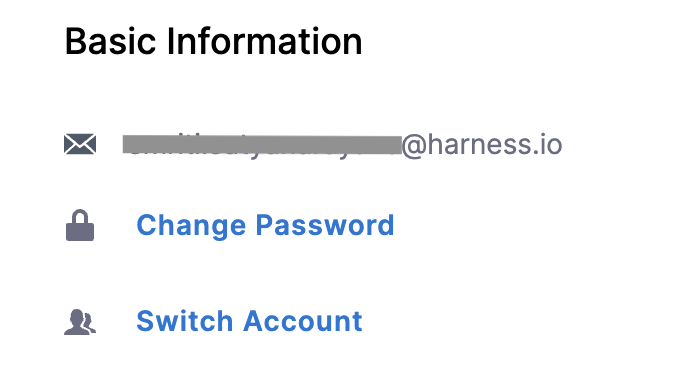
1. Select your **User Profile** icon in the bottom-left corner of the Harness UI. The page with basic information appears.
You can also go to **Account Settings** -> **Account Details** to switch between accounts.
Click to view full size image
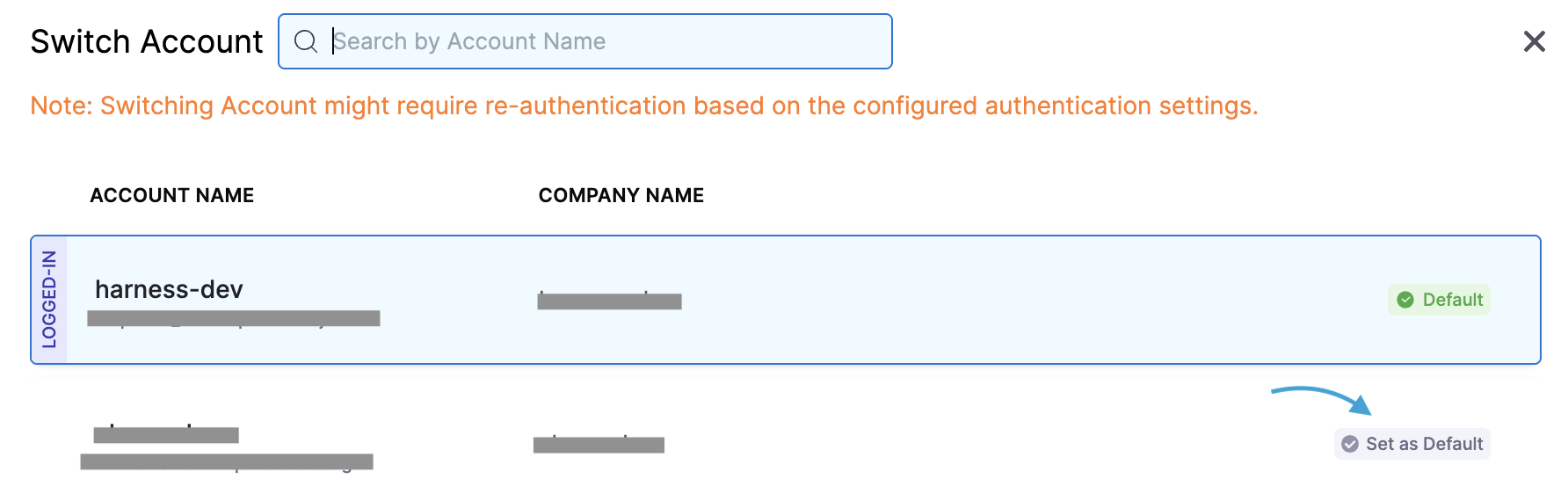
2. Select **Switch Account**. Harness displays all the accounts you are a member of.
Click to view full size image
3. Select the account you want to switch to. Click **Switch**.
4. To set a specific account as your default, select **Set as Default** next to the account name. Click **Continue**.
***
### Re-authentication use cases
When you switch accounts, Harness checks the authentication method configured on the target account. If the target account uses a different authentication method or provider than your current account, Harness prompts you to re-authenticate.
The following table summarizes the behavior for each authentication method:
| Current account method | Target account method | Re-authentication required? |
| ----------------------------- | ---------------------------- | --------------------------- |
| Username and Password | Any other method | Yes |
| Username and Password | Username and Password | Yes |
| Username and Password + OAuth | Any method | Yes |
| OAuth (specific providers) | Same OAuth provider set | No |
| OAuth (specific providers) | Different OAuth provider set | Yes |
| SAML (specific SSO config) | Same SAML SSO config | No |
| SAML (specific SSO config) | Different SAML SSO config | Yes |
| LDAP (specific config) | Same LDAP config | No |
| LDAP (specific config) | Different LDAP config | Yes |
| Whitelisted domains | Whitelisted domains | No |
| Whitelisted domains | Any other method | Yes |
| 2FA at Account scope + OAuth | 2FA at Account scope + OAuth | No |
| 2FA at Account scope + OAuth | Any other method | Yes |
***
### Related articles
For related authentication topics, go to the following:
* [Two-factor authentication](/harness-platform/use-harness-platform/authentication/two-factor-authentication.md): Add an extra layer of security to your Harness login.
* [Manage public keys](/harness-platform/use-harness-platform/authentication/manage-public-keys.md): Add and manage GPG and SSH public keys in your Harness profile to verify commit authenticity.
{% @harness-feedback/feedback module="harness-ai" pagePath="harness-ai/use-harness-platform/authentication/switch-account" %}