> For the complete documentation index, see [llms.txt](https://developer.harness.io/llms.txt). Markdown versions of documentation pages are available by appending `.md` to page URLs; this page is available as [Markdown](https://developer.harness.io/harness-platform/use-harness-platform/connectors/cloud-providers/add-a-microsoft-azure-connector/azure-connector-settings-reference.md).
# Azure connector settings reference
This topic provides roles, permissions, and advanced authentication settings for Harness Microsoft Azure connectors.
Harness uses Microsoft Azure connectors for activities such as pulling artifacts from Azure Container Registry (ACR), provisioning infrastructure with Azure Resource Manager (ARM) and Azure Blueprints, and deploying applications to Azure Kubernetes Service (AKS), Azure Web Apps, and virtual machines using SSH or WinRM.
This topic describes the roles and permissions required for each Azure service and advanced AKS authentication settings.
***
## What you will learn from this topic
* The [roles, permissions, and cluster requirements](#roles-permissions-and-cluster-requirements) for ACR, AKS, Azure Web Apps, ARM, and Blueprints.
* How to [install the kubelogin plugin](#install-the-kubelogin-client-go-credential-exec-plugin-on-the-delegate) on a delegate for AKS authentication using Kubernetes 1.22 and later.
* How to [use `${HARNESS_KUBE_CONFIG_PATH}`](#use-dollarharnesskubeconfigpath-with-azure) with Azure connector credentials in a Shell Script step.
* How to [scope the OIDC subject claim](#enhanced-subject-identifier-for-oidc-authentication) using the Enhanced Subject Identifier field.
***
## Roles permissions and cluster requirements
This section covers the minimum Azure Role-Based Access Control (RBAC) roles and cluster configuration required for each Azure service. This section assumes you are familiar with Azure RBAC. Go to [Assign Azure roles using the Azure portal](https://docs.microsoft.com/en-us/azure/role-based-access-control/role-assignments-portal) for a refresher.
For security reasons, Harness uses an application object and service principal rather than a user identity. Go to [Create a Microsoft Entra application and service principal that can access resources](https://docs.microsoft.com/en-us/azure/active-directory/develop/howto-create-service-principal-portal) for details.
### ACR role requirements
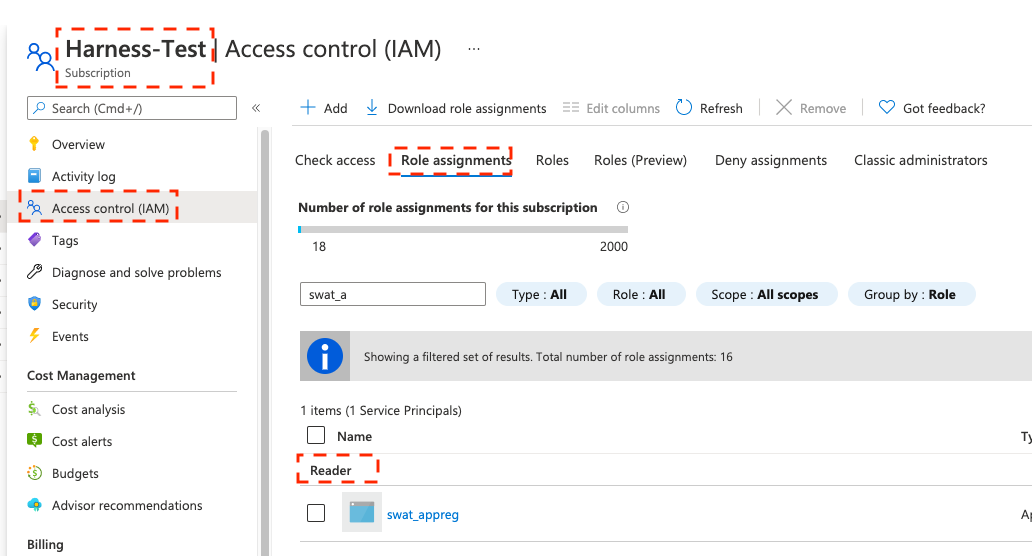
The Azure connector you use to connect Harness to ACR must have the **Reader** role at minimum. You can also use a custom role that includes the Reader permissions.
The following tabs describe the Reader role requirements and a sample custom role definition.
{% tabs %}
{% tab title="Reader role" %}
Assign the **Reader** role at the **Subscription** or **Resource Group** level for the Application (client) ID used in the Azure connector. The application must have permission to list all container registries.
{% hint style="info" %}
* Do not assign the **Reader** role in a different IAM section of Azure.
* Do not assign only the **AcrPull** role instead of **Reader**. AcrPull grants access to a specific registry, but Harness requires the Reader role to list all registries.
{% endhint %}
{% endtab %}
{% tab title="Custom role" %}
The following permissions are required for any Service Principal or Managed Identity user, regardless of whether you use Kubernetes RBAC or Azure RBAC:
* `Microsoft.ContainerRegistry/registries/read`
* `Microsoft.ContainerRegistry/registries/builds/read`
* `Microsoft.ContainerRegistry/registries/metadata/read`
* `Microsoft.ContainerRegistry/registries/pull/read`
* `Microsoft.ContainerService/managedClusters/read`
* `Microsoft.ContainerService/managedClusters/listClusterUserCredential/action`
* `Microsoft.Resource/subscriptions/resourceGroup/read`
For Helm deployments, Helm version 3.2.0 or later is required and the `HELM_VERSION_3_8_0` feature flag must be enabled.
You cannot use Pod Assigned Managed Identity and System Assigned Managed Identity on the same cluster.
The following JSON creates a custom role with the required permissions. Replace `xxxx` with your role name, subscription ID, and resource group ID.
```json
{
"id": "/subscriptions/xxxx/providers/Microsoft.Authorization/roleDefinitions/xxxx",
"properties": {
"roleName": "xxxx",
"description": "",
"assignableScopes": [
"/subscriptions/xxxx/resourceGroups/xxxx"
],
"permissions": [
{
"actions": [],
"notActions": [],
"dataActions": [
"Microsoft.ContainerService/managedClusters/configmaps/read",
"Microsoft.ContainerService/managedClusters/configmaps/write",
"Microsoft.ContainerService/managedClusters/configmaps/delete",
"Microsoft.ContainerService/managedClusters/secrets/read",
"Microsoft.ContainerService/managedClusters/secrets/write",
"Microsoft.ContainerService/managedClusters/secrets/delete",
"Microsoft.ContainerService/managedClusters/apps/deployments/read",
"Microsoft.ContainerService/managedClusters/apps/deployments/write",
"Microsoft.ContainerService/managedClusters/apps/deployments/delete",
"Microsoft.ContainerService/managedClusters/events/read",
"Microsoft.ContainerService/managedClusters/events/write",
"Microsoft.ContainerService/managedClusters/events/delete",
"Microsoft.ContainerService/managedClusters/namespaces/read",
"Microsoft.ContainerService/managedClusters/nodes/read",
"Microsoft.ContainerService/managedClusters/pods/read",
"Microsoft.ContainerService/managedClusters/pods/write",
"Microsoft.ContainerService/managedClusters/pods/delete",
"Microsoft.ContainerService/managedClusters/services/read",
"Microsoft.ContainerService/managedClusters/services/write",
"Microsoft.ContainerService/managedClusters/services/delete",
"Microsoft.ContainerService/managedClusters/apps/statefulsets/read",
"Microsoft.ContainerService/managedClusters/apps/statefulsets/write",
"Microsoft.ContainerService/managedClusters/apps/statefulsets/delete",
"Microsoft.ContainerService/managedClusters/apps/replicasets/read",
"Microsoft.ContainerService/managedClusters/apps/replicasets/write",
"Microsoft.ContainerService/managedClusters/apps/replicasets/delete"
],
"notDataActions": []
}
]
}
}
```
{% endtab %}
{% endtabs %}
{% hint style="info" %}
Harness supports up to 500 images from an ACR repo. If you do not see all your images, you may have exceeded this limit due to an Azure API restriction. If you connect to ACR via the platform-agnostic [Docker connector](broken://pages/LZPXMHJjbQyZXdwC5Omo), the limit is 100.
{% endhint %}
### Azure Web App role requirements
The Azure connector used to connect to Azure Web Apps with Service Principal or Managed Identity credentials must have the **Contributor** role at minimum. You can also use a custom role that includes the Contributor permissions.
The following tabs describe the Contributor role permissions and a sample custom role definition.
{% tabs %}
{% tab title="Contributor permissions" %}
The following are the Azure RBAC permissions used for System Assigned Managed Identity to perform Azure Web App deployments for container and non-container artifacts:
```json
[
"microsoft.web/sites/slots/deployments/read",
"Microsoft.Web/sites/Read",
"Microsoft.Web/sites/config/Read",
"Microsoft.Web/sites/slots/config/Read",
"microsoft.web/sites/slots/config/appsettings/read",
"Microsoft.Web/sites/slots/*/Read",
"Microsoft.Web/sites/slots/config/list/Action",
"Microsoft.Web/sites/slots/stop/Action",
"Microsoft.Web/sites/slots/start/Action",
"Microsoft.Web/sites/slots/config/Write",
"Microsoft.Web/sites/slots/Write",
"microsoft.web/sites/slots/containerlogs/action",
"Microsoft.Web/sites/config/Write",
"Microsoft.Web/sites/slots/slotsswap/Action",
"Microsoft.Web/sites/config/list/Action",
"Microsoft.Web/sites/start/Action",
"Microsoft.Web/sites/stop/Action",
"Microsoft.Web/sites/Write",
"microsoft.web/sites/containerlogs/action",
"Microsoft.Web/sites/publish/Action",
"Microsoft.Web/sites/slots/publish/Action"
]
```
{% endtab %}
{% tab title="Custom role" %}
The following permissions are required for any Service Principal or Managed Identity user, regardless of whether you use Kubernetes RBAC or Azure RBAC:
* `Microsoft.ContainerRegistry/registries/read`
* `Microsoft.ContainerRegistry/registries/builds/read`
* `Microsoft.ContainerRegistry/registries/metadata/read`
* `Microsoft.ContainerRegistry/registries/pull/read`
* `Microsoft.ContainerService/managedClusters/read`
* `Microsoft.ContainerService/managedClusters/listClusterUserCredential/action`
* `Microsoft.Resource/subscriptions/resourceGroup/read`
For Helm deployments, Helm version 3.2.0 or later is required and the `HELM_VERSION_3_8_0` feature flag must be enabled.
You cannot use Pod Assigned Managed Identity and System Assigned Managed Identity on the same cluster.
Replace `xxxx` with your role name, subscription ID, and resource group ID.
```json
{
"id": "/subscriptions/xxxx/providers/Microsoft.Authorization/roleDefinitions/xxxx",
"properties": {
"roleName": "xxxx",
"description": "",
"assignableScopes": [
"/subscriptions/xxxx/resourceGroups/xxxx"
],
"permissions": [
{
"actions": [],
"notActions": [],
"dataActions": [
"Microsoft.ContainerService/managedClusters/configmaps/read",
"Microsoft.ContainerService/managedClusters/configmaps/write",
"Microsoft.ContainerService/managedClusters/configmaps/delete",
"Microsoft.ContainerService/managedClusters/secrets/read",
"Microsoft.ContainerService/managedClusters/secrets/write",
"Microsoft.ContainerService/managedClusters/secrets/delete",
"Microsoft.ContainerService/managedClusters/apps/deployments/read",
"Microsoft.ContainerService/managedClusters/apps/deployments/write",
"Microsoft.ContainerService/managedClusters/apps/deployments/delete",
"Microsoft.ContainerService/managedClusters/events/read",
"Microsoft.ContainerService/managedClusters/events/write",
"Microsoft.ContainerService/managedClusters/events/delete",
"Microsoft.ContainerService/managedClusters/namespaces/read",
"Microsoft.ContainerService/managedClusters/nodes/read",
"Microsoft.ContainerService/managedClusters/pods/read",
"Microsoft.ContainerService/managedClusters/pods/write",
"Microsoft.ContainerService/managedClusters/pods/delete",
"Microsoft.ContainerService/managedClusters/services/read",
"Microsoft.ContainerService/managedClusters/services/write",
"Microsoft.ContainerService/managedClusters/services/delete",
"Microsoft.ContainerService/managedClusters/apps/statefulsets/read",
"Microsoft.ContainerService/managedClusters/apps/statefulsets/write",
"Microsoft.ContainerService/managedClusters/apps/statefulsets/delete",
"Microsoft.ContainerService/managedClusters/apps/replicasets/read",
"Microsoft.ContainerService/managedClusters/apps/replicasets/write",
"Microsoft.ContainerService/managedClusters/apps/replicasets/delete"
],
"notDataActions": []
}
]
}
}
```
{% endtab %}
{% endtabs %}
### Connect Harness to Azure Kubernetes Service (AKS)
There are three options for connecting Harness to an AKS cluster. Each option differs in the type of credentials required and the delegate placement.
* [Platform-agnostic Kubernetes cluster connector](/harness-platform/use-harness-platform/connectors/cloud-providers/add-a-kubernetes-cluster-connector.md): install a Kubernetes delegate in the target AKS cluster and use the delegate's credentials. No Azure Service Principal or Managed Identity credentials are required.
* [Microsoft Azure connector with a Kubernetes delegate](/harness-platform/use-harness-platform/connectors/cloud-providers/add-a-microsoft-azure-connector.md#details): install a Kubernetes delegate in the AKS cluster. Provide the Azure environment and, for User Assigned Managed Identity, the Application (client) ID. You can create a connector referencing a non-existent delegate; Harness allows this so you can replace a delegate with one of the same name or tag.
* [Microsoft Azure connector with Service Principal or Managed Identity credentials](/harness-platform/use-harness-platform/connectors/cloud-providers/add-a-microsoft-azure-connector.md#details): assign the **Owner** role or an equivalent custom role as described in [AKS role requirements](#aks-role-requirements).
### AKS cluster setup requirements
The following AKS cluster configuration is required to use the Azure connector:
* AKS managed Azure Active Directory (AAD): enabled or disabled.
* Kubernetes RBAC: enabled.
* Azure RBAC: enabled or disabled.
Go to the **Deployments (CD)** section of the [Kubernetes cluster connector settings reference](/harness-platform/use-harness-platform/connectors/cloud-providers/add-a-kubernetes-cluster-connector/kubernetes-cluster-connector-settings-reference.md) for full details.
### AKS role requirements
If you use the Microsoft Azure connector to connect to AKS with Service Principal or Managed Identity credentials, assign the **Owner** role or a custom role that includes the Owner permissions.
The following tabs provide example role definitions for AKS.
{% tabs %}
{% tab title="Custom role" %}
The following permissions are required for any Service Principal or Managed Identity user, regardless of whether you use Kubernetes RBAC or Azure RBAC. Replace `xxxx` with your role name, subscription ID, and resource group ID.
```json
{
"id": "/subscriptions/xxxx/providers/Microsoft.Authorization/roleDefinitions/xxxx",
"properties": {
"roleName": "xxxx",
"description": "",
"assignableScopes": [
"/subscriptions/xxxx/resourceGroups/xxxx"
],
"permissions": [
{
"actions": [],
"notActions": [],
"dataActions": [
"Microsoft.ContainerService/managedClusters/configmaps/read",
"Microsoft.ContainerService/managedClusters/configmaps/write",
"Microsoft.ContainerService/managedClusters/configmaps/delete",
"Microsoft.ContainerService/managedClusters/secrets/read",
"Microsoft.ContainerService/managedClusters/secrets/write",
"Microsoft.ContainerService/managedClusters/secrets/delete",
"Microsoft.ContainerService/managedClusters/apps/deployments/read",
"Microsoft.ContainerService/managedClusters/apps/deployments/write",
"Microsoft.ContainerService/managedClusters/apps/deployments/delete",
"Microsoft.ContainerService/managedClusters/events/read",
"Microsoft.ContainerService/managedClusters/events/write",
"Microsoft.ContainerService/managedClusters/events/delete",
"Microsoft.ContainerService/managedClusters/namespaces/read",
"Microsoft.ContainerService/managedClusters/nodes/read",
"Microsoft.ContainerService/managedClusters/pods/read",
"Microsoft.ContainerService/managedClusters/pods/write",
"Microsoft.ContainerService/managedClusters/pods/delete",
"Microsoft.ContainerService/managedClusters/services/read",
"Microsoft.ContainerService/managedClusters/services/write",
"Microsoft.ContainerService/managedClusters/services/delete",
"Microsoft.ContainerService/managedClusters/apps/statefulsets/read",
"Microsoft.ContainerService/managedClusters/apps/statefulsets/write",
"Microsoft.ContainerService/managedClusters/apps/statefulsets/delete",
"Microsoft.ContainerService/managedClusters/apps/replicasets/read",
"Microsoft.ContainerService/managedClusters/apps/replicasets/write",
"Microsoft.ContainerService/managedClusters/apps/replicasets/delete"
],
"notDataActions": []
}
]
}
}
```
{% endtab %}
{% tab title="Kubernetes RBAC example" %}
The following is an example of Kubernetes RBAC permissions for System Assigned Managed Identity.
```yaml
kind: Role
apiVersion: rbac.authorization.k8s.io/v1
metadata:
name: cdp-qa-deployer-role
namespace: cdp-qa-app
rules:
- apiGroups: ["", "apps"]
resources: ["pods", "configmaps", "deployments", "secrets", "events", "services", "replicasets", "deployments/scale", "namespaces", "resourcequotas", "limitranges"]
verbs: ["get", "watch", "list", "create", "update", "patch", "delete"]
---
kind: RoleBinding
apiVersion: rbac.authorization.k8s.io/v1
metadata:
name: cdp-qa-deployer-role-binding
namespace: cdp-qa-app
roleRef:
apiGroup: rbac.authorization.k8s.io
kind: Role
name: cdp-qa-deployer-role
subjects:
- kind: Group
namespace: cdp-qa-app
name:
```
{% endtab %}
{% tab title="Azure RBAC example" %}
The following is an example of Azure RBAC permissions for System Assigned Managed Identity. Replace `xxxx` with your subscription ID and resource group ID.
```json
{
"id": "/subscriptions/xxxx/providers/Microsoft.Authorization/roleDefinitions/xxxx",
"properties": {
"roleName": "HarnessSysMSIRole",
"description": "",
"assignableScopes": [
"/subscriptions/xxxx/resourceGroups/xxxx"
],
"permissions": [
{
"actions": [],
"notActions": [],
"dataActions": [
"Microsoft.ContainerService/managedClusters/configmaps/read",
"Microsoft.ContainerService/managedClusters/configmaps/write",
"Microsoft.ContainerService/managedClusters/configmaps/delete",
"Microsoft.ContainerService/managedClusters/secrets/read",
"Microsoft.ContainerService/managedClusters/secrets/write",
"Microsoft.ContainerService/managedClusters/secrets/delete",
"Microsoft.ContainerService/managedClusters/apps/deployments/read",
"Microsoft.ContainerService/managedClusters/apps/deployments/write",
"Microsoft.ContainerService/managedClusters/apps/deployments/delete",
"Microsoft.ContainerService/managedClusters/events/read",
"Microsoft.ContainerService/managedClusters/events/write",
"Microsoft.ContainerService/managedClusters/events/delete",
"Microsoft.ContainerService/managedClusters/namespaces/read",
"Microsoft.ContainerService/managedClusters/nodes/read",
"Microsoft.ContainerService/managedClusters/pods/read",
"Microsoft.ContainerService/managedClusters/pods/write",
"Microsoft.ContainerService/managedClusters/pods/delete",
"Microsoft.ContainerService/managedClusters/services/read",
"Microsoft.ContainerService/managedClusters/services/write",
"Microsoft.ContainerService/managedClusters/services/delete",
"Microsoft.ContainerService/managedClusters/apps/statefulsets/read",
"Microsoft.ContainerService/managedClusters/apps/statefulsets/write",
"Microsoft.ContainerService/managedClusters/apps/statefulsets/delete",
"Microsoft.ContainerService/managedClusters/apps/replicasets/read",
"Microsoft.ContainerService/managedClusters/apps/replicasets/write",
"Microsoft.ContainerService/managedClusters/apps/replicasets/delete"
],
"notDataActions": []
}
]
}
}
```
{% endtab %}
{% endtabs %}
### Azure Resource Management (ARM) role requirements
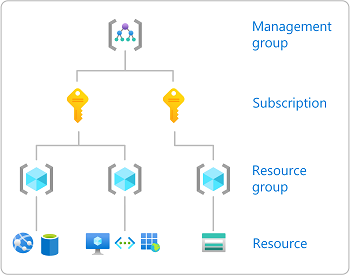
The roles required for ARM depend on the scope type of your ARM template:
* **Resource group**: requires the `Contributor` role.
* **Subscription**: requires the `Contributor` role.
* **Management group**: requires the `Contributor` role.
* **Tenant**: requires the `Contributor` or `Owner` role. Creating a Tenant requires `Contributor`, but creating role assignments requires `Owner`.
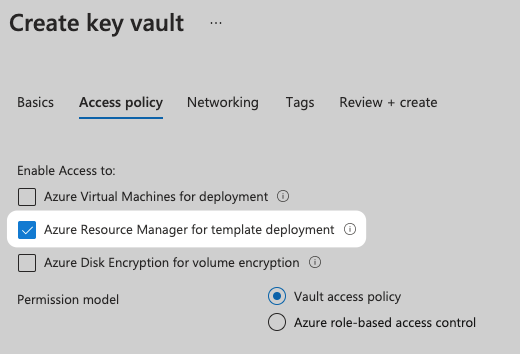
* **Key Vault access**: to enable access to Key Vaults from ARM templates, select the **Azure Resource Manager for template deployment** option in the Key Vault Access Policy.
{% hint style="info" %}
The Azure roles provided in the connector must allow Harness to provision the Azure resources in your ARM templates. For example, to create a policy assignment, the `Resource Policy Contributor` role is required.
{% endhint %}
### Azure Blueprints role requirements
Go to [Permissions in Azure Blueprints](https://docs.microsoft.com/en-us/azure/governance/blueprints/overview#permissions-in-azure-blueprints) for the full list of roles required to create and delete Blueprints.
The Azure roles required on the service principal depend on the scope of your Blueprint definition.
**Management scope**:
* **System-assigned managed identity**: Contributor role at the management group scope where Blueprint definitions are created and published; Owner role at the subscription scope where the assignment is done.
* **User-assigned managed identity**: Contributor role at the management group scope where Blueprint definitions are created and published. Harness does not manage the lifecycle of user-managed identities; you are responsible for that.
**Subscription scope**:
* **System-assigned managed identity**: Owner role at the subscription scope.
* **User-assigned managed identity**: Contributor role to create and publish the Blueprint definition. Harness does not manage the lifecycle of user-managed identities; you are responsible for that.
***
## Auth Provider API and TokenRequest API options
Harness supports both the Auth Provider API and the TokenRequest API for AKS authentication.
Auth Provider API vs. TokenRequest API
In Kubernetes 1.22, the Auth Provider API was deprecated and replaced with the TokenRequest API. The TokenRequest API lets client libraries and tools request an authentication token from the Kubernetes API server dynamically, based on audience, scopes, and other parameters.
The key advantages of the TokenRequest API are finer-grained control over authentication and easier integration with external identity providers such as OAuth 2.0 providers.
To select which API to use:
* **Auth Provider API**: the current default. You do not have to change the default settings of Harness connectors or the Harness delegates you use.
* **TokenRequest API**: you must install the provider-specific plugin on the Harness delegate to use the TokenRequest API introduced in Kubernetes 1.22.
### Install the kubelogin client-go credential (exec) plugin on the delegate
When using the Harness Azure connector with Kubernetes version 1.22 or later, you can use the **kubelogin** client-go credential plugin to authenticate to an AKS cluster.
The Azure connector supports four authentication types. Install the following dependencies on the Harness delegates you use, or Harness will fall back to the Auth Provider API format.
* **Secret** (`SERVICE_PRINCIPAL_SECRET`): kubelogin binary.
* **Certificate** (`SERVICE_PRINCIPAL_CERT`): kubelogin binary and Azure CLI (required because kubelogin does not support PEM format certificates).
* **System Assigned Managed Identity** (`MANAGED_IDENTITY_SYSTEM_ASSIGNED`): kubelogin binary.
* **User Assigned Managed Identity** (`MANAGED_IDENTITY_USER_ASSIGNED`): kubelogin binary.
**Secret** and **Certificate** are available when you select **Specify credentials here**. **System Assigned Managed Identity** and **User Assigned Managed Identity** are available when you select **Use the credentials of a specific Harness Delegate**.
Perform the following steps to install kubelogin on the delegate using an immutable delegate image and `INIT_SCRIPT`:
RHEL 7
```bash
# Install dependencies
microdnf install --nodocs openssl util-linux unzip python2 && microdnf clean all
# Download kubelogin
curl https://github.com/Azure/kubelogin/releases/download/v0.0.27/kubelogin-linux-amd64.zip -L -o kubelogin.zip
unzip kubelogin.zip
chmod 755 /opt/harness-delegate/bin/linux_amd64/kubelogin
# Add the binary to PATH
mv ./bin/linux_amd64/kubelogin /usr/local/bin
# If the AKS cloud provider auth type is Certificate, install azure-cli
# because kubelogin does not support PEM format
rpm --import https://packages.microsoft.com/keys/microsoft.asc
echo -e "[azure-cli]
name=Azure CLI
baseurl=https://packages.microsoft.com/yumrepos/azure-cli
enabled=1
gpgcheck=1
gpgkey=https://packages.microsoft.com/keys/microsoft.asc" | tee /etc/yum.repos.d/azure-cli.repo
microdnf install azure-cli
```
Ubuntu
```bash
# Download kubelogin
curl https://github.com/Azure/kubelogin/releases/download/v0.0.27/kubelogin-linux-amd64.zip -L -o kubelogin.zip
unzip kubelogin.zip
chmod 755 /opt/harness-delegate/bin/linux_amd64/kubelogin
# Add the binary to PATH
mv ./bin/linux_amd64/kubelogin /usr/local/bin
# If the AKS cloud provider auth type is Certificate, install azure-cli
curl -sL https://aka.ms/InstallAzureCLIDeb | bash
```
Go to [kubelogin releases](https://github.com/Azure/kubelogin/releases) on Azure and [Delegate installation overview](/harness-platform/use-harness-platform/delegates/delegate/install-delegates/overview.md) for further details.
***
## Use `${HARNESS_KUBE_CONFIG_PATH}` with Azure
The Harness expression `${HARNESS_KUBE_CONFIG_PATH}` resolves to the path of a Harness-generated kubeconfig file containing the credentials you provided to the connector.
You can use these credentials with `kubectl` commands by exporting the expression value to the `KUBECONFIG` environment variable. For example, add the following to a Harness Shell Script step:
```bash
export KUBECONFIG=${HARNESS_KUBE_CONFIG_PATH} kubectl get pods -n
```
Go to [Select delegates with selectors](/harness-platform/use-harness-platform/delegates/delegate/manage-delegates/select-delegates-with-selectors.md) to run steps on a specific delegate.
Note the following for Azure deployments:
* If the Azure connector uses Azure Managed Identity for authentication, the Shell Script step must use a **Delegate Selector** for a delegate running in AKS.
* If the Azure connector uses Azure Service Principal for authentication, the Shell Script step can use any delegate.
***
## Enhanced subject identifier for OIDC authentication
{% hint style="info" %}
The **Enhanced Subject Identifier** field is behind the feature flag `CDS_AZURE_OIDC_ENHANCED_SUB_CLAIM`. Contact [Harness Support](mailto:support@harness.io) to enable it on your account.
{% endhint %}
Select attributes in the **Enhanced Subject Identifier** field to control which Harness identifiers Harness embeds in the OIDC token's subject (`sub`) claim. Instead of trusting your whole Harness account, you can require that the token come from a specific organization, project, or pipeline before Azure accepts it.
Harness writes each selected attribute as `/` and joins them with `:`, always in this fixed order: account, organization, project, pipeline. Harness includes a segment only for the attributes you select. For example, selecting **account\_id** and **project\_id** produces a subject claim of `account/:project/`. If you select nothing, the subject is just the Harness account ID value, with no `account/` prefix.
{% hint style="warning" %}
Claims matching expressions (flexible federated identity credentials) are not supported for the Harness-generated issuer. Set the explicit **Subject identifier** on the Azure federated identity credential to exactly match the subject Harness generates here, or authentication fails.
{% endhint %}
YAML reference
```yaml
connector:
name: azure-oidc # Replace with your connector name
identifier: azure_oidc # Replace with your connector identifier
type: Azure
spec:
environment: AZURE
credential:
type: OidcAuthentication
spec:
tenantId: # Replace with your Directory (tenant) ID
applicationId: # Replace with your Application (client) ID
audience: api://AzureADTokenExchange
azureEnvironmentType: AZURE
enhancedSubClaimFields: # Optional. Valid values: account_id, organization_id, project_id, pipeline_id
- account_id
- organization_id
delegateSelectors:
- # Replace with your delegate tag
executeOnDelegate: true
```
***
## Next steps
* [Add a Microsoft Azure connector](/harness-platform/use-harness-platform/connectors/cloud-providers/add-a-microsoft-azure-connector.md): Create an Azure connector using the Harness UI.