> For the complete documentation index, see [llms.txt](https://developer.harness.io/llms.txt). Markdown versions of documentation pages are available by appending `.md` to page URLs; this page is available as [Markdown](https://developer.harness.io/harness-platform/use-harness-platform/connectors/ticketing-systems/connect-to-service-now.md).
# Add a ServiceNow connector
Connect Harness to ServiceNow as a Harness ServiceNow connector.
Use a Harness ServiceNow connector to connect Harness to ServiceNow. This [connector](/harness-platform/new-to-harness-platform/overview.md#connectors) allows you to create and update ServiceNow tickets, and to use ServiceNow tickets in Approval steps.
***
## What you will learn from this topic
* The [prerequisites](#before-you-begin) for creating a ServiceNow connector.
* Understand the [limitations](#important-notes) of the ServiceNow connector.
* How to [add a ServiceNow connector](#add-a-servicenow-connector) using a username and password, ADFS client credentials with a certificate, or an OIDC refresh token.
* How to find [YAML examples](#connector-yaml-examples) for each ServiceNow connector authentication type.
***
## Before you begin
* You can add a ServiceNow connector at the Project, Organization, or Account scope.
* You need permission to create and edit connectors. For details, go to [Configure RBAC](/harness-platform/use-harness-platform/platform-access-control/configure-rbac.md).
* If Harness connects to ServiceNow through a Harness Delegate, install and register a delegate before you configure the connector. For details, go to [Delegate overview](/harness-platform/use-harness-platform/delegates/delegate/delegate-concepts/delegate-overview.md).
* The delegate you select for this connector must have network connectivity to the ServiceNow instance.
* In **ServiceNow URL**, use the base URL your users use to access ServiceNow, for example `https://example.service-now.com`.
* You can update the connector **Id**, or let it default to the connector name. For details, go to [Entity Identifier Reference](/harness-platform/use-harness-platform/references/entity-identifier-reference.md).
***
## Limitations
Review the following limitations before you add a ServiceNow connector.
* Your ServiceNow account requires the `admin` role. If the `admin` role is not available, the account requires at least the `itil_admin` or `itil` role to create and modify tickets.
* Your ServiceNow account also requires the `import_admin` or `import_transformer` role to manage import set transform maps. For details, go to ServiceNow's [Base System Roles](https://docs.servicenow.com/bundle/newyork-platform-administration/page/administer/roles/reference/r_BaseSystemRoles.html) documentation.
* Your ServiceNow REST API account must have permission to view tickets.
* If your use case only requires reading tickets from ServiceNow, for example to fetch ticket status for visibility without creating, updating, or modifying tickets, your service account needs only the **`itil`** role. This role provides read-only access to ITSM tables and ticket data, including the incident, change, and problem tables, with no write permissions.
## Add a ServiceNow connector
You can add a ServiceNow connector at the **Project**, **Organization**, or **Account** level. This topic covers the **Project** level. The process is the same for **Organization** and **Account**.
You can also add the ServiceNow connector when setting up the **ServiceNow Create**, **ServiceNow Approval**, or **ServiceNow Update** steps. This topic covers adding it to the Project's **Connectors** page.
To add a ServiceNow connector to your Harness project:
### Overview
Perform the following steps to name the connector:
1. In **Project Setup**, select **Connectors**.
2. Select **New Connector**, and then select **ServiceNow**. The ServiceNow connector settings appear.
3. In **Name**, enter a name for this connector. You will use this name to select this connection in ServiceNow steps.
4. Enter a **Description** and **Tags** for your connector.
5. Select **Continue**.

### Details
Perform the following steps to configure the ServiceNow URL and authentication:
1. In **ServiceNow URL**, enter the base URL by which your users access your ServiceNow instance. For example: `https://example.service-now.com`.
2. In **Authentication**, select one of the following:
* **Username and Password**: Authenticate with a ServiceNow username and password.
* **ADFS Client Credentials with Certificate**: Authenticate with Active Directory Federation Services (ADFS) client credentials and a certificate.
* **OIDC Refresh Token**: Authenticate with an OpenID Connect (OIDC) refresh token.
{% tabs %}
{% tab title="Username and Password" %}
Perform the following steps to authenticate with a username and password:
1. In **Username**, enter your ServiceNow username.
2. In **Password**, create or select a Harness secret that contains your ServiceNow password.
3. Select **Continue**.

{% endtab %}
{% tab title="ADFS Client Credentials with Certificate" %}
{% hint style="info" %}
**ADFS authentication notes**
* Harness supports private keys encoded in RSA, in PKCS8 format.
* Harness supports certificates in `X509` format.
* Permissions granted to this connector in ServiceNow depend on the configuration of the client application group.
For details, go to Microsoft's [AD FS OpenID Connect/OAuth flows and application scenarios](https://learn.microsoft.com/en-us/windows-server/identity/ad-fs/overview/ad-fs-openid-connect-oauth-flows-scenarios#second-case-access-token-request-with-a-certificate-1) documentation.
{% endhint %}
Perform the following steps to authenticate with ADFS client credentials and a certificate:
1. In **Resource ID**, create or select a Harness secret that contains the resource identifier of ServiceNow as configured in ADFS.
2. In **Client ID**, create or select a Harness secret that contains the application (client) ID assigned to your application by ADFS.
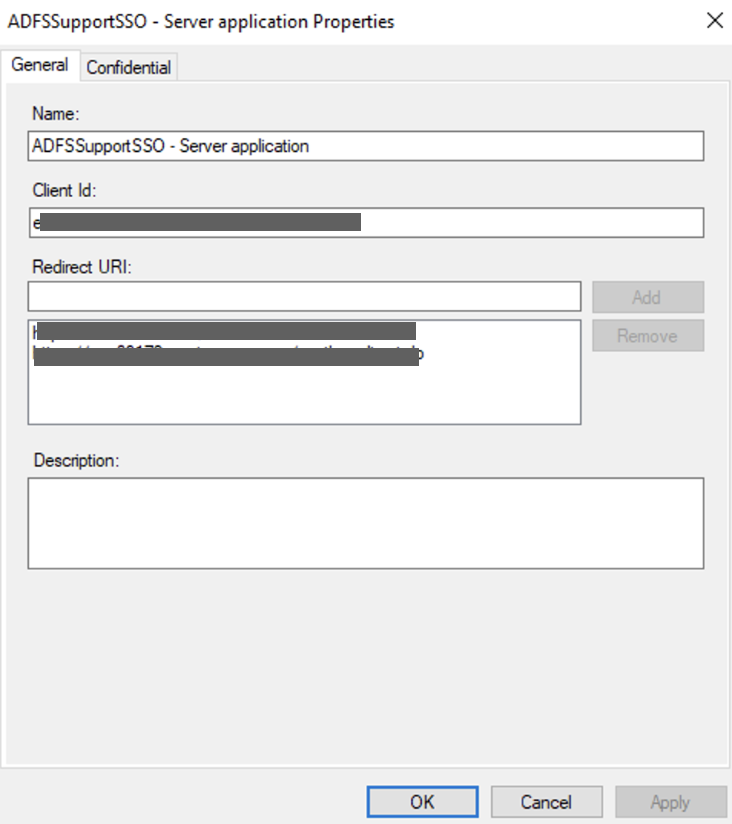
3. In **Certificate**, create or select a Harness encrypted file that contains the `X509` format certificate your application uses to sign JWT tokens.
4. In **Private Key**, create or select a Harness secret that contains the ADFS private key. This is the private RSA key that corresponds to the certificate you provided in **Certificate**.
5. In **ADFS URL**, enter the base ADFS URL.
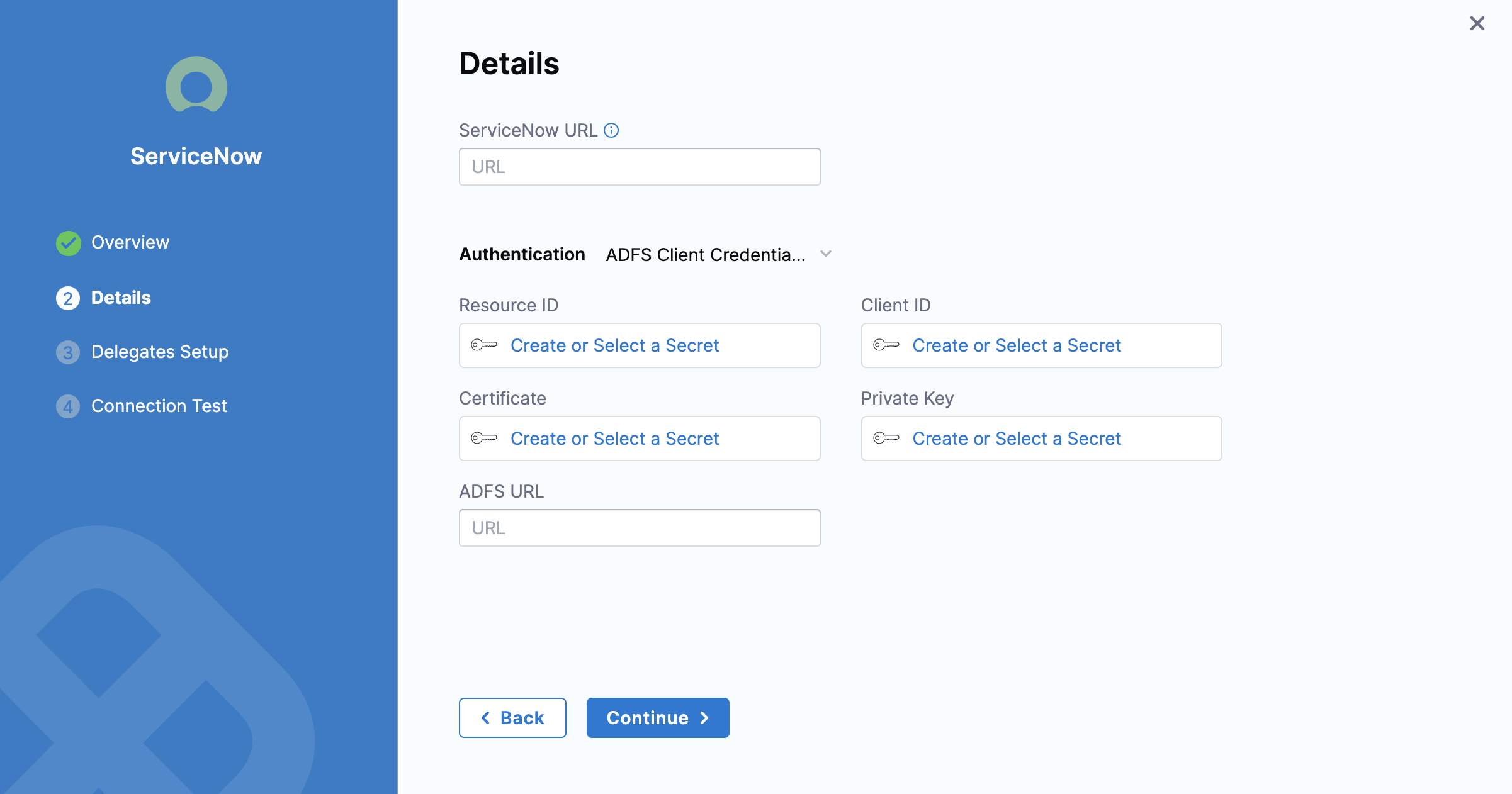
6. Select **Continue**.
{% endtab %}
{% tab title="OIDC Refresh Token" %}
{% hint style="info" %}
OIDC refresh token authentication requires Harness Delegate version 79900 and later.
{% endhint %}
Harness supports persistent refresh tokens to authenticate with OpenID Connect (OIDC), using a **Refresh Token** with a **Grant Type** of `refresh_token`. For details, go to the OAuth documentation on [refreshing access tokens](https://www.oauth.com/oauth2-servers/access-tokens/refreshing-access-tokens/).
All refresh tokens must be valid, and you must update this connector when a refresh token is revoked. Permissions granted to this connector in ServiceNow depend on the resource owner associated with the credentials and refresh token.
Perform the following steps to authenticate with an OIDC refresh token:
1. In **Client ID**, create or select a Harness secret that contains the application (client) ID assigned to your application by OIDC.
2. Optional: In **Client Secret**, create or select a Harness secret that contains the application (client) secret assigned to your application.
3. In **Refresh Token**, create or select a Harness secret that contains your refresh token.
4. In **Token URL**, enter the explicit token URL. For example:
* ServiceNow authentication server: `https://YOUR_DOMAIN.service-now.com/oauth_token.do`
* Okta authentication server: `https://YOUR_DOMAIN.okta.com/oauth2/v1/token`
5. Optional: In **Scope**, enter the scope. If you use ServiceNow as your authentication server, you do not need to set **Scope**. Harness fetches it from the ServiceNow URL. For details, go to ServiceNow's [REST API auth scope](https://docs.servicenow.com/bundle/utah-platform-security/page/administer/security/concept/rest-api-auth-scope.html) documentation.
6. Select **Continue**.

{% endtab %}
{% endtabs %}
### Delegates Setup
Perform the following steps to select the Harness Delegates for this connector:
1. Select the Harness Delegates to use when making a connection to ServiceNow using this connector.
2. Select **Save and Continue**.

### Connection Test
Harness tests the connection.

Select **Finish**. The ServiceNow connector is listed in **Connectors**.
## Connector YAML examples
Use the following YAML example to configure a ServiceNow connector with username and password authentication.
YAML example: Username and password
```yaml
connector:
name: serviceNowConnector
identifier: serviceNowConnector
description: "" # optional description for the connector
accountIdentifier: YOUR_ACCOUNT_IDENTIFIER
orgIdentifier: default # replace with your organization identifier
projectIdentifier: YOUR_PROJECT_IDENTIFIER
type: ServiceNow
spec:
serviceNowUrl: https://YOUR_INSTANCE.service-now.com/ # your ServiceNow instance URL
username: YOUR_SERVICENOW_USERNAME
passwordRef: YOUR_TEXT_SECRET_CONTAINING_PASSWORD # reference to a Harness secret holding the ServiceNow password
auth:
type: UsernamePassword
spec:
username: YOUR_SERVICENOW_USERNAME
passwordRef: YOUR_TEXT_SECRET_CONTAINING_PASSWORD
ignoreTestConnection: false
```
***
## Next steps
* [ServiceNow Approval Stages and Steps](/harness-platform/use-harness-platform/approvals/service-now-approvals.md): Use ServiceNow tickets to gate pipeline approvals.
* [Ticketing systems overview](/harness-platform/use-harness-platform/connectors/ticketing-systems/connect-to-a-ticketing-system.md): Learn about the ticketing system connectors Harness supports.
{% @harness-feedback/feedback module="harness-ai" pagePath="harness-ai/use-harness-platform/connectors/ticketing-systems/connect-to-service-now" %}