> For the complete documentation index, see [llms.txt](https://developer.harness.io/llms.txt). Markdown versions of documentation pages are available by appending `.md` to page URLs; this page is available as [Markdown](https://developer.harness.io/harness-platform/use-harness-platform/customize-harness-ui.md).
# Customize Branding in Harness UI
Learn how to customize the Harness UI by personalizing its appearance through updating the favicon and logo.
{% hint style="info" %}
**FEATURE AVAILABILITY**
This feature is available behind `PL_ENABLE_BRANDING` feature flag. Contact [Harness Support](mailto:support@harness.io) to enable the feature.
{% endhint %}
This feature allows you to customize the Harness UI to match your organization’s branding by updating the logo and favicon. This document explains how to configure these settings and outlines the available customization options.
### Prerequisites
You must be an account administrator or have `Edit` permission for the **Branding** resource.
### Customization options
You can customize the favicon and logo by following the guidelines listed below.
#### Favicon
A favicon is an icon for a website that shows in your browser tabs, bookmarks, and shortcuts. The default favicon is the Harness logo.
Customize the appearance of the favicon by replacing it with your own favicon. You can use any image that is less than 50 KB in size, and the recommended dimensions are 32 × 32 px.
{% hint style="info" %}
Currently, custom favicons are not supported on the pipeline execution page. During pipeline execution, the favicon automatically switches to the Harness default to indicate status: green for success, red for failure, and blue for running, as shown in the image below. When you navigate away from the page, it reverts to your custom favicon.
{% endhint %}
#### Logo
Logos appear in multiple places throughout Harness. This feature allows you to customize the sidebar and sign-in page logos specifically. Upload your own logos to replace the default Harness branding in these locations. All logos must be under 300 KB in file size.
**Customize sidebar logo**
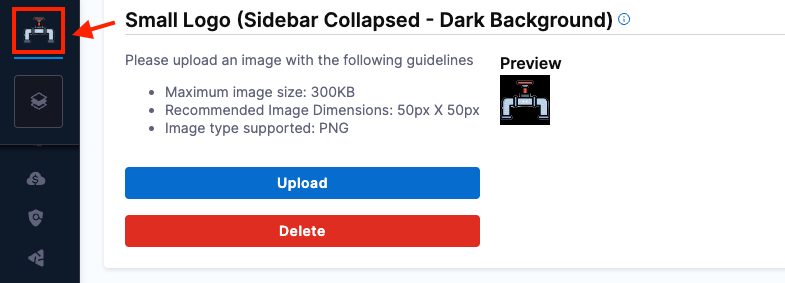
* Small Logo (Sidebar Collapsed - Dark Background): When the sidebar is collapsed, a small logo appears at the top-left corner against a dark background. The recommended dimensions are 50 × 50 px.
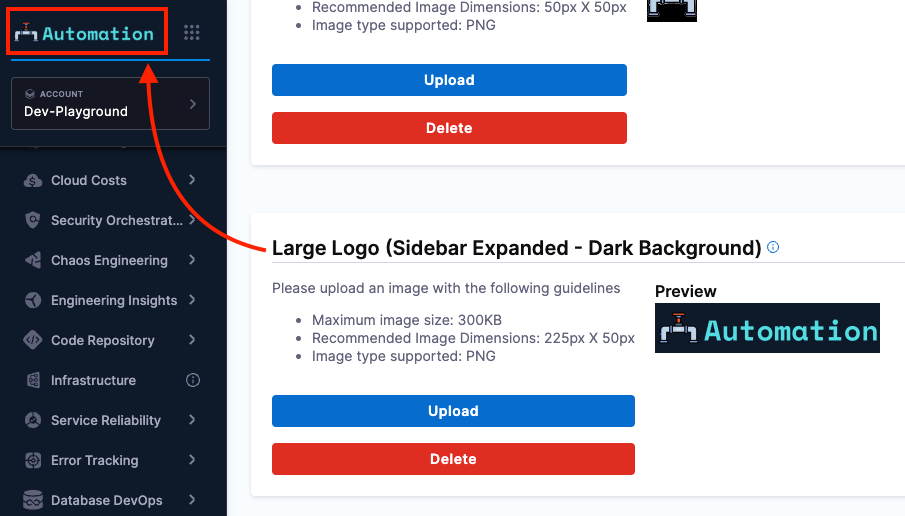
* Large Logo (Sidebar Expanded - Dark Background): When the sidebar is expanded, a large logo appears at the top-left corner. The recommended dimensions are 225 × 50 px.
**Customize sign-in page**
{% hint style="info" %}
**IMPORTANT NOTE**
Customizations on the sign-in page (including favicon and logo) are only supported for accounts with a [vanity URL](/harness-platform/use-harness-platform/authentication.md#set-up-vanity-url).
{% endhint %}
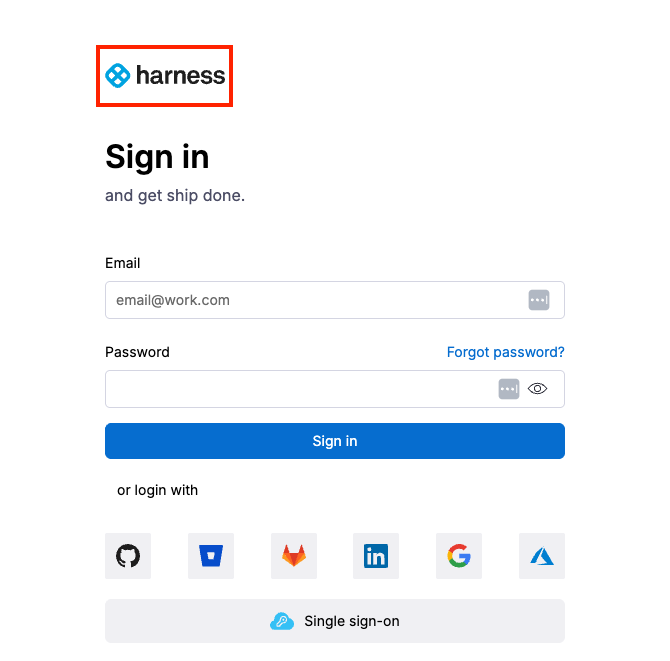
* Large Logo (Sign-in Page - Light Background): This logo appears at the top of the sign-in form. The recommended dimensions are 225 × 50 px.
### Steps to customize branding in Harness UI
{% embed url="" %}
1. Navigate to **Account Settings** -> **General** -> **Branding**.
2. Customize your favicon and logo files:
* **Favicon**: Click **Upload** to add a favicon (recommended: 32 × 32 px, under 50 KB, PNG format). This will appear in browser tabs, bookmarks, and shortcuts. Use **Delete** to reset to default.
* **Logo**: Click **Upload** to add logos for the sidebar (Small: 50 × 50 px, Large: 225 × 50 px, under 300 KB, PNG format). Use **Delete** to reset to default.
3. Enable the **Apply branding changes to the sign-in page** checkbox to update the logo on your sign-in and registration pages. This option is only available for accounts that have a vanity URL.
4. Click **Save Changes** to apply your settings.
{% hint style="info" %}
After saving changes to the logo or favicon, updates are applied immediately. However, due to browser caching, they may not appear right away. Perform a hard refresh (Ctrl + Shift + R on Windows/Linux or Cmd + Shift + R on macOS) to view the latest version.
{% endhint %}
{% @harness-feedback/feedback module="harness-ai" pagePath="harness-ai/use-harness-platform/customize-harness-ui" %}
 {% endhint %}
#### Logo
Logos appear in multiple places throughout Harness. This feature allows you to customize the sidebar and sign-in page logos specifically. Upload your own logos to replace the default Harness branding in these locations. All logos must be under 300 KB in file size.
**Customize sidebar logo**
* Small Logo (Sidebar Collapsed - Dark Background): When the sidebar is collapsed, a small logo appears at the top-left corner against a dark background. The recommended dimensions are 50 × 50 px.
{% endhint %}
#### Logo
Logos appear in multiple places throughout Harness. This feature allows you to customize the sidebar and sign-in page logos specifically. Upload your own logos to replace the default Harness branding in these locations. All logos must be under 300 KB in file size.
**Customize sidebar logo**
* Small Logo (Sidebar Collapsed - Dark Background): When the sidebar is collapsed, a small logo appears at the top-left corner against a dark background. The recommended dimensions are 50 × 50 px.