> For the complete documentation index, see [llms.txt](https://developer.harness.io/llms.txt). Markdown versions of documentation pages are available by appending `.md` to page URLs; this page is available as [Markdown](https://developer.harness.io/harness-platform/use-harness-platform/favorites/set-favorites.md).
# Set favorites
Set your projects and connectors as favorites.
{% hint style="info" %}
Currently, this feature is behind the feature flag `PL_FAVORITES`. Contact [Harness Support](mailto:support@harness.io) to enable the feature.
{% endhint %}
You can set the frequently accessed projects and connectors as favorites. Harness shows favorites on the listing page and helps you navigate faster to their favorite entities or pages.
You can set a connector as a favorite in any [scope](/harness-platform/use-harness-platform/platform-access-control.md#permissions-hierarchy-scopes).
### Set a project as a favorite
To set a project as a favorite:
1. Select **Projects**.
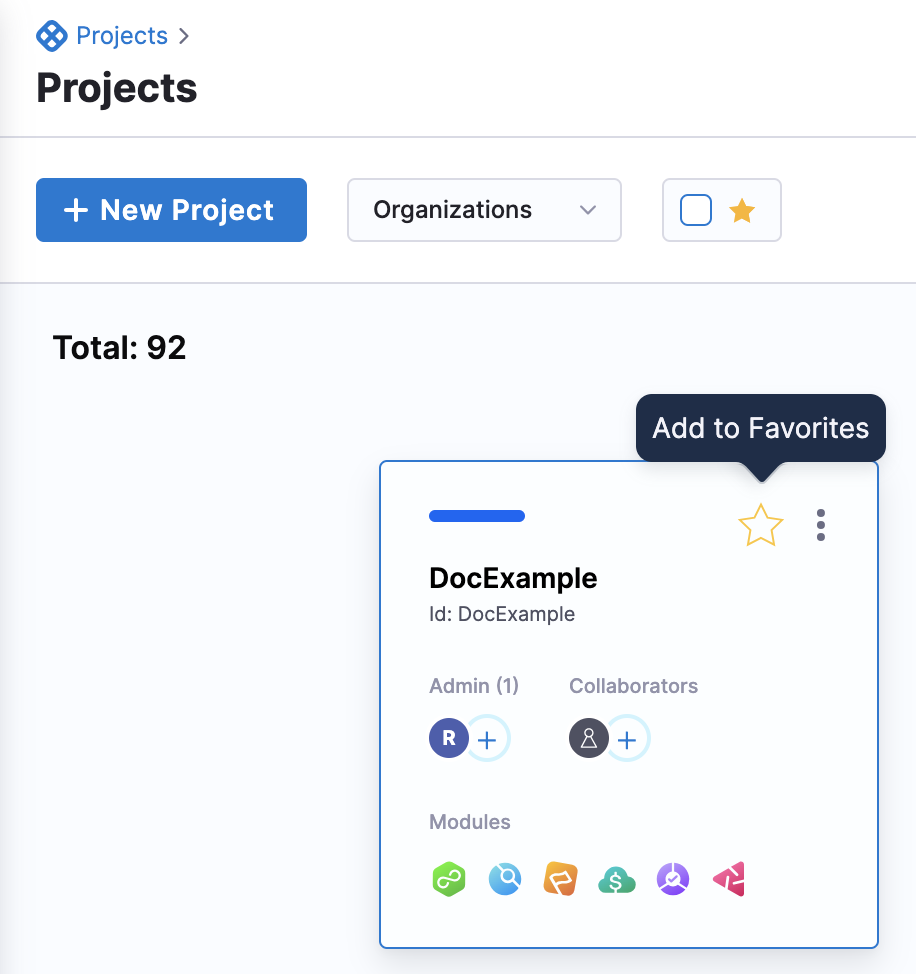
2. Hover on the project you want to mark as a favorite, and select **Add to Favorites**.
### Set a connector as favorite
To set a connector as a favorite in Harness:
1. Select **Projects**, and then select **Connectors**.
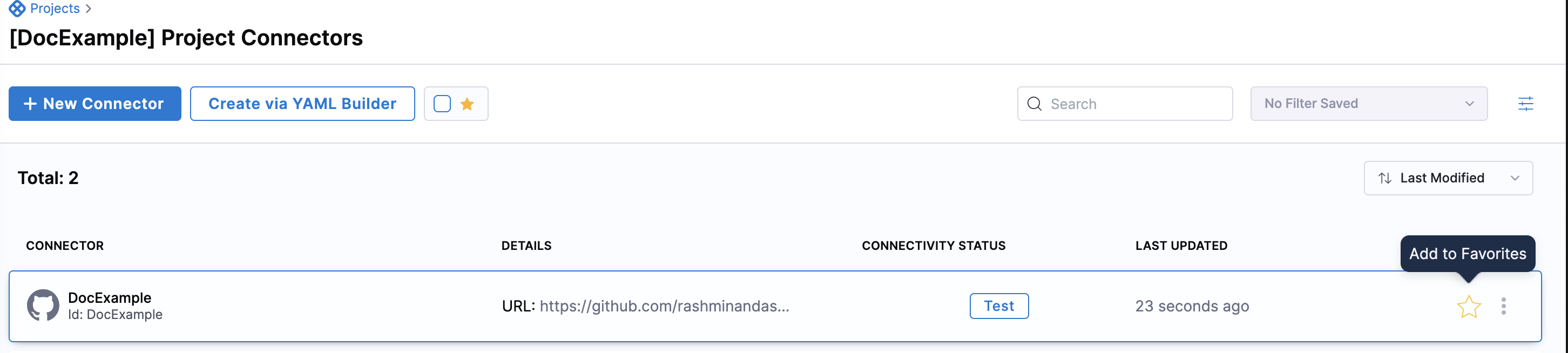
2. Select **Add to Favorites** beside the connector.
A filter is available on the listing pages to help you find your favorite projects and connectors. You can also filter favorite connectors in pipelines or other resources.
### View favorites
Select the favorites filter on the project or connector listing page to see all your favorite projects or connectors.
{% @harness-feedback/feedback module="harness-ai" pagePath="harness-ai/use-harness-platform/favorites/set-favorites" %}