> For the complete documentation index, see [llms.txt](https://developer.harness.io/llms.txt). Markdown versions of documentation pages are available by appending `.md` to page URLs; this page is available as [Markdown](https://developer.harness.io/harness-platform/use-harness-platform/git-experience/monitor-git-experience/monitor-events.md).
# Monitor webhook events
View the history of webhook events processed by Harness, inspect event details, and troubleshoot Git synchronization issues.
The **Events** tab displays the history of webhook events processed by Harness. If you are new to Git Experience, this is the best place to verify that changes pushed directly to Git are received and processed by Harness.
To access the **Events** tab, go to **Webhooks** and select **Events**.
Use this view to:
* Verify that Git changes are received and processed successfully.
* Monitor webhook activity.
* Troubleshoot synchronization issues.
* Inspect the webhook payloads received by Harness.
***
### What you will learn in this topic
This topic explains how to monitor webhook events. It covers:
* How to [view webhook event history](#view-webhook-events).
* How to [filter webhook events](#view-webhook-events).
* How to [inspect event details and payloads](#inspect-event-details).
* How [webhook event retention](#webhook-event-retention) works.
***
### View webhook events
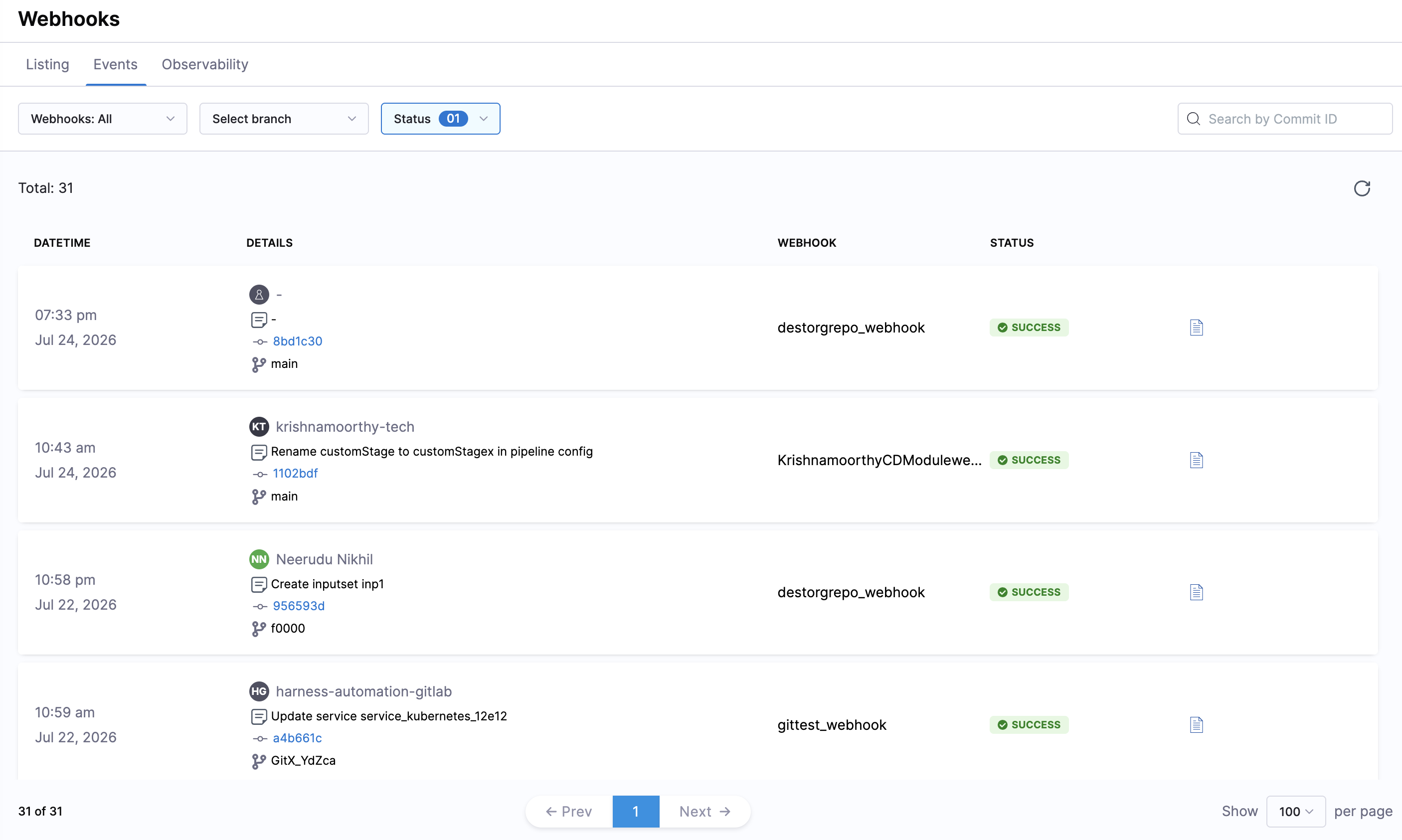
On the **Webhooks** page, select the **Events** tab to view the webhook sync events. The **Events** tab displays the history of webhook executions, so you can monitor webhook activity, filter results, and inspect individual event details.
The following filters are available at the top of the page:
* **Webhooks**: Select a specific webhook from the drop-down to display events for that webhook only. By default, all webhooks are displayed.
* **Branch**: Filter events by the repository branch.
* **Status**: Filter events based on their execution status. The available statuses are FAILED, PROCESSING, QUEUED, SKIPPED, SUCCESS, and WARNING.
* **Search by Commit ID**: Search for a specific event by entering the commit ID.
Select the **Refresh** icon to reload the event list and retrieve the latest webhook execution records.
Each event displays the following information:
* **Date and Time**: When the webhook event was triggered.
* **Details**: The author who triggered the commit, commit message, commit ID (clickable), and branch name.
* **Webhook**: The name of the webhook that processed the event.
* **Status**: The current execution status of the webhook event.
* **Payload**: Select the document icon to view detailed information about the selected webhook execution, including the request and response payloads (if available).
***
### Inspect event details
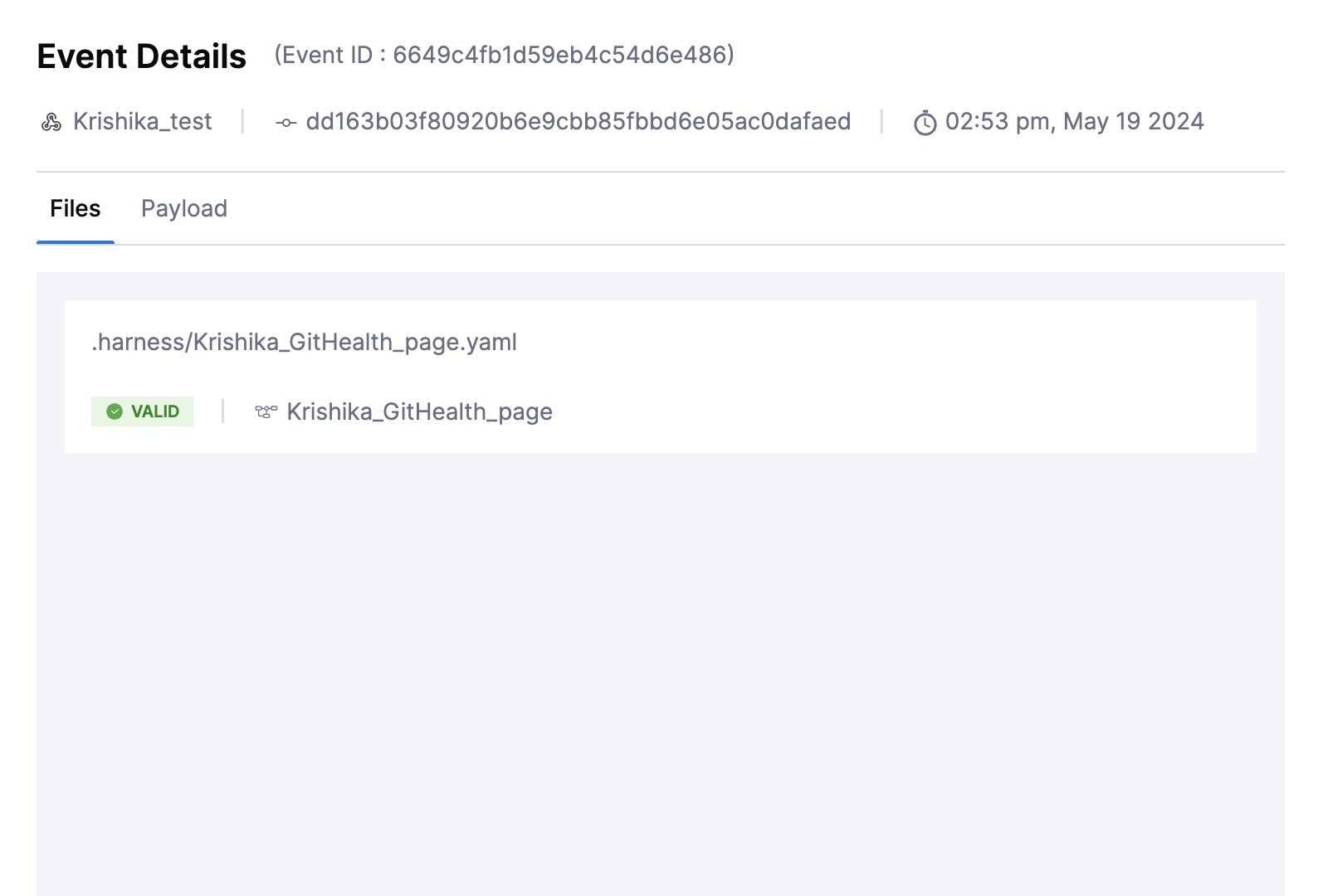
Select an event to open **Event Details**, where you see the file changes and the payload that was sent.
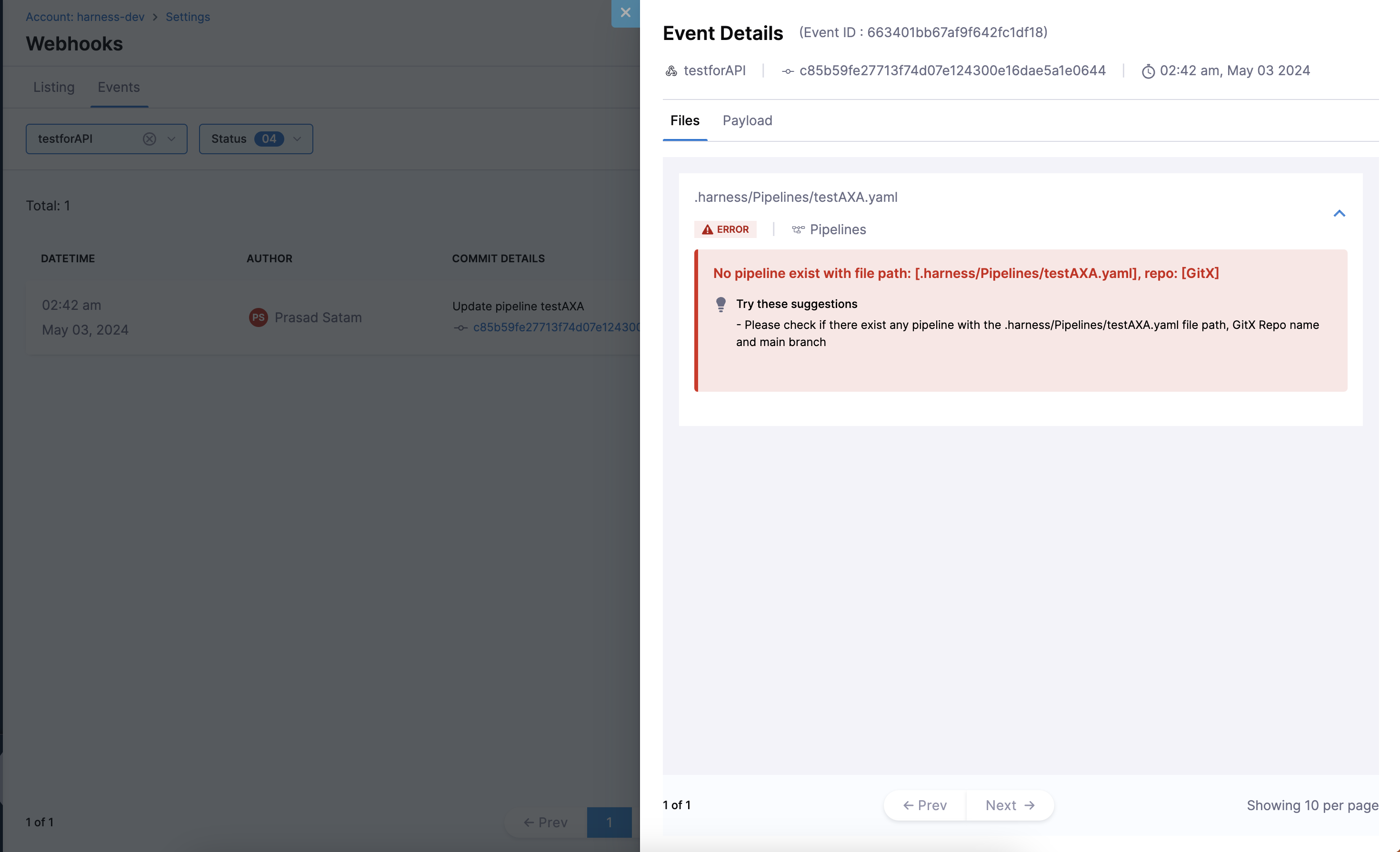
* Under the **Files** section, you see the file that was updated along with its commit details. Harness validates all file changes. If there are any errors or warnings, Harness marks the status as **Failed** or **Warning** and provides the details of the error.
The following example shows a warning that no pipeline exists with the file path `.harness/Pipelines/textAXA.yaml`:
* Under the **Payload** section, you can view the webhook payload that was sent.
***
### Webhook event retention
Harness retains webhook event history for the **last 15 days** only. Events older than 15 days are automatically purged and cannot be retrieved. Plan any auditing or debugging activities within this retention window.
***
### Next steps
* [Monitor repository sync health](/harness-platform/use-harness-platform/git-experience/monitor-git-experience/monitor-repository-sync-health.md): Monitor webhook coverage and synchronization status.
* [Monitor Git provider rate limits](/harness-platform/use-harness-platform/git-experience/monitor-git-experience/monitor-git-provider-rate-limits.md): Track Git provider API rate-limit consumption.
* [Set up bi-directional sync](/harness-platform/use-harness-platform/git-experience/gitexp-bidir-sync-setup.md): Configure webhooks so Harness stays in sync with changes made directly in Git.
{% @harness-feedback/feedback module="harness-ai" pagePath="harness-ai/use-harness-platform/git-experience/monitor-git-experience/monitor-events" %}