> For the complete documentation index, see [llms.txt](https://developer.harness.io/llms.txt). Markdown versions of documentation pages are available by appending `.md` to page URLs; this page is available as [Markdown](https://developer.harness.io/harness-platform/use-harness-platform/git-experience/monitor-git-experience/monitor-repository-sync-health.md).
# Monitor repository sync health
Use the Observability tab to view webhook coverage and synchronization status for your Git-backed repositories, and identify repositories with missing or misconfigured webhooks.
The **Bi-directional sync health** section of the **Observability** tab provides a centralized view of the synchronization status of your Git-backed repositories. Use this view to verify that repositories are configured for bi-directional sync, identify missing or misconfigured webhooks, and resolve synchronization issues before they affect your entities.
Bi-directional sync uses **Git Experience (GitX)** webhooks to synchronize changes made directly in Git with Harness. Repository sync health supports all Git providers supported by Git Experience, including GitHub, GitLab, and Bitbucket.
***
### What you will learn in this topic
This topic explains how to monitor repository synchronization health. It covers:
* How to [view repository sync status](#view-repository-sync-status).
* How to [interpret sync status values](#sync-status-values).
* How to [view repository and entity details](#view-repository-and-entity-details).
* How to [filter and refresh repository information](#view-repository-sync-status).
***
### View repository sync status
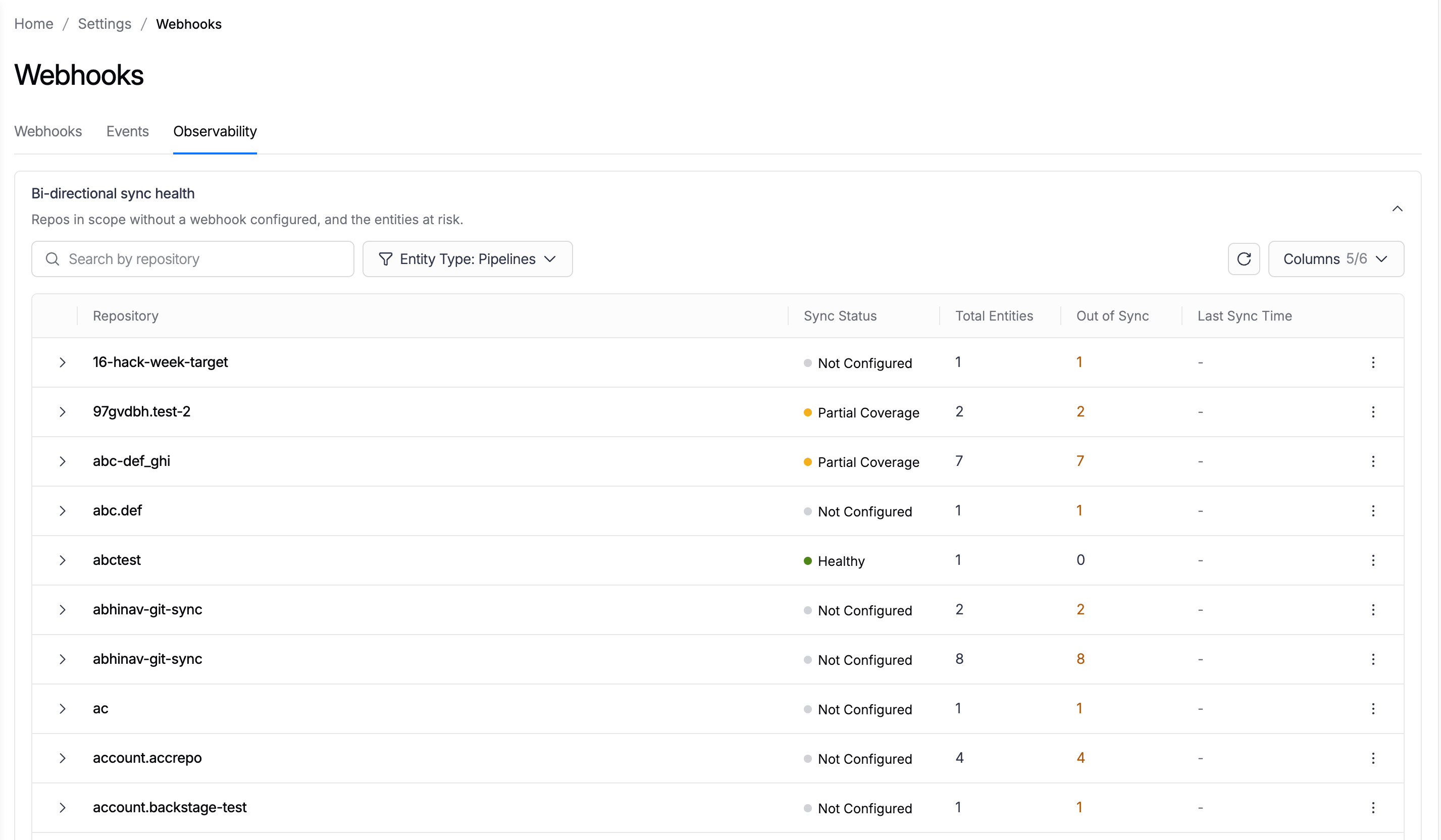
To access this view, go to the **Webhooks** page, select the **Observability** tab, and expand the **Bi-directional sync health** section.
The repository sync status view provides a centralized overview of the synchronization status of entities across your Git repositories. Use the available filters and table controls to quickly locate repositories, monitor sync status, and customize the information displayed.
* Use the **Repository** and **Entity Type** selectors to filter the view.
* The **Entity Type** selector supports Environments, Infrastructures, Input Sets, Pipelines, Services, Service Overrides, and Templates.
* **Refresh the page**: Select the refresh icon to re-fetch the latest data for all repositories.
* **Configure column display**: Use the **Columns** selector to show or hide columns in the table.
The repository list shows one row per repository with the following columns:
| Column | Description |
| ------------------ | ------------------------------------------------------------------------------------------------------------------------------------------------------------- |
| **Repository** | The Git repository that holds the remote entities. |
| **Entity Type** | The type of Git-backed entities in the repository. |
| **Sync Status** | The webhook coverage status for the repository. |
| **Total Entities** | The number of remote entities Harness found in the repository. |
| **Out of Sync** | The number of entities that are out of sync with the source repository. This field is not applicable when the repository health status is **Healthy**. |
| **Last Sync Time** | The time of the most recent sync for the repository, or `-` if it has not yet synced. This field is displayed only when the repository status is **Healthy**. |
***
### Sync status values
The **Sync Status** column reflects how completely the repository's entities are covered by webhooks:
* **Healthy**: All the repository's remote entities are covered by a webhook.
* **Partial Coverage**: The repository is only partially governed by a webhook. This status is shown when:
* The webhook is disabled.
* The webhook scope differs from the scope of the repository's entities (for example, the webhook is configured for Project A, while some entities are stored in Project B).
* The webhook monitors only a subset of the repository's tracked file paths. For example, if the webhook monitors `.harness/`, `.harness/file1`, and `.harness/file2`, but an entity references `file3` outside the `.harness` directory, that file is not governed by the webhook.
* **Not Configured**: No webhook is configured for the repository, so bi-directional sync cannot happen for its entities.
Each status appears with a colored indicator: green for **Healthy**, amber for **Partial Coverage**, and gray for **Not Configured**.
{% hint style="info" %}
The sync health view is available at the **account** scope.
This view is behind the feature flag `PIPE_GITX_WEBHOOK_HEALTH_PER_REPO`. Contact [Harness Support](mailto:support@harness.io) to enable the feature.
{% endhint %}
***
### View repository and entity details
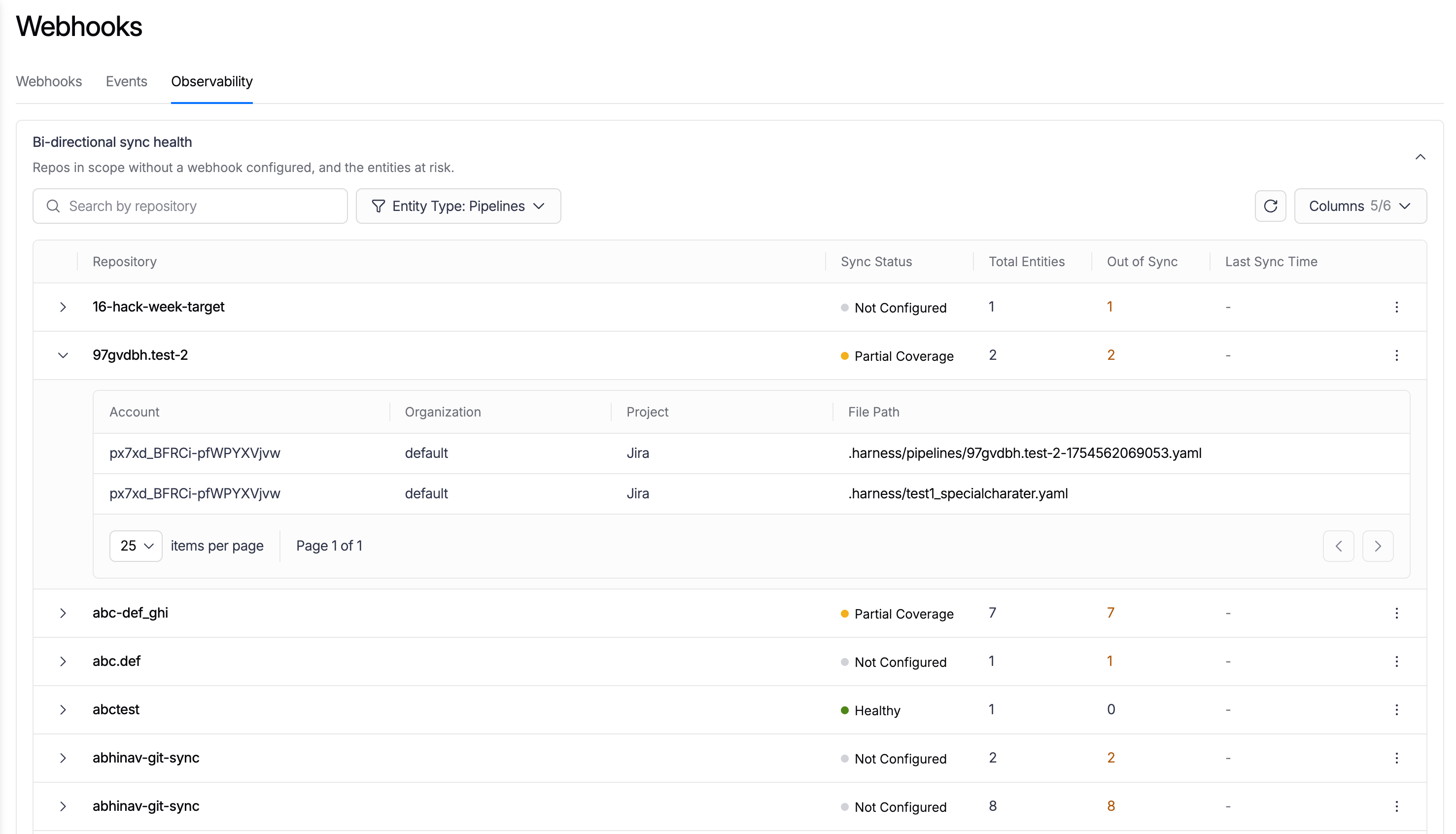
Repositories with **Partial Coverage** have a three-dot menu (**⋮**) with two actions. Because only partially covered repositories have entities that fall outside webhook coverage, these details are available for **Partial Coverage** repositories only.
* **View details**: Opens the repository's entity details. To see the entities in a repository, expand its row or select **View details**.
* **Refresh**: Available only in the expanded **View details** section to re-fetch the repository's latest sync status.
The entity details show the following columns:
| Column | Description |
| ---------------- | ----------------------------------------------------- |
| **Account** | The account the entity belongs to. |
| **Organization** | The organization the entity belongs to, if any. |
| **Project** | The project the entity belongs to, if any. |
| **File Path** | The path to the entity's YAML file in the repository. |
The entity details are paginated. Use the items-per-page selector and the page controls to move through the list.
***
### Next steps
* [Monitor Git provider rate limits](/harness-platform/use-harness-platform/git-experience/monitor-git-experience/monitor-git-provider-rate-limits.md): Track Git provider API rate-limit consumption.
* [Set up bi-directional sync](/harness-platform/use-harness-platform/git-experience/gitexp-bidir-sync-setup.md): Configure webhooks so Harness stays in sync with changes made directly in Git.
{% @harness-feedback/feedback module="harness-ai" pagePath="harness-ai/use-harness-platform/git-experience/monitor-git-experience/monitor-repository-sync-health" %}