> For the complete documentation index, see [llms.txt](https://developer.harness.io/llms.txt). Markdown versions of documentation pages are available by appending `.md` to page URLs; this page is available as [Markdown](https://developer.harness.io/harness-platform/use-harness-platform/notifications-alerts-and-banners/notifications/default-notification-template.md).

# Default Notification Template

Default notification templates apply automatically when a [notification rule](/harness-platform/use-harness-platform/notifications-alerts-and-banners/notifications/centralised-notification.md) does not specify a template of its own. Use them to keep notification content consistent and complete across every rule without selecting a template each time you create one.

You configure default templates at the **Account**, **Organization**, or **Project** scope, and separately for each event type and channel type, so you control notification content at the granularity you need.

{% hint style="info" %}
Currently, this feature is behind the feature flag `PL_DEFAULT_NOTIFICATION_TEMPLATE_SET_SUPPORT`. Contact [Harness Support](mailto:support@harness.io) to enable it.
{% endhint %}

***

### What you will learn in this topic <a href="#what-you-will-learn-in-this-topic" id="what-you-will-learn-in-this-topic"></a>

By the end of this topic, you will be able to:

* [Watch an interactive walkthrough](#watch-an-interactive-walkthrough) of the end-to-end setup.
* [Navigate to the default template sets page](#step-1-navigate-to-the-default-template-sets-page) at the scope you want to configure.
* [Create a default template set](#step-2-create-a-default-template-set) with a name, description, and tags.
* [Configure the resource and channel type](#step-3-configure-the-resource-and-channel-type) that the template set applies to.
* [Define event and template combinations](#step-4-define-event-and-template-combinations) for each pipeline event you want to cover.
* [Trace the template selection priority](#template-selection-priority) that Harness follows when it resolves a template at runtime.

***

### Before you begin <a href="#before-you-begin" id="before-you-begin"></a>

Before you configure a default notification template, ensure you have the following:

* **Feature flag enablement**: The `PL_DEFAULT_NOTIFICATION_TEMPLATE_SET_SUPPORT` feature flag enabled on your account.
* **Harness account access**: Permissions to view and edit notification settings at the target scope. For more information, see [RBAC in Harness](/harness-platform/3.0/harness-platform-resources/platform-access-control/rbac-in-harness.md).
* **Target scope access**: Access to the **Account**, **Organization**, or **Project** where the defaults apply.
* **Notification templates**: At least one [notification template](/harness-platform/use-harness-platform/templates/customized-notification-template.md) available at or above that scope.

***

### Watch an interactive walkthrough <a href="#watch-an-interactive-walkthrough" id="watch-an-interactive-walkthrough"></a>

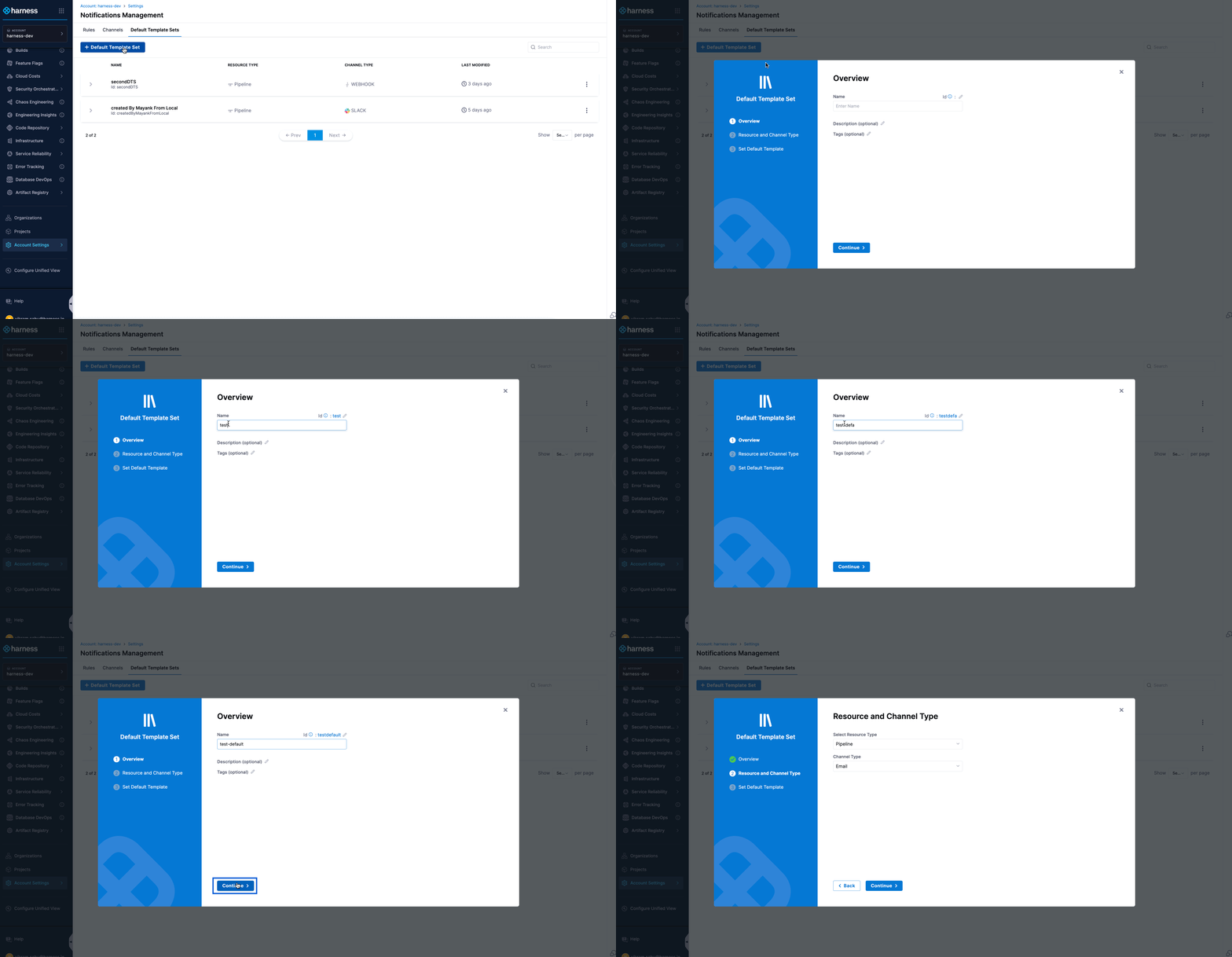
Step through the walkthrough to see the full flow before you configure your own set. The example sets up a default email notification template for pipeline events at the **Account** scope.

{% embed url="<https://demo.arcade.software/fQTJP2AsYuQIoGCCfxOf?embed&embed_mobile=tab&embed_desktop=inline&show_copy_link=true>" %}

***

### Step 1: Navigate to the default template sets page <a href="#step-1-navigate-to-the-default-template-sets-page" id="step-1-navigate-to-the-default-template-sets-page"></a>

Start at the scope where you want the defaults to apply, because a default template set is scoped to the **Account**, **Organization**, or **Project** you create it in.

1. Navigate to **Settings** at your desired scope (**Account**, **Organization**, or **Project**).
2. In the **Notifications and alerts** section, select **Default Template Sets**.

***

### Step 2: Create a default template set <a href="#step-2-create-a-default-template-set" id="step-2-create-a-default-template-set"></a>

Create a template set to group the event and template combinations that share a single resource type and channel type.

1. Click **+ Default Template Set**.
2. In **Overview**, enter a name for the template set, then add an optional description and tags.
3. Click **Continue**.

   <figure><img src="/files/h4DQt6TBRl5MptdHDptC" alt=""><figcaption><p>Click to view full size image</p></figcaption></figure>

***

### Step 3: Configure the resource and channel type <a href="#step-3-configure-the-resource-and-channel-type" id="step-3-configure-the-resource-and-channel-type"></a>

The resource type and channel type together determine which notifications the set applies to, so set them before you map events to templates.

1. **Resource Type**: Automatically set to **Pipeline**, currently the only supported resource.

   <figure><img src="/files/xqo5CZ1s9BKENFCt15CA" alt=""><figcaption><p>Click to view full size image</p></figcaption></figure>
2. **Channel Type**: Select one from the dropdown, then click **Continue**.

   <figure><img src="/files/2hn1g3Nl0LPN588GUOpI" alt=""><figcaption><p>Click to view full size image</p></figcaption></figure>

***

### Step 4: Define event and template combinations <a href="#step-4-define-event-and-template-combinations" id="step-4-define-event-and-template-combinations"></a>

Map each pipeline event to the template you want Harness to use when a rule for that event does not name a template.

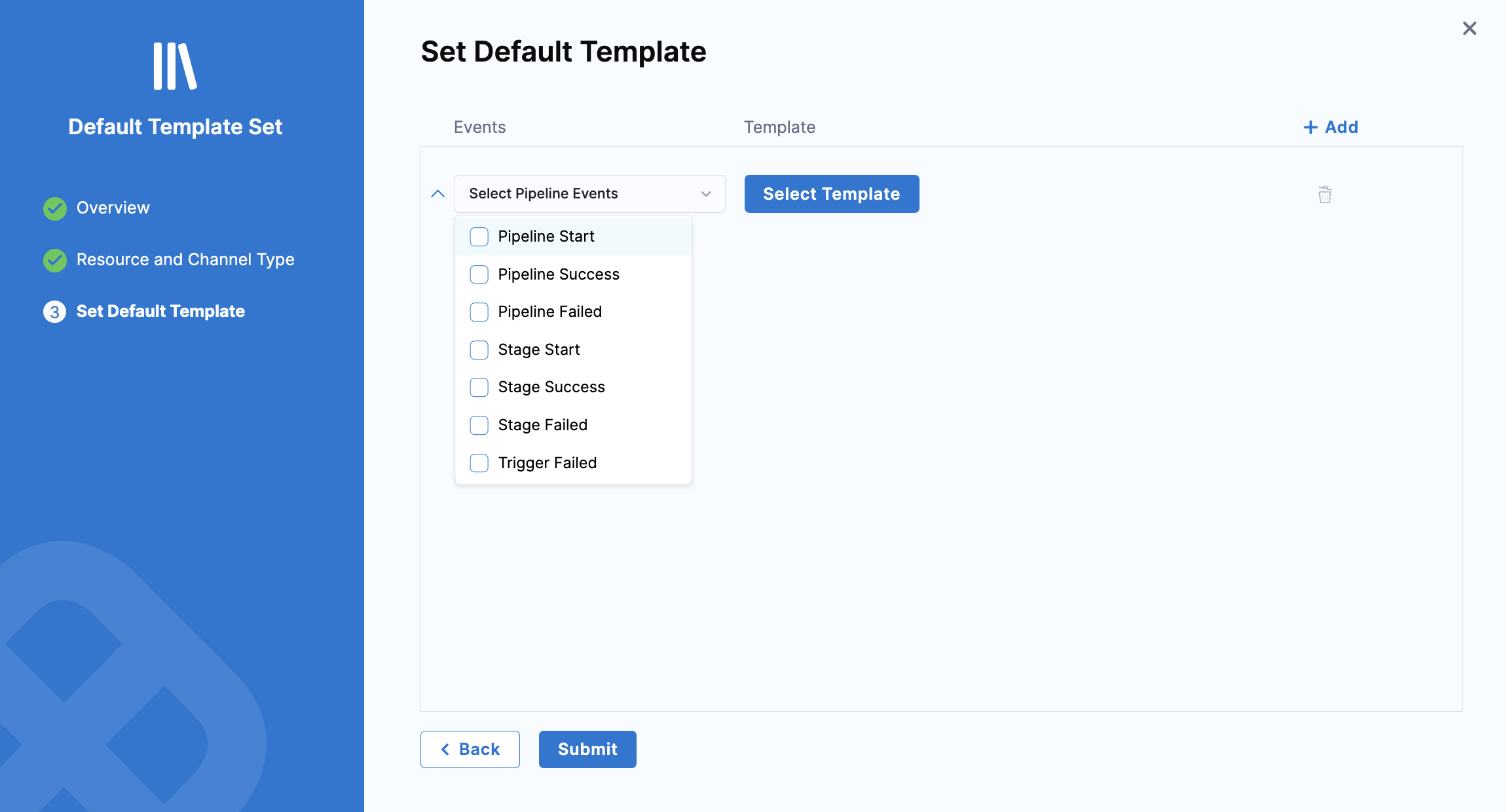
1. Select one or more pipeline events from the **Select Pipeline Events** dropdown.

   <figure><img src="/files/ohHgXYkyhoq6IpamRKbE" alt=""><figcaption><p>Click to view full size image</p></figcaption></figure>
2. Click **Select Template**, then select the template to serve as the default for the selected event type. If the template includes runtime input variables, provide the required values. Repeat this process for additional event and template combinations as needed.
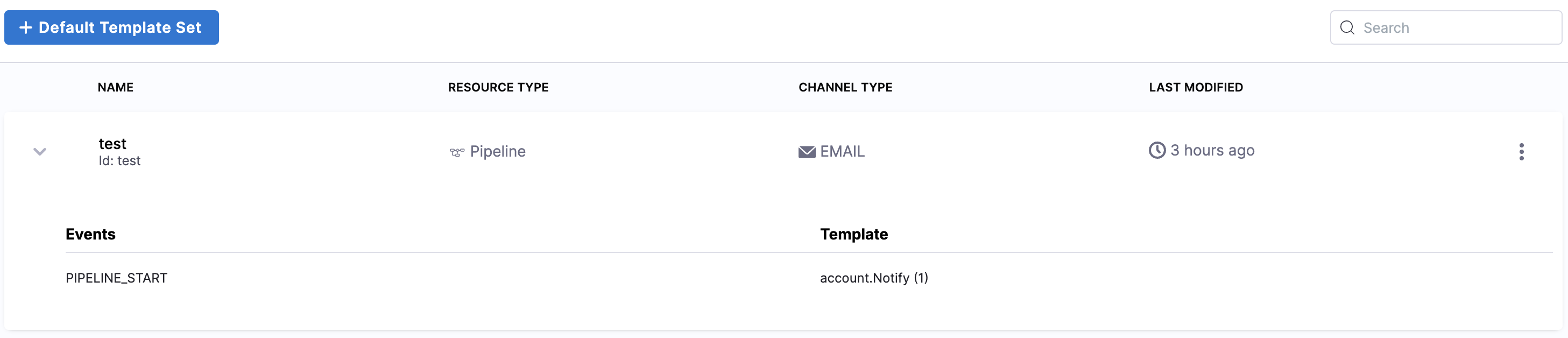
3. Click **Submit**.\
   The template set appears on the **Default Template Sets** page with a summary of the configured events and templates.

   <figure><img src="/files/JuIr926qpN15YEvtv3FN" alt=""><figcaption><p>Click to view full size image</p></figcaption></figure>

***

### Template selection priority <a href="#template-selection-priority" id="template-selection-priority"></a>

More than one template can match the same event and channel type combination. Use the priority order below to predict which template a notification uses, or to explain one that arrives with unexpected content.

Harness resolves each event and channel type combination in this order:

1. **Template selected in notification rule**: If you specify a template when you create or edit a notification rule, Harness uses that template.
2. **Default template by scope**: If the rule specifies no template, Harness searches for default templates starting at the current scope and moving up the hierarchy: **Project**, then **Organization**, then **Account**.
3. **Built-in template**: If no custom or default templates are available, Harness uses the built-in static template.

This hierarchy sends notifications with appropriate content even when no specific template is configured.

#### Examples of template selection priority <a href="#examples-of-template-selection-priority" id="examples-of-template-selection-priority"></a>

The following examples show how the priority order resolves in different scenarios, from basic to more advanced use cases.

<details>

<summary>Case 1: Default notification template available at the Project scope</summary>

Consider the following setup across different scopes:

* **Project P**: Default template "Template A" configured for Pipeline Success and Email.
* **Organization**: Default template "Template B" configured for Pipeline Success and Email.
* **Account**: Default template "Template C" configured for Pipeline Success and Email.

You create a notification rule at Project P for:

* **Event Type**: Pipeline Success
* **Channel**: Email
* **Template**: None selected in the notification rule

Harness selects the template in the following order:

1. **Rule-level template**: No template is specified in the notification rule, so Harness proceeds to check for default templates.
2. **Project scope**: Harness finds "Template A" configured for Pipeline Success and Email at Project P and uses it. The search stops here.

**Result**: The notification uses "Template A" because Harness found it at the **Project** scope, which has the highest priority after rule-level templates. Templates at higher scopes ("Template B" and "Template C") are not considered, because a match exists at the current scope.

</details>

<details>

<summary>Case 2: Default notification template available only at the Account scope</summary>

Consider the following setup across different scopes:

* **Project P**: No default template configured for Pipeline Success and Email.
* **Organization**: No default template configured for Pipeline Success and Email.
* **Account**: Default template "Template C" configured for Pipeline Success and Email.

You create a notification rule at Project P for:

* **Event Type**: Pipeline Success
* **Channel**: Email
* **Template**: None selected in the notification rule

Harness selects the template in the following order:

1. **Rule-level template**: No template is specified in the notification rule, so Harness proceeds to check for default templates.
2. **Project scope**: No default template exists for Pipeline Success and Email, so the search continues to the next scope level.
3. **Organization scope**: No default template exists for Pipeline Success and Email, so the search continues to the next scope level.
4. **Account scope**: Harness finds the default template "Template C" for Pipeline Success and Email. The search stops here.

**Result**: The notification uses "Template C" because it is the only matching default template available, at the **Account** scope. If no template were available at any scope, Harness would fall back to the built-in static template.

</details>

<details>

<summary>Case 3: Template explicitly selected in the notification rule</summary>

Consider the following setup across different scopes:

* **Project P**: Default template "Template A" configured for Pipeline Success and Email.
* **Organization**: Default template "Template B" configured for Pipeline Success and Email.
* **Account**: Default template "Template C" configured for Pipeline Success and Email.

You create a notification rule at Project P for:

* **Event Type**: Pipeline Success
* **Channel**: Email
* **Template**: "Custom Template X" explicitly selected in the notification rule

Harness selects the template in the following order:

1. **Rule-level template**: "Custom Template X" is specified in the notification rule, so it takes priority over all default templates.

**Result**: The notification uses "Custom Template X" because you selected it explicitly in the notification rule, regardless of any default templates configured at any scope.

</details>

***

### Related articles <a href="#related-articles" id="related-articles"></a>

* [Custom notification templates for pipeline notifications](/harness-platform/use-harness-platform/templates/customized-notification-template.md): Create the templates that a default template set references.
* [Centralised notification](/harness-platform/use-harness-platform/notifications-alerts-and-banners/notifications/centralised-notification.md): Configure the notification rules that consume default templates.
* [Notifications](/harness-platform/use-harness-platform/notifications-alerts-and-banners/notifications/notifications-overview.md): Enable and manage notification channels at the account level.
* [Configure notifications](/harness-platform/use-harness-platform/notifications-alerts-and-banners/notifications/configure-notifications.md): Set up pipeline notifications for Slack, Microsoft Teams, email, and webhooks.